
Introduction
Your Android phone flips the screen as soon as you tilt it. Sometimes that helps, especially when you watch videos or play games. It can also be annoying when you are reading in bed, scrolling social media, or replying to messages and the screen keeps rotating for no good reason.
You can control this behavior in a few quick steps. Android gives you more than one way to manage screen rotation, from simple toggles to smarter suggestions. You can turn auto-rotate off completely, set it to work only when you choose, or tune it for specific tasks.
This guide explains how to turn off auto-rotate on Android using the Quick Settings panel, Display settings, and brand-specific menus. You will also learn how to use the rotation suggestion button, how to lock orientation for certain apps, and what to do when auto-rotate acts up. By the end, you will know exactly how to keep your screen in the orientation you want.
What Auto-Rotate Is and Why You Might Want to Turn It Off
Auto-rotate is a system feature that uses your phone’s motion sensors to change the screen orientation. When you tilt your phone, the accelerometer and gyroscope detect the movement. Android reads this data and rotates the display from portrait (vertical) to landscape (horizontal), or back again.
This automatic behavior is useful in many situations:
- Watching videos and movies in full-screen landscape view.
- Playing games that are designed for a wide layout.
- Viewing photos, presentations, and web pages that look better horizontally.
However, auto-rotate is not always your friend. There are several reasons you might want to turn it off:
- Reading while lying down — If you scroll on your phone in bed or on the couch, small tilts can cause the screen to flip between portrait and landscape, breaking your focus.
- Using your phone on the move — When you walk, ride in a car, or commute on public transport, constant movement can trigger unwanted rotation.
- Taking quick photos or videos — You may want the camera interface to stay fixed while you adjust your grip or angle.
- Reducing motion discomfort — Frequent, sudden screen rotations can cause discomfort or distraction for some people.
For most users, the best approach is to control auto-rotate instead of letting it run all the time. The easiest control lives in the Quick Settings panel, which is the central method we will look at next.
How to Turn Off Auto-Rotate from Quick Settings (Central Method)
The Quick Settings panel gives you the fastest way to turn off auto-rotate on almost any modern Android phone. This method works on most devices running Android 12, Android 13, or Android 14, including Samsung, Google Pixel, OnePlus, OPPO, and Xiaomi phones.
Open the Notification Shade and Quick Settings Panel
Start by opening the Quick Settings area where the auto-rotate control lives:
- Unlock your Android phone.
- Swipe down from the top of the screen with one finger to open the notification shade.
- Swipe down again, or swipe down once with two fingers, to expand the full Quick Settings panel.
You should now see a grid of tiles for Wi‑Fi, mobile data, Bluetooth, flashlight, and other common features. One of these tiles controls screen rotation.
Find and Understand the Auto-Rotate / Portrait Icon
Look for a tile labeled Auto-rotate, Portrait, or Rotation. The exact icon and name can change depending on your phone’s brand and Android skin.
In general:
- When auto-rotate is on, the tile usually shows ‘Auto-rotate’ and appears highlighted or colored.
- When auto-rotate is off, the tile may switch to ‘Portrait’ or show a locked phone symbol, and the highlight disappears.
If you do not see a rotation tile right away:
- Swipe left or right on the Quick Settings panel to check additional pages of tiles.
- Tap the pencil or ‘Edit’ icon (if available) to customize the panel and drag the auto-rotate tile into the first row for easier access.
Understanding how this tile behaves makes it simple to turn auto-rotate off with a single tap.
Toggle Auto-Rotate Off and Confirm the Screen Is Locked
To stop your screen from rotating automatically:
- Tap the Auto-rotate tile once.
- It should change to Portrait or show that auto-rotate is disabled.
Now test it:
- Hold your phone on the home screen or in a basic app like Messages.
- Turn the device sideways.
- If the screen stays vertical, auto-rotate is off and your phone is locked in portrait.
For many people, this quick toggle is all they need. But if you want a more permanent option or you do not see the tile at all, you can manage auto-rotate through the main system settings, which we will cover next.
How to Turn Off Auto-Rotate in Android Display Settings
The Display settings offer a system-level switch that is easy to set once and forget. Using this method ensures that auto-rotate stays off unless you actively turn it back on. It also helps if your Quick Settings panel does not show the rotation tile.
Open the Settings App and Go to Display
Follow these steps to reach the auto-rotate option from the Settings app:
- Open the Settings app on your Android phone.
- Scroll down and tap Display.
- Look for an entry named Auto-rotate screen, Screen rotation, or something similar.
The exact wording may differ between brands, but it will usually appear near other display controls like brightness, dark theme, and font size.
Disable ‘Auto-Rotate Screen’ System-Wide
Once you find the auto-rotate setting:
- Tap the switch next to Auto-rotate screen to turn it off.
- When it is off, your phone will no longer rotate the display automatically.
On most phones, turning this off locks the device in portrait orientation. Most apps obey this system setting, including browsers, messaging apps, social media, and many games. Some media and specialized apps may still have their own rotation rules, but this option sets the default behavior.
If you change auto-rotate here, you should see the same status reflected in the Quick Settings tile. Both controls affect the same underlying feature, so you can use whichever is more convenient.
Differences on Phones vs Android Tablets
On Android tablets, you might see extra rotation choices, because tablets are often used in landscape for longer periods:
- Tablets may support locking to landscape as well as portrait.
- The setting might include options like ‘Rotate to landscape mode’ or ‘Allow home screen rotation’.
Common tablet choices include:
- Portrait lock for reading, note‑taking, and handheld use.
- Landscape lock for watching movies, using a keyboard case, or working in split-screen modes.
Phones usually lock to portrait when you disable auto-rotate, while tablets sometimes let you pick which orientation to lock. With the basics in place, it helps to know how these controls look on specific brands, which we will go over next.
Brand-Specific Steps for Popular Android Phones
Android manufacturers customize menus and labels, so the steps to turn off auto-rotate can look slightly different on each brand. The idea stays the same, but knowing the exact paths for Samsung, Google Pixel, and other popular phones saves time.
Turn Off Auto-Rotate on Samsung Galaxy (One UI)
On Samsung Galaxy devices running One UI, you usually have two easy ways to manage auto-rotate.
Through Quick Settings:
- Swipe down from the top of the screen twice to open the full Quick Settings panel.
- Find the Auto rotate tile.
- Tap it to switch between Auto rotate and Portrait.
When the tile shows Auto rotate, your phone rotates the screen automatically. When it shows Portrait, the phone stays in vertical mode.
Through the Settings app:
- Open Settings.
- Tap Display.
- Look for Screen rotation or Auto rotate and turn it off.
Some Samsung models also offer a Smart rotation or face-based rotation option that uses the front camera. If the screen behaves oddly, check for this option in the Display menu and turn it off if needed.
Turn Off Auto-Rotate on Google Pixel (Stock Android / Pixel UI)
On Google Pixel phones, the controls are very close to standard Android.
Using Quick Settings:
- Swipe down from the top twice to open the full Quick Settings panel.
- Locate the Auto-rotate tile.
- Tap it to disable auto-rotate and lock the screen in portrait.
Using Settings:
- Open Settings.
- Tap Display.
- Turn off Auto-rotate screen.
Many Pixel phones also include a feature named ‘Rotate for you’ or a similar rotation suggestion setting. This gives you more flexible control over when the screen rotates, which we will explore in its own section shortly.
Turn Off Auto-Rotate on OnePlus, OPPO, and Xiaomi Devices
Devices from OnePlus, OPPO, and Xiaomi run custom Android skins like OxygenOS, ColorOS, and MIUI or HyperOS. The look is different, but the steps stay familiar.
Through Quick Settings:
- Swipe down from the top to open Quick Settings.
- Find the tile labeled Auto-rotate, Rotation, or similar.
- Tap it to turn auto-rotate off (the tile often changes to Portrait or becomes grayed out).
Through Settings:
- Open Settings.
- Tap Display or Display & brightness.
- Locate Auto-rotate screen or a similar option and switch it off.
If you are not sure where the option is, use the search bar at the top of the Settings app and type ‘rotate’ or ‘auto-rotate’. The system will show you the relevant menu. Once you know the brand-specific path, you can move on to smarter rotation controls, such as the rotation suggestion button.
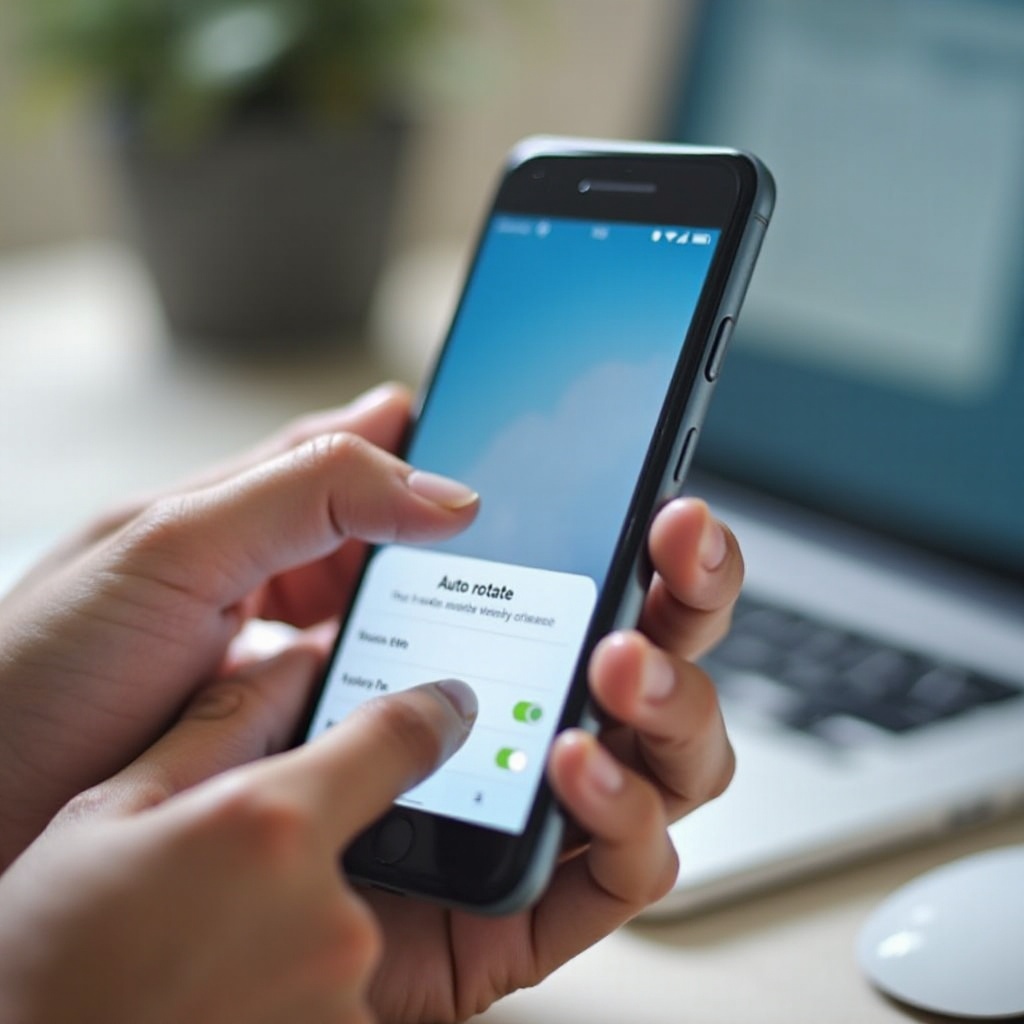
Use the Rotation Suggestion Button Instead of Full Auto-Rotate
Always-on auto-rotate can be too aggressive, but a fully locked screen can be inconvenient. Rotation suggestions provide a middle ground. They let you keep auto-rotate off while still allowing quick manual rotation when you choose.
What the Rotation Suggestion Button Is and How It Works
When rotation suggestions are enabled and auto-rotate is off, Android watches for how you hold the phone but does not rotate automatically. Instead:
- You keep your phone locked in portrait by default.
- When you turn the phone sideways, a small rotate icon appears near the bottom edge of the screen.
- If you tap that icon, Android rotates the screen for that moment.
- If you ignore it, the screen stays in portrait.
This behavior gives you manual control without forcing you to open Quick Settings or dive into Settings every time you want to rotate the screen.
How to Enable or Disable Rotation Suggestions
On many recent Android phones, especially Google Pixel and other near-stock devices, you can manage this feature from the Display settings.
Try these steps:
- Open Settings.
- Go to Display.
- Tap Auto-rotate screen or a related option.
- Look for Rotation suggestions or Show rotate button.
- Turn this setting on or off depending on your preference.
With rotation suggestions turned on, you can keep auto-rotate off in Quick Settings. Rotate your phone while using an app, and you should see the suggestion icon appear when a rotation is available.
When to Use Suggestions Instead of Auto-Rotate
Rotation suggestions work best when you mostly prefer portrait orientation but still want quick access to landscape when it makes sense. For example:
- You read and scroll in portrait most of the day.
- You occasionally watch a video or view a photo in landscape.
- You do not want the screen flipping every time you move slightly.
This feature gives you a cleaner experience than full auto-rotate, without the hassle of repeatedly toggling the setting on and off. Once you enable rotation suggestions, you can refine your orientation habits for different kinds of apps.
Locking Your Screen in Portrait or Landscape for Apps
Not all apps work best in the same orientation. Some are easier to use in portrait, while others benefit from a wide landscape layout. Adjusting your rotation settings for videos, reading, and gaming can make your phone feel more comfortable and predictable.
Best Orientation Settings for Video and Streaming Apps
Video and streaming apps like YouTube, Netflix, and similar services usually look better in landscape. To make the most of them without fighting with the screen:
- Turn your phone sideways when you start a video.
- If auto-rotate is off but rotation suggestions are enabled, tap the rotate icon that appears.
- Use the in-app full-screen button, which often forces landscape even when the system is locked.
To avoid unwanted flips when you exit the video:
- Leave auto-rotate off at the system level.
- Rely on the app’s full-screen or the rotation suggestion icon only when you want landscape.
This approach keeps your home screen and most apps stable in portrait while still giving you a great video experience.
Keeping the Screen Fixed for Reading and Browsing
Reading long articles, eBooks, or documents is usually more comfortable in portrait mode. To stop the screen from rotating while you read:
- Turn off auto-rotate using the Quick Settings tile or the Display settings menu.
- Hold your phone in a natural vertical position.
If you occasionally want a wider view for a specific page or document:
- Rotate the phone to landscape.
- Use the rotation suggestion button to flip the screen just for that moment.
This keeps your reading experience stable, especially if you lie down or shift positions while holding the phone.
Orientation Tips for Gaming and Productivity Apps
Many games and productivity tools work best in landscape mode. This includes:
- Racing and action games.
- Video editors and creative tools.
- Some office, note‑taking, and drawing apps.
To keep these apps from flipping in the middle of use:
- Turn on auto-rotate before you start a long gaming or work session, then turn it off again afterward.
- Or keep auto-rotate off and let the game or app handle orientation if it has its own setting.
Some apps have an internal orientation lock in their settings menu. Check your most-used games and productivity apps to see whether they can force landscape or portrait on their own. Even with good habits, you may still run into rotation problems, so next we will look at how to troubleshoot auto-rotate when it refuses to behave.
Troubleshooting Auto-Rotate When It Won’t Turn Off
Sometimes auto-rotate seems to ignore your settings. The screen might rotate despite being turned off, or it might not rotate even when you expect it to. These issues can stem from software glitches, conflicting apps, or even hardware problems with your phone’s sensors.
Basic Fixes: Restart, Safe Mode, and Sensor Check
Start with simple checks before you dive into more complex solutions.
- Restart your phone
Hold down the power button and choose Restart. A reboot clears temporary bugs that can interfere with sensors and system settings. - Try Safe Mode (if supported)
Many Android phones let you boot into Safe Mode, which disables third‑party apps. If auto-rotate works correctly in Safe Mode, a downloaded app may be causing the problem. - Test motion sensors
Some devices include hardware diagnostics. Look for options like ‘Device diagnostics’, ‘Hardware test’, or ‘Sensor test’ in Settings or the phone app’s hidden codes. Use these tools to confirm that the accelerometer and gyroscope respond as expected.
If auto-rotate still misbehaves after these steps, you should check app-level behavior and system options.
Check App Permissions, Updates, and System Settings
If the issue only appears in specific apps, it may not be a system problem at all.
Try the following:
- Update the app from the Google Play Store to get the latest bug fixes.
- Clear cache for the affected app in Settings > Apps if it often behaves strangely.
- Open the app’s own settings to see if it offers an orientation lock that overrides the system.
Also review your system rotation settings:
- Go to Settings > Display and confirm that Auto-rotate screen is set how you want.
- Check whether Rotation suggestions or any other rotation-related options are enabled.
- Review recent changes in Accessibility or Developer options that might be locking orientation.
Adjusting these settings often restores normal behavior without much effort.
When Auto-Rotate Problems Might Be a Hardware Issue
If none of the software steps help, the problem may lie with your phone’s hardware sensors.
Possible signs of a hardware issue include:
- The screen rotates randomly even when you hold the phone still.
- The screen never rotates, even when auto-rotate is on and you tilt the phone clearly.
- Sensor diagnostics show errors or no response for the accelerometer or gyroscope.
If you suspect hardware damage:
- Back up your important data first.
- Contact the manufacturer’s support or your carrier for guidance.
- Visit an authorized service center to have the device inspected and repaired if necessary.
Before scheduling a repair, you might try more advanced software tools to control rotation more precisely, which we will cover next.
Advanced Rotation Control: Accessibility and Third-Party Apps
If you want fine-grained control over orientation, you can look beyond basic system toggles. Android’s accessibility features and trusted third-party apps make it possible to customize rotation to match your comfort and workflow.
Accessibility Options That Affect Screen Orientation
Accessibility settings are designed to make devices easier and more comfortable to use. Some of these options can influence how rotation feels or behaves.
You may find helpful features under Settings > Accessibility such as:
- Display and text options that adjust how content appears when the screen rotates.
- Motion reduction or animation controls that make transitions less jarring.
- Features that keep the display more stable for users sensitive to motion.
If auto-rotate or transitions feel strange after changing accessibility options, review your recent changes and adjust anything related to motion or display behavior.
Using Third-Party Rotation Control Apps Safely
Third-party rotation control apps from the Google Play Store can extend what the default system allows. These apps can:
- Force specific apps into portrait or landscape.
- Lock the entire system in a chosen orientation.
- Create custom rules for different scenarios.
When you use these tools, follow some basic safety tips:
- Choose apps with many downloads, strong ratings, and clear, honest descriptions.
- Read the permission requests carefully and grant only what is necessary, such as overlay or accessibility access.
- Test the app with a few key apps before relying on it for everything.
If a rotation control app causes conflicts or erratic behavior, disable it or uninstall it, then confirm that your phone returns to normal.
Extra Tips for Power Users and Multitaskers
If you use your Android device heavily for work, study, or creative tasks, a few habits can make rotation easier to manage:
- Pin the Auto-rotate tile in the first row of Quick Settings for quick access.
- Combine a mostly-off auto-rotate setting with rotation suggestions to keep control with minimal effort.
- Explore orientation options inside your most-used productivity apps to lock them as needed.
With these practices, you can keep your screen steady when you want and flexible when your tasks require a different orientation.
Conclusion
You do not have to accept a screen that flips every time you move your phone. Once you know where the auto-rotate controls live and how they interact, you can set up your Android device to match your habits instead of fighting them.
You have learned how to:
- Turn off auto-rotate quickly with the Quick Settings tile.
- Disable auto-rotate at the system level through Display settings.
- Handle brand-specific menus on Samsung, Google Pixel, and other popular phones.
- Use rotation suggestions as a smarter alternative to always-on auto-rotate.
- Lock orientation for videos, reading, gaming, and productivity apps.
- Troubleshoot rotation issues and recognize when a hardware problem might be involved.
- Take advantage of accessibility tools and third-party apps for advanced rotation control.
Set your preferred rotation method once, keep the auto-rotate tile within easy reach, and use rotation suggestions when you need a quick change. With these options, your Android screen will stay exactly how you like it, whether you are relaxing, working, or on the move.
Frequently Asked Questions
Why does my Android screen still rotate even after I turn off auto-rotate?
This often happens for three main reasons. First, some apps such as video players and games can override system rotation and force their own orientation. Second, the rotation suggestion button might be enabled, and you may tap it without noticing, which temporarily rotates the screen. Third, a software glitch or sensor issue may be involved. Restart your phone, confirm that auto-rotate is off in Settings > Display, and test different apps. If the screen still rotates everywhere, run sensor diagnostics or contact support, as the accelerometer might be faulty.
Can I turn off auto-rotate for some apps but keep it on for others?
Android does not always offer full per-app rotation control by default, but you still have options. Some apps include their own orientation lock in the settings, which lets them ignore the system auto-rotate state. You can also keep auto-rotate off globally and rely on the rotation suggestion button to rotate only when you choose. If you need more specific control, install a trusted third-party rotation control app that supports per-app rules. Just review permissions carefully and test it with a few apps before using it widely.
How do I lock my Android screen in landscape mode only?
Most phones lock to portrait when you turn off auto-rotate, but you can still achieve a landscape lock in several ways. On some tablets and a few phones, you will find a ‘Landscape’ or ‘Rotate to landscape’ option in Settings > Display or in Quick Settings, which lets you lock in horizontal mode. If your phone lacks that option, open an app that runs in landscape by design, such as a game or video player, and let it keep the device horizontal. You can also use a reputable rotation control app to force landscape at the system or app level, though you should use this carefully because it can distort layouts in apps that are not designed for landscape.