
Introduction
Need to remember details from a business call, keep proof of a support conversation, or save an important personal chat? Learning how to record phone calls on a Samsung phone helps you capture accurate information instead of relying on memory. Many Samsung devices still offer built-in call recording, and when they do not, good apps can often fill the gap.
Things are not as simple as they used to be, though. Android updates, Google policy changes, and carrier restrictions all affect whether call recording works on your Samsung phone. Some users never see a record button. Others install a call recorder and get silent audio. On top of that, call recording laws in the United States vary from state to state and can be confusing.
This guide explains how to record phone calls Samsung devices support in 2024. You will learn how to use Samsung’s Phone app for manual and automatic recording, when to rely on third-party apps, how to fix common issues, and how to stay legal and protect your privacy. By the end, you will know which options fit your device and your needs.
Can You Record Phone Calls on Samsung Phones in 2024?
Before you try to record phone calls on a Samsung phone, you need to confirm whether your model and software actually support it. Samsung sells phones in many regions, and each region has different rules about call recording. That means two identical Galaxy models can behave differently depending on where and how they were sold.
In 2024, many Samsung Galaxy devices can still record calls through the native Phone app, but support depends on:
- The exact device family, such as Galaxy S, Note, or A series
- Your One UI and Android version
- Carrier customizations and regional restrictions
If you open Samsung’s Phone app and do not see any record option, it might be hidden or disabled rather than completely absent. Understanding whether your phone supports native recording will help you decide if you should keep digging in settings, install a third-party app, or use an alternative method.
Supported Samsung Models and One UI Versions
Most recent mid-range and flagship Samsung phones have system-level support for call recording. This often includes:
- Galaxy S series, such as S22, S23, and S24 lines
- Galaxy Note series phones like the Note20
- Many Galaxy A series models with newer One UI builds
The key factor is the combination of phone model and One UI version. Samsung’s own Phone app is the usual place to find call recording. Unlocked phones bought directly from Samsung often have fewer restrictions, while carrier-branded versions may be more limited.
If your phone runs a current One UI release and you use Samsung’s Phone app as the default dialer, you may see a ‘Record’ button during a call or a ‘Record calls’ menu in settings. If you switched your default dialer to another app, you may not see Samsung’s recording options until you set the Samsung Phone app back as default.
Why Some Samsung Phones Hide Call Recording
Many Samsung users wonder why their phone does not show any record call option at all. There are several common reasons:
- Regional restrictions
Some regions limit or discourage call recording. To match local rules, Samsung may disable or hide the feature on devices sold there. - Carrier customization
In the United States, some carriers ship Samsung phones with firmware that removes or blocks call recording. They do this to follow internal policies or to reduce legal risk. - Legal and privacy concerns
Call recording can raise serious privacy issues. To avoid misuse, manufacturers sometimes hide recording features in certain markets instead of offering them by default. - Android and Google policy changes
Recent Android versions restrict how apps access call audio. Samsung’s own Phone app can still record on many models, but some options may change after major updates.
If your Samsung phone hides call recording, you may still record calls using apps that rely on the microphone and speakerphone. However, you should always consider the legal and ethical side before trying alternative methods.
Checking If Your Samsung Device Supports Call Recording
To find out whether your Samsung device supports native call recording, follow these steps:
- Open the Phone app (Samsung’s default dialer).
- Tap the three-dot menu in the upper-right corner.
- Select Settings.
- Look for ‘Record calls’ or ‘Call recording’ and tap it if it appears.
If you see a dedicated ‘Record calls’ section, your device likely supports built-in recording. You can also start a test call and check whether a ‘Record’ button shows up on the call screen.
If there is no mention of recording in settings and no button during calls, your model, region, or carrier probably does not allow native call recording. You can then decide whether to use a third-party call recorder app or an alternative recording method. Before you make that choice, it is important to understand the legal and privacy rules that apply in the United States.
Legal and Privacy Considerations in the United States
Before you record phone calls on a Samsung device, you must know what the law says. In the United States, call recording is regulated at both federal and state levels. Federal law generally requires consent from at least one party to the call, but several states require everyone on the call to agree.
This means the same recording action can be legal in one state and illegal in another. When you call across state lines, things become even more complex. Because of this, you cannot treat call recording as just another phone feature. You need to understand the rules, ask for consent when necessary, and protect the recordings once you create them.
Once you have a clear view of the legal landscape, you can enable and use Samsung’s call recording options more responsibly.
One-Party vs Two-Party Consent States
U.S. states generally follow one of two main approaches to call recording laws:
- One-party consent
In one-party consent states, only one person on the call has to agree to the recording. If you are part of the call, your consent often is enough. You do not always need to inform the other person, although it is still wise to be transparent. - Two-party or all-party consent
In two-party consent states, all participants must agree before you record the call. If you record without telling them, you may be violating state law even if federal law would allow one-party consent.
Because calls can involve people in different states, deciding which law applies can be tricky. To reduce risk:
- Research the rules for your own state and the other party’s state.
- Whenever you are unsure, ask for permission and state that you are recording.
- Consult a legal professional for complex or sensitive situations.
How to Get Clear Consent Before Recording
To stay safe and respectful, make it a habit to get explicit consent when you record calls. You can do this in simple, clear language:
- At the start of the call, say something like: ‘I would like to record this call so I do not miss any details. Are you okay with that?’
- Wait for a clear ‘yes’ or written confirmation in a message or email.
- If the person refuses, do not record the call.
If you record calls regularly for business, you can create a short script for consistency, for example:
Just to let you know, I am recording this call to keep an accurate record of what we discuss. Please tell me if you are not comfortable with that.
Some recording apps can play an automatic announcement that the call is being recorded. This might help with transparency, but you should not rely on it alone as proof of consent. Always aim for clear agreement from all parties when the law requires it.
Safely Storing and Sharing Recorded Calls
Call recordings can contain sensitive personal and business information, including addresses, account numbers, or medical details. To protect yourself and other people, follow basic security best practices:
- Lock your Samsung phone with a strong PIN, password, or biometric unlock such as fingerprint or face recognition.
- Store recordings in a secure folder or protected app if your device supports that option.
- Back up recordings only to trusted cloud services with encryption and strong account security.
- Limit access to recordings. Do not share them with anyone who does not need to hear them.
- Regularly delete old recordings that you no longer need, especially those with sensitive content.
When you do share a recording, make sure you have the right to share it and that you send it through a secure channel, such as encrypted email or a reputable secure file-sharing service. With the legal and privacy basics understood, you can now focus on using Samsung’s own tools to record phone calls.
How to Record Phone Calls Using Samsung’s Built-In Phone App
On many Samsung Galaxy phones, the Samsung Phone app provides the most convenient way to record calls. It integrates into the call screen, does not require extra software, and often produces the most reliable audio. However, the menus and labels may vary slightly depending on your One UI version and region.
This section walks you through enabling call recording in settings, starting manual recordings during calls, automating recording for specific callers, and then finding and managing your recorded files. Once you understand these native tools, you may not need third-party apps at all.
Enabling Call Recording in the Samsung Phone App Settings
If your Samsung phone supports native call recording, you can usually turn it on from the Phone app settings:
- Open the Phone app.
- Tap the three-dot menu in the top-right corner.
- Select Settings.
- Scroll until you find ‘Record calls’ or ‘Call recording’, then tap it.
Inside this menu, you may see options like:
- Auto record calls
- Calls to record (all calls, selected numbers, or unsaved numbers)
- Storage location and sometimes audio quality settings
If you do not see any call recording section in settings, your device and firmware likely do not support native recording in your region. In that case, you can skip ahead to the section on third-party apps.
Recording Calls Manually During a Conversation
Manual recording gives you full control over which calls you save. To start a manual recording on supported Samsung phones:
- Make or receive a call using the Samsung Phone app.
- Once the call connects, look at the call screen.
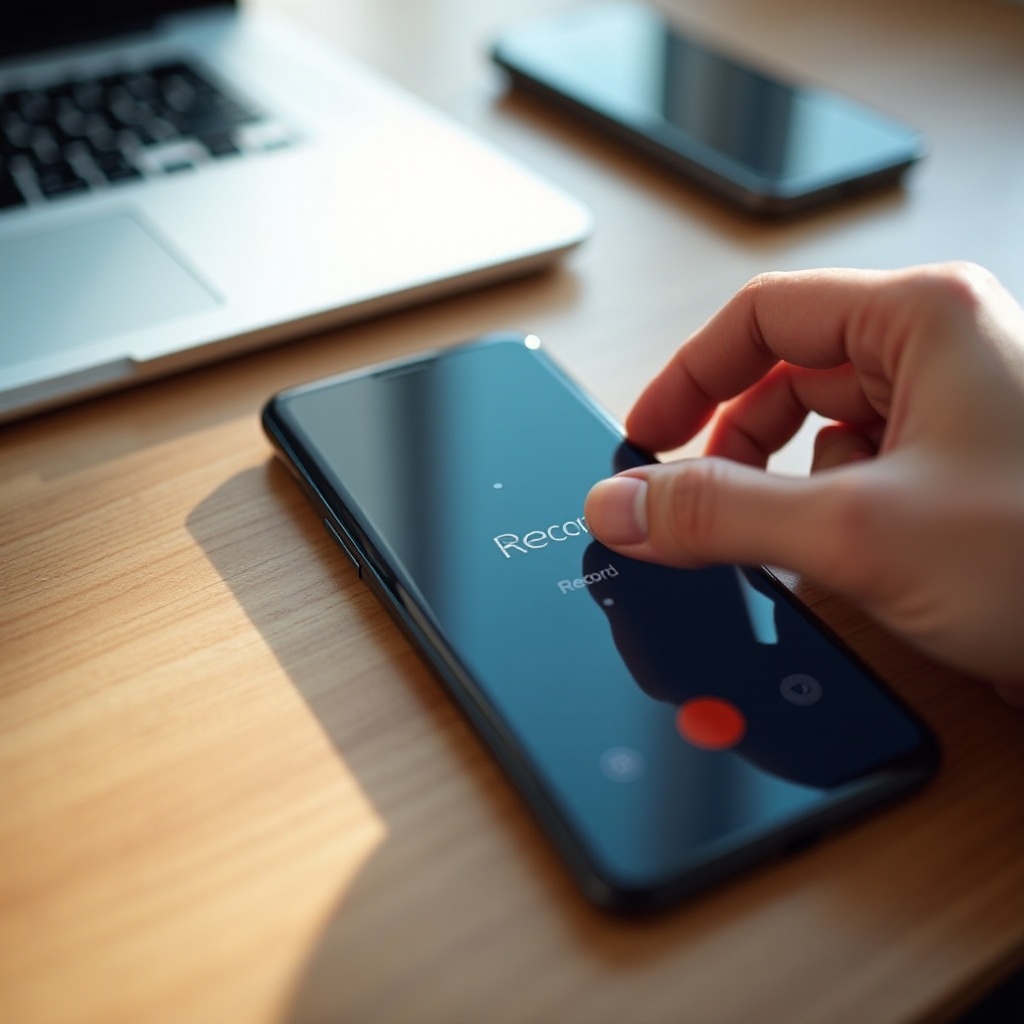
- Tap the ‘Record’ button if it appears. It may show as a circular icon or as text.
- Confirm any on-screen warning that reminds you to follow local laws.
The phone then records the conversation until you either tap the record button again to stop or end the call. Manual recording is ideal when you only occasionally need to record a call and do not want everything saved by default.
Always remember to ask for consent when the law or your own policies require it. Manual recording makes that easier because you can wait for the other party’s agreement before you tap the record button.
Setting Up Automatic Call Recording for Selected Contacts
If you regularly talk with the same clients, suppliers, or support lines, automatic call recording can save time. Instead of starting each recording by hand, Samsung can record those calls automatically.
To set up auto-recording for specific contacts:
- Open the Phone app and tap the three-dot menu.
- Go to Settings > Record calls.
- Turn on ‘Auto record calls’.
- Tap ‘Calls to record’ and choose between options such as All calls, Calls from unsaved numbers, or Selected numbers.
- If you choose selected numbers, add the contacts or individual phone numbers you want to be recorded automatically.
From now on, your Samsung phone will follow those rules whenever a call starts. This approach reduces the chance of forgetting to record an important conversation, while still keeping some control over which calls end up stored.
Finding, Playing, and Managing Samsung Call Recordings
Once you begin to record phone calls on your Samsung, you need a simple way to access and organize them. There are usually two main places to find your recordings:
- Through the Phone app
Open the Phone app, go to the Recents tab, tap a call that you recorded, and look for a play icon or a ‘Recording’ section. Some One UI versions place a small recording icon directly next to recorded calls. - Through the My Files app
Open My Files, go to Internal storage or SD card, then open folders such as Call, Recordings, or Call recordings.
From there you can play, rename, move, or delete recordings. Renaming files with the contact name, date, and topic makes them easier to find later. For example, ‘client-jones-quote-2024-06-18’ is much more useful than ‘Call_00023’.
Over time, recordings can consume storage, especially if you use automatic recording. Make a habit of cleaning up old or unnecessary files so your phone stays responsive. If native recording options are too limited for your needs, the next step is to look at third-party apps.
How to Automatically Record Calls on Samsung Phones
Automatic call recording is one of the most powerful features on supported Samsung phones. Instead of manually starting each recording, your device can follow rules you set and capture calls without extra steps. This is especially helpful if you handle many work calls, interviews, or customer conversations.
At the same time, automatic recording can capture more personal or sensitive calls than you intend. That is why it is important to configure it thoughtfully and review your recordings regularly so you do not store more data than needed.
Turning On Automatic Call Recording for All Calls
If your workflow requires a complete record of every call, you can set Samsung to record all incoming and outgoing calls automatically:
- Open the Phone app.
- Tap the three-dot menu and select Settings.
- Tap Record calls.
- Enable ‘Auto record calls’.
- Under ‘Calls to record’, choose ‘All calls’.
From that point forward, every call that goes through the Samsung Phone app will be recorded and stored in the chosen folder. This is convenient but also more intrusive, so be sure you understand the laws that apply and obtain consent where needed.
Auto-Recording Unknown Numbers and Business Calls
You may not want every family or personal call recorded, but you might want a record of calls from unknown numbers, support lines, or certain business contacts. Samsung’s automatic recording settings often allow this kind of targeted control.
To focus on unknown or specific numbers:
- Go to Phone > Settings > Record calls.
- Turn on ‘Auto record calls’.
- Tap ‘Calls to record’.
- Select ‘Calls from unsaved numbers’ if you want to capture unknown callers, or select an option that lets you choose specific numbers or contacts.
This configuration keeps personal calls more private while still preserving a clear record of interactions that are likely to matter, such as customer service calls, vendor discussions, and client meetings held over the phone.
Managing File Size, Storage, and Audio Quality
When you enable automatic recording, the number of audio files on your phone can rise quickly. To keep storage under control and maintain good performance:
- Check the storage location in the Record calls settings and decide whether to store files in internal storage or on an SD card if your device supports one.
- Review your recordings regularly and delete those you no longer need.
- If your phone lets you adjust audio quality, choose a level that balances clarity with file size. Medium quality is often enough for most conversations.
- Back up only the recordings that matter, instead of syncing every single file to the cloud.
If your phone does not offer native call recording at all, or if it is too limited for your use case, you can move on to using third-party call recording apps as another option.
Using Third-Party Apps to Record Calls on Samsung
When Samsung’s Phone app does not provide call recording, many users turn to third-party solutions. These apps can add advanced features like searchable notes, automatic cloud backup, and even transcription. However, newer Android versions restrict how apps access call audio, so not every call recorder works well on every device.
This section explains when you might need a third-party app, what to look for when choosing one, how to set it up on your Samsung phone, and how to fix common issues that can appear under Android’s tighter privacy controls.
When You Need a Third-Party Call Recording App
You may need a third-party call recorder if:
- Your Samsung Phone app has no ‘Record calls’ option at all.
- Your carrier-branded Samsung device disables native recording features.
- You want advanced features like automatic cloud sync, transcriptions, tags, or detailed call notes.
- You prefer to store recordings in a specific cloud account or workflow that your native app does not support.
Because Google has restricted access to call audio for security and privacy reasons, some apps rely on workarounds such as recording from the microphone while you use speakerphone. Read app descriptions and recent reviews carefully to see whether an app still works well on current Android builds.
Key Features to Look For in a Samsung Call Recorder
When selecting a call recording app for your Samsung phone, pay attention to these factors:
- Compatibility with your Android and One UI version, and with Samsung devices specifically.
- Manual and automatic recording options so you can control when calls are recorded.
- Clear audio quality that captures both sides of the conversation.
- Security features such as PIN, password, or biometric locks on the app and its recordings.
- Cloud backup support for services you already trust.
- Organization tools like tags, contact-based grouping, and search.
- Transparent privacy policy that clearly states what data is collected and how it is used.
Avoid apps with a flood of recent complaints about silent recordings, one-sided audio, or intrusive advertising. Be cautious with apps that request many unrelated permissions without clear explanations.
Step-by-Step Setup for a Popular Call Recording App
While the exact steps differ by app, most call recorders follow a similar setup process on Samsung phones:
- Download the app from the Google Play Store or another trusted source.
- Open the app and accept its terms of use if you agree with them.
- Grant the requested permissions, which may include Phone, Microphone, Contacts, and Storage.
- Choose your recording mode: record all calls, prompt before recording, or record only selected contacts.
- Place a short test call and then play back the recording to confirm that both sides of the conversation are clearly captured.
If you only hear your own voice or the other person sounds faint, try changing the recording source inside the app’s settings. Some apps work better when you use speakerphone during calls, because they capture sound through the microphone instead of directly from the call audio stream.
Fixing Common Third-Party App Issues on Samsung
Third-party call recorders on Samsung devices often run into a few predictable problems:
- Only one side of the call is audible
This usually happens because Android blocks direct access to call audio. Try switching the audio source in the app settings, using speakerphone, or testing a different app. - Recordings stop randomly or do not save
Samsung’s battery-saving features may close apps running in the background. Go to Settings > Battery or Device care and disable battery optimization for your recording app. - No recordings appear after a system update
After a major system update, permissions or audio paths may change. Update the app, recheck permissions, and run a new test call.
If you continue to have issues, you might need to try another call recording app or rely on native recording if your phone supports it. When neither solution works well, there are still alternative ways to capture important conversations.
Troubleshooting: Why You Can’t Record Calls on Your Samsung
Sometimes you follow every setup guide and still struggle to record phone calls on your Samsung device. In those cases, it helps to diagnose the root cause. The problem might be a hard regional block, a carrier-level restriction, Android’s security rules, or simple settings conflicts.
In this section, you will see how to identify regional and carrier limitations, fix permission and battery issues, solve common audio problems, and explore fallback options when direct call recording just is not possible.
Regional, Carrier, and Policy Restrictions in the U.S.
In the United States, some Samsung phones sold by carriers come with call recording disabled at the firmware level. Signs that your device might be restricted include:
- No ‘Record calls’ option in the Samsung Phone app settings.
- Third-party call recorders that can capture only your voice but not the caller’s.
- Support responses from Samsung or your carrier stating that call recording is not supported on your model.
If your phone falls into this category, your options are limited. You can:
- Use speakerphone and an external recorder or voice recording app.
- Consider buying an unlocked Samsung phone that supports call recording in your region.
- For business needs, ask your phone service provider about compliant call recording solutions.
Always weigh the legal and ethical implications before attempting any technical methods that bypass built-in restrictions.
Android Permissions, Battery Optimization, and Background Limits
Even when recording is allowed, Android’s privacy and battery-saving features can interfere with call recording apps. If your third-party recorder is not working properly, check the following:
- Open Settings > Apps, select your recorder app, and confirm it has Phone, Microphone, and Storage permissions.
- In Battery or Device care settings, remove the app from aggressive battery optimization so Android does not close it during calls.
- Disable or adjust any background limits or power-saving modes that might stop the app from running.
- Check for conflicts with other call-related apps, such as spam blockers or alternative dialers, that may also access call audio.
Granting proper permissions and relaxing battery restrictions for the recorder app often solves unexpected recording failures.
No Sound, One-Sided Audio, or Missing Recordings
If your recordings do not sound right or seem to be missing parts, focus on audio and storage troubleshooting:
- For one-sided audio or low volume on the other person, try using speakerphone during calls and then test a new recording.
- Switch the audio source in the app’s settings, if available, to see which option provides the best audio.
- Disconnect Bluetooth headsets or earbuds during test calls in case they affect how audio is captured.
- Check that your phone has enough free storage and that the recorder app is saving files to a valid location.
- Review the app for any auto-delete settings that might be removing older recordings automatically.
If recordings still fail or do not appear, contact the app’s developer, try a different app, or consider alternative recording methods that do not rely on direct call recording.
Alternative Ways to Capture Important Conversations
When you cannot record calls directly on your Samsung device, you still have a few practical options:
- Use speakerphone during the call and record audio with a second smartphone, a dedicated voice recorder, or a recording app on a tablet or computer.
- Invite the other party to a VoIP call or online meeting on a platform that offers built-in recording, and follow the platform’s consent and notification requirements.
- For business use, check if your phone system provider offers compliant call recording as part of its services. Those solutions often handle legal disclosures and secure storage for you.
These workarounds may not be as convenient as pressing a record button in the Phone app, but they can still give you a clear record of important conversations when direct call recording is not an option.
Tips for Better Call Recording Quality and Organization
Recording calls is helpful only if you can hear the audio clearly and find the right file when you need it. Poor quality or messy file management turns recordings into a burden instead of an asset.
In this final section before the conclusion, you will learn how to improve your audio quality, create a simple system to name and organize recordings, and back them up securely so you do not lose critical information.
Improving Audio Quality on Samsung Phone Recordings
Good audio starts with basic call quality and environment. To improve the sound of your call recordings:
- Make calls in places with a strong mobile signal or use Wi-Fi calling for more stable connections.
- Avoid noisy environments when possible. Move to a quieter room or area before starting an important call.
- If you use a third-party recorder that relies on the microphone, switch to speakerphone so the app can capture both voices more clearly.
- Keep the phone’s microphone clean and do not block it with your hand, a case, or other objects.
- Test different audio quality settings where available to see which produces clear recordings without using excessive storage.
A quick test call with playback before an important conversation can help you verify that everything is working properly.
Naming, Tagging, and Sorting Your Recordings Efficiently
Without a simple system, call recordings quickly become a long, confusing list of file names and dates. You can avoid this by organizing as you go:
- Rename key recordings right after the call to include the caller’s name, date, and topic, such as ‘sarah-lopez-project-brief-2024-07-02’.
- Use any tags, labels, or notes that your call recorder offers to highlight priority calls or group them by project.
- Create folders or categories for personal, business, and support calls to keep them separate.
- Periodically archive older recordings to a secure external drive or cloud folder if you need to keep them long term.
A little organization at the time of recording saves a lot of searching later when you need to review what someone said.
Backing Up Recordings to the Cloud Securely
If call recordings are important to your work or personal records, you should not keep them only on your phone. Devices can be lost, damaged, or reset. To protect against data loss while still respecting privacy:
- Back up important recordings to a trusted cloud service, such as Google Drive, OneDrive, or another provider with strong security.
- Enable two-factor authentication on your cloud accounts to reduce the risk of unauthorized access.
- Encrypt especially sensitive recordings or store them inside secure, password-protected archives.
- Regularly review your cloud storage and delete files that are no longer needed, rather than keeping everything forever.
Secure backups give you peace of mind that vital call records will still be available even if your Samsung phone is lost or replaced.
Conclusion
Recording phone calls on a Samsung phone in 2024 is still possible, but it requires a clear understanding of your device’s capabilities, regional limits, and legal responsibilities. Some Samsung models offer smooth, built-in call recording through the Phone app, while others depend on third-party apps or creative workarounds.
The first step is to check whether your Samsung phone supports native call recording, then learn how to enable manual and automatic options if they are available. Along the way, you need to pay close attention to U.S. consent laws, ask for permission when required, and secure your recordings to protect privacy.
When native recording is not supported, carefully chosen third-party apps can often help, as long as you configure them correctly and confirm they work with your Android version. If those apps are blocked or unreliable, you still have alternative paths, such as speakerphone plus a separate recorder or VoIP platforms with built-in recording.
By combining legal awareness, solid technical setup, and good file organization, you can build a reliable, safe, and efficient call recording workflow on your Samsung phone. That way, when you need to revisit a conversation, the details are only a few taps away instead of lost to memory.
Frequently Asked Questions
Is it legal to record phone calls on a Samsung phone in the United States?
It can be legal, but it depends on state law. Some states allow recording with consent from only one person on the call, while others require everyone to agree. You should check the rules for your state and the state where the other person is located. When you are unsure, clearly tell the other party that you want to record and ask for their consent before you start.
Why doesn’t my Samsung phone show any call recording option?
If you cannot find a call recording option in the Samsung Phone app, your device may be restricted by region or by your carrier. Many carrier-branded phones in the U.S. ship with call recording disabled at the firmware level, and no setting can turn it back on. In that situation, you can try reputable third-party call recording apps, use speakerphone with a separate recorder, or consider an unlocked Samsung model that supports recording in your area, always staying within legal limits.
What is the safest way to store and back up my Samsung call recordings?
The safest approach is to protect your phone with a strong lock screen and, if available, a secure folder for sensitive recordings. For backup, use a trusted cloud service that supports encryption and turn on two-factor authentication to guard your account. Only back up recordings you actually need, limit who can access them, and regularly delete old or sensitive files you no longer require. This reduces risk if your phone or cloud account is ever compromised.