
Introduction
Selfies that read backward make text useless and branding confusing. You can fix that on an iPhone in seconds once you find the right setting. This guide walks you through how to disable the inverted front camera effect, why your preview can look mirrored while the final file does not, and how to manage photos, video, FaceTime, and social apps. You will also learn how to unflip shots you already captured and how to avoid mirrored saves going forward.
We keep the steps short and direct. You get exact menu paths, what to expect after each change, and how to troubleshoot missing toggles. After you turn off mirroring in Settings, you will tune the behavior in Instagram, Snapchat, TikTok, and video call apps. By the end, your selfies and front camera videos will show text correctly and look consistent everywhere you share them.
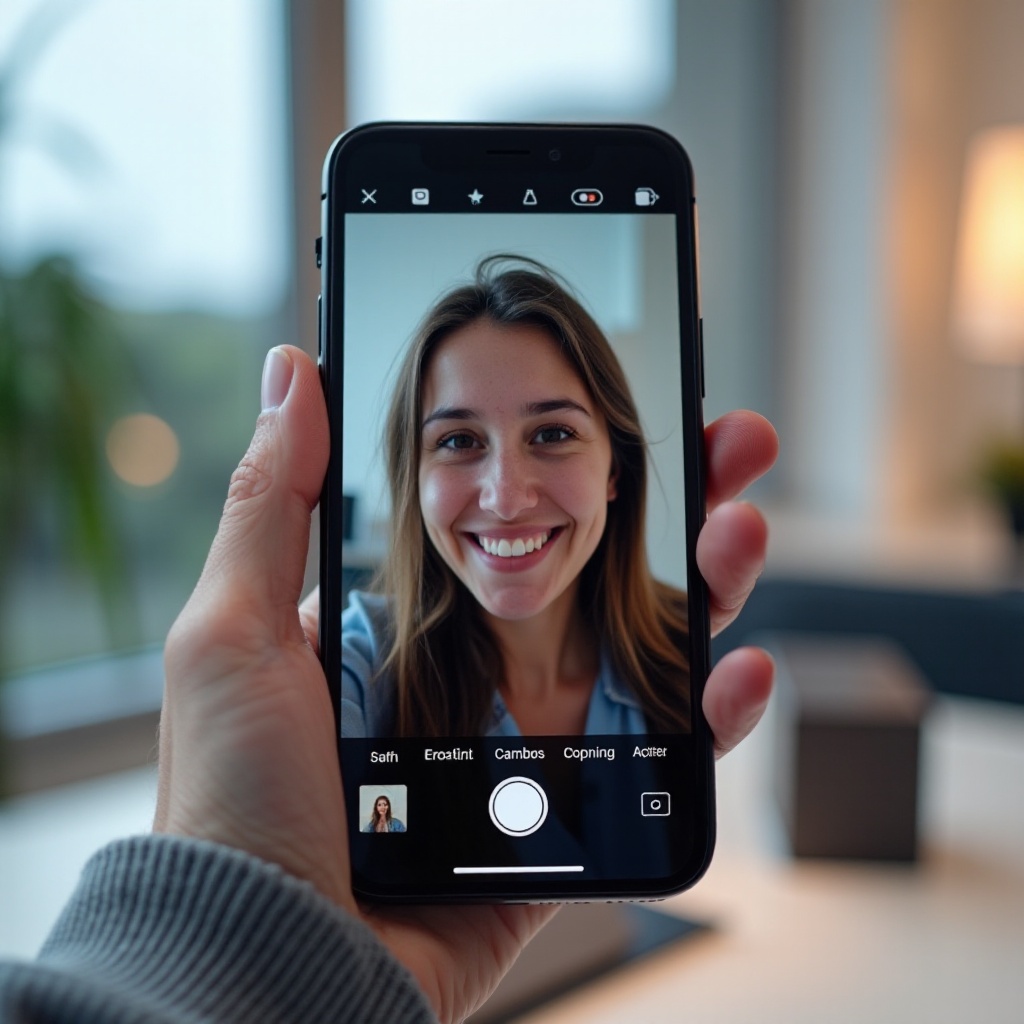
Quick Answer: Turn Off Mirrored Selfies on iPhone
If you want a fast fix, disable the mirror save for the front camera. This changes how the iPhone saves selfies without slowing you down.
Do this now:
1) Open Settings.
2) Tap Camera.
3) Turn off Mirror Front Camera. On some devices, the label is Mirror Front Photos. Turn it off.
When off, the Camera app still shows a mirrored preview to help you frame your face. That is normal. The saved photo flips to a natural orientation so text reads correctly. If you see backward text after saving, you may be viewing the file inside a social app that exports mirrored results by default. In that case, either flip after capture inside the app or shoot with the Camera app first and upload.
You now have the core setting in place. Next, it helps to know what inverted really means on iPhone, so you can spot which behavior is intentional and which needs adjustment.
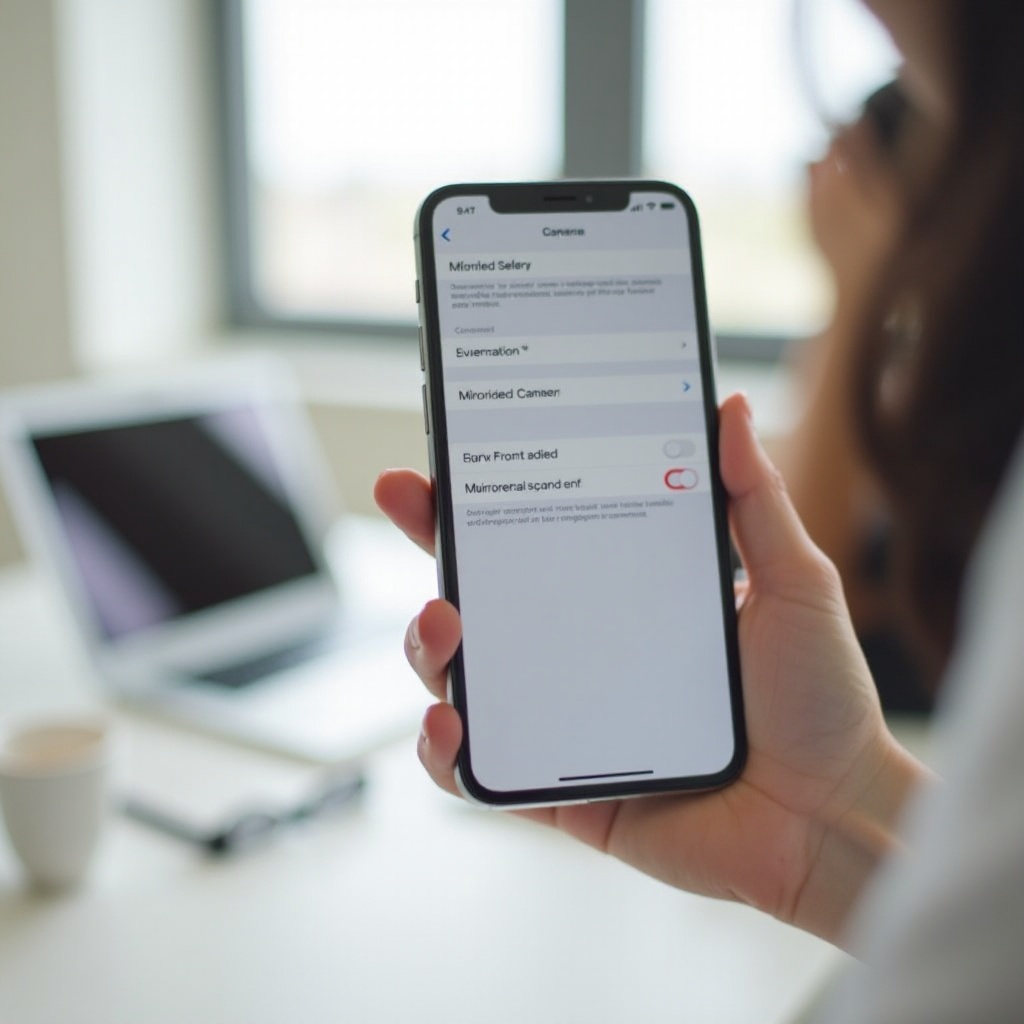
What ‘Inverted’ Means on iPhone: Mirrored Preview vs. Saved Image
On iPhone, inverted almost always means mirrored with the front camera. Apple designed the selfie preview to behave like a mirror. That way, when you move your head to the left, you see the same movement on screen, which feels natural while composing. The important part is the saved result. By default, iOS corrects the file so other people see you as they would in real life. Shirts, signs, and book covers read properly.
The Mirror Front Camera toggle changes this save behavior. When you turn it on, iOS saves a mirrored file that matches the preview. When you turn it off, iOS saves a corrected file. Third‑party apps can override this logic. Some apps keep both the preview and the export mirrored for stylistic reasons or to match user expectations. Others correct the export while keeping a mirrored preview. Knowing this split helps you troubleshoot why an image looks different in the viewfinder than in your Photos library.
With that difference clear, you can now set up your iPhone for consistent, non‑mirrored saves and verify the results.
Step-by-Step: Disable Mirror Front Camera in iOS 17 and iOS 18
Lock in the correct setting, then confirm your results. After that, set a few helpful camera options that make framing and text checks easier.
Disable Mirroring for Photos (Settings > Camera > Mirror Front Camera)
- Open Settings > Camera.
- Find Mirror Front Camera or Mirror Front Photos and turn it off.
- Open the Camera app, switch to the front camera, and take a selfie that includes readable text, such as a shirt logo or a book title.
- Open Photos and check the saved shot. Text should read correctly.
Check Camera Formats, Preserve Settings, and Composition Controls
- Settings > Camera > Formats: Choose High Efficiency or Most Compatible based on your workflow. This does not change mirroring, but it affects file compatibility if you edit on other devices.
- Settings > Camera > Preserve Settings: Enable the options you rely on, like Camera Mode or Live Photo, so the app behaves consistently between sessions.
- Settings > Camera > Composition: Turn on Grid and Level. These options help you center text, align logos, and hold the phone straight for clean framing.
Verify Your Results in the Photos App
- Open Photos and review your test selfie. If text reads correctly, the system setting works as intended.
- If text is still backward, tap Edit > Crop and use the flip tool for images to correct it. For video, use the editor options covered later.
- If the saved file looks correct in Photos but appears mirrored inside a social app, adjust that app or upload from the Camera roll instead of capturing in the app.
You now control photo mirroring. Video behaves a bit differently, so confirm how your device and apps handle front camera clips before you record something important.
Mirrored Video: What You Can and Can’t Change in the Camera App
In Apple’s Camera app, the front camera preview often looks mirrored to keep framing comfortable. The saved video typically exports non‑mirrored so people can read text on shirts and signs. iOS does not offer a universal Mirror Front Video toggle in the stock Camera app. The behavior can also vary by mode and app.
What to do:
– Record a short test clip with visible text using the front camera.
– Save it and play it in Photos. If the text reads correctly, you are set.
– If the video exports reversed, correct it in an editor with a Mirror or Flip Horizontal tool.
– Check each social app you use. Many apps mirror the preview and may also mirror the export. Adjust their tools or capture with the Camera app and upload.
With photo and video behavior clear, the next step is to prevent unwanted mirroring inside popular social and messaging apps.
Stop Mirroring Inside Popular Apps
Disabling Mirror Front Camera fixes the stock Camera save. Social apps can still mirror both the preview and the final media. Tame each app’s behavior so your content stays consistent when you post.
Instagram (Stories, Reels, and Posts)
- The front camera preview in Stories usually appears mirrored. The final export may correct or keep the mirror depending on the effect.
- Before posting, use the app’s flip or mirror tool if the result looks backward.
- For consistent results, capture with the Camera app and import the file to Stories, Reels, or Posts.
Snapchat (Front Camera and Memories)
- Snapchat previews are mirrored and often save mirrored.
- After capture, open the edit tools and tap the flip icon if text reads backward.
- For brand work or content with typography, record in the Camera app and upload from Memories to control orientation.
TikTok (Recording vs. Exported File)
- TikTok mirrors the preview on the front camera.
- Some filters correct the export; others keep the mirror. Use a Flip effect when needed.
- If you need guaranteed readable text, record with the Camera app and upload the clip into TikTok.
FaceTime, Zoom, Teams, and Meet (Preview vs. What Others See)
- Your self‑view mirrors by design so you can adjust your framing naturally.
- Other participants see a non‑mirrored feed. You do not need to change anything for viewers to read text correctly.
- If you record your feed locally, check the file afterward and flip it in an editor if it saved mirrored.
Now that you have app behavior under control, you can rescue older selfies and clips that already saved reversed.
Unflip Photos and Videos You Already Shot
You can fix mirrored media quickly on iPhone. Photos offers a simple flip for images. For video, use a basic editor with a mirror tool. Correct old posts before you republish.
Flip a Single Photo in Photos
- Open Photos and select the image.
- Tap Edit > Crop (square icon) and hit the flip button to mirror horizontally.
- Tap Done. You can always tap Revert later if you change your mind.
Flip a Video on iPhone (Built‑In and Third‑Party Options)
- The Photos app rotates and crops video but may not offer a horizontal mirror on all devices.
- Use an editor such as CapCut, VN, or InShot. Import your clip, apply Mirror or Flip Horizontal, export at the same resolution and frame rate.
- If you prefer a desktop workflow, mirror clips in Final Cut Pro, Premiere Pro, or DaVinci Resolve for batch edits.
Batch‑Flipping and Workflow Tips for Creators
- For large sets of images, use a Shortcuts automation or flip in batches on a Mac or PC.
- Keep a short test card with bold text in your kit. Record two seconds before each session to confirm orientation.
- Lock your posting flow: capture in the Camera app, verify in Photos, then import and publish. This avoids mirrored surprises.
If you cannot find the mirror toggle on your device or it looks disabled, do a quick round of checks before you assume the feature is missing.
If the Mirror Toggle Is Missing or Greyed Out
Labels can differ by device. You might see Mirror Front Camera or Mirror Front Photos. If you cannot find it or it is greyed out, try these steps:
– Update iOS to the latest version available for your device.
– Force‑quit Settings, reopen, and check Settings > Camera again.
– Restart your iPhone to clear a temporary glitch.
– If the toggle truly is not present, your iPhone may not expose manual control. The stock Camera usually saves non‑mirrored selfies by default, so test a shot. When needed, flip photos in Photos and mirror videos in a third‑party editor.
When your images still appear wrong, the problem may not be mirroring at all. It could be color inversion or orientation. Rule those out next.
Related Settings That Look Like Inverted Camera
Not every odd result comes from mirroring. Sometimes the display shows reversed colors or the phone locks orientation, which makes photos look rotated or upside down. Check these settings before you change your camera setup again.
Invert Colors and Classic Invert (Accessibility)
- Go to Settings > Accessibility > Display & Text Size.
- Turn off Smart Invert and Classic Invert if either is on.
- These features change how colors render on the screen only. They do not flip images, but they can make previews feel off while shooting.
Orientation Lock and Upside‑Down Clips
- Open Control Center and turn off Rotation Lock if it is enabled.
- If a photo or video saved sideways, open Photos > Edit > Crop and rotate to correct it.
- Hold the phone so the camera sits at the top edge in landscape mode to minimize orientation problems.
Front vs. Rear Camera Behavior Differences
- The rear camera does not mirror the preview or the saved file. It always records a natural view.
- The front camera mirrors the preview for comfortable framing. The saved result depends on the Mirror Front Camera setting and app behavior.
With confusion removed, you can focus on improving your shooting process and preventing mirrored text from sneaking back into your content.
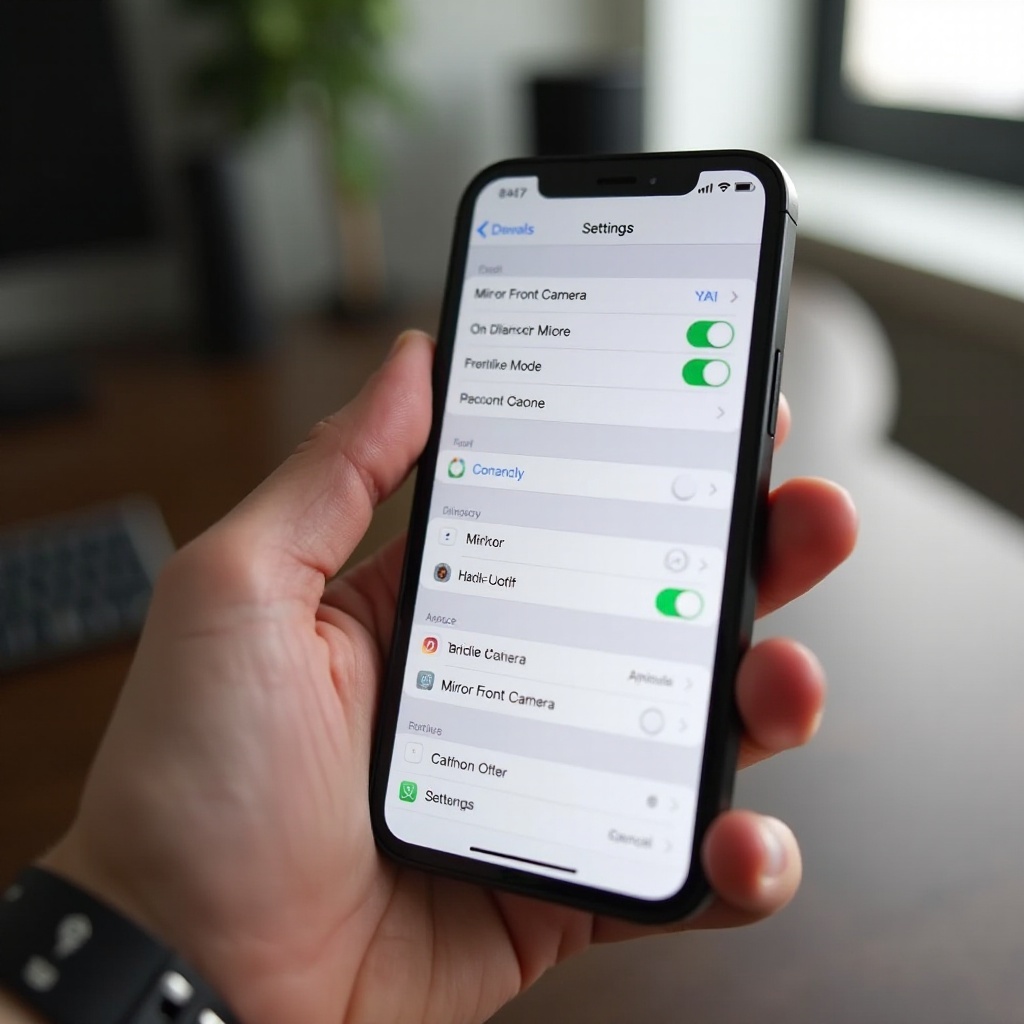
Pro Tips for Creators and Selfie Power Users
Once you stop mirrored saves, refine how you shoot. Small changes to composition and workflow will save time and cut retakes.
Compose Around Text, Logos, and Signs
- Put key text near the center or slightly to the camera‑left to keep it clear in the frame.
- Choose bold, high‑contrast fonts on shirts or props. Fine lines are harder to read on front cameras.
- Take one test shot, check readability in Photos, then continue the session.
Keep a Consistent Look Across Apps and Devices
- Capture in the Camera app, review and make simple edits in Photos, then import into Instagram, Snapchat, or TikTok. This keeps orientation consistent.
- If you must shoot in an app, identify its flip control and test a quick clip before recording a longer take.
- Create a simple preset checklist for each app you use, noting where flip, export, and orientation controls live.
Use Grid, Level, and Exposure Controls
- Turn on Grid and Level in Settings > Camera to align horizons and signage.
- Tap to focus on faces or text and drag to adjust exposure. Lock AE/AF for stable lighting when you shoot a sequence.
- If you use the front camera in low light, add a soft light source. Better lighting makes text crisper and easier to read, mirrored or not.
With best practices in place, it helps to run a quick checklist before every shoot, especially if you plan to post fast and cannot spend time fixing orientation in editing.
Pre-Shoot Checklist: Never End Up with Backward Selfies Again
- Confirm Settings > Camera > Mirror Front Camera is off.
- Clean the front lens to reduce haze on small text.
- Turn on Grid and Level for straight lines and aligned edges.
- Do a quick text test using a book cover or note card. Capture, save, and review in Photos.
- If posting to TikTok, Instagram, or Snapchat, record a short sample and check the exported file for orientation.
- Keep Rotation Lock off if you want to switch between portrait and landscape.
- Save a reference selfie that looks correct and use it to compare during shoots.
- If you capture inside an app, locate its flip tool before you start recording.
Conclusion
You can stop mirrored selfies on iPhone by turning off Mirror Front Camera and confirming how each app exports your media. The stock Camera separates a mirrored preview from a corrected saved image, which usually fixes photos immediately. Video may vary by app, so test and adjust with a simple mirror tool when needed. If you already have reversed selfies or clips, you can unflip photos in Photos and mirror videos with a lightweight editor in seconds.
When you plan your workflow, you reduce guesswork. Capture with the Camera app, check the result in Photos, then publish or import into social apps. Use the tips and checklist above to keep text readable and your brand elements consistent across iOS 17 and iOS 18. With a few habits and the right toggle off, your selfies will look natural everywhere you share them.
Frequently Asked Questions
Will turning off Mirror Front Camera affect the rear camera?
No. The rear camera never mirrors. That toggle applies to the front camera only. Rear camera photos and videos save in a natural orientation regardless of your mirror setting.
Why does my FaceTime preview look mirrored even after I turn it off?
FaceTime mirrors your own preview so you can frame naturally. Other people see a non‑mirrored image. Your mirror setting does not change how they see you on calls.
Can I disable mirroring for some apps but not others?
Yes. The system setting controls Apple’s Camera app. Many third‑party apps use their own capture and export rules. Use each app’s flip tool or record with Camera, then upload.