
Introduction
Data runs out faster than most people expect. A few videos, some background app activity, and automatic updates can quietly eat through your monthly allowance. When that happens, carriers may charge extra fees or slow your connection so much that simple tasks become painful.
This is why phones include a feature called data saving mode (also called Data Saver on Android and Low Data Mode on iPhone). It helps you control how much mobile data your apps can use, especially when they are not on the screen.
This guide explains what data saving mode is, how it works on Android and iPhone, when to use it, and how to set it up. By the end, you will know how to keep your data usage under control without giving up the apps you rely on.
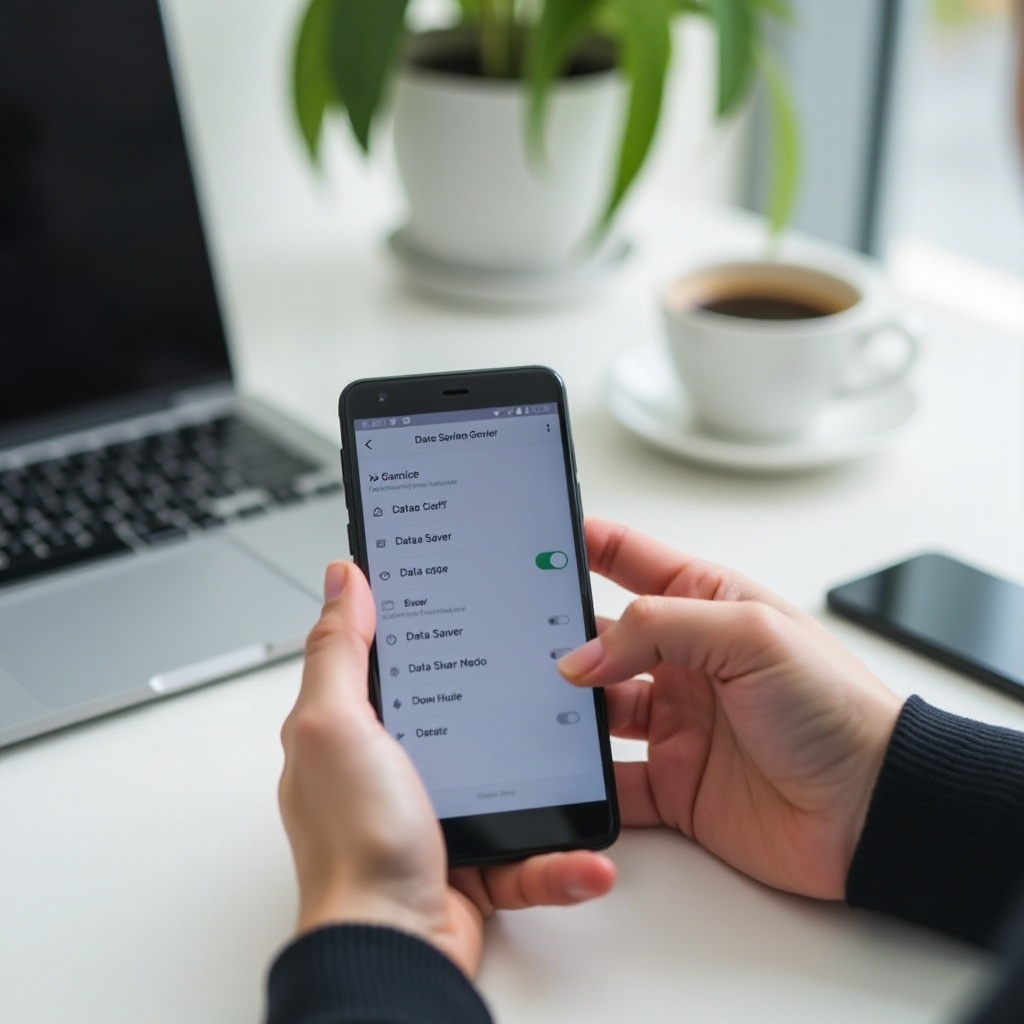
What Is Data Saving Mode?
Data saving mode is a system feature that reduces how much mobile data your phone and apps use. It does this mainly by limiting what apps can do in the background when you are not actively using them.
At a basic level, data saving mode:
- Restricts background data for most apps
- Slows or delays some non-essential updates
- Encourages apps to use less data when possible
This is different from simply turning mobile data off. When you switch mobile data off, no app can use cellular data at all. That means no email sync, no messaging, and no maps unless you connect to Wi‑Fi. With data saving mode on, your phone still allows data use, but with smarter controls.
It also differs from battery saver or low power mode. Battery saver focuses on CPU usage, screen brightness, and background tasks to extend battery life. Data saving mode targets only network data use. You can use both at the same time, but each has its own purpose.
Think of data saving mode as a traffic cop for your mobile data. It does not close the road. It just controls which apps can drive fast, which must slow down, and which must wait until you open them.
Now that you know what data saving mode is and what it is not, it helps to look at why your phone burns through so much data in the first place.
Why Your Phone Uses So Much Data
To understand why data saving mode matters, you need to see where your data goes. Many people think they use data only when they browse the web or stream a video. In reality, a lot of data disappears in the background.
First, there is background app refresh and automatic sync. Many apps:
- Check for new content
- Sync messages or emails
- Update feeds and timelines
They do this even when you are not looking at them. Social media, email clients, messaging apps, and news apps are big examples.
Next, auto-play videos and high-quality streaming eat data very quickly. When:
- Social apps auto-play videos in your feed
- You watch videos in HD or higher
- Music streams at the highest quality by default
your usage jumps. A short scroll through video-heavy feeds can use more data than you expect.
Cloud backups, app updates, and large downloads also add up. Apps may:
- Upload photos and videos to the cloud
- Back up app data in the background
- Download large updates over mobile data
Even when you are not actively using your phone, these tasks can run quietly, using hundreds of megabytes or more.
Data saving mode exists to limit this silent drain and give you more control. Once you know where your data goes, you can use data saving mode as a targeted tool instead of a blunt switch.
The way it manages that control is through a few smart rules it applies behind the scenes.
How Data Saving Mode Works Behind the Scenes
Data saving mode works by changing the rules for how apps can use mobile data, especially when they are not in front of you. The main idea is simple: background tasks become restricted, while essential foreground tasks still work.
The first key action is limiting background data for most apps. When data saving mode is on, apps cannot freely:
- Sync large amounts of data in the background
- Download updates or media without your action
- Continuously refresh feeds or timelines
This does not mean all background data stops. System services and a few important functions can still use some data, but at a reduced pace.
The second action is prioritizing foreground activity and essential services. When you actively open an app, it can use data more normally. For example, if you open your email app, it will sync your inbox. If you start a map navigation, it will use data to load the route. Calls and SMS still work as usual.
Per-app data restrictions are the third part. Both Android and iPhone let you decide which apps can bypass some of these limits. You can:
- Allow key apps (like messaging or banking) to use unrestricted data
- Block rarely used apps from using background data at all
- Fine-tune data access based on your priorities
This combination of system rules and per-app choices lets data saving mode cut waste while keeping the phone functional. How this looks in practice depends on whether you use Android or iPhone.
Data Saving Mode on Android Phones (2024)
On Android, the feature is usually called ‘Data Saver.’ The exact path can vary slightly by brand, but the logic is similar across modern devices.
To turn on Data Saver on most Android phones:
- Open Settings.
- Tap Network & Internet (or Connections on some devices).
- Tap Data usage or Data Saver.
- Turn on Data Saver.
Once enabled, Android restricts background data for most apps when you are on mobile data. You will often see a small icon in the status bar indicating Data Saver is active.
Android also gives you the option to allow ‘Unrestricted data’ access for key apps. For example, you may want:
- Messaging apps to receive messages quickly
- Banking apps to update balances reliably
- Work email apps to sync without delay
To do this:
- In Settings, go back to Data Saver.
- Tap Unrestricted data access or similar.
- Toggle on the apps that should ignore Data Saver limits.
Android includes extra tools like data warnings, limits, and usage statistics. Under Data usage, you can:
- See which apps use the most data
- Set a monthly data warning
- Set a hard limit to block data when you reach a chosen amount
These features work well with Data Saver. First, you reduce general background use. Then, you watch which apps still use a lot and adjust them individually.
Apple takes a similar approach on iPhone, but with its own name and behavior.
Low Data Mode on iPhone (iOS 17 and Later)
On iPhone, the equivalent feature is called ‘Low Data Mode.’ It appears in different places for cellular and Wi‑Fi, but the idea is the same: reduce data usage across the system.
To enable Low Data Mode for cellular data:
- Open Settings.
- Tap Cellular.
- Tap Cellular Data Options.
- Turn on Low Data Mode.
To enable Low Data Mode for a specific Wi‑Fi network:
- Open Settings.
- Tap Wi‑Fi.
- Tap the info (i) icon next to your chosen network.
- Turn on Low Data Mode.
When Low Data Mode is on, iOS and apps adapt. Apple services like iCloud, Photos, and FaceTime change their behavior:
- iCloud may pause some background syncing
- Photos may delay full-resolution uploads and downloads
- FaceTime may reduce video quality to use less data
Many third-party apps also detect Low Data Mode and cut data usage. They might reduce auto-play videos, lower media quality, or delay heavy background updates.
Unlike Android’s ‘Unrestricted data’ option, iOS relies more on each app respecting Low Data Mode hints. You still have per-app mobile data toggles under Settings > Cellular, where you can turn cellular data off for specific apps entirely.
Both systems aim for the same goal: lower data use with minimal impact. To decide how often you should enable data saving mode, it helps to weigh the benefits against the drawbacks.
Pros and Cons of Using Data Saving Mode Daily
Using data saving mode every day brings clear benefits, but it also has trade-offs you should know before you make it your default.
Key benefits include:
- Lower data usage: You reduce background waste and avoid surprises on your bill.
- Fewer overages and throttling: You stay under your cap more often, which can prevent extra charges or slowdowns.
- Better control: You decide which apps get priority and which can wait.
There are also trade-offs:
- Slower sync: Emails, social feeds, or cloud files may update less often in the background.
- Delayed notifications: Some apps may not push updates immediately when restricted in the background.
- Lower media quality: Some apps reduce stream quality when they detect data saving features.
Because of this, you may not want data saving mode on all the time. Many people:
- Keep it on constantly if they have a small data plan
- Enable it only when traveling, roaming, or close to their monthly limit
- Turn it off temporarily during video calls, online gaming, or heavy work tasks
The best approach is to set it up, test it for a while, and then adjust based on how it affects your habits. A structured setup process helps you find the right balance.
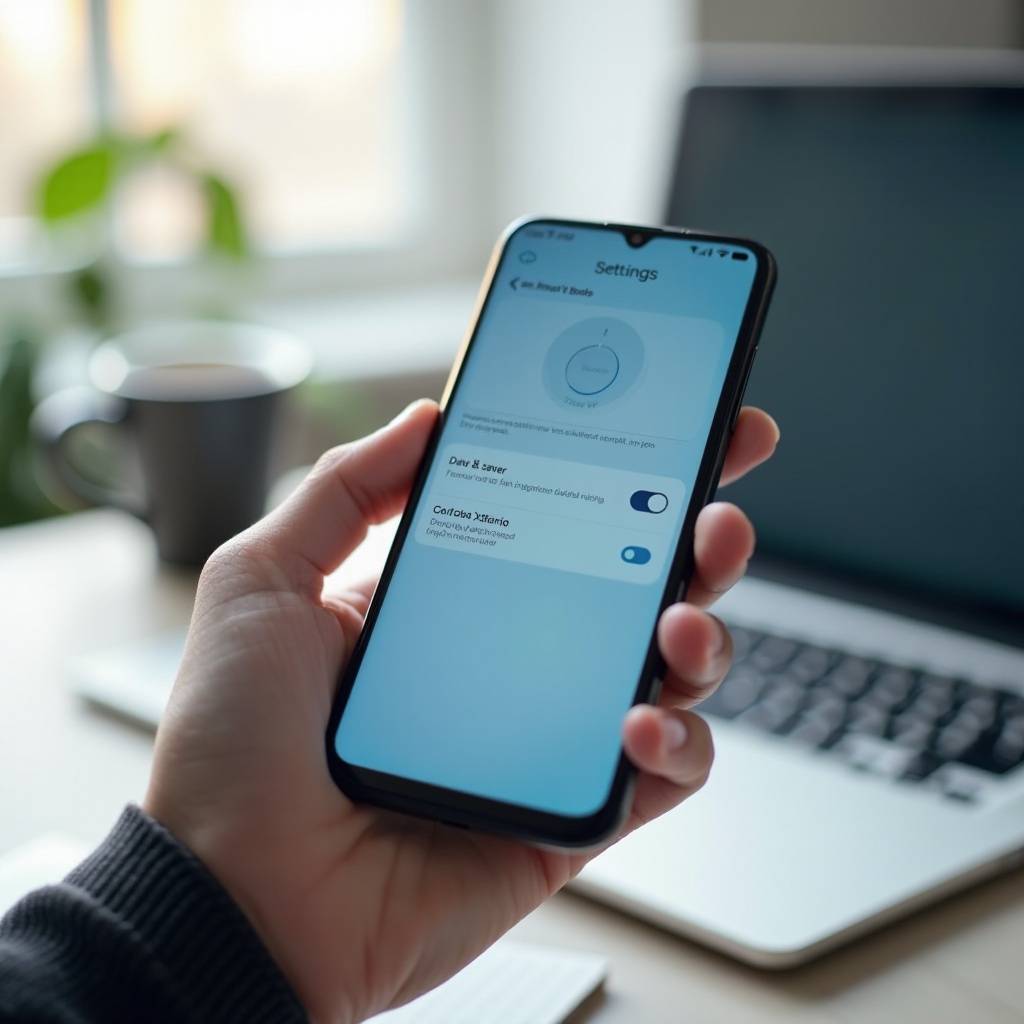
Step-by-Step: Setting Up Data Saving Mode Effectively
To get the most from data saving mode, follow a structured setup. This helps you protect your data without breaking your normal routine.
- Turn on system data saver / Low Data Mode
- On Android, enable Data Saver in Settings > Network & Internet > Data usage.
- On iPhone, enable Low Data Mode under Settings > Cellular > Cellular Data Options.
- Choose essential apps to bypass restrictions (Android)
- Go to Settings > Data Saver > Unrestricted data access.
- Allow apps that must always stay up to date, such as:
- Main messaging apps
- Work email apps
- Banking or authentication apps
- Review per-app cellular data settings (iPhone)
- Go to Settings > Cellular.
- Scroll down and turn off cellular data for apps you rarely use.
- Keep data on for important apps only.
- Adjust social apps to use less data
- In apps like Instagram, TikTok, Facebook, and X:
- Turn off auto-play or set it to Wi‑Fi only.
- Enable in-app data saver options where available.
- Tune streaming apps
- In YouTube, Netflix, Spotify, and similar services:
- Set video or audio quality to ‘Auto’ or a lower quality on mobile data.
- Disable ‘download on mobile data’ if you often download shows or playlists.
- Monitor your usage for a cycle
- After one billing cycle, check your data usage in Settings.
- See which apps still use more data than expected.
- Tighten restrictions for those apps if needed.
This step-by-step approach creates a balanced setup: system-wide savings plus fine-tuning where it matters most. If you want to squeeze out even more savings, a few advanced tricks can help.
Advanced Tips to Save Even More Mobile Data
Once your basic data saving mode setup is in place, you can trim extra usage with a few targeted moves.
- Reduce streaming quality for video and music
- For video apps, choose standard definition (SD) on mobile data. HD and 4K use far more data.
- For music apps, select ‘normal’ or ‘low’ quality for streaming on cellular.
- Turn off auto-play and preload in social media apps
- Disable auto-play videos in feeds or limit auto-play to Wi‑Fi only.
- Turn off ‘preload’ or ‘pre-fetch’ options that load content you have not opened yet.
- Restrict large downloads and backups to Wi‑Fi only
- Set cloud services to back up photos and files over Wi‑Fi only.
- For app stores, block large downloads on mobile data.
- Avoid system updates on mobile; wait until you are on Wi‑Fi.
- Use Wi‑Fi whenever possible, but wisely
- Connect to trusted Wi‑Fi networks at home, work, or school.
- On iPhone, use Low Data Mode on Wi‑Fi if you have limited home broadband.
These tweaks, combined with data saving mode, can drastically cut your monthly data use while keeping your phone useful and responsive.
With the benefits and techniques clear, you may still hear worrying claims about data saving mode. It helps to address those myths directly.
Common Myths About Data Saving Mode
Several myths make people hesitate to use data saving mode. Clearing them up helps you use the feature with confidence.
Myth 1: Data Saver blocks all background data completely
In reality, system services and some essential tasks still use limited background data. Data Saver reduces usage but does not shut everything off. You can also whitelist apps on Android so they have more freedom.
Myth 2: Data saving mode can damage apps or your phone
Data saving mode does not harm hardware or software. It only changes when and how apps can use mobile data. Apps that follow platform guidelines will handle these limits safely. At worst, some apps may refresh less often until you open them.
Myth 3: You do not need data saver on an ‘unlimited’ plan
Many ‘unlimited’ plans slow your speed after a certain amount of usage. Heavy use can also cause congestion on busy towers. Data saving mode can help you avoid hitting soft caps and keep performance more consistent, while still enjoying your apps.
Once you see what data saving mode really does, it becomes a simple, safe tool to use regularly, not something to fear.
Conclusion
Data saving mode is one of the most effective tools on your phone for controlling mobile data usage. Instead of turning your data off completely, it restricts background activity, prioritizes foreground tasks, and lets you choose which apps get special treatment.
On Android, Data Saver plus per-app ‘Unrestricted data’ access and built-in usage stats give you tight control. On iPhone, Low Data Mode works with system services and apps to quietly reduce data use while keeping your daily experience smooth.
Set it up once, tune a few key apps, and watch your next bill or usage report. You are likely to see less waste, fewer overages, and a more predictable experience, all with minimal impact on how you use your phone.
Frequently Asked Questions
Does data saving mode affect call quality or text messages?
Standard phone calls and SMS text messages use your carrier’s voice and messaging networks, not your mobile data allowance. Data saving mode does not affect them. However, calls and messages that use apps like WhatsApp, Messenger, or FaceTime Audio do use data. Those apps may reduce quality or update less frequently in the background if data saving features limit them.
Will data saving mode still work if I am on Wi-Fi?
Data saving mode focuses on mobile data. On Android, Data Saver mainly affects cellular usage and has little or no effect on Wi-Fi. On iPhone, Low Data Mode can apply separately to Wi-Fi networks if you enable it for a specific network. If you want to save data on a limited home or hotspot connection, turn on Low Data Mode for that Wi-Fi network as well.
How do I know if data saving mode is actually saving me data?
You can check your data usage in your phone’s Settings and compare a month with data saving mode on to a previous month without it. Look at total mobile data used and which apps consume the most. If Data Saver or Low Data Mode works for you, you should see lower overall usage and less background data for non-essential apps. Your carrier app or website can also show monthly usage trends.