
Introduction
You pick up your phone and wonder, why is my vibration so loud on my iPhone? The buzz sounds harsh on your nightstand. It rattles on your desk. Sometimes it even feels stronger than it should in your hand. You want quiet but reliable alerts, not a phone that startles you or everyone around you.
This guide explains what loud vibration really means, the most common causes, and the exact steps to fix it. You will tune iOS settings, test surfaces, and check accessories in minutes. You will also learn how to reduce buzzing without missing calls or messages. If your device has a hardware fault, you will know the signs and what to do next.
Let us break down the problem first, then move methodically through simple tests and targeted fixes that bring the noise down while keeping alerts dependable.
Why Is My Vibration So Loud on My iPhone? What It Really Means
Many people use loud to describe different things. Your iPhone may not be actually louder. It may be vibrating normally, but something around it makes the buzz noisy. Before you tweak settings, define what you hear and feel so you can match the right fix.
Noise vs. strength vs. rattle: three different ‘loud’ sensations
- Noise: You hear a buzzing sound that carries across a room, often caused by a desk or shelf acting like a speaker.
- Strength: You feel a strong thump in your hand or pocket, even if the sound is mild.
- Rattle: You hear a loose, rattling tone, which can point to a case, accessory, or an internal part vibrating.
Each sensation needs a different solution. Quieting noise often means damping surfaces. Reducing perceived strength often means changing patterns. Stopping rattle often means fixing fit or removing accessories.
Surface amplification vs. in-hand vibration
On a hard surface, even normal haptics can boom. In your hand, the same alert may feel clean and quiet. If the noise disappears in your hand, focus on surface damping and placement rather than the phone itself.
Model and iOS behavior differences explained
Different iPhones and iOS versions can feel slightly different due to Taptic Engine design and haptic patterns. That is normal. Some models are a bit thumpier, while others feel tighter and more crisp. If you notice sharp changes after a software update, retest patterns and adjust settings. With these differences in mind, start a quick triage to pinpoint the source of the loud buzz.
Quick Triage: Easy Checks When Your iPhone’s Vibration Is Too Loud
Start with fast, low effort tests. These reveal if the issue is the surface, the case, or the settings. Do each step, then call your phone or trigger a vibration to compare results. Keep notes so you know which change affected the noise.
Toggle Ring/Silent and test a call vibration
- Flip the Ring or Silent switch and place a test call.
- Listen for changes in tone and strength between modes.
- Note whether the noise only appears in Ring or also in Silent.
If the buzz is only annoying in Silent, you can later disable haptics in Silent while keeping them in Ring.
Remove the case and MagSafe accessories, then retest
- Take off your case, MagSafe wallet, ring, or grip.
- Test again. If the rattle or buzz fades, the accessory resonates with the haptic pulse.
- Set this aside for the accessories section so you can choose a quieter option.
Move the phone from desk to soft surface and compare
- Put the phone on a mouse pad, microfiber cloth, or folded shirt.
- Call again. If the noise drops, you have a surface amplification issue.
- Try different placements to locate the quietest spot you will actually use.
If a step changes the noise, jump to the matching section for a deeper fix. If not, consider how the environment around the phone may be boosting vibration.
Environmental Causes: Surfaces and Resonance That Make Buzzing Louder
Hard, hollow, or reflective surfaces amplify vibration like a drum. If your iPhone sounds loud only when it sits on furniture or in a mount, treat the environment. You can often fix this without touching a setting.
Hard tables, nightstands, and shelves that act like speakers
Flat wood, glass, stone, and metal can resonate. Thin or hollow furniture panels boom more. The Taptic Engine transfers energy into the surface, which then vibrates air. That creates the sound you hear across the room. The fix often costs nothing: change where you set the phone or add a buffer.
Car mounts and cup holders that amplify vibration
Rigid mounts and empty cup holders hum with every notification. Their shape and materials act as a resonant chamber. If the buzz happens only in the car, test different mounts, add padding under the clamp points, or switch to a mount with rubber feet that dampen vibration before it reaches the dashboard.
Simple damping fixes: mats, pads, stands, and pockets
- Use a soft mat or coaster on desks and nightstands.
- Park your phone in a silicone or soft touch stand.
- Slip it into a drawer organizer or fabric pocket by the bed.
- Avoid glass shelves and metal trays or line them with felt.
These small changes often silence the loud buzz without changing phone settings. If the noise persists after damping the environment, inspect your accessories next.
Accessories and Hardware Fit: Cases, Rings, and Loose Parts
A case prevents damage but can cause buzz. Anything that adds mass or has a loose fit can rattle with haptics. Check every piece that touches the chassis and camera housing.
Case fit, materials, and internal rattle points
- Loose corners, gaps, or hard plastic edges can vibrate against the frame.
- Two piece cases, kickstands, or card slots can chatter.
- Test bare phone vs. cased. If bare is quiet, replace the case or add a thin damping layer such as a microfiber insert at contact points.
- Consider softer materials like silicone or TPU that absorb energy rather than passing it to the desk.
Camera ring, lens protectors, and frame resonance
Metal camera rings and glass lens protectors can resonate. If the rattle seems to come from the top corner, remove the accessory and test again. Choose snug, non metal rings or high quality lens protectors with strong adhesive that do not lift over time.
MagSafe wallets, rings, and grips that buzz during haptics
MagSafe accessories add weight and a point of contact. Slight misalignment or loose magnets can buzz. Re seat the accessory, rotate it slightly, or switch to a softer, non rigid option. If you must keep it, reduce alert frequency using Focus modes so it vibrates fewer times.
Loose buttons, SIM tray, or speaker grille vibration
Press the volume and side buttons. If they click loudly or feel loose, they might rattle with haptics. The SIM tray or mesh near speakers can also vibrate if slightly misseated. If noise persists across cases and surfaces, note these signs for the hardware section.
If the phone still feels rowdy after accessory tests, move into iOS settings to reduce the frequency and profile of haptics.
iOS Settings That Control Haptics
If surfaces and accessories are not the issue, tune software. iOS gives you several controls to change how often and how your iPhone vibrates. A few well chosen changes can make the phone feel calmer without silencing what matters.
Sounds and Haptics: Play Haptics in Ring and Silent
- Go to Settings > Sounds and Haptics.
- Options: Play Haptics in Ring and Play Haptics in Silent.
- Turn one or both off to cut vibration where you do not want it. Many people keep haptics in Silent off for nighttime peace.
- Test calls and texts after any change to confirm you still catch important alerts.
System Haptics and Keyboard Haptics: when to keep or disable
- System Haptics drive subtle taps across the interface. Turn them off if small taps feel too frequent.
- Keyboard Haptics vibrate with each keystroke. They add many micro buzzes and a touch of battery drain. Disable them for quiet typing in offices or meetings.
- If you like the feedback, limit it with Focus schedules rather than leaving it on all day.
Set vibration patterns for calls, texts, and alarms
- Open Ringtone > Vibration or Text Tone > Vibration.
- Choose a shorter, softer pattern such as S.O.S. or Quick.
- Shorter patterns mean less time vibrating against noisy surfaces and lower chance of waking a light sleeper.
Create gentler custom vibration patterns for quieter alerts
- In any Vibration menu, tap Create New Vibration.
- Tap light, spaced pulses. Save and assign to calls or VIP contacts.
- A softer pattern reduces resonance yet still gets your attention in a pocket or bag.
These software tweaks lower overall buzz. If alerts still arrive too often or at the wrong times, manage their timing with smarter alert strategies.
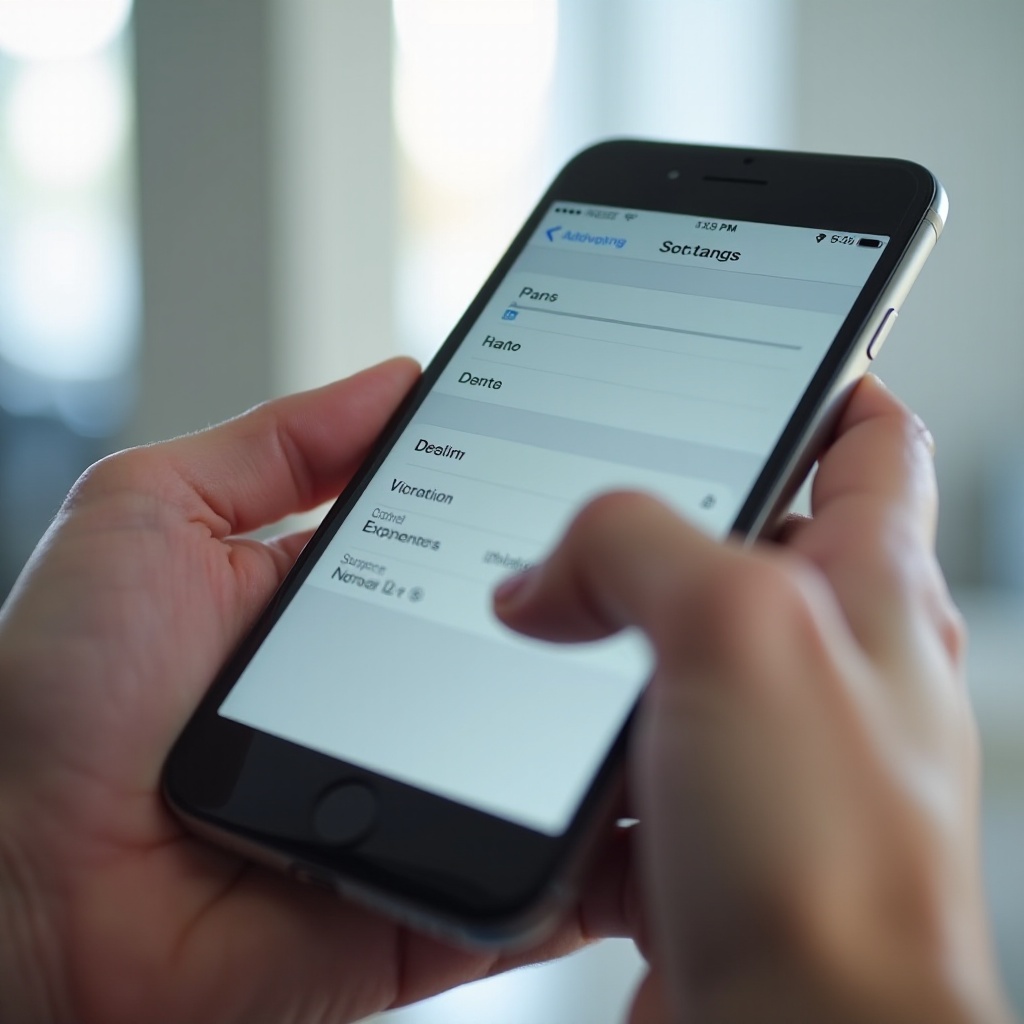
Smarter Alerts: Reduce Buzz Without Missing What Matters
You control when and which apps can vibrate. If the phone gets noisy at busy hours, reduce frequency while keeping key alerts.
Focus modes and schedules to limit frequent vibrations
- Create a Work, Sleep, or Driving Focus.
- Allow only important people and apps.
- Schedule Focus by time, location, or app activity.
- Use Silence Notifications for low priority apps so they do not vibrate.
This cuts dozens of unimportant buzzes and reduces the chance of loud resonance on desks or mounts.
Per contact ringtones and haptics for VIPs
Assign custom tones and vibrations to family or your boss. For everyone else, pick softer patterns or no vibration. You will only get strong haptics when it counts, which makes the occasional vibration more noticeable and less annoying.
LED Flash for Alerts as a visual backup
Enable LED Flash for Alerts in Accessibility. You gain a bright visual cue without more buzz. Combine it with softer haptics for a balanced setup at night or in meetings.
Apple Watch handoff to move haptics to your wrist
If you use Apple Watch, mirror iPhone alerts. Wrist taps replace phone buzz on the table. You still get instant notices, and your desk stays quiet.
With alert frequency under control, keep reliability high with simple software hygiene before assuming a hardware fault.
Software Hygiene and Safe Resets
Glitches can affect haptic timing or strength. Clean up software before concluding the problem is hardware. A few maintenance steps can restore normal behavior.
Update iOS, restart, and re test haptics
- Update to the latest iOS to get haptic and notification fixes.
- Restart the phone to clear temporary bugs.
- Test again on a soft surface and bare phone to isolate variables.
Reset All Settings: what it resets and what it preserves
If the issue persists, go to Settings > General > Transfer or Reset > Reset > Reset All Settings. It resets preferences like Wi‑Fi networks, notifications, and haptic toggles, but keeps your data. Retest after setup, then re enable your preferred options one by one.
Audit app notifications to cut down unnecessary buzzes
Open Settings > Notifications. Turn off vibration heavy apps, group alerts, or switch some to banners without sound or haptics. Fewer alerts equals less chance of noisy resonance. If you still hear odd rattles, check for hardware signs.
If clean software still produces harsh or uneven vibration in your hand, move on to hardware checks.
Diagnose Hardware Problems
Most loud vibration issues are not hardware. Still, the Taptic Engine can fail after drops or liquid contact. A short inspection can save you time at a service appointment.
Signs your Taptic Engine may be failing (grinding, uneven buzz)
A healthy Taptic Engine feels tight and precise. Warning signs include:
– Grinding or scraping sounds in hand.
– Uneven strength across pulses.
– Buzz that continues after the alert stops.
– Vibration that stops working randomly, then returns.
If you feel these, hardware service is likely.
Post drop or liquid exposure symptoms to watch for
After a drop, the motor mount or internal brackets can loosen. After liquid exposure, corrosion can affect the motor or nearby components. Symptoms include random rattles, weaker taps, or sudden silence from haptics. Document what you notice and when it started to help diagnostics.
When to contact Apple Support and what to expect in diagnostics
Contact Apple Support if symptoms persist on a soft surface and without a case. At a Genius Bar or Authorized Service Provider, expect diagnostics that test the Taptic Engine, buttons, and related systems. If parts are loose or failing, they will quote repair or replacement. If hardware checks out, revisit accessories and surfaces to eliminate resonance.
If no red flags appear, set expectations for your model and iOS, then assemble a quiet daily configuration.
Special Notes by Model and iOS
Haptic feel varies slightly by iPhone model and system settings. Use these notes to guide your choices, especially when comparing your device to someone else’s phone.
iPhone 12 to 16: differences in Taptic feel and chassis resonance
Thinner frames and larger camera housings can shift resonance points. Some models feel slightly thumpier, which may excite certain cases or mounts. This is normal, not a defect. Choose tighter cases, avoid loose metal rings, and use soft mats on hard desks.
iOS 17 to 18 haptic options that matter most
The key controls remain Sounds and Haptics toggles, Keyboard Haptics, System Haptics, and custom vibration patterns. There is no true intensity slider, so pattern choice and alert frequency carry the load for quieting your phone.
Beta vs. stable builds: troubleshooting on pre release software
Betas can change haptic timing or patterns temporarily. If you run a beta and feel odd behavior, file feedback and test on the latest stable release when possible. Many loud reports during betas resolve after the final build.
With expectations set, roll everything together into a quiet yet reliable day to day setup.
Recommended Quiet But Reliable Setup
Use this starter configuration to calm the buzz while keeping key alerts. Tweak it to match your schedule and environment.
Suggested Sounds and Haptics configuration for everyday use
- Keep Play Haptics in Ring on; turn it off in Silent if nights are noisy.
- Turn off Keyboard Haptics unless you rely on them.
- Keep System Haptics on for subtle interface taps.
- Use a short, soft custom pattern for calls and texts.
- Assign more prominent patterns to VIP contacts only.
Home, office, and car damping kits and placements
- Home: Place a small silicone mat on your nightstand; avoid bare wood or glass.
- Office: Use a soft phone stand or a mouse pad corner; keep the phone from touching metal desk frames.
- Car: Pick a mount with rubber pads and clamp dampers; avoid bare metal or glass contact points.
- Avoid cup holders and metal trays; if needed, add felt pads or a fabric liner.
Automation idea: Shortcuts to auto toggle haptics by time or location
Create automations with Shortcuts:
– At work: Turn off Keyboard Haptics and reduce alerts for social apps.
– At night: Turn off Play Haptics in Silent and enable LED Flash.
– Driving: Enable Driving Focus to allow only navigation and VIPs.
These small automations keep vibration under control all day while preserving critical alerts.
This balanced approach keeps you informed without desk shaking buzz. With a few damping accessories and smarter settings, the phone can be quiet in shared spaces and noticeable in your pocket.
Conclusion
Why is my vibration so loud on my iPhone usually has a simple answer. Hard surfaces amplify a normal buzz. Cases and accessories can rattle. Busy alerts make everything feel louder. The fixes are simple: damp the surface, remove or replace noisy accessories, refine your haptic settings, and reduce alert frequency. If you still hear grinding or uneven pulses in your hand, get hardware checked.
Use the quick triage steps, apply the smarter settings, and set up Focus modes. With a soft mat here and a shorter pattern there, your iPhone can stay quiet yet reliable, so you catch what matters without the table shaking buzz.
Frequently Asked Questions
Can I lower vibration intensity on my iPhone, or only change the pattern?
iOS does not include a true intensity slider for the Taptic Engine. You can make alerts feel gentler by picking shorter, softer vibration patterns or creating a custom pattern with spaced, light taps. Turn off Keyboard Haptics and limit System Haptics if frequent micro buzzes make the phone seem louder.
Why is my iPhone vibration so loud on a table but quiet in my hand?
Hard, flat, or hollow surfaces act like resonators. The Taptic Engine transfers energy into the surface, which then vibrates air and makes a louder sound. Your hand absorbs that energy, so the buzz sounds quiet when you hold the phone. Use a soft mat, stand, or fabric surface, or place the phone in a drawer organizer at night to stop the amplification.
Do keyboard haptics drain battery and make the phone seem louder?
Keyboard Haptics add small but constant vibration throughout the day. That can make the phone feel busier and louder, especially on a desk. They also use a bit more battery than typing without haptics. For a quieter, longer lasting setup, turn Keyboard Haptics off and rely on visual cues or sound for feedback.