
Introduction
Beats earbuds work especially well with iPhone, yet pairing can still feel confusing. Some users never see the setup pop-up. Others connect once but cannot get their Beats to reconnect later. You may even hear sound from only one earbud or experience random dropouts.
Once you understand the steps, it becomes simple and repeatable to connect Beats earbuds to iPhone and keep them stable. You do not need advanced knowledge or extra apps. You just need the right order of actions and a few useful settings.
This guide walks through the entire process in a practical way. You will check compatibility, put your Beats in pairing mode, turn on Bluetooth and connect, then fine-tune settings for the best experience. You will also see how to fix common problems when something does not work as expected. Follow each section in order if you are new to Beats, or jump to the part that matches your issue.
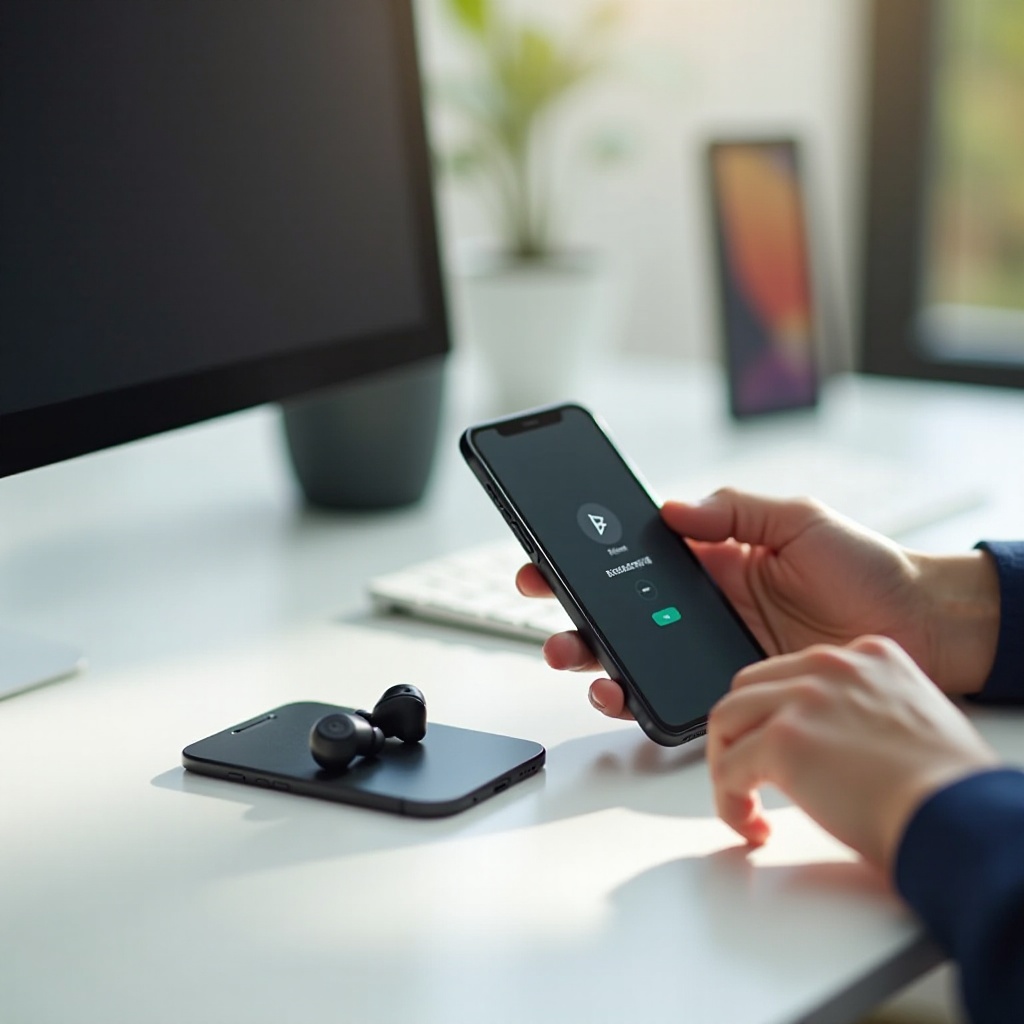
Check Compatibility Before You Connect
Before you try to connect Beats earbuds to iPhone, it is smart to confirm that your devices support the features you want. A few quick checks can save time and help you avoid chasing problems that come from software or hardware limits.
Compatibility covers three main areas: your iPhone and its iOS version, your Beats model, and basic connection requirements such as battery level and distance. Once you know these parts are ready, you can move into pairing with much more confidence.
Compatible iPhone Models and iOS 17 and Later
Most recent iPhones connect to Beats with no trouble, but newer software gives the best experience. To reduce glitches and get features like automatic switching and better battery widgets, use iOS 17 or later.
You can check and update your iPhone like this:
- Open Settings.
- Tap General.
- Tap Software Update.
- If an update appears, tap Download and Install.
Updating iOS improves Bluetooth stability and can fix bugs that affect wireless audio devices, including Beats earbuds.
Supported Beats Earbuds and Key Features
The steps in this guide work for popular Beats earbuds such as:
- Beats Studio Buds and Studio Buds+
- Beats Fit Pro
- Powerbeats Pro
- Other Beats wireless earbuds that support Bluetooth
Models with an Apple or Beats chip, such as Beats Fit Pro and Powerbeats Pro, offer extra benefits when you connect them to an iPhone. These include the animated setup card, automatic device switching with the same Apple ID, and a more seamless pairing process.
If you use an older Beats model that does not show the pop-up, do not worry. You can still connect through Bluetooth settings and enjoy wireless audio.
Battery, Distance, and Basic Bluetooth Requirements
Even if your devices are compatible, basic connection conditions still matter. Before pairing:
- Charge your Beats earbuds and case to at least 30%.
- Keep your iPhone and Beats within about 1–2 feet during the first connection.
- Make sure Airplane Mode is off on your iPhone.
- Plan to disconnect your Beats from any other device they are currently paired with.
Once these checks are done, you are ready for the next step: putting your Beats earbuds into pairing mode so your iPhone can discover them.
Put Your Beats Earbuds into Pairing Mode
To connect Beats earbuds to iPhone, you must first place the earbuds into pairing mode. In this mode, your Beats broadcast a Bluetooth signal that your iPhone can see in its Bluetooth settings.
Different Beats models enter pairing mode in slightly different ways, usually through a case button or a button on the earbuds. Use the instructions that match your specific model so the rest of the process goes smoothly.
Beats Studio Buds and Studio Buds+ Pairing Steps
For Beats Studio Buds and Studio Buds+:
- Put both earbuds in the charging case and close the lid for a few seconds.
- Open the lid and keep the case near your iPhone.
- Find the system button on the case.
- Press and hold the button until the LED on the case starts flashing.
- A flashing white light means your Beats are in pairing mode.
Keep the case open while you move to your iPhone to complete the connection.
Beats Fit Pro Pairing Steps
For Beats Fit Pro, the process is very similar:
- Place both earbuds in the charging case.
- Open the lid and hold the case close to your iPhone.
- If this is your first time using them, they usually enter pairing mode automatically.
- If nothing appears on your iPhone, press and hold the system button on the case until the LED flashes white.
Once the light flashes, your Beats Fit Pro are ready to pair with your iPhone or another device you choose.
Powerbeats Pro and Other Beats Wireless Earbuds
For Powerbeats Pro and many other Beats earbuds that charge in a case:
- Place both earbuds in the charging case and close the lid briefly.
- Open the lid and keep the case near your iPhone.
- Press and hold the system button on the case until the LED on the inside or front flashes white.
For older Beats wireless models that do not use a charging case button, locate the power or pairing button on one of the earbuds. Press and hold it until you see a flashing light or hear a pairing tone.
With pairing mode active, your Beats are broadcasting their signal. The next step is to turn on Bluetooth on your iPhone and connect.
Turn On Bluetooth and Connect Beats to iPhone
Once your Beats are in pairing mode, your iPhone must have Bluetooth turned on so it can detect and connect to them. You can connect using a quick pop-up animation on the screen or through the Bluetooth settings if the pop-up does not appear.
This is the core part of connecting Beats earbuds to iPhone. After you do it once, your Beats will be saved as a known device and future reconnections become much easier.
Enabling Bluetooth from Settings and Control Center
First, confirm that Bluetooth is active:
From Settings
- Open Settings.
- Tap Bluetooth.
- Make sure the toggle is switched On and shows green.
From Control Center
- Swipe down from the top-right corner of the screen.
- Look for the Bluetooth icon and tap it so it lights up.
With Bluetooth turned on, your iPhone is ready to search for and connect to your Beats earbuds.
Using the Pop-Up Setup Animation on iPhone
Many Beats earbuds that include an Apple or Beats chip provide a smooth setup card when you open the case near your iPhone:
- Unlock your iPhone and go to your Home Screen.
- Hold the open Beats case next to the phone.
- Wait a few seconds for a setup pop-up to appear.
- Tap Connect on the card.
- Follow any prompts, such as enabling ‘Hey Siri’ or allowing notifications.
After this, your Beats should connect automatically to your iPhone when you take them out of the case, as long as Bluetooth is on.
Manually Pairing via Settings > Bluetooth
If you do not see a pop-up, you can still connect Beats earbuds to iPhone through the Bluetooth menu:
- Confirm your Beats are still in pairing mode (LED flashing white).
- Open Settings on your iPhone.
- Tap Bluetooth.
- Look for your Beats under the ‘Other Devices’ section.
- Tap the name of your Beats (for example, ‘Beats Fit Pro’ or ‘Powerbeats Pro’).
- If a pairing prompt appears, tap Pair or Allow.
Once the connection completes, your Beats move into the ‘My Devices’ list, which means your iPhone remembers them for future use.
With the first pairing complete, ongoing use becomes much easier. The next step is to see how your iPhone reconnects to your Beats and how to switch between Apple devices without repeating the full setup.
Reconnect Beats Earbuds to iPhone Automatically
After the initial pairing, iOS handles most reconnections for you. This means you usually do not need to open Bluetooth settings each time you want to use your Beats.
Understanding how automatic reconnection works helps you spot when something is wrong and how to fix it quickly. It also explains how your Beats behave when multiple Apple devices near you want to use them.
How Automatic Reconnection Works in iOS 17
Once you connect Beats earbuds to iPhone, iOS 17 typically reconnects them automatically when:
- You take your earbuds out of the case.
- Your iPhone has Bluetooth turned on.
- Your Beats are close enough and not actively connected to another device.
You may see a small banner at the top of the screen showing the Beats name and battery level. If you do not see a banner but your Beats connected properly before, check the audio output menu in Control Center.
Switching Between iPhone, iPad, and Mac with the Same Apple ID
If you use the same Apple ID on your iPhone, iPad, and Mac, some Beats models support automatic device switching. For example:
- You listen to music on your iPhone with your Beats.
- You start playing a video on your iPad using the same Apple ID.
- Your Beats may switch audio from iPhone to iPad automatically.
This can be very convenient, but if you find that auto switching is moving audio when you do not want it to, you can adjust your settings. In Settings > Bluetooth, tap the ‘i’ icon next to your Beats and look for options related to automatic connection or device switching.
Manually Selecting Beats from the Control Center Output Menu
If your Beats do not reconnect on their own, or if they seem stuck on another device, you can pick them manually from the output list:
- Swipe down from the top-right corner to open Control Center.
- Press and hold the audio card (the box with the play/pause and volume slider).
- Tap the AirPlay icon (triangle with circles).
- Choose your Beats earbuds from the list of available devices.
This manual selection is useful when you have multiple Bluetooth devices nearby, such as speakers, cars, or other headphones.
Now that your Beats connect and reconnect reliably, you can start shaping the experience. The next section covers how to customize settings so your earbuds behave exactly how you like.
Customize Beats Earbuds Settings on Your iPhone
Customizing your Beats settings on iPhone lets you control how noise cancellation works, what the buttons do, and how your earbuds appear in menus. These small changes can make daily use faster and more comfortable.
Most of these options live in the Bluetooth details screen for your Beats or in the Control Center while your earbuds are connected.
Rename Your Beats and Manage Device Info
Renaming your Beats helps you tell them apart from other Bluetooth devices, especially if you own multiple pairs or share devices with family members.
To rename your Beats:
- Open Settings.
- Tap Bluetooth.
- In the ‘My Devices’ list, find your Beats and tap the ‘i’ icon next to them.
- Tap Name.
- Enter a new, clear name such as ‘Beats Fit Pro Gym’ or ‘Studio Buds Work’.
- Tap Done.
On this same screen, you can choose Forget This Device if you want to remove the pairing from your iPhone and set up your Beats as new.
Configure Noise Cancellation and Transparency Mode
For Beats models that support listening modes, like Beats Studio Buds+ and Beats Fit Pro, you can switch between different levels of outside sound control:
- Active Noise Cancellation (ANC): Reduces outside noise, great for flights or noisy streets.
- Transparency: Lets outside sound in so you can stay aware of your surroundings.
- Off: Disables ANC and Transparency for more natural listening and longer battery life.
To change modes from Settings:
- Open Settings and tap Bluetooth.
- Tap the ‘i’ icon next to your Beats.
- Under Noise Control, choose Noise Cancellation, Transparency, or Off.
You can also adjust modes from Control Center when your Beats are connected:
- Open Control Center.
- Press and hold the volume slider that shows your Beats icon.
- Tap the Noise Control button and choose your preferred mode.
Set Up On-Ear Controls and ‘Hey Siri’ for Hands-Free Use
Many Beats earbuds let you customize what happens when you press and hold a button on the earbuds:
- Go to Settings > Bluetooth.
- Tap the ‘i’ icon next to your Beats.
- Look for options to change Press and Hold or Left/Right Earbud controls.
- Assign actions like noise control, voice assistant, or volume.
To enable ‘Hey Siri’ for supported Beats models:
- Open Settings.
- Tap Siri & Search.
- Turn on Listen for ‘Hey Siri’.
With this active, you can say ‘Hey Siri’ while wearing your Beats to adjust volume, play a song, send a message, or make a call without touching your iPhone.
Once your Beats feel comfortable and respond the way you want, you are ready to handle issues quickly when they appear. The next section covers the most common connection problems and how to solve them.
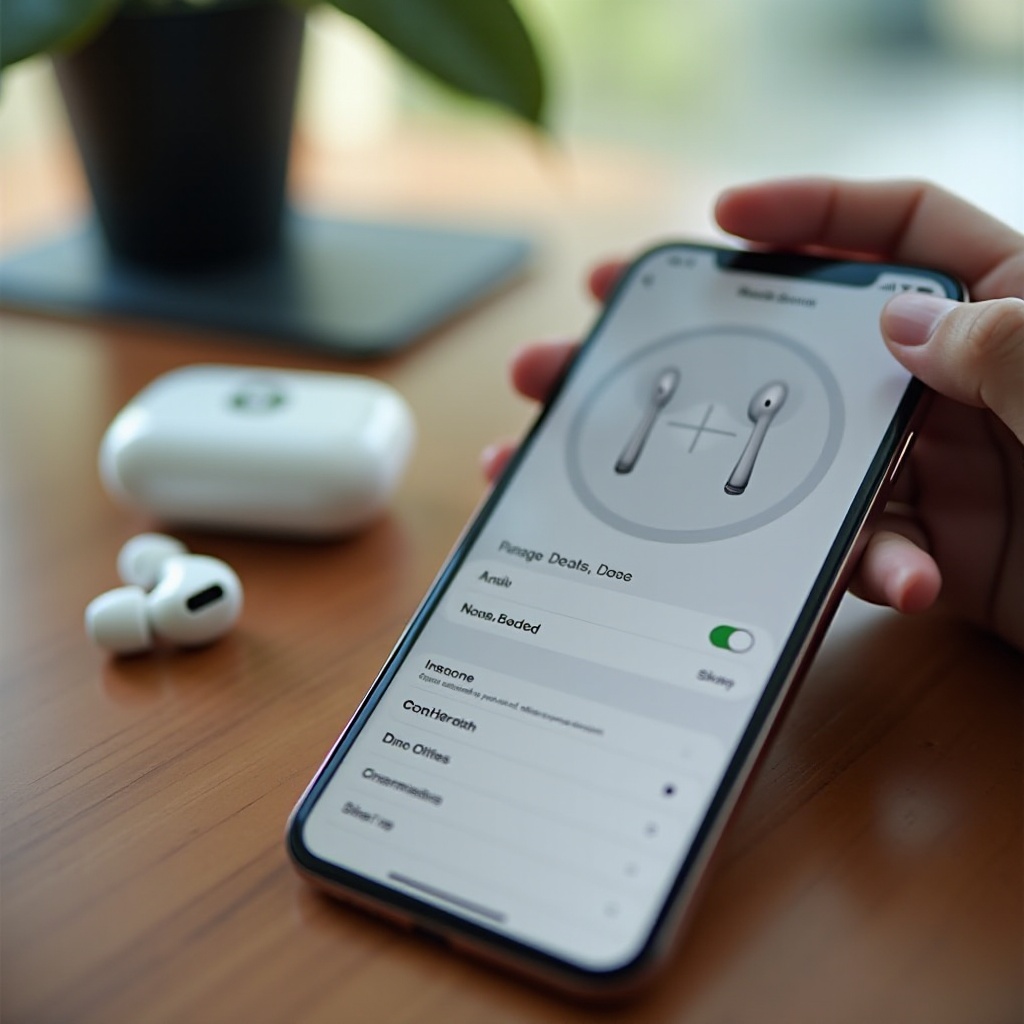
Fix Common Problems When Beats Won’t Connect to iPhone
Even with a correct setup, you might run into trouble. Your Beats may not show in the Bluetooth list, or they may connect but play no sound. Sometimes only one earbud works or audio drops often.
Instead of guessing, you can follow a clear sequence of checks and fixes. In most cases, you will solve the issue without needing repairs or support.
Beats Not Showing Up in iPhone Bluetooth List
If your Beats do not appear under ‘Other Devices’ when you try to connect:
- Confirm your Beats are in pairing mode:
- The LED should flash white.
- Move your iPhone and Beats closer together.
- Turn Bluetooth off and on again:
- Open Settings > Bluetooth.
- Toggle Bluetooth off, wait a few seconds, then turn it on again.
- Restart your iPhone:
- Press and hold the power button and either volume button.
- Slide to power off, wait, then turn your iPhone back on.
- Check if your Beats are connected to another phone, tablet, or laptop. If they are, disconnect or choose Forget This Device on that device.
After these steps, put your Beats back into pairing mode and try connecting again from the Bluetooth settings.
Beats Connected but No Sound or Only One Earbud Working
If your Beats show as connected yet you hear no sound, or audio only plays from one earbud, try the following:
- Confirm the iPhone is sending audio to your Beats:
- Open Control Center.
- Press the audio card and tap the AirPlay icon.
- Select your Beats earbuds in the list.
- Turn up the volume:
- Use the side volume buttons on your iPhone.
- Check the volume inside the app you are using, like Spotify or YouTube.
- Clean the earbuds gently with a soft, dry cloth. Dust and earwax can block the speaker grill and make one side sound quiet or silent.
- Remove both earbuds and place them back into the case. Close the lid, wait about 10 seconds, then open the lid and reinsert the earbuds.
- Test each earbud separately. Use one earbud at a time and see if both work on their own.
If the problem remains after these steps, a reset often clears software glitches.
Resetting Beats Earbuds and Updating iOS for Stable Connections
Resetting your Beats puts them back into a like-new state, which often fixes stubborn connection issues:
- Put both earbuds into the charging case and leave the lid open.
- Press and hold the system button on the case.
- Keep holding until the LED flashes red and white, or flashes rapidly depending on the model.
- Release the button and wait for the LED to return to a regular flashing white state.
- Now reconnect your Beats to your iPhone through the normal pairing steps.
Along with a reset, make sure your iPhone software is current:
- Open Settings.
- Tap General.
- Tap Software Update.
- Install any available updates.
Updating iOS improves Bluetooth behavior and can remove bugs that cause random disconnects or pairing failures.
With connection problems under control, you can now focus on making your Beats sound their best and last longer on each charge. That is where the next section comes in.
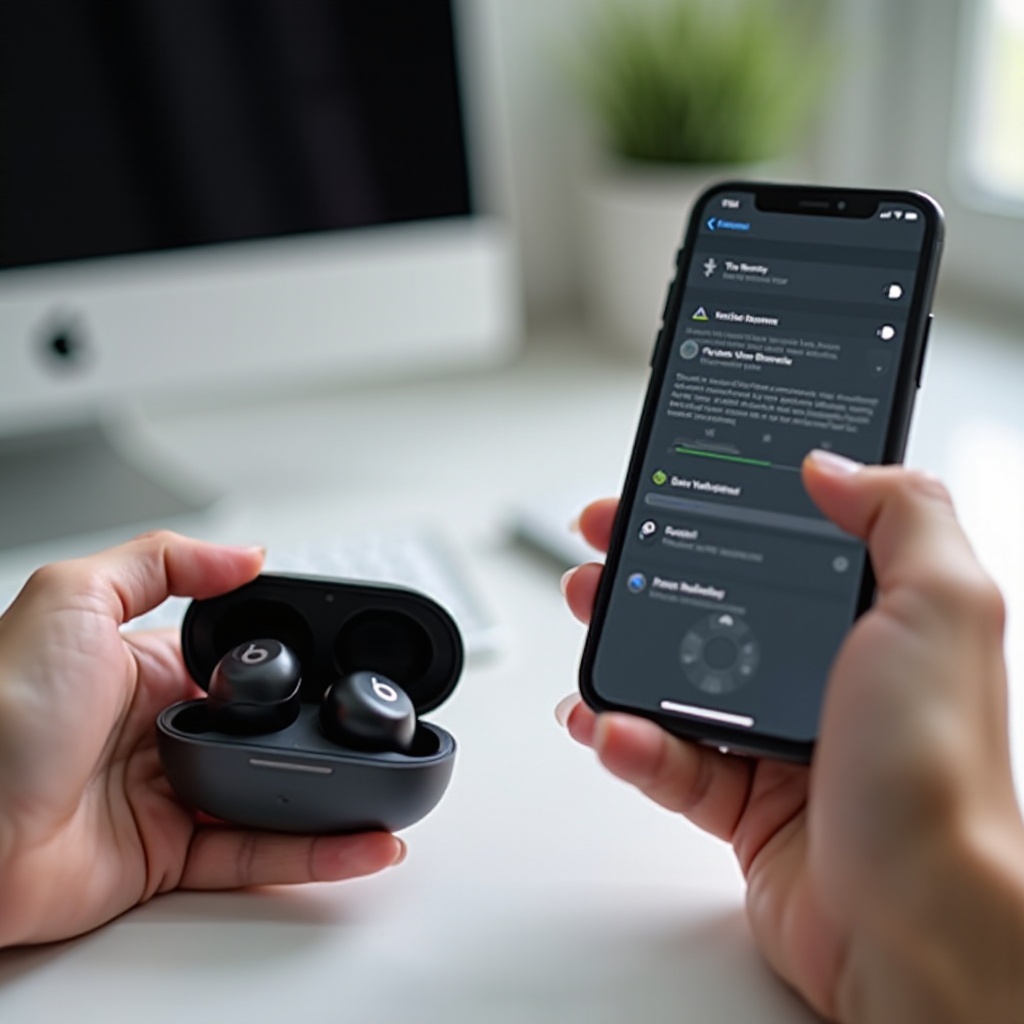
Pro Tips for Better Sound and Battery Performance
After you connect Beats earbuds to iPhone and fix any issues, you can fine-tune your setup for stronger performance. Better Bluetooth range, smarter battery use, and good care keep your Beats reliable day after day.
These tips build on everything you have already set up and help you get more value from your earbuds.
Optimize Bluetooth Range and Reduce Interference
Bluetooth is stable within a certain distance and works best with fewer obstacles. To keep audio smooth:
- Stay within about 10 meters (33 feet) of your iPhone.
- Avoid thick walls, metal cabinets, and large appliances between your phone and your Beats.
- Do not bury your iPhone deep inside a bag or under heavy items.
- Turn off Bluetooth on devices you are not using, especially those that previously connected to your Beats.
Reducing interference helps cut down on dropouts and keeps music and calls clear.
Check Battery Status and Use the Batteries Widget
Low battery can cause dropouts and unexpected shutoffs, so it is helpful to keep an eye on your Beats and case levels:
- Open the Beats case near your iPhone to trigger a battery pop-up showing each earbud and the case charge.
- Ask Siri ‘What is the battery level of my Beats?’ while wearing them.
- Add the Batteries widget to your Home Screen or Today View:
To add the Batteries widget:
- Long-press an empty area on the Home Screen until the icons jiggle.
- Tap the ‘+’ button at the top.
- Search for Batteries.
- Choose a widget size and tap Add Widget.
- Place it where you want and tap Done.
Now you can see your Beats and case battery level whenever they connect to your iPhone.
Cleaning, Storing, and Protecting Your Beats Earbuds
Basic care makes a big difference in sound quality and lifespan:
- Wipe the earbuds and case with a soft, dry, lint-free cloth.
- Avoid harsh chemicals, compressed air, and submerging your Beats in water.
- If your Beats get sweaty during a workout, dry them before putting them back in the case.
- Store your Beats in their case when you are not using them to protect them and keep them charged.
- Keep the case out of extreme heat and cold, such as hot cars or direct sun.
These habits protect the drivers and the battery cells, so your Beats stay reliable for a long time.
Conclusion
You now have a full, practical process to connect Beats earbuds to iPhone and keep them working well. The key steps are clear: confirm compatibility, place your Beats in pairing mode, turn on Bluetooth, and connect using either the pop-up animation or the Bluetooth settings screen.
Once paired, automatic reconnection, custom controls, and noise control settings make everyday use smoother. When issues appear, simple fixes like checking audio output, resetting your Beats, and updating iOS usually solve them without much effort.
With this guide, you can set up, control, and troubleshoot your Beats earbuds with confidence, and enjoy reliable wireless audio with your iPhone for music, calls, and workouts.
Frequently Asked Questions
Can I use one Beat earbud at a time with my iPhone?
Yes. Many models such as Beats Fit Pro and Powerbeats Pro support single-ear use. Just wear one earbud and leave the other in the case. Your iPhone will send audio to the earbud you are using, which is useful for calls or when you need to stay aware of your surroundings.
Do I need the Beats app to connect Beats earbuds to iPhone?
No. You do not need the Beats app to connect Beats earbuds to iPhone. iOS handles pairing, noise control, and most settings in Settings > Bluetooth and Control Center. The Beats app is mainly designed for Android, where it adds features that iPhone already offers natively.
How do I connect my Beats earbuds to a new iPhone without forgetting them on the old one?
If both iPhones use the same Apple ID and iCloud, your Beats may appear automatically on the new phone. Open the case near the new iPhone and tap Connect. If the phones use different Apple IDs, put your Beats in pairing mode and connect them via Settings > Bluetooth on the new iPhone. You do not have to forget them on the old phone, but if you see conflicts, turn off Bluetooth or choose Forget This Device on the old one.