
Introduction
Wi-Fi should feel effortless on an iPhone. You tap, it joins, and everything loads. When it does not, you waste time chasing passwords, login pages, or weak signals. This guide removes the guesswork and shows you exactly how to get online fast and stay there. You will learn the quickest ways to connect, the right settings to keep your data private, and the tweaks that boost speed and stability. You will also get clear, actionable fixes for the most common Wi-Fi problems on iPhone.
We will start with basics such as SSIDs and passwords, then move to quick Control Center joins and full setup from Settings. From there, you will see how to handle hidden, enterprise, or QR-based networks without frustration. Finally, we will cover privacy, optimization, advanced settings, and troubleshooting so your iPhone stays online with confidence at home, work, and on the go.
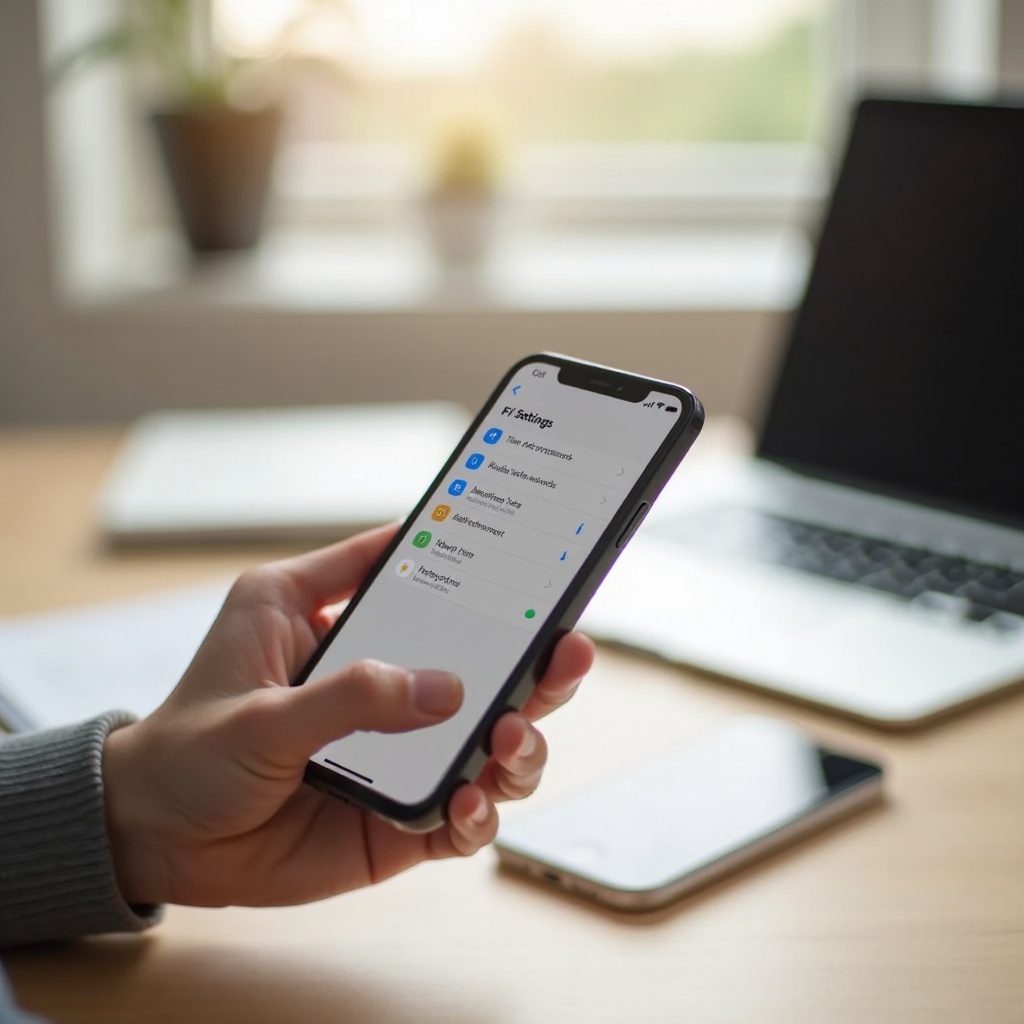
What You Need Before You Start: SSID, Password, and Router Security
Setup goes faster when you have the right details. Find the network name (SSID) and the exact Wi-Fi password. If you manage the router, confirm the security mode. Use WPA2-Personal at a minimum, and prefer WPA3-Personal when available. Avoid open networks and never use legacy security like WEP.
If your router broadcasts separate names for 2.4 GHz and 5 GHz, write both down. Check the router label or your ISP app for the default SSID and password. If you are connecting at work or school, ask IT for enterprise credentials or a device profile. With this info ready, you can connect from Control Center in seconds or dive into Settings for fine control.
Quick Connect from Control Center
When you are in a hurry, Control Center is the fastest path to Wi-Fi.
- Swipe down from the top-right corner to open Control Center.
- Touch and hold the Wi-Fi tile to expand the network panel.
- Tap the Wi-Fi icon to turn it on, if it is off.
- Tap a network from the list. Enter the password if prompted.
- If you see a lock icon, it is secured; if a brief web prompt appears, it is a captive portal.
This method is perfect for quick joins and testing. If you need to manage auto-join, private address, DNS, or other details, open Settings for the full toolkit. Control Center gets you online; Settings helps you stay in control.
Step-by-Step Setup in Settings > Wi-Fi
Settings gives you the most control over how your iPhone connects and behaves on a network.
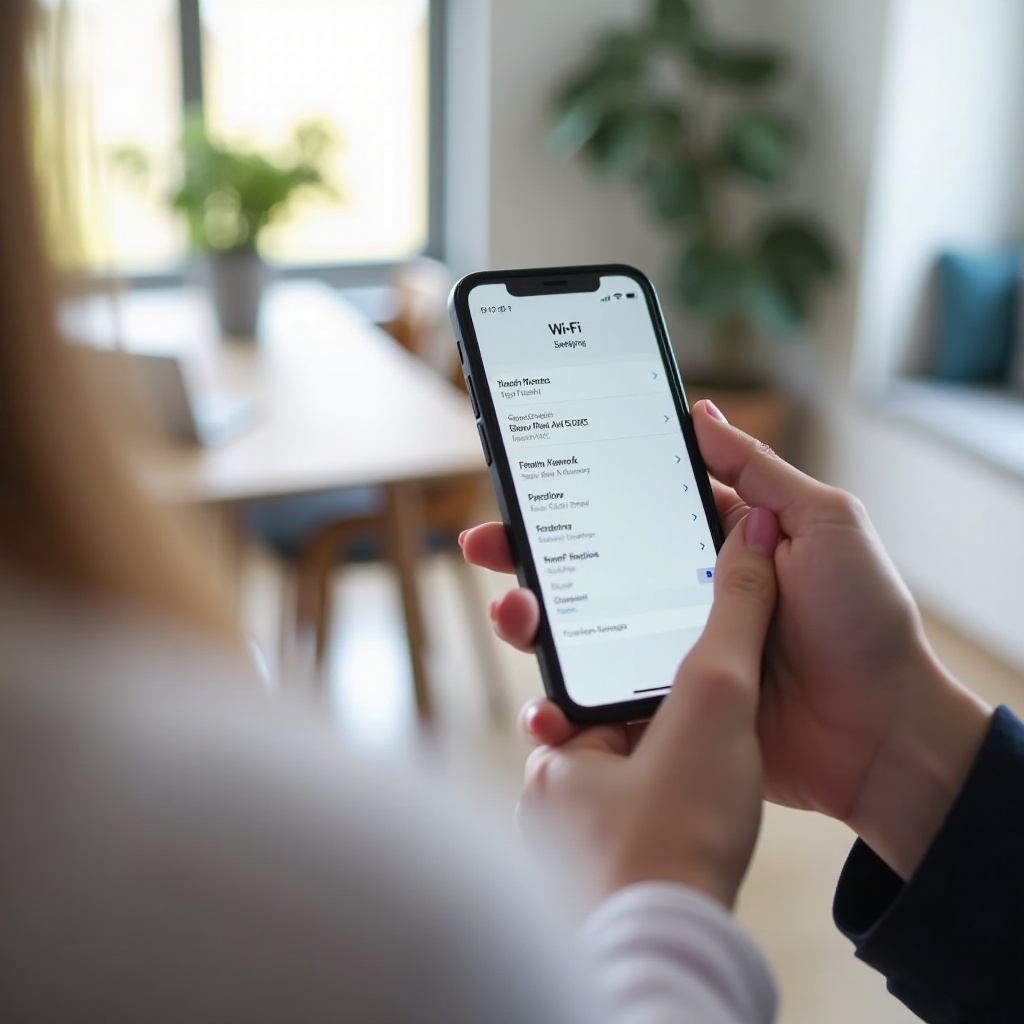
1) Open Settings and tap Wi-Fi.
2) Turn Wi-Fi on. Wait a few seconds for nearby networks to appear.
3) Tap your network SSID. Enter the exact password, then tap Join.
4) If you see an alert like ‘Unsecured Network’ or ‘Weak Security’, consider updating your router to WPA2 or WPA3.
5) If your router offers separate 2.4 GHz and 5 GHz SSIDs, prefer 5 GHz for speed when you are close, and 2.4 GHz for range when you are far.
6) After joining, tap the ‘i’ button next to the network to review options:
– Auto-Join: toggle on for home or work networks you trust.
– Private Wi-Fi Address: keep on for most networks to protect your device identity.
– Limit IP Address Tracking: reduce cross-site tracking via Apple privacy protections.
– Low Data Mode: save data if you are on a metered hotspot or congested public network.
You now have a clean baseline connection. Next, let us handle trickier joins like hidden SSIDs and enterprise networks that need extra steps.
Join Hidden or Enterprise Networks
Hidden or managed networks add complexity. Tackle them one by one to avoid guesswork and repeated errors.
Manually Entering an SSID and Password
- Go to Settings > Wi-Fi > Other…
- Enter the exact network name (case-sensitive).
- Choose Security (WPA2/WPA3). Enter the password.
- Tap Join. If it fails, confirm the SSID and security type with the router.
802.1X/Enterprise Tips (WPA2/WPA3-Enterprise)
- Tap the enterprise SSID in Settings > Wi-Fi.
- Enter your username and password, or use a provided identity or certificate.
- If prompted, tap Trust to accept a known, valid certificate from your organization.
Certificates and Profiles on Managed iPhones
- If IT gave you a configuration profile, install it (Settings > Profile Downloaded).
- Profiles can preconfigure Wi-Fi, certificates, and proxies.
- After install, rejoin the network. Contact IT if authentication loops persist.
Now that you can join even the toughest networks, let us switch to the quickest way to connect guests and family: QR codes and simple sharing.
Connect Using a QR Code or Nearby Share
QR codes accelerate setup, especially for guests and shared spaces. You avoid typos and speed through the join process.
Scan a Wi-Fi QR Code with the Camera
- Open the Camera app and point it at the Wi-Fi QR code.
- Tap the Wi-Fi join banner that appears.
- Confirm the network and join. No typing required.
Generate Safe QR Codes for Guests
- Many router apps let you share a guest network via QR.
- You can also use reputable QR generators that support WPA2 or WPA3.
- Display the code in your home or save it to Photos for quick access.
Troubleshoot QR Code Joins
- If no banner appears, ensure Camera is allowed to scan codes (Settings > Camera).
- Clean the lens and improve lighting.
- Verify the QR encodes the correct SSID and security.
After easy QR joins, the next step is shaping how your iPhone automatically finds and rejoins networks without surprises.
Auto-Join, Auto-Login, and Ask to Join Networks
Automatic behavior saves taps but can cause surprises on flaky networks. Tune these settings to fit your environment.
How iOS Prioritizes Known Networks
Your iPhone favors networks you used recently and those with stronger signals. It will automatically rejoin saved SSIDs when Auto-Join is enabled. If two networks share a name, the iPhone evaluates signal and security. You can influence this behavior by forgetting unwanted SSIDs and keeping only the best ones saved.
Captive Portals and Auto-Login Behavior
Hotels, airports, and cafes often use a web sign-in page. Your iPhone usually detects and prompts you to log in. If auto-login stalls, open Safari to trigger the portal or tap the network name again to refresh the prompt. In tough cases, briefly disable VPNs or content blockers so the portal can load.
When to Disable Auto-Join
Turn Auto-Join off for congested or slow public hotspots that hijack your connection. Tap the ‘i’ next to the SSID and toggle Auto-Join off. This prevents unwanted switches when you walk by. For your home and office, keep Auto-Join on for convenience.
With auto-join under control, the next priority is protecting your identity and data without sacrificing performance.
Privacy and Security Settings for Wi-Fi
Protect your identity and traffic while keeping performance strong. iPhone offers simple toggles that make a real difference.
Private Wi-Fi Address (Randomized MAC)
Keep Private Address on for most networks. It randomizes your device MAC address so venues cannot easily track your visits over time. If a corporate or campus network uses MAC filtering, you may need to turn this off temporarily and register the shown address.
Limit IP Address Tracking and iCloud Private Relay
Limit IP Address Tracking reduces cross-site tracking by hiding your IP from known trackers. If you use iCloud Private Relay, Safari routes traffic through Apple systems to obscure your location and IP. Some work networks and streaming services may restrict these features; toggle them per network if needed and follow any IT requirements.
Use Strong Security: WPA3 vs WPA2
Use WPA3 when available for stronger protection and better resilience against attacks. If older devices cannot join, use WPA2/WPA3 mixed mode. Avoid open networks and change your router admin password from defaults. For sensitive work, use a trusted, fast VPN that you control or that your organization approves.
Once your privacy is set, you can push for better speeds and rock-solid stability using band selection and simple placement fixes.
Optimize Speed and Stability
Small changes can deliver big gains in throughput and reliability. Tackle the radio band, physical placement, and iPhone data-saving features.
Choose 2.4 GHz vs 5 GHz vs 6 GHz (Wi-Fi 6E/7)
- 2.4 GHz travels farther but is slower and crowded.
- 5 GHz offers faster speeds with moderate range.
- 6 GHz (Wi-Fi 6E/7) delivers low latency and high capacity but shorter range.
If your router broadcasts separate SSIDs, prefer 5 or 6 GHz nearby for higher throughput. Use 2.4 GHz for smart devices or far rooms. For a single SSID with band steering, ensure the router has it tuned well in its app.
Reduce Interference and Improve Placement
- Move closer to the router or access point.
- Keep routers off the floor and away from metal or thick walls.
- Change channels in the router app to avoid neighbors networks.
- For large homes, consider a mesh system for even coverage.
- Keep microwave ovens and cordless bases away from routers to reduce noise.
Low Data Mode and Wi-Fi Assist
- Turn off Low Data Mode when you need full speed (network details screen).
- Wi-Fi Assist can switch to cellular if Wi-Fi is poor. Toggle it in Settings > Cellular if you want to avoid unexpected data use.
- On congested venues, disabling Low Data Mode can improve streaming and video calls.
If speed still lags, adjust advanced network settings for a cleaner connection and faster name lookups.
Advanced Network Settings
Network detail screens let you tune addressing and name resolution. These options resolve stubborn stalls and DNS hiccups.
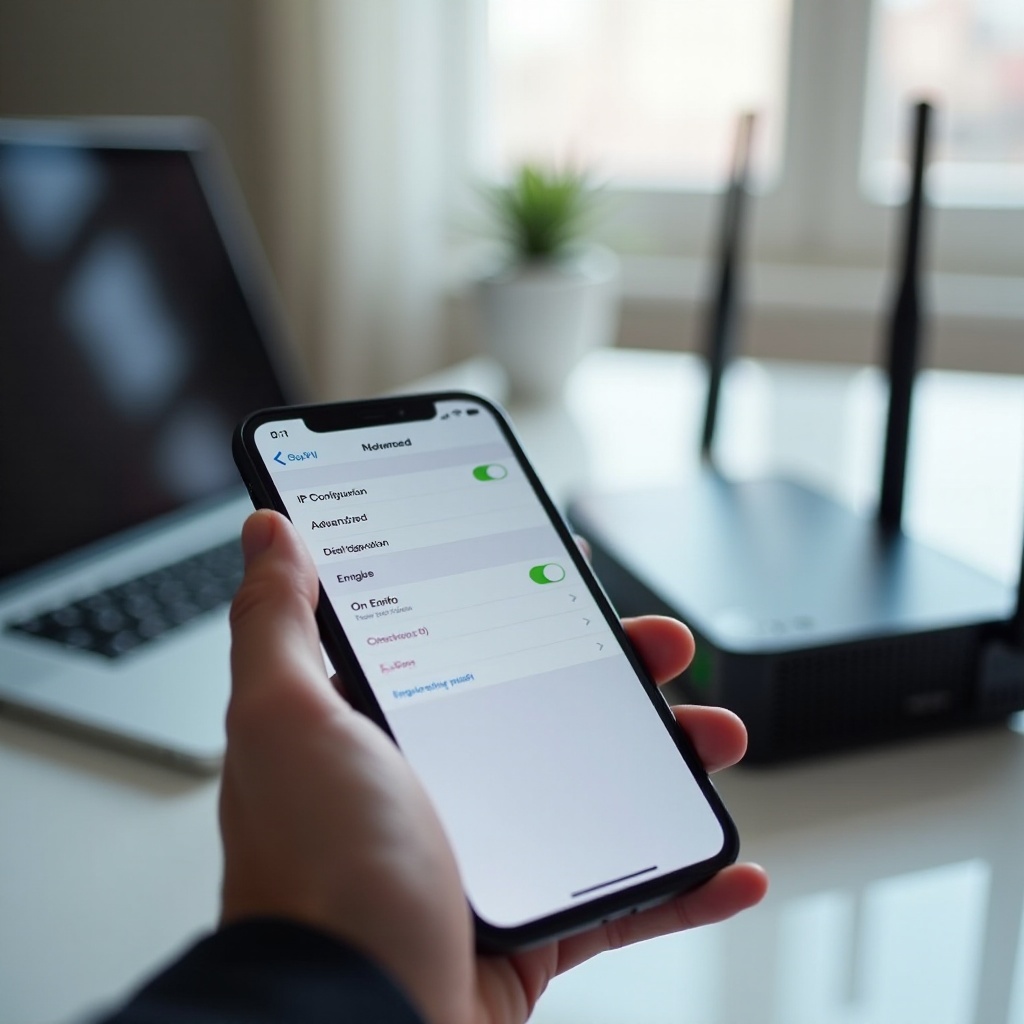
Renew DHCP Lease and Configure Manual IP
If your iPhone stalls, shows a self-assigned IP, or loses internet after joining, tap Renew Lease in the network details. For advanced setups, you can set a manual IP, subnet mask, and router gateway. Use static IPs only if your network is designed for them to avoid conflicts and duplicate addresses.
Set Custom DNS (Cloudflare/Google)
Unreliable DNS slows everything. In the network details, set DNS to:
– 1.1.1.1 and 1.0.0.1 (Cloudflare)
– 8.8.8.8 and 8.8.4.4 (Google)
This often speeds lookups, improves reliability, and helps bypass flaky ISP resolvers. After changing DNS, close and reopen apps to force fresh lookups.
Proxy, Private Relay, and VPN Interactions
If a proxy or VPN blocks sites or breaks captive portals, disable it temporarily to join. After you authenticate on the portal, re-enable the VPN. For work setups, follow IT guidance on proxies, trusted certificates, and approved VPNs to keep access stable and compliant.
Now that your connection is tuned, share it securely, manage passwords with ease, and keep your network list tidy.
Share and Manage Wi-Fi Passwords
Apple makes sharing simple while keeping your credentials safe. You can share with other Apple devices and securely reveal saved passwords when needed.
Apple Password Sharing Between iPhone and Mac
- Bring devices close, turn on Wi-Fi and Bluetooth, and ensure Apple IDs are saved in each other Contacts.
- Connect one device to the Wi-Fi.
- On the second device, select the same SSID. Tap Share Password when prompted.
View and Copy Saved Wi-Fi Passwords
- Go to Settings > Wi-Fi.
- Tap the ‘i’ next to a network, then tap the password to view with Face ID or passcode.
- Copy it to share securely through an end-to-end encrypted app.
Use a Guest Network or QR for Non-Apple Devices
Create a separate guest SSID with its own password and bandwidth limits. Share that via QR to keep your main network private and safer from visitors devices. Rotate the guest password periodically for better security.
Once your passwords are managed, keep your saved networks clean. This reduces surprise joins and speeds reconnection.
Manage Known Networks on iPhone
A clean list prevents unwanted connections and helps your iPhone pick the best network fast.
Forget, Reorder, and Prioritize Networks
There is no manual reorder, but you can shape behavior:
– Forget SSIDs you do not want (tap ‘i’ > Forget This Network).
– Prefer 5 GHz by giving it a unique name and forgetting the 2.4 GHz SSID.
– Keep Auto-Join on only for networks you trust and use often.
iCloud Keychain Sync Across Devices
Saved Wi-Fi passwords sync across your Apple devices signed into the same Apple ID with iCloud Keychain. This keeps your Mac, iPad, and iPhone in step with minimal setup and reduces repeated typing.
Remove Old or Unsafe SSIDs
Delete outdated cafe or hotel networks. This reduces surprise connections and potential tracking. It also helps auto-join pick your best choices without detours to weak or captive networks.
If problems still pop up, move on to targeted troubleshooting that actually works and addresses the root cause.
Fix Common Wi-Fi Setup Problems
Most issues fall into a few patterns. Work through them in order to isolate the cause and fix it fast.
Wrong Passwords, Authentication Loops
- Re-enter the password carefully. Watch for spaces and case sensitivity.
- Forget the network and rejoin to clear cached credentials.
- If enterprise login loops, install or refresh the profile or certificate from IT.
- If you see continual prompts, confirm the router security mode matches your entry.
VPNs, Profiles, and Content Filters
- Turn off VPNs, ad blockers, or third-party DNS during initial join.
- Remove expired profiles that enforce broken proxies.
- For captive portals, open Safari after connecting to trigger the login page.
- If a portal will not load, renew the DHCP lease or toggle Airplane Mode on and off.
Reset Network Settings—What It Erases
- Go to Settings > General > Transfer or Reset > Reset > Reset Network Settings.
- This clears known Wi-Fi networks, passwords, VPN/APN settings, and Bluetooth pairings.
- Reboot the router and try again. Update your iPhone and router firmware afterward to benefit from fixes and security patches.
If your iPhone connects but the internet still fails, the problem often lives in the router or the link to your ISP. A quick update can fix it, and an upgrade can future-proof your home.
When to Update or Replace Your Router
Routers age and firmware drifts behind modern devices. Update first:
– Use the router app or web console to install the latest firmware and security patches.
– Reboot and test. Check speeds near the router with a simple speed test.
If speeds stay low or coverage is uneven, consider a mesh system or a Wi-Fi 6/6E/7 router for better capacity and lower latency. Avoid ISP gateways locked to legacy modes; bridge them to a modern router when possible. Proper placement and a fresh channel plan can also yield big gains without new hardware.
Conclusion
You now have a complete workflow for wifi setup iphone on any network. Start with quick joins, then use Settings to control auto-join, privacy, and performance. Optimize bands and DNS for speed, and share passwords securely. Keep your saved network list tidy and let iCloud Keychain sync do the heavy lifting across your devices. If anything breaks, follow the fixes in order, and do not hesitate to refresh network settings or update your router.
With these steps, your iPhone connects fast, stays secure, and keeps apps, calls, and streaming running smoothly—at home, at work, and on the go.
Frequently Asked Questions
How do I force my iPhone to prefer 5 GHz over 2.4 GHz?
Give each band a different SSID on your router. Connect your iPhone to the 5 GHz SSID and toggle Auto-Join on for that network. Forget the 2.4 GHz SSID so the phone will not fall back. If your router uses one SSID for both bands, enable band steering or create separate SSIDs.
Why do I not see the hotel login page on Wi-Fi?
Captive portals can stall behind VPNs or content blockers. After joining the hotel SSID, disable your VPN and open Safari to trigger the portal. If nothing appears, tap the network name again in Settings to refresh the prompt. Forget and rejoin the network if needed. As a last resort, renew the DHCP lease or reset network settings and try again near the lobby access point.
Is WPA3 required for iPhone, and should I enable it?
iPhone supports WPA3 and benefits from its stronger security. Enable WPA3-Personal if all your devices can join. If you have older devices, use WPA2/WPA3 mixed mode. Avoid WPA, WEP, and open networks. For best results, pair WPA3 with a strong admin password, up-to-date router firmware, and a separate guest network for visitors.