
Introduction
Sound stops working, calls go silent, or music routes to the wrong device — audio issues can make an iPhone feel broken. You can fix most problems without a repair if you use a clear plan. This guide shows you how to fix iPhone audio across calls, music, videos, apps, Bluetooth headphones, AirPlay speakers, and car systems. You will start with quick checks, then dive into Sound and Haptics, Accessibility, and app permissions. If that does not solve it, move on to Bluetooth, safe cleaning, and deeper resets. At the end, you will know how to run diagnostics and when to contact Apple.
Each section builds on the last. You will confirm the symptom, isolate the path that fails, and apply the most likely fix. Keep a second device nearby to read steps while you test. If a step changes anything, note it. That clue will guide the next action and speed up support if you need it later.
Understand the Problem: Diagnose Your iPhone Audio Issue
Before you change settings, name the exact symptom. A targeted diagnosis prevents random toggles and saves time. Start by identifying which audio path fails and whether the problem appears in all apps or only in some.
Differentiate call audio, media audio, and notification sounds
- Calls: Does the issue happen only on phone calls or FaceTime audio? Can people hear you? Can you hear them?
- Media: Do music, videos, podcasts, and games play silently, or only in certain apps?
- Alerts: Are ringtones, text tones, and alarms missing while media still plays?
If calls fail but music plays, the earpiece, a microphone, or the call routing path may be at fault. If one app is silent while others work, troubleshoot that app and its permissions first.
Internal speakers and microphones vs. headphones, Bluetooth, and AirPlay
- Test playback with the iPhone speaker, then with known‑good wired or wireless headphones.
- Open Control Center and tap the AirPlay icon in the Now Playing tile to check the current output.
- If a Bluetooth device connects and steals audio, turn Bluetooth off to force output back to iPhone.
If sound returns when you switch outputs, you found a routing problem. Keep that in mind as you move to quick fixes.
Reproduce the issue consistently and gather clues
- Play a downloaded test track in Music or Files to rule out streaming problems.
- Use Voice Memos to record your voice and test the bottom and top microphones.
- Shoot short videos with both rear and front cameras to confirm all mic inputs.
Write down what works and what fails. With a simple map of symptoms, you can apply fast fixes with a higher chance of success.
Quick Fixes Before You Deep Dive
With a clear symptom map, start with fast changes that resolve many iPhone audio issues. These steps fix common mistakes and refresh background services. Once you complete them, you will have a clean baseline for deeper settings.
Check volume, Ring or Silent switch, and Control Center output
1) Press Volume Up during playback or while on a call to confirm you adjust the correct volume type.
2) Inspect the Ring or Silent switch above the volume buttons. If you see orange, flip it to turn sound back on.
3) Open Control Center, tap the AirPlay icon in the audio tile, and select iPhone as the output.
Review Focus and in‑app mute controls
1) Go to Settings > Focus and turn Focus off, or add allowed apps and contacts for calls and alerts.
2) In each app, confirm in‑app volume sliders and mute toggles are not set to silent.
3) During a call, ensure Mute is off and that you did not switch audio to a device you are not using.
Restart iPhone and update iOS and apps
1) Restart the iPhone to clear minor glitches.
2) Go to Settings > General > Software Update and install any update.
3) Open the App Store and update all apps.
If audio still fails after these quick wins, move to system settings that define how sound behaves across the device.
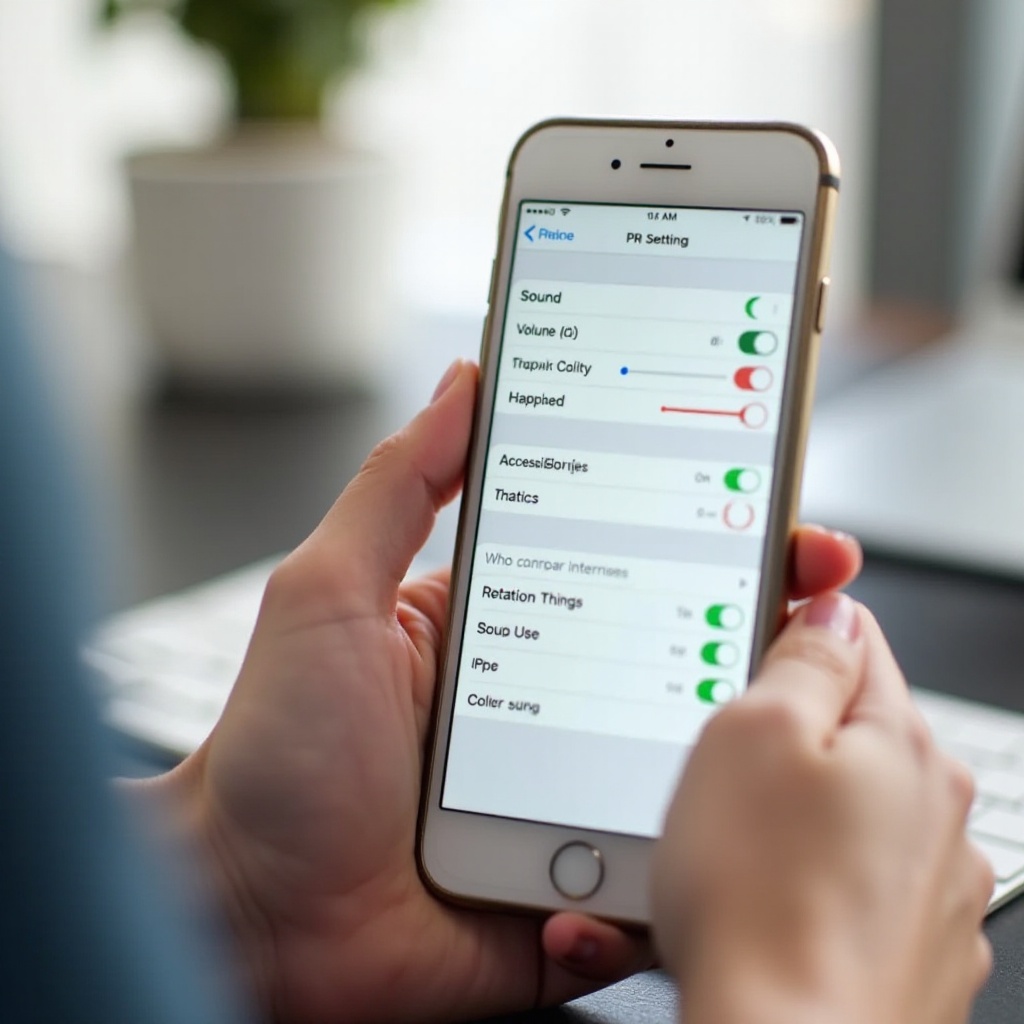
Check Sound and Haptics and Accessibility Settings
If the basics do not restore sound, deeper settings may be limiting volume, rerouting audio, or shaping how you hear it. You will adjust Sound and Haptics and key Accessibility audio options. These controls can affect calls, media, and alerts.
Ringer and Alerts, change with buttons, and system haptics
- Go to Settings > Sound and Haptics.
- Increase the Ringer and Alerts slider to a comfortable level.
- If alerts drop when you press volume buttons, turn off Change with Buttons so your media volume does not drag down alerts.
- Toggle System Haptics if you rely on vibration feedback and want to confirm the phone still signals events.
Headphone Safety, Reduce Loud Sounds, and audio balance
- In Settings > Sound and Haptics > Headphone Safety, turn off Reduce Loud Sounds temporarily to test if it caps volume.
- Go to Settings > Accessibility > Audio or Visual and center the Balance slider between left and right.
- If you use one earbud often, remember balance and mono options can alter perceived volume and channel output.
Mono Audio, Background Sounds, and other audio or visual options
- In Accessibility > Audio or Visual, turn on Mono Audio to fix one‑channel issues, then test and turn it off if you prefer stereo.
- Ensure Background Sounds is off if you do not intend to mix ambient sound with other audio.
- If available on your device, toggle Phone Noise Cancellation or similar features to test call clarity.
With system audio rules confirmed, you can focus on the two most common categories: call audio and media or app sound.
Fixing Call Audio Problems
After you set baseline audio behavior, check the call path. Call audio uses different hardware and routing than media. The following targeted steps isolate whether the earpiece, speaker, microphones, or network causes the problem.
Raise in‑call volume, unmute, and switch audio source
1) Place a test call. Press Volume Up while the call is active to increase call volume.
2) Confirm the Mute button on the call screen is not active.
3) Tap the Audio button during the call and switch between iPhone, Speaker, and Bluetooth. If one mode works and another does not, you found the failing path.
Test microphones and earpiece with Voice Memos and videos
1) Record a Voice Memos clip while speaking near the bottom edge of the phone. Play it back to confirm the bottom mic.
2) Record a short video with the rear camera while speaking near the back. Then record with the front camera while speaking near the top edge. This checks the other mics that calls and video chats often use.
3) Make a call on Speaker. If you can hear the caller on speaker but not on the earpiece, the top receiver may be blocked or faulty.
Network factors, Wi‑Fi Calling, and carrier settings updates
1) Toggle Airplane Mode on for 10 seconds, then off. Place a new call.
2) If cellular is weak, enable Wi‑Fi Calling in Settings > Phone and retest.
3) Open Settings > General > About and wait a moment. If a carrier settings update prompt appears, install it.
If call audio now works, you likely corrected routing or network behavior. If not, confirm media and app sound to see whether the issue is broader than calls.
Fixing Media, Music, and App Sound Issues
If calls sound normal but music, videos, or certain apps are quiet or silent, focus on media routing, app settings, and content sources. Streaming services, in‑app device pickers, and DRM can all affect output.
Confirm output device and app volume
1) In Control Center, check the audio output and select iPhone, AirPods, or your speaker as intended.
2) Adjust the system volume with Volume Up while media plays.
3) In the app, raise in‑app volume sliders and check for a mute icon. Some apps keep their own volume level even when system volume is high.
Clear cache or reinstall apps; test offline vs. streaming
1) Sign out and sign back in to the app if streams fail to load audio.
2) Delete and reinstall the app to clear corrupted cache and settings.
3) Download a track or video for offline playback to rule out network congestion or DRM errors.
Music EQ, Sound Check, and app permissions
1) In Settings > Music, turn off EQ and Sound Check, then compare loudness and clarity.
2) Go to Settings > Privacy and Security > Microphone and confirm recording or conferencing apps have mic access.
3) In apps that offer a device picker, select the correct audio path inside the app, not just in Control Center.
If media plays correctly on the phone but fails over headphones, AirPlay, or in your car, your next step is accessory and wireless troubleshooting.
Bluetooth, AirPods, and Car Audio Troubleshooting
Wireless audio adds pairing, profiles, and interference to the mix. Fixes here focus on clearing stale connections, updating firmware, and reducing conflicts. You will also re‑establish clean pairings for AirPods and car systems.
Forget and re‑pair accessories; reset AirPods
1) Go to Settings > Bluetooth, tap the info icon next to the device, and tap Forget This Device.
2) Restart your iPhone.
3) Re‑pair the accessory following the maker’s steps. For AirPods, place them in the case, hold the setup button until the status light flashes, then reconnect.
4) Test the accessory with another phone or tablet. If it fails there too, the accessory may need service.
Resolve car Bluetooth and CarPlay conflicts
1) Delete the iPhone pairing in the car head unit and forget the car in Settings > Bluetooth on your phone.
2) Re‑pair from scratch and set your phone as the preferred device for calls and media.
3) If you use wired CarPlay, try a short, MFi‑certified cable and switch USB ports if the car offers more than one.
Reduce wireless interference and update firmware
1) Move away from crowded 2.4 GHz environments and turn off other nearby Bluetooth gear during tests.
2) Update iOS and check for firmware updates for your headphones or car system.
3) When testing phone speakers, disable Bluetooth to force audio back to the device.
If wireless checks do not fix the problem, inspect the phone for blocked grilles or moisture that can muffle sound or cause erratic behavior.
Hardware Checks and Safe Cleaning
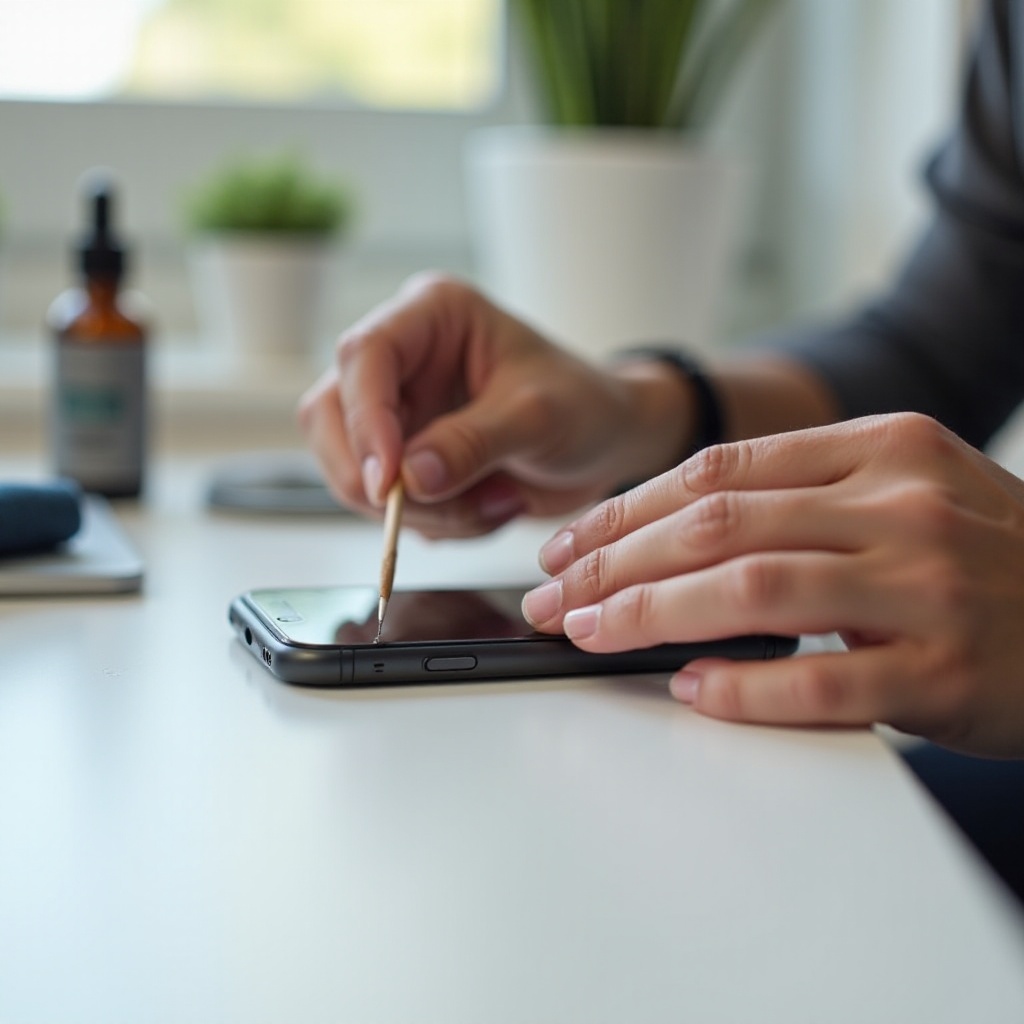
Before you consider a reset or service, rule out physical obstructions and moisture. Safe cleaning often restores clarity and volume. Handle the phone gently and avoid liquids and compressed air.
Inspect speaker and mic grilles; remove obstructions
- Use a bright light to inspect the bottom speaker holes and the top earpiece mesh.
- Brush gently with a clean, soft, dry brush to lift lint and dust. Do not push debris deeper.
- Never use liquids, sharp tools, or compressed air. They can damage seals and components.
Dry out moisture and avoid liquid damage
- If you saw a liquid detection alert or the phone got wet, power it down.
- Let the phone dry in a cool, dry place for several hours before you attempt playback.
- Do not heat the device. After drying, test calls and media again.
Remove cases and screen protectors that block sensors
- Take off the case and any screen protector that covers the earpiece mesh or microphones.
- Retest calls and music. If sound improves, replace the accessory with one that leaves openings clear.
If the hardware looks clean and dry but audio still fails, you may need to reset core network and system settings to clear corrupted preferences.
Advanced Resets and Restores
When all else fails, resets can clear hidden conflicts and stale caches. Start with options that do not erase your data. Only proceed to a full restore after you back up the device. Test at each stage so you do not do more work than required.
Reset Network Settings vs. Reset All Settings
1) Go to Settings > General > Transfer or Reset > Reset.
2) Tap Reset Network Settings to clear Wi‑Fi, cellular, and Bluetooth memory. Reconnect your networks and re‑pair accessories, then test audio routing.
3) If issues persist, tap Reset All Settings. This resets system preferences like sound, privacy, and Home Screen layout without erasing your content.
Backup and restore with Finder or iCloud
1) Back up to iCloud or to a Mac or PC using Finder or iTunes.
2) Restore the iPhone software. Before you restore your backup, test core audio functions as a new device.
3) If audio works before you restore your data but fails after, a setting or app in your backup likely causes the issue.
Set up as new to rule out software corruption
1) If you suspect your backup, set up the phone as new for a short test period.
2) Install a few essential apps and test audio. Add apps in batches and retest to find a culprit.
3) If audio still fails as new, the problem points to hardware and you should plan support.
With resets complete, the last step is to run diagnostics and decide on repair. You can do much of this from home using Apple’s support tools.
Built‑In Diagnostics and When to Seek Support
Diagnostics confirm whether hardware such as microphones, speakers, or the receiver has failed. A clear report shortens repair time. At this stage, you have ruled out settings and software, so a test can validate the need for service.
Use Apple Support app and run remote diagnostics
- Install the Apple Support app. Start a chat or call and follow prompts to run diagnostics.
- Share your test notes and what restored sound temporarily.
- Apple can check audio hardware and software logs, then suggest repair or advanced fixes.
Identify signs of hardware failure
- You can hear on speakerphone but not on the earpiece: likely a receiver or obstruction issue.
- Callers never hear you in any app: likely a microphone hardware fault.
- Audio distorts at all volumes or crackles: likely a damaged speaker.
Warranty, AppleCare Plus, and repair options
- Check coverage in Settings > General > About > Coverage.
- Book a Genius Bar or arrange mail‑in repair. Back up your device before service.
- Ask for a repair estimate and turnaround time so you can plan.
Once you fix the problem, adopt simple habits to keep audio reliable. A few preventive steps prevent most repeats and keep you focused on your calls and music instead of settings.
Prevention Tips for Reliable iPhone Audio
Prevention means fewer surprises. Small habits keep audio clean, stable, and loud. These tips reduce the chance of blockages, routing confusion, and firmware conflicts.
Keep iOS and apps updated and charge accessories
- Update iOS and all apps to gain audio fixes and compatibility improvements.
- Keep AirPods and Bluetooth devices charged. Low power can cause drops and weak output.
Clean gently and store or carry safely
- Brush speaker and mic grilles lightly every few weeks to prevent lint buildup.
- Avoid pocket debris. Use a case that protects the phone without covering ports or grilles.
Manage Bluetooth pairings and audio routing
- Remove old car or headset profiles you no longer use.
- Before a call or playback, check Control Center’s output chooser so audio goes where you expect.
Conclusion
You now have a complete, practical plan for how to fix iPhone audio. You started by naming the symptom and isolating the audio path. You applied quick checks, tuned Sound and Haptics and Accessibility, and tested calls and media with known‑good samples. You ruled out wireless conflicts, inspected and cleaned the phone safely, and performed resets in a smart order. If problems remained, you learned how to run diagnostics and when to seek repair.
Keep software current, keep accessories charged, and keep grilles clear. Confirm the output in Control Center before important calls or playback. Most audio failures resolve with the steps in this guide. If yours does not, bring your notes and test results to Apple. That preparation speeds diagnosis and gets your sound back fast.
Frequently Asked Questions
Why is my iPhone stuck on headphones mode and how do I fix it?
Debris in the Lightning or USB-C port or a recent Bluetooth session can force routing. Clean the port gently, turn off Bluetooth, select iPhone in Control Center, then restart and retest.
How do I fix iPhone call audio that only works on speakerphone?
Raise in-call volume, check the call screen audio source, and inspect the earpiece mesh for dust or obstructions. Install carrier settings updates. If it persists, the receiver may need service.
Can a recent iOS update cause audio problems, and what should I do?
Occasionally an update shifts settings or reveals bugs. Install the latest patch, review Sound and Haptics, toggle Headphone Safety, reset Network Settings, and if needed back up and restore.