
Introduction
Your iPhone starts a song, a podcast, or a video preview when no app appears on the screen. You hit pause. It stops, then starts again without warning. If you keep asking why is my iPhone playing music with no apps open, you are seeing how iOS handles background audio and external play commands. The system lets certain apps continue sound while they are not visible. It also listens to cars, Bluetooth devices, and Siri. A tab in Safari or an in‑app browser can also keep playing.
This guide shows you how to silence the sound now, track down the real source, and prevent it in the future. You will follow a simple flow: stop the noise, confirm what is playing, then disable autoplay and external triggers. Each section connects to the next so you can move from quick triage to permanent fixes with confidence.
Quick Fixes to Silence the Sound Right Now
Before you hunt for root causes, get quiet. These actions stop playback safely and reveal clues. When you see the app name or output device, write it down. That will guide the next step.
Stop Playback from Control Center and the Lock Screen
- Open Control Center by swiping down from the top right. Tap pause in the Now Playing tile. Note the app icon or name.
- Wake the phone. On the Lock Screen media widget, tap pause. If AirPlay is active, tap the AirPlay icon and switch output to iPhone, then pause.
- If you use wired or Bluetooth earbuds, press the remote pause button once. Watch the Lock Screen to see which app shows up.
Force‑Quit Media Apps That Can Run in the Background
- Open the App Switcher. Swipe up on Apple Music, Spotify, Podcasts, Books, Audible, YouTube, YouTube Music, Safari, and any social apps you used.
- If audio came from a web link inside another app, force‑quit that host app as well, such as Reddit, Facebook, or Instagram.
- If you see a Picture‑in‑Picture window, close it by tapping the X.
Toggle Bluetooth, Turn on Silent Mode, and Lower Volume Quickly
- Turn off Bluetooth in Control Center to cut play commands from cars and speakers.
- Lower volume with the buttons or use Silent mode if your model supports it.
- If playback loops back after you pause, restart the iPhone to reset the audio session.
These quick steps stop the sound and often reveal the last media app used. With the noise under control, you can learn why audio plays when no app seems open.
What No App Open Really Means on iPhone
You may not see an app on the screen, yet sound continues. That is normal for apps with audio privileges and for system features that manage playback. Understanding this behavior makes the next checks faster.
Foreground vs. Background Audio on iOS
- Foreground audio: the app is visible and active.
- Background audio: the app is off‑screen but still holds the audio session with system approval.
- System features and web players can also start or hold audio without a visible app.
How Now Playing and Media Remote Control Work
- The Now Playing tile shows the app that last held the audio session, even if it is not open on screen.
- Cars and Bluetooth devices send play, pause, and next commands. iOS often resumes the last audio app to honor those commands.
- This cooperation can look like ghost audio. In reality, a real app is resuming in the background.
With this model in mind, you can identify the source faster. The next section focuses on confirming the exact app and context.
How to Check What Is Actually Playing
You need proof of which app is active. These checks surface the source so you can change the right settings.
Identify the App from Lock Screen and Control Center
- When audio plays, wake the phone. The Lock Screen media widget shows the app icon and track or episode title.
- Open Control Center. The Now Playing tile shows the app and what is playing. Tap the app icon to jump into it and pause from within.
Use Now Playing and Recently Played in Media Apps
- Open Apple Music or Spotify. Check Recently Played. The most recent item often reveals the culprit that resumed.
- In Podcasts or Books, open the queue or Up Next to see what restarted.
- If you spot a track or episode that you did not intend to play, note the time and app. That time stamp helps you trace triggers.
Ask Siri What Is Playing to Surface the Source
- Say Hey Siri, what is playing or hold the side button and ask.
- Siri often names the app and the track. Once you know the app, you can adjust its autoplay and queue settings.
Now that you can identify the source, you can shut down the usual suspects and their autoplay features.
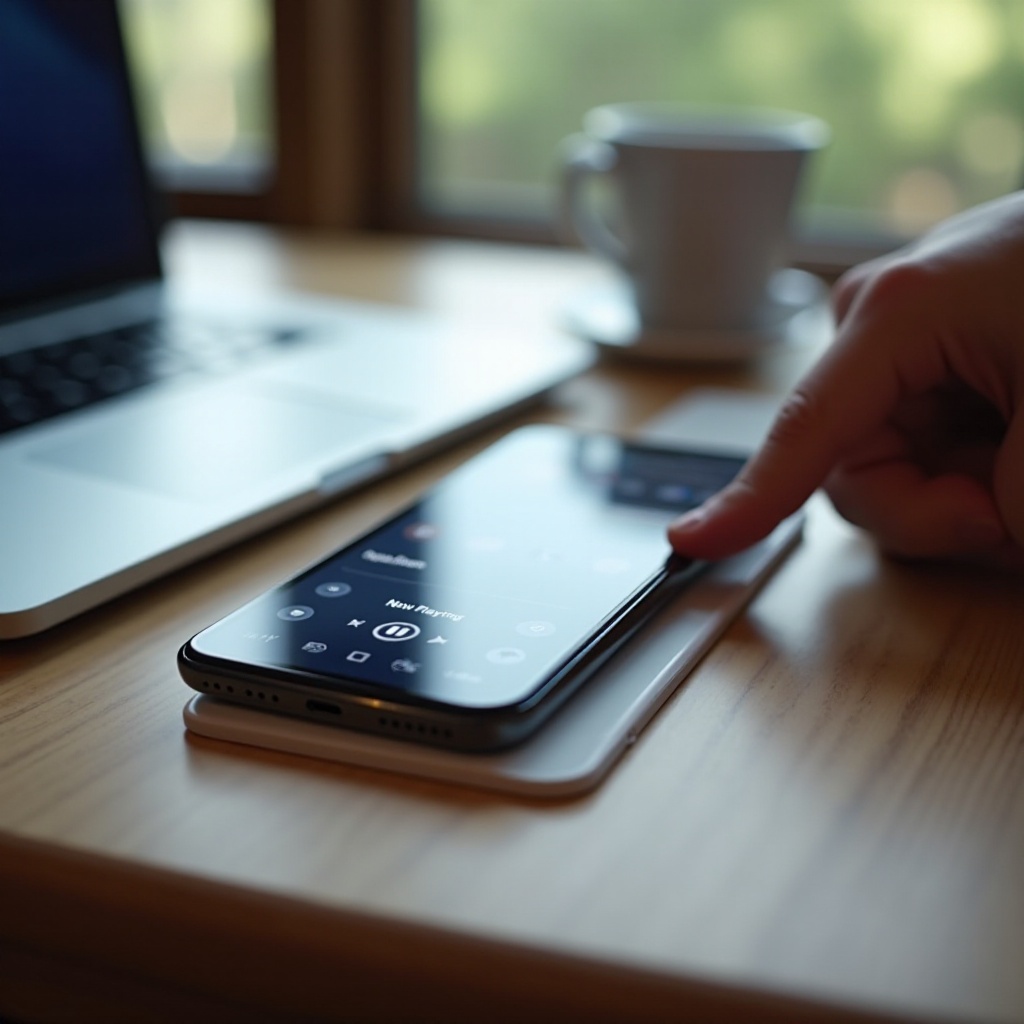
The Usual Suspects and How to Shut Them Down
Most surprise audio comes from a handful of apps. Each offers autoplay, queues, or resume features. You can tame them with a few changes.
Apple Music, Spotify, Podcasts, Books, and Audible
- These apps resume where you left off. Clear their Up Next or queues to stop unexpected resumes.
- In Apple Music, open the player, tap the Up Next list, and clear it. Pausing on the Radio tab can also prevent resumes.
- In Podcasts and Audible, mark finished episodes and chapters as played. Disable continuous play if you prefer manual control.
YouTube, YouTube Music, and In‑App Web Players
- Turn off Autoplay in YouTube and YouTube Music to stop the next video from starting.
- Close any Picture‑in‑Picture overlay after you pause.
- In apps with built‑in browsers, back out of the player and close the host app so the web player cannot persist.
Social Apps with Hidden Audio: Instagram, Facebook, Reddit
- Video previews can seize the audio session. Turn off video autoplay in each app setting.
- Avoid leaving an in‑app web player running. Close the viewer and then the app so it releases the audio session.
If the problem begins when you connect to a car or speaker, adjust autoplay and device behavior next.
Disable Autoplay Across Your Media Apps
Autoplay keeps content going beyond what you chose. Turning it off gives you full control and prevents unintended resumes during device connections or after locks.
Turn Off Autoplay in Apple Music and Up Next
- Go to Settings > Music. Disable Autoplay.
- In the Music app, open the Now Playing screen, tap the Up Next icon, and clear the list.
- Turn off Shake to Shuffle if accidental movements start music.
Disable Spotify Autoplay and Clear the Queue
- In Spotify, open Settings > Playback. Turn off Autoplay for this device and other devices.
- Clear the Queue before you close the app so nothing starts later.
- If you use Connect devices, disable auto‑start features in their device settings.
Stop Podcasts from Continuous Play
- In Apple Podcasts, turn off continuous play and auto‑queue options.
- Clear Up Next and mark finished episodes as played.
- In third‑party podcast apps, disable smart queues that start the next episode automatically.
Toggle YouTube and YouTube Music Autoplay and Previews
- Turn off Autoplay so the next video does not begin on its own.
- Disable muted playback in feeds to avoid silent previews that can grab the audio session.
- Exit Picture‑in‑Picture after you pause to release the session cleanly.
Autoplay settings reduce surprises. If your audio starts mainly in the car or with speakers, focus on Bluetooth and CarPlay behavior.
Stop Car and Bluetooth Devices from Auto‑Starting Music
Cars and speakers often send a play command the moment they connect. iOS responds by resuming your last audio app. You can block or override that behavior from both the phone and the device.
Why Car Stereos Resume Your Last Audio App
- Bluetooth AVRCP and CarPlay support remote controls. Many units issue a play command on connect.
- If Music was the last audio app, the car may reopen it and start playback, even if you used another app last time.
iPhone Settings and Shortcuts to Block Autoplay on Connect
- Forget and re‑pair the car: Settings > Bluetooth > info button > Forget This Device, then pair again.
- Create a Shortcut automation: when CarPlay or your car Bluetooth connects, run Pause. Choose Run Immediately so it fires without prompts.
- Use Driving Focus to hide media suggestions and keep the Lock Screen clear when you start driving.
Change Head Unit or Car Stereo Autoplay and Resume Settings
- Many head units offer Autoplay, Auto Resume, or Start Playback on Connect. Turn those off.
- Set the default source to Radio or Off instead of Bluetooth so the car does not start your phone by itself.
- Update your car firmware or the aftermarket head unit so it obeys new autoplay preferences.
With cars and speakers under control, tame Siri and proactive suggestions that may nudge playback at the wrong time.
Tame Siri and Proactive Media Suggestions
Siri tries to help by surfacing media and listening for your wake phrase. False triggers or suggestions can start audio on a locked device or in your pocket. You can limit that behavior.
Disable Lock Screen and Search Suggestions for Media
- Go to Settings > Siri and Search. Turn off app suggestions and content suggestions for your media apps.
- In Settings > Notifications, limit media suggestions on the Lock Screen so taps do not accidentally resume.
Adjust Hey Siri and Prevent Accidental Play Commands
- If Hey Siri misfires during conversations or near a TV, turn it off temporarily.
- Review Allow Siri When Locked so the phone does not take commands through fabric or when in a bag.
If playback still resumes, check Shortcuts automations that might be starting audio based on time, place, or connections.
Audit Shortcuts Automations That Can Start Audio
Shortcuts can run when your iPhone connects to devices, reaches a time, or enters a location. One action in a chain can launch playback. Review your automations and add prompts where needed.
CarPlay, Bluetooth, and Charger Automations That Play Media
- Open Shortcuts > Automation. Look for items that trigger when CarPlay, a specific Bluetooth device, or a charger connects.
- If an action includes Play or Resume, remove it or disable the automation.
- Turn on Ask Before Running for any automation that could start media.
Time of Day, Location, and Focus‑Based Automations
- Check scheduled automations for bedtime or commute hours. Remove any that start playlists or podcasts.
- Review Focus automations tied to Work, Sleep, or Driving. Remove media actions or add a confirmation step.
If none of those apply, an accessibility feature may be holding the audio channel. Review those next.
Accessibility Features That Play Sound in the Background
Some built‑in tools intentionally produce audio. If you enable them, they may keep the audio session alive and interact with media apps in unexpected ways.
Background Sounds and Audio Ducking
- Settings > Accessibility > Audio/Visual > Background Sounds. Turn it off if you hear white noise or rain when you do not expect it.
- If you rely on Background Sounds for focus or sleep, pause it manually before bed or create a Shortcut to stop it at set times.
- Turn off Duck Others if it causes other apps to fade and then resume unexpectedly.
Sound Recognition and Live Listen with AirPods or Hearing Devices
- Settings > Accessibility > Sound Recognition. Turn it off if not needed so alerts do not seize audio routing.
- Live Listen can route microphone audio through AirPods or Made for iPhone hearing devices. Disable it from Control Center if it stays on.
If audio started from a website or an in‑app browser, close the right tab and block auto‑play. The next section covers that.
Safari and In‑App Browsers: Find and Block Auto‑Playing Tabs
Web players can keep streaming when you switch apps. They might sit inside Safari or open inside social apps. Locate and close them, then restrict auto‑play.
Locate Tabs with Audio and Stop Hidden Players
- Open Safari. Look for a speaker icon on tabs and close any with active audio.
- Open Tab Overview and close all media tabs you used recently. Use find on page for words like play, audio, or video on stubborn sites.
- If audio started from a link inside another app, reopen that link in Safari and then close the tab so the embedded player cannot persist.
Disable Auto‑Play, Pop‑Ups, and Background Media in Browser Settings
- Settings > Safari. Turn off auto‑play videos if available and block pop‑ups.
- Block cross‑site tracking and clear website data if a site stubbornly resumes media.
- In app‑specific browsers, disable video autoplay and inline previews.
With rogue web audio contained, restrict background privileges and noisy notifications that can poke at media.
Control Background Activity, Notifications, and Focus Modes
Some apps refresh in the background and send alerts that include sound or engage media controls. Tighten their privileges to reduce surprises.
Manage Background App Refresh and App Permissions
- Settings > General > Background App Refresh. Turn it off for media‑heavy apps you do not want running.
- Revoke Bluetooth, Local Network, and Motion permissions from apps that do not need them. Less access means fewer hidden triggers.
Notifications That Trigger Media and How to Mute Them
- Some apps send alerts with video or audio previews. Set those apps to Deliver Quietly or turn off Sounds in their notification settings.
- If an app uses haptics or notifications to trigger a Shortcut that starts media, disable that chain or add a confirmation step.
Use Focus Filters and Driving Focus to Block Media Suggestions
- Configure Focus modes to silence media app notifications during work or sleep.
- Add app filters that block Music, Spotify, or YouTube from surfacing on the Lock Screen.
- Tune Driving Focus so it does not auto‑activate in situations that are not driving and remove media suggestions.
If the source remains unclear, your iPhone usage logs can reveal which app played audio and when. Use them to pinpoint and act.
Use Screen Time and Battery to Identify the Culprit
Two built‑in tools track app activity. They can show exactly which app played audio in the background and at what time.
Battery Usage by App to Find Background Playback
- Go to Settings > Battery. Scroll to Battery Usage by App.
- Find entries labeled Audio. Note the app and the time windows.
- Compare those times with car connections, Bluetooth pairings, or Focus changes to spot patterns.
Screen Time and Notification History to Trace Triggers
- Settings > Screen Time > See All Activity. Review Most Used apps and tap an app to see details.
- Check notification counts around the times audio started. That often exposes a social app or a web player.
- Once identified, change that app’s autoplay and notification settings or remove it if needed.
When logs point to software glitches or persistent behavior, update your system and apps. If that fails, reinstall or reset targeted settings.
Update, Reinstall, and Reset When Software Is the Problem
Bugs and corrupted caches can trap an audio session. Fresh software and clean preferences usually resolve it.
Update iOS and All Media Apps to the Latest Version
- Open Settings > General > Software Update. Install pending updates.
- Update Apple Music, Spotify, Podcasts, YouTube, and social apps via the App Store.
Clean Reinstall Offending Apps and Reset App Permissions
- Delete the misbehaving app, restart the phone, and reinstall it.
- Sign in and turn off autoplay and auto‑queue settings before playback.
- Reset privacy permissions for Bluetooth and Local Network in Settings > Privacy and Security if the app controlled devices in the background.
Reset Network Settings and, If Needed, All Settings
- Settings > General > Transfer or Reset iPhone > Reset > Reset Network Settings. This clears stale Bluetooth and Wi‑Fi profiles that may send play commands.
- As a last resort, choose Reset All Settings. Your data remains, but preferences and network settings return to defaults.
If none of these steps solve it, check hardware and accessories. A stuck button or outdated head unit can keep sending play signals.
Hardware and Support: When to Suspect Glitches or Faulty Accessories
Hardware can trigger software actions. Inspect cables, buttons, and car systems. Replace or repair the culprit once you confirm it.
Stuck Remote Buttons on EarPods, Car Controls, or Bluetooth Speakers
- Check headphone remotes and steering‑wheel controls for stuck or damaged buttons.
- Clean Lightning or USB‑C ports. Debris can create phantom play or pause signals.
- Test with another pair of headphones or a different speaker to isolate the issue.
Update Car Firmware or Head Unit and Check Bluetooth Profiles
- Update your car’s infotainment system or aftermarket head unit to the latest version.
- Remove your iPhone from the car Bluetooth list and add it again. Disable autoplay features in the car settings.
Gather Diagnostics and Contact Support
- Capture screenshots of the Lock Screen Now Playing widget and Battery usage when the issue occurs.
- Contact Apple Support if Apple Music or system audio resumes with no obvious trigger and no accessories connected.
- If one third‑party app always restarts, send the logs and steps to its developer and request a fix.
Conclusion
You can stop surprise audio and keep it from coming back. Start with quick silencing steps from Control Center and the Lock Screen. Then confirm the app using Now Playing, Battery usage marked Audio, and Screen Time. Disable autoplay in Apple Music, Spotify, YouTube, and podcast apps. Block external triggers from cars and Bluetooth devices, tame Siri suggestions, and audit Shortcuts automations. Review accessibility audio like Background Sounds, check Safari and in‑app browsers, and restrict background refresh and noisy notifications. If software causes stubborn resumes, update, reinstall, or reset targeted settings. When accessories or car systems send play commands, update firmware, re‑pair devices, or replace faulty hardware.
By following this path, you move from quick triage to permanent control. The next time you wonder why is my iPhone playing music with no apps open, you will know exactly where to look and what to change.
Frequently Asked Questions
Is my iPhone hacked if music plays by itself?
It is very unlikely. Most cases come from normal iOS behavior: background audio, car or Bluetooth play commands, Siri suggestions, or web tabs. Check Now Playing on the Lock Screen and Control Center, review Battery usage entries labeled Audio, and look at Recently Played in your media apps. Disable autoplay, block car autoplay, and review Shortcuts automations. Update iOS and the affected apps. If the issue persists with no clear app source, contact Apple Support.
How do I stop Apple Music from auto playing when I connect to my car?
Turn off Autoplay in Settings > Music and clear the Up Next list before you exit. In your car head unit, disable Auto Start or Auto Resume on Bluetooth connect. Forget and re‑pair the car in Settings > Bluetooth on your iPhone. Add a Shortcuts automation so that when CarPlay or your car’s Bluetooth connects, the phone sends Pause immediately. Driving Focus can also hide media suggestions to prevent accidental starts.
Which setting stops random audio at night while my iPhone is locked?
Start with three checks. Turn off Background Sounds in Settings > Accessibility > Audio/Visual if you do not need them. Review Shortcuts automations scheduled for bedtime that could start playlists or podcasts. Disable autoplay for Music, Spotify, YouTube, and Podcasts so queues do not resume. Use Screen Time and Battery logs to match the exact time and source, then adjust that app’s notifications and background refresh.