
Introduction
Need to meet a friend in a huge parking lot, save the exact trailhead for a hike, or share a restaurant that does not appear in search? Dropping a pin on iPhone solves all of that in seconds. Instead of typing long addresses or hoping your contact recognizes the spot, you mark the exact location on a map and send it.
On iPhone, you can drop pins in both Apple Maps and Google Maps. Each app has its strengths, and learning both gives you more flexibility. You can save a pinned spot, share it with anyone (even Android users), and get turn-by-turn directions later.
This guide walks you step by step through dropping a pin on iPhone, sharing it, managing saved pins, using them offline, and fixing common issues. By the end, you will handle location sharing like a pro and avoid the usual ‘Where are you?’ confusion.
What Does ‘Dropping a Pin’ on iPhone Mean?
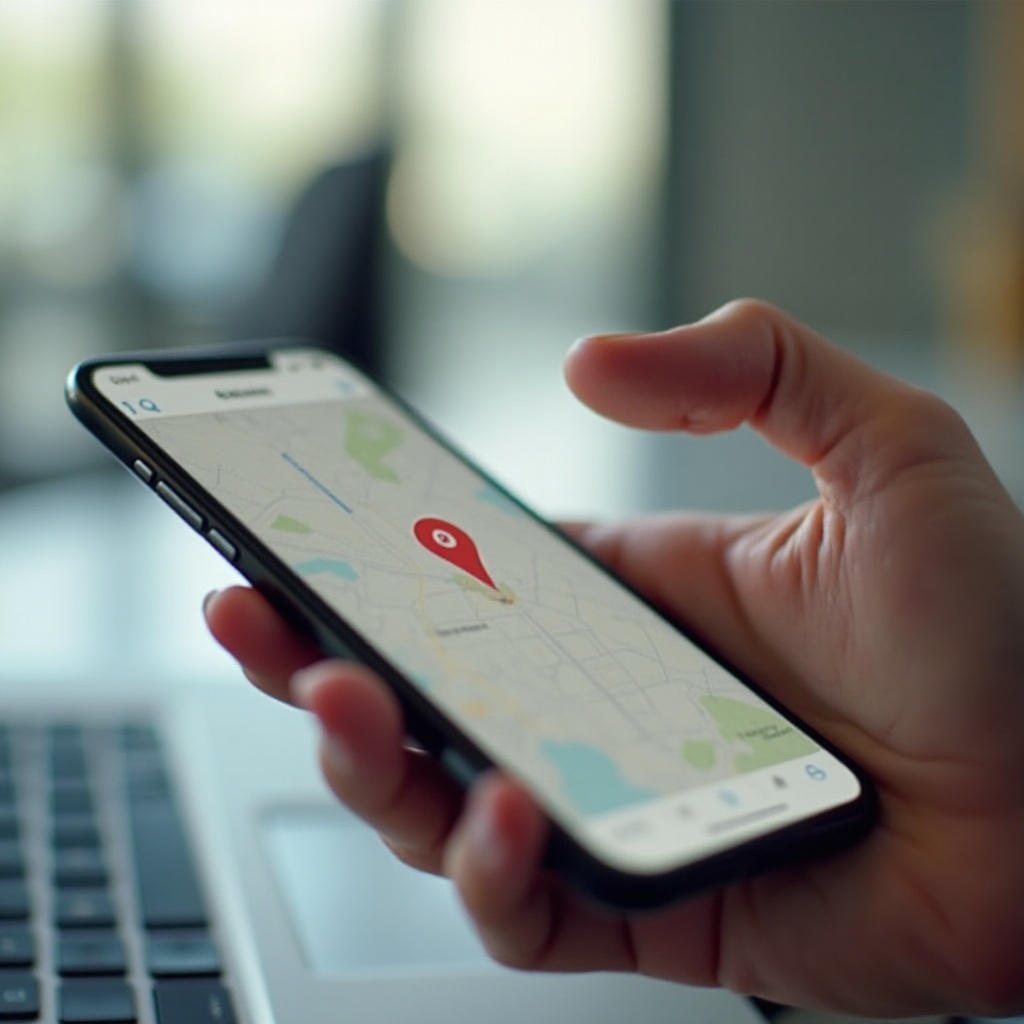
At its core, dropping a pin means placing a small marker on a digital map so you can identify, share, or return to that exact spot. On iPhone, you do this inside a maps app, most often Apple Maps or Google Maps.
How pins work in Apple Maps on iPhone
In Apple Maps, a pin acts as a temporary or saved marker. You tap and hold on the map, and Apple Maps places a pin at that point. That pin becomes a location card with:
- Coordinates and an approximate address
- Options to get directions
- Buttons to share, save, or add to Favorites or Guides
Think of it as dropping a virtual pushpin on a paper map, but with the bonus of routing and sharing.
Dropped pin vs. your current GPS location
Your current GPS location is where you are right now, tracked by your iPhone’s sensors. A dropped pin is where you want to mark, which might be:
- Somewhere you will go later
- A place you want someone else to find
- A point that has no formal address
You can drop a pin on your current location or somewhere else entirely. You can also keep a pin long after you leave the area.
When dropping a pin is better than typing an address
You often get better results with a pin when:
- The place has no clear address (trails, fields, remote areas)
- The map’s address search is wrong or incomplete
- You need a specific entrance, side door, gate, or parking area
- You want to mark a meet-up point that is not a business
Dropping a pin on iPhone gives you precision instead of relying on rough addresses or vague directions.
Before You Start: iPhone and App Requirements
Now that you know what a pin does, set up your iPhone and apps so everything works smoothly. A few quick checks prevent most location problems and make dropping a pin on iPhone more reliable in everyday use.
Supported iPhone models and iOS versions (2024 and later)
Any reasonably recent iPhone can drop pins, but performance and features are better on newer devices and software. As of 2024 and later:
- Use iOS 17 or later if your iPhone supports it.
- You can drop pins on models like iPhone SE (2nd gen and later), iPhone 11 and newer, and most models still receiving updates.
To check your iOS version:
- Open Settings.
- Tap General.
- Tap About and look at iOS Version.
If an update is available, go back to General → Software Update and install it.
Enabling Location Services and permissions
Maps apps need permission to access your location. To turn Location Services on:
- Open Settings.
- Tap Privacy & Security.
- Tap Location Services and toggle it On.
Then, scroll to Maps and Google Maps and make sure:
- While Using the App or While Using the App or Widgets is selected.
- Precise Location is on if you want accurate pins.
Without these permissions, dropping a pin on iPhone may still work, but your current location and directions will be less accurate or unavailable.
Updating Apple Maps and Google Maps on iPhone
Apple Maps updates with iOS, but Google Maps updates through the App Store.
To update Google Maps:
- Open the App Store.
- Tap your profile picture.
- Scroll down and tap Update next to Google Maps, if available.
Keeping both apps up to date ensures fewer bugs, smoother navigation, and newer features like better offline maps and improved accuracy.
With the basics covered, you are ready to start dropping a pin iPhone users can rely on inside Apple Maps.
How to Drop a Pin on iPhone in Apple Maps
With your iPhone ready, start with the built-in option: Apple Maps. It is integrated into iOS, works with Siri, and handles turn-by-turn navigation well.
Dropping a pin at your current location
To drop a pin where you are standing:
- Open the Maps app.
- Tap the arrow icon to center the map on your current location.
- Tap the blue dot that shows where you are.
- In the menu that appears, tap Drop Pin.
Apple Maps places a purple pin at that spot and shows a location card you can save or share.
Dropping a pin anywhere on the map with a long press
To mark a different location:
- Open Maps.
- Pan and zoom to the area you want.
- Tap and hold on the exact point on the map.
After a moment, a pin appears. This is ideal when you are planning a trip or marking a meet-up point you have not reached yet.
Adjusting and moving a dropped pin for accuracy
If the pin is slightly off:
- Tap the pin’s location card.
- Tap Move or Edit Location (if available).
- Drag the pin to the correct spot.
- Tap Done.
Zoom in as far as possible to place the pin precisely, especially for entrances, gates, or specific parking lots.
Once you know how to place pins accurately, the next step is sharing them so others can find the same spot.
How to Share a Dropped Pin from iPhone (Apple Maps)
Once your pin is in the right place, you often want to send it to someone. Apple Maps makes sharing quick through the standard iOS share sheet.
Sharing a pin via Messages, Mail, and social apps
To share a pin from Apple Maps:
- Tap the pin to bring up the location card.
- Tap the Share icon.
- Choose an app, such as Messages, Mail, or a social app.
- Select your contact and tap Send.
Your contact receives a link that opens directly in their maps app, usually Apple Maps on iPhone.
Sharing a location pin with Android users
If the person uses Android, they may open the link in Google Maps. To improve compatibility:
- Share via Messages, WhatsApp, or email.
- If needed, copy the location URL and paste it in any chat app.
Most Android devices can open Apple Maps links through a browser or redirect them to Google Maps, so your friend can still navigate to the pinned spot.
Copying and sending your pin as a link
To copy the link:
- Tap the pin.
- Tap Share.
- Choose Copy.
Then paste the link in any app or note. This works well when you want to save a pinned link in a document, calendar event, or task manager.
Sharing pins solves immediate location issues, but saving them lets you build a personal map of places you care about. That is where Favorites, Guides, and labels help.
How to Save, Label, and Manage Pins in Apple Maps
Sharing is useful in the moment, but saving pins lets you revisit important places later without hunting through old messages.
Adding a pin to Favorites and Guides
To save a pin:
- Tap the pin and open the location card.
- Scroll down and tap Add to Favorites or Add to Guide.
Favorites are quick-access personal locations. Guides are collections of places, such as ‘Weekend Trip’ or ‘Great Cafés’.
You can access saved places by:
- Opening Maps
- Swiping up on the search bar
- Checking the Favorites and Guides sections
Creating custom labels like Home, Work, and custom names
You can label key locations to make them easier to find:
- Open the location card.
- Tap Add Label or Edit Name.
- Enter a clear name, such as ‘Gym’, ‘Office Entrance’, or ‘Friend’s House’.
You can also set Home and Work in Apple Maps so Siri can give quick directions.
Viewing, editing, and deleting saved pins
To manage saved locations:
- Open Maps.
- Swipe up from the search bar.
- Tap See All next to Favorites or open a Guide.
From there you can:
- Tap a place to view or rename it
- Swipe left to Delete
- Reorder locations for easy access
This keeps your saved pins tidy and relevant.
Once you are comfortable with Apple Maps, it is worth mastering the same skills in Google Maps. That gives you better coverage, stronger offline options, and smoother sharing with Android users.
How to Drop a Pin on iPhone in Google Maps
Apple Maps works well, but many people prefer Google Maps for extra features, better international coverage, and strong offline support. Dropping a pin iPhone users rely on in Google Maps is just as simple.
Dropping a pin at your current position in Google Maps
To mark where you are right now:
- Open Google Maps.
- Tap the blue dot that shows your location.
- A panel appears; tap Drop a pin or use the location card.
A red pin appears, and you can see details, save, or share that spot.
Dropping a pin on any place you tap
To drop a pin somewhere else:
- Open Google Maps.
- Pan and zoom to the target area.
- Tap and hold on the map until a red pin appears.
A bottom sheet shows the address or coordinates so you can save or share the location.
Using Street View and satellite mode to confirm the spot
You can verify your pin with Street View or satellite imagery:
- Tap the layers icon and choose Satellite to check landmarks.
- If Street View is available, tap the small thumbnail of the street scene and confirm that your pin is at the right entrance or building.
This is especially useful in dense cities or complex intersections.
Sharing and Saving Pins in Google Maps on iPhone
Once you drop a pin in Google Maps, you can share it across platforms and sync it to your Google account for later. That makes it a strong companion to Apple Maps when you move between devices and platforms.
Sharing a Google Maps pin with iPhone and Android contacts
To share:
- Tap the dropped pin to open the place card.
- Tap the Share icon.
- Choose Messages, WhatsApp, Mail, or another app.
Recipients on iPhone and Android can open the link in Google Maps (or a browser) and start navigation.
Saving pins to Favorites, Starred, and custom lists
To save a location for later:
- Tap the place card.
- Tap Save.
- Choose a list: Favorites, Starred places, Want to go, or create a New list.
Lists help you organize locations like:
- ‘Trip to New York’
- ‘Coffee to Try’
- ‘Client Visits’
Syncing saved pins across devices with your Google account
When you sign in with your Google account, Google Maps syncs saved places across devices:
- Open Google Maps on another phone or computer.
- Make sure you are signed in with the same account.
- Tap Saved to see all your lists and pins.
This makes it easy to plan on a laptop and navigate with your iPhone later.
At this point, you know how to create, share, and save pins in both mapping apps. The next step is turning those pins into real-world routes so you can actually get to where you need to be.
Getting Directions and Navigation from a Dropped Pin
A pinned spot is most useful when you can travel to it. Both Apple Maps and Google Maps make turning pins into routes easy.
Starting turn-by-turn navigation to a pin
To start navigation in Apple Maps:
- Tap the pin.
- Tap Directions.
- Tap Go.
In Google Maps:
- Tap the pin.
- Tap Directions.
- Tap Start.
Your iPhone now guides you with voice instructions and a live route.
Choosing driving, walking, cycling, or transit routes
Both apps show several travel options, such as:
- Driving
- Walking
- Transit (buses, trains)
- Cycling (in supported regions)
Tap the relevant icon to see estimated times and route options. Choose the one that fits your schedule and transportation method.
Adding pinned stops to multi-stop routes
To add more stops in Apple Maps:
- Start directions.
- Swipe up on the route card.
- Tap Add Stop and search or pick another pin.
In Google Maps:
- Tap Directions.
- Tap the menu (three dots) and choose Add stop.
- Add additional locations and reorder them.
Multi-stop routes are perfect for errands, deliveries, or travel days with several appointments.
Navigation works best when you have a strong signal, but you will not always have one. Planning for offline use keeps your pinned locations useful when you are off the grid.
Using Pins Offline and When You Have Poor Signal
Sometimes you need to rely on maps without strong data coverage, especially when traveling or hiking. Planning ahead with offline maps keeps your pins useful.
Downloading offline maps on iPhone for Apple Maps
Apple Maps supports offline areas in many regions:
- Open Maps.
- Tap your profile picture or initials.
- Tap Offline Maps.
- Tap Download New Map and select an area.
You can still:
- View the map
- See your current location
- Get basic directions within that area
Some live features and traffic data may not work without a connection.
Using offline areas in Google Maps for pinned locations
Google Maps has strong offline support:
- Open Google Maps.
- Tap your profile → Offline maps.
- Tap Select your own map.
- Zoom to cover your pinned areas and tap Download.
Offline areas let you:
- View the map
- Navigate to saved pins
- Search within the downloaded region
Limitations of dropping and sharing pins without data
Without an internet connection, you may face:
- Limited or no address search
- Difficulty sharing pins in real time
- Incomplete traffic and transit data
However, if you download maps in advance and save pins, your iPhone can still guide you using GPS alone within those areas.
Offline use matters, but so does control over who sees your location. Next, it is important to understand how to keep location sharing safe and private.
Privacy and Safety Tips When Dropping a Pin on iPhone
Location sharing is powerful, but you should control who sees your location and how long they can use that information.
Static pins vs. live location sharing
A dropped pin is a static location. It shows only a point on the map. It does not track you as you move.
Live location sharing, such as through Find My or some messaging apps, lets others see your real-time movements. Use live sharing only with people you trust and only for as long as needed.
Controlling who sees your location and for how long
When sharing a pin:
- Send it only to people who need it.
- Use one-to-one chats instead of public channels.
- Avoid posting precise home or work pins on social media.
If you use live sharing, set time limits and turn it off when you no longer need it.
Managing location history and significant locations on iPhone
iPhone stores some location data to improve services. To review it:
- Open Settings.
- Tap Privacy & Security → Location Services.
- Scroll to System Services → Significant Locations.
You can:
- Turn Significant Locations off
- Clear history if you do not want old locations saved
This gives you more control over how your location data is stored.
Even with privacy tuned, technical glitches can still appear. Knowing a few quick fixes will save you time when dropping a pin on iPhone does not work as expected.
Troubleshooting Common Pin Problems on iPhone
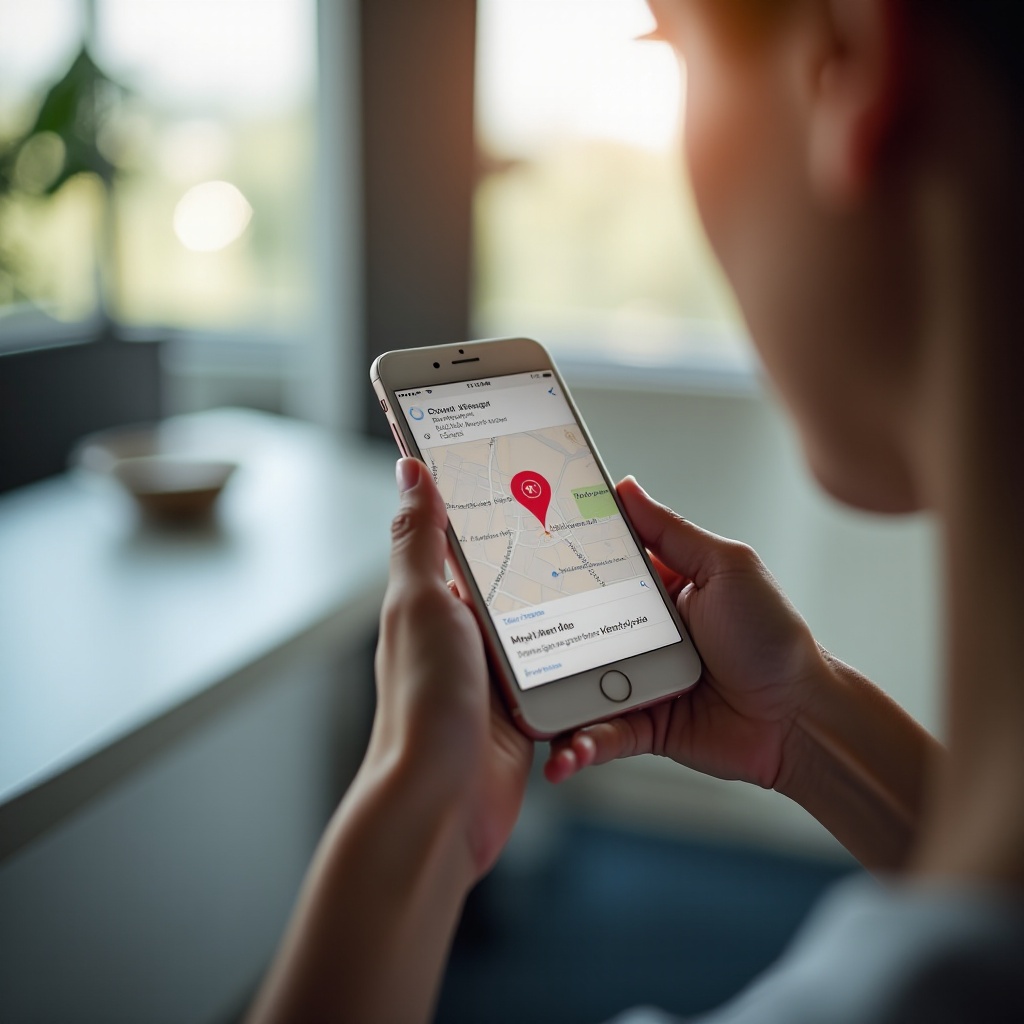
Even with everything set up, you might run into issues when dropping a pin on iPhone. Most have simple fixes.
When you cannot drop a pin or the map will not load
If the map is blank or will not respond:
- Check your internet connection (Wi-Fi or cellular).
- Force close the maps app and reopen it.
- Restart your iPhone.
If the issue continues, update iOS and the app, or reinstall Google Maps if that is where the problem appears.
Fixing inaccurate or jumping location pins
If your location jumps around:
- Make sure Location Services and Precise Location are on for the app.
- Go outdoors or near a window to improve GPS signals.
- Turn Airplane Mode off and make sure your case or cover does not block signals.
In dense urban areas or indoors, GPS can struggle. Dropping a manual pin and adjusting it can be more accurate than relying on the blue dot.
Resetting location and privacy settings on iOS
If nothing works, reset location settings:
- Open Settings.
- Tap General → Transfer or Reset iPhone.
- Tap Reset → Reset Location & Privacy.
After the reset, apps will ask for location permission again. Grant access when prompted.
When everything is working, you still may wonder which app to rely on most. Comparing Apple Maps and Google Maps helps you decide the best tool for your daily navigation and shared pins.
Apple Maps vs. Google Maps for Dropping a Pin on iPhone
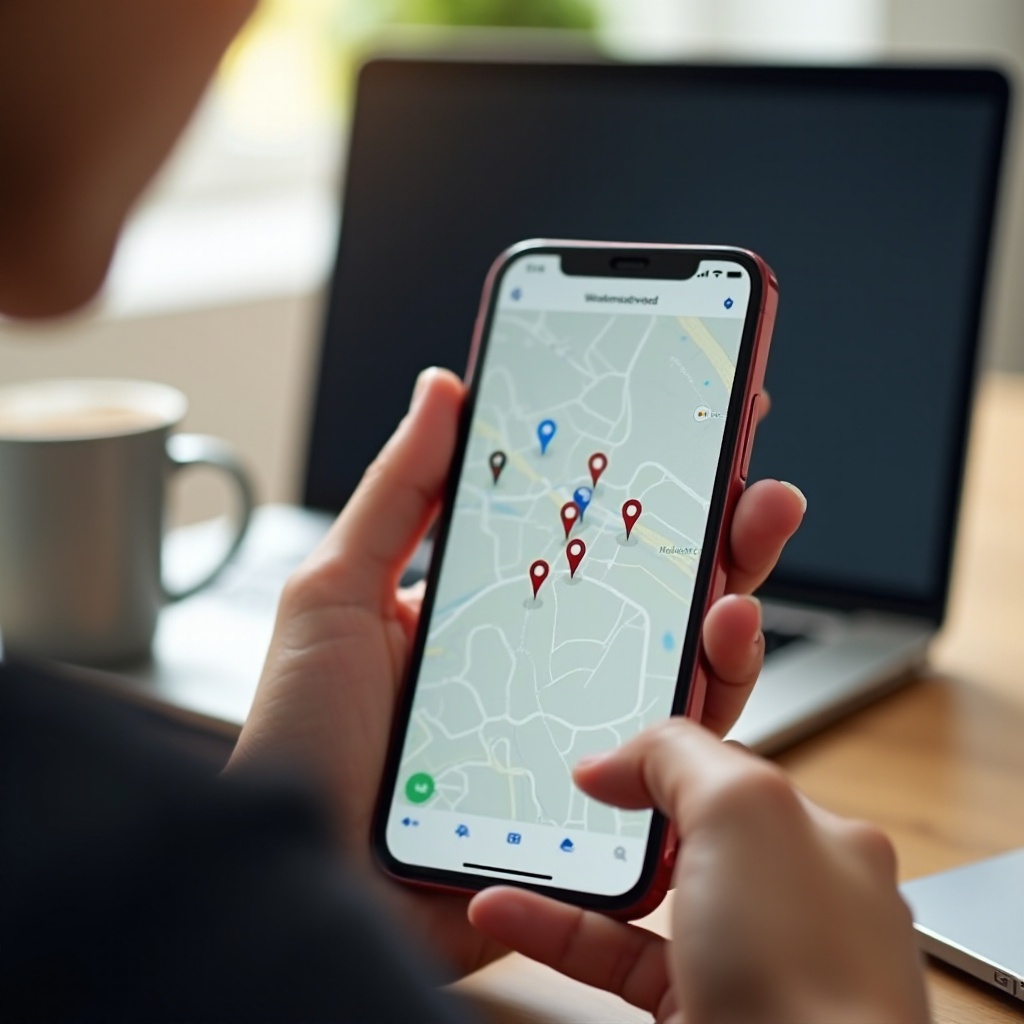
Both apps handle pins well, but they shine in different situations. It helps to know which one fits your habits.
Which app is better for simple pin sharing
Apple Maps is ideal when:
- You mostly share with other iPhone users.
- You use Siri often.
- You want deep integration with iOS and CarPlay.
Sharing in Messages feels seamless, and your contacts can open locations instantly.
Which app is better for travel and offline navigation
Google Maps stands out when:
- You travel internationally.
- You rely heavily on offline maps.
- You need detailed transit and local place information.
Its offline maps are robust, and saved places sync across devices with your Google account.
How to choose the right app for your daily use
You do not have to pick only one. Many people:
- Use Apple Maps for daily driving and quick shares.
- Use Google Maps for trips, offline navigation, and research.
Try both for a few days and see which feels more natural for dropping and sharing pins.
Conclusion
Dropping a pin on iPhone turns vague directions into clear, precise locations. Whether you use Apple Maps, Google Maps, or both, you can mark any spot, share it with anyone, save it for later, and navigate back with a few taps.
You have learned how to drop pins, share links, save favorites, handle offline maps, protect your privacy, and fix common issues. Put these steps into practice the next time you meet a friend, explore a new city, or head out on a hike. Once you get used to it, dropping a pin iPhone users rely on becomes one of the most useful everyday tricks on your device.
Frequently Asked Questions
Can I drop a pin on iPhone without an internet connection?
Yes, but with limits. Your iPhone can use GPS without data, so you can see your approximate location and place a pin on cached or offline maps. If you have not downloaded maps in advance, you may see only a basic or blank map. To make this work better, download offline maps in Apple Maps or Google Maps before you lose signal, and save important pins ahead of time. You can usually navigate within the downloaded region, but live traffic, search, and real-time updates will not be available.
Is dropping a pin the same as sharing my live location on iPhone?
No. Dropping a pin shares a static point on the map. It shows where you want someone to go, but it does not reveal your movements. Live location sharing, such as through Find My, Messages, or other apps, lets someone track your position as you move over time. You should use live sharing only with people you trust and only when necessary. For most meet-ups, a single dropped pin is safer and more than enough to guide someone to the right place.
How do I remove or clear dropped pins from my iPhone maps?
To remove a pin in Apple Maps, tap the pin, then tap ‘Remove Pin’ on the location card. To delete a saved location, open Maps, swipe up from the search bar, tap ‘See All’ under Favorites or open a Guide, then swipe left on the place and tap ‘Delete’. In Google Maps, to clear a temporary dropped pin, tap elsewhere on the map to remove it. To delete a saved place, tap ‘Saved’, open the list containing the location, tap the place, then tap ‘Saved’ again and uncheck the list or choose the remove option if shown.