
Introduction
The Screen Distance feature on iPhone can be helpful, but it can also become distracting if it pops up too often. Many people search for how to turn off iPhone Screen Distance right after updating to iOS 17 or setting up a new device, especially when they see repeated alerts telling them to move the phone farther away.
Apple designed Screen Distance to protect your eyes by warning you when you hold the screen too close to your face. That is useful if you have children using your iPhone, or if you tend to scroll with the phone almost touching your nose. But if you already manage your screen habits, those full-screen warnings can feel more like interruptions than protection.
This guide explains what Screen Distance does, how it works behind the scenes, and exactly how to turn it off in a few quick steps. You will also see how to turn it back on later, fix common issues, manage the feature for kids through Family Sharing, and keep good eye-health habits even when Screen Distance is disabled. By the end, you will be fully in control of this setting.
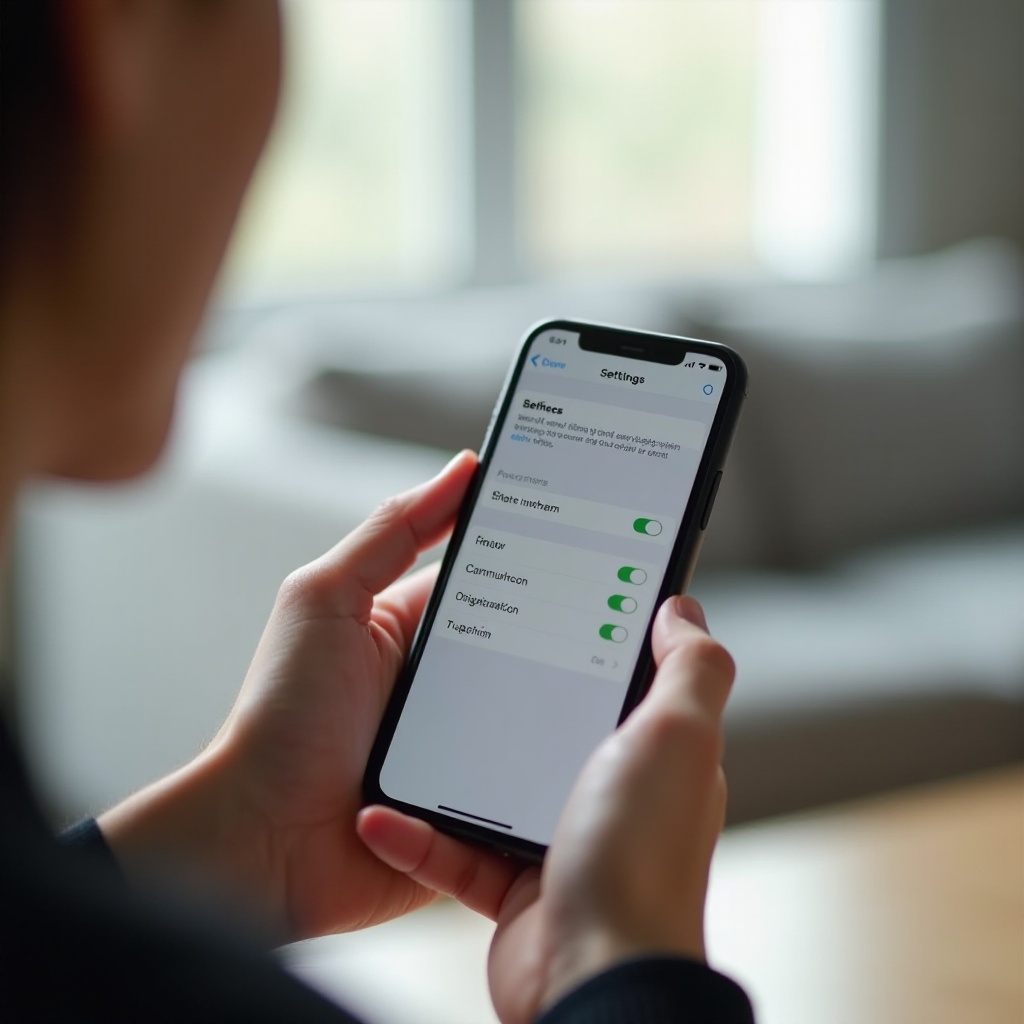
What Is Screen Distance on iPhone?
Screen Distance is a built-in health and safety feature introduced with iOS 17 and later. When it is turned on, your iPhone monitors how close your face is to the screen while you use the device. If you hold the phone too close for too long, you see a full-screen warning telling you to move the device farther away before you can continue.
The feature lives inside the Screen Time section of Settings and runs quietly in the background. You will not find a separate Screen Distance app. Instead, iOS checks viewing distance while you browse, play games, or watch videos, then triggers an alert only when your face remains closer than a safe range.
Screen Distance is part of Apple's wider digital well-being tools. Alongside Screen Time, Downtime, Focus, and app limits, it aims to support healthier, more mindful device use. It is especially aimed at children and heavy phone users who may not notice how close they are holding the screen.
How Screen Distance Works With the TrueDepth Camera
Screen Distance uses the same TrueDepth camera system that powers Face ID. The TrueDepth hardware projects and reads depth information from your face. For Screen Distance, the system measures how far your eyes are from the display.
When you use your iPhone:
- The TrueDepth camera checks the distance between your face and the screen.
- iOS analyses that distance directly on the device.
- If your face stays too close for a certain period, a 'Screen Too Close' warning appears.
- You must move the phone farther away for the alert to disappear.
The feature does not record photos or video of your face, and the distance data does not leave your iPhone. All processing stays on-device, similar to how Face ID handles your facial map.
Why Apple Added Screen Distance for Eye Health and Safety
Apple added Screen Distance to support healthier viewing habits and reduce the strain that can come from long periods of close-up screen use. Children often hold phones and tablets very close to their faces, and adults do the same when reading small text or watching content in bed.
When you hold a screen too near your eyes for long stretches, you may experience:
- Tired or dry eyes
- Headaches and discomfort
- Difficulty shifting focus to distant objects
Screen Distance encourages you to keep a safer viewing distance by interrupting use when you get too close. For kids, these prompts can teach better habits without extra apps or strict rules. But because it is not ideal for everyone, Apple gives you full control and lets you turn the feature off.
To decide whether to keep or disable Screen Distance, you first need to confirm that your iPhone supports the feature and that you are running the right software version.
Check If Your iPhone Supports Screen Distance
Not every iPhone can use Screen Distance. The feature depends on the TrueDepth camera and recent iOS software. If you cannot find Screen Distance in Settings, your device might be too old or out of date.
Before you hunt through every menu, spend a moment confirming which iPhone model you have and which iOS version it runs. This quick check helps you understand whether Screen Distance should appear at all and prevents you from wasting time on a setting your device cannot support.
If your iPhone is compatible, updating to the latest iOS often fixes missing or buggy options and makes Screen Distance behave more reliably.
Supported iPhone Models and iOS Versions
Screen Distance requires two things:
- iOS 17 or later
- An iPhone with a TrueDepth camera (Face ID)
The feature is available on most recent Face ID iPhones, including:
- iPhone 15 series
- iPhone 14 series
- iPhone 13 series
- iPhone 12 series
- iPhone 11 series
- iPhone X, XR, XS, and newer models with Face ID
It also appears on newer iPad models with Face ID running iPadOS 17 or later, though this article focuses on iPhone. If your device uses Touch ID only and has no TrueDepth camera, you will not see the Screen Distance option.
To check your iOS version:
- Open Settings.
- Tap General.
- Tap About and look at iOS Version.
If you see iOS 17 or a higher version number, your software is new enough. If not, update your device before you look for Screen Distance.
How to Update Your iPhone to the Latest iOS
Updating your iPhone can unlock Screen Distance and make Screen Time more stable. To update:
- Connect your iPhone to Wi‑Fi and plug it into power.
- Open Settings.
- Tap General.
- Tap Software Update.
- If an update is available, tap Download and Install.
- Follow the on-screen steps and wait while the device restarts.
After the update completes, return to Settings and check the Screen Time section again. If your iPhone has Face ID and runs the latest iOS, you are ready to disable Screen Distance if it keeps getting in your way.
How to Turn Off Screen Distance on iPhone
Once you confirm that your device supports Screen Distance, turning it off is straightforward. The main confusion comes from the location of the setting. Screen Distance is not under Display or Accessibility. It lives inside Screen Time, which is why many people need a guide to find it.
Follow the steps below and you should be able to disable the feature in less than a minute.
Open Settings and Navigate to Screen Time
Start by opening the correct section in Settings:
- Unlock your iPhone and open the Settings app.
- Scroll down and tap Screen Time.
If this is the first time you are using Screen Time, you might see a short introduction explaining what it does. Follow the prompts to turn Screen Time on if it is currently disabled. Screen Distance will not appear unless Screen Time is active.
Find the Screen Distance Option in Screen Time
Once you are inside the Screen Time menu:
- On the main Screen Time page, scroll down.
- Look for an option called Screen Distance.
- Tap Screen Distance to open its settings page.
If you cannot see Screen Distance in this list, do not worry. A later section in this article covers what to do when the setting is missing or locked.
Toggle Screen Distance Off and Confirm It's Disabled
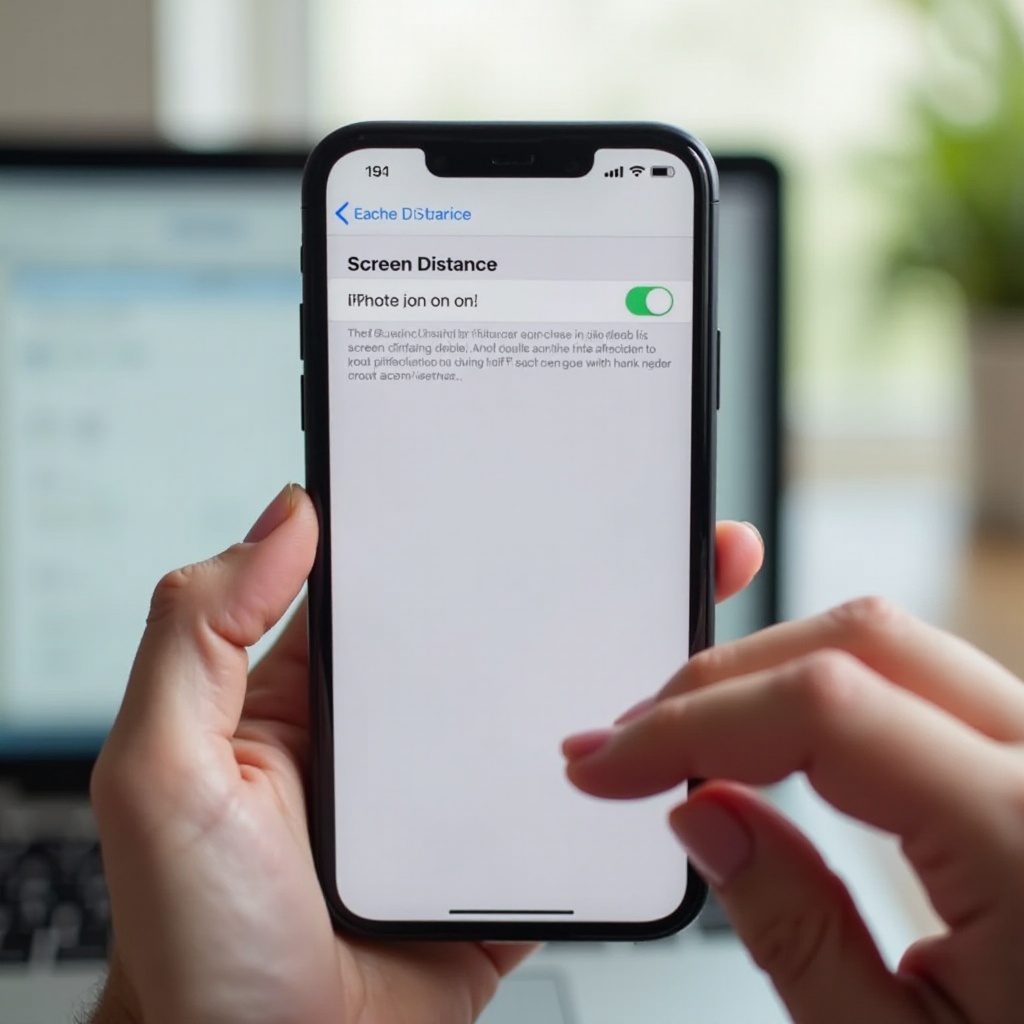
With the Screen Distance settings page open, you should see a short description of the feature and a switch labeled something like Screen Distance or Limit Screen Distance.
To turn it off:
- Tap the switch so it moves to the left and turns grey.
- When the toggle is off, Screen Distance is disabled.
After you switch it off, you should no longer see 'Screen Too Close' alerts, even if you hold the phone near your face while reading or watching videos.
Quick Checklist to Make Sure It's Really Off
Use this quick checklist to confirm that you have turned Screen Distance off correctly:
- The toggle in Settings > Screen Time > Screen Distance is grey and in the off position.
- You use your iPhone very close to your face for a few minutes and do not see a Screen Distance alert.
- You restart your iPhone, then check again that the Screen Distance toggle remains off.
If warnings still appear or the toggle keeps switching itself back on, move ahead to the troubleshooting section. There may be a Screen Time restriction, a Family Sharing rule, or a minor software glitch that you need to fix.
How to Turn Screen Distance Back On Later
You might turn Screen Distance off while you read in bed, watch a movie on a crowded commute, or test your phone after an update. Later, you may decide that you miss the extra protection and want the alerts back.
Because Screen Distance is controlled by a simple toggle, you can re-enable it at any time. It helps to know when it makes sense to turn the feature on again so that you get the benefits without feeling constantly interrupted.
When You Might Want to Re‑Enable Screen Distance
Consider turning Screen Distance back on if:
- Your eyes feel tired or strained after long sessions on your phone.
- You share your iPhone with a child or teen who tends to hold it too close.
- You catch yourself reading with the screen almost at your nose.
- You want an extra reminder to keep a comfortable viewing distance.
Think of Screen Distance as a safety net. You can leave it off when it bothers you and switch it on during periods when you want more structure and healthier habits.
Steps to Turn Screen Distance On Again
To re-enable Screen Distance:
- Open Settings.
- Tap Screen Time.
- Tap Screen Distance.
- Toggle Screen Distance on so the switch moves to the right and turns green.
After you turn it back on, use your iPhone normally. If you hold it too close for an extended period, the Screen Distance warning should appear again. If you do not see alerts, make sure Screen Time remains enabled and that no parental restrictions are blocking the feature.
Troubleshooting: Can't Turn Off Screen Distance?
Some users follow the steps above and still struggle with Screen Distance. Sometimes the option is missing, sometimes it is greyed out, and sometimes it ignores your changes and continues to send alerts.
These problems usually trace back to Screen Time restrictions, Family Sharing controls, or simple software bugs. Working through a few common scenarios will help you restore control over the setting.
Screen Distance Setting Is Missing From Screen Time
If you do not see Screen Distance under Screen Time:
- Confirm that your iPhone supports the feature (Face ID and iOS 17 or later).
- Make sure Screen Time is turned on at the top of the Screen Time page.
- Restart your iPhone by powering it off and on, then check Screen Time again.
If Screen Distance still does not appear:
- Open Settings > General > Transfer or Reset iPhone > Reset > Reset All Settings.
- This reset will not delete your photos or apps, but it will restore system settings such as Wi‑Fi networks and display options.
- After the reset, go back to Settings > Screen Time and look for Screen Distance.
If the option remains missing even after a reset, contact Apple Support. There may be an issue with your specific device or Apple ID configuration.
Screen Distance Is Greyed Out or Locked
If the Screen Distance toggle is visible but greyed out and you cannot change it, Screen Time restrictions or a Screen Time passcode may be controlling it.
Try this:
- Go to Settings > Screen Time.
- Check if Use Screen Time Passcode is enabled.
- If so, you may need to enter the passcode to adjust Screen Distance.
- Tap Content & Privacy Restrictions and review any rules that might affect Screen Distance or Face ID.
In some Family Sharing setups, a parent can lock Screen Distance on a child's device. If your device is set up as a child account, you may not be able to turn the feature off yourself. The family organizer or parent must change the setting from their device.
Screen Distance Alerts Still Appear After You Turn It Off
If you have turned Screen Distance off but still see alerts:
- Double-check Settings > Screen Time > Screen Distance to confirm the toggle is off.
- Restart your iPhone and test again.
- If you use more than one Apple device, such as an iPad, make sure Screen Distance is turned off on each device you use.
- Turn Screen Time completely off in Settings > Screen Time, restart your iPhone, then turn Screen Time back on and leave Screen Distance off.
If alerts continue, verify that you are actually seeing a Screen Distance warning and not a different Screen Time or parental control notification. If necessary, contact Apple Support for deeper troubleshooting.
Managing Screen Distance for Kids and Family Sharing
Screen Distance becomes even more important when children use iPhones. Many parents want the feature always on for their kids, while others prefer fewer interruptions and rely on their own rules and guidance.
Family Sharing and Screen Time give parents control over Screen Distance on a child's device. Understanding how these tools work helps you avoid confusion when alerts appear or when a child cannot change the setting.
How Screen Distance Works on Child Accounts
When a child's Apple ID is part of a Family Sharing group, the parent or organizer can manage Screen Time settings remotely. This remote control includes:
- App limits
- Downtime
- Content and privacy rules
- Screen Distance
On a child's iPhone, Screen Distance may be locked in the on position if a parent has enforced it. In that case, the child cannot turn it off or adjust it without the Screen Time passcode or without the parent changing the rule.
If you are the parent, you decide whether to keep Screen Distance enabled for your child. If you are the child or teen using the phone, you may need to request changes from the family organizer.
Turning Off Screen Distance on a Child's iPhone From Your Device
If you decide that Screen Distance is too disruptive for your child and want to turn it off:
- On your iPhone, open Settings.
- Tap Screen Time.
- Under the Family section, select your child's name.
- Tap Screen Distance.
- Toggle Screen Distance off.
The change will sync to your child's iPhone. If your child uses several devices under the same Apple ID, such as an iPhone and an iPad, you may need to review the Screen Distance settings for each device in their Screen Time profile.
Preventing Kids From Changing Screen Distance Settings
If you prefer to keep Screen Distance turned on for your child and want to prevent tampering:
- On your device, go to Settings > Screen Time.
- Select your child under the Family section.
- Make sure Use Screen Time Passcode is enabled and that only you know the passcode.
- Confirm that Screen Distance is on and that your child cannot change it without the passcode.
This approach keeps the protection in place while still allowing you to adjust the setting if your child complains about too many alerts or if you change your mind later.
Pros and Cons of Turning Off Screen Distance
Before you disable Screen Distance completely, it helps to weigh the pros and cons. The feature can be annoying in some situations, but it exists to protect your eyes and support healthier habits, especially if kids use your device.
By looking at the advantages and drawbacks side by side, you can make a more confident decision about how to configure this setting.
Benefits of Keeping Screen Distance Enabled
Leaving Screen Distance on offers several benefits:
- Better habits over time: The alerts train you to hold your phone at a safe distance.
- Support for children: Kids get a clear visual cue when they move the screen too close.
- Less eye strain: You reduce the amount of time your eyes spend focusing at very close range.
- Built-in protection: You get an eye-health tool without installing extra apps or services.
If you often forget to hold your phone farther away, Screen Distance acts like a small coach that quietly nudges you toward healthier use.
Reasons You Might Prefer Screen Distance Turned Off
You may still choose to turn Screen Distance off for several reasons:
- Frequent alerts: The warnings can appear often if you use your phone in bed or in cramped spaces.
- Interrupted activities: Full-screen alerts pause games, videos, and reading at inconvenient times.
- Comfort and privacy: Some users simply feel better when the front camera is not monitoring distance.
- Personal routines: You might rely on your own habits, reminders, or third-party tools to protect your eyes.
If the interruptions outweigh the benefits for your daily use, disabling Screen Distance can make your iPhone feel smoother and more responsive.
Eye-Health Tips If You Disable Screen Distance
If you decide to turn Screen Distance off, you lose one automatic check on how close you hold your phone. That does not mean you have to ignore eye health. With a few simple habits and some built-in iOS settings, you can still protect your eyes while enjoying a Screen Distance-free experience.
Healthy viewing distance, regular breaks, and a comfortable display go a long way toward keeping your eyes relaxed during long screen sessions.
Maintain a Safe Viewing Distance Without Alerts
Try to build these habits into your daily use:
- Keep your iPhone roughly 12–16 inches (30–40 cm) from your face.
- Hold the phone closer to eye level when possible to reduce neck strain.
- Use a stand, holder, or case that supports comfortable viewing angles.
- If you notice yourself creeping closer, pause and move the device back.
You can even set a simple reminder on your home screen or wallpaper to 'Keep the phone at arm's length' as a visual cue.
Use Screen Time Limits, Focus Modes, and Break Reminders
Even without Screen Distance, you can still use other iOS features to support healthy habits:
- Screen Time app limits:
- Set daily limits for apps that encourage long viewing sessions, such as social media or streaming.
- Downtime:
- Schedule screen-free periods in the evening or during meals.
- Focus modes:
- Use Focus to cut down notifications so you do not check your phone out of habit.
- Manual timers and the 20‑20‑20 rule:
- Every 20 minutes, look at something 20 feet away for 20 seconds to relax your eyes.
These tools help you balance screen time with rest, even when Screen Distance is turned off.
Adjust Display Settings for More Comfortable Viewing
Comfortable display settings make it easier to keep a safe distance:
- Go to Settings > Display & Brightness and:
- Turn on True Tone to match the display to ambient light.
- Enable Night Shift in the evening to reduce blue light.
- Lower brightness indoors instead of using maximum brightness all the time.
- Go to Settings > Accessibility > Display & Text Size and:
- Increase text size so you can read from farther away.
- Enable Bold Text if standard fonts feel hard to read.
These small adjustments can reduce eye strain and make it easier to keep your phone at a healthy distance, even without Screen Distance alerts.
Conclusion
Screen Distance is a thoughtful iOS feature that uses the TrueDepth camera to help you hold your iPhone farther from your face. For many users, especially children, it serves as a useful safeguard that promotes healthier viewing habits. For others, frequent 'Screen Too Close' alerts can feel disruptive and push them to look for ways to turn the feature off.
You have now seen how to check if your iPhone supports Screen Distance, how to find the setting in Screen Time, and how to turn it off in just a few steps. You also learned how to enable it again when you want more protection, how to fix missing or locked settings, and how to manage Screen Distance for kids through Family Sharing.
Whether you leave Screen Distance on or off, you can still protect your eyes by keeping a safe viewing distance, taking regular breaks, and tuning your display settings for comfort. Use the combination of tools and habits that fits your life so that your iPhone stays both convenient and comfortable to use over the long term.
Frequently Asked Questions
Does turning off Screen Distance affect Face ID or my front camera?
No. Turning off Screen Distance does not change how Face ID or the front camera work. Face ID continues to unlock your iPhone and authorize apps and payments as before. The TrueDepth camera still operates when needed for Face ID, but iOS stops using it to check how close your eyes are to the screen.
Will Screen Distance turn back on automatically after an iOS update?
In most cases, your Screen Distance preference stays the same after an iOS update. If you turned it off, it should remain off. Major updates can occasionally reset some Screen Time options, so after an update it is wise to open Settings > Screen Time > Screen Distance and confirm that the toggle still matches your choice.
Is Screen Distance available on iPad, and can I turn it off the same way?
Yes. Screen Distance is available on supported iPad models with a TrueDepth camera running iPadOS 17 or later. You can turn it off using almost the same steps: open Settings, tap Screen Time, tap Screen Distance, and toggle the feature off. If you own both an iPhone and an iPad, remember to adjust the setting on each device separately.