
Introduction
Variable refresh rate (VRR) can make your phone feel smooth and responsive, but it does not work perfectly for everyone. Some users notice flicker at low brightness, jittery scrolling, or unexpected behavior in certain apps and games. Others prefer a fixed refresh rate for consistency or eye comfort, even if that means giving up some smoothness.
If you want to know how to turn off variable refresh rate on your phone, you need clear, device-specific steps. Android brands use different names and menu paths. Apple handles refresh rate differently with ProMotion on newer iPhones. That can make the whole topic confusing when you just want your screen to feel stable.
This guide walks you through what VRR is, why you might want to disable it, how to check if your phone supports it, and how to turn it off on Samsung, Google Pixel, other Android brands, and iPhone. You will also see the pros and cons, troubleshooting tips, and suggested settings for different types of users, so you can pick the setup that suits you best.
What Is Variable Refresh Rate on Phones?
To understand how to turn off variable refresh rate, you first need to know what it does. Your phone’s display refreshes many times per second. The number of times it refreshes is the refresh rate, measured in hertz (Hz). A 60 Hz display refreshes 60 times per second, and a 120 Hz display refreshes 120 times per second.
Refresh Rate vs. Variable Refresh Rate: The Basics
A fixed refresh rate means the display always runs at the same value. For example, a phone locked at 60 Hz refreshes 60 times per second in every app, whether you are reading a static page or playing a fast game.
A variable refresh rate changes dynamically. The system can:
- Increase the refresh rate (for example, up to 90 Hz or 120 Hz) when you scroll or play games.
- Decrease the refresh rate (for example, down to 60 Hz or lower) when you view static content like photos or text.
This switching happens in the background to balance smooth visuals and power usage.
How VRR Works on Modern Phone Displays
Many recent phones use LTPO or other advanced OLED panels. These panels can shift refresh rate on the fly. The software decides when to ramp up or slow down based on what you are doing.
For example, your screen might:
- Use 120 Hz while you scroll through social media timelines.
- Drop to 60 Hz while you read a static article or an ebook.
- Go even lower in some Always On Display modes when the screen shows only a clock or simple icons.
When everything works well, you rarely notice these changes. But if the transitions are aggressive, poorly tuned, or not optimized for certain apps, you may notice flicker, stutter, or uneven motion.
Why Manufacturers Use VRR in 2024
Phone makers push VRR for two main reasons:
- Smoothness: Higher refresh rates make scrolling and animations look fluid and responsive. Menus glide, text moves cleanly, and games feel more immediate.
- Battery life: Running a high refresh rate all the time can drain the battery. VRR lets the phone lower the refresh rate when it is not needed, which can improve efficiency.
The idea is to give you the best of both worlds: smooth visuals when you benefit from them and better efficiency when you do not. Still, that balance is not perfect for everyone, which is why many people want a way to turn VRR off and use a stable, predictable refresh rate instead.
As soon as you understand why VRR exists, it becomes easier to decide whether turning it off makes sense for you. The next step is to look at common reasons users choose to disable it.
Reasons You Might Want to Turn Off Variable Refresh Rate
VRR sounds great on paper, but real-world usage can expose downsides. Many issues that users call ‘screen problems’ actually come from how VRR behaves in specific conditions.
Screen Flicker and Eye Strain Issues
Some users are sensitive to flicker, especially at low brightness. VRR can make this more noticeable in a few ways:
- The display changes refresh rate rapidly between content types.
- Brightness control methods, such as PWM dimming, interact with VRR.
- Certain apps trigger frequent refresh rate shifts as you scroll or switch screens.
If you get headaches, eye strain, or a sense that the screen ‘pulses’, locking the display at a fixed 60 Hz can sometimes reduce discomfort. A stable refresh rate avoids constant small adjustments that sensitive eyes may pick up.
Inconsistent Motion and Animation Jitter
VRR should smooth motion, but sometimes it has the opposite effect. You might see:
- Jitter when you scroll slowly through text or lists.
- Micro-stutters in system animations and transitions.
- Uneven frame pacing in some games or heavy apps.
These issues often appear when an app is not optimized for high refresh rates, or when the system keeps switching between two refresh values. Turning off VRR and using a fixed refresh rate can make animations less flashy but more predictable.
Game or App Compatibility Problems
Some games and apps do not handle higher or variable refresh rates well. You might run into:
- UI elements rendering strangely or at the wrong speed.
- Touch input feeling inconsistent when the rate changes.
- Video playback not matching the screen’s refresh rate, causing judder.
Many game developers support high refresh rates now, but not all do. If a favorite game behaves better at 60 Hz, you may prefer to disable VRR system-wide or at least for that session.
Personal Preference for a Fixed Refresh Rate
Not every reason is technical. Some users simply prefer:
- The classic feel of a fixed 60 Hz display.
- More predictable behavior across all apps and brightness levels.
- A smaller chance of strange edge cases or rare bugs tied to VRR.
If you value consistency over peak smoothness, turning off variable refresh rate might suit you better. Before you change settings, though, you should confirm that your phone actually supports VRR and offers a way to control it.
Check If Your Phone Supports Variable Refresh Rate
Before you start changing settings, confirm that your phone supports VRR or at least multiple refresh rate modes. This helps avoid confusion and wasted time when you search for options that do not exist on your model.
How to Identify Your Phone Model and Display Specs
First, check your exact model:
- Go to Settings → About phone.
- Note the model name and number.
Then, search the official website or reputable tech sites for its display specs. Look for terms such as:
- ’90 Hz’, ‘120 Hz’, or higher.
- ‘Adaptive refresh rate’, ‘dynamic refresh’, ‘variable refresh’, or ‘LTPO’.
If your phone only lists ’60 Hz’, it likely does not support VRR or high refresh rate modes.
Common VRR Brand Names (Adaptive, Smooth Display, ProMotion, etc.)
Manufacturers use different names for VRR features. Here are some common labels:
- Samsung: Motion smoothness, Adaptive.
- Google Pixel: Smooth Display.
- OnePlus / Oppo / Realme: Smart, Auto, or High/Standard.
- Xiaomi / Redmi / Poco: Refresh rate, Auto or Custom modes.
- Apple: ProMotion.
Recognizing these names will help you find the right settings faster when you open the display menu.
Confirming VRR Support in Settings or Documentation
You can often confirm VRR inside the phone itself:
- Open Settings → Display.
- Look for Refresh rate, Screen refresh rate, Motion smoothness, or Smooth Display.
- If you see choices such as Adaptive, Auto, or Smart alongside Standard or specific Hz values, your phone likely supports variable behavior.
Once you know your phone supports VRR, you can move on to turning it off. Most Android phones follow a similar logic, even if the menus look different.
How to Turn Off Variable Refresh Rate on Android Phones (General Steps)
Android phones share a common pattern for managing refresh rates. Most of the time, you disable VRR by switching from an adaptive or auto mode to a fixed ‘Standard’ mode, usually 60 Hz.
Finding Display and Refresh Rate Settings
Start with the basics:
- Open Settings.
- Tap Display or Display & brightness.
- Look for Refresh rate, Screen refresh rate, Motion smoothness, or similar wording.
If you do not see it right away, check under Advanced, More, or use the search bar in the Settings app and type ‘refresh rate’.
Switching from Auto/Adaptive to Standard/60 Hz
Once you find the refresh rate menu, you will usually see choices like:
- Adaptive / Auto / Smart (variable refresh, changes based on content).
- High / 90 Hz / 120 Hz (fixed high rate on some models).
- Standard / 60 Hz (fixed lower rate).
To turn off variable refresh rate:
- Select Standard or 60 Hz.
- Avoid options labeled Adaptive, Auto, or Smart.
This forces a fixed refresh rate, which disables VRR behavior in most situations and gives you a more consistent viewing experience.
Verifying the Current Refresh Rate After Changes
To confirm the change:
- Some phones show the current refresh rate with a Developer options toggle called Show refresh rate.
- You can also install reputable ‘refresh rate checker’ apps from the Play Store to see real-time values.
If you see a constant 60 Hz while you scroll and use apps, VRR is effectively off. For more precise controls, you may need brand-specific steps, starting with Samsung devices.
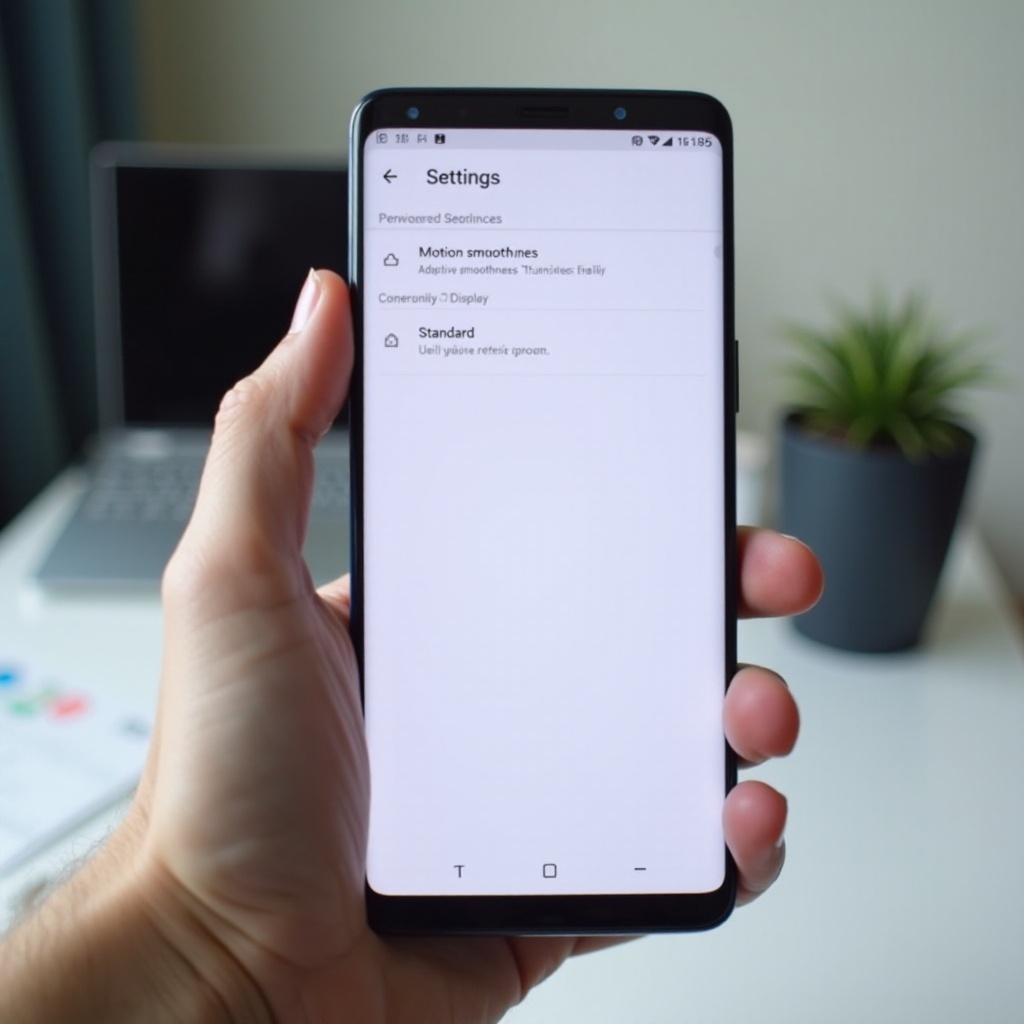
Turn Off Variable Refresh Rate on Samsung Galaxy (One UI 6 and Later)
Samsung’s high-end phones support advanced VRR, especially in the Galaxy S, Fold, and Flip series. They also give you straightforward controls through Motion smoothness and Developer options.
Using Motion Smoothness to Disable Adaptive Mode
To turn off variable refresh rate using standard settings:
- Open Settings.
- Tap Display.
- Tap Motion smoothness.
- Choose Standard instead of Adaptive.
- Tap Apply.
In Standard mode, the phone locks the display at 60 Hz, so it no longer shifts refresh rate based on content during normal use.
Forcing a Fixed Refresh Rate via Developer Options
If you want more control or want to monitor the refresh rate:
- Go to Settings → About phone → Software information.
- Tap Build number seven times to enable Developer options (enter your PIN if asked).
- Go back to Settings and open Developer options.
- Find and enable Show refresh rate to display an overlay with the current Hz value.
On some models, you may also see toggles like Force peak refresh rate. Leave that off if you want to stay at 60 Hz after selecting Standard in Motion smoothness.
What to Do If Motion Smoothness Is Greyed Out
Sometimes Motion smoothness is not available. Common reasons include:
- Power saving mode is turned on.
- Battery saver or Ultra power saving is active.
- Certain apps or modes (like some video apps) temporarily enforce a specific refresh rate.
Try these steps:
- Turn off Power saving mode in the battery settings.
- Close all apps and restart the phone.
- Check Motion smoothness again after the restart.
If the option remains greyed out, a software update or specific app may be limiting it. Check for system updates under Settings → Software update before you contact support.
Turn Off Variable Refresh Rate on Google Pixel (Android 14 and Later)
Google Pixel phones keep the settings simple, but the behavior can still confuse users. VRR usually appears under a single toggle called Smooth Display, which controls whether the screen can jump above 60 Hz.
Disabling Smooth Display in Display Settings
To turn off variable refresh rate on a Pixel:
- Open Settings.
- Tap Display.
- Tap Smooth Display.
- Turn off the toggle for Smooth Display.
With Smooth Display disabled, Pixels typically stay at 60 Hz for most tasks. This effectively turns off high-refresh VRR in everyday use.
Using ‘Show Refresh Rate’ in Developer Options
If you want to confirm that the phone no longer jumps to higher Hz:
- Enable Developer options by going to Settings → About phone and tapping Build number seven times.
- Open Settings → System → Developer options.
- Turn on Show refresh rate.
You will see a small number on the screen showing the current Hz. Scroll through apps and menus. If it holds at 60 Hz, VRR is no longer active for normal content.
Troubleshooting Persistent VRR Behavior
In rare cases, certain system areas or apps may still change the refresh rate. If that happens:
- Restart your phone after changing the setting.
- Make sure Battery Saver is off, as it can interact with performance modes.
- Update to the latest Android version under Settings → System → System update.
If problems persist, consider reporting the behavior through the Pixel support channels, as software updates often refine VRR handling.
Turn Off Variable Refresh Rate on Other Android Brands (OnePlus, Xiaomi, Oppo, etc.)
Many other Android phones offer high refresh rate and VRR, but they hide the controls in different menus. The general pattern is similar: choose a fixed 60 Hz or Standard mode instead of an auto or smart option.
OnePlus / Oppo / Realme: Screen Refresh Rate Settings
For OnePlus, Oppo, and Realme devices running OxygenOS or ColorOS:
- Open Settings.
- Tap Display & brightness or Display.
- Tap Screen refresh rate.
- Choose Standard or 60 Hz instead of High, Auto, or Smart.
This locks the refresh rate and stops automatic switching between different Hz levels.
Xiaomi / Redmi / Poco: Refresh Rate and Auto Modes
For Xiaomi, Redmi, and Poco phones running MIUI or HyperOS:
- Open Settings.
- Tap Display.
- Tap Refresh rate.
- Choose 60 Hz or Standard instead of 120 Hz, 90 Hz, or Auto.
Some models let you set different refresh rates for specific apps. For best consistency and to truly mimic VRR off, keep it at 60 Hz globally rather than mixing modes across apps.
Motorola, Asus, Nothing and Others: Generic Path
On many other Android brands, such as Motorola, Asus, and Nothing, the process is similar:
- Open Settings → Display.
- Look for Advanced or More options.
- Tap Refresh rate or Screen refresh rate.
- Select the option labeled 60 Hz or Standard.
Gaming phones like Asus ROG may offer per-game profiles and extra performance modes. In those cases, set the global mode to 60 Hz and then fine-tune per-game settings if you still want higher refresh rates for specific titles.
When the Option Is Missing or Limited by the OEM
Some mid-range or budget phones:
- Limit refresh rate control to a simple ‘Auto’ setting.
- Only offer ‘Auto’ and a high option, with no clear 60 Hz mode.
If you cannot find a fixed 60 Hz setting:
- Use the Settings search bar and type ‘refresh rate’ or ‘screen refresh’.
- Check for system updates that may add more display options.
- Look in Developer options for related toggles.
If you still find nothing, the manufacturer may not expose full control over VRR. In that case, you may have to accept limited options or consider a different device if VRR behavior bothers you a lot.
Managing ProMotion and Refresh Rate on iPhone
Apple handles refresh rate differently from Android. On iPhones with ProMotion, the system automatically adjusts the refresh rate up to 120 Hz. There is no direct ‘variable refresh rate off’ switch, but you can limit the maximum rate and reduce how often the screen runs at 120 Hz.
How ProMotion Works on Recent iPhones
ProMotion lets the iPhone:
- Increase to 120 Hz for scrolling, animations, and supported games.
- Drop to lower rates for static content to save power and reduce unnecessary updates.
The process is automatic. iOS does not give you a simple ‘Adaptive vs Standard’ toggle like some Android phones. Instead, you get a control that limits the frame rate to 60 fps.
Limiting Frame Rate Through Accessibility Settings
To effectively disable the 120 Hz top end and simulate a fixed 60 Hz experience:
- Open Settings.
- Tap Accessibility.
- Tap Motion.
- Turn on Limit Frame Rate.
This setting caps the display at 60 frames per second. While the underlying technology can still adjust timing at a low level, you remove the main high-refresh behavior that bothers many users.
Using Low Power Mode to Indirectly Affect Refresh Rate
Low Power Mode can also reduce performance and refresh-related behavior:
- Open Settings.
- Tap Battery.
- Turn on Low Power Mode.
This is not a precise VRR toggle. However, it often reduces how aggressively the system uses higher refresh rates and can help if you want more consistent behavior during long days when you focus on battery life and comfort.
Pros and Cons of Turning Off Variable Refresh Rate
Before you decide to keep VRR off permanently, it helps to weigh the trade-offs. The right choice depends on how you use your phone and what bothers you more: visual issues or reduced smoothness.
Benefits: Consistent Motion and Fewer Visual Artifacts
When you turn off variable refresh rate, you gain:
- Consistency: The screen behaves the same across apps and brightness levels.
- Fewer surprises: Less chance of sudden flickers caused by refresh rate shifts.
- Potential comfort: Some users with sensitive eyes feel better at a fixed 60 Hz.
For people who notice every small stutter or suffer from eye strain, this consistency can matter more than the extra smoothness of VRR.
Drawbacks: Reduced Smoothness and Possible Battery Impact
The downsides include:
- Less fluid scrolling: 60 Hz feels less smooth than 90 Hz or 120 Hz, especially in fast feeds and animations.
- Gaming advantages lost: High-refresh games look and feel better at higher Hz if the hardware and software fully support them.
- Battery trade-offs: On some phones, VRR saves power by dropping the refresh rate when possible. Locking at 60 Hz may not always improve battery life, and in a few cases it could be slightly worse compared with smart VRR tuning.
Your experience will vary by device, display type, and software optimization. For that reason, many users experiment with both modes before they decide.
When to Keep VRR On vs. Off in Daily Use
You might choose to:
- Keep VRR on if you care about smoothness, play many games, and do not notice flicker or eye strain.
- Turn VRR off if you are sensitive to display behavior, see frequent flicker, or prefer predictability and a classic feel.
Some people even switch modes based on their day: VRR on at home for games and media, fixed 60 Hz at night or during long reading sessions. If you do turn VRR off and then notice new issues, you can troubleshoot them before you decide whether to stick with your choice.
Troubleshooting After Turning Off Variable Refresh Rate
After you disable VRR, your phone might feel different. Most changes are expected, but a few issues may signal something else is wrong or misconfigured.
Screen Feels Laggy or Less Responsive
If the screen feels slow or heavy after you switch to 60 Hz:
- Remember that 60 Hz is inherently less smooth than 90 or 120 Hz.
- Check if animations were also slowed by Power saving or Battery saver modes.
- On Android, make sure no third-party ‘performance’ apps are throttling your device or forcing low-power modes.
If you want a middle ground, some phones let you pick 90 Hz as a fixed rate, which can feel smoother than 60 Hz with fewer VRR quirks.
Unexpected Battery Changes or Overheating
If you see unexpected battery drain or heat after you change refresh settings:
- Check which apps use the most battery in Settings → Battery.
- Confirm that you are not stuck on a high fixed rate like 120 Hz if your phone allows that.
- Restart the phone to clear any temporary bugs or processes.
If problems continue, the cause is likely an app, background process, or network usage rather than the refresh rate setting itself.
Resetting Display Settings and Updating Software
If you regret your changes or something feels off:
- Reset display settings to default in Settings → System or General management, depending on your phone.
- Update your phone software. Many manufacturers refine VRR behavior and fix related bugs in new updates.
- If nothing helps and the screen looks clearly wrong, contact support or visit a service center to rule out hardware issues.
Once you have a stable setup, you can tailor it further for your own habits. Different users benefit from different display configurations.
Best Display Settings Recommendations for Different Users
You now know how to turn off variable refresh rate on your phone and what it does. The final step is choosing settings that match how you actually use your device from day to day.
For Gamers and Performance‑Focused Users
If you play many high-refresh games and scroll a lot through fast content:
- Keep Adaptive / Smooth Display / ProMotion enabled if you do not suffer from eye strain.
- Use the highest refresh rate supported by your phone in games that support it.
- Monitor battery and temperature, and consider lowering refresh rate only when traveling or when your battery is low.
You gain the maximum benefit from VRR in this scenario, as long as your hardware and apps take advantage of it.
For Battery‑First and Commuter Users
If battery life matters more than smoothness:
- Try a fixed 60 Hz mode first and see how your phone feels.
- Turn on Battery saver or Power saving when needed.
- Keep brightness at a moderate level and avoid always running heavy games or 3D apps.
On some phones, VRR plus aggressive power management may already be efficient. Test both modes (VRR on vs fixed 60 Hz) for a day each and compare battery usage for your own routine.
For Users Sensitive to Flicker and Eye Strain
If you are sensitive to displays and often feel discomfort:
- Set the refresh rate to a fixed 60 Hz where possible.
- Keep brightness at a comfortable medium level rather than the extremes.
- Enable Eye comfort, Blue light filter, or Reading mode in display settings.
- On iPhone, turn on Limit Frame Rate and adjust Reduce White Point if needed.
Your comfort is more important than extra smoothness. Do not hesitate to keep VRR off if it helps you feel better while using your phone.
Conclusion
Variable refresh rate can be a powerful feature, but it is not a perfect fit for every user. Some people love the ultra-smooth scrolling and dynamic behavior. Others run into flicker, jitter, or a simple preference for a stable, predictable display.
You now know how to turn off variable refresh rate on your phone across major platforms: Samsung Galaxy, Google Pixel, other Android brands, and iPhone with ProMotion. You have seen how to confirm your current refresh rate, the pros and cons of disabling VRR, and how to troubleshoot any issues that appear afterward.
Use this knowledge to tune your phone to your eyes, your habits, and your priorities. Whether you choose a fixed 60 Hz or keep VRR enabled, the goal is the same: a screen that feels comfortable, reliable, and enjoyable every time you pick up your device.
Frequently Asked Questions
Does turning off variable refresh rate improve battery life on every phone?
Not always. On some devices, VRR saves power by dropping the refresh rate when the screen is static. Locking the phone at 60 Hz can help if the device would otherwise stay at 90 or 120 Hz all the time. But if VRR is well tuned, it may already be the most efficient option. The best approach is to test both modes for a day or two and compare battery usage for your own routine.
Can turning off variable refresh rate damage my display?
No. Changing refresh rate settings does not harm the display. These options are built into the software and tested by manufacturers. You are simply choosing how the screen operates within its designed limits. You can switch between VRR and fixed modes as often as you like without risking hardware damage or shortening the display’s lifespan.
Why does my phone still change refresh rate after I switch to 60 Hz?
Some phones keep limited adaptive behavior even when set to 60 Hz, especially in modes like Always On Display or during specific video playback. In other cases, you might be seeing incorrect readings from third-party apps. Enable the official ‘Show refresh rate’ option in Developer settings if available, update your phone’s software, and restart the device. If it still changes noticeably, the manufacturer may enforce some dynamic behavior that you cannot fully disable.