
Introduction
Your iPhone normally controls your Apple TV without effort. You press the volume buttons or drag the on-screen slider and expect the sound to change right away. When nothing happens, it feels broken and confusing.
The ‘iPhone Apple TV remote volume not working’ problem is one of the most common Apple TV issues in 2024. It often appears after you buy a new TV or soundbar, change HDMI cables, move your Apple TV to a different room, or install a new iOS or tvOS update. Sometimes it works fine one evening and fails the next day.
This guide walks you through every likely cause and fix in a clear, logical order. You will see how volume control actually flows between your iPhone, Apple TV, TV, soundbar, and receiver. You will start with quick checks that take less than a minute, then move into deeper settings on your iPhone, Apple TV, and TV.
By the end, you will know how to:
- Restore volume control from your iPhone Apple TV Remote
- Configure HDMI-CEC, ARC/eARC, and IR the right way
- Handle complex setups with soundbars, receivers, and HomePods
- Spot hardware problems that need repair or support
To make each fix easier to understand, first you need a simple picture of how the iPhone actually controls volume through Apple TV.
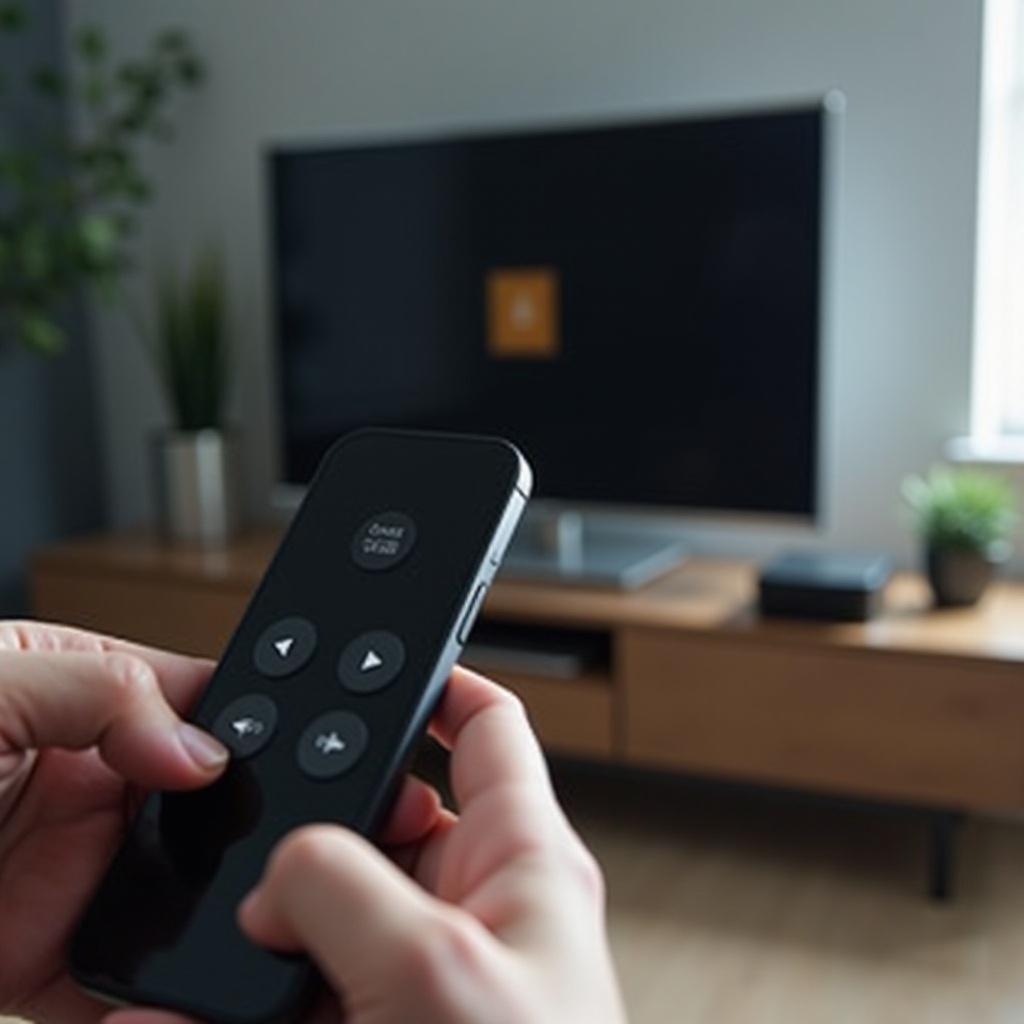
How iPhone Controls Apple TV Volume
Before you adjust settings, it helps to know what the iPhone Apple TV Remote really does when you press the volume buttons. Once you see which device owns the volume control, you can target the right part of your setup.
Apple TV vs TV vs Soundbar Volume Explained
In a typical living room, there are three different places where volume can change:
- Apple TV output level – Apple TV sends digital audio over HDMI. In most setups, it passes audio at a fixed level to the TV or receiver. Apple TV itself usually does not change loudness the way a TV or speaker does.
- TV speaker volume – If you use your TV’s built-in speakers, the TV’s volume control sets how loud everything sounds. The TV remote or physical buttons usually adjust this.
- Soundbar or AV receiver volume – If a soundbar or receiver handles audio, that device owns volume. Its remote, front panel, or app changes the sound level.
Your iPhone Apple TV Remote does not usually tweak the sound level inside Apple TV. Instead, it asks Apple TV to tell the TV or receiver to raise or lower volume. If that chain is broken anywhere, the iPhone volume controls stop working.
HDMI-CEC, ARC/eARC, and IR in Plain English
Apple TV uses two main technologies to tell the TV or receiver to change volume:
- HDMI-CEC (Consumer Electronics Control)
CEC sends control commands over the HDMI cable. It lets Apple TV turn the TV on or off and tell it to adjust volume. Both Apple TV and the TV or receiver must support and enable CEC.
- ARC/eARC (Audio Return Channel / Enhanced ARC)
ARC and eARC carry audio from the TV back to a soundbar or receiver over HDMI. They do not control volume by themselves, but if ARC/eARC is misconfigured, volume control through HDMI-CEC can feel broken or inconsistent.
- IR (Infrared)
Apple TV can also send infrared signals, just like a classic remote. It can learn the volume commands from your TV or receiver remote. This method needs a clear line of sight from the front of Apple TV to the TV or receiver’s IR sensor.
Your iPhone talks to Apple TV over Wi-Fi. Apple TV then uses HDMI-CEC or IR to tell the TV or receiver to change volume. When any part of this chain fails, the volume slider on your iPhone stops working.
When the iPhone Apple TV Remote Can and Cannot Adjust Volume
Your iPhone can control volume when:
- Apple TV is connected by HDMI to a TV or receiver that supports HDMI-CEC, and
- CEC is turned on on both Apple TV and the TV or receiver, or
- Apple TV has learned your TV or receiver’s IR volume commands and its IR signal reaches the IR sensor.
Your iPhone often cannot control volume when:
- The TV or receiver does not support HDMI-CEC at all.
- You use an older receiver, HDMI splitter, or adapter that blocks CEC.
- Apple TV sits inside a cabinet or behind the TV so IR cannot reach the sensor.
- Audio goes to external speakers that ignore HDMI-CEC and IR commands.
Now that you understand who actually controls volume, you can start with quick checks. These simple steps often fix the problem before you even open a settings menu.
Quick Checks Before Changing Any Settings
Many cases of ‘iPhone Apple TV remote volume not working’ come from basic issues: a muted TV, the wrong input, or a device that needs a restart. Running through these checks can save you from digging into complex settings too soon.
Confirm Basic TV and Speaker Volume Settings
Start with the simple possibilities:
- Check your TV volume
Use the TV’s own remote or buttons. Make sure the TV is not muted and set the volume to a normal level.
- Check your soundbar or receiver volume
If you use a soundbar or AV receiver, pick up its remote. Confirm it is not muted and that the volume level is set high enough to hear.
- Confirm the correct input
On the TV, switch to the HDMI input where Apple TV is connected. If needed, switch to another input and then back again to refresh the connection.
If you hear sound but your iPhone still cannot change the volume, the next step is to make sure your iPhone itself is ready to control the Apple TV.
Check iPhone Volume, Silent Mode, and Connectivity
The iPhone’s own state can cause confusion with volume control:
- Volume buttons and Silent switch
Open the Apple TV Remote on your iPhone and press the physical volume buttons. Watch for the volume HUD and any change on the TV. Make sure the side Silent switch is not causing unexpected behavior.
- Wi-Fi connection
Ensure the iPhone is on the same Wi-Fi network as your Apple TV. If you use a different Wi-Fi band or SSID, the remote may not connect well. Turn off any VPN for testing, because some VPNs block local network traffic.
- Airplane mode
Make sure Airplane mode is off. Confirm that Wi-Fi and Bluetooth are turned on.
If all of these checks look fine, it is time to restart each device and clear any temporary glitches.
Restart iPhone, Apple TV, TV, and Soundbar/Receiver
A restart often fixes hidden problems with HDMI-CEC, network sessions, and background processes.
- Restart your iPhone
Turn your iPhone off, wait 10 to 15 seconds, then turn it back on.
- Restart Apple TV
On Apple TV, go to Settings → System → Restart, or unplug its power cable for about 20 seconds and plug it back in.
- Restart TV and audio gear
Turn off the TV and any soundbar or receiver. Unplug them for about 20 seconds. Plug them back in and power them up again.
After everything powers back up, test the iPhone Apple TV Remote. If volume control still fails, you should confirm that the remote itself is set up correctly on your iPhone.
Make Sure Your iPhone Remote Is Set Up Correctly
Even if your Apple TV and TV are configured well, the iPhone Remote can misbehave if it is not added correctly or if it is connected to the wrong Apple TV. In this section, you will verify that the iPhone side of the remote is configured the right way.
Add and Open Apple TV Remote in iPhone Control Center
First, make sure the Apple TV Remote is visible in Control Center:
- On your iPhone, open Settings → Control Center.
- Under ‘More Controls’, find Apple TV Remote.
- Tap the + icon to add it to ‘Included Controls’.
- Swipe down from the top-right corner (or up from the bottom on some models) to open Control Center.
- Tap the Apple TV Remote icon to open it.
You should see a touchpad area, play/pause, power, and sometimes a volume slider when it connects to Apple TV.
Connect to the Correct Apple TV on Your Network
If there are multiple Apple TVs in your home or nearby, you might be controlling the wrong one:
- Open the Apple TV Remote from Control Center.
- Tap the TV name at the top of the interface.
- Select the correct Apple TV from the list of available devices.
- Wait a few seconds for the connection to complete.
Now swipe on the touchpad to see if you can navigate Apple TV menus. Once you confirm that, press the iPhone volume buttons and watch for a volume indicator on the TV.
What to Do If the Volume Slider Is Missing or Greyed Out
If the volume slider does not appear, or it appears but has no effect:
- Start playing a show or movie on Apple TV. Some setups only show the volume slider when media is playing.
- Make sure Apple TV is connected through HDMI to a TV or receiver. If you only use AirPlay to send audio to another device, volume behavior may differ.
- Check that the TV or receiver is turned on and set to the correct input.
If you still cannot get a working volume slider, the issue is probably in the way Apple TV controls your TV or receiver. Next, set up volume control directly on Apple TV.
Configure Apple TV to Control TV or Receiver Volume
For your iPhone to change volume, Apple TV must have a reliable way to change the TV or receiver volume. This usually happens through HDMI-CEC or IR. In this section, you will set up those options on Apple TV.
Enable ‘Control TVs and Receivers’ in tvOS 2024 Settings
On your Apple TV:
- Open Settings → Remotes and Devices.
- Find Control TVs and Receivers.
- Turn this setting On.
If this option is missing or cannot be turned on, you might be using a non-CEC HDMI adapter, a capture card, a monitor that does not support CEC, or a problematic HDMI chain. In such cases, you may need to fall back to IR-based volume control.
Choose Between HDMI and IR Volume Control
Still in Settings → Remotes and Devices:
- Select Volume Control.
- Check for options such as:
- Auto (via HDMI)
- TV via IR
- Receiver via IR
- Try Auto (via HDMI) first so Apple TV uses HDMI-CEC.
- If volume still does not work, switch to TV via IR or Receiver via IR and complete the IR learning process.
Once you choose a method, your Siri Remote should be able to change volume. If the Siri Remote works, your iPhone Remote should follow, because both send commands through the same Apple TV settings.
Test Volume Using Both the Siri Remote and iPhone
Now verify that everything behaves the same way across remotes:
- Use the Siri Remote volume buttons. Watch for a volume indicator on the TV or receiver.
- Open the iPhone Apple TV Remote and press the volume buttons on the iPhone, or drag the on-screen slider.
- Check whether volume changes in both cases.
If the Siri Remote can control volume but your iPhone still cannot, the issue is likely with the connection between iPhone and Apple TV. If neither remote works, focus on HDMI-CEC or IR between Apple TV and your TV or receiver, which we will address next.
Fix HDMI-CEC and ARC/eARC Volume Problems
When you see the ‘iPhone Apple TV remote volume not working’ issue, HDMI-CEC is often involved. It is powerful but fragile, and every TV brand implements it a little differently. Fixing CEC and ARC/eARC often restores volume control for both the Siri Remote and your iPhone.
Enable HDMI-CEC on Popular TV Brands (2024 Menus)
Each manufacturer uses a different name for HDMI-CEC:
- Samsung: Anynet+ (HDMI-CEC)
- Sony: BRAVIA Sync
- LG: Simplink (HDMI-CEC)
- Panasonic: VIERA Link
- Philips / TP Vision: EasyLink
On your TV:
- Open the Settings or System menu.
- Look under sections such as General, External Device Manager, or HDMI.
- Find the brand’s CEC option (for example, Anynet+, Simplink, BRAVIA Sync) and turn it On.
- Save and exit the menu.
After enabling CEC, restart both the TV and Apple TV so the devices can renegotiate their control relationship.
Use the Correct ARC/eARC HDMI Port and Certified Cable
If you route audio through a soundbar or AV receiver, the physical connections matter a lot:
- On the TV, use the HDMI port labeled ARC or eARC to connect your soundbar or receiver.
- Connect Apple TV either to:
- A normal HDMI input on the TV, or
- Directly to the AV receiver or soundbar HDMI input.
- Use a High Speed or Ultra High Speed certified HDMI cable. Older or very cheap cables may pass video but not handle CEC reliably.
A wrong port or bad cable can create a situation where video looks fine but volume control over CEC fails.
Power-Cycle to Reset CEC and Remove Splitters/Adapters
HDMI-CEC can get stuck in a bad state. A full power-cycle often clears it:
- Turn off and unplug the power from your Apple TV, TV, and any soundbar or receiver.
- Disconnect all HDMI cables from these devices.
- Wait at least 30 seconds.
- Reconnect only the essential HDMI cables directly:
- Apple TV to TV or receiver
- TV ARC/eARC to soundbar or receiver, if used
Avoid splitters, switches, and HDMI extractors during testing.
- Plug in power cables and turn the devices back on.
After this reset, test volume again using both the Siri Remote and your iPhone. If HDMI-CEC is still unreliable or unavailable, you will want to move to IR-based volume control.
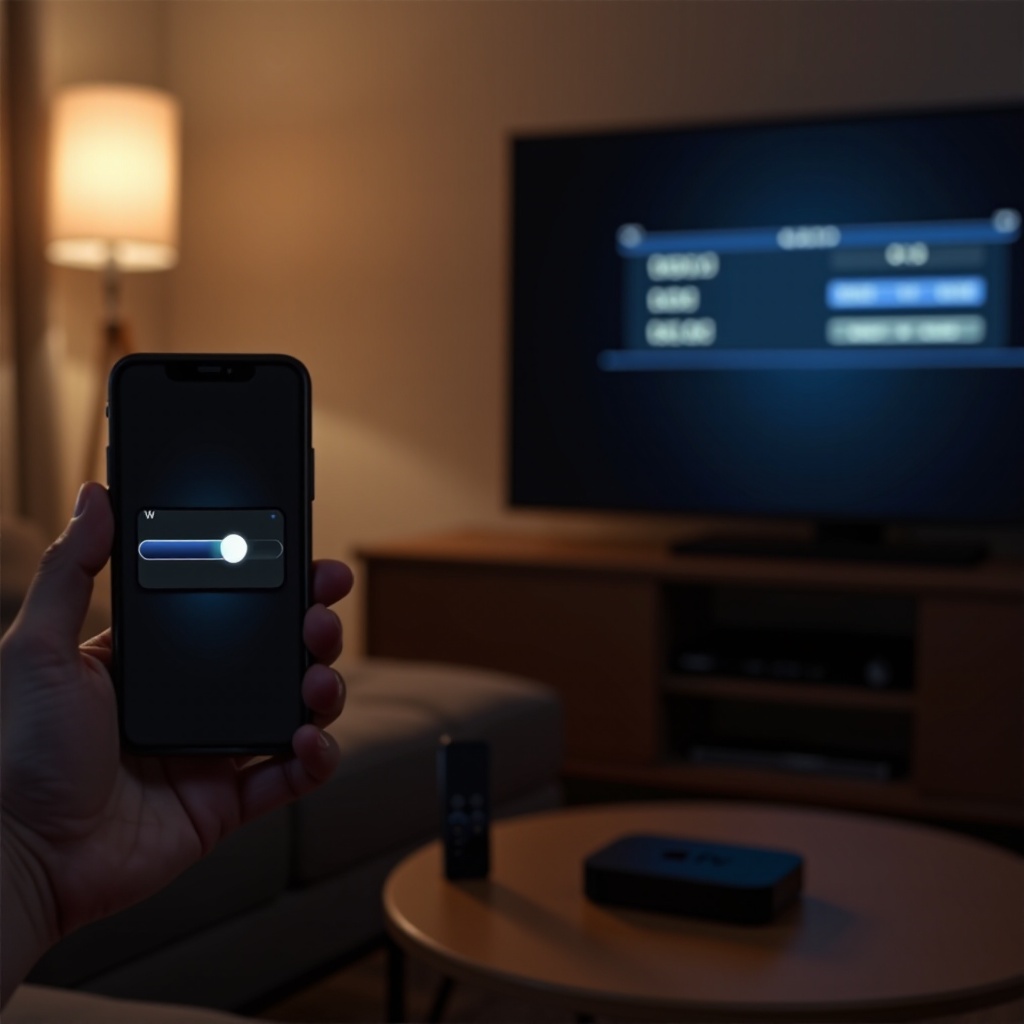
Fix IR (Infrared) Volume Control Issues
When HDMI-CEC does not work or your TV does not support it, IR is usually the best fallback. Apple TV can act like a normal remote and send IR volume commands, but this only works when the IR signal can reach the TV or receiver’s sensor.
Check Apple TV Placement and Line of Sight to TV/Receiver
For IR control to work well:
- Place Apple TV so its front faces toward the TV or receiver.
- Avoid hiding Apple TV behind the TV, inside a closed cabinet, or behind thick furniture.
- Confirm that a soundbar is not blocking the TV’s IR sensor. If it is, move the soundbar slightly or raise the TV.
Try moving Apple TV closer to the TV or receiver during testing. If volume starts working from a closer distance, you know placement is affecting IR performance.
Re-Teach Volume Commands with ‘Learn New Device’
If IR volume is not working or has never been set up:
- On Apple TV, go to Settings → Remotes and Devices → Volume Control.
- Select Learn New Device.
- Follow the on-screen instructions:
- Point your TV or receiver remote at the front of Apple TV.
- Press Volume Up when asked.
- Press Volume Down when asked.
- Press Mute if requested.
- Give the new device profile a simple name such as ‘TV Volume’ or ‘Receiver Volume’.
After this, Apple TV will send the same IR volume codes that your TV or receiver remote uses.
Test IR Response from Different Positions in the Room
Once IR learning is complete:
- Stand in your usual viewing spot and press the Siri Remote volume buttons. Watch the TV or receiver volume indicator.
- Move to a different spot in the room and test again.
- If the volume only responds from certain angles, adjust Apple TV’s position so its IR window has a clearer path to the TV or receiver.
If IR volume works well with the Siri Remote, the iPhone Apple TV Remote should also change volume, because it triggers the same IR commands through Apple TV.
iPhone-Side Troubleshooting Steps
At this point, if Apple TV can control volume using HDMI-CEC or IR but your iPhone still cannot, the problem is likely in the iPhone’s software or network permissions. The next few steps focus on the iPhone side of the connection while keeping the Apple TV configuration stable.
Update to the Latest iOS 17/18 Release
Apple improves system apps and services, including the Apple TV Remote, through iOS updates. Running an older version can sometimes cause glitches.
- On your iPhone, open Settings → General → Software Update.
- Download and install the latest iOS 17 or iOS 18 update available for your device.
- Restart your iPhone after the update completes.
After updating, open the Apple TV Remote again and test volume while playing something on Apple TV.
Remove and Re-Add Apple TV Remote in Control Center
If the Apple TV Remote behaves oddly, removing and re-adding it can clear its state:
- Go to Settings → Control Center on your iPhone.
- Under ‘Included Controls’, tap the – next to Apple TV Remote, then tap Remove.
- Scroll to ‘More Controls’ and tap the + next to Apple TV Remote to add it back.
- Open Control Center, tap the Apple TV Remote icon, and reconnect to your Apple TV.
This step forces iOS to reload the remote interface and often fixes cases where volume control works one moment and fails the next.
Fix Network Conflicts, VPNs, and Local Access Settings
The iPhone Remote depends on local network access to reach Apple TV:
- Turn off VPN on your iPhone while testing. Many VPNs block or reroute local network traffic.
- Check router settings for ‘client isolation’ or ‘AP isolation’. Disable these options on the Wi-Fi network that your Apple TV and iPhone use.
- On your iPhone, open Settings → Privacy & Security → Local Network and make sure local network access is allowed for relevant apps and services.
If the iPhone can still navigate Apple TV but cannot change volume, then the underlying Apple TV software or remote settings may need more attention.
Apple TV-Side Troubleshooting Steps
When you know the iPhone is up to date and has a stable network connection, but volume control is still broken, it is time to look deeper at Apple TV itself. Updating tvOS and resetting key settings often resolves persistent problems.
Update to the Latest tvOS 2024 Build
To update tvOS:
- On Apple TV, go to Settings → System → Software Updates.
- Select Update Software.
- If an update is available, install it and wait for Apple TV to restart.
Newer tvOS builds often include fixes for HDMI-CEC, remote handling, and audio routing, all of which can affect volume control from your iPhone.
Restart or Reset ‘Remotes and Devices’ Settings
If volume control has become unstable, start with a simple restart, then adjust the remote settings:
- Open Settings → System → Restart on Apple TV and test again after it comes back up.
- If issues remain, go to Settings → Remotes and Devices and:
- Toggle Control TVs and Receivers off, wait a moment, then turn it back on.
- Revisit Volume Control and confirm you are using the right mode (Auto via HDMI or IR).
- If you use IR, run the Learn New Device process again.
These steps clear many hidden configuration conflicts, especially if you recently changed TVs, receivers, or audio routing.
When a Full Apple TV Factory Reset Makes Sense
A full reset is a last resort but can help when nothing else works and you suspect deep configuration issues:
- On Apple TV, go to Settings → System → Reset.
- Choose Reset and Update to restore tvOS and erase all settings and apps.
- Set up Apple TV again as a new device.
After the reset, configure HDMI-CEC or IR volume control first, before installing many apps, so you can confirm that basic volume control is stable.
Special Setups: Soundbars, AV Receivers, and HomePods
Many of the hardest ‘iPhone Apple TV remote volume not working’ problems appear in more complex systems. When you add soundbars, AV receivers, or HomePods into the chain, it becomes less obvious which device is responsible for volume. Getting clarity on that role makes the rest of the troubleshooting much easier.
Identify Which Device Owns Volume in Your Chain
First, map your exact setup and find the device that really changes the loudness:
- Apple TV → TV → TV speakers
The TV controls volume.
- Apple TV → TV → soundbar via ARC/eARC
The soundbar controls volume, but the TV and Apple TV need to pass control signals.
- Apple TV → AV receiver → TV
The AV receiver owns volume for the whole system.
- Apple TV → TV → HomePod or AirPlay speakers
The HomePod or AirPlay group controls volume through AirPlay.
Use the device’s own remote to change volume and see which screen or front panel shows a volume indicator. That device is the one Apple TV must control through HDMI-CEC, IR, or AirPlay.
Configure ARC/eARC and Audio Output for Soundbars/Receivers
If you use a soundbar or AV receiver, correct ARC/eARC and audio output settings are essential:
- On the TV, set Audio Output to ARC/eARC or the HDMI device connected to your soundbar or receiver.
- Enable CEC features that let external devices control volume and power.
- On the soundbar or receiver, choose the proper input (often labeled ‘TV ARC’ or something similar) and turn on any ‘System Control’ or ‘HDMI Control’ options.
- On Apple TV, open Settings → Video and Audio → Audio Output and confirm audio is going to the TV or receiver in a way that matches your wiring.
With these settings, the Apple TV can send commands to the device that actually owns volume. Your iPhone then becomes a convenient control surface for that system.
Volume Control When Using HomePod or AirPlay Speakers
If you use HomePods or other AirPlay speakers as your Apple TV’s default audio output, volume works differently:
- Apple TV sends volume commands over AirPlay rather than HDMI or IR.
- The iPhone Apple TV Remote volume controls may adjust the HomePod volume itself.
- In Settings → Video and Audio → Default Audio Output on Apple TV, check which speakers are selected.
- In the Home app, check the HomePod group configuration to make sure the speakers are set up correctly.
If built-in TV apps can control HomePod volume but Apple TV cannot, focus on Apple TV’s audio output and AirPlay settings rather than HDMI-CEC.
When It’s a Hardware Problem, Not a Settings Issue
If you have followed all earlier steps and the ‘iPhone Apple TV remote volume not working’ issue still persists, it may be a hardware issue. Recognizing hardware symptoms early can save time and help you decide when to contact support.
Signs of Faulty HDMI Ports, Cables, or IR Hardware
Watch for these clues:
- HDMI cables that lose signal or cause flickering when you move them.
- One HDMI port on the TV that never responds to CEC, while another port works fine.
- The Siri Remote volume buttons only work at very close range, which may suggest weak IR from Apple TV or a blocked sensor on the TV or receiver.
To narrow it down, try another HDMI cable, move Apple TV to a different HDMI port, or place Apple TV in a different spot so its IR emitter faces the sensor more clearly.
Test with Another iPhone, TV, or Remote
Testing with other devices helps you isolate the faulty part:
- Use another iPhone or an iPad to control Apple TV with the Apple TV Remote. If volume works there, your original iPhone may have a software or permission issue.
- Connect Apple TV to a different TV temporarily. If volume works fine on the new TV, the original TV may have a CEC or IR problem.
- Try a universal remote or the TV/receiver’s original remote to confirm their IR sensors respond to commands.
If other devices can control volume but Apple TV still cannot, the Apple TV hardware may be damaged.
When to Contact Apple Support or Your TV Manufacturer
Consider contacting support when:
- Apple Support is a good choice if:
- HDMI-CEC fails with multiple TVs and cables.
- IR learning does not work at all, even with clear line of sight.
- The Apple TV Remote app behaves inconsistently across networks and Apple TVs.
- TV or soundbar/receiver support is better if:
- CEC features do not work for any connected device.
- The IR sensor never responds, even with the original remote.
- Firmware updates are needed for ARC/eARC or CEC, and you need help installing them.
Before calling support, take a few photos of your setup and write down which HDMI ports and cables you use. This makes it easier for support teams to understand your configuration and guide you to a faster fix.
Conclusion
Most ‘iPhone Apple TV remote volume not working’ issues come from a small set of causes: HDMI-CEC not enabled or stuck, IR misalignment or missing learning, or a communication glitch between your iPhone and Apple TV. The detailed steps in this guide help you move from the simplest checks to the deeper fixes in a clear order.
You began by confirming that basic volume and input settings were correct and that your iPhone and Apple TV could talk to each other over the same Wi-Fi network. You then configured Apple TV to control your TV or receiver volume using HDMI-CEC or IR, and you fixed common problems with ARC/eARC, cables, and device placement. After that, you tuned settings on both iOS and tvOS, removed and re-added the Apple TV Remote, and handled special setups with soundbars, receivers, and HomePods. Finally, you saw how to spot true hardware faults and when it is time to call Apple or your TV manufacturer.
If you work through these sections step by step, you should restore reliable volume control from your iPhone Apple TV Remote. Once everything works, make note of your cable layout, HDMI ports, and key settings so you can rebuild your setup quickly after future moves, upgrades, or new devices.
Frequently Asked Questions
Why does my iPhone Apple TV Remote show a volume slider but the sound doesn’t change?
When the volume slider appears but the sound does not change, your iPhone is talking to Apple TV but Apple TV is not controlling the TV or receiver volume correctly. First, open Settings → Remotes and Devices on Apple TV and turn on ‘Control TVs and Receivers’. Then set Volume Control to ‘Auto (via HDMI)’ and test with the Siri Remote. If that fails, switch Volume Control to ‘TV via IR’ or ‘Receiver via IR’ and run ‘Learn New Device’ so Apple TV can send IR commands. If the Siri Remote can change volume but the iPhone slider still does nothing, remove and re-add the Apple TV Remote in iPhone Control Center and confirm you are connected to the correct Apple TV.
Can I control Apple TV volume from my iPhone without HDMI-CEC in 2024?
Yes, you can control Apple TV volume from your iPhone without HDMI-CEC if Apple TV uses IR to control the TV or receiver. On Apple TV, go to Settings → Remotes and Devices → Volume Control and choose ‘TV via IR’ or ‘Receiver via IR’. Run ‘Learn New Device’ and teach Apple TV the volume up, volume down, and mute commands from your TV or receiver remote. Place Apple TV so its front faces the IR sensor on the TV or receiver. Your iPhone Apple TV Remote will then trigger those IR commands through Apple TV, even if the TV or receiver does not support HDMI-CEC.
Why did Apple TV volume control stop working on my iPhone after an iOS or tvOS update?
After an iOS or tvOS update, some permissions or HDMI-CEC behaviors may change, which can break volume control. To fix this, restart both your iPhone and Apple TV, then check Settings → Remotes and Devices on Apple TV to confirm ‘Control TVs and Receivers’ is on and the correct Volume Control mode (HDMI or IR) is selected. On your iPhone, remove and re-add the Apple TV Remote in Control Center and make sure Local Network access is allowed in Settings → Privacy & Security. If the problem started right after an update and persists across multiple TVs and networks, it may be a software bug. In that case, report it to Apple and watch for the next iOS or tvOS release that mentions fixes for Apple TV Remote or HDMI-CEC.