
Introduction
Siri reading your texts and alerts can be helpful when your hands are busy. But if your iPhone speaks up in a quiet meeting, a class, or on public transport, the feature quickly turns from useful to embarrassing. Many iPhone users turn on ‘Announce Notifications with Siri’ once, or it gets enabled by default with new AirPods or after an iOS update, and then they are not sure how to get Siri to stop announcing notifications.
This guide walks you through every way to silence Siri’s spoken notifications on your iPhone, AirPods, Apple Watch, and in your car. You will learn how the feature works, how to turn it off completely, and how to customize it so Siri only speaks when you actually want it to. By the end, you can keep important alerts visible on screen while keeping Siri quiet.
To make the right choices, it helps to understand what ‘Announce Notifications with Siri’ actually does and why it sometimes seems to appear out of nowhere.

What ‘Announce Notifications with Siri’ Actually Does
Announce Notifications is a Siri feature in iOS 17 and later that reads incoming alerts out loud when you use supported devices like AirPods, certain Beats headphones, Apple Watch, or CarPlay. Instead of only showing banners or playing tones, Siri speaks the app name and often the message content.
This feature aims to help you stay hands-free while driving, working out, or cooking. However, it can also expose private messages to people nearby and create unwanted noise. To manage it well, you need to understand how Siri decides what to read, which devices support it, and why it sometimes seems to turn on by itself.
How Siri Decides Which Notifications to Read
Siri does not read every notification by default. It follows your iPhone’s notification settings and app permissions.
Here is how Siri decides what to announce:
- Notification type
- Siri usually focuses on time-sensitive alerts and messages.
-
Standard notifications from social apps or games may not be read unless you allow them.
-
App permissions
- Each app can be allowed or blocked from using Announce Notifications.
-
If an app is not permitted, Siri will not read its alerts even if Announce Notifications is on.
-
Context and device
- Siri often announces notifications only when you are using headphones, Apple Watch, or CarPlay.
- On the iPhone speaker alone, Siri usually does not read every notification out loud.
When you adjust these layers global setting, per-app settings, and device options you control exactly what Siri speaks.
Devices and iOS 17+ Requirements
Announce Notifications works only on supported hardware and software. To use or turn off the feature, you should know if your setup qualifies.
Typical requirements include:
- iOS 17 or later on your iPhone
- Compatible AirPods, such as AirPods Pro or AirPods (2nd generation and later)
- Supported Beats headphones, like some Beats Fit Pro models
- Apple Watch with a recent watchOS version paired to your iPhone
- CarPlay, either wired or wireless, in a compatible vehicle
If you do not use any of these, you may never hear Siri announce notifications. Most people notice it first when they pair new AirPods or connect to CarPlay.
When and Why the Feature Turns On Automatically
Many users feel like Announce Notifications turns on by itself. In reality, Apple often prompts you to enable it or enables it by default when you:
- Set up new AirPods or Beats headphones
- Connect to CarPlay for the first time
- Update to a recent version of iOS 17 and accept recommended features
You might tap ‘Enable’ during setup without realizing what will happen later. The result: the next time a message arrives while you wear AirPods, Siri speaks the notification. The good news is that you can turn it off just as easily, starting with quick methods in Control Center.
Once you know how the feature behaves, the next step is learning the fastest ways to shut it up when you need silence right away.
Quick Methods to Turn Off Siri Announcing Notifications
Before diving into detailed settings, try fast ways to stop Siri from talking. These are helpful when you are in a meeting, at the gym, or in the car and need an immediate fix.
There are three main quick methods: use Control Center, use a Siri voice command, or decide whether you want the change to be temporary or permanent.
Using the Control Center Announce Notifications Toggle
The Control Center toggle offers the fastest way to silence announcements.
Follow these steps:
- Check if the toggle is already there
- Swipe down from the top-right corner of your iPhone screen.
-
Look for an icon labeled ‘Announce Notifications’ or an ear-like icon.
-
If you do not see it, add it
- Open Settings > Control Center.
- Scroll down and tap the + next to Announce Notifications.
-
Now swipe down again to open Control Center.
-
Turn it off
- Tap the Announce Notifications icon to disable it.
- It should change appearance to show that announcements are off.
This method is ideal if you sometimes like the feature but need to mute it quickly.
Turning Off Announcements from a Siri Prompt
You can ask Siri itself to stop reading notifications. Use a simple voice command.
Try one of these:
- ‘Hey Siri, stop announcing notifications.’
- ‘Hey Siri, turn off Announce Notifications.
Siri will usually confirm with a reply such as, ‘OK, I will stop announcing notifications.’ This method is useful when your hands are busy or you cannot reach your iPhone screen, such as while cooking or driving.
When to Use Temporary vs Permanent Disabling
A quick toggle or voice command often feels like enough, but you should decide how long you want Siri to stay silent.
You might prefer:
- Temporary disabling
- Use Control Center or Siri when you only need silence for a while.
-
Later, you can turn Announce Notifications back on with the same methods.
-
Permanent disabling
- Use the deeper settings in the next sections if you are sure you never want Siri to announce notifications, or only want it for very specific apps and devices.
If you find yourself repeatedly turning the feature off, it is worth changing the core notification settings so Siri behaves the way you expect all the time.
Now that you have quick controls for emergencies, let us set up the main switches that govern Siri’s announcing behaviour.
Turn Off Announce Notifications in iPhone Settings
To fully control how Siri behaves, adjust the core iPhone settings. This is the most reliable way to get Siri to stop announcing notifications across apps and devices.
Here, you will see how to switch the feature off globally, stop Siri from reading just your messages, and manage app-specific permissions so you keep only the announcements you truly want.
How to Disable Announce Notifications Globally
The master switch lives in the Notifications settings.
Follow these steps:
- Open Settings on your iPhone.
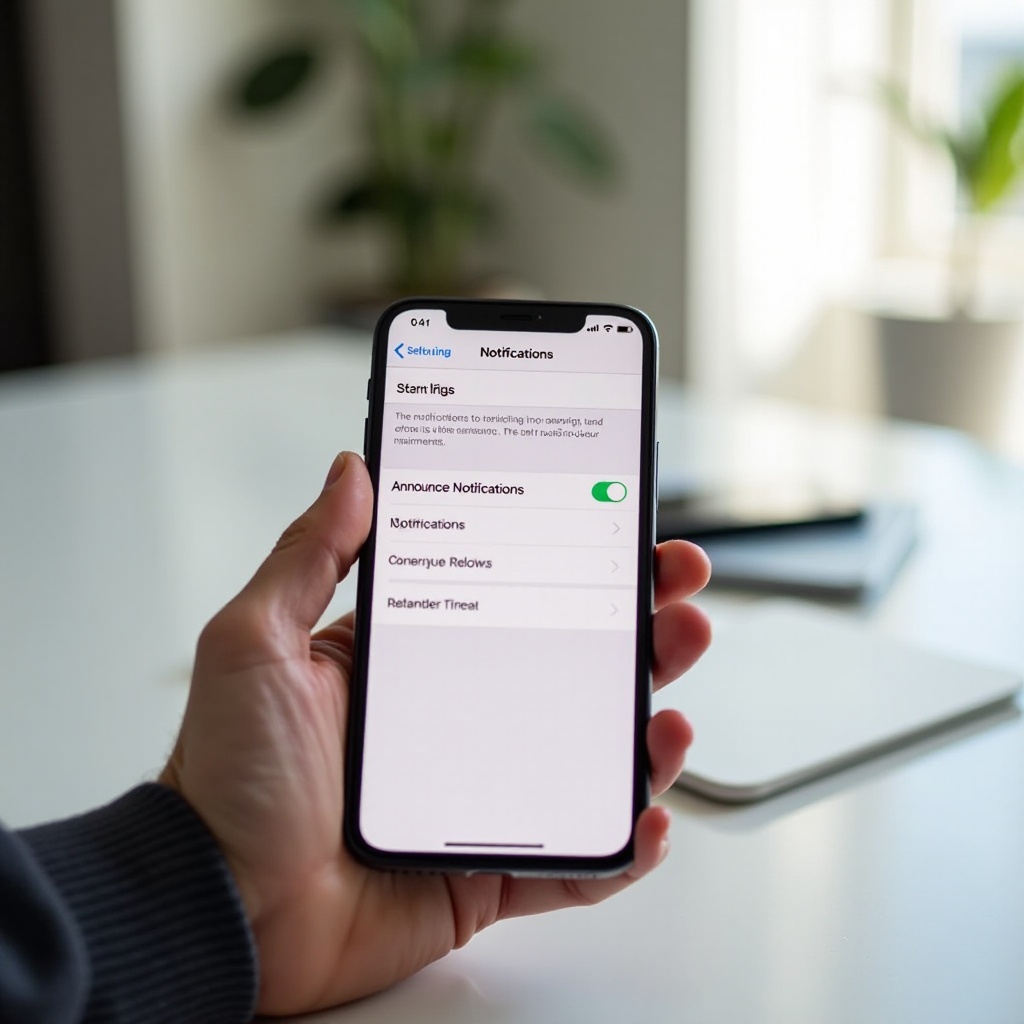
- Tap Notifications.
- Tap Announce Notifications near the top of the screen.
- Toggle Announce Notifications off.
Once this is off:
- Siri will stop reading notifications for all apps.
- AirPods, Beats, Apple Watch, and CarPlay will no longer trigger spoken alerts.
This is the best option if you find the feature more annoying than helpful and do not want to manage it app by app.
Stop Siri from Reading Messages Only
Many people like the idea of Siri speaking time-sensitive alerts, but they do not want private messages read out loud. You can keep Announce Notifications on while excluding specific apps such as Messages.
Here is how:
- Go to Settings > Notifications > Announce Notifications.
- Scroll down to the list of apps.
- Find Messages and toggle it off.
- Repeat for apps like WhatsApp, Telegram, or any other messaging service you want silent.
This way, Siri can still announce other important alerts, such as reminders or navigation prompts, while keeping your personal conversations private.
Manage Announce Notifications for Individual Apps
Fine-tuning app by app is the best way to keep your iPhone useful but quiet.
You can:
- Turn announcements on for key apps
-
For example, keep announcements on for Phone, Reminders, or a work chat app you must monitor.
-
Turn announcements off for noisy apps
- Disable them for social media, games, or promotional apps that send frequent alerts.
Steps to manage them:
- Open Settings > Notifications > Announce Notifications.
- Scroll through the list of apps.
- Toggle each app on or off based on your preferences.
With this setup, Siri becomes selective rather than silent. It only speaks when it truly matters.
Once iPhone-level settings are under control, the next major source of spoken notifications is your headphones, especially AirPods, so you should tune those next.
Stop Siri from Announcing Notifications on AirPods and Other Headphones
Headphones are one of the most common triggers for Announce Notifications. When you connect AirPods or supported Beats headphones, Siri may start reading every message as you move around. That can be annoying at the gym or while walking in public.
The good news: you can control announcements specifically for headphones without changing how notifications work on your iPhone speaker.
Disable Announce Notifications for AirPods in Settings
To manage AirPods behaviour:
- Connect your AirPods to your iPhone.
- Open Settings and tap your AirPods name at the top (or go to Bluetooth and tap the ⓘ next to your AirPods).
- Look for Announce Notifications or Announce Calls and Notifications.
- Turn the setting off.
Now, when you wear your AirPods:
- Siri will no longer read incoming messages or notifications.
- You can still get standard sounds, vibrations, and banners on your iPhone.
Control Announcements for Beats and Other Supported Headphones
For Beats headphones that support the feature, the process is similar:
- Pair your Beats with your iPhone and make sure they are connected.
- Go to Settings > Bluetooth.
- Tap the ⓘ next to your Beats device.
- Find any Announce Notifications option and turn it off.
If there is no specific toggle for your headphones, they might simply follow the global Announce Notifications setting described earlier.
Best Quiet Settings for Commuting and Workouts
When you commute or exercise, you may want to hear important calls but not every message. A good approach is:
- Turn off Announce Notifications for most messaging and social apps.
- Leave Phone and one key messaging app on if you need urgent alerts.
- Keep general notification sounds on, but rely on vibration if you prefer subtle alerts.
By tailoring your headphone settings, you make sure Siri does not surprise you with loud messages in public, while you still stay reachable.
Once your headphones are configured, the next place where Siri often speaks too much is the car, especially with CarPlay, so let us refine those settings too.
Stop Siri from Announcing Notifications in the Car (CarPlay and Bluetooth)
Driving is another place where Announce Notifications shows up. CarPlay and Bluetooth connections can trigger Siri to read messages and alerts to help you stay hands-free. But if it reads every message or group chat, it can become distracting or awkward with passengers in the car.
You can fine-tune or disable these announcements so they match how you like to drive.
Turn Off Announced Messages with Siri in CarPlay
If your car supports CarPlay, you can manage the settings directly from your iPhone.
Follow these steps:
- Connect your iPhone to CarPlay.
- On your iPhone, open Settings.
- Tap Notifications > Announce Notifications.
- Look for CarPlay-related options and turn off Announce Messages with Siri.
This stops Siri from reading messages through your car speakers but keeps CarPlay itself active for maps, calls, and music.
Control Siri Announcements on Bluetooth Car Stereos
If you use a simple Bluetooth connection rather than CarPlay, the control may be more basic. Siri will follow your iPhone’s Announce Notifications and audio output settings.
You can:
- Turn off Announce Notifications globally, or
- Turn them off per app (especially messaging apps) so your car connection does not trigger spoken alerts.
If you still hear Siri reading notifications, double-check that Announce Notifications is disabled for the apps you use while driving, such as Messages or WhatsApp.
Safer Alternatives: Driving Focus and Hands-free Options
Instead of letting Siri read everything, you can use Focus features to manage distractions:
- Driving Focus
- Go to Settings > Focus > Driving.
- Limit which people and apps can reach you while you drive.
-
Auto-reply to texts to let people know you are on the road.
-
Hands-free Siri commands
- Keep Siri available for requests like ‘Call home’ or ‘Give me directions’, but turn off Announce Notifications so you only hear Siri when you ask.
This balance lets you stay safer on the road without constant spoken messages.
Once your in-car experience feels right, you can move on to Focus modes in general. Those modes allow you to control when Siri speaks based on time, place, and activity, not just on specific devices.
Use Focus Modes to Control When Siri Speaks
Focus modes in iOS 17 are powerful tools to control when notifications appear and when Siri speaks. Instead of always turning Announce Notifications on or off, you can tie Siri’s behaviour to your schedule and activities.
Once you finish configuring car and headphone settings, Focus modes help you manage everyday life: work, meetings, and sleep.
Create a ‘Work’ or ‘Meeting’ Focus with No Voice Alerts
A Work or Meeting Focus can keep your phone quiet and professional.
To set it up:
- Go to Settings > Focus.
- Tap + to create a new Focus or edit Work.
- Choose which People and Apps you allow to notify you.
- In Options, disable any sounds or announcements you do not want.
- Make sure Announce Notifications is off for noisy apps during this Focus.
When you turn on this Focus, Siri will not read messages out loud, and only selected alerts will appear.
Schedule a Night or Sleep Focus for a Silent iPhone
Sleep is another time when Siri’s voice is the last thing you want to hear.
To keep nights quiet:
- Open Settings > Focus > Sleep (or create a custom Night Focus).
- Allow only essential contacts, such as family or emergency numbers.
- Turn off announcements and sounds for all other apps.
- Schedule the Focus to activate automatically at bedtime.
Even if Announce Notifications is on during the day, your Sleep Focus will prevent Siri from waking you up with spoken messages.
Allow Only Priority Contacts Without Full Message Read-outs
Sometimes you want certain people to always reach you, but you still do not want Siri to read their full messages in public.
You can:
- Allow Favorites or specific contacts in your Focus settings.
- Disable message previews so Siri does not read the content aloud.
- Keep vibration or a soft tone for those contacts only.
This gives you a subtle alert for important people without a loud, spoken message that others can hear.
Even with careful Focus rules, glitches or hidden settings can sometimes cause Siri to keep talking. That is where a short troubleshooting routine helps.
Troubleshooting: When Siri Keeps Announcing Notifications
Occasionally, Siri continues to announce notifications even after you think you turned everything off. This usually happens due to conflicting settings across apps, devices, or Focus modes. A quick checklist can help you fix the problem.
Here is how to track down and stop any remaining voice announcements.
Double-check Global, App, and Device-specific Settings
Walk through each layer:
- Global Announce Notifications
- Go to Settings > Notifications > Announce Notifications.
-
Confirm the main toggle is off (if you want total silence).
-
Per-app settings
- In the same screen, scroll through apps.
-
Ensure that noisy apps like Messages and social apps are toggled off.
-
Devices
- Check AirPods or Beats settings under Bluetooth or at the top of Settings.
- Check Apple Watch settings in the Watch app, especially notification mirroring.
- Review CarPlay behaviour in Settings > Notifications > Announce Notifications.
Often, a single app or device still has Announce Notifications enabled and causes the issue.
Update iOS and Restart iPhone to Clear Glitches
Software bugs can cause settings not to apply correctly.
Try this:
- Go to Settings > General > Software Update.
- Install any available iOS update.
- After updating, restart your iPhone by turning it off and back on.
Updates often include fixes for notification issues, and a full restart forces the system to reload your settings.
Reset Relevant Settings Without Wiping Your Data
If Siri still announces notifications after checking everything, reset only the necessary parts not your entire iPhone.
You can:
- Go to Settings > General > Transfer or Reset iPhone.
- Tap Reset.
- Choose Reset All Settings (this does not erase your data, but it resets system preferences like Wi-Fi, notifications, and layout).
After the reset:
- Re-configure your notification preferences, including Announce Notifications.
- Test again with a message to confirm Siri stays silent.
This step usually resolves stubborn glitches without the pain of a full factory reset.
Once everything works the way you want, it is worth thinking about why you are changing these settings in the first place: privacy, comfort, and accessibility.
Privacy, Comfort, and Accessibility Considerations
Turning off Siri announcements is not only about avoiding annoyance. It also affects your privacy, comfort, and in some cases accessibility. The right setup depends on your environment and personal needs.
As you refine your settings, think about where you use your iPhone and who is often around you.
Protecting Your Privacy in Public and Shared Spaces
Spoken notifications can reveal:
- Names of contacts
- Message content
- Sensitive information like codes, appointments, or personal comments
To protect your privacy:
- Turn off Announce Notifications in places like offices, classrooms, or shared homes.
- Disable previews, so even if an alert appears on screen, the full message does not show.
- Limit announcements to only a small set of trusted apps.
This way, only you control who hears your information.
Balancing Hands-free Convenience with Noise and Distraction
Sometimes you still want hands-free help, especially while driving or during workouts. The goal is balance.
You can:
- Use Announce Notifications only with AirPods or CarPlay, but keep it off on speakers.
- Limit announcements to urgent apps while muting social and promotional ones.
- Rely on Focus modes to automatically silence Siri in quiet environments.
This balanced approach keeps Siri useful without letting it dominate your surroundings.
When Announce Notifications Is Still Useful for Accessibility
For some users, especially those with visual impairments, Announce Notifications is a key accessibility feature. If you or someone you assist relies on voice feedback:
- Keep Announce Notifications enabled, but refine which apps can use it.
- Combine it with VoiceOver and Spoken Content options in Settings > Accessibility.
- Use headphones so Siri’s speech remains private and does not disturb others.
The feature exists to help, not to bother you. With the right settings, it can serve accessibility needs while still respecting your comfort and privacy.
Conclusion
You now know how to get Siri to stop announcing notifications across your iPhone, AirPods, Apple Watch, and CarPlay. By starting with quick controls like the Control Center toggle and Siri voice commands, then adjusting deeper settings in Notifications, Focus modes, and device options, you can tune the feature exactly to your lifestyle.
If you want total silence, turn off Announce Notifications globally and disable it on connected devices. If you prefer a smarter setup, keep it on only for critical apps and contexts, such as navigation or a few key contacts. With a bit of initial setup, Siri becomes a quiet, helpful assistant instead of a loud interruption.
Use this guide as a checklist whenever you change devices, update iOS, or notice Siri speaking again. You stay in control of when your iPhone talks and when it stays silent.
Frequently Asked Questions
Why is Siri still announcing notifications after I turned the feature off?
Siri may still announce notifications if some settings remain enabled on certain apps or devices. Check Settings > Notifications > Announce Notifications and confirm the main toggle is off. Then review the app list and disable Announce Notifications for messaging or social apps. Also check AirPods, Beats, Apple Watch, and CarPlay settings. If everything looks correct, update iOS and restart your iPhone to clear any glitches.
Can I make Siri announce only who is messaging me, not the full message?
Yes, you can limit what Siri reveals. Turn off full message previews in Settings > Notifications by adjusting Show Previews. Choose options like When Unlocked, so Siri does not read the entire content aloud on a locked screen. In many setups, Siri will mention the sender and app without speaking the full message. Combine this with Focus modes to restrict announcements to important contacts only.
Does turning off Announce Notifications affect “Hey Siri” or other Siri features?
Turning off Announce Notifications does not disable Siri itself. You can still use “Hey Siri” voice commands, ask questions, control smart home devices, start calls, or get directions. Announce Notifications controls only whether Siri automatically reads incoming notifications out loud. You keep full Siri functionality while stopping unwanted spoken alerts.