
Introduction
The loud ‘Find My iPhone’ alert or constant notifications can get annoying fast. Maybe you tapped Play Sound by accident, a family member keeps pinging your phone, or your devices send endless ‘left behind’ alerts. No matter the cause, you want the alerts to stop without breaking the security features that protect your iPhone.
This guide shows you how to turn off Find My iPhone alerts the smart way. You will learn:
- How Find My alerts actually work and what triggers them
- How to stop the loud sound immediately
- How to control or mute notifications and ‘left behind’ alerts
- How to adjust location sharing without disabling Find My
- When it is safe to fully turn off Find My iPhone, and when it is not
By the end, you will know exactly which settings to change so you can cut annoying alerts while keeping your iPhone protected if it is lost or stolen.
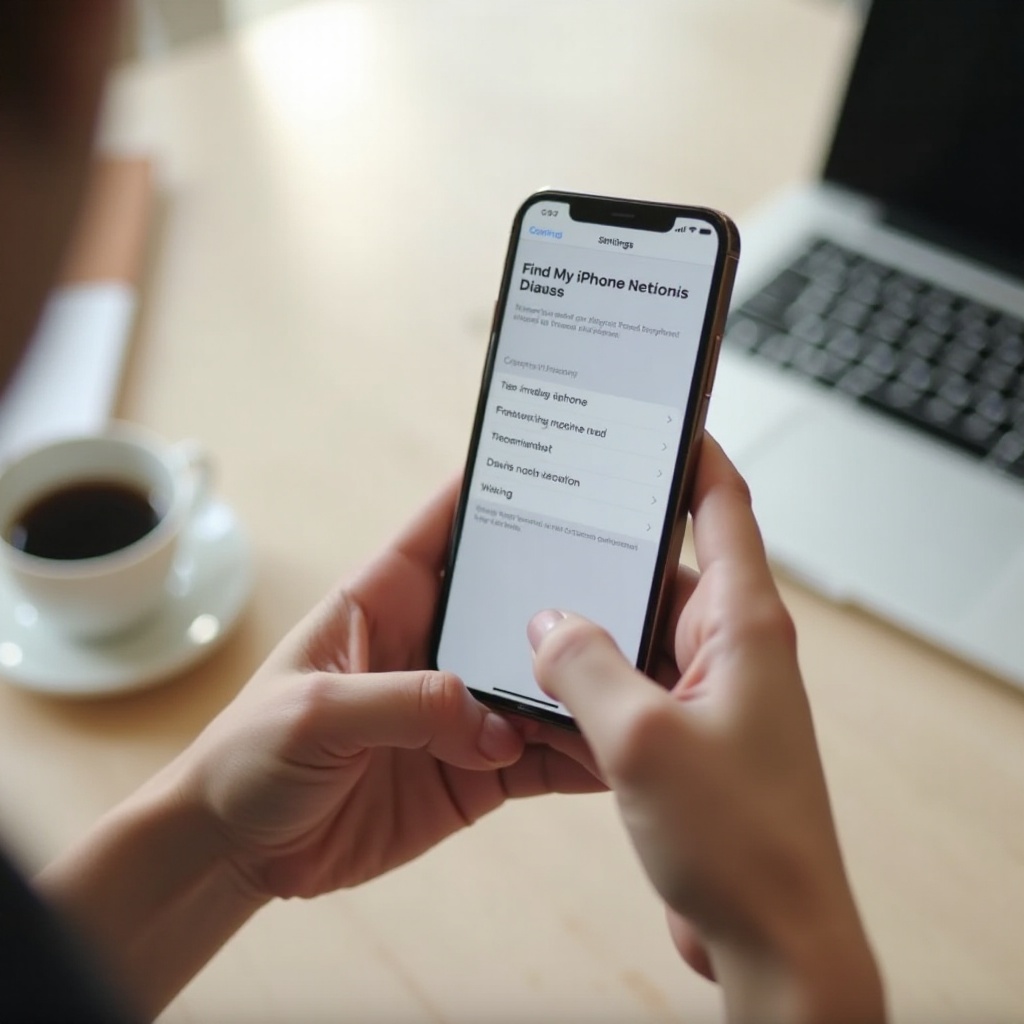
What Is the ‘Find My iPhone’ Alert and Why You See It
Before you change settings, it helps to understand what is generating each alert. When you know which feature is responsible, you can adjust only that feature instead of turning everything off and losing protection.
How the Find My app works on iPhone in 2024
Find My is Apple's built-in tracking and security service. It connects your iPhone to your Apple ID and iCloud account so you can:
- See your iPhone's location on a map
- Play a sound to find it when it is nearby
- Mark it as lost and lock it so others cannot use it
- Erase it remotely if it is stolen or gone for good
In 2024, Find My also integrates with other Apple devices and items:
- iPad, Mac, Apple Watch
- AirPods, AirTag, and other supported accessories
- Family Sharing and location sharing with friends and family
Any of these devices or features can trigger Find My alerts on your iPhone or on other Apple devices signed in with the same Apple ID.
Common types of Find My alerts (sound, notifications, emails)
You might see or hear several different Find My alerts, including:
- Loud sound alert: The Play Sound feature makes your iPhone ring loudly, even when it is on silent.
- Push notifications: Messages like ‘iPhone Left Behind’, ‘Device Found’, or ‘This device was used to sign in to your Apple ID’.
- Email alerts: Apple emails about new sign-ins, device activations, or security-related changes.
Each type of alert comes from a specific action or setting inside Find My or your Apple ID. You rarely need to disable the entire Find My service just to control one kind of alert.
When Apple triggers these alerts on your iPhone
Typical situations that trigger Find My alerts include:
- You or someone with access to your Apple ID taps Play Sound in the Find My app.
- Find My detects that you left your iPhone or another device behind at an unfamiliar place.
- A device signs in to your Apple ID or gets activated with your account.
- A family member or friend sets up arrival or departure alerts for your location.
Now that you know where alerts come from, you can decide whether to adjust notifications, location sharing, or the core Find My feature itself. The next step is to understand the trade-offs of turning those alerts off.
Pros and Cons of Turning Off Find My iPhone Alerts
Find My iPhone is one of the strongest security tools built into your iPhone. While alerts can feel excessive, they exist to keep you informed and protected. Before you disable anything, it is worth weighing the benefits and drawbacks.
Benefits of Find My iPhone for tracking and theft protection
Find My offers several powerful security benefits:
- You can track your iPhone on a map if you misplace it.
- Lost Mode locks your iPhone, displays a custom message, and allows a finder to contact you.
- You can erase your data remotely if you cannot recover the device.
- Activation Lock makes it harder for thieves to use or resell your iPhone.
All of these depend on Find My being switched on and linked to your Apple ID. When you turn it off completely, you remove these layers of protection.
Annoying or confusing alerts users often want to disable
On the other hand, some Find My alerts are simply irritating:
- Repeated ‘iPhone Left Behind’ notifications when you are actually at home, at work, or in a safe place.
- Loud Play Sound alerts triggered by children or family members tapping your device in the Find My app.
- Notifications for old or unknown devices still tied to your Apple ID.
- Duplicate alerts across multiple Apple devices signed in with the same account.
Most of these problems come from how alerts are configured, not from Find My itself. Tuning notification settings and 'left behind' options often solves them.
What you risk when you turn off Find My or its alerts
If you disable Find My completely, you risk:
- Losing the ability to track, lock, or erase your iPhone remotely if it goes missing.
- Removing Activation Lock, which can deter theft and protect your data.
- Running into issues when claiming insurance or trying to prove ownership after a loss.
A better strategy is usually to:
- Stop the immediate sound or specific alert.
- Adjust notification and 'left behind' settings.
- Only turn off Find My iPhone fully when you are selling, trading in, or permanently retiring the device.
With those risks in mind, let's start with the problem that feels most urgent to most people: the loud Play Sound alert.
How to Stop the ‘Find My iPhone’ Sound Alert
The Play Sound alert is designed to be impossible to miss. That is useful when your iPhone is lost in the couch or under a car seat, but frustrating when you do not actually need the sound.
Use the Find My app on your iPhone to stop the sound
If your iPhone is in your hand and making the loud alert sound:
- Unlock your iPhone using Face ID, Touch ID, or your passcode.
- Check the screen for a notification or banner such as ‘Find My iPhone Alert’ or ‘Sound Played’.
- Tap the alert or simply unlock and swipe up to clear it.
- The sound usually stops as soon as you interact with the device.
If the sound continues, open the Find My app directly:
- Open the Find My app.
- Tap the Devices tab.
- Select your iPhone from the list.
- If the sound is active, the option to stop or cancel it may appear automatically.
Interacting with the device and the Find My app signals that the phone has been found, so the alert stops.
Turn off the alert sound from another Apple device
If you are near another Apple device signed in with the same Apple ID, you can use that to stop the sound:
- On another iPhone, iPad, or Mac, open the Find My app.
- Tap or click the Devices tab.
- Select the iPhone that is playing the sound.
- If the sound is already playing, simply avoid tapping Play Sound again. Once the iPhone is unlocked or acknowledged, the sound will stop.
You can also let the sound finish on its own, but using another device gives you more control.
Stop the alert sound using iCloud.com on a browser
If you do not have another Apple device available:
- On a computer or another smartphone, open a browser and go to iCloud.com.
- Sign in with your Apple ID and password.
- Click Find My.
- Select your iPhone from the device list.
- Do not press Play Sound again, and wait a moment if the sound has already started.
Once you unlock or interact with the iPhone, the alert will stop. With the loud sound under control, you can move on to the quieter but more frequent issue: notifications.
How to Turn Off ‘Find My iPhone’ Notifications on Your iPhone
Notifications are useful when something important happens, but too many of them can feel like spam. Instead of turning off Find My iPhone, you can fine-tune how and when the app alerts you.
Manage Find My notifications in iOS Settings
Start with the main notification settings:
- Open Settings on your iPhone.
- Scroll down and tap Notifications.
- Find and tap Find My in the app list.
Here you can:
- Toggle Allow Notifications off to stop all Find My notifications.
- Or keep notifications allowed but change how they appear:
- Turn off Lock Screen if you do not want alerts on the lock screen.
- Turn off Banners if you only want alerts in Notification Center.
- Disable Sounds so notifications do not make noise.
If you want fewer interruptions but still want to see important information, try disabling sounds and banners, then check Notification Center when you have time.
Mute alerts for device found, device left behind, and more
Some alerts tie to specific tracking features. To manage these:
- Open the Find My app.
- Tap the Devices tab.
- Select the device that triggers too many alerts.
You may see options like:
- Notify When Left Behind
- Notify When Found
You can toggle each of these off if they do not fit how you use that device. For example, if you never want a 'device found' alert for an old iPad, turn that option off just for that device.
Use Focus (Do Not Disturb) to reduce Find My alert noise
If you only want fewer alerts at certain times of day, Focus modes can help:
- Open Settings and tap Focus.
- Choose a Focus mode such as Do Not Disturb, Sleep, or Work.
- Tap Apps under Allowed Notifications and remove apps you do not want to interrupt you, including Find My.
During that Focus mode, your iPhone will silence notifications from Find My, but alerts will still appear in Notification Center for you to check later. Once your general notifications feel under control, you can target one of the most common complaint sources: 'left behind' alerts.
How to Turn Off ‘Notify When Left Behind’ and Location Alerts
Notify When Left Behind’ is helpful when you leave your iPhone at a cafe or your AirPods on a bus. But if it constantly fires at home or work, it becomes noisy and distracting.
Disable ‘Notify When Left Behind’ for your iPhone
To turn this feature off for your iPhone:
- Open the Find My app.
- Tap the Devices tab.
- Select your iPhone from the list.
- Scroll down and tap Notify When Left Behind if it appears.
- Toggle Notify When Left Behind off.
This stops 'left behind' alerts for that specific iPhone so you do not get them at all.
Add trusted locations where you do not want left‑behind alerts
If you like the feature but only want alerts when you leave your iPhone in unfamiliar places, you can set exceptions:
- In Find My, with your iPhone selected, tap Notify When Left Behind.
- Under Notify Me, Except At, tap New Location.
- Search for your home, office, or another trusted place, or move the map pin to the right spot.
- Adjust the radius if offered, then tap Done.
Now you will not receive 'left behind' alerts when you leave your iPhone at those locations, but you will still get alerts in other areas.
Adjust left‑behind alerts for AirPods, Apple Watch, and other devices
Sometimes the alerts are not for your iPhone at all, but for accessories:
- Open Find My.
- Tap the Devices or Items tab, depending on the accessory.
- Select the accessory, such as AirPods, Apple Watch, or an AirTag.
- Tap Notify When Left Behind.
- Turn it off or add trusted locations the same way you did for your iPhone.
With location-based alerts adjusted, you can still keep Find My active without feeling overwhelmed. If you also want more privacy from others, you can change your location sharing next.
How to Temporarily Hide or Turn Off Your Location Without Disabling Find My
You might want to stop others from seeing your location, but still keep Find My enabled so you can recover your own devices. You can do that by changing location sharing instead of turning off Find My iPhone itself.
Stop sharing your location with specific people
If you share your location with certain contacts but want to pause that:
- Open the Find My app.
- Tap the People tab.
- Select the person you no longer want to share your location with.
- Tap Stop Sharing My Location.
That person will no longer see your live location in Find My, but your device tracking remains active for you.
Turn off ‘Share My Location’ for all contacts
To stop sharing your location with everyone:
- Open Settings.
- Tap your Apple ID name at the top.
- Tap Find My.
- Toggle Share My Location off.
This turns off location sharing with people and Family Sharing, but it does not disable Find My iPhone as a device security feature.
What still works when location sharing is disabled
When you turn off Share My Location:
- Friends and family can no longer see your position in Find My.
- You can still see your own devices in the Find My app.
- You can still use Lost Mode, Play Sound, and device tracking as long as Find My iPhone remains on.
This approach balances your privacy with your need for security. However, there are times when you really should turn Find My off completely, such as when you sell your iPhone.
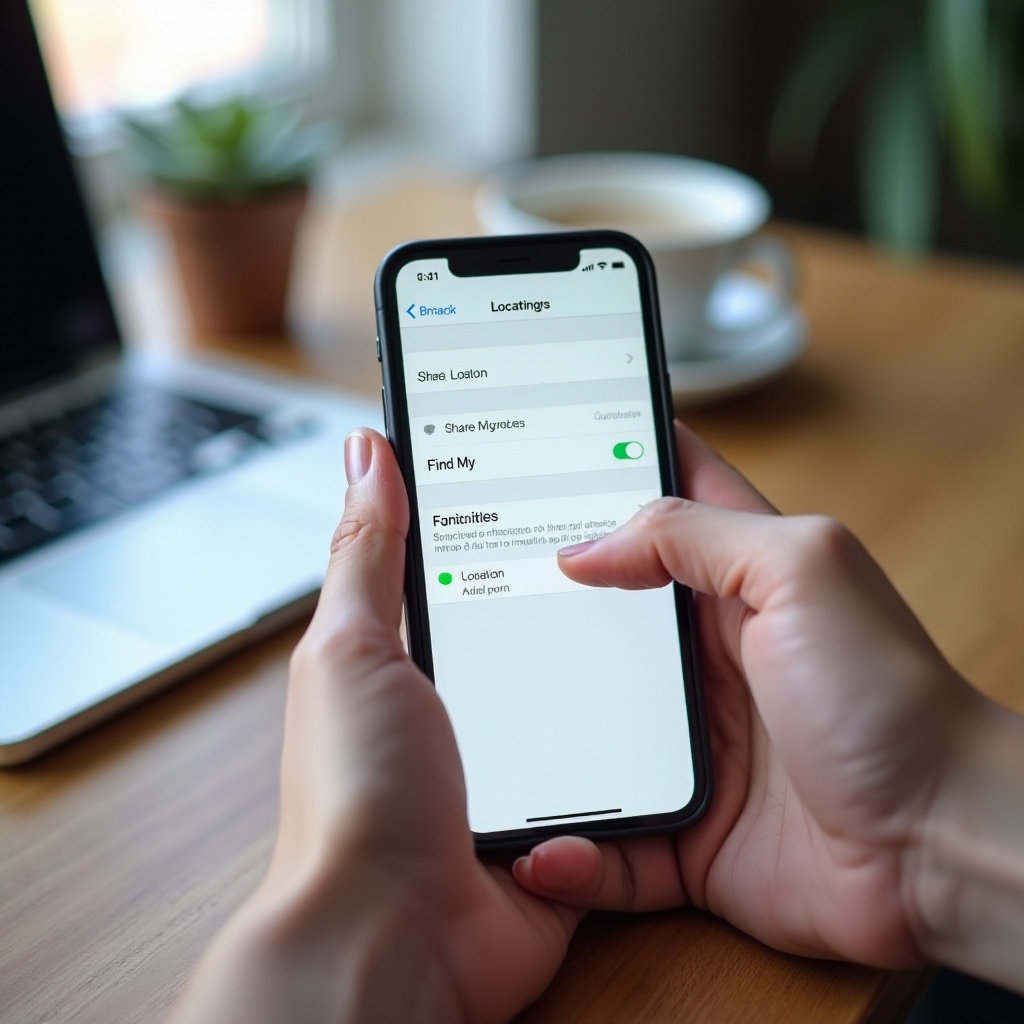
How to Completely Turn Off Find My iPhone (If You Really Need To)
You should only fully disable Find My iPhone when you have a clear reason. For most users, that reason is selling, trading in, or gifting the device.
When it makes sense to fully disable Find My iPhone
It is appropriate to turn off Find My iPhone when:
- You are selling or trading in your iPhone to a store or carrier.
- You are giving the device permanently to a friend or family member.
- Apple Support or a repair center specifically asks you to disable it before service.
In these cases, you want to remove your device from your account and clear Activation Lock so the new owner can use it without issues.
Step‑by‑step: turn off Find My in your iPhone Settings
To disable Find My on the device itself:
- Open Settings.
- Tap your Apple ID name at the top.
- Tap Find My.
- Tap Find My iPhone.
- Toggle Find My iPhone off.
- Enter your Apple ID password when prompted.
- Tap Turn Off to confirm.
Your iPhone will no longer be trackable through Find My, and Activation Lock will be removed for that device. This is required before erasing the phone for sale or transfer.
Remove your iPhone from your Apple ID via iCloud.com
To complete the process, especially if you no longer have the phone in your hands:
- Go to iCloud.com in a browser and sign in with your Apple ID.
- Click Find My.
- Select your iPhone from the device list.
- If it appears offline or erased, click Remove This Device or Remove from Account.
Once removed, the new owner will be able to activate the iPhone with their own Apple ID without seeing an Activation Lock screen. If you still receive alerts after all this, you might be dealing with a bug or account conflict.
Fix: ‘Find My iPhone’ Alert Won't Turn Off or Keeps Repeating
Sometimes alerts continue even after you adjust settings and disable specific features. When this happens, it is worth checking your Apple ID setup and software.
Check Apple ID sign‑in and iCloud account issues
First, confirm your Apple ID configuration is clean and accurate:
- Open Settings.
- Tap your Apple ID name at the top.
- Scroll down to see the list of devices associated with your account.
- Tap any old, lost, or unknown device and choose Remove from Account if you no longer use it.
Also, verify that the devices you actively use all sign in with the correct Apple ID. Mismatched accounts can create confusing alerts or repeated notifications.
Update iOS and restart your iPhone to clear glitches
Software bugs can cause stuck or repeated alerts. To reduce this risk:
- Open Settings > General > Software Update.
- Install any available update.
- After updating, restart your iPhone by powering it off and then turning it back on.
A clean restart with the latest iOS version often clears odd notification loops or phantom alerts.
When to contact Apple Support for persistent alerts
If you still get Find My iPhone alerts after you:
- Adjust notification and 'left behind' settings
- Clean up old devices from your Apple ID
- Update iOS and restart your iPhone
then it is time to contact Apple Support. You can:
- Use the Apple Support app on your iPhone.
- Visit support.apple.com.
- Schedule a visit at an Apple Store or an authorized service provider.
Explain that Find My alerts continue even after you changed the settings and removed devices. Apple can check for account-level issues, server-side problems, or deeper software bugs.
Best Practices for Managing Find My iPhone Alerts in 2024
By now, you know how to stop individual alerts, change notification behavior, and even disable Find My when needed. The final step is to create a long-term setup that keeps your iPhone secure without overwhelming you.
Recommended ‘balanced’ alert settings for most users
For most people, a good balance looks like this:
- Keep Find My iPhone turned ON for security and recovery.
- Keep Share My Location ON only if you rely on family tracking; turn it OFF if you do not use it.
- Enable Notify When Left Behind only for devices you often forget, like AirPods or an iPad.
- In Settings > Notifications > Find My, turn off sounds and banners if you want quieter alerts that appear only in Notification Center.
This approach keeps strong protection while reducing interruptions.
Extra tips for families and shared Apple IDs
Family setups can easily create extra alerts, especially when people share one Apple ID. To reduce noise:
- Use Family Sharing with separate Apple IDs instead of a single shared Apple ID when possible.
- Review Find My settings on each family device and disable unnecessary 'left behind' alerts.
- Ask family members not to tap Play Sound repeatedly on your devices unless they are truly lost.
These simple steps keep everyone's devices trackable while avoiding constant alert spam.
How often to review your Find My devices list
It is a good idea to review your device list a few times a year:
- Open Settings and tap your Apple ID name.
- Scroll down to see all devices tied to your account.
- Remove devices you sold, traded in, or no longer use.
- Open the Find My app and confirm that all listed devices are current and recognized.
This quick review keeps your account tidy, reduces unexpected alerts, and makes it easier to spot unusual activity.
Conclusion
The 'Find My iPhone' alert system is powerful, but it does not have to be disruptive. You have learned how to stop the loud Play Sound alert, control notifications, calm 'left behind' alerts, and adjust location sharing. You also saw when it makes sense to turn off Find My iPhone completely, such as before selling or trading in your device.
For most users, the best strategy is to keep Find My iPhone enabled while fine-tuning which alerts can interrupt you. This way, your iPhone stays protected if it goes missing, and you are not bothered by unnecessary notifications or sounds.
Use the steps in this guide to build a setup that matches how you live: quiet and unobtrusive day to day, but ready to alert you when something important happens to your device.
Frequently Asked Questions
Does turning off Find My iPhone stop all alerts on my phone?
Turning off Find My iPhone only stops alerts related to tracking, Lost Mode, and Activation Lock for that device. It does not stop all alerts on your phone. You will still receive notifications from other apps, messages, and system features. If you just want fewer Find My alerts, adjust notification and ‘left behind’ settings instead of disabling Find My entirely.
Can someone still track my iPhone after I turn off Find My alerts?
If you only mute notifications or disable sounds for Find My, your iPhone can still be tracked through the Find My app by anyone who has permission, including you or family members. To stop others from seeing your location, turn off ‘Share My Location’ or stop sharing with specific people. To fully prevent tracking through Find My, you would need to turn off Find My iPhone, which also removes important security features like Activation Lock.
Do I have to turn off Find My iPhone before selling or trading in my phone?
Yes. You should always turn off Find My iPhone before selling, trading in, or giving away your iPhone. This removes Activation Lock and disconnects the device from your Apple ID. If you skip this step, the new owner may see a lock screen asking for your Apple ID and will not be able to use the phone normally. Disabling Find My and removing the device from your account ensures a clean transfer and avoids problems for the buyer.