
Introduction
You do not always have a clear street address when you need to show someone where you are. Maybe you are in a huge parking lot, a park, a festival, or on a hiking trail. When landmarks and addresses are not enough, knowing how to drop a pin to someone on iPhone saves time and avoids confusion.
A dropped pin lets you mark an exact spot on a map and send it to another person. They can tap the link, open it in their maps app, and get directions straight to you. It is one of the fastest ways to meet up without long explanations or guesswork.
This guide walks through every practical way to drop and share a pin on iPhone using Apple Maps and Google Maps. You will also learn how to send your current or live location, how to protect your privacy, and how to fix common problems when pins or GPS do not work as expected.
By the end, you will know not only how to drop a pin to someone on iPhone, but also which method works best in real situations like meeting friends, guiding deliveries, or sharing remote locations.

What Does ‘Dropping a Pin on iPhone’ Mean?
Dropping a pin means placing a marker on a digital map at a specific location. On iPhone, you can do this in Apple Maps or Google Maps. The pin works like a virtual pushpin on a paper map, showing a precise point rather than a general area.
Here is what happens when you drop a pin:
- The map app creates a pin at the spot you tap or at your current GPS position.
- The app shows details like coordinates, a nearby address, and navigation options.
- You can share that pin as a link through Messages, Mail, or other apps.
This is different from just sharing an address:
- A street address tells someone the general area they need to reach.
- A pin shows the exact spot you want them to arrive at.
For example, imagine a large stadium or a huge park. The street address takes your friend to the complex, but not to the correct gate or entrance. A dropped pin can point to the exact door, parking zone, or meeting point you want them to use.
On iPhone, dropped pins also connect to other features such as:
- Saving favorite locations for quick access later
- Adding places to custom guides or lists
- Starting turn-by-turn directions from or to the pin
Once you understand what a pin does, it becomes easier to choose between sending a simple dropped pin or sharing your live location. Before you start dropping pins though, your iPhone needs a few settings in place so maps and GPS can work correctly.

Before You Start: Settings and Requirements
Your iPhone depends on a few core settings before it can drop and share pins accurately. If Location Services are off or your connection is weak, the map may show the wrong spot or refuse to drop a pin. A quick check now can prevent frustration later.
Make sure these basics are ready so Apple Maps and Google Maps can find you and share your location correctly.
Turn On Location Services on iPhone
Location Services must be on so your iPhone can use GPS, Wi-Fi, and cellular data to calculate your position.
To enable it:
- Open Settings.
- Tap Privacy & Security.
- Tap Location Services.
- Toggle Location Services to On.
Scroll down in the same menu and confirm that Maps and Google Maps (if installed) have location access. Without this, you will not be able to drop accurate pins.
Check Your Internet and GPS Signal
Map apps also rely on a stable internet connection and a good GPS signal.
- Make sure Wi-Fi or Cellular Data is turned on.
- If you are indoors and the location is off, go near a window or step outside.
- If the map will not load, open a browser or another app to test your connection.
A strong signal helps your iPhone place the blue location dot correctly and lets maps load quickly.
Make Sure Apple Maps or Google Maps Is Updated
Updated apps generally work better and fix known glitches.
- Open the App Store.
- Tap your profile picture at the top right.
- Scroll down to see if Google Maps has an update and install it if needed.
- Apple Maps updates with iOS, so keep your system updated in Settings → General → Software Update.
With the core settings ready, you can start using Apple Maps, the built-in maps app on iPhone, to drop precise pins and share them in seconds.
How to Drop a Pin in Apple Maps on iPhone
Apple Maps comes preinstalled on every iPhone and integrates tightly with many system features like Messages, Contacts, and Siri. For most iPhone users, it is the easiest way to drop a pin and send it without installing anything extra.
You can drop a pin at your current location or anywhere else on the map. Both methods follow a similar pattern.
Open Apple Maps and Find Your Location
To get started:
- Tap the Maps app icon on your Home Screen.
- Wait for the map to load.
- Tap the target/arrow icon (usually at the top right) to center the map on your current location.
You will see a blue dot that represents where you are now. This dot is the reference point for dropping a pin at your current position.
Drop a Pin at Your Current Location
If you want to mark where you are right now:
- Make sure the blue dot is in view on the map.
- Tap and hold directly on the blue dot.
- Wait a second until a pin appears at that spot.
A small card or panel will pop up at the bottom of the screen showing details about that location. From this card you can:
- See the approximate address or place name.
- Save it as a favorite or add it to a guide.
- Start directions to or from the pin.
This approach works well when you want someone to meet you at your exact current position.
Drop a Pin Anywhere on the Map Manually
Sometimes you need to mark a place where you are not currently standing. For example, a meetup point you plan to use later, a restaurant you want to show someone, or a trailhead for a future hike.
To drop a pin manually:
- Drag and zoom the map until you see the area you want.
- Tap and hold on the exact spot where you want the pin.
- Release your finger when the pin pops up.
A pin appears at that location with a detail card at the bottom. You can now save this point or share it, just like a pin at your current location.
Dropping a pin is only the first step. The real power comes when you share that pin with someone else so they can navigate straight to it.
How to Send a Pin to Someone Using Apple Maps
Once you have a pin on the map, Apple Maps gives you several ways to send it. You can use Messages, email, social apps, or AirDrop. All of these options start from the pin's detail card at the bottom of the screen.
Choose the method that fits how you normally communicate with the person you are sharing with.
Share a Pin via Messages (iMessage or SMS)
Messages is usually the quickest way to send a pin to another iPhone user.
- Tap the pin in Apple Maps.
- Swipe up or tap the information card at the bottom.
- Tap the share icon (a square with an arrow pointing up).
- Select Messages from the share sheet.
- Choose a contact or type a phone number.
- Add a short note if you like (for example, 'Meet me here').
- Tap Send.
The other person sees a map thumbnail inside the conversation. When they tap it, the location opens in their Maps app so they can start directions straight to your pin.
Share a Pin via Mail and Other Apps
If you prefer email or you are sending the location to someone who does not use Messages often, you can share the same pin through other apps.
- Open the pin's share menu as above.
- Choose Mail to send via email, or select another app like WhatsApp, Telegram, or Messenger.
- The chosen app opens with a link to the pin already attached.
- Type any extra context or instructions.
- Send your message.
This is useful when the person expects directions by email or uses a different chat app as their main communication tool.
Use AirDrop to Share Pins Instantly Nearby
AirDrop is perfect for sharing pins with someone who is physically close to you and also has an Apple device.
- Open the pin in Apple Maps and tap the share icon.
- Wait for nearby AirDrop devices to appear on the screen.
- Tap the recipient's device name.
- Ask them to accept the AirDrop prompt.
The pin opens directly on their iPhone, iPad, or Mac. AirDrop works even without an internet connection, as long as both devices have Wi-Fi and Bluetooth turned on and AirDrop enabled.
Sharing a single pin works well when you want to show a fixed point. Sometimes though, you need the other person to see your movement in real time. That is when current and live location sharing comes in.
How to Send Your Current or Live Location Instead of a Pin
A dropped pin shows one fixed place on the map. Live location sharing updates as you move and can be more helpful if you are on the way to meet someone or you want them to track your progress for safety.
You can send both your current and live location directly from the Messages app, which many iPhone users already use every day.
Send 'My Current Location' in the Messages App
If you want to send a one-time snapshot of where you are right now:
- Open Messages.
- Select the conversation with the person you want to share with.
- Tap their name or profile photo at the top of the screen.
- Tap Send My Current Location.
Messages sends a map thumbnail that marks your current location at that moment. This does not update as you move; it behaves like a dropped pin sent through Messages.
Share Live Location with a Contact in Messages
For ongoing, real-time tracking:
- Open the same Messages conversation.
- Tap the contact's name or profile at the top.
- Tap Share My Location.
- Choose how long you want to share:
- For One Hour
- Until End of Day
- Indefinitely
Your contact can see your live location in the Messages thread and, depending on settings, in the Find My app. This is helpful when you are meeting halfway, when someone wants to follow your trip, or when you want extra safety while traveling.
Stop Sharing Your Location When You're Done
You should always end live location sharing once you no longer need it.
To stop sharing:
- Return to the Messages conversation.
- Tap the contact's name or profile at the top.
- Tap Stop Sharing My Location.
You can also open the Find My app, go to the People tab, and manage or stop location sharing from there.
While Apple Maps and Messages work well for most iPhone users, many people also use Android devices. For mixed groups, Google Maps is often the best way to drop and share pins that everyone can open.
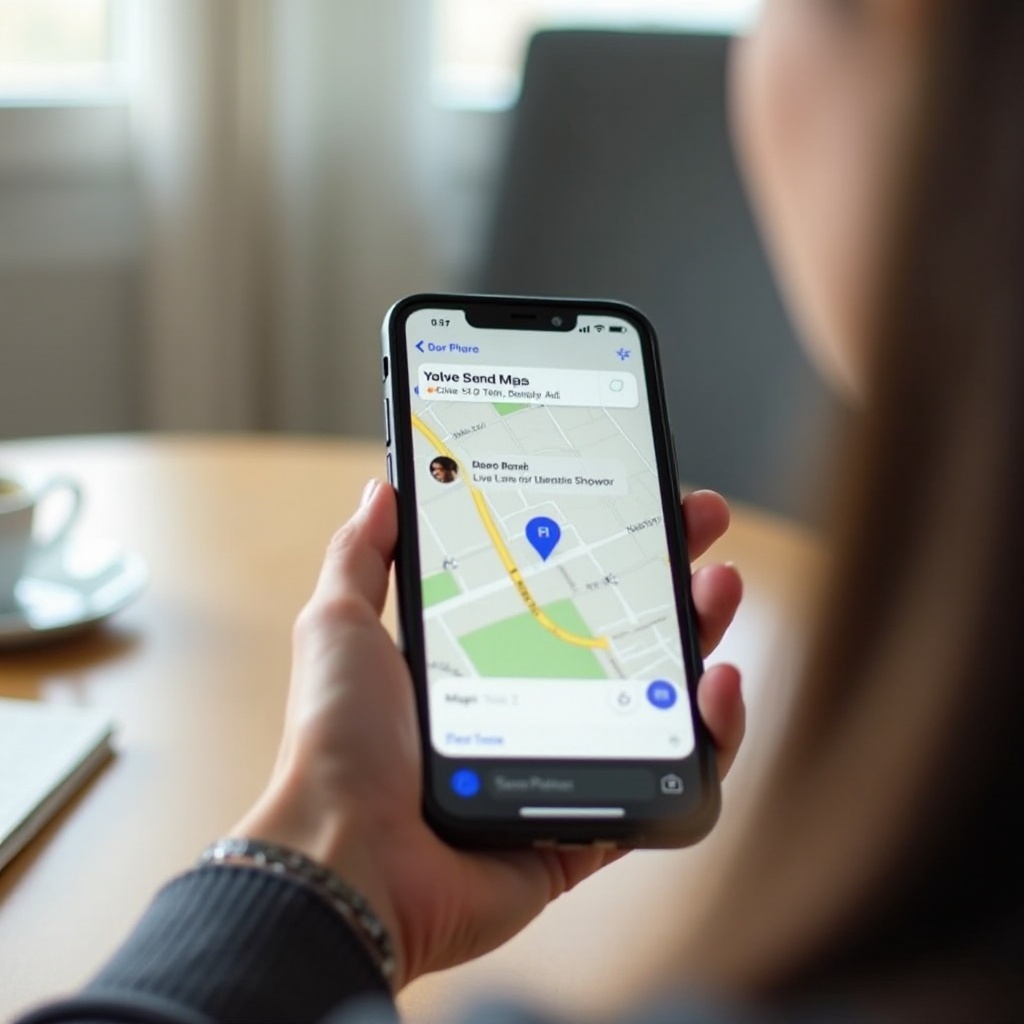
How to Drop and Share a Pin in Google Maps on iPhone
Google Maps works on both iPhone and Android, and its links open in a browser if the app is not installed. When you learn how to drop a pin to someone on iPhone using Google Maps, you can share accurate locations with almost any device.
The steps are similar to Apple Maps, but the interface looks slightly different.
Drop a Pin in Google Maps on iOS
To drop a pin in Google Maps:
- Open the Google Maps app on your iPhone.
- Confirm it has location permission in your iPhone Settings if asked.
- Tap the target icon to center the map on your current location.
- To drop a pin at your location, tap and hold on the blue dot.
- To drop a pin somewhere else, tap and hold on that point on the map.
A red pin appears, and a location card slides up from the bottom with address details and options.
Share a Google Maps Pin to iPhone or Android Users
Sharing a Google Maps pin is straightforward:
- Tap the pinned location's card at the bottom.
- Tap the Share button.
- Select an app like Messages, Mail, WhatsApp, or another option.
- Choose the contact you want to share with.
- Send the message with the pre-filled link.
The recipient gets a Google Maps link. On iPhone, they can open it in Google Maps or another maps app. On Android, it typically opens in Google Maps by default. This makes it ideal when you do not know which device the other person uses.
Save Google Maps Pins to Lists for Quick Access
If you share certain locations often, saving them can save time later.
- Tap the location card for your pinned spot.
- Tap Save.
- Select a list like Favorites, Want to go, or create a new custom list.
Later, open the list, tap the saved location, and share it again without having to drop a new pin each time.
Whether you use Apple Maps or Google Maps, each pin or live location reveals where you are. To stay safe, you should control which apps can see your location and when.
Privacy and Safety Tips When Sharing Pins on iPhone
Location sharing is powerful but sensitive. Every pin or live location you share exposes your current or future position. With a few habits and settings, you can make location sharing safer and more intentional.
Focus on controlling app permissions, choosing the right level of access, and following basic privacy best practices.
Control Which Apps Can Access Your Location
Not every app needs to know where you are. You can limit location access to trusted apps only.
- Open Settings.
- Go to Privacy & Security → Location Services.
- Scroll down to see a list of apps.
- Tap an app such as Maps or Google Maps and adjust its access level.
Turn off location for apps that do not require it. This reduces tracking and can also improve battery life.
Choose Between 'Allow Once', 'While Using', and 'Always'
Each app can have a different permission level:
- Allow Once: The app can use your location only for that single session.
- While Using the App: The app sees your location only when it is on screen.
- Always: The app can access your location even in the background.
For map and navigation apps, 'While Using the App' is usually enough. Use 'Allow Once' for apps you rarely use or do not fully trust. Be careful with 'Always', especially for social apps or third-party services.
Best Practices for Safe Location Sharing
A few simple habits can keep you safer:
- Share pins or live location only with people you trust.
- Avoid posting precise dropped pins on public social media.
- Stop live sharing as soon as you no longer need it.
- Review your sharing list in Find My regularly to see who can track you.
Even when you use careful settings, you might still face problems with pins not working or locations being wrong. Fortunately, most of these issues have clear fixes.
Troubleshooting: When Dropping or Sending a Pin Doesn't Work
Sometimes your iPhone may refuse to drop a pin, show the wrong location, or send links that the other person cannot open. These problems can be frustrating, especially when you are in a hurry.
In many cases, the cause is simple: weak GPS, blocked permissions, or outdated apps. Work through these common fixes to restore normal pin and location sharing.
Location Is Wrong or GPS Is Inaccurate
If the blue location dot is far from your real position:
- Check that Wi-Fi and Cellular Data are turned on.
- Move to an open space away from tall buildings, underground areas, or heavy tree cover.
- Force close the maps app and reopen it.
- If that does not help, restart your iPhone.
Also confirm that Location Services is enabled in Settings → Privacy & Security. Better GPS reception usually solves inaccurate pins.
Recipient Can't Open the Pin Link
If the person you sent the pin to cannot open it properly:
- Ask if they have an up-to-date maps app installed (Apple Maps or Google Maps).
- Suggest they copy the link and paste it into a browser like Safari or Chrome.
- If they use Android, send a Google Maps link rather than one from Apple Maps.
If one messaging app seems to break the link, try sending the same pin through a different app or by email.
Reset Location & Privacy Settings as a Last Resort
If pins keep failing and nothing else works, your location permissions may be corrupted.
To reset them:
- Open Settings.
- Tap General.
- Tap Transfer or Reset iPhone.
- Tap Reset.
- Choose Reset Location & Privacy.
After this, you will need to grant location access again to Maps, Google Maps, and other apps when they ask. This step often fixes stubborn issues with pins and location sharing.
Once your pins work reliably, you can start using them more often in daily life. They are useful in many more situations than just finding your parked car.
Practical Real-World Uses for Dropping a Pin on iPhone
When you get comfortable dropping and sharing pins, you will find many ways to use them. They help you meet people, guide guests, support deliveries, and share remote locations that do not have clear addresses.
Here are some of the most common and practical use cases.
Meeting Friends in Busy or Unmarked Areas
Use pins when you are trying to meet someone in a confusing place, such as:
- A crowded shopping mall with several entrances and parking levels
- A stadium or arena with many gates and sections
- A large park, beach, or festival ground with no obvious landmark
Instead of writing long directions, drop a pin where you are and share it. Your friend can follow turn-by-turn directions to the precise spot.
Sharing Spots Without Clear Street Addresses
Some locations do not have a traditional street address or have one that does not lead to the actual meeting point. Examples include:
- Trailheads and campsite entrances
- Beach access paths and lake shore spots
- Rural properties or temporary event venues
Dropping a pin gives someone exact GPS coordinates and a map point. They do not have to guess which dirt road or path to take.
Coordinating Travel, Events, and Deliveries
Pins are also handy when you plan trips or events, or when you need to direct a service to the right place.
- Share the exact cafe, office entrance, or parking lot for a business meeting.
- Send a pin for a party venue, vacation rental, or hotel side entrance.
- Share a drop-off spot for deliveries in a complex or gated community.
These simple uses show why learning how to drop a pin to someone on iPhone is worth the effort. It makes location sharing precise, quick, and much less stressful.
Conclusion
Learning how to drop a pin to someone on iPhone turns your phone into a powerful location sharing tool. You can mark your exact spot in Apple Maps or Google Maps, share it in just a few taps, and help others find you without confusion.
You now know how to:
- Drop pins at your current location or any point on the map.
- Share pins through Messages, email, social apps, and AirDrop.
- Use current and live location in Messages when a static pin is not enough.
- Control app permissions to protect your privacy and stop sharing when you want.
- Fix common GPS and link issues so pins work when you need them most.
Whether you are meeting friends, planning a group event, guiding a delivery driver, or sharing a remote trailhead, pins make it simple. Practice dropping and sending a few pins now, so the next time someone asks where you are, you can show them clearly with a single tap.
Frequently Asked Questions
How do I drop a pin and send it to someone on iPhone in just a few steps?
Open Apple Maps, tap the target icon to center on your location, then tap and hold on the spot to drop a pin. Tap the pin’s card, hit the share icon, choose Messages, select your contact, and send. The recipient can tap the map preview to open it and get directions straight to your pin.
Can someone see my live location if I only send them a dropped pin?
No. A dropped pin is static and shows only a single fixed point on the map. It does not update in real time as you move, and it does not allow ongoing tracking. To share live location, you must use Share My Location in the Messages contact view or the Find My app and choose how long to share.
Why is my iPhone not letting me drop or share a pin, and how do I fix it?
First, make sure Location Services are on in Settings → Privacy & Security and that Maps or Google Maps has permission to use your location. Check your internet connection and restart the maps app or your iPhone if needed. If problems continue, update iOS and your map apps, and as a last resort use Reset Location & Privacy under Settings → General → Transfer or Reset iPhone → Reset.