
Introduction
Many Samsung users open their phone and notice both Samsung Messages and Google Messages installed, then wonder which app they should actually use. If you are searching ‘how do I switch from Samsung Messages to Google Messages’, you likely want better features, more reliable group chats, and a smoother texting experience.
Google Messages is now the default SMS app on many Android devices, including newer Samsung Galaxy phones. It supports modern features like read receipts, typing indicators, better spam protection, and the ability to send messages from your computer. The switch itself is not complicated, but it helps to understand what each step does so you do not lose messages or miss notifications.
This guide walks you through everything: checking your phone and software, installing or updating Google Messages, making it your default SMS app, enabling RCS chat features, customizing the app to your liking, and fixing common problems. By the end, you will be confident about switching and managing your text messages in Google Messages.
Why Switch From Samsung Messages to Google Messages?
Before you change apps, it makes sense to know what you gain by moving from Samsung Messages to Google Messages. Understanding the benefits will help you decide if it is worth committing to the new app and will clarify why some later settings and steps matter.
Key Benefits of Using Google Messages (RCS, Features, Integration)
Google Messages is designed to be more than a basic texting app. Some major advantages include:
- RCS chat features
- Read receipts and typing indicators in supported chats.
- Higher quality image and video sharing using data or Wi‑Fi.
-
More reliable and feature-rich group conversations.
-
Better Google ecosystem integration
- Easy sharing of Google Photos links instead of compressing images.
- Smart replies and suggestions powered by Google.
-
Quick shortcuts to start a Google Meet video call from a conversation.
-
Cross‑device access
- Use Messages for web on your laptop or desktop.
-
Scan a QR code once and text from your browser as long as your phone stays online.
-
Smarter inbox management
- Built‑in spam detection and automatic filtering.
- Strong search tools to find messages, contacts, and media quickly.
These improvements make daily texting faster and more convenient, especially if you already rely on other Google services.
Compatibility With Modern Samsung Galaxy Phones
Most recent Samsung phones can run Google Messages without any problem. In general, you can expect full support on:
- Galaxy S‑series devices (such as S23, S24 and newer models).
- Galaxy A‑series mid‑range phones.
- Galaxy Z Fold and Galaxy Z Flip phones.
Major US carriers like Verizon, AT&T, and T‑Mobile typically support RCS through Google Messages. That means when you text another Android user with Google Messages and RCS enabled, your chat will upgrade to a richer experience automatically.
If you own a fairly new Samsung Galaxy phone and keep it updated, you can move ahead with confidence.
Things to Know Before You Switch Apps
Before you switch from Samsung Messages to Google Messages, keep these points in mind:
- SMS and MMS are stored in the phone’s system storage, not inside a single app only.
- When you change your default SMS app, the new app reads the same message database.
- You normally do not lose your message history by changing apps.
- You can return to Samsung Messages later by changing the default app again.
Knowing that your messages should stay safe makes the next steps less stressful. Now you can prepare your phone and software so the switch works smoothly.
Check Your Samsung Phone and Software First
A bit of preparation helps avoid glitches after switching. By checking your device model, software version, and updates, you make sure Google Messages and its latest features can run properly.
Supported Samsung Galaxy Models and Carriers
Most Samsung Galaxy phones from the past few years support Google Messages and its core features. To confirm support:
- Open Settings > About phone and note your phone model.
- Consider your carrier (Verizon, AT&T, T‑Mobile, or another US provider). Most major carriers support RCS through Google Messages.
Even if your carrier limits some RCS features, standard SMS and MMS through Google Messages will still work. Only very old or heavily customized devices may have restrictions.
How to Check Your Android and One UI Version
RCS and the latest Google Messages features work best when your system software is up to date. To check your Android and One UI versions:
- Open Settings on your Samsung phone.
- Tap About phone.
- Tap Software information.
- Look at your Android version and One UI version.
If your device runs a current version of Android and One UI, Google Messages will usually work as expected and you will have fewer compatibility problems.
Updating Your Phone for the Best Experience
If an update is available, install it before switching apps:
- Go to Settings > Software update.
- Tap Download and install.
- Follow the prompts and restart when the update completes.
Keeping your software current reduces bugs and improves security. With your phone checked and updated, you are ready to install or update Google Messages.
Install or Update Google Messages
Once your phone is ready, the next step is to make sure Google Messages is installed and up to date. This is the app you will use as your new default for SMS and RCS chats.
How to Tell if Google Messages Is Already Installed
Many Samsung phones ship with Google Messages preinstalled alongside Samsung Messages. To check if you already have it:
- Swipe up on the home screen to open the App drawer.
- Look for an app called Messages with a multicolored chat bubble icon (this is Google Messages).
- Samsung Messages uses a blue chat bubble icon, so you may see both apps.
If you only see Samsung’s blue icon and not Google’s multicolored icon, you will need to install Google Messages from the Play Store.
Installing or Updating Google Messages via Google Play Store
To install or update Google Messages:
- Open the Google Play Store app.
- Type ‘Google Messages’ into the search bar.
- Tap the result named Messages by Google LLC.
- Tap Install if you do not have it yet, or Update if an update is available.
Using the latest version of Google Messages ensures you get the newest features and fixes, which can prevent many common problems.
Granting the Right Permissions to Google Messages
After installing Google Messages, open it for the first time. The app will request permissions so it can function as your main messaging app:
- Permission to send and view SMS and MMS.
- Access to your contacts so it can show names instead of numbers.
- Permission to send notifications so you know when a new message arrives.
Tap Allow on each permission prompt. If you deny any of these, the app may not work correctly as your default SMS app. With permissions granted, you are ready to make Google Messages your main messaging app.
Make Google Messages Your Default SMS App
Changing the default SMS app is the key step. This tells Android to route all future text and multimedia messages through Google Messages instead of Samsung Messages.
Switching From Inside the Google Messages App
Google Messages usually offers a quick setup flow when you open it the first time:
- Launch Google Messages.
- On the welcome screen, look for a prompt asking you to set it as the default SMS app.
- Tap Set as default.
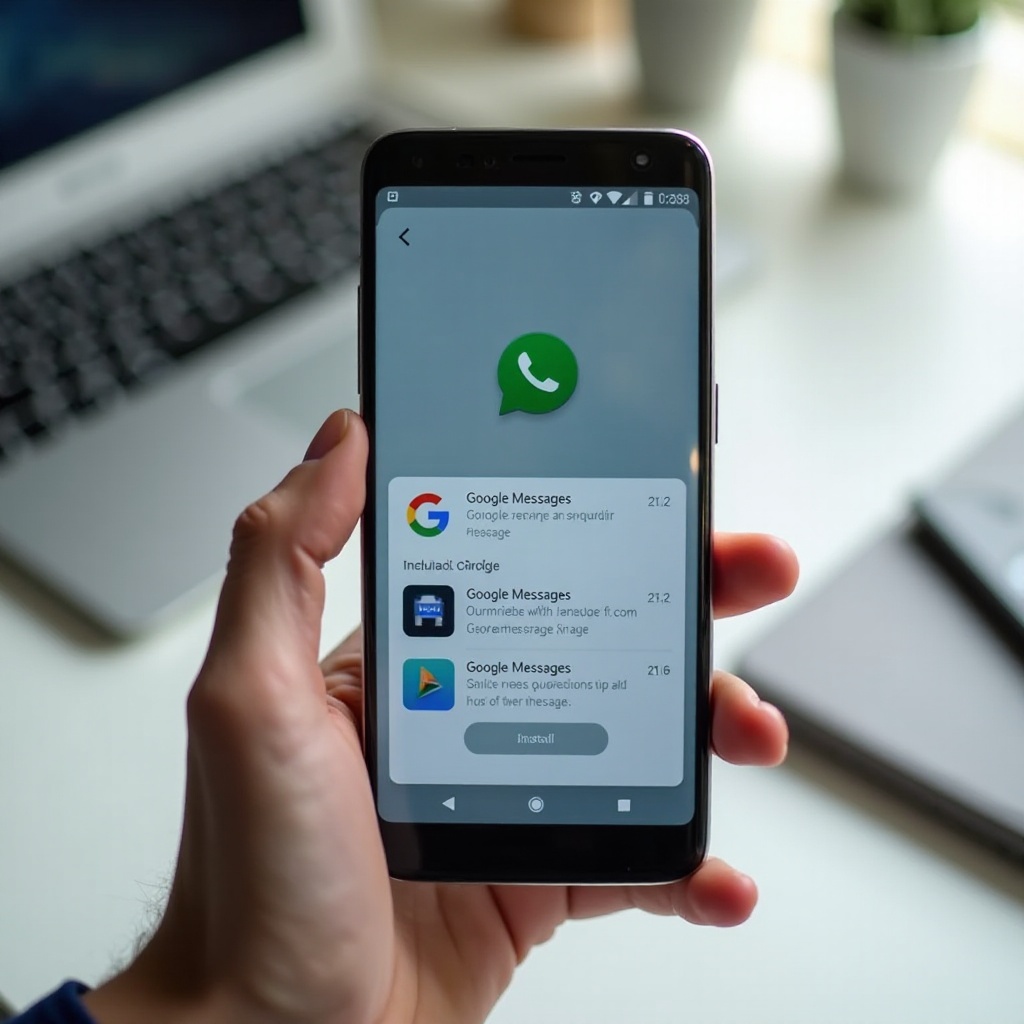
- A system dialog appears showing your messaging apps.
- Select Messages (the Google app) and confirm.
If you accidentally skipped or closed that prompt, you can still change the default app through system settings.
Changing the Default SMS App in System Settings
To switch the default app manually:
- Open Settings on your Samsung phone.
- Tap Apps.
- Tap the three‑dot menu (⋮) in the upper right.
- Tap Default apps.
- Tap SMS app.
- Select Messages (Google Messages) from the list.
After this change, Android will use Google Messages to handle all new SMS and MMS messages.
What Happens to Samsung Messages After You Switch
Once you set Google Messages as the default SMS app:
- New text messages will appear in Google Messages instead of Samsung Messages.
- Existing SMS and MMS generally remain visible in both apps, since they share the same system message database.
- Samsung Messages remains on your phone unless you disable or hide it.
You can still open Samsung Messages to check older threads if needed, but for clarity, it is better to use a single app for daily texting. Before you disable Samsung Messages, verify your conversations show properly inside Google Messages. Next, you will confirm that your message history has moved over.
Move and Verify Your Conversations
Now that Google Messages is the default app, you want to make sure your old messages are still available. This step gives you peace of mind that nothing important is missing.
Do Existing SMS/MMS Automatically Show Up?
On most Samsung phones, your previous messages appear instantly in Google Messages. That happens because:
- SMS and MMS are stored in a shared system database.
- Each messaging app is just a different ‘window’ into the same stored data.
Open Google Messages and look through your conversation list. You should see familiar threads, contact names, and past messages.
What to Do if Old Messages Are Missing
If some or all older messages do not appear:
- Restart your phone, then reopen Google Messages.
- Confirm that Google Messages is still the default SMS app in system settings.
- Check app permissions:
- Go to Settings > Apps > Messages (Google).
- Tap Permissions and make sure SMS and Contacts are allowed.
If threads still look incomplete, your phone might have been reset in the past, or you may have changed devices without restoring a backup. In such cases, only messages that remain on the phone will show.
Optional: Back Up or Export Your Text Messages
It is smart to protect your text history, especially before major changes. Some options include:
- Using Samsung’s Smart Switch to back up the whole device, including messages.
- Installing a dedicated SMS backup app from the Play Store to export texts to the cloud or a file.
Regular backups make it easier to move between phones and apps without losing important conversations. Once you are satisfied that your messages are available in Google Messages, you can enable RCS chat features to unlock the best parts of the app.
Turn On RCS Chat Features in Google Messages
RCS (Rich Communication Services) turns regular texting into a more modern chat experience. With RCS enabled, compatible conversations feel closer to using a messaging app like WhatsApp or other real‑time chat apps.
What RCS Is and Why It Matters
RCS upgrades standard SMS in several useful ways:
- Shows when the other person is typing.
- Displays delivery and read indicators for compatible chats.
- Sends larger photos and videos without heavy compression.
- Improves group chat stability and options.
These benefits usually appear when both you and your contact use Google Messages with chat features turned on and your carrier supports RCS.
Step‑by‑Step: Enabling Chat Features
To turn on RCS chat features in Google Messages:
- Open Google Messages.
- Tap your profile icon or the three‑dot menu (⋮) in the top right.
- Tap Messages settings.
- Tap Chat features.
- Toggle Enable chat features to on.
- Follow any prompts to verify your phone number if asked.
You should see a status such as ‘Connected’ when chat features successfully activate. When you send messages to another user with Google Messages and RCS enabled, the app will use chat instead of standard SMS when possible.
Fixing ‘Setting Up’ or ‘Chat Features Unavailable’ Issues
If chat features stay stuck on ‘Setting up’ or show ‘Chat features unavailable’, try these steps:
- Confirm that mobile data or Wi‑Fi is turned on and working.
- Check your number in the Chat features screen and make sure it is correct.
- Turn the chat features toggle off, wait 30 seconds, and turn it on again.
- Restart your phone and check the status again.
- If it still fails, contact your carrier to confirm they support RCS through Google Messages.
Once RCS is working, your texting experience will feel much more modern. The next step is to customize Google Messages so it matches your style and notification preferences.
Customize Google Messages to Match Your Preferences
After you switch, customization makes Google Messages feel natural and easy to use. Small changes to appearance and notifications can reduce distractions and ensure you never miss an important text.
Themes, Dark Mode, and Conversation Appearance
To change the look of Google Messages:
- Open Google Messages.
- Tap your profile icon or the three‑dot menu (⋮).
- Look for options such as Choose theme or Appearance (names can differ slightly).
- Select Light, Dark, or System default.
Dark mode can reduce eye strain and save some battery on phones with OLED screens. Inside chats, you will see clean message bubbles and, in many cases, contact pictures that help you scan threads faster.
Notification Sounds, Banners, and Vibration Settings
To adjust how and when you get message alerts:
- Go to Settings > Apps > Messages (Google) on your phone.
- Tap Notifications.
- Choose the alert category, such as ‘Incoming messages’.
- Change the sound, vibration, and pop‑up style to match your needs.
You can also customize notifications per conversation:
- Open a chat in Google Messages.
- Tap the three‑dot menu and then Details.
- If available, set a custom sound or mute that conversation.
This lets you prioritize certain contacts or groups and silence less important threads.
Organizing Chats: Pinning, Archiving, and Blocking Spam
Google Messages gives you several tools to keep your inbox tidy:
- Pin important chats:
- Long‑press a conversation from the main list.
-
Tap the pin icon to keep it at the top.
-
Archive old or inactive conversations:
-
Long‑press a conversation and tap Archive to hide it from the main list without deleting it.
-
Block and report spam:
- Long‑press or open a spam conversation.
- Tap the three‑dot menu and choose Block & report spam.
These options help you focus on important messages and reduce clutter. Once your app looks and behaves the way you like, you might still encounter a few issues. The next section explains how to handle them.
Fix Common Problems After Switching
Most users can switch from Samsung Messages to Google Messages with no serious issues. But if problems appear right after the switch, you can usually solve them with a few quick checks and settings changes.
Not Receiving SMS or MMS After the Switch
If new messages never arrive in Google Messages:
- Confirm that Google Messages is still the default SMS app in Settings > Apps > Default apps.
- Make sure you have good network signal and that Airplane mode is turned off.
- Check permissions:
- Go to Settings > Apps > Messages (Google).
- Tap Permissions and ensure SMS and Contacts access are allowed.
- Restart your phone and try sending yourself a test text.
If picture messages (MMS) fail:
- Turn on mobile data because MMS usually needs a mobile data connection, even if you are on Wi‑Fi.
If you still cannot receive messages, contact your carrier to verify that SMS and MMS services are active on your line.
Images and Group Messages Not Sending Properly
If images or group texts are stuck or fail to send:
- Check that mobile data is on, since MMS relies on data.
- In Google Messages settings, enable any options related to MMS auto‑download so incoming media does not get stuck.
- Ask your carrier whether there are any limitations or special APN settings for MMS on your plan.
Send a simple picture to your own number or to a trusted contact to see whether the issue is consistent or limited to certain people.
Duplicate Notifications From Samsung Messages and Google Messages
If both apps notify you about the same incoming message, it can get annoying. To stop duplicate alerts while keeping Samsung Messages installed:
- Keep Google Messages as the default SMS app.
- Open the Samsung Messages app.
- Go to its settings and look for Notifications.
- Turn off notifications entirely for Samsung Messages.
Alternatively, disable notifications at system level:
- Go to Settings > Apps > Messages (Samsung).
- Tap Notifications and toggle them off.
This way, you retain Samsung Messages for reference, but only Google Messages alerts you about new texts.
When and How to Disable or Uninstall Samsung Messages
Once you are sure that Google Messages works well and all your important threads show up, you may want to hide Samsung Messages to avoid confusion:
- Open Settings > Apps.
- Find and tap Messages (Samsung’s version).
- Tap Disable if the option is available.
Some Samsung phones do not allow you to uninstall or fully disable the built‑in Messages app. In that case, you can:
- Remove it from your home screen.
- Hide it in the app drawer (using Samsung’s Home screen settings or a launcher option).
If at any point you decide that Google Messages is not right for you, you can easily switch back to Samsung Messages, as explained next.
How to Switch Back to Samsung Messages (Optional)
You may find that Google Messages does not fit your preferences or that a carrier feature only works in Samsung’s app. The good news is that you can revert without losing SMS and MMS content.
Reasons You Might Want to Go Back
Some users choose to return to Samsung Messages because:
- They prefer the Samsung interface and layout.
- Certain Samsung or carrier‑specific features only appear in Samsung’s messaging app.
- They do not need RCS or advanced chat features and want a simpler setup.
Since your SMS and MMS are stored in the system database, you can switch the default app without deleting your text history.
Making Samsung Messages the Default App Again
To switch back to Samsung Messages as your main SMS app:
- Open Settings on your phone.
- Tap Apps.
- Tap the three‑dot menu (⋮) and select Default apps.
- Tap SMS app.
- Select Messages (Samsung’s version).
From that point on, new texts will appear inside Samsung Messages instead of Google Messages.
What Happens to Your Google Messages Chats
When you change the default app back to Samsung Messages:
- Your SMS and MMS remain on the device and should appear in Samsung Messages.
- RCS‑specific extras from Google Messages (like typing indicators and read receipts) will not show in the same way, but the core message content stays.
You can repeat this process anytime if you want to compare both apps. However, using one app consistently usually provides a clearer and more reliable experience.
Conclusion
Switching from Samsung Messages to Google Messages comes down to a clear set of steps: prepare your phone, install or update Google Messages, set it as the default SMS app, confirm your conversations are visible, and turn on RCS chat features. Once you complete those steps, you can fine‑tune the app’s appearance and notifications so daily texting feels comfortable and familiar.
Along the way, you saw how to fix common problems such as missing messages, broken MMS, and duplicate notifications. You also learned how to switch back to Samsung Messages without losing your SMS and MMS history, in case you decide that Google’s app is not for you.
By following this guide, you can answer the question ‘how do I switch from Samsung Messages to Google Messages’ with confidence, enjoy richer chat features on your Samsung Galaxy phone, and keep your important conversations safe and easy to manage.
Frequently Asked Questions
Will I lose my text messages if I switch from Samsung Messages to Google Messages?
In normal cases, you do not lose your text messages when you switch. Android stores SMS and MMS in a shared system database, not just inside Samsung Messages. When you set Google Messages as the default app, it reads the same stored messages that Samsung Messages used. To be extra safe, you can run a backup with Smart Switch or a dedicated SMS backup app before making changes, especially if your phone is older or heavily customized.
Can I use Samsung Messages and Google Messages at the same time?
You can keep both apps installed, but only one can be the default SMS app at any given time. The default app sends and receives new SMS and MMS messages. The other app can still display the existing conversations that are stored on the device, but it will not handle new incoming texts. Many people keep Samsung Messages installed but turn off its notifications, then use Google Messages as their everyday app to avoid duplicate alerts.
Does switching to Google Messages affect my phone bill or data usage?
Changing from Samsung Messages to Google Messages does not alter your basic SMS or MMS charges. Those charges come from your carrier plan, not the app itself. However, RCS chat features in Google Messages use mobile data or Wi‑Fi instead of traditional SMS for compatible chats. That can slightly increase data use, especially if you send many photos and videos. If you have an unlimited data plan or often use Wi‑Fi, the impact is usually minor. If your data is limited, try to send media when connected to Wi‑Fi and keep an eye on your data usage.