
Introduction
Developer mode on Android unlocks a hidden set of tools and settings. It helps developers test apps and lets power users tweak performance, animations, and debugging features. But if you only turned it on once to try something, you may now want it off again.
Leaving developer options enabled can confuse regular users, cause strange behavior, and even create security risks. Some banking and streaming apps also show warnings or stop working when they detect developer options or USB debugging. That can be frustrating when you simply want your phone to be stable and secure.
This guide explains how to disable developer mode on Android step by step. You will learn how to turn it off on Google Pixel, Samsung Galaxy, and other Android phones. You will also see how to switch off sensitive options like USB debugging, hide the developer options menu, and keep your device secure afterward.
By the end, you will know not only how to disable developer mode on Android, but also when it makes sense to keep it off and how to re-enable it safely if you need those tools again in the future.

What Is Developer Mode on Android?
Developer mode, also called ‘Developer options’, is a hidden settings section in Android. It gives you advanced controls that normal users rarely need. Google designed it for app developers, testers, and power users.
When you first set up your phone, developer options are hidden. You unlock them by tapping the ‘Build number’ entry in Settings several times in a row. After that, a new Developer options menu appears. Inside this menu, you can:
- Turn on USB debugging so a computer can send ADB commands to your phone.
- Change animation speeds for opening and closing apps.
- Capture detailed system and app logs.
- Simulate different screen sizes and layouts for testing.
- Enable wireless debugging and advanced network tools.
These tools are powerful, but they can also change how your phone behaves in ways that are easy to forget and hard to trace. A simple wrong toggle can make apps misbehave, drain your battery, or slow animations.
Knowing what developer mode does makes it easier to decide whether it should stay on. The next step is to weigh the pros and cons of disabling it so you can choose what is best for your phone.
Should You Turn Off Developer Mode? Pros, Cons, and When It Matters
Developer mode itself is not harmful, but it unlocks features that can reduce security or stability if misused. For most users, there are more reasons to turn it off than to keep it on.
Here are the main reasons to disable developer mode:
- Better security
USB debugging allows a connected computer to control your phone through ADB. If someone has physical access to your device and debugging is on, they might try to pull data, install apps, or run commands you never approved. Turning off developer options reduces that risk.
- Fewer app conflicts
Some banking, payment, and streaming apps block access or display warnings when they detect developer options or USB debugging. Disabling developer mode often removes those warnings and restores full app functionality.
- Less chance of accidental tweaks
The developer options list is long and technical. It is easy to turn on an option, forget about it, and then wonder why your phone behaves differently. Turning off developer mode helps prevent unwanted changes.
There are a few cases where keeping developer mode on makes sense:
- You build or test apps regularly and need debugging tools every day.
- You use ADB often for backups, automation, or advanced features.
- You help others troubleshoot Android devices and need quick access to hidden tools.
If you do not use any of these features often, it is safer to turn developer mode off. Before you actually change anything, though, a small amount of preparation will help you avoid surprises and keep your setup tidy.
Before You Disable Developer Options: Checks and Preparations
Preparing before you disable developer options makes it easier to undo changes or re-enable features later if you need them again. While the process is safe, a few quick checks will give you peace of mind.
Follow these steps before you switch developer mode off:
- Record important developer settings
Open Settings → System → Developer options (or the equivalent menu on your phone). Take screenshots of any options you changed, such as animation scale, USB debugging, wireless debugging, or OEM unlocking. These screenshots act as a simple reference if you turn developer mode back on later.
- Check if your device is work-managed
If your company or school manages your phone, some developer settings might be controlled by an administrator. Look for messages like ‘Some settings are disabled by your administrator’. If you see them, you might not be able to change everything yourself, and you may need to speak with your IT team.
- Ensure enough battery
Make sure your phone has at least 20–30% battery. You do not want your device turning off in the middle of changing system settings. If possible, keep it connected to a charger.
Once you have noted your key settings and checked for any management restrictions, you are ready to disable developer mode on your specific device. We will start with stock Android devices such as Google Pixel and move on to Samsung and other brands.
How to Disable Developer Mode on Stock Android (Pixel and Similar Devices)
Stock Android, or near-stock Android, appears on Google Pixel and many Android One phones. The process for disabling developer mode is very similar across Android 13, Android 14, and newer versions.
Use these steps on Pixel and similar devices:
- Open Settings
Unlock your phone and tap the Settings app icon.
- Go to System
Scroll down and tap System. On some devices, you may also need to tap Advanced to see more options.
- Open Developer options
In the System menu, look for Developer options. If you do not see it, developer mode might already be disabled or hidden.
- Turn off the main toggle
At the top of the Developer options screen, you will see a master switch. Tap it to change it from On to Off. The list of options should become grayed out or inactive.
- Confirm it is disabled
Go back to Settings → System. On many devices, the Developer options entry disappears completely after you turn it off. If it remains, it should at least show as disabled.
After this, features like USB debugging, wireless debugging, and advanced logging are no longer active. For most stock Android users, this is all you need. If you own a Samsung Galaxy phone, the menus look a little different, so let us walk through that next.
How to Disable Developer Mode on Samsung Galaxy Phones (One UI)
Samsung uses its own interface called One UI, which changes the layout and naming of some menus. The basic idea is the same: find Developer options and turn them off with the main toggle.
Here is how to do it on recent Samsung Galaxy devices running One UI:
- Open Settings
Swipe down from the top of the screen and tap the gear icon, or open the Settings app from the app drawer.
- Find Developer options
Scroll down within Settings. On many Samsung phones, you will see Developer options near the bottom of the list. If you do not see it, use the search bar at the top of Settings and type ‘Developer options’.
- Open Developer options
Tap Developer options to open the menu. If it is missing even after a search, developer mode might already be disabled and hidden.
- Turn off the master switch
At the top of the Developer options screen, there is a master toggle. Tap it to turn it Off. You may see a brief message confirming that developer options have been disabled.
- Verify the change
Return to the main Settings screen. In many cases, the Developer options menu will disappear from the list once it is turned off. If it remains visible, it should at least show that it is disabled.
Once you have switched developer mode off on a Samsung Galaxy phone, USB debugging and other advanced tools stop running in the background. For devices from other manufacturers like OnePlus, Xiaomi, and Motorola, the steps follow the same pattern with slightly different menu names.
How to Disable Developer Mode on Other Popular Android Brands (OnePlus, Xiaomi, Motorola, etc.)
Many manufacturers add their own skin to Android, but they still rely on the same core Developer options system. The main differences are the exact names of menus and where they appear in Settings.
Use this general method, then adjust to your brand:
- Open Settings
Tap the Settings app on your home screen or in your app list.
- Look for System or Additional settings
On OnePlus and Motorola, you will usually tap System first. On Xiaomi, Redmi, or POCO phones, you will often tap Additional settings.
- Find Developer options
Inside System or Additional settings, scroll until you see Developer options. If you cannot find it by scrolling, use the built-in search bar in Settings and type ‘Developer options’.
- Turn off the developer mode toggle
Open Developer options. At the top of the screen, tap the master switch to turn it Off. The options below should dim or become read-only.
- Confirm it is disabled
Go back one level in Settings and check if the Developer options entry has disappeared or now shows as off.
Here are some common example paths:
- OnePlus: Settings → System → Developer options.
- Xiaomi / Redmi / POCO: Settings → Additional settings → Developer options.
- Motorola: Settings → System → Advanced → Developer options.
Turning developer mode off on these devices stops most advanced debugging tools. However, certain sensitive features like USB debugging deserve specific attention because of their security impact.
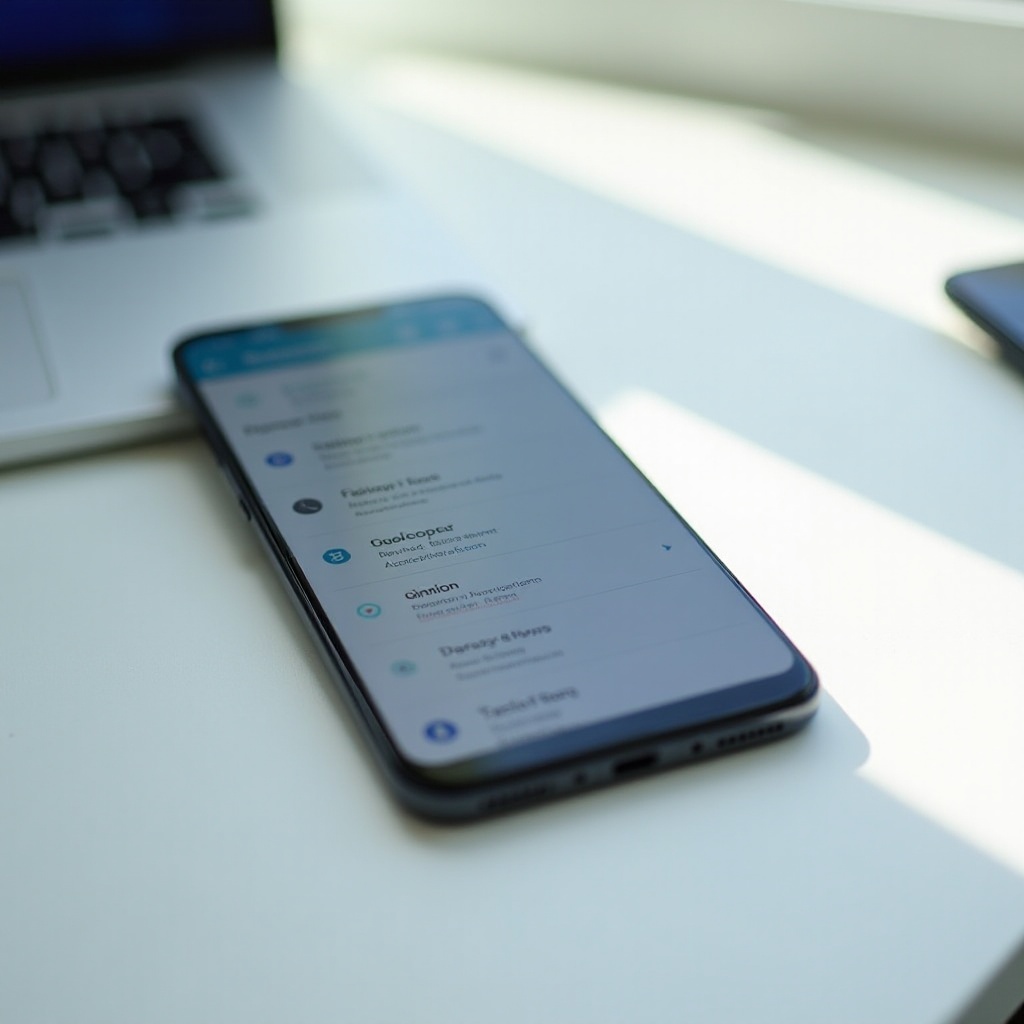
How to Turn Off USB Debugging and Other Sensitive Developer Settings
USB debugging is one of the most important options to disable when you want a secure phone. It allows a computer to control your device through ADB when connected by cable. That is useful for developers, but it can be risky if someone else gets hold of your phone.
To turn off USB debugging and similar features, follow these steps:
- Open Developer options
Go to Settings and open Developer options using the correct path for your brand.
- Scroll to USB debugging
Look for USB debugging under the Debugging section.
- Disable USB debugging
Tap the switch next to USB debugging to turn it Off. Confirm any prompt that warns you about disabling it.
- Disable wireless debugging if available
If your phone supports Wireless debugging, find that option and switch it off as well. This stops your device from accepting ADB connections over Wi-Fi.
- Review OEM unlocking and mock location
If you have enabled OEM unlocking for bootloader changes, turn it off unless you explicitly need it. Also, check the Mock location app setting and clear it if you no longer use fake GPS for testing.
Even if you plan to disable the entire Developer options menu, it is smart to check these sensitive settings once first. After that, you might also want the Developer options entry itself to disappear from your Settings list.
How to Hide or Remove the Developer Options Menu from Settings
On many phones, turning the main Developer options toggle off is enough to hide the menu. On others, the menu stays visible but disabled. If you prefer a cleaner Settings screen, you can try a few additional steps to remove it completely.
Start with the simplest methods:
- Use the master toggle
Open Settings → System → Developer options (or the equivalent path). Make sure the main switch at the top is Off. On some devices, the menu will vanish from Settings after you close it.
- Restart your phone
After turning the toggle off, restart your device. A quick reboot often prompts Android to refresh the Settings menus and remove Developer options if it is disabled.
If the menu still does not go away and you strongly want it hidden, you can reset the Settings app data:
- Open the Apps section in Settings
Go to Settings → Apps (or Apps & notifications).
- Find the Settings app
Scroll through the list and tap Settings. If you cannot see it, enable viewing system apps from the menu.
- Clear Settings storage
Tap Storage or Storage & cache, then choose Clear storage or Clear data. Confirm the action.
Clearing the Settings app data resets your system preferences, such as saved Wi-Fi networks, Bluetooth pairings, and some display options. It does not delete your apps, photos, or personal files. After this reset, the Developer options menu usually disappears until you unlock it again by tapping the Build number.
Sometimes, even after these steps, users find that developer options seem to come back or do not fully turn off. In that case, a bit of troubleshooting can help.
Troubleshooting: When Developer Mode Won’t Turn Off or Keeps Reappearing
If you follow the standard process and developer mode still appears active, or certain options will not stay off, another factor might be involved. Use these checks to find out what is going on and fix it.
- Check for a work profile or device administrator
Open Settings → Security & privacy (or similar) and look for Device admin apps or Device management. If you see a work profile, MDM app, or parental control tool enabled, it may enforce developer settings. On a company-managed phone, you might need your IT department to change these options.
- Install system and security updates
Go to Settings → System → System update or Software update and check for updates. Install any available updates and restart your phone. Some software bugs that affect developer options can be fixed by newer versions.
- Reset the Settings app
If the Developer options toggle changes but does not persist, clear the Settings app data as described in the previous section. This often fixes stuck menus and toggles.
- Consider a factory reset (last resort)
If developer options continue to behave strangely after all other steps, a factory reset may be your final option. Back up your data to your Google account or other services. Then go to Settings → System → Reset options → Erase all data (factory reset) or a similar path. This wipes the phone and returns all settings, including developer options, to their original state.
Once you have developer mode fully under control, you can focus on keeping your device secure going forward so you do not need to worry about hidden tools causing trouble.
Security and Privacy Tips After Disabling Developer Mode
Turning off developer mode and USB debugging is a strong step toward better security, but you can protect your phone even further with a few simple habits. These practices help guard your data and make it harder for anyone to misuse your device.
Here are some useful tips:
- Use a strong screen lock
Set a PIN, password, or pattern that is not easy to guess. If your phone supports fingerprint or face unlock, enable them for convenience but keep a strong backup PIN in place.
- Keep your phone updated
Install system and security updates as soon as they are available. Updates close security holes that attackers could exploit, even if developer mode is off.
- Install apps from trusted sources only
Stick to Google Play or the official app store for your region. Avoid downloading random APK files from unknown websites, as they may contain malware.
- Review app permissions regularly
Go to your privacy or permissions settings and check which apps can access your location, camera, microphone, and files. Revoke permissions that do not match the app’s purpose.
- Limit future use of debugging tools
If you must re-enable USB debugging for a task, use it on a trusted computer and turn it back off as soon as you finish. Do not leave debugging features enabled all the time.
With these steps in place, your phone becomes far more secure, even if you occasionally need to use developer options again. When that time comes, knowing how to re-enable them safely will help you work efficiently without putting your data at risk.
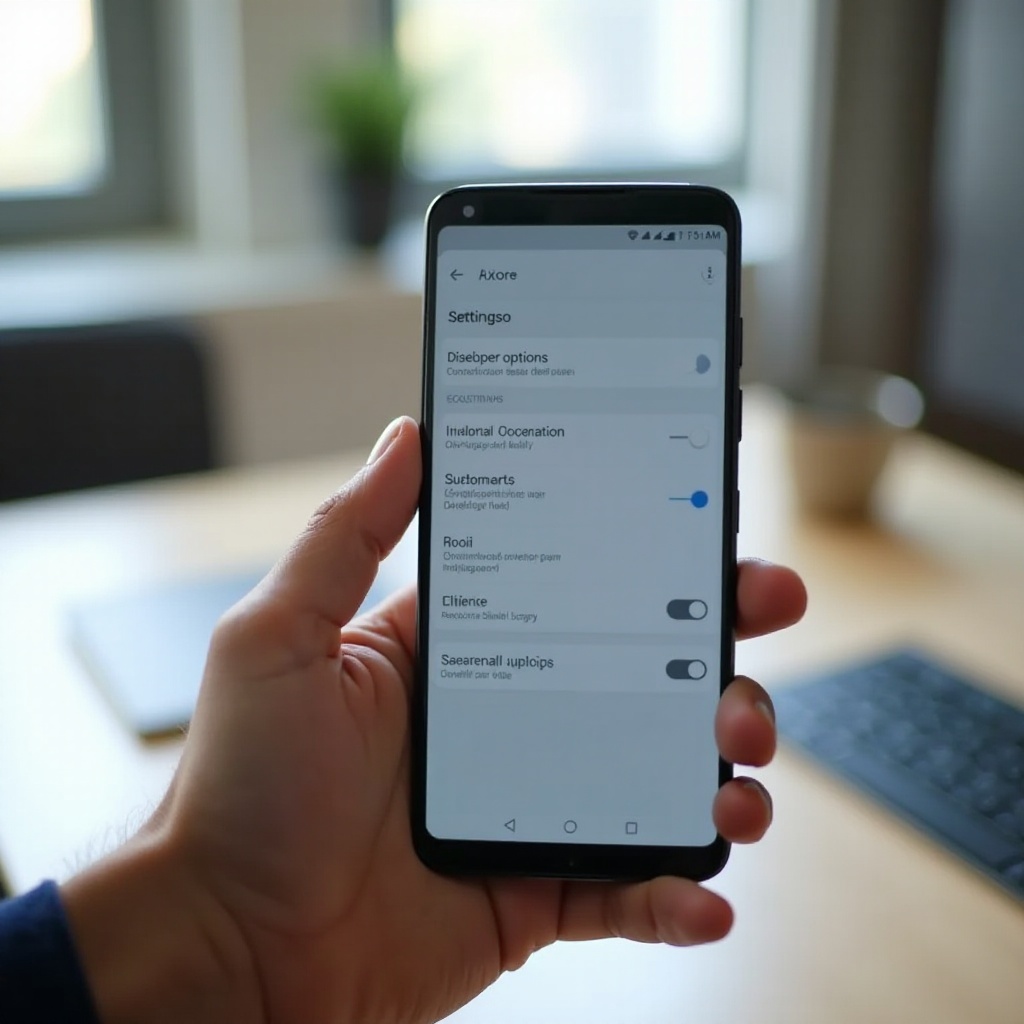
How to Re-Enable Developer Options Safely If You Need Them Again
You might need developer options again to test apps, capture logs, or use ADB for advanced tasks. Re-enabling them is simple, and a careful approach will keep your device safe.
Here is how to turn developer mode back on:
- Open the About phone section
Go to Settings → About phone. On some devices, you may also need to tap Software information.
- Find Build number
Scroll until you see Build number. This is the key to unlocking developer options again.
- Tap Build number seven times
Tap the Build number entry several times in quick succession. Android will count down how many taps remain. If prompted, enter your PIN, password, or pattern. You will see a message such as ‘You are now a developer!’
- Access Developer options
Go back to Settings → System or Additional settings. You should now see Developer options listed again.
To use developer options safely after re-enabling them:
- Only turn on the specific settings you need, such as USB debugging, and switch them off when you finish.
- Keep a record of any changes you make, using screenshots or notes.
- Avoid experimental features you do not understand, as they might affect system stability or performance.
When your task is complete, you can follow the same steps from earlier in this guide to disable developer mode and return your phone to a more secure, everyday setup.
Conclusion
Knowing how to disable developer mode on Android gives you control over a powerful but risky part of your device. You have seen what developer options do, why they exist, and the situations where it is safer to switch them off.
You now know the exact steps for disabling developer mode on Google Pixel, Samsung Galaxy, and other popular Android brands. You have learned how to turn off USB debugging and other sensitive settings, hide or remove the Developer options menu, and troubleshoot cases where it will not stay off. You also have clear security tips to follow after you disable these tools.
If you ever need advanced features again, you can re-enable developer options quickly by tapping the Build number and then enable only what you require. With this knowledge, you can keep your Android phone both flexible and secure, using developer mode only when you truly need it.
Frequently Asked Questions
Does disabling developer mode on Android delete any of my data or apps?
No. Disabling developer mode does not delete your apps, photos, messages, or other personal data. It only turns off access to the Developer options menu and deactivates the settings inside it. Some preferences you changed within developer options, such as USB debugging or animation scales, will revert to default or become inactive. If you clear the Settings app data to hide developer options, that can reset saved Wi-Fi networks or Bluetooth pairings, but your personal files and installed apps remain intact.
Is it more secure to keep developer options turned off on my Android phone?
Yes, keeping developer options turned off is generally more secure for most users. When developer mode is on, features like USB debugging and wireless debugging allow deeper access from a connected computer or network. If someone gains physical access to your phone while debugging is enabled, they could try to issue ADB commands or install apps without your consent. By turning developer options off and disabling USB debugging, you reduce the attack surface and make it harder for attackers or malware to misuse your device.
Why can’t I find the option to turn off developer mode in my Android settings?
If you cannot find the option to turn off developer mode, several things could be happening. Developer options might already be disabled or hidden, so the menu no longer appears under System or Additional settings. You might be using a work-managed device where an IT policy controls or hides developer options. Or your phone’s manufacturer may place the menu in a different location, such as under Additional settings on Xiaomi devices. Try using the Settings search bar to look for ‘Developer options’. If that fails, tap Build number repeatedly in About phone to re-enable the menu, then disable it again following this guide.