
Introduction
You tap play on a video, but instead of a crisp image, you see fuzzy edges and pixelated text. You try another video and it looks the same. Very quickly the question pops into your mind: why is my YouTube video blurry on my phone?
This problem is extremely common on both Android and iPhone. It affects people who simply watch videos and people who upload them. Sometimes only certain videos look bad. Other times every video looks soft, even on a new phone with a great screen.
The good news is that most blurry YouTube issues have simple causes and simple fixes. In many cases, you can solve the problem in a few minutes by changing quality settings, checking your connection, or adjusting a few options on your phone.
This guide walks you through what blurry really means on YouTube mobile, the top reasons it happens, and step-by-step solutions. By the end, you will know exactly where to look and what to change so your YouTube videos look sharp again on your phone.
What ‘Blurry’ Really Means on YouTube Mobile
Before you can fix blurry YouTube videos, you need to understand what you are actually seeing. A blurry YouTube video on your phone usually has one or more of these signs:
- The video looks soft instead of clearly defined.
- Text and subtitles are hard to read.
- Edges of objects look blocky or pixelated.
- Fine details, like hair or small patterns, smear together.
In most cases, this blur comes from low resolution. YouTube is streaming the video at a small size like 144p, 240p, or 360p. Your phone screen, however, can show much higher resolutions, such as 720p or 1080p, so the mismatch creates a fuzzy look.
You can confirm this by checking the resolution inside the YouTube app:
- Play the video in the YouTube app.
- Tap the gear icon or three dots in the top corner of the player.
- Tap ‘Quality’.
- Look at the current resolution (for example, 360p, 720p, 1080p).
If the number is low, such as 144p, 240p, or 360p, that explains the blur. Higher resolutions like 720p and 1080p usually look much clearer on mobile screens.
Also, some people mistake other visual issues for blur:
- A very dim screen can make details hard to see.
- A poor or dirty screen protector can add haze.
- Motion blur from fast action might look like low quality.
However, if the YouTube quality setting is low, that is almost always the true cause. Once you know blurry usually equals low resolution, you can focus on the reasons YouTube chooses low quality and how to change it. That starts with understanding the main causes.
Main Reasons Your YouTube Video Is Blurry on Your Phone
When you ask why is my YouTube video blurry, you are usually dealing with one of a few common issues. Knowing these core causes helps you pick the right fix instead of guessing.
1. Auto quality chooses a low resolution
YouTube uses adaptive streaming. The app checks your network speed and your settings and then picks a resolution automatically. On phones, the Auto mode often plays things safe and chooses a lower quality to reduce buffering and data use. That means you might see 360p or 480p on a full HD screen.
2. Slow or unstable Wi-Fi or mobile data
If your connection is weak, shared by many devices, or unstable, YouTube lowers the resolution. A low but steady resolution is easier to stream than a sharp image that keeps freezing. As a result, you see smooth but blurry video.
3. Data saver and battery saver modes
Both Android and iOS include data saver and power saver features. When enabled, they may restrict how much data apps use in the background and can push YouTube toward lower quality streams. This is a common hidden reason for blurry YouTube video on phones.
4. YouTube still processing HD or 4K versions
When a video is uploaded, YouTube processes standard definition (SD) versions first so the video becomes available quickly. High definition (HD) and 4K versions appear later. On mobile, you might only see 360p or 480p for a while. During this time, your own uploads or newly published videos from others will look blurry.
5. The original video was low quality
If the creator recorded or exported at a low resolution or low bitrate, YouTube cannot magically sharpen it. A grainy, low-resolution upload will stay that way on every device. You might only notice how bad it is once you watch it on a sharp phone screen.
Now that you understand why YouTube often falls back to low quality, the next step is learning how to override Auto and force higher quality inside the app. That is the easiest place to start.
Fix #1 – Manually Increase YouTube Playback Quality on Mobile
The quickest fix for a blurry YouTube video on your phone is to override Auto quality and manually choose a higher resolution. This solution takes only a few taps and often works instantly.
On Android:
- Open the YouTube app and play a video.
- Tap the gear icon or three dots in the upper-right corner of the player.
- Tap ‘Quality’.
- If you see an ‘Advanced’ option, tap it.
- Select 720p, 1080p, or the highest resolution available.
Your video should switch to a sharper image within seconds if your connection can handle it.
On iPhone:
- Open YouTube and start playing a video.
- Tap the gear icon or three dots on the player.
- Tap ‘Quality’.
- Tap ‘Advanced’ if needed.
- Choose 720p, 1080p, or the highest option listed.
Again, your video will look clearer as soon as the higher-quality stream loads.
To avoid repeating this for every video, adjust your default quality preferences:
- Open the YouTube app.
- Tap your profile icon in the top-right corner.
- Go to ‘Settings’ → ‘Video quality preferences’.
- Set your preferred quality for:
- ‘On mobile networks’
- ‘On Wi-Fi’
- Choose ‘Higher picture quality’ for Wi-Fi and, if your data plan allows, for mobile networks.
This tells YouTube to aim for higher resolutions whenever possible, which greatly reduces how often you see blurry video on your phone.
If switching to higher quality causes repeated buffering, your connection may not be fast enough. In that case, fixing your network is the next step.
Fix #2 – Improve Your Internet Connection for Sharper Streaming
Even if you pick 1080p in YouTube, a weak or unstable connection can still force the app back to low quality or endless buffering. That is why you should check whether your internet speed matches what HD video needs.
Here are rough speed guidelines for YouTube on phones:
- 480p (SD): around 2–3 Mbps.
- 720p (HD): around 5 Mbps.
- 1080p (Full HD): around 8–10 Mbps.
- 1440p and higher: 15 Mbps or more.
To test your speed on your phone:
- Connect to the network you normally use (Wi-Fi or mobile data).
- Open your browser and visit a speed test site such as speedtest.net or fast.com.
- Tap ‘Go’ or ‘Start’ and wait for the results.
- Check the download speed value.
If your speed is below the numbers above, YouTube may struggle to maintain HD quality, which explains the blur.
You can improve your connection in several ways.
On Wi-Fi:
- Move closer to your router to get a stronger signal.
- Restart your router and modem to clear temporary issues.
- Use the 5 GHz band if your router supports it; it is usually faster at short range than 2.4 GHz.
- Pause or limit streaming on other devices using the same network.
On mobile data:
- Check your signal strength; more bars usually mean a better connection.
- Toggle airplane mode on and off to refresh the mobile connection.
- Move to an open area or closer to a window if you are indoors.
- If your plan includes a data cap, confirm that your carrier is not throttling your speed.
If your speed test looks fine and other apps feel fast, yet YouTube still insists on low quality, it is time to look at data saver settings and app limits that might be silently forcing blur.
Fix #3 – Turn Off Data Saver and Streaming Limits
Data saver features protect your data plan, but they are also a frequent reason for blurry YouTube video on phones. These settings live both inside the YouTube app and in your phone’s system menu.
Disable Data Saver in the YouTube app:
- Open YouTube.
- Tap your profile picture.
- Go to ‘Settings’.
- Tap ‘Data saving’ or a similar option.
- Turn off ‘Data saver’ or ‘Limited mobile data usage’.
When this is on, YouTube limits streaming quality, especially on mobile networks. Turning it off lets the app choose higher resolutions.
Turn off Data Saver on Android:
- Open ‘Settings’ on your Android phone.
- Tap ‘Network & internet’ or ‘Connections’.
- Tap ‘Data Saver’.
- Toggle Data Saver off.
Also check app-specific limits:
- Go to ‘Settings’ → ‘Apps’ → ‘YouTube’.
- Tap ‘Mobile data & Wi-Fi’.
- Make sure ‘Background data’ and ‘Unrestricted data usage’ are enabled.
Turn off Low Data Mode on iPhone:
- Go to ‘Settings’ → ‘Cellular’ → ‘Cellular Data Options’.
- Turn off ‘Low Data Mode’.
- For Wi-Fi, go to ‘Settings’ → ‘Wi-Fi’, tap the ‘i’ next to your network, and disable ‘Low Data Mode’ there too.
Once these data limits are off, your phone allows YouTube to use more bandwidth, which supports HD streaming. If videos still look fuzzy or soft, phone-level performance and display settings may be the next culprit.
Fix #4 – Adjust Phone Settings That Can Make YouTube Look Blurry
Even when YouTube streams in HD, certain system settings can reduce clarity or performance. These options are meant to save battery or change how things look, but they sometimes make videos appear less sharp.
Battery saver or Low Power Mode
On both Android and iPhone, battery saver modes cut background activity and sometimes limit performance.
- On Android, go to ‘Settings’ → ‘Battery’ → ‘Battery Saver’ and turn it off.
- On iPhone, go to ‘Settings’ → ‘Battery’ and disable ‘Low Power Mode’.
Turning these off helps your phone give more resources to video playback, which can reduce stutter and keep quality consistent.
Screen resolution and display scaling on Android
Many Android phones let you choose the screen resolution, such as HD+, FHD+, or QHD+.
- Open ‘Settings’ → ‘Display’.
- Look for ‘Screen resolution’ or a similar option.
- Select a higher resolution like FHD+ or QHD+ if available.
Also review display size or screen zoom. If items on screen look very large, the system may be scaling content in a way that makes videos look slightly softer.
Display and brightness on iPhone
iPhone resolution is fixed, but display settings still affect how clear the screen looks.
- Go to ‘Settings’ → ‘Display & Brightness’.
- Make sure brightness is not set extremely low, which can hide detail.
- Try toggling ‘True Tone’ on or off and see which looks better for video.
After you tune these phone settings, most system-level causes of blur are removed. If you still see problems, the YouTube app itself may be glitchy and need a reset.
Fix #5 – Refresh, Reset, or Reinstall the YouTube App
Sometimes the YouTube app is the source of the problem. A bug, corrupted cache, or outdated version can cause unusual playback behavior, including quality that will not change even when your connection and settings look fine.
Start with a quick refresh:
- Close the YouTube app completely.
- On Android, open the recent apps view and swipe YouTube away.
- On iPhone, swipe up from the bottom (or double-press Home on older models) and swipe YouTube off the screen.
- Reopen the app and test a video again.
If that does not help, clear cache and data on Android:
- Open ‘Settings’ → ‘Apps’ → ‘YouTube’.
- Tap ‘Storage & cache’.
- Tap ‘Clear cache’.
- If issues continue, tap ‘Clear storage’ or ‘Clear data’ (you may need to sign in again).
On iPhone, you can offload or reinstall the app:
- Go to ‘Settings’ → ‘General’ → ‘iPhone Storage’.
- Find and tap ‘YouTube’.
- Tap ‘Offload App’ to remove the app but keep its data, then reinstall it from the App Store.
- If problems persist, tap ‘Delete App’ and then reinstall from the App Store.
After reinstalling, open your app store and check for updates. New versions often fix playback bugs and improve quality handling.
If other people’s videos now look fine but your own uploads are still blurry on phones, the issue likely lies in how you create and upload your content. The next section focuses on that creator side.
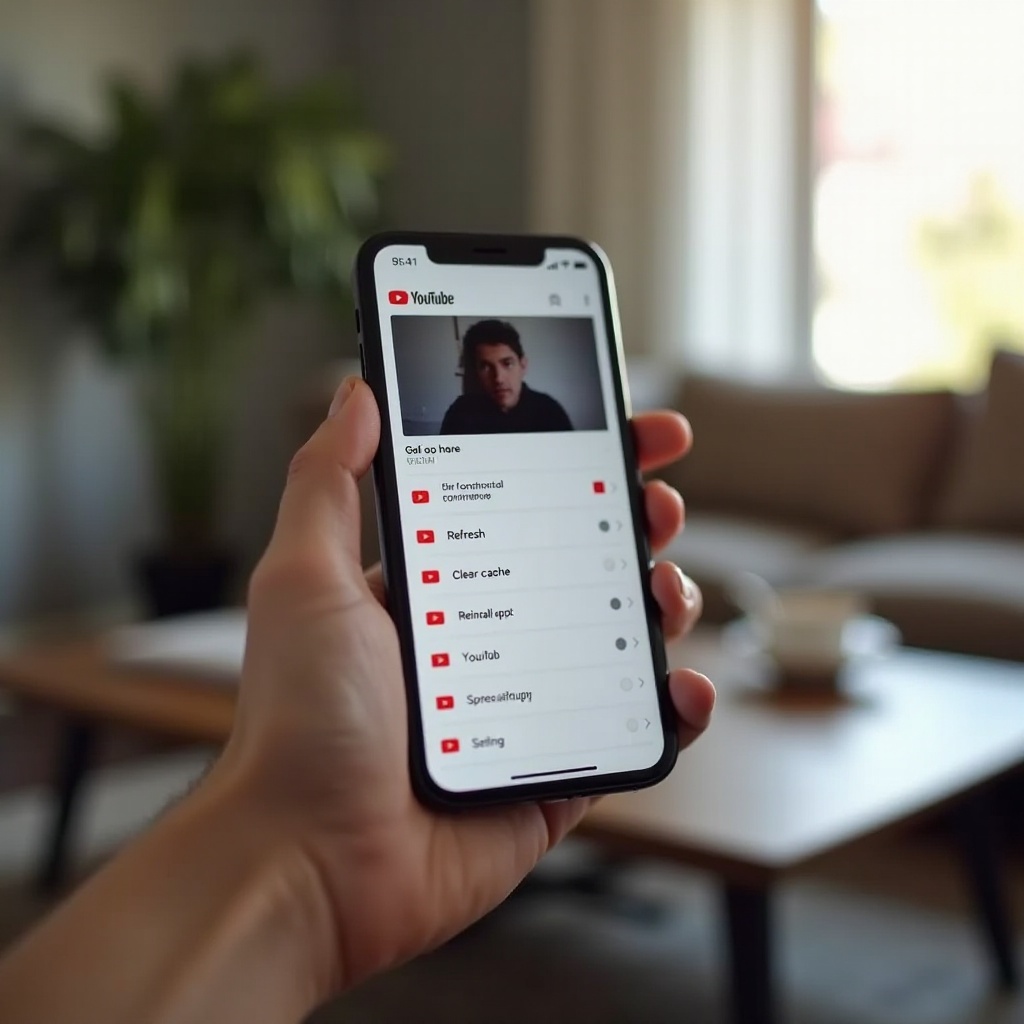
When the Problem Is Your Own Uploaded Video (Creator Focus)
If you upload videos and notice that your own content looks sharp on a computer but blurry on your phone, the cause is often your upload process or YouTube’s processing timeline.
Fresh uploads and HD processing
Right after you upload, YouTube makes the lower-resolution versions available first. On mobile, that might mean viewers only see 360p or 480p for a while. Until HD processing is complete, your video will look blurry on phones even if the original file is 1080p or higher.
To check this:
- Open your uploaded video in the YouTube app.
- Tap the gear icon → ‘Quality’.
- See what the highest resolution currently available is.
If only low resolutions appear, you may just need to wait longer. For longer videos and higher resolutions like 4K, this can take a noticeable amount of time.
Export and upload settings for 2024
To prevent permanent blur, record and export videos in high quality before uploading:
- Resolution: at least 1080p (1920 × 1080).
- Bitrate: follow YouTube’s recommended bitrate ranges for 1080p or higher.
- Codec: use common options like H.264 or H.265 (HEVC).
Always preview your exported file on your phone. If it already looks blurry before upload, it will not look better after YouTube compresses it.
Vertical vs horizontal videos
Shorts and vertical videos behave differently from traditional horizontal uploads. If you crop or stretch horizontal footage into a vertical format, you might lose a lot of detail.
To keep things sharp:
- Record in the final orientation you plan to use.
- Avoid heavy digital zoom or extreme cropping.
- Keep text large enough to stay readable on small screens.
Once you have tuned how you create and upload content, your own videos should look much clearer on phones. At this point, you already have many tools to fix blurry playback. The final section gives you a fast checklist to use whenever you face blurry video again.
Quick Troubleshooting Checklist for Blurry YouTube on Phones
When a YouTube video looks blurry on your phone, it helps to follow a repeatable checklist. This keeps you from missing simple fixes and gives you a clear path:
- Check the current resolution.
- Tap the gear icon → ‘Quality’.
- Confirm the resolution; if it is 144p, 240p, or 360p, that explains the blur.
- Switch from Auto to a higher resolution.
- Choose 720p or 1080p instead of Auto.
- See if the picture sharpens within a few seconds.
- Test your internet speed.
- Run a speed test on your phone.
- Aim for at least 5 Mbps for 720p and 8–10 Mbps for 1080p.
- Disable data saver and battery saver.
- Turn off Data Saver or Low Data Mode in your phone settings.
- Turn off YouTube’s own data saver setting.
- Disable Battery Saver or Low Power Mode.
- Refresh or reinstall YouTube.
- Force close and reopen the app.
- Clear cache on Android or reinstall the app on iPhone.
If you follow this checklist and still have blurry videos on every network and every video, contact your carrier to check for streaming caps or reach out to YouTube support. In most situations, though, these steps resolve the problem.
Conclusion
When you find yourself asking why is my YouTube video blurry on my phone, the root cause usually comes down to a mix of quality settings, network speed, and device options. YouTube tends to favor lower quality on mobile to prevent buffering and save data, but you do not have to accept fuzzy video as normal.
You can manually raise the resolution in the app, improve your Wi-Fi or mobile data connection, and turn off data saver and power saver settings that quietly limit quality. You can also adjust display and resolution settings on your phone and refresh or reinstall the YouTube app if it is acting up.
If you are a creator, you have even more control. Recording and exporting in proper resolutions, using solid bitrates, and giving YouTube time to finish HD processing makes a huge difference in how your videos look on viewers’ phones.
The key is to move through the problem step by step instead of guessing. With the fixes and checklist from this guide, you can track down the cause of blur quickly and enjoy sharp, clear YouTube videos on your phone again.
Frequently Asked Questions
Why is my YouTube video still blurry after changing the quality to 1080p?
If your video still looks blurry at 1080p, the original file might be low resolution or out of focus, YouTube may not have finished processing the full HD version yet, or your phone’s display settings could be softening the image. Test another channel’s 1080p video on the same phone. If that one looks sharp, the issue is with the specific video, not your device or the app.
Why are my YouTube videos blurry only on mobile data and not on Wi‑Fi?
On mobile data, many phones and carriers use data saving and ‘video optimization’ features that limit streaming quality to 480p or lower. To fix this, turn off Data Saver or Low Data Mode in your phone settings, disable the Data Saver option inside the YouTube app, and check your carrier app or account for any video quality caps. On Wi‑Fi, those limits usually do not apply, so videos look sharper.
Why does my YouTube upload look clear on my computer but blurry on my phone?
Your upload may look clear on a computer because you watch it in full resolution there, while your phone defaults to a lower resolution like 360p. HD versions may also appear on desktop before they show up in the mobile app. To fix this, wait for YouTube to finish HD processing, then on your phone manually select 720p or 1080p in Quality settings. Also confirm you exported the video in at least 1080p with a proper bitrate.