
Introduction
Struggling to get your Beats to show up on your iPhone can kill the mood fast. The good news: most models pair in seconds once you use the right method. This guide shows you how to connect any popular Beats model to your iPhone, even if the pairing card does not appear. You will see two ways to pair, model-by-model steps, and clear fixes for common problems like one earbud not connecting or audio dropouts.
You will also learn how to customize your Beats for better calls and music. Then we cover switching audio between your iPhone, iPad, Mac, and Apple Watch. If your Beats refuse to connect, jump to the troubleshooting and reset sections. Every step uses simple language and short actions, so you can read once and do it right.
Let us start with quick checks. A few seconds here avoids most pairing headaches and leads you straight into fast one‑tap pairing or manual Bluetooth pairing.
Before You Start: Compatibility and Checklist
A fast check prevents most pairing failures. Confirm these items first:
- Supported Beats models and chips
- One‑tap pairing on iPhone works with most modern Beats: Beats Fit Pro, Beats Studio Buds, Beats Studio Buds+, Powerbeats Pro, Beats Flex, Beats Solo3, Beats Solo4, Beats Studio3, and Beats Studio Pro.
- Models with Apple W1, H1, or H2 chips show the pairing card and support deeper integration on iPhone.
- iOS and Bluetooth requirements
- Turn on Bluetooth in Settings > Bluetooth.
- Keep your iPhone updated for the smoothest pairing and features.
- Charge levels and distance
- Charge your Beats and case to at least 20 percent.
- Keep the Beats within 2 feet of your unlocked iPhone.
If you meet these basics, you can use the one‑tap pairing card. If the pop‑up does not appear, you can pair manually in Settings in under a minute. With the essentials covered, you are ready to try the fastest method first.
Method 1: One‑Tap Pairing Card on iPhone
When supported Beats are near an unlocked iPhone, you should see a pairing card slide up from the bottom of the screen. This is the fastest route.
- Which Beats show the pairing pop‑up
- Beats Fit Pro, Studio Buds, Studio Buds+, Powerbeats Pro, Beats Flex, Solo3, Solo4, Studio3, and Studio Pro can show the card.
-
If you have Studio Buds or Studio Buds+, the card appears, but some advanced features may differ from H1 or H2 models.
-
How to trigger the pairing card
- Unlock your iPhone and enable Bluetooth.
- Put earbuds in their case with the lid open, or power on your headphones.
- Hold the Beats next to your iPhone. Keep them close and steady.
- Wait for the pairing card to appear. Tap Connect.
- Follow any prompts for features like Spatial Audio or Hey Siri where supported.
- Finish setup. Audio should route to your Beats automatically.
No card? Keep the lid open and press the case system button until the LED flashes white, then wait again near your iPhone. If the card still will not appear, switch to manual pairing.
One‑tap is quick, but it does not work in every case. The next section covers manual Bluetooth pairing that works on every model, even when pop‑ups fail.
Method 2: Manual Bluetooth Pairing in Settings
Manual pairing takes a few taps and works even if the pairing card fails.
- Put your Beats in pairing mode
- Earbuds in a case (Fit Pro, Studio Buds, Studio Buds+, Powerbeats Pro): Open the lid. Press and hold the system button on the case until the LED flashes white.
- Beats Flex: Press and hold the power button until the indicator light flashes.
-
On‑ear or over‑ear (Solo3, Solo4, Studio3, Studio Pro): Press and hold the power button until the LED or fuel gauge flashes.
-
Add your Beats in Settings > Bluetooth
- On iPhone, open Settings > Bluetooth.
- Make sure Bluetooth is On.
- Look under Other Devices for your Beats name.
- Tap the device name to connect.
- Wait for Connected to appear. Test audio with a song or video.
If pairing fails, back out, toggle Bluetooth off and on, and try again. If your Beats never appear, the next section shows model‑specific steps to ensure you used the correct buttons and timing.
Model‑Specific Pairing Steps
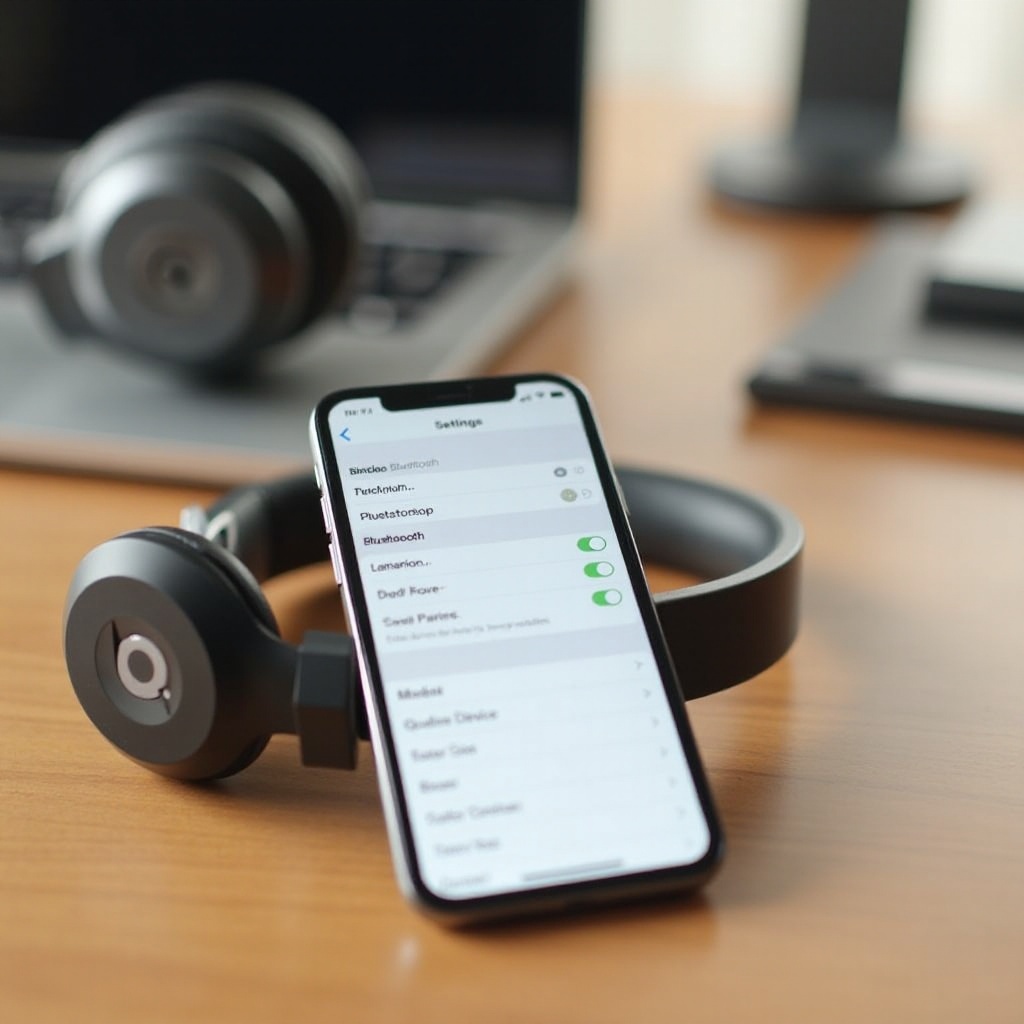
Every Beats model uses a slightly different button layout. Use these exact steps:
- Beats Fit Pro
- One‑tap: Open the case with both earbuds inside near your unlocked iPhone. Tap Connect on the card.
- Manual: Open case lid. Hold the case button until the LED flashes white. Go to Settings > Bluetooth and select Beats Fit Pro.
-
Tip: Keep both earbuds in the case during pairing to sync them together.
-
Beats Studio Buds and Studio Buds+
- One‑tap: Open the case near iPhone and wait for the card. Tap Connect.
- Manual: With earbuds in the case, open the lid. Hold the case button until the LED flashes white. Then select them in Settings > Bluetooth.
-
Tip: For Studio Buds+, wait an extra second after the LED flashes to ensure discovery is stable.
-
Powerbeats Pro
- One‑tap: Place both earbuds in the case. Open the lid near your iPhone. Tap Connect on the card.
- Manual: With the lid open, press and hold the case button until the LED flashes white. Select Powerbeats Pro in Bluetooth.
-
Tip: Put both earbuds in the case when pairing to avoid one side staying unpaired.
-
Beats Flex
- One‑tap: Power on near your iPhone. When the card appears, tap Connect.
- Manual: Hold the power button until the light flashes. Go to Settings > Bluetooth and select Beats Flex.
-
Tip: If they do not appear, charge for 10 minutes and retry.
-
Beats Solo3 and Solo4
- One‑tap: Power on near your unlocked iPhone. Tap Connect on the pairing card.
- Manual: Hold the power button until the LEDs flash. In Settings > Bluetooth, select your Solo.
-
Tip: Solo4 supports newer features like Personalized Spatial Audio; set that up after pairing if prompted.
-
Beats Studio3 and Studio Pro
- One‑tap: Power on near iPhone. Tap Connect when the card appears.
- Manual: Press and hold the power button until the LEDs flash. Select the headphones in Bluetooth.
- Tip: For Studio Pro, keep the button pressed for a full 5 seconds to ensure pairing mode.
Once paired, your Beats should connect automatically next time. With connection done, fine‑tune your settings so your headphones or earbuds work exactly the way you like.
Customize Your Beats on iPhone for the Best Experience
Personalize your Beats to get better sound, smoother calls, and easier controls.
- Rename, mic, and ear detection
- Go to Settings > Bluetooth and tap the i icon on your Beats.
- Rename your Beats to something clear like Kim s Fit Pro.
- Microphone: Set to Automatic for calls, or force Left or Right if one side is more reliable.
-
Ear detection: For supported models, enable auto play or pause so audio stops when you remove an earbud.
-
ANC, Transparency, and control mapping
- Fit Pro, Studio Buds, Studio Buds+, and Studio Pro support active noise cancellation and Transparency.
- Use Control Center: press and hold the volume slider to switch between Noise Control modes.
-
On supported earbuds, set long‑press actions for each side to toggle ANC or Transparency, or activate the voice assistant.
-
Spatial Audio and Head Tracking
- On supported models such as Fit Pro, Solo4, and Studio Pro, enable Spatial Audio in Settings > Bluetooth > your Beats.
-
For Personalized Spatial Audio, follow the on‑screen ear and head scans when prompted for a more precise sound field.
-
Add to Find My where available
- Many recent Beats appear automatically in the Find My app after pairing.
- Open Find My to see last known location and play a sound; options vary by model.
Your Beats are now set up for daily use. Next, learn to switch audio between Apple devices without repairing each time, which saves time when you move from phone to laptop to watch.
Switch Audio Between iPhone, iPad, Mac, and Apple Watch
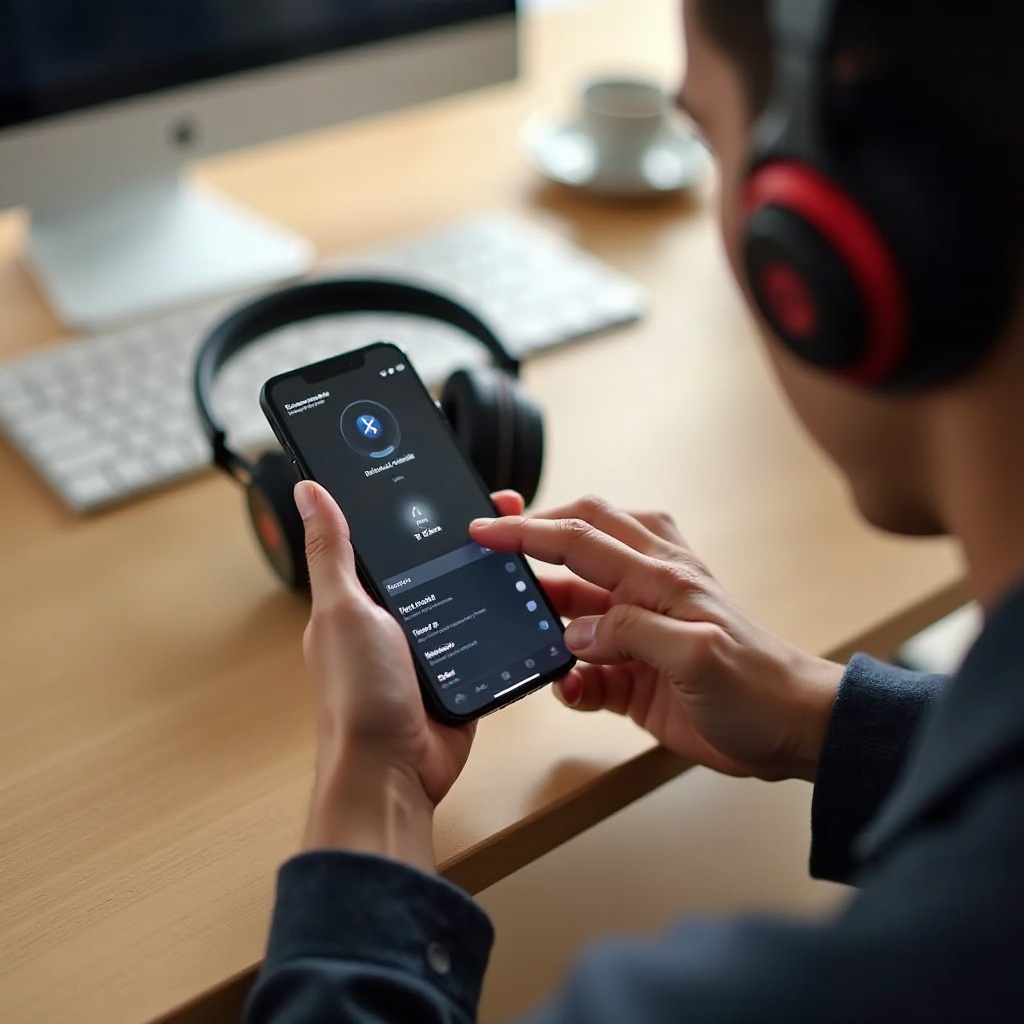
After pairing with your iPhone, most Beats integrate with your Apple ID for quick switching.
- iCloud automatic switching
- For supported Beats linked to your Apple ID, audio can switch automatically between iPhone, iPad, and Mac.
-
When a new device starts playing, your Beats may switch to it. You can turn this off per device in Bluetooth settings if you prefer manual control.
-
Manual switching via Control Center and AirPlay
- On iPhone or iPad: Open Control Center, tap the AirPlay icon on the Now Playing tile, and select your Beats.
- On Mac: Click Control Center in the menu bar, choose Sound, and pick your Beats.
- On Apple Watch: Swipe up to open Control Center, tap the AirPlay icon or select your audio output.
If switching feels inconsistent or slow, check the next troubleshooting section for quick fixes that stabilize connections and audio routing. These small tweaks often clear up confusion when several Apple devices sit nearby.
Troubleshooting: Beats Won’t Connect or Keep Disconnecting
Connection hiccups happen. Use these quick, proven fixes to get back to listening.
- Quick checks and common fixes
- Toggle Bluetooth: Turn Bluetooth off, wait 10 seconds, then on again.
- Charge both devices: Charge your Beats and your iPhone above 20 percent.
- Reseat earbuds: Put earbuds into the case, close and reopen the lid.
- Restart iPhone: A quick reboot clears minor glitches.
-
Forget and re‑pair: In Settings > Bluetooth, tap the i on your Beats, then Forget This Device. Pair again.
-
Fixing one earbud not connecting
- Clean charging contacts on the earbud and inside the case with a dry, soft cloth.
- Make sure each earbud clicks into place and the case LED shows charging.
- In Bluetooth settings, set Microphone to Automatic.
-
If one side still fails, perform a model‑specific reset as shown next.
-
Audio stutters, drops, or mic issues
- Move away from Wi‑Fi routers, microwaves, or crowded 2.4 GHz environments.
- Remove old Bluetooth accessories from your iPhone that you no longer use.
- Turn off automatic switching temporarily if it keeps pulling your Beats to another device.
- For mic issues, test with a voice memo. If the mic crackles, gently clean the mic ports and check the case is not blocking the mic on earbuds.
If none of these steps work, a reset often clears stubborn pairing data and firmware hiccups. Follow the correct reset flow for your model to avoid partial resets.
Reset Your Beats: Step‑by‑Step by Model
A reset returns your Beats to a factory pairing state. You will need to pair again after the reset.
- Reset Beats Fit Pro and Studio Buds or Studio Buds+
- Place both earbuds in the case and leave the lid open.
- Hold the case system button for about 15 seconds, until the LED flashes red and then white.
-
Release the button. Close the lid for 10 seconds, reopen, then pair again.
-
Reset Powerbeats Pro
- Put both earbuds in the case with the lid open.
- Press and hold the case button for about 15 seconds until the LED flashes red and white.
-
Release, close the lid for 10 seconds, reopen, then re‑pair.
-
Reset Beats Flex
- Press and hold the power button and the volume down button together for 15 seconds.
- When the LED flashes, release both buttons.
-
Turn them back on and pair again in Bluetooth settings.
-
Reset Solo and Studio series (Solo3, Solo4, Studio3, Studio Pro)
- Press and hold the power button and the volume down button for 10 seconds.
- Release when the LEDs flash.
- Power back on and reconnect through the pairing card or Settings > Bluetooth.
After a reset, your Beats should show up as a fresh device. If issues remain, advanced fixes can clear interference or software conflicts on your iPhone.
Advanced Fixes and Network or Interference Checks
If pairing and resets do not hold, take these deeper steps:
- Forget and re‑pair; remove old devices
- Forget your Beats on iPhone and on any other phones, tablets, or computers nearby.
-
Remove unused Bluetooth devices from iPhone to cut down on conflicts.
-
Update iOS and Beats firmware
- Update iPhone to the latest iOS in Settings > General > Software Update.
-
Beats firmware updates install automatically when connected to an iPhone and charging. Keep your Beats near your iPhone for several minutes after connecting.
-
Check interference and reset network settings
- Test in another room. Move at least 10 feet away from routers or dense electronics.
- If Bluetooth behaves oddly across many accessories, consider Reset Network Settings in Settings > General > Transfer or Reset iPhone > Reset. Note: this erases saved Wi‑Fi networks and VPN settings, so back them up.
If you still see pairing failures after these steps, hardware may be at fault. The next section explains when and how to contact support.
When to Contact Apple or Beats Support
Some problems need service. Reach out to Apple or Beats if you see any of the following:
- The LED never lights or the case will not charge even with a known‑good cable.
- One earbud will not charge or power on after resets and cleaning.
- The headset will not enter pairing mode or disconnects every few seconds across multiple devices.
- Severe audio defects such as constant crackling that do not change with location.
Before you call, have your serial number, proof of purchase, and a quick list of steps you already tried. This saves time and speeds up a repair or replacement decision.
Conclusion
Connecting Beats to an iPhone should be fast once you follow the right steps. Start with the pairing card if your model supports it. If it does not appear, manual Bluetooth pairing takes under a minute. Use the model‑specific steps in this guide to avoid guesswork on buttons and timing. Then personalize your Beats with ANC or Transparency, Spatial Audio, and mic options for better sound and clearer calls.
If you hit a snag, run the quick fixes and, when needed, reset your Beats using the correct sequence. Most connection problems resolve with these steps. When they do not, advanced checks or a support visit will finish the job. With a clean setup and the right settings, your Beats and iPhone connect reliably and sound great every day.
Frequently Asked Questions
Why does the pairing pop-up not appear on my iPhone?
The card will not show if Bluetooth is off, the iPhone is locked, the Beats are too far away, or the earbuds are not in the case with the lid open. Some models only show the card when you press the case button until the LED flashes white. If you still do not see it, pair manually in Settings > Bluetooth, restart your iPhone, charge your Beats, and remove old Bluetooth accessories that might connect first.
Can my Beats connect to multiple devices and how do I switch?
You can pair your Beats with more than one device. On Apple devices signed into the same Apple ID, many Beats models support automatic switching. To switch by hand, open Control Center on the device you want to use, tap the AirPlay icon on the Now Playing tile, and choose your Beats. If your Beats keep jumping to another device, turn off automatic switching in Bluetooth settings on that device or forget the Beats on devices you rarely use.
Do Beats work if I use an Android phone and an iPhone?
Yes. You can pair Beats with both. Pair the Beats with your iPhone, then put them back in pairing mode and pair with your Android phone. You may not get Apple-only features, but core functions like music, calls, and ANC work. When you move between phones, select the Beats in each device’s Bluetooth menu to switch. If one phone keeps grabbing the connection, turn off Bluetooth on that phone when using the other, or forget and re-pair as needed.