
Introduction
You opened Messages and the chat is covered with stickers. Or you bought a used iPhone and a sticky decal still clings to the back. Both problems share one goal: remove the stickers without a mess. This guide shows you how to remove iPhone stickers across software and hardware. You will learn how to clean up stickers you placed in a conversation, undo sticker reactions, hide or delete sticker packs, and turn off Memoji stickers on the keyboard. You will also find safe, step by step methods to lift physical decals and clear adhesive without harming the phone coating or water resistance. Each section builds on the last, so you can go from quick chat cleanup to deeper device management and, finally, physical adhesive removal. By the end, your messages look tidy, your keyboard stops suggesting stickers, and your phone surfaces are clean.
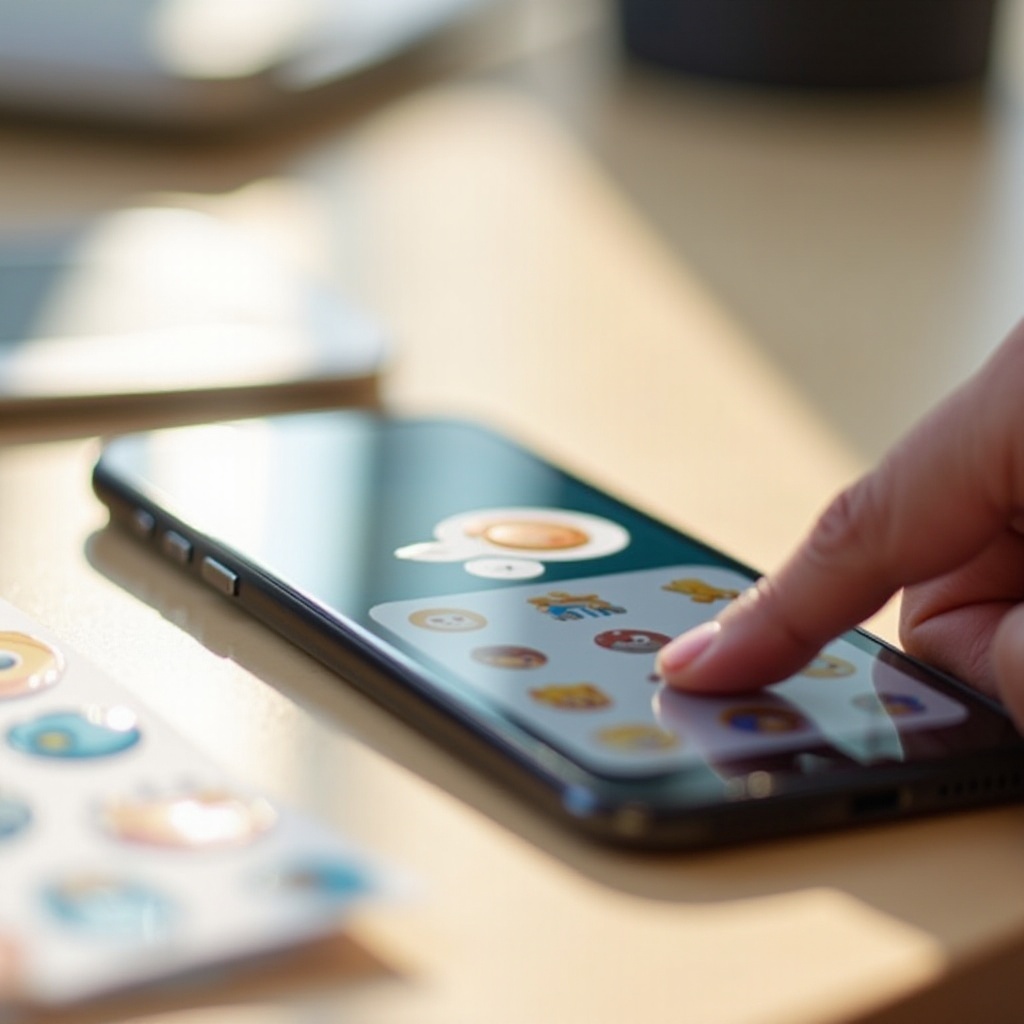
What iPhone Stickers Means: Messages Stickers, Live Stickers, Memoji, Packs, and Physical Decals
Before you start, define what stickers you want to remove. In Messages, you can drag digital stickers onto a message bubble, photo, or video. These come from installed sticker packs or from Apple Memoji and emoji sticker sets. You can also create Live Stickers from your photos; they appear in the sticker drawer and work like any other sticker. Some users call Tapbacks stickers, but Tapbacks are reactions like a heart or thumbs up. Outside of Messages, stickers might be physical decals on a case, screen protector, or the phone body itself. Each type needs a different approach.
Now that the types are clear, the next section focuses on the fastest way to peel a sticker off a single message bubble or media item. After that, you will remove reactions, manage packs, disable Memoji stickers, control sync and storage, and finally tackle real world adhesive.
Quick Steps: Remove a Sticker from a Message Bubble in the Messages App
When a sticker covers a message bubble or media in a conversation, you can usually remove your own sticker in seconds. Most options appear when you long press the sticker overlay. If you do not see Remove, Sticker Details can help you manage individual stickers in the thread.
Do this:
1) Open Messages and go to the conversation.
2) Find the message with the sticker attached.
3) Touch and hold the sticker until a menu appears.
4) If you see Remove, tap it to delete your sticker from that bubble.
5) If Remove is not visible, tap Sticker Details. In the list, find your sticker entry, then swipe left and tap Delete or tap and hold to reveal Delete.
Helpful notes:
– You can only remove stickers you added. You cannot delete someone else sticker from their message.
– If multiple stickers stack on one bubble, repeat the steps for each sticker.
– For media in a chat, the same long press actions apply; you remove the overlay, not the entire photo or video.
You now know how to clear a single overlay. The next task is to take back sticker reactions that sit on a message without covering it.
Remove a Sticker You Placed on a Photo or Video in Messages
Stickers can sit on top of a photo, video, or GIF you sent or received. If you added the sticker, you can remove it without changing the original image. The process matches bubble removal and focuses on your own overlays.
Try this:
1) Open the conversation and scroll to the media item.
2) Touch and hold the sticker on the image until a menu appears.
3) Tap Remove. If Remove is not shown, choose Sticker Details, find the sticker entry for that media item, then delete it.
Keep in mind:
– Removing a sticker does not alter the image file itself. It only clears the overlay in the thread.
– If someone else added the sticker, you cannot delete it. Ask them to remove it or send a clean copy.
– If you sent the image with stickers flattened by a third party editor, you cannot peel them off; instead, send or request the original.
You have handled overlays on messages and media. Next, undo quick reactions and stand alone sticker sends to keep threads accurate.
Unsend or Delete a Sticker Reaction in a Conversation
If you attached a sticker as a reaction to a message, you can take it back. The process differs from removing a sticker overlay but still takes a few taps.
Do this:
1) Open Messages and find the message with your sticker reaction.
2) Touch and hold the sticker or the message to bring up options.
3) If the sticker is a standard Tapback such as heart or thumbs up, tap the same reaction again to remove it.
4) For a sticker reaction from a pack or a Live Sticker, touch and hold the sticker and look for Remove. If not visible, open Sticker Details and delete your sticker entry.
Important notes:
– You can remove your own reactions. You cannot remove other people reactions.
– If you sent a sticker as a standalone message, you may unsend it within Apple time limit. After that, you cannot unsend, but you can delete the message on your device.
Reactions are sorted. To prevent future clutter, the next step is to manage the source of many stickers: packs and iMessage apps in the app drawer.
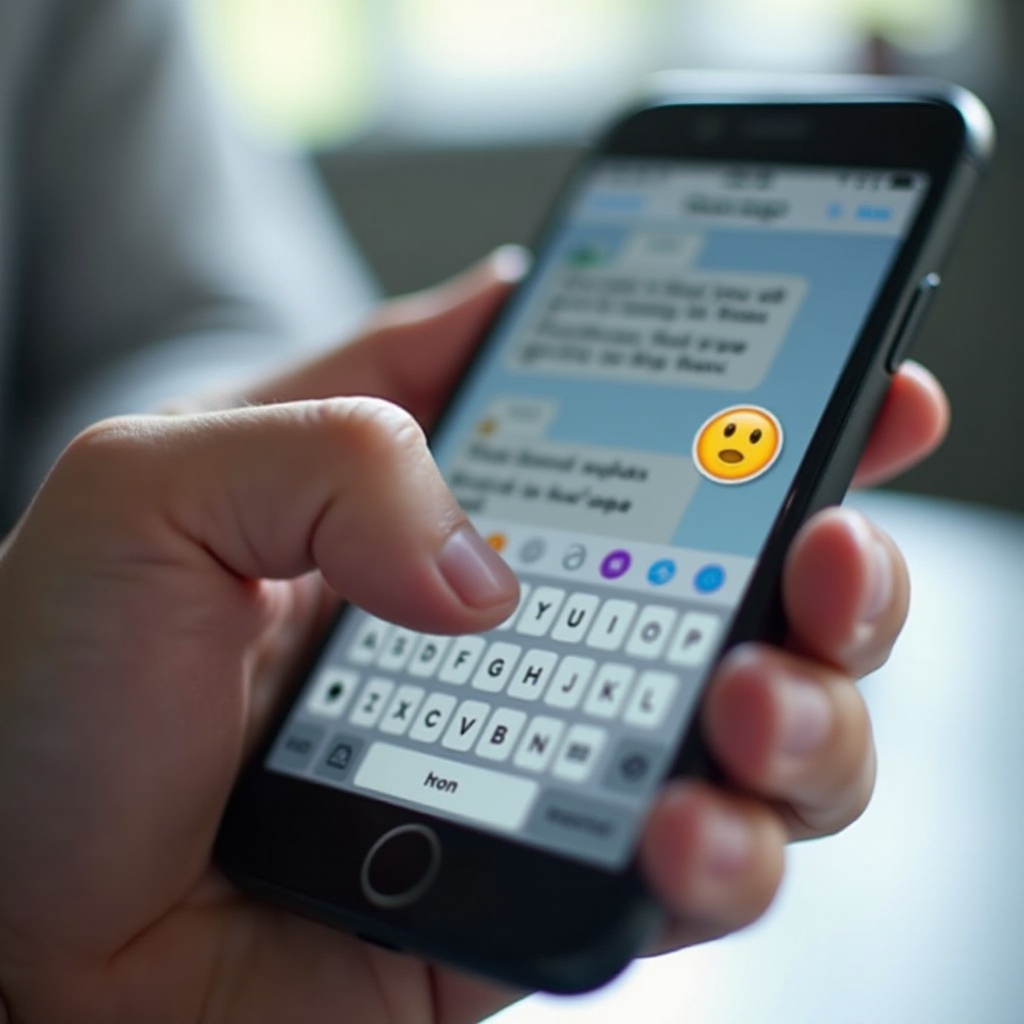
Hide, Reorder, or Delete Sticker Packs from the Messages App Drawer
Sticker packs live in the Messages app drawer alongside apps like Photos, Music, and Apple Cash. Hiding or deleting packs reduces clutter and stops accidental placements. It also makes it easier to find the packs you actually use.
Manage the app drawer:
1) Open Messages and a conversation.
2) Tap the plus button or the App Store icon to open the drawer.
3) Tap and hold a sticker app to drag and reorder. Place favorites first.
4) Tap More or Manage to see all iMessage apps. Toggle off sticker packs you do not want to show.
Remove sticker packs you do not use:
– From the Home Screen, press and hold the sticker app icon if present, then tap Remove App and choose Delete App. This removes the pack and frees storage.
– In Settings > General > iPhone Storage, locate the sticker app, then Offload App or Delete App.
– If a pack came bundled with an app, remove the host app to remove its stickers.
Tip: Hidden packs can still update and stay available for quick re enable. Delete them entirely if you want them gone across app lists.
With the app drawer under control, your next move is to clean up the custom Live Stickers that you created from your photos.
Remove or Clean Up Your Custom Live Stickers from the Sticker Drawer
Live Stickers you make from your photos appear in the sticker drawer and Recents. If your drawer feels crowded, delete the ones you no longer use and tidy up Recents. This keeps your favorite stickers easy to find.
Try this:
1) Open Messages and any conversation.
2) Tap the sticker button to open the drawer, then go to your Live Stickers collection.
3) Touch and hold a Live Sticker until a menu appears, then tap Delete to remove it from your library.
4) To clear clutter, switch to Recents. Touch and hold any item and choose Remove from Recents if available. Placing new stickers will gradually push old ones out of Recents.
Good to know:
– Live Stickers sync to your devices signed in with your Apple ID. Deleting a Live Sticker usually removes it everywhere after sync.
– If a sticker will not delete, restart your iPhone and try again, or update iOS to the latest version.
Live Sticker cleanup helps the drawer, but suggestions can still pop up on the keyboard. The next section stops Memoji and sticker prompts where you type.
Turn Off Memoji Stickers on the Keyboard and Disable Sticker Suggestions in Predictive Text
If Memoji and emoji stickers crowd your emoji keyboard or appear as suggestions, you can shut them off to streamline typing. This change reduces distraction and speeds up message entry.
Turn off Memoji Stickers:
1) Go to Settings > General > Keyboard.
2) Turn off Memoji Stickers. This removes Memoji and Animoji sticker tabs from the emoji keyboard.
Reduce sticker suggestions:
– Turn off Predictive in Settings > General > Keyboard if you do not want text or sticker suggestions above the keyboard.
– In Messages, avoid opening the sticker drawer to keep the suggestion system from prioritizing stickers.
– If a third party keyboard shows sticker suggestions, open that keyboard app and disable stickers there.
Bonus tips:
– Reset the keyboard dictionary in Settings > General > Transfer or Reset iPhone > Reset > Reset Keyboard Dictionary to clear learned content that triggers sticker suggestions.
– If you miss Memoji later, re enable the toggle and the sticker tab returns instantly.
With suggestions reduced and Memoji hidden, you have software clutter under control. Now you should manage how much space sticker apps use and how they sync to other Apple devices.
Manage Sticker Storage and Cross Device Sync with iCloud
Sticker packs are iMessage apps. They use storage like any app, and they can appear on your other Apple devices signed in with the same Apple ID. Live Stickers and some sticker metadata also sync, so changes propagate across your devices.
To control storage:
1) Open Settings > General > iPhone Storage.
2) Find large sticker apps. Offload App to keep documents and data but free the app binary, or Delete App to remove it completely.
3) In Messages > Photos > Manage, review large attachments. Stickers are small, but clearing old media reduces overall thread size and improves performance.
To control sync:
– Deleting a sticker pack app on your iPhone does not automatically delete the same app on your iPad or Mac. Remove it on each device.
– Live Stickers typically sync across devices. If a deleted Live Sticker reappears, toggle Airplane Mode briefly or restart to force a sync refresh, then delete again.
– If you prefer to keep stickers local, avoid installing the same sticker apps on multiple devices and disable automatic app downloads in Settings > App Store.
When the software side is streamlined and synced, you can turn attention to the physical realm and remove real world decals without damage.
Safely Remove Physical Stickers and Adhesive Residue from Your iPhone (Tools, Steps, What Not to Use)
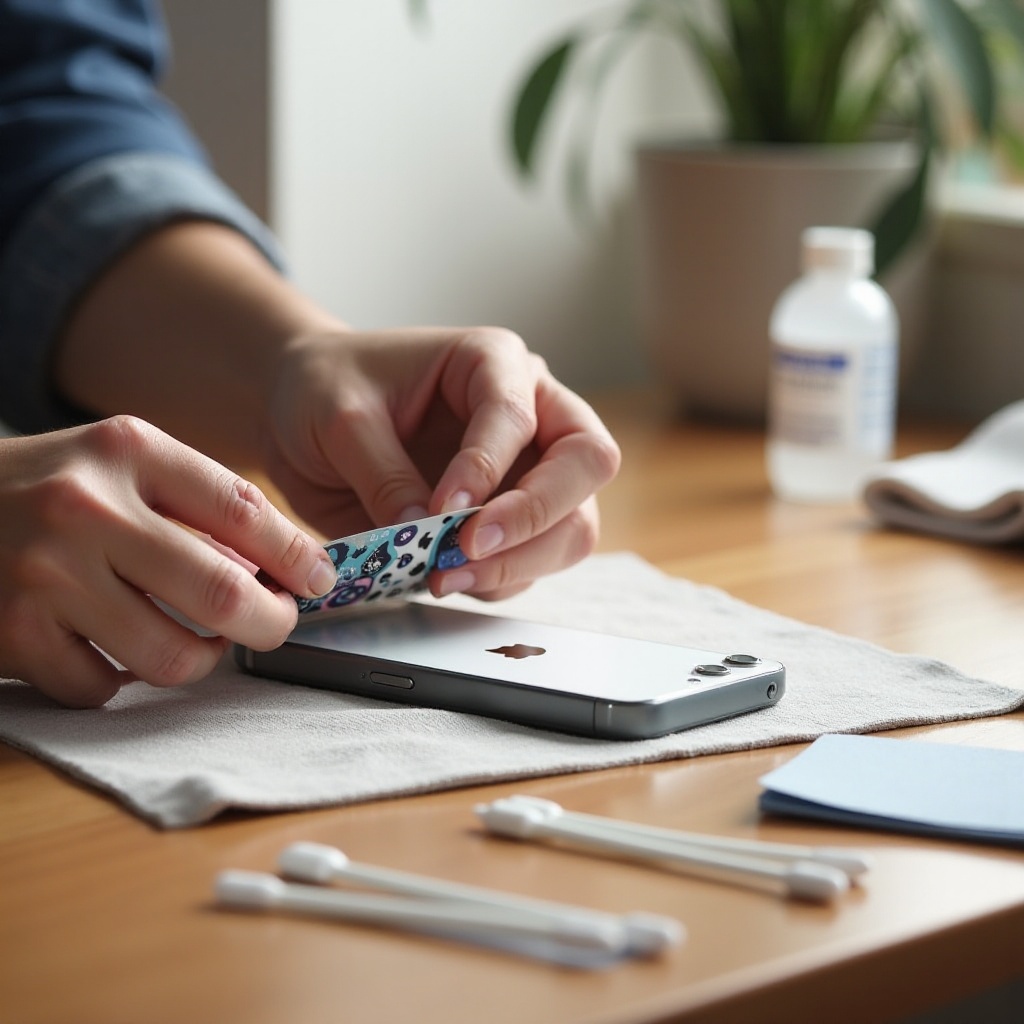
Physical decals can cling to the glass back, a case, or even a screen protector. The main risks are scratching, overheating, and stripping the oleophobic coating. Work slowly and use gentle tools to avoid damage.
Gather safe tools:
– Microfiber cloths
– Plastic card or guitar pick
– Dental floss unwaxed or thin fishing line
– Hair dryer on low or a heat gun set to very low
– 70–90 percent isopropyl alcohol IPA
– Optional: phone safe adhesive remover citrus based, used sparingly on a cloth
– Cotton swabs and masking tape
Prepare the phone:
1) Power down the iPhone.
2) Uncase it and remove any MagSafe accessories.
3) Keep heat and liquids away from ports and speakers. If possible, place a small strip of masking tape over the Lightning or USB C port and speaker holes.
Lift the sticker:
1) Warm the sticker for 10 to 20 seconds on low heat. Move constantly and keep the nozzle several inches away.
2) Slide a plastic card under a corner. If there is no gap, use dental floss: saw gently under the edge to separate adhesive from the surface.
3) Peel slowly at a low angle. Apply short bursts of gentle heat if resistance increases.
Remove adhesive residue:
– Start with a dry microfiber cloth and slow, circular rubbing.
– If residue remains, dampen the cloth with a few drops of 70 to 90 percent IPA and wipe lightly. Keep liquids off edges and ports.
– For stubborn spots on cases not the phone body, apply a tiny amount of adhesive remover to a cloth, wipe, then clean with a damp cloth and dry.
Surface specific guidance:
– Glass back and front: IPA is generally safe in small amounts. Do not soak. Keep heat brief to protect seals.
– Aluminum edges: Use minimal liquid and avoid scraping. Finish with a dry buff.
– Screen protectors: Lift stickers off with floss and clean residue on the protector, not the screen. Replace the protector if damaged.
– Leather cases: Skip alcohol and citrus removers. Use a leather cleaner or warm air plus gentle peeling.
– Silicone and clear TPU cases: IPA is usually fine. Test a small spot first to avoid haze.
What not to use:
– No acetone, paint thinner, or abrasive pads.
– No metal blades on the phone.
– No prolonged high heat.
Aftercare:
– Wipe the area with a clean, slightly damp cloth, then dry.
– If the screen feels less oleophobic, let natural skin oils restore feel over time. Do not apply household coatings.
– Reinstall the case and accessories once fully dry.
With physical decals gone, there are still edge cases that can trip you up. The troubleshooting section below resolves common snags.
Troubleshooting and Safety Tips: When Stickers Will Not Delete, Hidden Packs Reappear, or Residue Persists
If Remove does not appear on a sticker in Messages, check who placed it. You can only remove your own. Tap Sticker Details to confirm and delete your entry from the list. If the sticker remains, force quit Messages, restart the iPhone, and try again. Update iOS for the latest sticker features and bug fixes.
If hidden packs keep returning to the drawer, you probably toggled them off instead of deleting them. Delete the underlying sticker app from the Home Screen or iPhone Storage. Also check that the same pack is not reinstalling from your purchases via automatic downloads. Toggle off App Downloads in Settings > App Store if needed.
If the sticker drawer is missing or crashes, reset the app drawer by opening More and re adding apps. If that fails, sign out and back into your Apple ID after a backup. You can also reset all settings as a last resort; this does not erase content but resets system settings.
For adhesive that will not budge, rewarm gently and switch to floss to reduce pulling force. If residue persists, apply IPA again with a clean cloth and patience. On leather or rare finishes, consult a professional before using any solvent. When in doubt, visit an Apple Store or a trusted repair shop.
These fixes close the loop. With removal steps done and backup plans ready, you can keep both software and hardware clean without hassle.
Conclusion
You have several ways to remove iPhone stickers, and each one works best in a specific place. In Messages, long press to remove your overlays, unsend within the allowed window, and manage your packs to keep the app drawer clean. In the keyboard, disable Memoji Stickers and turn off Predictive to stop sticker prompts. For physical decals, lift with low heat, peel slowly, and clear residue with a gentle solvent on a cloth. Avoid harsh chemicals and metal tools. Put these methods together and you will keep chats tidy, the keyboard focused on text, and your phone free of glue. If a step fails, use the troubleshooting tips to reset, update, or try a different tool. Take your time, and you will protect your device look and function while clearing every sticker.
Frequently Asked Questions
Will someone be notified if I remove or unsend a sticker in Messages?
Removing a sticker you placed on a bubble does not send a notification. It simply disappears from that message on everyone devices after sync. Unsending a standalone sticker message follows the same rules as unsending texts and only within Apple time limit. You cannot remove someone else sticker.
If I delete a sticker pack on my iPhone, will it disappear on my iPad or Mac too?
No. Sticker packs are iMessage apps and installs are device specific. If you delete a pack on your iPhone, it will not automatically delete on your iPad or Mac. Remove it on each device. If you only hid a pack in the app drawer, it still exists and may update.
Is isopropyl alcohol safe for removing adhesive from my iPhone without damaging the coating?
Used sparingly on a cloth, 70 to 90 percent isopropyl alcohol is generally safe for glass and metal on iPhone. Keep liquids away from ports and seams, avoid soaking, and never pour IPA directly on the device. Do not use alcohol on leather cases; use a leather cleaner instead.