
Introduction
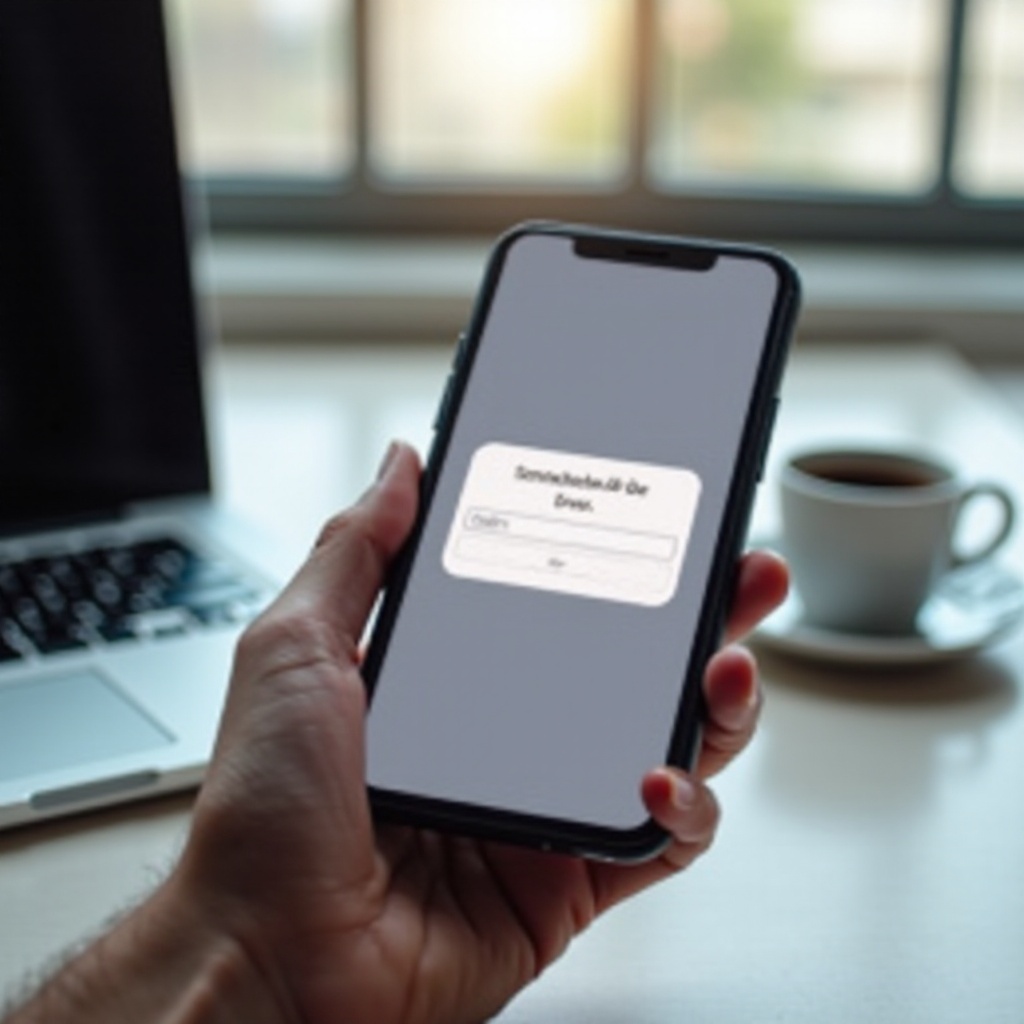
Seeing an ‘X app login error’ pop up on your phone when you just want to check your feed or messages is annoying and confusing. Sometimes the app refuses your password. Other times it throws a vague ‘Something went wrong’ message with no clue what to do next.
This guide walks you through clear, practical steps to fix X app login errors on both Android and iPhone. You will learn how to:
- Check if the problem is on X’s side or your device
- Fix app issues on Android and iOS
- Solve account, 2FA, and network conflicts
- Know when you must contact X support
Follow the sections in order. Start with quick checks, then move to deeper fixes. By the end, you should understand the cause of your login error and how to prevent it from happening again.
What Is the ‘X App Login Error’ on Phones?
The phrase ‘x app login error’ covers several different problems that all block access to your account from the mobile app. You might see messages such as:
- ‘Something went wrong. Try again.’
- ‘Unable to log in.’
- ‘Login failed.’
- Endless loading spinners after entering your details
- Security or verification prompts that keep looping
These errors fall into four broad groups:
- Service problems on X’s side – outages, maintenance, or server bugs.
- App or device issues – corrupt cache, outdated app version, or OS problems.
- Account and security problems – wrong password, locked account, or 2FA issues.
- Network and privacy conflicts – VPN, firewall, DNS, or unstable connection.
Understanding which group your issue belongs to helps you choose the right fix faster. The next section starts with the simplest question: is X itself having a problem right now, or is the issue on your phone?
Check If X Is Down Before Troubleshooting
Before you spend time changing settings on your phone, you should confirm whether the X service is working at all. If X is down, no amount of cache clearing will fix your login.
How to Check X Service Status in 2024
Start with X’s own channels:
- Open a browser and go to X’s official status or help pages.
- Look for recent updates about outages or login issues.
- Check for alerts in banners inside the app if you are still logged in on another device.
If X reports an active incident, your best move is to wait until they resolve it. Continuing to try logging in may even trigger temporary security blocks on your account.
Using Outage Trackers and Social Channels
When official pages seem quiet, you can:
- Visit popular outage tracking sites that show user reports for X.
- Search ‘X down’ or ‘x app login error’ on X itself from a different account or device.
- Look for spikes in complaints from users in your region.
If many people report login errors at the same time, the issue likely sits with X servers, not your phone.
Testing X on Another Device or Browser
Try these checks:
- Log into X from a desktop browser.
- Log into X from a different phone on the same network.
- Log into X through your phone’s browser instead of the app.
If you can log in elsewhere but not on the app, the problem is likely your phone or the app itself, not X’s servers. If the error appears everywhere, wait for X to fix the issue. When you are sure the service is up, move on to basic checks on your device.
Basic Checks: Credentials, Connection, and Device Restart
Once you know X is online, run through a few fast checks that solve many login problems without deeper tweaks. These steps are simple but often overlooked.
Confirm Username, Email, and Password
Small typos cause a lot of ‘x app login error’ cases. Take a moment to:
- Carefully re-enter your username, email, or phone number.
- Type your password slowly and check for:
- Caps lock issues
- Extra spaces before or after the password
- Auto-fill inserting an old password
- If you are unsure, tap ‘Forgot password?’ and reset it.
After resetting, try logging in again from the app with the new password. If the app still rejects a known-good password, the problem likely relates to the app itself, your connection, or your account security.
Test Wi‑Fi vs Mobile Data on Your Phone
Weak or unstable connections often block login and make the app show generic errors:
- If you are on Wi‑Fi, turn Wi‑Fi off and try using mobile data.
- If you use mobile data, turn Wi‑Fi on and connect to a stable network.
- Avoid public Wi‑Fi with captive portals until after you have authenticated on X.
If X works on one type of connection but not the other, your network or router might be at fault. In that case, restart your router or contact your provider. If the connection looks fine, try a simple restart of your phone.
Restart Your Phone and Relaunch X App
A simple restart can clear temporary glitches that cause login issues:
- Close the X app fully.
- Restart your phone using the power menu.
- Open X again and try logging in.
If the login error still appears, you need deeper app-level troubleshooting. The next two sections explain fixes tailored for Android and iPhone so you can address device-specific problems.
Fix X App Login Error on Android Phones
When the error only affects Android, you likely face an issue with the X app, its cached data, or the Android system environment. Work through these changes from least to most disruptive.
Force Close and Reopen the X App
Force closing removes the app from memory and resets the current session:
- Open Settings > Apps (or Apps & notifications).
- Find X in the list and tap it.
- Tap Force stop, then confirm.
- Open X again and try logging in.
If that does not work, move on to clearing cache and data to remove corrupt local files.
Clear X App Cache and Storage on Android
Corrupt cache often triggers recurring login errors and display glitches:
- Go to Settings > Apps > X.
- Tap Storage & cache (wording may vary by brand).
- Tap Clear cache first and test login.
- If that fails, tap Clear storage or Clear data.
Clearing data will log you out of the app and reset local settings, but it will not delete your account on X or remove your posts and followers from the platform.
Update or Reinstall X from Google Play Store
An outdated or broken installation can block login, especially when X releases new security or login flows:
- Open the Google Play Store.
- Search for X.
- If you see Update, tap it.
- If the app is already up to date, uninstall it, restart your phone, then install it again.
Reinstalling replaces corrupt files and often resolves persistent ‘x app login error’ issues that cache clearing alone does not fix.
Check Android System Updates and App Permissions
Some login flows require proper system support and permissions:
- Go to Settings > System > System update and install available updates.
- Under Settings > Apps > X > Permissions, ensure X can access:
- Network (usually handled automatically)
- Storage, if needed for media uploads
- Notifications, if you expect alerts or codes
If Android is up to date and permissions look correct but the error continues, the root cause may not be Android-specific. Comparing your experience with the iOS steps can help you understand whether the problem is with your device or with your account and security settings.
Fix X App Login Error on iPhone (iOS)
If you use an iPhone and see a persistent ‘x app login error’, the cause is often an outdated app, cached data, or iOS restrictions that silently block parts of the login flow.
Force Quit and Reopen X on iPhone
Force quitting refreshes the app session and can clear minor glitches:
- Swipe up from the bottom of the screen and hold, or double-press Home on older devices.
- Find the X app card.
- Swipe it up to close.
- Reopen X and try to log in.
If the error shows again, proceed to updating or reinstalling the app to rule out version issues.
Update or Reinstall X from the App Store
To update the app:
- Open the App Store.
- Tap your profile icon.
- Scroll to see if X appears under Available Updates.
- Tap Update if it does.
To reinstall the app:
- Touch and hold the X app icon on your Home Screen.
- Tap Remove App > Delete App.
- Open the App Store, search for X, and install it again.
Reinstalling ensures you run the latest stable version designed for 2024, which often fixes login bugs and compatibility problems with newer iOS versions.
Manage Storage, Offloaded Apps, and Background Refresh
Low storage or offloading can interfere with app behavior and network calls:
- Go to Settings > General > iPhone Storage.
- Check if X shows as ‘Offload App’. If so, reinstall it fully.
- Ensure you have enough free space for app data and updates.
For background activity:
- Go to Settings > General > Background App Refresh.
- Make sure X is allowed if you want stable sync and notifications.
If storage and background settings look good, check for system-level rules that might restrict access during login.
Check iOS Updates, Screen Time, and Profile Restrictions
System-level rules can silently block parts of the login process:
- Go to Settings > General > Software Update and install new iOS updates.
- Under Settings > Screen Time > Content & Privacy Restrictions, make sure:
- App restrictions do not block X.
- Web content filters are not too strict.
- Check Settings > General > VPN & Device Management for any profiles that might restrict network access for apps.
If app-level fixes on Android or iOS do not solve the login error, the root cause may be your account security configuration rather than the app itself. The next section covers those account-level issues.
Account and Security Issues That Cause X App Login Errors
Sometimes the app works fine, but X blocks or questions your login for safety reasons. These issues feel like generic app errors but come from the account side. Solving them requires you to prove you own the account and to review your security settings.
Wrong Password, Locked, or Restricted Account
If you enter the wrong password too many times, X may:
- Temporarily lock the account
- Require extra verification steps
- Show generic login failures instead of clear warnings
To address this:
- Use the Forgot password? option and follow the steps.
- Check your email or SMS for security notices from X.
- If X flags your account for policy reasons, follow the instructions in their message or help center.
If you recently changed your email or phone, make sure you use the most recent details when resetting your password.
Two‑Factor Authentication (2FA) Problems on Mobile
2FA protects your account but can cause login errors when:
- You change phone numbers and lose SMS access.
- You delete or reset an authenticator app.
- Your device time is out of sync with X’s servers.
To fix 2FA issues:
- Make sure your phone’s date and time are set to automatic.
- Confirm that your authenticator app is installed and working.
- If you cannot access codes, use backup codes or recovery methods you saved earlier.
If you still cannot get in, you may need to contact X support and verify your identity through their recovery process.
Resetting Password and Recovering Access Safely
When you are locked out and suspect a security issue:
- Start a password reset from the app or a browser.
- Use the email or phone number tied to your X account.
- Create a strong new password and store it in a trusted password manager.
After you regain access, review your account security settings and confirm that your recovery email and phone are up to date. If account and security checks do not fix the login error, the next place to look is your network and privacy tools.
Network, VPN, and Privacy Settings Blocking X Login
Modern phones often run VPNs, ad blockers, and firewalls in the background. These tools protect your privacy but can also break the communication between the X app and its servers, causing repeated errors.
Disable VPN, Proxy, and Private DNS Temporarily
If you use a VPN or custom DNS:
- Go to your phone’s VPN settings and turn the VPN off.
- If you changed DNS to a custom provider, switch back to automatic.
- Try logging into X again.
If the login works without VPN, adjust VPN settings or choose a different server or provider. Some VPN IP ranges trigger extra security checks or blocks on X.
Turn Off Data Saver, Battery Saver, and Firewalls
Aggressive savings modes and security apps can cut data or block background access:
- On Android, check Settings > Network & Internet > Data Saver and allow background data for X.
- On both Android and iPhone, turn off any app-level firewalls or security apps temporarily.
- Disable Battery Saver or Low Power Mode while testing login.
If X works with these tools disabled, you need to whitelist X in those apps or reduce their strictness so they stop interfering with login.
Reset Network Settings on Android and iPhone
When all else fails on the network side, a full network reset can clear hidden conflicts:
- On Android, go to Settings > System > Reset options > Reset Wi‑Fi, mobile & Bluetooth.
- On iPhone, go to Settings > General > Transfer or Reset iPhone > Reset > Reset Network Settings.
This removes saved Wi‑Fi networks, Bluetooth pairings, and custom DNS, so you must reconnect, but it often clears hidden network conflicts that cause the x app login error. After you fix network issues, it helps to understand what specific error messages mean so you can react faster next time.
Common X App Login Error Messages Explained
By now, you have covered service status, basic device fixes, Android and iOS adjustments, account checks, and network resets. Mapping specific error messages to likely causes helps you choose the right fix if the problem returns.
‘Something Went Wrong, Try Again’
This vague message usually points to:
- Temporary server issues on X’s side
- Network instability or timeouts
- App cache or version conflicts
Try these steps in order:
- Check X’s status page and try again in a few minutes.
- Switch between Wi‑Fi and mobile data to test your connection.
- Clear the app cache on Android or reinstall the app on Android or iOS.
‘Unable to Log In’ or ‘Login Failed’
These errors usually mean:
- Wrong username, email, or password
- Locked or restricted account
- Two-factor authentication issues
Respond by:
- Carefully re-enter your credentials.
- Use password reset if needed.
- Confirm 2FA codes, recovery options, and device time settings.
Captcha, Verification Loops, and Security Prompts
When you see repeated security prompts during login:
- X suspects unusual activity or location changes.
- Your IP from a VPN or proxy looks suspicious.
To fix these loops:
- Disable VPN, proxies, and private browsers for the login attempt.
- Complete the security check once on a stable, trusted network.
- Verify your email and phone so X trusts your account more.
If similar errors persist even after following these guidelines, X support may need to review your account in more detail.
When to Contact X Support About Login Errors
After you try the main device, account, and network fixes, and the x app login error still blocks you, X support must review your case from the server side. Contact them when you suspect an account lock, a policy restriction, or a bug that only they can see.
What Details to Prepare for X Support
Before you contact support, prepare:
- Screenshots of the exact error message and any codes shown
- Your device model and OS version (Android or iOS)
- The X app version installed
- A short list of steps you already tried, such as cache clear, reinstall, and network reset
These details help support diagnose your issue faster and reduce back-and-forth messages. Clear information shortens the time it takes to restore your access.
Using In‑App Help Center vs Web Support Forms
If you are logged into another device:
- Open the X app, go to Settings & Support > Help Center, and file a report.
If you cannot log in anywhere:
- Visit X’s support site from a browser.
- Use account recovery forms or report a login issue using the email tied to your account.
Keep an eye on your inbox for responses and follow instructions carefully. While you wait, you can also review best practices that reduce the chance of future login errors.
How to Prevent Future X App Login Errors on Your Phone
Once you fix the current login problem, you should take a few steps to lower the chance of the same error returning. Good maintenance saves time and keeps your X experience smoother.
Keep Apps and OS Updated Automatically
- Turn on automatic updates for X in Google Play Store or App Store.
- Enable system updates where possible so Android or iOS stays current.
New versions often fix bugs that cause login and connection failures, and they keep you aligned with X’s latest security requirements.
Manage Security Tools Without Blocking X
- Whitelist X in VPN, firewall, ad blocker, and security apps.
- Avoid stacking too many network-modifying tools at once.
- Test X after any major security app change so you spot problems early.
Balancing security tools with app access helps you protect your privacy without running into constant ‘x app login error’ messages.
Best Practices for Passwords and 2FA in 2024
- Use a unique, strong password for X and store it in a password manager.
- Enable 2FA and keep backup codes in a secure place offline.
- Update recovery email and phone whenever they change.
These steps protect your account and cut down on security-related login blocks. With prevention in place, you can focus on using X instead of fighting your way past the login screen.
Conclusion
An ‘x app login error’ on your phone can come from many places: X’s servers, your app, your account, or your network. By checking service status first, then moving through basic device steps, Android or iOS fixes, account security checks, and network resets, you can usually track down and solve the problem yourself.
Keep your app, system, and security tools well configured, and follow password and 2FA best practices. With this approach, you will spend more time using X and less time staring at login errors and spinning wheels.
Frequently Asked Questions
Why does X app show a login error on my phone but works on desktop?
When X works on desktop but not on your phone, the problem is usually local to the device. Common causes include corrupt app cache, an outdated app version, or VPN, firewall, and DNS settings on the phone. It can also be related to iOS or Android permissions and restrictions. Try updating or reinstalling the X app, turning off VPN and security tools, checking data saver or low power modes, and resetting network settings. If the desktop also fails later, check X’s service status for outages.
Will reinstalling X app delete my account or data?
Reinstalling the X app does not delete your X account or the content stored on X’s servers. It only removes the app and its local data from your phone. After reinstalling, you must log in again with your username and password, and complete 2FA if you enabled it. As long as you know your login details and still have access to your email, phone number, or authenticator app, your account, posts, and followers remain safe.
What should I do if I can’t receive X verification codes on my phone?
If verification codes from X do not arrive, start by confirming your phone number is correct in your X account settings. Then check your signal strength, disable airplane mode, and temporarily turn off VPN or Wi‑Fi calling. Restart your phone and request a new code. If you still cannot get codes, use backup codes or an authenticator app if you set one up earlier. When all of these options fail, contact X support and use your registered email to request help updating your 2FA settings or recovery options.