
Introduction
Emergency SOS on iPhone can be a lifesaver, but it can also cause real problems if it activates by mistake. Many users report their iPhone calling 911 from a pocket, a tight bag, or while kids play with the buttons. If that sounds familiar, you are not alone.
This guide explains how to turn off Emergency SOS on iPhone, how to reduce accidental triggers, and how to understand the ‘SOS’ label you sometimes see in the status bar. You will learn the differences between newer iPhones like iPhone 15 and older models with a Home button, and how each handles Emergency SOS.
You will also see how to keep key safety features, such as emergency contacts and Medical ID, even if you disable automatic emergency calls. The goal is simple: stop unwanted SOS calls while keeping enough protection for real emergencies.
To make smart changes to your settings, you first need a clear picture of what Emergency SOS actually does when it activates.
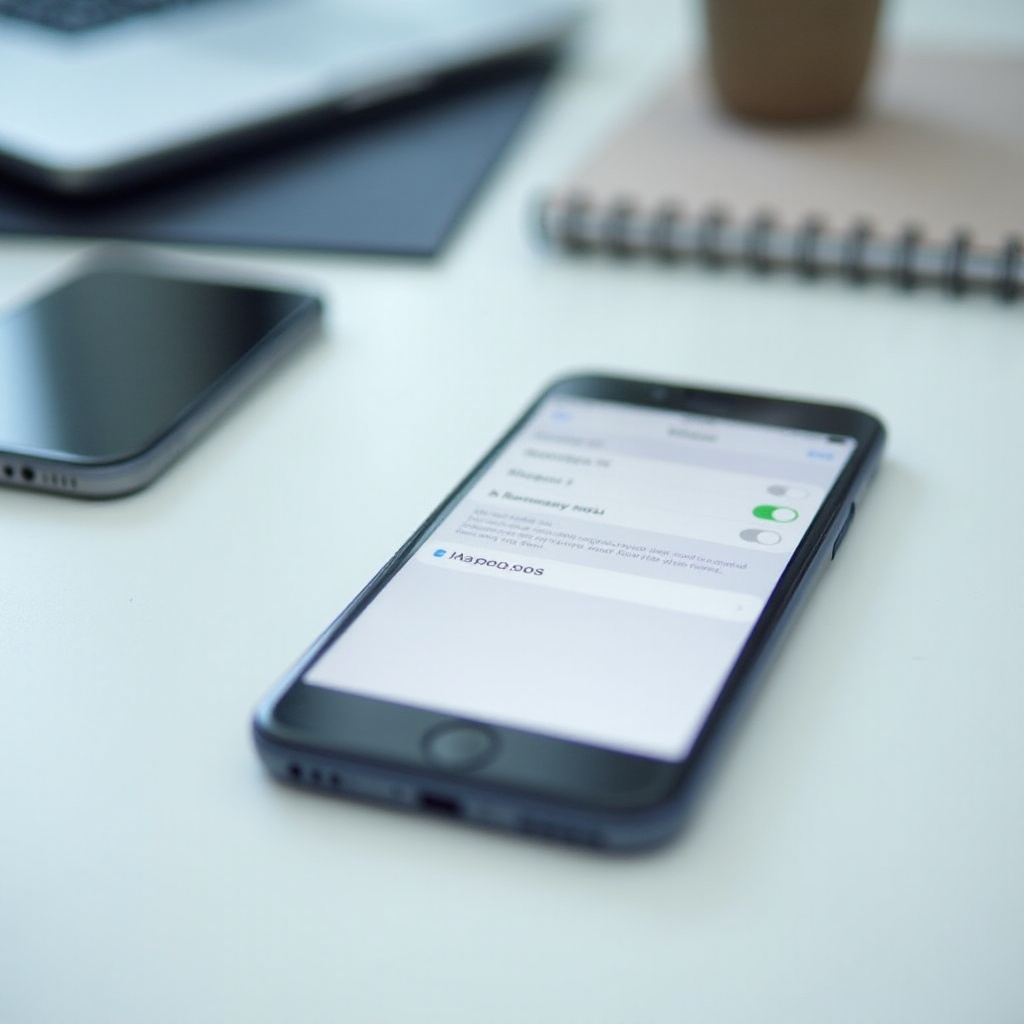
What Emergency SOS on iPhone Actually Does
Emergency SOS is Apple's built-in safety feature that lets you contact emergency services quickly and discreetly. When you trigger it, the iPhone starts a countdown and then calls the local emergency number, such as 911 in the United States. On many models, it can also alert your emergency contacts with a text message and share your location.
Here is what typically happens when you activate Emergency SOS:
- A countdown appears on the screen for a few seconds.
- A loud countdown sound may play, depending on your settings.
- The iPhone automatically calls emergency services when the countdown ends.
- After the call ends, your iPhone can send your current location to your emergency contacts.
- Your iPhone may update your location for a period of time if you move so contacts can track you.
On supported models, you might also see options like:
- Crash Detection, which can detect a severe car crash and call for help.
- Emergency SOS via satellite, which helps send a message to emergency services when there is no cellular or Wi‑Fi coverage.
These features aim to help in real emergencies, but they also mean the device reacts quickly, sometimes too quickly. Before turning anything off, you should also understand another common source of confusion: the ‘SOS’ or ‘SOS Only’ label in the status bar.
Key Differences Between Emergency SOS and the ‘SOS’ Status in the Status Bar
Many people search for ‘how to turn off emergency SOS iPhone’ when they see ‘SOS’ or ‘SOS Only’ at the top of their screen. This label, however, does not mean the Emergency SOS feature is active or stuck. It points to a network issue.
Here is the difference:
- Emergency SOS feature: The setting inside your iPhone that controls how it calls emergency services when you press the buttons or use the on-screen slider.
- ‘SOS’ or ‘SOS Only’ in the status bar: A network indicator that shows your phone has no regular cellular service, but can still call emergency numbers.
You cannot remove the ‘SOS’ label by changing Emergency SOS settings. You need to fix cellular connectivity instead. That includes steps like toggling Airplane Mode, restarting your phone, or calling your carrier.
Understanding this difference helps you avoid changing the wrong settings. Now you can move on to adjusting the Emergency SOS options for your specific iPhone model. First, let's handle newer iPhones without a Home button.
How to Turn Off Emergency SOS Auto-Calling on Newer iPhones (iPhone 15, 14, 13, 12, 11)
On newer iPhones with Face ID and no Home button, Apple offers several ways to trigger Emergency SOS with the side button. These shortcuts also happen to be the main cause of false alarms. To reduce or stop them, you can turn off automatic calling while keeping manual SOS if you prefer.
Open the Emergency SOS Settings on Your iPhone
Follow these steps to reach the correct settings:
- Unlock your iPhone.
- Open the Settings app.
- Scroll down and tap Emergency SOS.
You will now see several toggles that control how Emergency SOS works on your device.
Disable ‘Call with Hold and Release’
Newer iOS versions often use ‘Call with Hold and Release’, which calls emergency services when you press and hold the side button and a volume button together, then release after the countdown.
To turn it off:
- In Settings > Emergency SOS, find Call with Hold and Release.
- Toggle it off.
This change prevents your phone from calling emergency services just because you held the side button and volume buttons together for a few seconds.
Disable ‘Call with 5 Button Presses’
Another option lets you trigger Emergency SOS by pressing the side button five times quickly. This is easy to activate by mistake, especially when the phone is in a tight pocket or a bag.
To disable it:
- In Settings > Emergency SOS, find Call with 5 Button Presses.
- Toggle it off.
Disabling both ‘Call with Hold and Release’ and ‘Call with 5 Button Presses’ stops automatic SOS calls from button presses, but you can still swipe the on-screen Emergency SOS slider if needed.
Adjust Countdown Sound and Other Options
You can also tweak related options to reduce stress and noise:
- Countdown Sound: Turn this off if you want to keep SOS available but avoid loud alerts that draw attention.
- Call After Serious Crash (on supported models): If you disable this, your phone may not automatically call emergency services after detecting a severe crash. Think carefully before turning this off.
After you adjust these settings, press your buttons briefly to confirm your iPhone no longer starts the SOS countdown by accident. If you have an older iPhone with a Home button, the next steps differ slightly and need a separate approach.
How to Turn Off Emergency SOS Auto-Calling on iPhone SE and Other Models with a Home Button
Older iPhones and some iPhone SE models use a slightly different Emergency SOS system. They still allow fast access to emergency services, but the options have other names and behaviors. The idea is the same: you control which button presses trigger an automatic call.
Access Emergency SOS Settings on Older iPhones
To open the Emergency SOS settings:
- Unlock your iPhone.
- Open the Settings app.
- Tap Emergency SOS.
You will see options like Auto Call, Call with 5 Presses, and potentially a countdown or sound option.
Turn Off Auto Call and Adjust the Countdown
To stop your iPhone from automatically calling emergency services:
- In Settings > Emergency SOS, locate Auto Call.
- Toggle Auto Call off.
If you see Call with 5 Presses, you can toggle it off as well to avoid triggering SOS by pressing the side button rapidly.
You might also see a Countdown Sound option. If you keep Auto Call on, but turn off the countdown sound, you reduce the noise yet still allow an automatic call if you hold or press the buttons long enough.
Confirm Changes and Test Your Buttons Safely
After you update the settings:
- Lock your iPhone.
- Press the side or top button and volume buttons as you usually do.
- Check whether the Emergency SOS screen appears.
Do not let any countdown finish. If the SOS screen appears, press Cancel right away. Adjust the settings again if your phone still starts the countdown too easily.
Now that you know how to disable or limit Auto Call on both new and old models, you may decide you do not want to turn Emergency SOS off completely. In that case, it makes sense to reduce accidental triggers instead of disabling the feature.
How to Stop Accidental Emergency SOS Triggers Without Turning It Off Completely
Completely turning off Emergency SOS can remove a useful safety backup. A better approach for many people is to keep at least one activation method, but make it harder to trigger by mistake. This helps you avoid false alarms while keeping quick access when you need it.
Change Button Activation Methods Instead of Disabling SOS
Instead of disabling both button options, you can:
- Turn off ‘Call with 5 Button Presses’.
- Leave on ‘Call with Hold and Release’ (or the older hold method on Home button models).
Holding buttons for a few seconds is harder to do by accident than pressing them quickly multiple times. This simple change reduces unwanted calls while keeping one easy way to call emergency services.
Reduce Pocket and Bag Activations
You can also change your habits and accessories to cut down on false triggers:
- Use a case that does not press or pinch the side button constantly.
- Avoid placing your iPhone in tight pockets that squeeze the buttons.
- Lock your screen before putting your phone in a bag or backpack.
- Do not store your phone where children can easily press the buttons repeatedly.
These small steps make it less likely your iPhone will start the SOS countdown without you noticing.
When to Keep at Least One SOS Option Enabled
You may want to keep at least one SOS option active if you:
- Walk or commute alone often.
- Work late or travel in unfamiliar areas.
- Have medical conditions that might need urgent help.
In these cases, configuring the safest minimal setup, rather than turning everything off, can be the best choice. Still, mistakes happen. If the SOS countdown starts, you must know how to cancel it quickly and calmly.
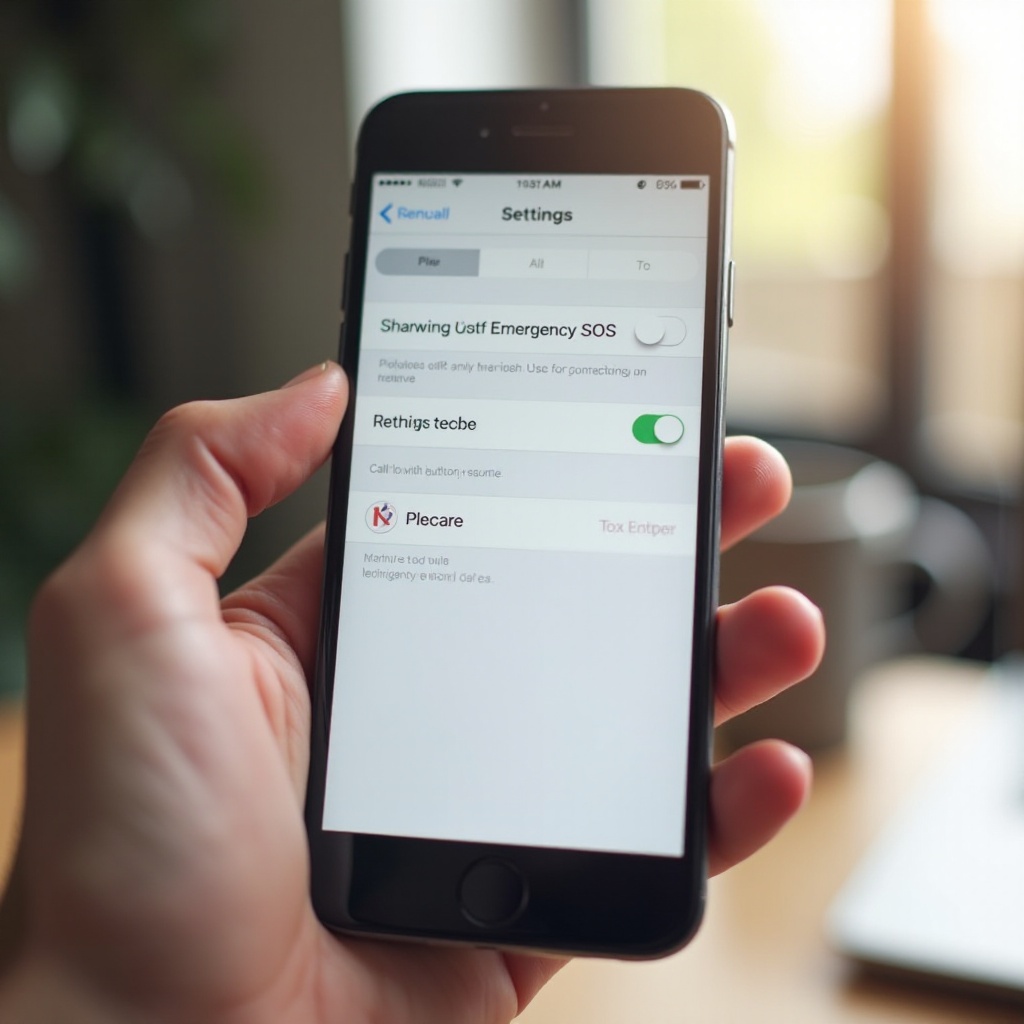
How to Cancel an Emergency SOS Call Once It Starts
Even with careful settings, you might still trigger Emergency SOS at some point. The faster you react, the less likely you are to reach emergency services by mistake. Apple gives you a short window to cancel the action before the call goes through.
Cancel During the Countdown Screen
When the countdown appears:
- Look for a Stop or Cancel button on the screen.
- Tap it right away.
- Confirm you want to stop the call if your iPhone asks.
Canceling during the countdown should prevent any call from reaching emergency services.
End the Call Politely If You Reach Emergency Services
If the call has already connected:
- Do not hang up immediately.
- Explain clearly that the call was accidental.
- Follow any instructions the dispatcher gives you.
Dispatchers prefer that you stay on the line and confirm you are safe instead of hanging up. This helps them avoid sending officers or paramedics to a non-emergency situation.
What Happens After a Canceled SOS Attempt
If you cancel before the call connects, your iPhone may still log the attempt. Depending on your settings, it might also send alerts or partial data to emergency contacts.
If this happens often:
- Review Settings > Emergency SOS again.
- Turn off or change the options that keep triggering.
- Consider adjusting your case or how you carry your phone.
If you see ‘SOS’ or ‘SOS Only’ in the status bar at the same time, that is a different issue, related to your network connection rather than the Emergency SOS feature itself.
Fixing ‘SOS’ or ‘SOS Only’ in the Status Bar (Network Issue, Not a Setting)
When your iPhone shows ‘SOS’ or ‘SOS Only’ in the status bar, it means you have no regular cellular service, but your phone can still call emergency numbers. This indicator does not come from the Emergency SOS settings. It comes from your carrier connection.
Why Your iPhone Shows ‘SOS’ or ‘SOS Only’
Your iPhone may show ‘SOS’ or ‘SOS Only’ if:
- You are outside your carrier's coverage area.
- There is a temporary outage.
- The SIM card has a problem or is not recognized.
- There is an issue with carrier settings or account status.
Changing the Emergency SOS settings will not remove this label. You must fix the network connection instead.
Basic Network Fixes to Try First
Try these steps in order:
- Toggle Airplane Mode on, wait a few seconds, then turn it off.
- Restart your iPhone.
- Go to Settings > Cellular and make sure cellular data is on.
- Check for carrier settings updates in Settings > General > About.
- If you use an eSIM or physical SIM, remove and reinsert the SIM, or re-add the eSIM profile if needed.
If you still see ‘SOS’ after trying these steps in a known coverage area, your carrier or Apple may need to help.
When to Contact Your Carrier or Apple Support
You should contact your carrier when:
- Other phones on the same network also show ‘SOS’ in the same area.
- Your account might be suspended, unpaid, or restricted.
- You suspect a local outage or network maintenance.
Contact Apple Support if:
- Only your iPhone has the problem in an area where other devices work.
- You recently updated iOS and the issue started after that update.
- You suspect a hardware issue, such as a damaged SIM tray or antenna.
Once your network is stable, you can focus on another safety tool: emergency contacts and Medical ID, which remain useful even if you turn off Auto Call.
Managing Emergency Contacts and Medical ID While Auto-Call Is Off
Even if you turn off automatic Emergency SOS calls, you can still keep your emergency information set up. This helps first responders or bystanders get vital details quickly, even without unlocking your phone.
Edit Emergency Contacts in the Health App
To manage emergency contacts:
- Open the Health app.
- Tap your profile picture.
- Tap Medical ID.
- Tap Edit.
- Scroll to Emergency Contacts and add or remove people.
- Save your changes.
These contacts can receive alerts if you trigger Emergency SOS, depending on your settings. They can also appear on your Medical ID screen.
Control ‘Share During Emergency Call’ for Privacy
In Settings > Emergency SOS, you may see Share During Emergency Call. When this is on, your iPhone can share your Medical ID and location with emergency services during a call.
If you prefer more privacy:
- Go to Settings > Emergency SOS.
- Toggle Share During Emergency Call off.
You can decide whether you want to share this information automatically or share details directly with the dispatcher when you speak to them.
Why Keeping Medical ID Visible Can Still Be Helpful
Medical ID can show:
- Name and age.
- Allergies and medical conditions.
- Medications and key notes.
- Emergency contacts.
You can choose to allow access from the Lock Screen. This lets first responders view critical information without unlocking your iPhone, even if you have disabled automatic SOS calls. It is a good safety feature to keep on, especially if you have health conditions or take regular medication.
With your emergency contacts and Medical ID under control, you should think carefully before turning Emergency SOS off entirely. Safety must remain a priority while you adjust these settings.
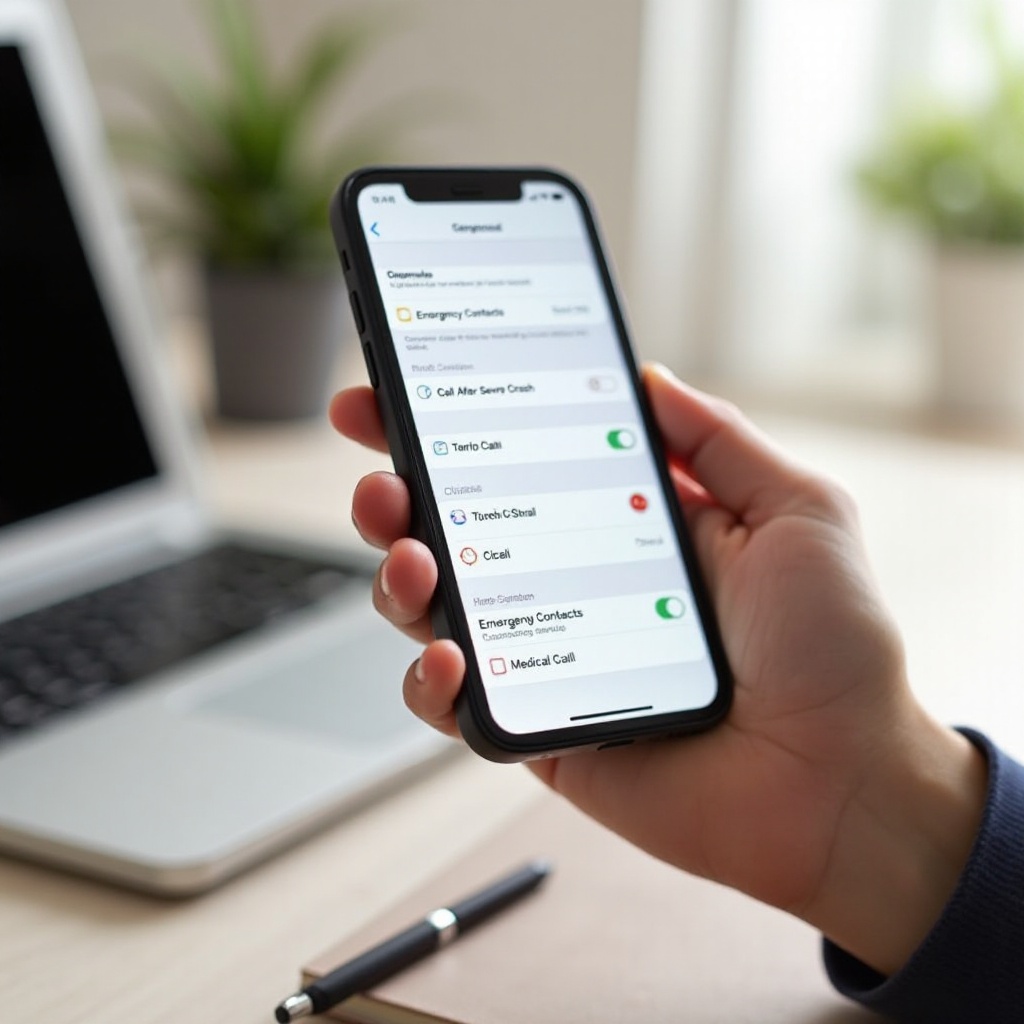
Safety Tips Before You Turn Off Emergency SOS on iPhone
Emergency SOS exists for a reason. It provides a quick, hidden way to call for help when you cannot unlock your phone or dial normally. Before you switch everything off, consider your lifestyle, daily routines, and risk level.
Who Should Avoid Disabling SOS Completely
You should consider keeping at least one SOS method active if you:
- Often walk alone at night.
- Travel in unfamiliar cities or areas.
- Have a chronic medical condition.
- Live or work in isolated or high-risk locations.
In these cases, Emergency SOS can be a vital backup when something goes wrong.
Safer ‘Compromise’ Settings for Most Users
A good compromise for many people is:
- Turn off ‘Call with 5 Button Presses’.
- Keep on ‘Call with Hold and Release’ or the older hold method.
- Turn off the Countdown Sound if you want less noise.
- Keep Call After Serious Crash on if your device supports it.
This setup keeps your phone from calling too easily but still lets you call emergency services with a deliberate button hold.
Special Considerations for Kids, Elderly, and High-Risk Users
For children and older adults:
- Teach them how and when to use Emergency SOS.
- Adjust settings to reduce accidental calls, but do not remove the feature if they rely on it.
- Use Screen Time or parental controls on kids' devices if they misuse SOS.
For high-risk users, complete disabling may not be wise. Instead, refine the settings to fit their needs and keep at least one activation method.
If you try to change Emergency SOS and the options do not respond or are missing, you might face a software or restriction issue that needs troubleshooting.
Troubleshooting Emergency SOS Settings That Won't Change
Sometimes, the Emergency SOS settings do not behave as expected. Options may be grayed out, missing, or fail to save changes. This often relates to software versions, parental controls, or profile restrictions.
Update iOS to the Latest Version
First, make sure your iPhone runs the latest iOS version:
- Go to Settings > General > Software Update.
- If an update is available, download and install it.
- Restart your iPhone after the update.
Apple often fixes bugs and improves Emergency SOS behavior with new releases.
Check Screen Time, MDM, or Work Profile Restrictions
If your iPhone belongs to a school or company, or if you use Screen Time:
- Go to Settings > Screen Time and check for restrictions.
- If you see a work or school profile in Settings > General > VPN & Device Management, some Emergency SOS options might be controlled by your organization.
Contact your IT admin if you cannot change these settings yourself.
Reset All Settings as a Last Resort
If nothing else works:
- Go to Settings > General > Transfer or Reset iPhone.
- Tap Reset.
- Choose Reset All Settings.
This does not delete your data, but it resets system settings, including network, privacy, and Emergency SOS options. Afterward, revisit Settings > Emergency SOS and adjust the options again.
Once you have everything configured, it helps to summarize the best approach so you can feel confident in the balance between safety and avoiding false alarms.
Conclusion
Accidental emergency calls can be stressful, but you do not need to live with them. By learning how to turn off Emergency SOS on iPhone, or at least how to fine-tune it, you can prevent most false alarms while keeping strong protection in real emergencies.
Newer iPhones and older models give you different options, but the principles remain the same: control how button presses behave, know how to cancel a call, and understand that ‘SOS’ in the status bar is a network issue, not a settings problem. Keep your emergency contacts and Medical ID up to date so that help can reach you quickly if you ever need it.
Take a few minutes now to adjust your Emergency SOS settings. The right setup balances safety and peace of mind, so your iPhone works for you rather than causing unwanted emergency calls.
Frequently Asked Questions
Can I completely remove Emergency SOS from my iPhone?
You cannot remove Emergency SOS entirely, but you can turn off automatic calling options like ‘Call with Hold and Release’ and ‘Call with 5 Button Presses’. When you switch these off, Emergency SOS will not call emergency services unless you manually use the on-screen slider. The feature still exists in the system, but it will not trigger by accident from button presses.
Does turning off Emergency SOS affect crash detection or satellite SOS?
Turning off button-based Auto Call does not always disable all safety functions. On supported devices, ‘Call After Serious Crash’ and ‘Emergency SOS via satellite’ may still appear as separate options in Settings > Emergency SOS. You can usually control them individually. Review each toggle carefully so you understand which safety features you are keeping and which you are disabling.
Why does my iPhone still show ‘SOS’ at the top even after I changed the settings?
The ‘SOS’ or ‘SOS Only’ label in the status bar is a network indicator, not a sign that Emergency SOS is active. It appears when your iPhone has no normal cellular signal but can still call emergency numbers. Changing Emergency SOS settings will not remove this label. To fix it, focus on your network: toggle Airplane Mode, restart your iPhone, check cellular settings, and contact your carrier if the issue continues.