
Introduction
Google has started replacing classic Google Assistant with Gemini on many Android devices, including popular Samsung Galaxy phones. You might see a new Gemini button in the Google search bar, a Gemini welcome screen in the Google app, or AI responses where you once saw normal search results.
Not everyone wants this change. Some users prefer the familiar Google Assistant, Bixby, or no assistant at all. Others worry about privacy and how much data Gemini collects. If you fall into any of these groups, learning how to disable Gemini on a Samsung phone gives you back control over how your device behaves.
This guide walks you through each step in clear, simple language. You will learn how to change your default assistant, stop Gemini from opening when you press the side key, remove Gemini from the Google app and search bar, and limit its presence in Gmail, Messages, Photos, Chrome, and more. You will also see how to adjust your Google Account settings so Gemini has less data to work with, and what advanced users can do if they want to go even further.
We will move from basic to advanced settings, so you can stop as soon as you reach a level of control you are happy with. First, you need to understand what Gemini is and where it shows up on your Samsung phone.

What Is Google Gemini on Samsung Phones?
Gemini is Google's new AI assistant and chatbot that sits at the center of the company's updated AI strategy on Android. On many Samsung phones, Gemini is now the face of Google's assistant features. You might notice it in several places:
- A Gemini button in the Google search bar or on your home screen
- A Gemini screen that appears when you trigger the Google Assistant
- AI-generated answers at the top of some search results
- 'Help me write' and other AI options in apps such as Gmail, Docs, and Photos
Gemini can chat, summarize, generate text, and answer questions with more context than classic Assistant. At the same time, it relies heavily on your data and Google Account activity to personalize responses.
It is important to separate Gemini from Samsung's own tools. Galaxy AI, Bixby, and Samsung's system features are developed by Samsung, while Gemini and Google Assistant come from Google. When you disable or limit Gemini, you are mainly changing how Google's assistant and AI services behave, not Samsung's.
With that in mind, it makes sense to decide whether you want to fully disable Gemini wherever you can, or simply reduce its impact and keep certain AI features. The next section helps you weigh those options.
Should You Disable Gemini? Pros, Cons, and Privacy Concerns
Before you change your settings, it helps to understand what you gain and what you give up when you disable Gemini on a Samsung phone. Your decision will depend on how you use your device and how you feel about AI.
Many users choose to limit or disable Gemini for these reasons:
-
Privacy and data control
Gemini uses your queries, app activity, and context to improve responses. Some of this data can be stored in your Google Account. If you prefer not to share extra information for AI training or personalization, reducing Gemini is a strong step toward more privacy.
-
A simpler, cleaner phone experience
Extra AI buttons, prompts, and pop-ups can make your phone feel cluttered. Disabling Gemini in visible areas like the search bar and Google app makes your interface calmer and more predictable, closer to what you were used to before the Gemini rollout.
-
Consistency with your existing habits
You might rely on specific voice commands, Bixby routines, or workflows built around classic Assistant. Gemini may change how these commands respond or what shows on screen. Turning Gemini off helps you keep your habits intact.
There are also downsides to consider:
- You may lose AI summaries, advanced drafting tools, and some smart recommendations.
- Some new or experimental features in the Google app may not work as intended.
- You might have to reapply certain settings after large system or app updates.
If you value more control and less intrusive AI, the benefits usually outweigh the drawbacks. To apply the right steps for your device, you should first check the software version running on your Samsung Galaxy.
Check Your Samsung and Android Version First
Different Samsung models and software builds show Gemini in slightly different ways. Confirming your Android and One UI versions helps you follow the instructions without confusion.
To check your software version:
- Open Settings on your Samsung phone.
- Scroll down and tap About phone.
- Tap Software information.
- Note your Android version and One UI version.
Most recent Galaxy S, A, and Z series devices on Android 14 with an up-to-date Google app will include some Gemini integration. Menu labels may still say 'Google Assistant', 'Assistant & Gemini', or simply 'Digital assistant app', depending on your region and stage of rollout.
If you do not see the Gemini name in your settings, look for generic assistant options instead. You are still controlling the same underlying behavior. Now that you know what software you have, you can begin with the most important change: removing Gemini as your default assistant.
How to Turn Off Gemini as Your Default Assistant
The default assistant is the service your phone calls when you use voice shortcuts or certain key actions. For many users, Gemini becomes the new default assistant after an update. Changing this setting is one of the most effective ways to disable Gemini on a Samsung phone.
Open the Default Assistant Settings on Your Samsung Phone
Follow these steps to access your assistant settings:
- Open Settings.
- Tap Apps.
- Tap Choose default apps. On some phones, tap the three-dot menu first, then choose Default apps.
- Tap Digital assistant app or Device assistance app, depending on what you see.
You should now see which assistant is set as default. In many cases, this will be Google with Gemini integration, even if the label does not explicitly say 'Gemini'.
Switch from Gemini to Google Assistant, Bixby, or 'None'
Next, choose what you want instead of Gemini:
- Google Assistant without visible Gemini branding (if available):
- Select Google as the assistant, then later turn off Gemini features from inside the Google app settings.
- Bixby:
- Choose Bixby if you prefer Samsung's own assistant and closer integration with Galaxy features.
- None or no assistant:
- Some phones offer an option to have no default assistant. Select this if you want to avoid any assistant launching by accident.
Confirm any prompts. This change ensures that when the system needs an assistant, it does not route directly to Gemini.
Test That Gemini Is No Longer the Active Assistant
To make sure your change worked:
- Trigger the assistant using the gesture or button you normally use (for example, long-press the home gesture if you use gesture navigation).
- See which interface appears.
You should now see Bixby, a more classic Google Assistant interface, or nothing, depending on your choice. If Gemini still appears, go back to the Digital assistant app menu and confirm that the selection is correct.
With the default assistant changed, Gemini is already less central. However, many Samsung phones also map an assistant to the side (power) key, so that is the next setting to adjust.
How to Disable Gemini on the Side (Power) Key
On newer Samsung Galaxy devices, the side key (the main power button) can open an assistant when you press and hold it. If that assistant is tied to Google, Gemini may open even after you change your default assistant. Remapping the side key helps you avoid Gemini when you use physical buttons.
Find the Side Key Settings in One UI
To access side key settings:
- Open Settings.
- Tap Advanced features.
- Tap Side key.
You will see options for:
- Double press
- Press and hold
The 'Press and hold' action is often set to wake an assistant, which may be Gemini if Google is involved.
Change 'Press and Hold' from Assistant to Power Menu or App
Under Press and hold, choose one of these options:
- Power off menu:
- This restores the classic power menu when you press and hold the side key. It is a simple and safe choice.
- Open app (if available):
- Some One UI versions let you launch a specific app, such as Camera, instead of any assistant.
Make sure that no setting mentions assistant, Gemini, or Bixby for the press-and-hold action if your goal is to avoid assistants entirely.
Confirm the Side Key No Longer Triggers Gemini
Hold down the side key and check what appears:
- If you see the power menu or a chosen app, the change succeeded.
- If Gemini or any assistant still appears, return to the Side key settings and double-check the 'Press and hold' selection.
Once you have disabled Gemini as the default assistant and removed it from the side key, most accidental launches will stop. The next task is to clean up Gemini inside the Google app and search bar so you are not tempted or forced into using it.
How to Disable Gemini in the Google App and Search Bar
Even when it is not your default assistant, Gemini can still appear in the Google app and search bar with its own button or AI-style responses. Taking control of these entry points further reduces Gemini's presence on your Samsung phone.
Turn Off Gemini in the Google App Settings
Start with the Google app itself:
- Open the Google app from your app drawer.
- Tap your profile photo in the top-right corner.
- Tap Settings.
- Look for sections labeled Gemini, Assistant & Gemini, or Google Assistant.
Depending on your rollout, you might see:
- A toggle to switch between Gemini and Google Assistant.
- Options to turn off Gemini entry points or AI experiments.
If a specific option says something like 'Use Gemini', turn that toggle off. If you can choose between Gemini and Assistant, choose Assistant. This replaces the Gemini experience with the more familiar Assistant view where possible.
Remove or Edit the Google Search Bar on the Home Screen
If the search bar on your home screen has a Gemini icon or opens Gemini directly, you can remove or change it:
- On the home screen, long-press the Google search bar widget.
- Tap Remove or Delete.
- If you use a third-party launcher, you might need to remove the widget through that launcher's settings.
After you remove the widget, you can:
- Add a different search widget, such as Samsung Internet or a privacy-focused browser.
- Leave the home screen without a persistent search bar, and use the browser app when you need to search.
This simple change stops you from tapping into Gemini by habit when you just wanted a quick search.
Turn Off AI Overviews or Generative AI Responses (If Available)
In some regions, Google shows AI-generated overviews at the top of search results. To limit this behavior:
- Open the Google app.
- Tap your profile photo → Settings.
- Look for Search, AI overview, Generative AI, or similar options.
- Turn off any setting that explicitly enables AI overviews or generative answers.
If you do not see such options yet, they may not be rolled out to your account. With the Google app and search bar adjusted, the next step is to limit Gemini-driven features inside other Google apps you use every day.
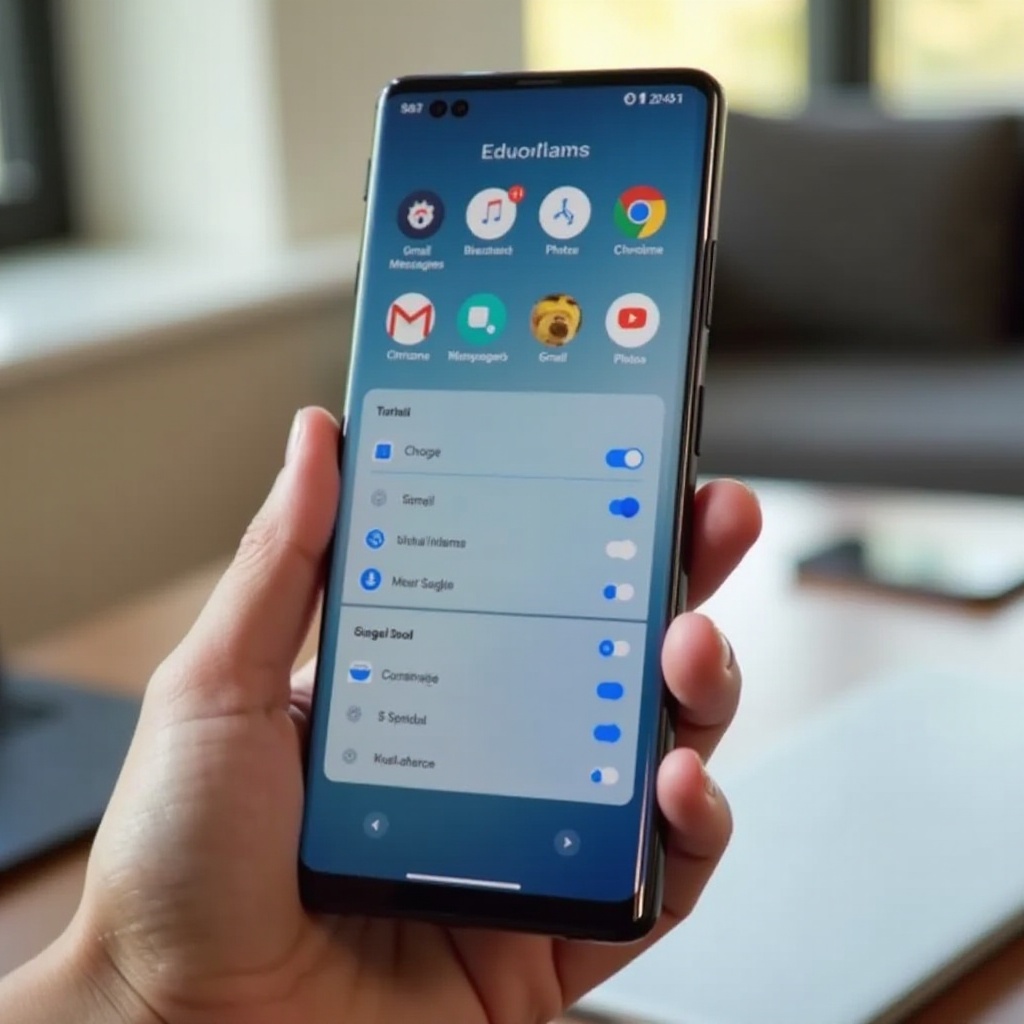
How to Limit Gemini in Google Apps (Gmail, Messages, Photos, Chrome)
Gemini serves as the AI backbone for many Google apps, not just the main assistant. To truly disable Gemini on a Samsung phone in practical terms, you should reduce its role in Gmail, Messages, Photos, Chrome, and similar apps.
Disable AI Suggestions and 'Help Me Write' in Gmail and Workspace
In Gmail:
- Open the Gmail app.
- Tap the menu icon (three horizontal lines) in the top-left.
- Scroll down and tap Settings.
- Choose your Google account.
- Find sections such as Smart features and personalization and Smart Compose.
- Turn off these options if you do not want AI-driven suggestions or automatic organization.
In Google Docs, Sheets, or Drive, look in their settings for AI tools like 'Help me write' or similar. Toggle them off to avoid Gemini-powered writing and editing suggestions.
Turn Off Smart Replies and AI Features in Google Messages
In Google Messages:
- Open the Messages app.
- Tap your profile icon or the three-dot menu, then choose Settings.
- Look for options such as Suggestions, Smart reply, or any clearly AI-related feature.
- Turn off smart reply and suggestion toggles.
With these options disabled, Gemini will no longer generate quick replies or AI suggestions inside your text conversations, leaving your messaging experience more manual and private.
Reduce Gemini-Powered Suggestions in Photos and Chrome
In Google Photos:
- Open the Photos app.
- Tap your profile photo in the top-right.
- Tap Photos settings.
- Look for sections like Suggestions, AI edits, Memories, or Creations.
- Turn off automatic suggestions and AI-generated creations if you do not want Gemini-style features.
In Chrome:
- Open Chrome.
- Tap the three-dot menu → Settings.
- Check for sections like Search, Assistant, or AI features.
- Turn off any generative or Gemini-related options that appear.
Once you adjust these apps, Gemini's influence will be minimal in your everyday workflow. The next step is to reduce the underlying data that feeds Gemini by tightening your Google Account and app permissions.
Restrict Gemini's Data and Background Activity
Disabling visible Gemini features is one part of the process. The other part is limiting how much data Gemini and related AI services can collect and process in the background. Adjusting account activity, permissions, and background usage gives you more control.
Change Google Account Activity Controls and Personalization
On your Samsung phone:
- Open Settings.
- Tap Google.
- Tap Manage your Google Account.
- Go to the Data & privacy tab.
- Under History settings, review:
- Web & App Activity
- Location History
- YouTube History
You can turn off Web & App Activity, or manage what is stored. Disabling or limiting this history reduces how much context Gemini and other Google AI features can use. You can also delete past activity using the same menu, which removes older data from your account.
Limit Gemini Permissions for Microphone, Location, and Notifications
Next, control permissions for the Google app, which Gemini depends on:
- Open Settings → Apps.
- Scroll and tap Google.
- Tap Permissions.
- Review access to sensitive items such as:
- Microphone
- Location
- Contacts
- Calendar
You can deny or restrict permissions that you do not want Gemini or Assistant to use. Then, go back to the Google app settings and adjust Notifications to reduce alerts, tips, and prompts pushing you toward Gemini or other AI features.
Restrict Background Data and Battery Usage for the Google App
To limit background activity:
- In the Google app info screen, tap Battery.
- Choose Optimized or Restricted rather than 'Unrestricted'.
- Go back and tap Mobile data or Data usage.
- Turn off Allow background data usage if you want to reduce data use.
These changes can reduce how often the Google app works in the background to power Gemini responses. Once this is done, Gemini will be far less active. Advanced users who still want more control can consider stronger methods such as rolling back app updates.
Advanced Options: Downgrading or Disabling Gemini Components
If you are comfortable with more technical adjustments, you can reduce Gemini even further by rolling back Google app updates or using ADB to disable components. These steps are optional and carry more risk, so proceed carefully.
Roll Back Google App Updates to Reduce Gemini Integration
Rolling back the Google app can remove the latest Gemini features and restore an older, simpler version that shipped with your phone:
- Open Settings → Apps → Google.
- Tap the three-dot menu in the top-right corner.
- Tap Uninstall updates.
- Confirm the prompt.
After this, open the Google app again. It may look closer to the original version and show fewer Gemini-related elements. You might need to redo some settings, including language and assistant preferences.
Use ADB to Disable Specific Google Components (For Advanced Users)
With ADB (Android Debug Bridge) on a computer, you can disable specific Google packages without rooting your device. This is a method for advanced users only, because:
- Disabling the wrong package can break important features.
- Updates may re-enable disabled components.
- You need to understand which packages are safe to disable.
If you choose this route, research each package name and always keep a record of what you changed so you can reverse it if something stops working.
Why Fully Removing Gemini Is Difficult on Non-Rooted Samsung Phones
On a standard, non-rooted Samsung phone, you cannot completely remove Gemini like a separate app. Gemini depends on the Google app and Google Play services, which are core components of Android. Uninstalling these would break many features.
Instead, the practical approach is what you have done so far: change the default assistant, remap the side key, remove Gemini entry points in the Google app and search bar, limit AI inside Google apps, cut down data collection, and restrict background use. Together, these steps make Gemini almost invisible in everyday use.
Troubleshooting: Gemini Still Shows Up?
Sometimes, even after you apply the changes above, Gemini reappears due to updates or cached settings. When that happens, a few maintenance steps usually fix the problem.
Clear Cache and Data for the Google App and Related Services
To reset the Google app:
- Open Settings → Apps → Google.
- Tap Storage.
- Tap Clear cache.
- If problems continue, tap Clear data to reset the app.
You can also clear cache and data for Google Play services if behavior seems stuck. After clearing, open the Google app again, sign in if needed, and reapply your assistant and AI settings.
Opt Out of Beta or Early-Access AI Features
If you joined any early access programs, Gemini may behave more aggressively. To step back:
- Open the Google app.
- Tap your profile photo → Settings.
- Look for sections named Labs, Beta, or Early access.
- Turn off experimental AI features or leave the preview.
Then, check in the Google Play Store:
- Search for the Google app.
- Open its store page.
- Scroll down and leave the beta program if you are enrolled.
This prevents test versions of the app from reintroducing Gemini behavior more aggressively than the stable release.
Recheck Settings After a System or App Update
Major updates to Android, One UI, or the Google app can reset some preferences. After such an update, always:
- Confirm your default assistant under Settings → Apps → Default apps → Digital assistant app.
- Revisit the Side key settings to ensure it does not launch an assistant.
- Open the Google app and recheck Gemini, assistant, and AI overview settings.
If Gemini returns, repeat the key steps in this guide. It may take a few minutes, but it keeps your phone aligned with your preferences.
Alternative Setups After Disabling Gemini
Once you disable or limit Gemini on your Samsung phone, you can decide what kind of assistant experience you still want, if any. Some people prefer a light, classic assistant. Others choose Bixby for its integration with Galaxy features. Some users remove assistants completely for maximum simplicity.
Use Classic Google Assistant Without Gemini UI (If Offered)
In some regions, the Google app still lets you choose a more traditional Assistant instead of the full Gemini interface. If you see this option:
- Select Google Assistant rather than Gemini in the Google app settings.
- Turn off experimental AI toggles and generative responses.
This gives you voice search, basic commands, reminders, and smart home control without the full Gemini chat experience.
Use Bixby or No Assistant for a Minimal-AI Experience
If you prefer Samsung's tools:
- Set Bixby as your default assistant.
- Map Bixby to the side key if you still want quick voice access.
If you want a minimal-AI setup:
- Choose None as your default assistant if your phone allows it.
- Set the side key to open the Power off menu or another app instead of any assistant.
- Rely on home screen widgets, quick settings, and apps to get things done manually.
Combine Samsung and Third-Party Apps for a Privacy-Focused Setup
You can also build a privacy-focused setup by mixing Samsung and third-party apps:
- Use Samsung Internet, Firefox, or another browser with a search engine that collects less data.
- Use Samsung Email or a non-Google email client if you want fewer AI features in your inbox.
- Use offline or simple apps for notes, tasks, and reminders instead of heavily AI-driven tools.
This combination lets you enjoy the strengths of your Samsung phone while keeping Gemini and other AI helpers at a distance.
Conclusion
Disabling or limiting Gemini on a Samsung phone is not a single switch but a series of practical adjustments. By changing your default assistant, remapping the side key, turning off Gemini in the Google app and search bar, and reducing AI features in Gmail, Messages, Photos, and Chrome, you remove most of the obvious Gemini entry points.
Tightening Google Account history, permissions, and background usage further reduces how much data Gemini can use. Advanced steps, such as rolling back Google app updates or carefully using ADB, are available if you want even more control, though most users will not need them.
As you update your phone, it is wise to revisit these settings, because major updates can restore default behavior. With a few minutes of maintenance, you can keep your Samsung Galaxy closer to the experience you want, whether that means using Bixby, classic Assistant, or no assistant at all, and keep Gemini from taking over your device.
Frequently Asked Questions
Can I completely uninstall Gemini from my Samsung phone?
On most Samsung phones, you cannot fully uninstall Gemini as a separate app because it is built into the Google app and core Google services. What you can do is change your default assistant away from Gemini, remap the side key so it does not launch any assistant, turn off Gemini options in the Google app and other Google apps, restrict permissions and background data, and roll back some Google app updates. Together, these steps make Gemini effectively inactive for everyday use, even though the underlying components still exist on the device.
Will disabling Gemini affect Galaxy AI or Bixby features?
Disabling Gemini does not remove Galaxy AI or Bixby, because those services are created and managed by Samsung, not Google. When you limit or turn off Gemini, Bixby continues to work as usual, and Galaxy AI features such as on-device translation or certain camera tools remain available as long as they do not depend on Google for a specific function. Only features that rely directly on Google’s assistant and AI services are affected by the Gemini changes.
Why does Gemini come back after updating my Samsung or Google apps?
Major updates to Android, One UI, or the Google app can reset some of your assistant and AI settings. When that happens, Gemini may again become the default assistant, reattach to the side key, or re-enable AI features in the Google app and search. After each big update, revisit the key settings: confirm your default assistant, remap the side key, and reapply your Gemini and AI preferences inside the Google app. If Gemini returns, repeating the steps in this guide will restore your preferred setup.