
Introduction
You tap the torch icon and nothing happens. Or the flashlight tile looks greyed out and will not respond. If you keep asking why cant i turn my flashlight on, you are not alone. The torch relies on the camera, battery, and thermal controls. When any of these subsystems blocks access, the toggle will not switch on no matter how hard you press.
This guide targets both iPhone and Android. You will start with quick checks that solve the issue in seconds. If that fails, you will move through platform steps that clear deeper conflicts. You will also learn how battery saver and heat limits disable the LED, and how to recover from software glitches without losing data. Finally, you will test for hardware faults and decide when a repair makes sense.
Take the sections in order and test after each action. Most users restore the flashlight quickly with a few simple changes. If your device shows signs of hardware trouble, the final sections help you confirm it and plan next steps.
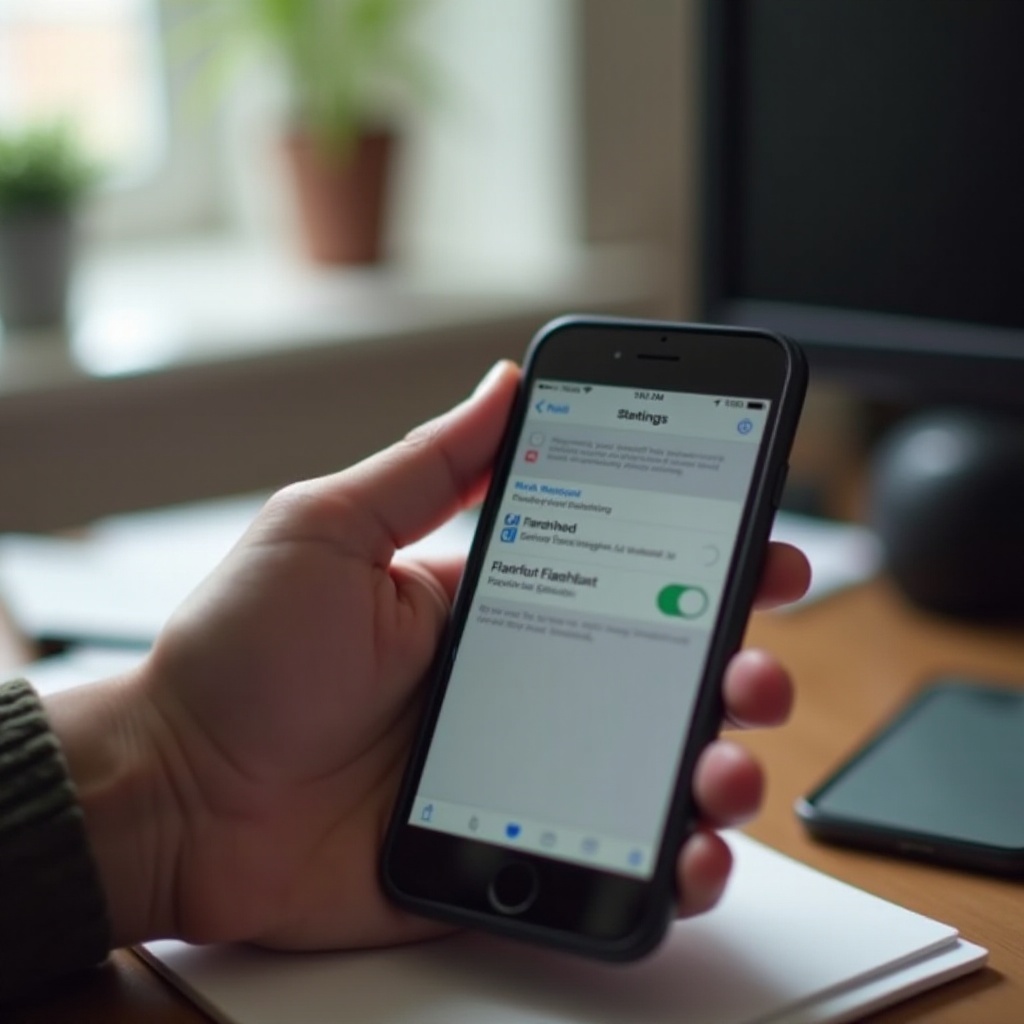
Quick Checks to Try First: Restart, Charge, Close Camera, Cool Down
Simple fixes clear most flashlight failures. Run through these steps before you change deeper settings.
- Charge above 20 percent:
- Plug in for 10 to 15 minutes.
- Turn off Low Power Mode on iPhone or Battery Saver on Android.
- Close the Camera and any app that uses it:
- Fully close Camera, FaceTime or Google Meet, Instagram, Snapchat, QR or barcode scanners, and screen recorders.
- On iPhone, swipe up from the bottom and flick app cards away. On Android, open Recent Apps and close camera related apps.
- Restart the phone:
- iPhone: press and hold the volume and side button, then slide to power off, wait 30 seconds, and power on.
- Android: press and hold Power, then tap Restart.
- Cool a hot phone:
- Remove the case, stop video recording or gaming, and move to a cooler spot.
- Do not chill the phone in a fridge. Let it cool at room temperature for 5 to 10 minutes.
- Try different entry points:
- iPhone: use the Lock Screen torch button or the Control Center tile.
- Android: use the Quick Settings tile.
If the toggle stays grey, understand the built in rules that can disable the LED. That context will guide you through the next sections and help you avoid the problem in the future.
Understand Why Phones Disable the Flashlight: Camera, Power, and Thermal Rules
Your phone protects the camera and LED to avoid damage and conflicts. The system may turn off the torch or block it even if you tap the icon.
- Camera resource lock:
- Only one app can control the camera and flash at a time. If any app holds the camera, the torch will not turn on.
- Battery thresholds:
- Low Power Mode or Battery Saver can limit high drain features. Some devices block the LED at critical battery levels to prevent sudden shutdowns.
- Thermal protection:
- The LED gets hot fast. If the device overheats, the system disables the flashlight and camera flash until it cools.
- System integrity:
- Corrupted settings, outdated software, or broken permissions can cause a dead toggle or a missing tile.
With these rules in mind, start by fixing the toggle itself. If the tile is missing or greyed out, restore it and clear conflicts before digging into platform specific changes.
Fix a Greyed-Out or Unresponsive Flashlight Toggle (Control Center or Quick Settings)
A greyed out tile often points to a camera conflict or a hidden restriction. These actions restore the control and remove simple blockers.
- Verify the tile is present:
- iPhone: go to Settings > Control Center and add Flashlight. Also test the Lock Screen torch button.
- Android: swipe down, tap the edit pencil, and drag the Flashlight tile into the active area.
- If the tile is greyed out:
- Fully close Camera and any app using the camera, like video calls, QR scanners, or social apps.
- Stop screen recording or AR apps that can reserve the camera.
- Reset the tile state:
- iPhone: remove Flashlight from Control Center, restart the phone, then add it back.
- Android: remove the Flashlight tile, restart, then add it back.
- Check restrictions and permissions:
- iPhone: review Screen Time and Guided Access so Control Center and the Lock Screen torch are not blocked.
- Android: revoke camera permission from third party flashlight or QR apps that may hijack the camera.
- Test alternate triggers:
- iPhone: try Control Center, the Lock Screen button, and a Siri voice command like turn on flashlight.
- Android: try the Quick Settings tile, voice assistant, and confirm flash behavior inside the Camera app.
If the control works again, you can stop here. If not, move on to platform specific fixes that target deeper issues in iOS or Android.
iPhone Specific Fixes: iOS Flashlight Not Working
On iPhone, the flashlight rides on the rear camera flash. When iOS senses a conflict or a safety rule triggers, the system blocks the LED. Work down this list and test after each step.
Close Camera, FaceTime, and Stop Video or QR Scans
- Force close Camera and FaceTime. End video calls in WhatsApp, Instagram, or Zoom.
- Stop QR scans in Wallet or any third party app.
- Try the torch again. If it works now, an app had camera control.
Re add the Flashlight to Control Center and Lock Screen
- Go to Settings > Control Center. Remove Flashlight, restart, then add it back.
- If the Lock Screen button does not respond, briefly toggle Always On for supported models or disable and re enable Lock Screen widgets.
- Test both Control Center and the Lock Screen torch button.
Turn Off Focus, Screen Time, or Guided Access Restrictions
- Disable active Focus modes that hide or limit the Lock Screen controls.
- Open Settings > Screen Time > Content and Privacy Restrictions. Ensure Control Center and Lock Screen controls are allowed.
- Exit Guided Access by triple pressing the side button and entering the passcode.
Force Restart, Reset All Settings, and Update iOS
- Force restart:
- For Face ID models, tap Volume Up, then Volume Down, then hold the Side button until the Apple logo appears.
- Reset All Settings:
- Settings > General > Transfer or Reset iPhone > Reset > Reset All Settings. Your data stays intact, but preferences like Wi Fi and Control Center reset.
- Update iOS:
- Settings > General > Software Update. Install the latest version to fix camera and torch bugs.
If your iPhone torch still fails, and you also use an Android device, continue with the Android section. Otherwise, jump ahead to power and heat rules that affect all phones, then advanced recovery and hardware checks.
Android Specific Fixes: Flashlight Will Not Turn On on Samsung, Pixel, OnePlus, and More
Android devices vary by brand, but the same themes apply: camera conflicts, power modes, heat, and app issues. Try these steps next.
Stop Camera, QR, and Video Call Apps and Remove Third Party Torch Apps
- Close Camera, Google Meet, WhatsApp or Telegram video calls, Instagram, Snapchat, and any QR reader.
- Uninstall third party flashlight apps. Many keep a hidden camera session open and block the system LED.
- Test the system Flashlight tile after removing or closing these apps.
Add or Move the Flashlight Tile and Clear Camera App Cache
- Add the Flashlight tile:
- Swipe down, tap the edit pencil, and drag Flashlight into active tiles.
- Clear the Camera cache:
- Go to Settings > Apps > Camera > Storage and tap Clear Cache. If needed, Clear Data to reset the camera app.
- On Pixels: Settings > Apps > See all apps > Camera > Storage and cache > Clear cache.
- Test the torch again from Quick Settings.
Battery Saver, Thermal Limits, and OEM Power Modes
- Turn off Battery Saver or Ultra Power Saving modes.
- Samsung: Settings > Battery and device care > Battery > Power saving.
- Pixel: Settings > Battery > Battery Saver.
- Let the device cool. Remove the case if it feels hot. Wait 5 to 10 minutes.
- Try the flashlight again after the temperature drops.
Safe Mode Boot and Reset App Preferences
- Boot into Safe Mode to isolate third party conflicts:
- Press and hold Power, then touch and hold Power off, and tap Safe mode. Steps vary by model.
- If the torch works in Safe Mode, uninstall recent camera, QR, or flashlight apps.
- Reset app preferences:
- Settings > Apps > three dot menu > Reset app preferences. This restores disabled apps and permissions without deleting your data.
If the torch still fails across iPhone or Android, the device may be enforcing power or heat limits, or the system may be corrupted. The next sections handle those causes.
Battery, Temperature, and System Protections That Disable the Torch
Your phone will disable the LED to protect the hardware and preserve the battery under stress.
- Battery saver modes:
- These modes often limit high drain features. Turn them off and charge to at least 20 to 30 percent before testing again.
- Critical battery thresholds:
- Some models disable the flash around 5 to 10 percent. Plug in and wait a few minutes before retrying.
- Overheating safeguards:
- The camera and LED produce heat. If you see a temperature warning, stop recording, remove the case, and move to shade. Do not cool the phone with ice or wind. Let it normalize at room temperature.
- Background recording or AR:
- Long 4K or high frame rate videos and AR sessions can keep the camera hot and busy. Fully close those apps and wait a few minutes.
After you clear these conditions, the torch should respond. If it still will not turn on, proceed to advanced software recovery to repair deeper system issues.
Advanced Software Recovery: Updates, Safe Mode, and Resets
When basic steps fail, update and repair the system that controls the camera and LED.
- Update the OS and core apps:
- iPhone: Settings > General > Software Update.
- Android: Settings > System > System update. Also update Camera and system components in the Play Store or your OEM store.
- Remove app conflicts:
- iPhone: delete third party flashlight or camera modding apps. Test the torch.
- Android: boot Safe Mode. If the torch works, uninstall recent camera or QR apps.
- Repair settings and firmware:
- iPhone: Reset All Settings. If corruption persists, back up and restore using Finder or iTunes on a computer.
- Android: Reset app preferences first. If needed, back up and perform a factory reset after you rule out hardware faults.
Test the torch after each action. Keep a short note of what you changed. That way, if the problem returns, you can revisit the exact fix that worked.
Hardware Checks and When Your LED or Camera Module May Be Faulty
Sometimes the LED or camera module fails after a drop, a liquid event, or an imperfect repair. These checks help you spot hardware trouble.
- Test the LED through the Camera app:
- Open Camera, switch to Photo, and force the flash. Take a photo in a dark room. If no flash fires and the torch still will not turn on, the LED or camera module may be damaged.
- Use built in diagnostics:
- Samsung Members, Google diagnostics on Pixel, or the Apple Support app can run quick hardware tests when available.
- Inspect for damage or moisture:
- Look for cracks, dents, or fog under the lens. If wet, power off, dry the exterior gently, and seek service if issues persist.
- Watch for persistent errors:
- Messages like cant connect to camera, a torch that shuts off immediately even when cool, or a torch that never lights in any app often indicate hardware failure.
- Contact support:
- Apple users can book a Genius Bar visit or arrange mail in service.
- Android users should contact the device maker or an authorized service center. Ask for a diagnostic and a quote. Check warranty or extended coverage before you pay.
If tests suggest the hardware is healthy, return to the software sections and prevention tips to keep the torch stable.
Prevention Tips to Keep Your Phone’s Flashlight Reliable
A few habits can keep your torch ready when you need it most.
- Keep software current:
- Update iOS or Android and the Camera app regularly.
- Avoid third party torch apps:
- Use the built in tile. Extra apps often cause conflicts or hijack the camera.
- Manage heat:
- Remove bulky cases during long recordings, avoid direct sun, and take breaks when filming in 4K or high frame rates.
- Charge before critical tasks:
- Keep battery above 20 percent if you rely on the torch.
- Close camera heavy apps when done:
- QR scanners, social video, and video calls can hold the camera and block the LED.
Conclusion
When you ask why cant i turn my flashlight on, the cause usually comes down to camera locks, battery saver rules, or heat. Quick checks solve most cases: charge past 20 percent, close camera apps, restart, and let the device cool. If the tile stays grey, restore the toggle, clear restrictions, and check permissions. Update the system and repair settings if needed.
For iPhone or Android, work step by step and test after each change. That approach saves time and shows you what fixed the problem. If the flash will not fire in the Camera and the torch never lights, suspect hardware and book a diagnostic. With the right sequence and a calm plan, you can move from confusion to a working torch in minutes and keep it reliable for the long run.
Frequently Asked Questions
Why is my flashlight greyed out on the lock screen?
Another app likely holds the camera, the phone may be too hot, or a restriction hides the control. Close camera and video apps, let the device cool, then re add the tile. On iPhone, check Control Center, Screen Time, and Focus. On Android, re add the Quick Settings tile and turn off Battery Saver.
Can low battery or Battery Saver disable the flashlight?
Yes. Many devices limit the LED at low levels or when Battery Saver is on. Charge above 20 to 30 percent and turn off Low Power Mode on iPhone or Battery Saver on Android. Try the torch again after a short charge.
How do I know if my flashlight LED is broken?
Force the flash in the Camera app in a dark room. If the flash never fires and the torch will not switch on after software fixes, the LED or camera module may be faulty. Run built in diagnostics and contact official support for repair options.