
Introduction
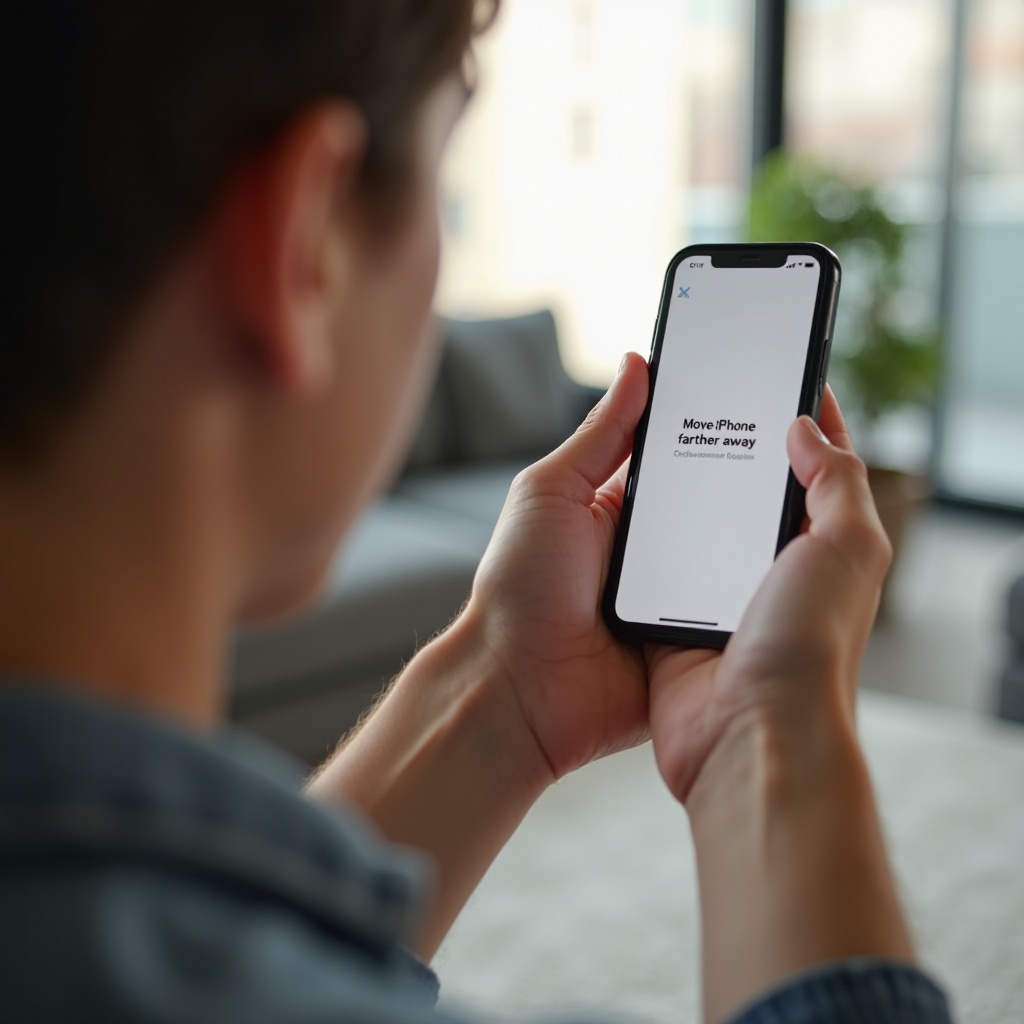
Screen Distance helps you keep a safe viewing distance from your iPhone. It uses the TrueDepth camera to estimate how close your face is to the screen and shows the alert labeled ‘Move iPhone Farther Away’ when you hold the device too near. The prompt can be useful, but it can also interrupt games, streaming, note-taking, or reading. If you prefer to manage your own habits, you can switch this feature off with a few taps.
This guide gives you clear steps to turn Screen Distance off on your iPhone. You will also learn how to manage the feature for a child through Family Sharing. If the setting is missing or greyed out, you will find fixes that restore control. We will also cover privacy and battery impact, then offer alternatives that reduce alerts without disabling the feature. With the basics in place, let us define what Screen Distance does and why you see the alert in the first place.
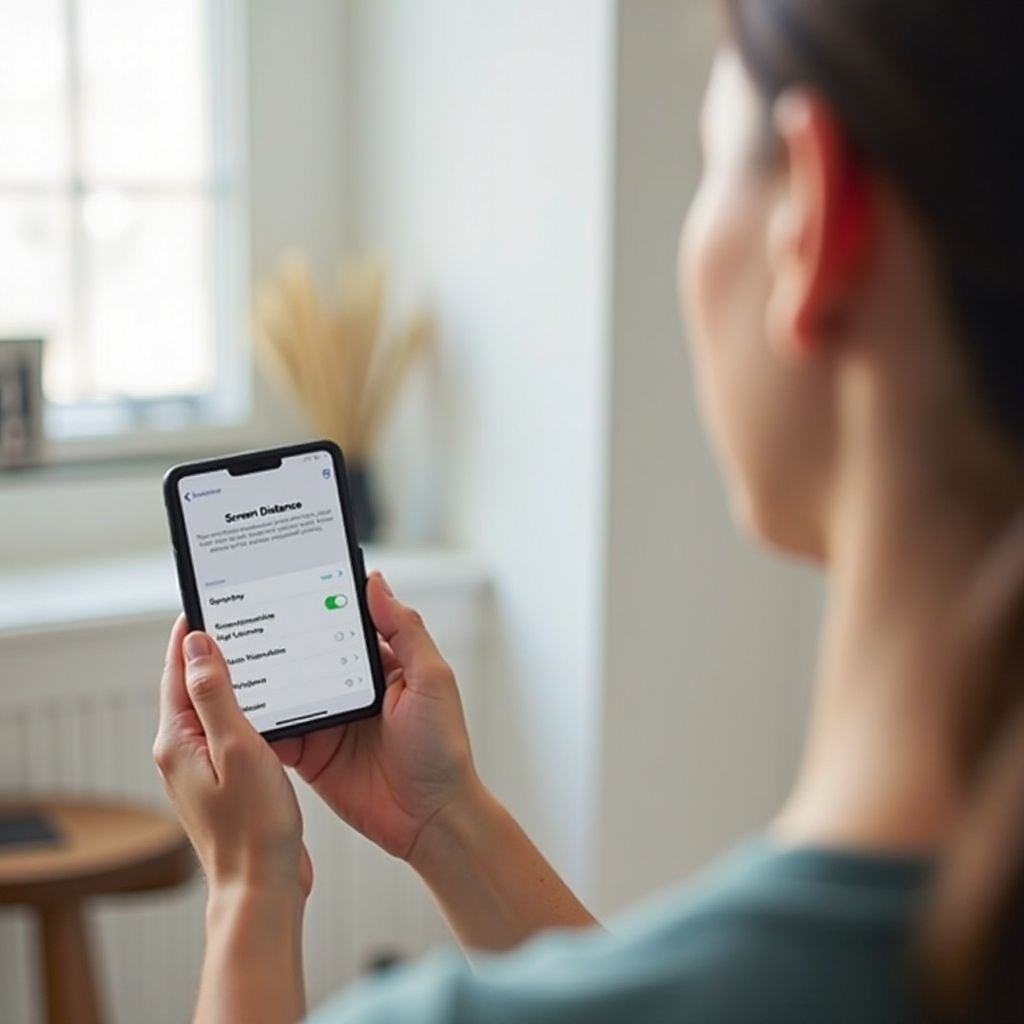
What Screen Distance Is and Why You See the ‘Move iPhone Farther Away’ Alert
Screen Distance is an iOS feature designed to reduce eye strain and promote healthier viewing habits. When your iPhone detects that you are holding the screen too close to your eyes, it pauses what you are doing and shows the alert. Once you move the device farther away and maintain a safe distance for a moment, the alert disappears and your content resumes. The feature helps adults and is especially helpful for children who tend to hold screens close.
iPhone estimates the distance using the TrueDepth camera system. The measurement runs on the device and does not capture or store photos. The system looks for your face, estimates distance, and triggers an alert when you cross a threshold that Apple considers too near. If you often see alerts, you might be using the phone in low light, with glare, or when a case or a protector shades the top sensors. Reading in bed or on a moving train can also bring the device closer to your face and cause the prompt to appear more often.
You now know what triggers the alert and how the system works. Next, confirm that your iPhone or iPad supports the feature and check where to find the toggle in Settings.
Supported Devices and iOS Requirements for Screen Distance on iPhone and iPad
Screen Distance appears on devices with a TrueDepth camera that run current iOS or iPadOS releases such as iOS 17 or iOS 18. Most Face ID iPhones support TrueDepth, so you will find the setting on those models. On iPad, Screen Distance appears on Face ID iPad Pro models. If your device uses Touch ID and lacks TrueDepth, you will not see the option.
You control Screen Distance from Settings under Screen Time. It does not require you to enable all Screen Time reports or downtime schedules. The feature simply lives in the Screen Time section. If you do not see Screen Distance, update the software and restart the device, then check again. With support confirmed, let us disable the feature quickly, then follow with more detailed steps for different scenarios.
Quick Answer: Turn Off Screen Distance in Settings in Seconds
Here is the fastest way to stop the alert:
- Open Settings.
- Tap Screen Time.
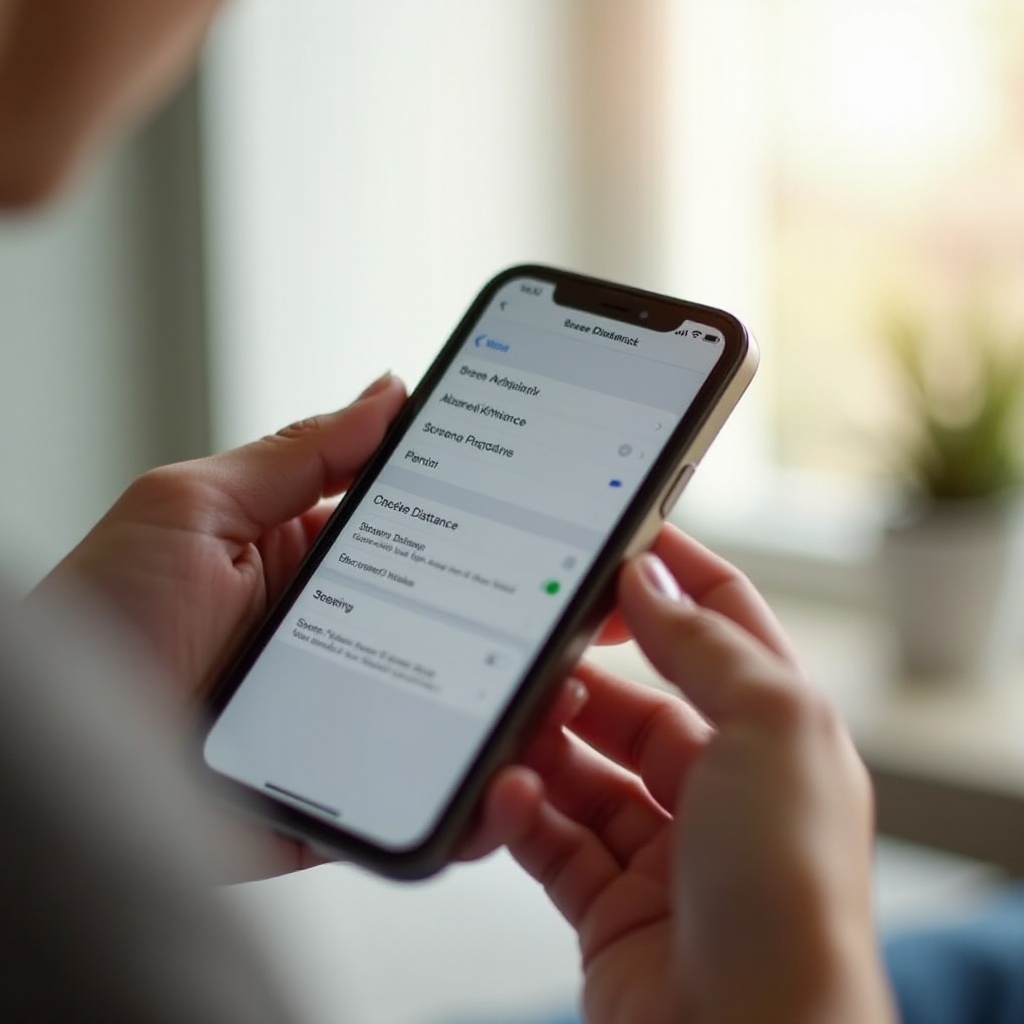
- Tap Screen Distance.
- Toggle Screen Distance off.
You are done. Your iPhone will no longer pause content with the prompt when you hold it close. If you want a guided walkthrough, or you need to manage the setting for a child, continue with the detailed steps below.
Step-by-Step: How to Turn Off Screen Distance on Your iPhone
If you want a clear path with checks and tips, follow this sequence:
1) Open Settings on your iPhone.
2) Scroll and tap Screen Time.
3) Tap Screen Distance.
4) Toggle Screen Distance off. The switch moves left and turns gray.
5) Test the result. Open a video or a reading app. Hold the phone close to your face for several seconds. If the feature is off, no prompt appears.
If the alert still appears, return to Settings and confirm the toggle shows Off. Check whether a Screen Time passcode, Family Sharing parent control, or an organization profile enforces the feature. Also check that you are editing the correct device if you use multiple iPhones or iPads with the same Apple ID. With your own iPhone set up, let us cover how parents can manage Screen Distance for a child.
For Parents: Turn Off or Manage Screen Distance on a Child’s iPhone with Family Sharing
Parents can control Screen Distance on a child’s device from a parent device. This is useful when you want to encourage better viewing habits while keeping flexibility during travel, school, or activities. You can turn the feature off, leave it on, or adjust related Screen Time settings as needed. Here is how to change the setting for a child:
- On your iPhone, open Settings.
- Tap your Apple ID and choose Family Sharing (or tap Family if it appears on your device).
- Select your child’s name.
- Tap Screen Time.
- Tap Screen Distance.
- Toggle Screen Distance off. Enter your Screen Time passcode if prompted.
If your child needs temporary relief from frequent alerts, you can turn the feature off for a limited time and re-enable it later. You may also allow requests from the child’s device if you want them to ask before changes. If the toggle is missing or locked, the troubleshooting steps in the next section will help you resolve permission, profile, or software issues that prevent changes.
If You Cannot Turn It Off: Fix a Missing or Greyed-Out Screen Distance Toggle
When Screen Distance does not appear in Screen Time or the toggle is greyed out, follow this checklist in order. Test after each step so you know which action resolved the issue:
- Update iOS or iPadOS: Go to Settings > General > Software Update and install the latest release. Updates refresh Screen Time components and often restore missing toggles.
- Restart the device: A quick restart clears temporary glitches that affect Screen Time.
- Verify TrueDepth and Face ID: Go to Settings > Face ID & Passcode. Enroll Face ID if you have not. If Face ID fails to enroll or does not work, the system may not support distance detection.
- Clean the sensor area: Gently wipe the top edge of the screen. Remove thick cases, covers, or screen protectors that block the TrueDepth camera.
- Check Screen Time status: Open Settings > Screen Time. If menus lag or do not load, toggle Screen Time off, restart, and turn it back on. Then revisit Screen Distance.
- Review Content & Privacy Restrictions: In Screen Time, open Content & Privacy Restrictions. Temporarily disable it to see if a restriction locks Screen Distance.
- Manage Family Sharing correctly: If you are changing a child’s settings, make the change from the parent device under Family Sharing. Confirm you selected the correct child profile.
- Look for MDM or configuration profiles: For work or school devices, open Settings > General > VPN & Device Management. If a profile exists, it might enforce Screen Distance or Screen Time. Contact your IT admin for changes.
- Reset the Screen Time passcode: If you forgot the passcode, open Settings > Screen Time > Change Screen Time Passcode > Forgot Passcode? and follow the prompts.
- Reset All Settings: Go to Settings > General > Transfer or Reset iPhone > Reset > Reset All Settings. This does not erase your data, but it resets system settings, including Screen Time configurations.
- Contact Apple Support: If the toggle stays missing after these steps, you might have a deeper configuration or hardware issue that needs professional help.
Once you regain access to the toggle, you can switch Screen Distance off or adjust it to match your needs. If you prefer to keep the feature, the next section helps you reduce interruptions while keeping the health benefits.
Prefer to Keep It On? Reduce Alerts Without Disabling Screen Distance
You can use Screen Distance while avoiding frequent interruptions. Small changes in how you hold and use your iPhone can cut alerts drastically:
- Keep at least 12 inches, or about 30 cm, between your eyes and the screen.
- Improve lighting to help the camera estimate distance accurately.
- Clean the TrueDepth area and consider removing bulky or reflective cases that shade the sensors.
- Increase text size, use Display Zoom, or enable Bold Text so you can read from farther away.
- Use a stand or a holder for long sessions. If charging, StandBy mode lets you view from a distance.
- AirPlay video to a TV or use a larger screen when you watch long content.
With the alert under control, you may wonder about privacy and battery impact. The next section explains how the system works on-device and what it means for day-to-day power use.
Privacy and Battery: How Screen Distance Uses the TrueDepth Camera Safely
Screen Distance runs its distance estimation on the device. It does not take or save pictures of your face. The system checks distance briefly, shows an alert if needed, and discards the measurement. Your distance data does not leave the device as part of this feature.
Battery impact is minimal because the checks run for short periods and only while the screen is active. In very dim light, the system may work a bit harder to estimate distance, but most users will not notice battery changes. If you want maximum battery life or never use this feature, turning it off is reasonable. If you like the gentle reminder, you can leave it on without worrying about privacy or heavy power drain.
Before you decide, consider other iPhone settings that can ease eye strain and improve readability even when you turn Screen Distance off.
Related iPhone Settings for Eye Comfort Without Screen Distance
You can tune your display for comfort without relying on Screen Distance. These settings lower strain and help you read from a safer distance:
- Auto-Brightness: Settings > Accessibility > Display & Text Size > Auto-Brightness. This adjusts brightness based on ambient light so the screen stays comfortable.
- True Tone: Settings > Display & Brightness > True Tone. This adapts color temperature to match your environment for a more natural look.
- Night Shift: Settings > Display & Brightness > Night Shift. This reduces blue light in the evening, which many people find easier on the eyes.
- Reduce White Point: Settings > Accessibility > Display & Text Size > Reduce White Point. This lowers overall intensity and can help in dark rooms.
- Larger Text and Bold Text: Settings > Accessibility > Display & Text Size > Larger Text and Bold Text. Bigger and bolder text helps you maintain distance while reading.
- Display Zoom: Settings > Display & Brightness > Display Zoom. Combined with Larger Text, Zoom makes interface elements easier to see from farther away.
Try these options one by one and keep what helps. Small display adjustments can replace Screen Distance for many users while preserving comfort and reducing fatigue.
Conclusion
Screen Distance can promote healthy viewing habits, but it is not for everyone. You can turn it off quickly under Settings > Screen Time > Screen Distance. Parents can manage the feature for a child through Family Sharing using a Screen Time passcode. If the toggle is missing, update iOS, check Face ID and TrueDepth, review restrictions, and look for device management profiles. Keep Screen Distance on if you value the reminder and apply the tips to reduce alerts. No matter which path you choose, tune related display settings to protect your eyes and enjoy a smoother experience every day.
Frequently Asked Questions
Why do I still see the Move iPhone Farther Away alert after turning Screen Distance off?
Confirm the toggle shows Off in Settings > Screen Time > Screen Distance. If you use more than one device with the same Apple ID, change the setting on each device. Remove any Screen Time passcode or Family Sharing restriction that can enforce the feature. Restart the iPhone, then test again by holding the device close while playing a video.
Can I turn off Screen Distance on an iPad, and are the steps the same as on iPhone?
Yes, if the iPad has a TrueDepth camera and runs iPadOS 17 or later. Open Settings > Screen Time > Screen Distance and toggle it off. For a child in Family Sharing, manage the setting from your parent device under Family Sharing > your child > Screen Time > Screen Distance. If the option is missing, update iPadOS and restart.
Does Screen Distance affect Face ID or drain battery more?
Screen Distance uses the same TrueDepth hardware as Face ID, but it runs separately and on-device. Turning it on or off does not affect Face ID success. Battery impact is minimal because distance checks are brief and occur only while the screen is active. If you want maximum battery life, you can safely turn it off.