
Introduction
Alexa can work smoothly on your iPhone when you set it up with the right permissions and access methods. Install the Alexa app, turn on the features you need, and choose how you want to launch it. After that, you can control lights, adjust thermostats, play music, call family, manage lists, and run routines without touching an Echo. You can also start Alexa by voice using a simple Siri Shortcut. This guide explains how to use Alexa on iPhone step by step. You get setup, hands‑free options, widgets, Siri Shortcuts, smart home control, and privacy settings. We end with quick fixes for common problems so you can recover fast if something breaks. First, learn what Alexa can and cannot do on iOS so the next steps match your expectations.
What Alexa Can and Can’t Do on iPhone
Alexa gives you voice control over skills, smart home devices, lists, shopping, reminders, calls, messages, and announcements. You can play music and podcasts on Echo devices and compatible speakers. The Alexa app can also play some content on your iPhone, such as Amazon Music and many podcasts, though not every service streams locally inside the app. You can manage routines and groups, Drop In on household Echo devices, and administer your smart home while away from home.
There are limits on iOS. Alexa cannot change iPhone system settings like brightness, Wi‑Fi, or Bluetooth. It cannot set native iOS alarms or timers in the Clock app. Hands‑free wake word listening works only while the Alexa app is active and allowed to listen; iOS does not let third‑party apps always listen in the background. For truly hands‑free access from anywhere, you use a Siri Shortcut and say Hey Siri, open Alexa. With the scope clear, confirm your requirements before you install.
Requirements and Compatibility
You need the following to get started:
– An iPhone running a current iOS version that the Alexa app supports.
– The free Amazon Alexa app from the App Store.
– An Amazon account; a Household profile is optional but helpful for families.
– Reliable internet via Wi‑Fi or cellular data.
– For smart home: compatible devices and brand accounts to link.
– For calling and messaging: a mobile number for verification and Contacts permission.
With those in place, install the Alexa app and sign in. Then you will grant a few iOS permissions that make voice control and alerts work well.
Install and First-Time Setup of the Alexa App
Set up the app in minutes:
1) Open the App Store and search for Amazon Alexa.
2) Tap Get, authenticate, and install the app.
3) Open Alexa and sign in with your Amazon account. If you have a Household, choose the correct profile.
4) Choose language and region. This choice affects skills, content, and service availability.
5) Follow the prompts to allow key permissions. You can skip now and enable later, but Alexa works best when you approve them up front.
6) On the Home tab, review cards that highlight lists, reminders, and suggestions tailored for your phone.
7) If you already own Echo devices, check that they appear under Devices. If not, tap the plus icon to add them later.
With the app ready, enable the iOS permissions that power voice input, notifications, location routines, and device discovery.
Grant iOS Permissions Alexa Needs (Microphone, Bluetooth, Location, Notifications)
Give Alexa the essentials to avoid confusion later:
– Microphone: required for voice input. Go to iPhone Settings > Alexa > Microphone and turn it on.
– Bluetooth: improves device discovery, pairing, and smart home control. Settings > Alexa > Bluetooth.
– Location: enables weather, local searches, and geofenced routines. Settings > Alexa > Location > While Using the App or Always for location triggers.
– Notifications: delivers calls, messages, reminders, and doorbell alerts. Settings > Alexa > Notifications.
– Background App Refresh: stabilizes hands‑free and routine reliability. Settings > General > Background App Refresh > On for Alexa.
After you grant these, turn on hands‑free listening so you can speak the wake word when the app is on screen or active.
Turn On Hands‑Free Alexa on iPhone
Enable hands‑free within iOS limits:
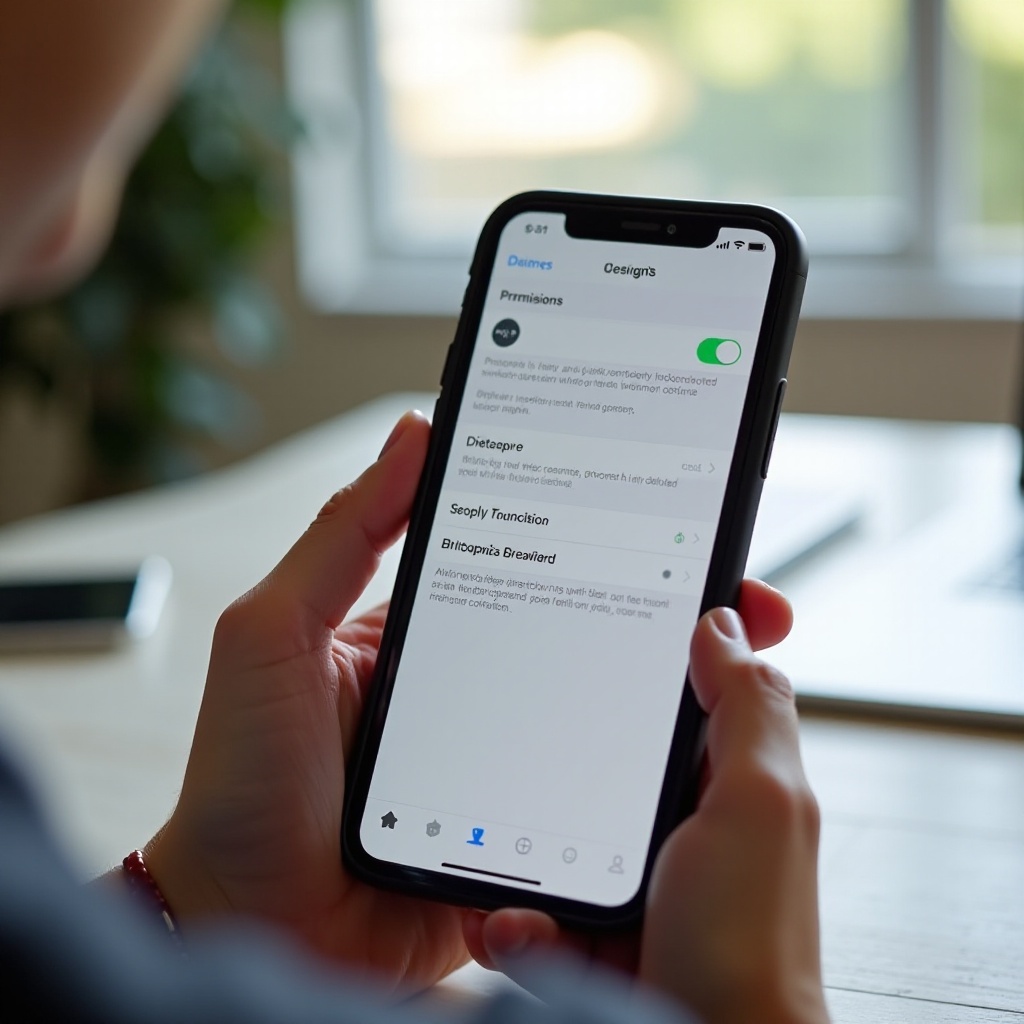
1) Open Alexa > More > Settings.
2) Tap Alexa on This Phone or Hands‑Free.
3) Turn on Enable Alexa Hands‑Free.
4) Confirm microphone and notification permissions if prompted.
How it behaves:
– Say Alexa when the app is open, on screen, or allowed to listen in the foreground.
– iOS may pause background listening to save battery or when another app owns audio focus.
– For always‑available voice access, create a Siri Shortcut so you can say Hey Siri, open Alexa.
To reduce taps even further, add Alexa widgets to your Home Screen or Lock Screen.
Add Alexa to Home Screen and Lock Screen with Widgets
Widgets put Alexa a single tap away:
– Home Screen: Long‑press the Home Screen, tap the plus icon, search for Alexa, choose a widget type such as Microphone or Lists, and place it in an easy‑to‑reach spot.
– Lock Screen: Long‑press the Lock Screen, tap Customize, select the area for widgets, and add an Alexa quick action if available.
– Place the Microphone widget near your thumb for quick launches with one tap.
Widgets are perfect for quick access. To start Alexa by voice from anywhere, build a Siri Shortcut next.
Use Siri Shortcuts to Launch Alexa by Voice
A simple Shortcut delivers hands‑free via Siri:
1) Open the Shortcuts app.
2) Tap the plus icon to create a new Shortcut.
3) Add the Open App action and select Alexa.
4) Name it Open Alexa. Save the Shortcut.
5) Invoke it by saying Hey Siri, open Alexa. Siri opens the Alexa app, and you can speak your command right away.
Helpful options:
– Back Tap: Settings > Accessibility > Touch > Back Tap. Assign Open Alexa to double tap or triple tap.
– Home Screen icon: Add the Shortcut to your Home Screen for a one‑tap launcher.
– Spotlight: Swipe down on the Home Screen and type Alexa to open fast.
With access methods in place, link your music, calendars, and skills so Alexa responds with the content and context you prefer.
Link Music, Calendars, and Skills for Better Results
Tie your services to get personalized results:
– Music and podcasts: Alexa > More > Settings > Music & Podcasts. Link Amazon Music, Spotify where supported, and podcast services. Set a default so you can say Play jazz and Alexa knows the source.
– Calendars: Alexa > More > Settings > Calendar. Link Google, Microsoft, or Apple calendars where supported. Then ask What is on my calendar or What is my next event.
– Skills: Alexa > More > Skills & Games. Enable skills for news, workouts, recipes, travel, and transit. Sign in within the skill when required so Alexa can pull your data.
Media defaults affect where audio plays. You can also target devices with phrases like Play lo‑fi beats on Kitchen Echo or on this phone when the app supports local playback. Next, set up your smart home devices so you can manage your home from your iPhone.
Control Smart Home Devices from Your iPhone
Alexa excels at smart home control:
1) Open Alexa > Devices and tap the plus icon to add lights, plugs, thermostats, sensors, or cameras.
2) Use Discover Devices or link brand accounts such as Philips Hue, TP‑Link, or Ecobee.
3) Create groups by room: Devices > plus icon > Add Group, name it Living Room, and add devices to it.
4) Control with voice: Alexa, turn on Living Room lights. Or open Devices to tap on or off.
5) Create scenes and schedules in the device apps and expose them to Alexa for one‑command changes.
When your devices respond reliably, add communication features so you can call family, send announcements, or check on rooms through Echo speakers.
Calls, Messages, Drop In, and Announcements
Turn your phone and Echo devices into a simple intercom and calling system:
– Setup: Alexa > Communicate. Verify your mobile number and allow Contacts permission.
– Calls and messages: Say Alexa, call Mom or send a voice message to another Alexa user or an Echo device.
– Drop In: Enable per device in Devices > Echo & Alexa > select device > Communications > Drop In. Then say Alexa, Drop In on Kitchen to start a two‑way audio session.
– Announcements: Say Alexa, announce Dinner is ready. All household Echo devices will speak the message.
These features work well inside routines too. Now build automations so actions happen with a time, a voice phrase, or your phone location.
Create Powerful Routines, Including Location Triggers
Routines save time and make your setup feel smart:
1) Go to Alexa > More > Routines and tap the plus icon.
2) Give the routine a clear name such as Leave Home.
3) Add a trigger under When this happens. Choose Location, set your home geofence, and pick Arrives or Leaves. For best results, set Alexa location access to Always.
4) Add actions: turn off lights, adjust the thermostat, lock the door with a supported smart lock, announce status, and send a phone notification.
5) Save and test. Walk across the geofence and confirm each action runs.
Ideas to try:
– Morning: lights on, weather briefing, commute time, and a news flash.
– Workout: play a playlist, set a 30‑minute timer, and enable Do Not Disturb on Echo devices.
– Movie Night: dim lights, close blinds, and power a TV or receiver via a smart plug.
Routines also shine in the car. Switch to a driver‑friendly interface that reduces taps and keeps focus on the road.
Use Alexa in the Car with Auto Mode
Auto Mode turns the Alexa app into a simple dashboard for driving:
– Open Alexa > More > Settings > Auto Mode and enable it.
– Mount your iPhone on the dash and connect audio by Bluetooth or AUX.
– Auto Mode shows large buttons for navigation, calls, and music. Use your voice for most tasks: Alexa, navigate to work or Alexa, play my road trip playlist.
– Keep your eyes on the road. Prefer voice over touch and set up essential options before driving.
As you add features, protect your data and control who can Drop In or access shared content. Review privacy settings next.
Privacy, Security, and Voice History Settings
You decide how Alexa uses your data:
– Voice history: Alexa > More > Settings > Alexa Privacy > Review Voice History. Delete entries by day or set auto‑delete. You can also say Alexa, delete what I just said.
– Improve services: turn off the use of voice recordings for product improvement if you prefer to keep recordings out of review programs.
– Drop In permissions: restrict Drop In to specific household members and individual devices.
– Profiles and voice ID: create voice profiles for personalized responses. Alexa can tailor calendars, calls, and music to the recognized speaker.
– Skill permissions: review each skill’s data access in Skills & Games > Your Skills and revoke anything you no longer use.
If something stops working, a few quick checks often fix the issue. Use the troubleshooting list below before you reinstall the app.
Quick Fixes: Troubleshooting Common iPhone Issues
Work through these steps in order:
1) Audit permissions: iPhone Settings > Alexa. Confirm Microphone, Bluetooth, Location, Notifications, and Background App Refresh are on. Many issues vanish after you re‑enable a missing permission.
2) Check your network: toggle Airplane Mode, switch between Wi‑Fi and cellular, and test without a VPN or content filter that might block Alexa traffic.
3) Update software: install the latest iOS and update the Alexa app in the App Store. Outdated versions cause odd bugs.
4) Restart the app: force‑quit Alexa, then reopen it. If needed, sign out and sign back in to refresh your account session.
5) Reinstall cleanly: delete Alexa, restart your iPhone, reinstall from the App Store, and sign in again. You keep your smart home devices and skills because they live in your Amazon account.
6) Hands‑free not responding: recheck microphone permission, allow Background App Refresh, and remove any aggressive battery optimization that limits background activity.
7) Shortcuts failing: open Shortcuts, verify the Open Alexa shortcut still points to the Alexa app, and retrain the Hey Siri phrase if recognition seems off.
8) Music playback problems: relink services under Music & Podcasts, set a default provider, and target the output device clearly such as on Living Room Echo or on this phone.
9) Smart home not responding: check the device brand app or cloud status, power‑cycle the device and your router, and relink the skill if tokens expired.
You now have all the pieces: setup, access options, linked services, routines, and a repair checklist. Wrap up with a quick plan for daily use.
Conclusion
Alexa fits neatly into an iPhone workflow when you enable the right features. Install the app, grant permissions, and pick your access style: hands‑free in the app, a widget, or a Siri Shortcut. Link music, calendars, and skills so your commands feel natural. Build routines with location triggers to automate arrivals and departures. Use Auto Mode in the car and set strong privacy rules. With this plan, you know how to use Alexa on iPhone with speed and confidence. Keep refining your setup as your home and routines change over time.
Frequently Asked Questions
Can I say Hey Siri, open Alexa for true hands-free control?
Yes. Create a Shortcut that opens the Alexa app, then say Hey Siri, open Alexa. Siri launches Alexa so you can speak your command right away, even from the Lock Screen or on AirPods.
Will Alexa play music on my iPhone or only on Echo devices?
Both, with limits. The Alexa app can play Amazon Music and many podcasts on your iPhone. Some services stream best to Echo or supported speakers. Link services and set a default, then target a device by name.
Why can Alexa not change iPhone system settings like brightness?
iOS restricts third‑party apps from changing core system settings. Use Siri for device controls such as brightness or Wi‑Fi, and use Alexa for smart home, skills, lists, announcements, and multi‑room audio.