
Introduction
Wireless mice have revolutionized our workspace by eliminating cords and enhancing mobility and flexibility. Yet, users often encounter frustrating problems that affect their productivity. Whether it is a connection dropout, rapid battery depletion, or wireless interference, these issues can be addressed with the right approach. In this guide, we’ll delve into common wireless mouse troubles and provide practical solutions to optimize your device’s performance.

Identifying Common Wireless Mouse Problems
The first step in troubleshooting is recognizing the specific issues your wireless mouse is experiencing. Here are some prevalent problems users encounter with their devices:
-
Connection Issues and Connectivity Drops: Most users will experience a loss of connection at some point. This problem can stem from signal interference or outdated drivers, causing the mouse to lag or become unresponsive intermittently.
-
Rapid Battery Drain: Wireless mice should provide a reasonably long lifespan on a single battery. However, if your device frequently runs out of power, it could be due to settings that consume too much energy or because of aging hardware.
-
Wireless Interference: Devices that operate wirelessly are prone to interference. Nearby electronics such as Wi-Fi routers, Bluetooth speakers, or even kitchen appliances like microwaves can disrupt your mouse’s signal, causing erratic movement or delayed response.
Having identified these issues, we can now proceed to implement solutions that are both effective and convenient.

Effective Troubleshooting Solutions
Addressing the issues with your wireless mouse can often be achieved through straightforward troubleshooting methods. Here are solutions tailored for common problems:
- Re-establishing Connection with the Receiver:
- Check the Distance: Ensure your mouse remains within the optimal range of the receiver to avoid connection drops.
- Inspect the USB Port: Try connecting the receiver to a different USB port on your computer to rule out port-specific issues.
-
Reset the Mouse: Use the reset button, typically located underneath the mouse, to re-sync with the receiver.
-
Extending Battery Life with Best Practices:
- Optimize Power Settings: Utilize power-saving modes available through your computer’s settings to prolong battery life.
- Conduct Regular Checks: Use software tools within your computer’s control panel to monitor battery levels frequently.
-
Opt for Rechargeable Batteries: Switching to rechargeable options can save costs in the long term and is better for the environment.
-
Reducing Interference for Better Performance:
- Reposition Electronic Devices: Moving other wireless devices away from your workspace can reduce signal interference.
- Adjust Frequency Settings: Change your Wi-Fi router’s frequency from 2.4 GHz to 5 GHz to minimize overlapping frequencies that affect mouse connectivity.
Interference issues often require a combination of these solutions for optimal results. Once interference is managed, further steps might be needed for persistent mechanical or software issues.
Advanced Repair and Maintenance Tips
If basic troubleshooting fails to resolve your mouse problems, consider more advanced measures to ensure better performance:
-
Firmware and Software Updates: Regular updates from the manufacturer can enhance functionality and resolve existing bugs. Always ensure your mouse and relevant software are up to date.
-
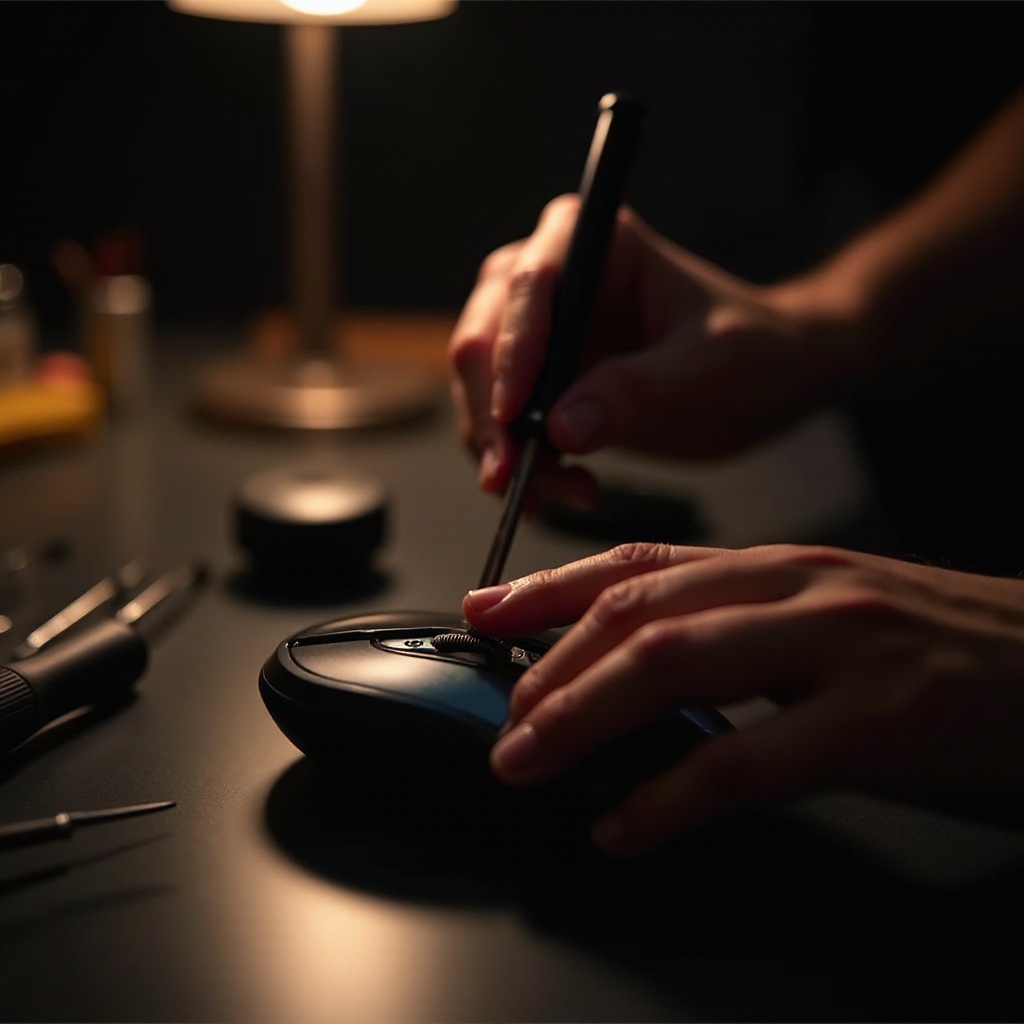
Cleaning and Physical Maintenance: Accumulated dust and dirt can obstruct the sensor and buttons. Clean your mouse regularly using a soft cloth, and ensure that the sensor is clear of any obstructions.
-
Knowing When to Seek Professional Help: If your mouse remains unresponsive after attempted repairs, it may be time to consult a professional technician who can diagnose more complex issues effectively.
These maintenance tips, when followed, can extend the lifespan of your wireless mouse, ensuring it remains a reliable tool in your workspace.
Choosing the Right Wireless Mouse for Your Needs
A well-chosen wireless mouse can drastically reduce the likelihood of experiencing issues. Consider factors such as the ergonomics that prevent fatigue, battery lifespan that matches your usage style, connection range, and the manufacturer’s reputation. Investing in a quality mouse doesn’t just mean better reliability; it often translates to enhanced features and sustained performance over time.
Conclusion
Wireless mice are incredibly convenient tools that, despite certain issues, significantly contribute to a modern and flexible working environment. By understanding and employing effective troubleshooting measures, users can combat typical problems such as connectivity issues, battery inefficiencies, and interference, thereby enjoying a seamless user experience. Regular maintenance and smart purchasing decisions further ensure that users remain free from the hassles associated with wireless technology, allowing them to focus on productivity uninterrupted.
Frequently Asked Questions
How can I prevent my wireless mouse from lagging?
Keep the receiver at the optimal distance, update drivers regularly, and ensure a clutter-free wireless environment to minimize lag.
Why does my wireless mouse keep disconnecting?
Frequent disconnections can be due to low battery, USB port issues, or signal interference. Address these to restore stable connectivity.
What should I do if my wireless mouse isn’t recognized by my computer?
Start by changing the USB port, checking for driver updates, and ensuring the mouse is powered and in range. If the problem persists, consult technical support.