
Introduction
You press and hold the ‘power’ button on your new Samsung Galaxy and Bixby pops up instead of a power menu. Or you swipe down from the top, but you only see Wi‑Fi and brightness controls. Many people type ‘how do I shut down my Samsung phone’ into search because the power controls changed on newer Galaxy models.
Samsung replaced the classic Power key with what it now calls the Side key. The default action on many 2024 devices is to launch Bixby, not to open the power menu. At the same time, the Quick Settings panel gained its own power icon. That gives you more options, but also more confusion.
This guide walks you through every reliable method to turn off a Samsung phone running recent One UI versions. You will learn how to use the hardware buttons, the Quick Settings power icon, Side key settings, and forced restart combinations when your phone freezes. You will also see model‑specific notes, safe shutdown tips, and what to do when your device refuses to power off.

Understand How Power Controls Work on Modern Samsung Phones
Before you start pressing buttons, it helps to know what Samsung changed. When you understand how the Side key and software options work, the shutdown methods in later sections become easy to remember and use without trial and error.
The difference between the old Power key and the modern Side key
Older Samsung phones had a clear Power key. You pressed and held it and a simple menu appeared with:
- Power off
- Restart
- Emergency mode
On current Galaxy phones, this button is now called the Side key. By default, it does more than just power options. Samsung uses it as a general shortcut:
- Single press: Turn the screen on or off.
- Double press: Open the camera or an app.
- Press and hold: Open Bixby or the power menu (depending on settings).
The name change matters because when you look in Settings, you will not see ‘Power button settings.’ You will see ‘Side key’ instead. That is where you control what the long‑press action does.
Why long‑press now opens Bixby on many Galaxy models
On many recent Galaxy S, Note, A, and Z devices, the default long‑press on the Side key launches Bixby, Samsung’s voice assistant. This can be confusing if you expect a power menu.
When Bixby appears, many users think their power button is broken. It is not. Samsung simply mapped the long‑press to Bixby. You need to:
- Change the Side key settings, or
- Use the Quick Settings power icon, or
- Use a button combination (Side key + volume).
You will see how to do each of these in the next sections.
How One UI 6 and later changed power options
On One UI 6 and later, Samsung also put a power icon in the Quick Settings area. This means you can turn off your phone using on‑screen controls even if the Side key is remapped. It also gives you a backup method if your physical buttons feel unreliable.
However, the power icon is not obvious if you only pull down the shade halfway. You may need to expand the panel to see it. Now that you know how the Side key and power icon fit together, you can move on to the first and most direct method: using the hardware buttons to shut down your Samsung phone.
Method 1 – Shut Down Your Samsung Phone Using Hardware Buttons
If you want a quick, reliable method, the hardware buttons are usually best. The exact combination depends on your Side key settings, but recent Samsung phones share the same basic steps. Once you know this method, you always have a way to reach the power menu, even if you change your Side key options later.
Standard shutdown with Side key and volume down
On many current Galaxy devices, Samsung uses a key combination to open the power menu:
- Wake the screen if it is off.
- Press and hold the Side key and the volume down button at the same time.
- Keep holding until the power menu appears on the screen.
- Tap ‘Power off.’
- Confirm if you see a second prompt.
If your Side key is already set to show the power menu on a long‑press, you can:
- Press and hold the Side key alone.
- Wait for the power menu to appear.
- Tap ‘Power off.’
If Bixby appears instead of the power menu, your Side key is mapped to Bixby. You can still shut down with the Side key + volume down combination or change the setting later in the Side key menu.
Choosing ‘Power off’ vs ‘Restart’ vs ‘Emergency call’
When the power menu appears, you usually see options like:
- Power off
- Restart
- Emergency call or Emergency mode
Use them like this:
- Choose ‘Power off’ when you want the phone completely off.
- Choose ‘Restart’ when performance is sluggish, an app misbehaves, or you just updated the system.
- Use ‘Emergency’ only in real emergencies, because it changes network and power behavior.
For a normal shutdown, ‘Power off’ is the correct choice.
Visual signs your Samsung phone is fully powered off
After you tap ‘Power off,’ watch for these signs:
- The screen fades to black.
- You do not see the Samsung logo reappear.
- The phone does not vibrate or light up again after a few seconds.
To confirm, press the Side key briefly. If the phone is off, nothing happens. If the Samsung logo appears, the phone restarted instead of powering off.
If the button combo feels awkward or you want a method that uses only the screen, you can rely on software controls instead. The next method shows how to use the power icon in Quick Settings to shut down with just a few taps.
Method 2 – Turn Off Your Samsung Phone from the Quick Settings Power Icon
Sometimes it is easier to use on‑screen controls, especially if your Side key is mapped to Bixby or a case makes the buttons hard to press. Samsung added a power icon to the Quick Settings panel for this reason. This method works the same way on most recent Samsung phones and does not depend on how you set the Side key.
Accessing the notification shade and full Quick Settings
To reach the power icon, you first need the full Quick Settings panel:
- Place your finger at the top of the screen and swipe down once.
- You now see the notification shade and a row of quick toggles.
- Swipe down again from the top to expand to full Quick Settings.
On some devices, you can also swipe down once with two fingers to open the full Quick Settings immediately. If you only pull it halfway, you might not see the power icon, so make sure you expand the panel fully.
Finding and using the on‑screen power icon
Once full Quick Settings is open, look in the upper right or upper corner area. You should see a power icon, usually a circle with a vertical line.
To shut down:
- Tap the power icon.
- The same power menu appears as with the button method.
- Tap ‘Power off.’
- Confirm if prompted.
This method does not depend on your Side key settings. It works even if a carrier or update changes button behavior.
When to use this method instead of hardware buttons
The Quick Settings method is especially useful when:
- Your Side key or volume buttons feel loose or unreliable.
- You keep invoking Bixby by mistake when pressing and holding the Side key.
- You have a thick protective case that makes the buttons harder to press.
However, if the screen freezes or does not respond to taps, this method will not work. In that case, you need to adjust how the Side key behaves or use a forced restart. The next section explains how to change Side key settings so a long‑press opens the power menu again.
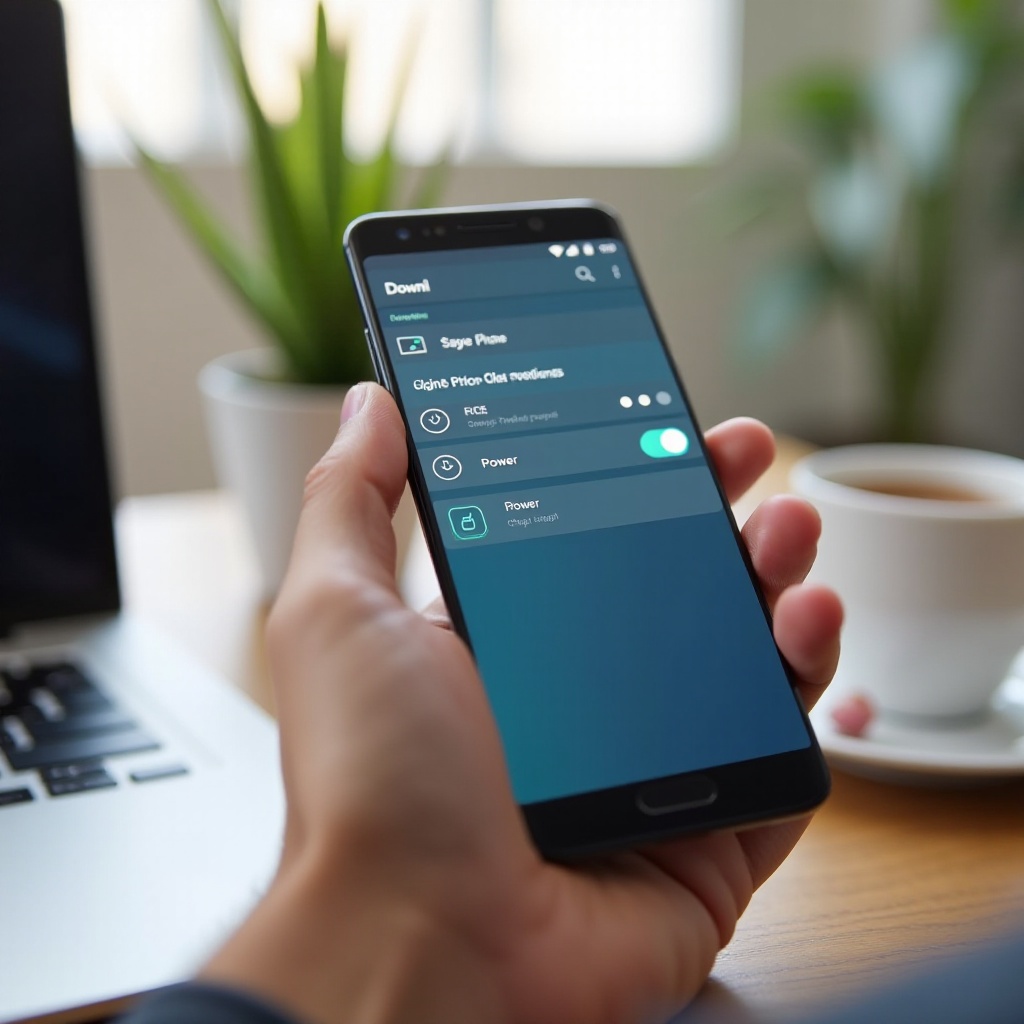
Method 3 – Change the Side Key to Open the Power Off Menu (Side Key Settings)
If you prefer the old behavior where a long‑press shows the power menu, you can change that. Samsung lets you remap the Side key from Bixby to the power options. Once you adjust this setting, shutting down becomes more intuitive and you do not have to remember button combos.
Why remapping the Side key makes shutdown easier
Remapping the Side key gives you a simple rule:
- Long‑press Side key = power menu
- Short press = screen on or off
- Double press = open camera or another app
This mimics the experience of older Samsung phones and avoids confusion. You do not need to remember volume combinations or hunt for icons in Quick Settings every time you want to turn the phone off.
Step‑by‑step: Open and adjust Side key settings in One UI
To change the Side key behavior:
- Open the Settings app.
- Scroll down and tap Advanced features.
- Tap Side key.
- Under ‘Press and hold,’ select Power off menu instead of Bixby.
- Under ‘Double press,’ choose what you prefer:
- Quick launch camera (recommended), or
- Open a specific app.
After you set ‘Press and hold’ to ‘Power off menu,’ test it:
- Press and hold the Side key for a few seconds.
- The power menu should appear on the screen.
Now you can shut down with a simple long‑press, similar to older Galaxy models.
Recommended Side key configuration for most users
For most people, this setup works best:
- Double press: Quick launch camera
- Press and hold: Power off menu
That way, you can quickly open the camera without unlocking the phone, and you always know that a long‑press will let you power off or restart. Even with these settings, though, your phone can still freeze or become unresponsive. When that happens, you need a forced restart, which is the focus of the next section.
Method 4 – Force Shutdown or Forced Restart When Your Samsung Is Frozen
Sometimes the screen stops responding or an app locks the phone completely. In those moments, the normal power menu will not open, and even the Quick Settings panel may not appear. A forced restart solves many of these situations without erasing your data.
When you need a forced restart instead of a normal shutdown
Consider a forced restart if:
- The screen does not respond to taps or swipes.
- The phone stays stuck on one app or a black screen.
- The phone shows the Samsung logo for a long time and never boots fully.
- The power menu will not appear, even with the correct button combination.
A forced restart does not erase your files or apps. It simply cuts the power at a deeper level and starts the system again. It is safe to use when normal methods fail.
Button combinations for forced restart on recent Galaxy models
On most recent Galaxy devices (S, Note, A, M, Z), the forced restart shortcut is:
- Press and hold the Side key and the volume down button together.
- Keep holding them for about 10–15 seconds.
- You will feel a vibration or see the Samsung logo appear.
- Release the buttons when the logo shows.
If your phone is extremely frozen, you might need to hold the buttons for slightly longer. After the phone restarts, you can then shut it down normally using the power menu if needed.
What to do if your Samsung phone still will not respond
If the forced restart does not work:
- Plug the phone into a reliable charger for at least 10–15 minutes.
- Try the forced restart again while it is charging.
- Check if any case or accessory is pressing the buttons. Remove the case and retry.
If there is still no response:
- The battery, motherboard, or display might be damaged.
- It is time to contact Samsung Support or visit a repair center.
Once you understand forced restarts, it helps to know how your specific series behaves, because the layout and feel of the buttons can differ. The next section covers shutdown notes for the main Galaxy families: S, Note, A, M, and Z.
Model‑Specific Notes: S, Note, A, M, and Z Series
The overall shutdown methods are similar across Samsung’s lineup, but each family of devices has small differences in design and behavior. Knowing these details makes it easier to follow the steps on your own phone without guessing.
Galaxy S and Note series: S21, S22, S23, S24 and recent Note models
For Galaxy S21, S22, S23, S24 and late‑generation Note devices:
- The Side key is usually on the right side of the phone.
- The default long‑press often launches Bixby unless you change it.
- You can:
- Use Side key + volume down to open the power menu.
- Or remap the Side key to ‘Power off menu’ and use a long‑press.
Forced restart uses the same Side key + volume down combination, held longer (about 10–15 seconds) until the Samsung logo appears.
Galaxy A and M series: budget and mid‑range shutdown quirks
Galaxy A and M series phones usually follow the same logic, but you may see small variations:
- Some carrier models keep different defaults for the Side key.
- You might see extra prompts when powering off, depending on the SIM or security setup.
If you do not see ‘Advanced features > Side key’ in Settings, use the search bar in the Settings app and type ‘Side key.’ Shutdown and forced restart still rely on the Side key and volume down combination on most 2024 A and M models.
Galaxy Z Flip and Z Fold: foldable controls and what to expect
Galaxy Z Flip and Z Fold phones also use the Side key and volume controls, but you might notice a few extras:
- The Side key also acts as a fingerprint sensor.
- The device may ask for a PIN or pattern after a forced restart.
Despite the foldable design, the steps remain familiar:
- Press and hold Side key + volume down for the power menu.
- Long‑hold Side key + volume down for forced restart.
- Use the Quick Settings power icon as a backup.
No matter which series you use, safe shutdown habits protect your data and prevent damage. The next section explains how to power off in a way that keeps your files and system as healthy as possible.
Safe Shutdown Practices to Protect Your Data and Device
Powering off your Samsung phone is simple, but doing it the right way helps keep your data safe and your system stable over time. A few habits around updates, active tasks, and power modes make a real difference.
Avoiding shutdown during system updates or installs
You should not shut down your phone during these activities:
- A system update installation
- A firmware flash from a computer
- Encryption or major security updates
Interrupting these processes can corrupt the system and cause boot problems. If you see a screen that says it is installing an update, let it finish, even if it takes several minutes. Only turn the phone off after it returns to the normal home screen.
Saving work and closing apps before powering off
Before you turn off the phone:
- Save any drafts in messaging, notes, or documents.
- Stop ongoing tasks such as:
- Video recording
- File downloads
- Cloud backups
- Close heavy apps like games to reduce the chance of minor glitches.
You do not need to manually close every app, but saving active work prevents data loss and avoids half‑written messages or files.
When to power off completely vs use Airplane or Power saving mode
You do not always need a full shutdown. Consider:
- Power off when:
- You will not use the phone for several hours or days.
- The phone acts strangely and a restart did not help.
- You need to remove the SIM or microSD card.
- Airplane mode when:
- You want to stop calls and data but still use apps offline.
- Power saving mode when:
- You want to extend battery life but still stay reachable.
Shutting down is a stronger step than both Airplane mode and power saving. It is useful, but not necessary several times a day. Use it when there is a clear reason, such as troubleshooting or storing the phone. If you try to shut down and run into problems instead, the next section covers what can go wrong and how to handle it.
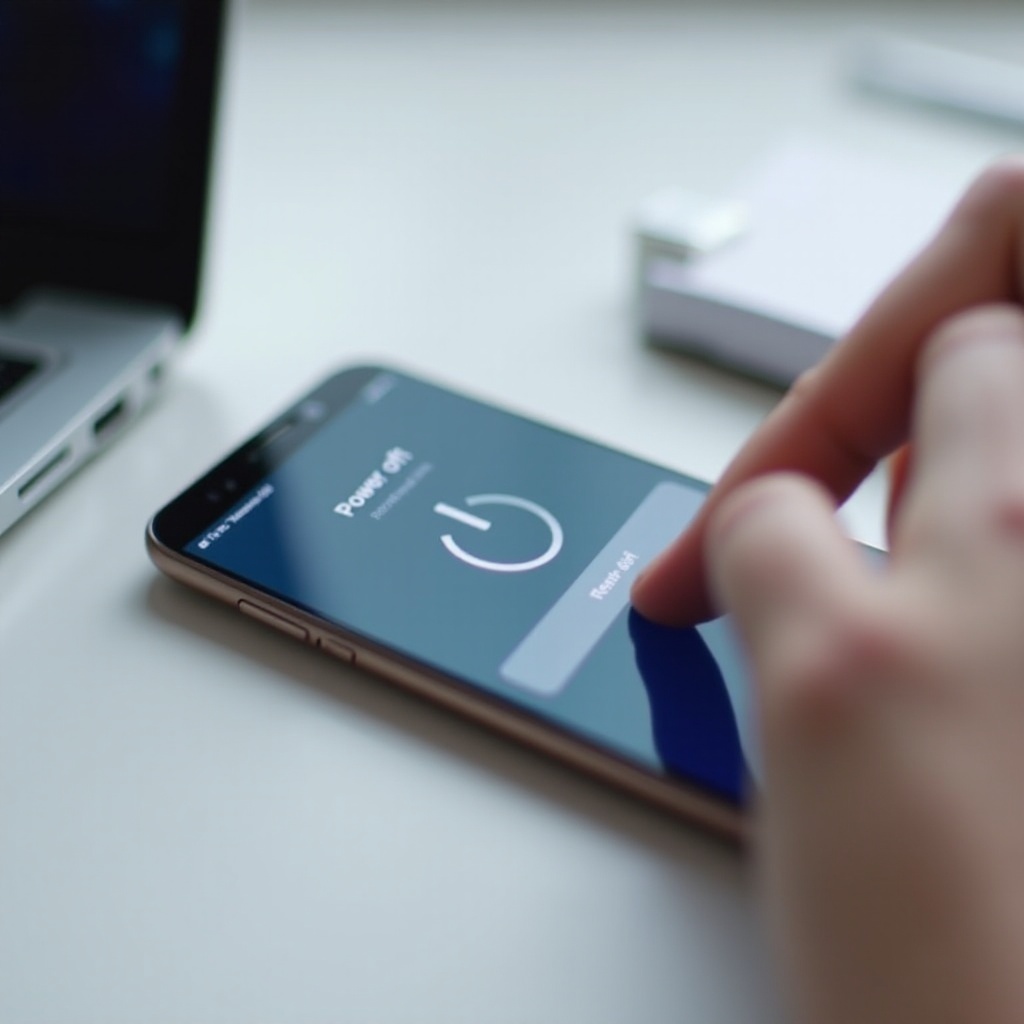
Common Problems When Shutting Down a Samsung Phone
Even with the correct methods, you may run into odd behavior. Understanding common issues helps you decide when to troubleshoot yourself and when to seek help. Paying attention to how the phone behaves when you press the Side key or tap ‘Power off’ can reveal the cause quickly.
Phone restarts instead of turning off
Sometimes you tap ‘Power off’ and the phone restarts instead. Possible reasons include:
- You accidentally tapped ‘Restart’ instead of ‘Power off.’
- A system update requires a restart and overrides your choice.
- A glitch forces the device to reboot after shutdown.
To fix or confirm:
- Try shutting down again and carefully select ‘Power off.’
- Check if any notifications mention pending updates.
- Install updates, then attempt a shutdown once more.
If the device still always restarts on its own, a deeper software issue may exist. Back up your data and consider contacting support or a repair center for a detailed check.
Power button not working or feeling stuck
If the Side key does not click or respond:
- Remove your case and check if it presses on the key.
- Clean around the Side key gently with a soft, dry cloth.
- Use the Quick Settings power icon to shut down instead of hardware buttons.
If the button is physically damaged:
- Avoid pressing it repeatedly or with extra force.
- Use on‑screen methods and voice controls (if available) as a temporary workaround.
- Plan a repair, especially if the phone is still under warranty or a protection plan.
When to contact Samsung Support or a repair center in 2024
You should reach out to Samsung or a repair center when:
- The phone does not respond to forced restart.
- The device shuts down randomly, even with a full battery.
- It overheats or shows warning messages before shutdown.
- The Side key or volume buttons are clearly broken.
Before you call or visit:
- Note your model name, such as Galaxy S24, Galaxy A55, or Galaxy Z Flip.
- Record the issue: what you tried, how the phone reacted, and any error messages.
- Back up your data using Samsung Cloud, Google, or a computer if possible.
With the main methods and common problems covered, you can now focus on a simple summary and best practices that help you remember the key steps whenever you need to shut down your Samsung phone.
Conclusion
Shutting down a Samsung phone in 2024 can feel confusing if you still expect a classic power button. By learning how the Side key works and where the Quick Settings power icon lives, you regain full control.
You can use hardware buttons, on‑screen controls, and Side key settings to choose the method that fits you best. In difficult moments, the forced restart combination (Side key + volume down held for 10–15 seconds) gives you a way out of freezes and crashes without losing your data.
Safe shutdown habits, like avoiding power off during updates and saving your work first, help protect your files and your device. If your phone refuses to respond, or if the Side key is physically damaged, involve Samsung Support or a trusted repair center.
The next time you wonder ‘how do I shut down my Samsung phone,’ you will have several clear options, an understanding of how they work, and the confidence to use them correctly.
Frequently Asked Questions
Is it okay to shut down my Samsung phone every night?
Yes, shutting down your Samsung phone every night is safe. Modern batteries can handle regular power cycles. A daily shutdown can clear temporary files, close background apps, and fix minor glitches. You do not have to turn it off every night, though. Many people simply restart the device once every few days or once a week. If you rely on overnight alarms or updates, consider leaving it on and using power saving mode instead of a full shutdown.
Will my alarms or notifications work when my Samsung phone is turned off?
No, alarms and notifications will not work when your Samsung phone is fully powered off. Once the device shuts down, the system stops running and no apps can send alerts. No calls, messages, or alarms will reach you. If you need alarms or notifications while sleeping, keep the phone on but lower the volume or use Do Not Disturb mode with ‘Allow alarms’ turned on. This keeps alarms active but silences most other alerts.
How often should I restart or shut down my Samsung phone for best performance?
Restarting your Samsung phone once a week is a good general habit for performance. A restart clears temporary system files, closes apps stuck in the background, and frees memory. You can shut the phone down completely when you do not plan to use it for several hours or more, or when you notice serious lag, random bugs, or overheating. You do not need to power off several times a day; regular restarts and occasional shutdowns are enough to keep most modern Samsung phones running smoothly.