
Introduction
Android Auto audio skipping can turn a peaceful drive into pure frustration. Songs cut out, podcasts stutter, and navigation prompts interrupt your music. Many drivers blame the car, the cable, or the app, but in most cases the problem starts with the phone.
Audio stuttering often shows up after a system update, a new phone, or a change from wired to wireless Android Auto. The issue can be random or happen every few seconds. Sometimes the music stops when you get a notification or when your phone switches between data and Wi‑Fi.
This guide focuses on what you can control: your Android phone. You will learn how Android Auto handles audio, what typically causes skipping, and the exact settings to check. The steps include fast tests, wired and wireless fixes, and a few advanced actions if the problem keeps coming back.
By the end, you will have a clear checklist to stop Android Auto audio skipping and keep your music, podcasts, and calls smooth during every drive.
What Is Android Auto Audio Skipping?
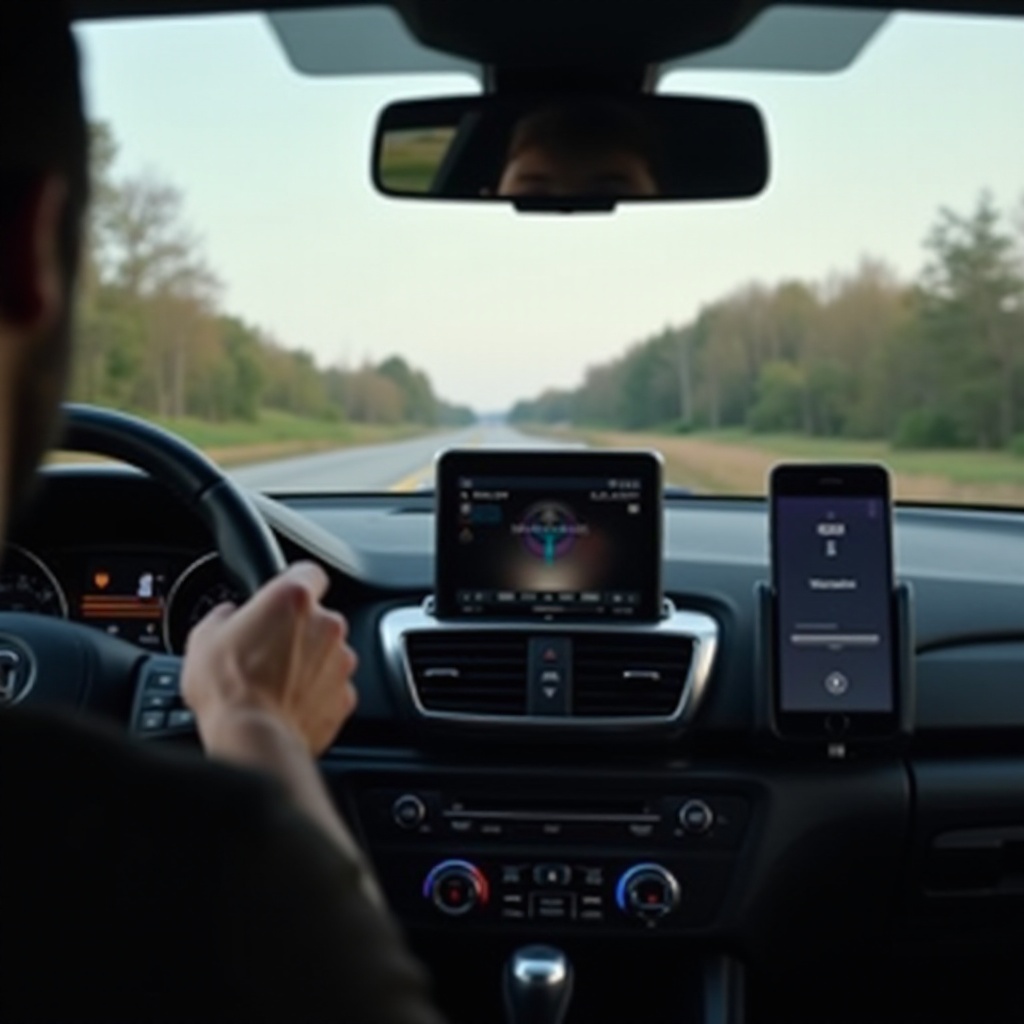
Android Auto audio skipping means your sound briefly cuts out or stutters while you use Android Auto in your car. You might notice:
- Short dropouts in music or podcasts.
- Stuttering when you change tracks or switch apps.
- Delays or cut‑off voice directions from Maps or Waze.
Skipping is not the same as a full disconnect. The screen can stay connected while audio slices in and out. That makes it harder to diagnose because everything looks normal, but the sound is broken.
This problem can appear with:
- Wired Android Auto over USB.
- Wireless Android Auto over Wi‑Fi and Bluetooth.
- Any media app such as Spotify, YouTube Music, Audible, or podcast players.
Most of the time, audio skipping happens when something interrupts the clean flow of data from your phone to the car head unit. That something may be a power‑saving feature, a network hiccup, a weak cable, or a buggy app update.
To fix it properly, you first need to understand how Android Auto sends audio from your phone to your car and which parts of that chain tend to fail.

How Android Auto Handles Audio from Your Phone
Android Auto does more than mirror your screen. Your phone still does most of the work, including decoding audio and running apps. The car head unit mainly acts as a display, an audio output, and a control surface.
In simple terms, the audio path looks like this:
- A media app on your phone (Spotify, YouTube Music, etc.) decodes the audio file or stream.
- Android routes that decoded audio through the system audio pipeline.
- Android Auto passes the audio stream over USB (for wired) or Wi‑Fi (for wireless) to the car head unit.
- The car system converts the digital stream into sound through its amplifier and speakers.
Several factors affect this chain:
- CPU load on the phone: heavy apps running in the background can delay audio processing.
- Power management: the system may slow or pause apps to save battery, even when plugged in.
- Network conditions: streaming audio depends on stable data when you are not listening offline.
- Connection stability: the USB or wireless link must handle constant data without drops.
If any part stalls, even for a fraction of a second, you hear it as Android Auto audio skipping. Understanding this pipeline helps you see why the same car can feel perfect with one phone and terrible with another.
Now that you know how audio flows, you can run a few quick checks to narrow down the source of the problem before you dive into detailed fixes.
Quick Checks Before Deep Troubleshooting
Before you change lots of settings, run a few simple tests. These quick checks can tell you whether you are dealing with a phone issue, a car issue, or something in between.
-
Try a different app.
If Spotify skips but a local music player using files stored on your phone sounds fine, then your issue may be related to streaming or that specific app.
-
Test wired vs wireless.
- If wired Android Auto is smooth but wireless skips, the problem likely involves Wi‑Fi or Bluetooth.
- If both wired and wireless skip, focus on phone settings, apps, or the car head unit.
-
Use a different cable.
For wired Android Auto, a bad or low‑quality USB cable is one of the most common causes. Use a short, good‑quality data cable, not just a charging cable.
-
Try another phone if possible.
If another phone works perfectly with the same car and cable, your primary phone is probably the main suspect.
-
Restart everything.
- Reboot your phone.
- Turn the car off completely, wait a minute, then start it again.
- Reconnect Android Auto after both have restarted.
These checks help you avoid hours of random tweaking. Once you know whether the problem is tied to the phone, the network, or the connection type, you can target the right set of fixes.
With the basics out of the way, it is easier to understand the common root causes that appear on modern phones and cars.
Common Causes of Android Auto Audio Skipping in 2024–2025
Recent Android devices and car systems rely on aggressive optimizations, complex connectivity, and frequent updates. All of this power can introduce new problems for Android Auto audio.
Most cases of Android Auto audio skipping come from three main areas.
Power and Battery Management Conflicts
Phone makers use features like Adaptive Battery, app sleep, and power‑saving modes to extend battery life. These systems often:
- Place media apps into a sleeping or restricted state.
- Limit background activity when the screen is off.
- Throttle CPU performance when the system thinks the phone is idle.
When this happens during Android Auto, your music or podcast app may not get enough resources to stream or decode audio smoothly. That leads to stuttering, delayed playback, or brief cuts in sound.
Connectivity and Signal Issues
Both wired and wireless Android Auto depend on a stable data path:
- Weak or damaged USB cables can cause momentary data errors.
- Loose ports on the phone or head unit can interrupt audio.
- Wireless Android Auto relies on Wi‑Fi plus Bluetooth; interference or weak signal can cause drops.
If the underlying link becomes unstable, Android Auto audio skipping appears even when apps and the operating system work correctly.
App and OS Bugs on Modern Android Phones
Updates to Android, car firmware, or apps can introduce bugs:
- A new Android Auto version may not work well with specific phone models.
- A media app update may add features that conflict with Android Auto.
- Operating system patches can alter background limits or networking behavior.
In these cases, you may enjoy perfect performance one day and constant skipping the next, with no hardware change at all. You still have options, though. You can often work around the issue by adjusting settings while you wait for a patch.
If you use a cable, start by fixing the wired connection. A stable wired setup gives you a good baseline and helps you decide whether the problem comes from wireless projection or deeper phone settings.
Fixes for Wired Android Auto Audio Skipping
When you use a USB cable for Android Auto and experience audio skipping, focus first on physical connections and USB‑related phone settings. A solid wired link should deliver smooth, uninterrupted audio.
Choose the Right USB Cable and Port
A surprising number of problems come from poor cables. To improve stability:
- Use a short, high‑quality USB cable, ideally under one meter in length.
- Make sure the cable supports data transfer, not only charging.
- Avoid very cheap or heavily worn cables; replace them if you see fraying, kinks, or loose connectors.
You should also:
- Try different USB ports in the car, if your head unit offers more than one.
- Avoid using USB hubs, splitters, or extension cables between the phone and the car.
A direct, solid connection reduces data errors that cause Android Auto audio skipping.
Adjust Phone USB and Developer Settings
Certain USB settings on your phone can affect Android Auto:
- When you connect the phone, confirm the USB mode is set to file transfer or Android Auto if the system prompts you.
- Turn off USB debugging in Developer Options unless you specifically need it for testing.
- If you enabled experimental USB configurations in Developer Options, reset them to default.
These steps help Android Auto maintain a stable data link and reduce random interruptions in audio caused by unusual USB behavior.
Manage Battery and Performance While Plugged In
Even when plugged in, some phones still apply strong battery controls:
- Disable Battery Saver mode during driving.
- Exclude Android Auto and your main media apps from battery optimization.
- On brands like Samsung, remove those apps from sleeping, deep sleeping, or restricted app lists.
By allowing Android Auto and your audio apps to run at full performance while wired, you lower the chance of stutters caused by throttling.
If you prefer the convenience of wireless projection, or if your car only supports wireless Android Auto, the next section focuses on wireless‑specific causes of skipping and how to fix them.
Fixes for Wireless Android Auto Audio Skipping
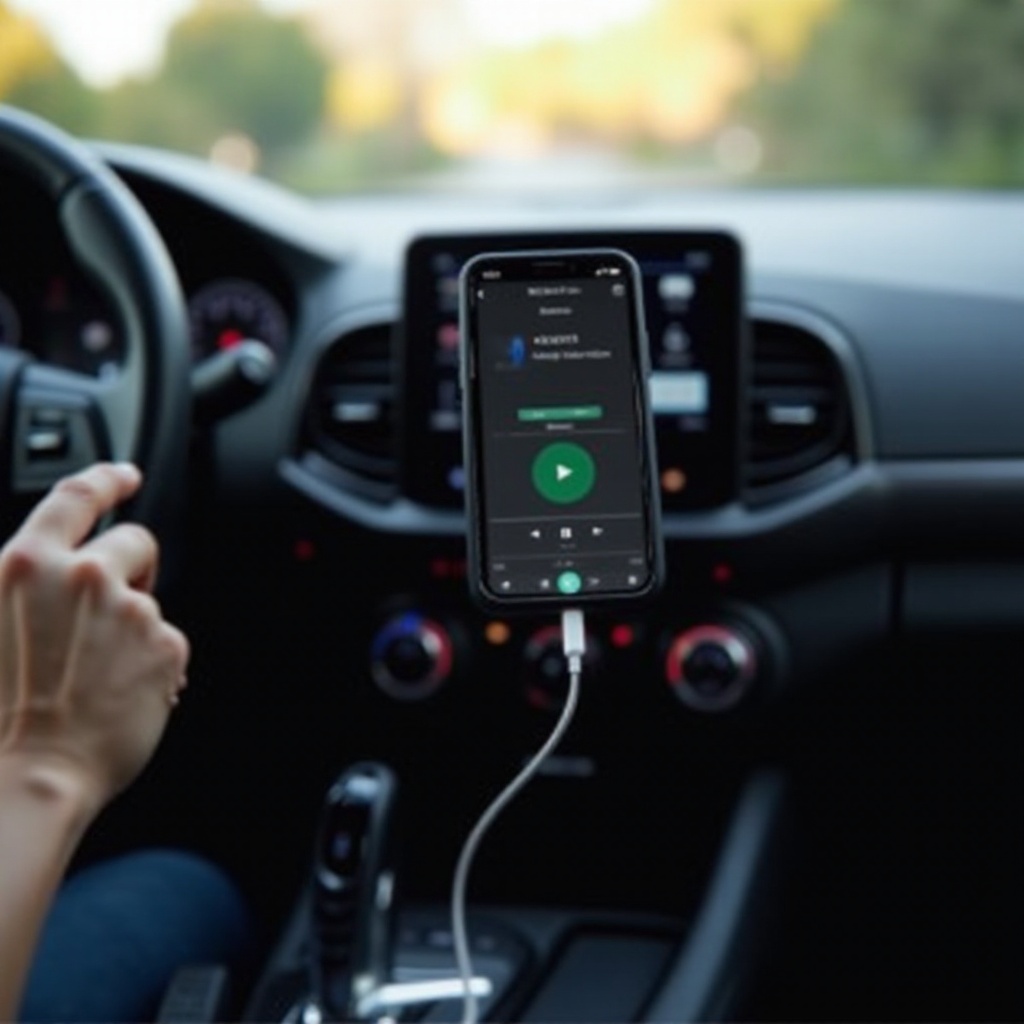
Wireless Android Auto adds freedom from cables but also more complexity. Audio travels over Wi‑Fi while Bluetooth handles control and call audio. Any interference or weak signal can show up as stuttering or cuts in sound.
Optimize Wi‑Fi and Bluetooth for Stable Audio
To get a more reliable wireless connection:
- Place your phone where it has a clear line of sight to the car head unit, if possible.
- Avoid burying the phone in a bag, glovebox, or under metal objects that block signal.
- Turn off nearby Bluetooth devices that you do not need and that may interfere.
On the phone, you can also:
- Disable Wi‑Fi scanning and Bluetooth scanning for location in system settings.
- Turn off features like Wi‑Fi calling or tethering if you notice they cause conflicts.
A cleaner wireless environment makes audio smoother and reduces Android Auto audio skipping.
Reset Wireless Connections and Car Profiles
If wireless Android Auto audio skipping started recently, a corrupted pairing may be the cause. Reset the connection by doing the following:
- Forget the car from your phone’s Bluetooth settings.
- Remove the phone from the car’s paired devices list.
- Open the Android Auto app and remove the car from the list of known vehicles.
- Reboot both the phone and the car, then set up Android Auto again from scratch.
A fresh pairing often clears old profiles or hidden settings that interfere with stable audio.
Limit Background Network and Hotspot Usage
Streaming audio over wireless Android Auto competes with other network tasks:
- Pause large app updates and cloud backups while driving.
- Turn off mobile hotspot if you share your connection with passengers.
- Close heavy network apps such as download managers or file sync tools.
By reducing network congestion, you give your streaming app the bandwidth it needs to avoid Android Auto audio skipping.
Whether you use wired or wireless, your phone’s internal settings play a major role. The next section looks at specific phone options that often cause or fix skipping.
Phone Settings That Often Cause Android Auto Audio Skips
Many Android Auto audio problems come from the same set of phone settings. Battery management, sound processing, and developer options can silently disrupt audio if they are configured too aggressively.
Battery Optimization, Adaptive Battery, and Sleep Modes
Start with the battery section of your phone:
- Open settings and go to the battery or power menu.
- Turn off global Battery Saver while you use Android Auto.
- For Android Auto, Google Play Services, and your main media apps, disable battery optimization.
On phones with extra controls, also:
- Remove those apps from sleeping, deep sleeping, or restricted lists.
- If your device uses Adaptive Battery, test with it turned off, or ensure your media apps are marked as not restricted.
These changes prevent the system from pausing or slowing apps that drive your audio stream.
Audio Enhancements, Equalizers, and Sound Mods
Extra audio processing can cause stutters, especially when it hooks into system‑wide sound:
- Disable system‑level effects such as Dolby Atmos, spatial audio, or similar features as a test.
- Turn off any third‑party equalizer or sound booster apps, especially those that require special permissions.
- If your phone has a game mode or audio focus option, make sure it does not change media behavior while driving.
If audio becomes smooth with all enhancements off, you have likely found a conflict. You can then re‑enable features one by one to see which one triggers Android Auto audio skipping.
Developer Options, Codecs, and Experimental Features
If you have enabled Developer Options on your phone, review them carefully:
- Do not force specific Bluetooth codecs or AVRCP versions unless you know the head unit requires it.
- Avoid forcing low‑latency audio paths or custom buffer sizes.
- If you recently changed experimental networking or USB settings, reset them to default.
In many cases, resetting Developer Options is the simplest way to rule out hidden conflicts. Once phone‑level behavior is stable, it is time to tune the apps that actually play your music and podcasts.
App-Level Tweaks for Music, Podcasts, and Streaming
Media apps have their own settings that affect stability, especially when streaming over mobile data while Android Auto is active. Small changes in these apps can remove a lot of stutter.
Spotify, YouTube Music, and Other Streaming Apps
To reduce skipping in popular streaming apps:
- Update the app to the latest version from the Play Store.
- Clear cache (not data) in the app’s storage settings.
- Set streaming quality to normal or high instead of very high, then test again.
- If the app offers a performance or hardware acceleration toggle, test it on and off.
When one app keeps skipping while others play smoothly, that app is likely the culprit. Reinstalling it or switching between beta and stable channels can sometimes fix the problem.
Offline Downloads vs. Mobile Data Streaming
Streaming depends on a stable mobile connection. If your signal changes or the network slows, you may hear stutters. To avoid that:
- Download playlists, albums, or podcast episodes before driving.
- Use offline mode in your media apps during trips when coverage is poor.
- Keep enough free storage space so downloads complete and play without corruption.
Offline playback removes mobile data issues from the equation and often fixes Android Auto audio skipping in areas with weak reception.
Disabling Crossfade, Gapless, and Volume Normalization
Advanced playback features can cause extra processing:
- Turn off crossfade between tracks.
- Disable gapless playback if your app offers it.
- Test with audio normalization or loudness leveling turned off.
These features add extra work during track changes and may not behave well with Android Auto on all phone and car combinations.
If app tweaks and phone settings do not fully solve the issue, the car head unit itself may need attention.
Checking Your Car’s Head Unit and Firmware
Even when the phone is set up correctly, outdated or buggy car firmware can still cause Android Auto audio skipping. Verifying the car side helps you avoid chasing phone issues that do not exist.
Updating Infotainment Software and Maps
Check your car manufacturer’s website, mobile app, or support portal for:
- Infotainment system software updates.
- Android Auto compatibility notes and known issues.
- Instructions for performing updates via USB, Wi‑Fi, or at the dealer.
If an update is available, install it following the maker’s instructions. Dealers can often perform updates during service visits if you prefer not to update the system yourself.
Resetting Android Auto Settings in the Car
Many head units store Android Auto preferences that can become corrupted over time.
- Open the car’s Android Auto or smartphone integration settings.
- Clear or reset Android Auto data or profiles related to your phone.
- After resetting, pair your phone again and complete the Android Auto setup from the beginning.
A reset can clear settings conflicts that make audio behave in unpredictable ways.
Testing with a Different Phone or Vehicle
To isolate the problem further:
- Use your phone with a different Android Auto‑compatible car or head unit.
- Use a friend or family member’s phone with your car.
If the issue follows your phone from car to car, focus on the phone. If the problem stays with the car regardless of phone, you may need a firmware update or help from the dealer or installer.
If you still cannot get rid of Android Auto audio skipping, deeper troubleshooting can reveal conflicts that simple changes miss.
Advanced Troubleshooting for Persistent Audio Skipping
If you have tried the basic fixes and audio still skips, move to more advanced steps. These methods help you locate hidden app conflicts or system issues that do not show up at first glance.
Using Safe Mode to Find Conflicting Apps
Safe Mode runs the phone with only system apps enabled. To use it:
- Hold the power button until the power menu appears.
- Press and hold the ‘Power off’ option until a Safe Mode prompt appears, then confirm. (Steps vary by phone brand.)
- Once in Safe Mode, connect to Android Auto and test playback.
If audio is smooth in Safe Mode, a third‑party app almost certainly causes the issue. Look at apps such as:
- VPNs, ad‑blockers, and firewall tools.
- Memory cleaners, task killers, and aggressive optimization apps.
- Third‑party equalizers and system‑wide audio tools.
Disable or uninstall those apps one at a time, then test Android Auto until you find which one triggers the skipping.
Capturing Logs and Reporting Bugs to Support
When you suspect a bug in Android, Android Auto, or a specific app, good reports can speed up fixes:
- Note the exact time, app, and action when the skipping happens.
- Take screenshots if any error messages or disconnect prompts appear.
- Use the ‘Send feedback’ option in Android Auto or the problem app where available.
You can also report recurring problems through:
- Google’s Android Auto help and feedback channels.
- Your car manufacturer’s support or dealer service department.
- Support pages for specific music or podcast apps.
Clear, detailed reports help developers reproduce and fix Android Auto audio skipping issues in future updates.
When to Consider Factory Reset or Service
If nothing works, even after Safe Mode tests and app removal, you may be dealing with deep system or hardware problems:
- Back up your phone, including photos, messages, and app data.
- Perform a factory reset and test Android Auto before reinstalling all your apps.
- If audio still skips on a freshly reset phone, consider a hardware fault in either the phone or the car system.
At that point, contact:
- Your phone manufacturer or carrier for device diagnostics and potential repair.
- Your car dealer or audio installer to check the head unit, cabling, and related hardware.
Before you reach that stage, it often helps to create a stable setup that you know works and keep it consistent as you use Android Auto every day.
Best Practices to Prevent Android Auto Audio Skipping Long-Term
Once you find a combination of settings that works, you want to keep Android Auto reliable through future updates and changes. A few simple habits can dramatically cut the risk of audio skipping returning.
Build a Stable ‘Driving Profile’ on Your Phone
Create a simple routine every time you connect to your car:
- Turn off Battery Saver before plugging in or connecting wirelessly.
- Close heavy apps that you do not need while driving, such as large games or file download tools.
- Keep your main media, navigation, and Android Auto apps updated and not restricted by battery rules.
On some phones, you can use automation tools or built‑in routines to adjust these settings automatically whenever the phone connects to your car’s Bluetooth or Wi‑Fi.
Manage Updates for Android, Apps, and Car Firmware
Updates can both fix and break Android Auto audio performance:
- Read update notes for Android Auto, key media apps, and major system updates when possible.
- Avoid installing large system updates right before a long trip, so you have time to test afterward.
- If an update seems to break Android Auto, check online forums and support pages to see if others report the same audio skipping issue.
Sometimes waiting for a quick patch is better than chasing complicated temporary workarounds.
Accessories and Habits That Keep Audio Smooth
A few small choices can help keep your setup healthy:
- Use a sturdy, high‑quality USB cable and replace it at the first sign of wear or connection problems.
- Mount your phone where it has good reception and can stay cool, to avoid overheating and throttling.
- Avoid running your phone as a hotspot while using wireless Android Auto if you can, since that can overload both the radio and the CPU.
With these practices, you reduce the chances that Android Auto audio skipping returns after you have fixed it once.
Conclusion
Android Auto audio skipping rarely has a single magic fix. It usually comes from a mix of phone power settings, app behavior, connection quality, and occasional bugs. By working methodically, you can track down the cause and bring back smooth audio.
Start with quick checks and cable tests. Then focus on wired or wireless fixes, adjust phone battery and audio settings, tune your media apps, and verify the car head unit. If needed, move on to Safe Mode tests, bug reports, or professional service.
Most drivers see big improvements by using a quality cable, easing battery restrictions on Android Auto and media apps, and turning off conflicting sound enhancements. Keeping both your phone and car firmware reasonably up to date also helps.
Use this guide as a practical checklist whenever Android Auto audio skipping appears. With a stable setup and a few smart habits, you can enjoy smooth music, clear podcasts, and reliable navigation guidance on every drive.
Frequently Asked Questions
Why does my Android Auto audio keep skipping even with a new phone?
A new phone can still face Android Auto audio skipping if battery optimization is too aggressive, the USB cable is poor, or wireless connections are weak. Check power settings, try a high‑quality data cable, re‑pair Android Auto, and update your car’s firmware and media apps. These steps often fix skipping even on brand‑new devices.
Is wired or wireless Android Auto better for preventing audio skipping?
Wired Android Auto is usually more stable for avoiding audio skipping because a USB cable carries data directly. Wireless Android Auto adds Wi‑Fi and Bluetooth, which can suffer from interference and signal loss. If you have persistent stuttering on wireless, test with a wired connection. If wired is smooth, focus on improving your wireless setup or stay wired for reliability.
What should I try first if Android Auto audio started skipping after an update?
If Android Auto audio began skipping after a recent update, start by rebooting your phone and car. Then update Android Auto and your media apps, clear cache for those apps, and re‑pair your phone with the car. If the issue continues, relax battery optimization for Android Auto and your audio apps, and check online support or forums to see if the update introduced a known bug.