
Introduction
Your Apple Watch, often called iWatch, should stay connected to your iPhone with almost no effort. When it suddenly disconnects or refuses to pair, you miss calls, notifications, and health data that you expect to see in real time. Knowing how to reconnect iWatch to iPhone quickly saves you time and keeps your daily routine running smoothly.
This guide walks you through every step you need. You will see how to handle sudden disconnections, fix pairing errors, and move your iWatch to a new iPhone without losing important data. You will also learn when a reset is necessary and how to protect your information during the process.
The steps are arranged from simple to advanced. Start with basic checks that often fix the problem in minutes, then move to deeper troubleshooting only if you need it. By the end, your iWatch and iPhone should be connected again and more stable than before.
Before You Reconnect: Essential Checks
Before you try complex fixes, confirm a few basic settings. Many connection problems happen because of small issues like Bluetooth being off, low battery, or a mismatch between iOS and watchOS versions. These essential checks give you a clean starting point and often solve the issue on their own.
Verify Bluetooth, Wi‑Fi, and Airplane Mode on iPhone
Your iWatch uses Bluetooth to connect to your iPhone and can use Wi‑Fi when available. If any of these are disabled or blocked by Airplane Mode, the watch cannot stay paired.
On your iPhone, do the following:
- Open Settings > Bluetooth and make sure Bluetooth is On.
- Go to Settings > Wi‑Fi and confirm Wi‑Fi is On, even if you are not joining a network.
- Swipe down from the top-right corner to open Control Center. Check that Airplane Mode is Off. If it is on, tap it to disable.
If Bluetooth or Wi‑Fi was off, turn them on and wait a few seconds. In many cases, the iWatch reconnects to the iPhone as soon as these settings are correct.
Check Power Level and Proximity of iPhone and iWatch
Battery level and distance also affect the connection between your iWatch and iPhone. A low battery may limit wireless functions to save power, and being too far away can break the Bluetooth link.
Check these points:
- Make sure both devices have at least 20% battery.
- If the iWatch is in Low Power Mode, turn that mode off and test the connection again.
- Keep your iPhone and iWatch within a few feet of each other.
- Remove obstacles like thick walls, metal shelves, or large electronics between the devices.
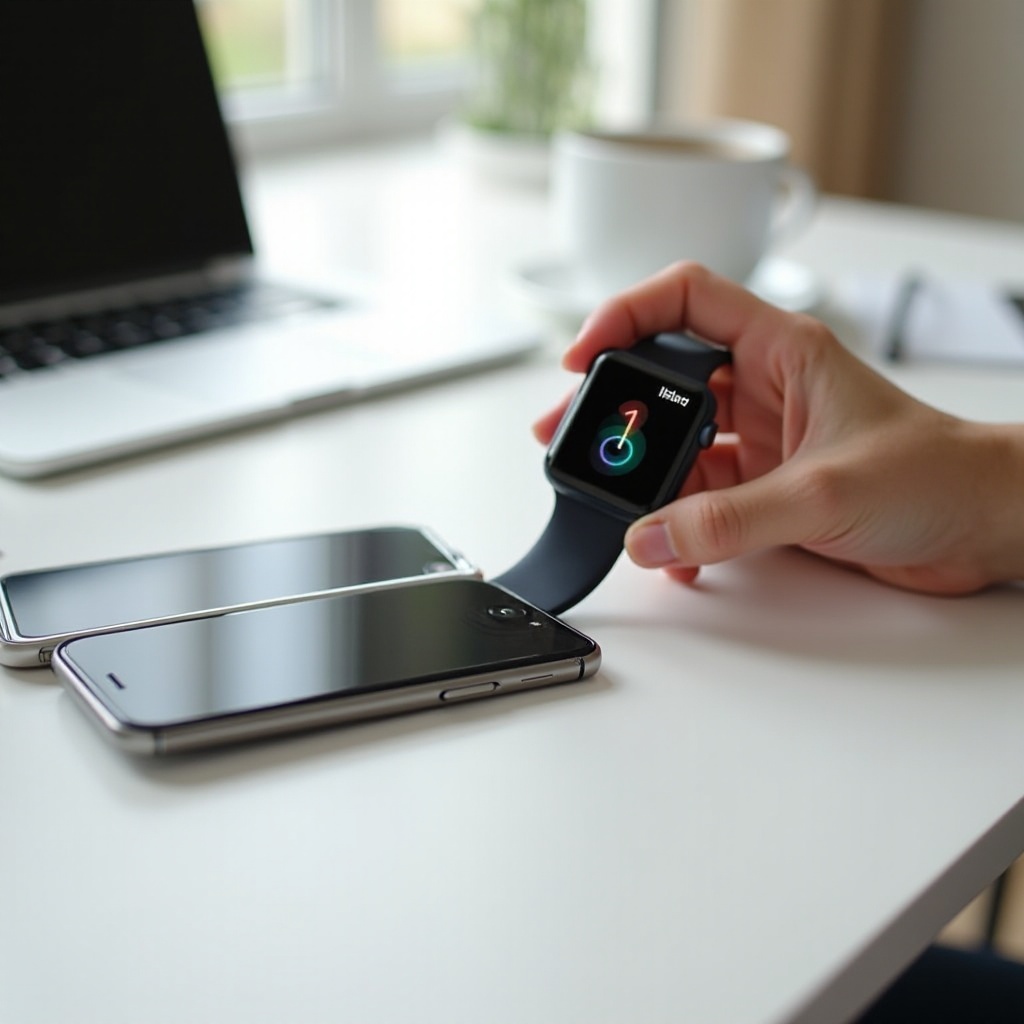
Place both devices on the same table, next to each other, for a minute. Often, the iWatch will reconnect on its own once it is close to a powered iPhone with Bluetooth and Wi‑Fi active.
Confirm iOS and watchOS Compatibility in 2024
Software compatibility also plays a key role when you reconnect iWatch to iPhone. If your iPhone runs a much newer version of iOS than your iWatch runs of watchOS (or the reverse), pairing or reconnecting can fail or behave unpredictably.
To confirm and update software:
- On iPhone, go to Settings > General > Software Update and check for updates.
- On iWatch, open the Watch app on iPhone, then go to General > Software Update and look for watchOS updates.
- Install any available updates on both devices, then restart both the iPhone and iWatch.
When your software is up to date and your basic settings look good, you can move on to fixing active connection problems with more specific steps.
How to Reconnect an iWatch That Suddenly Disconnected
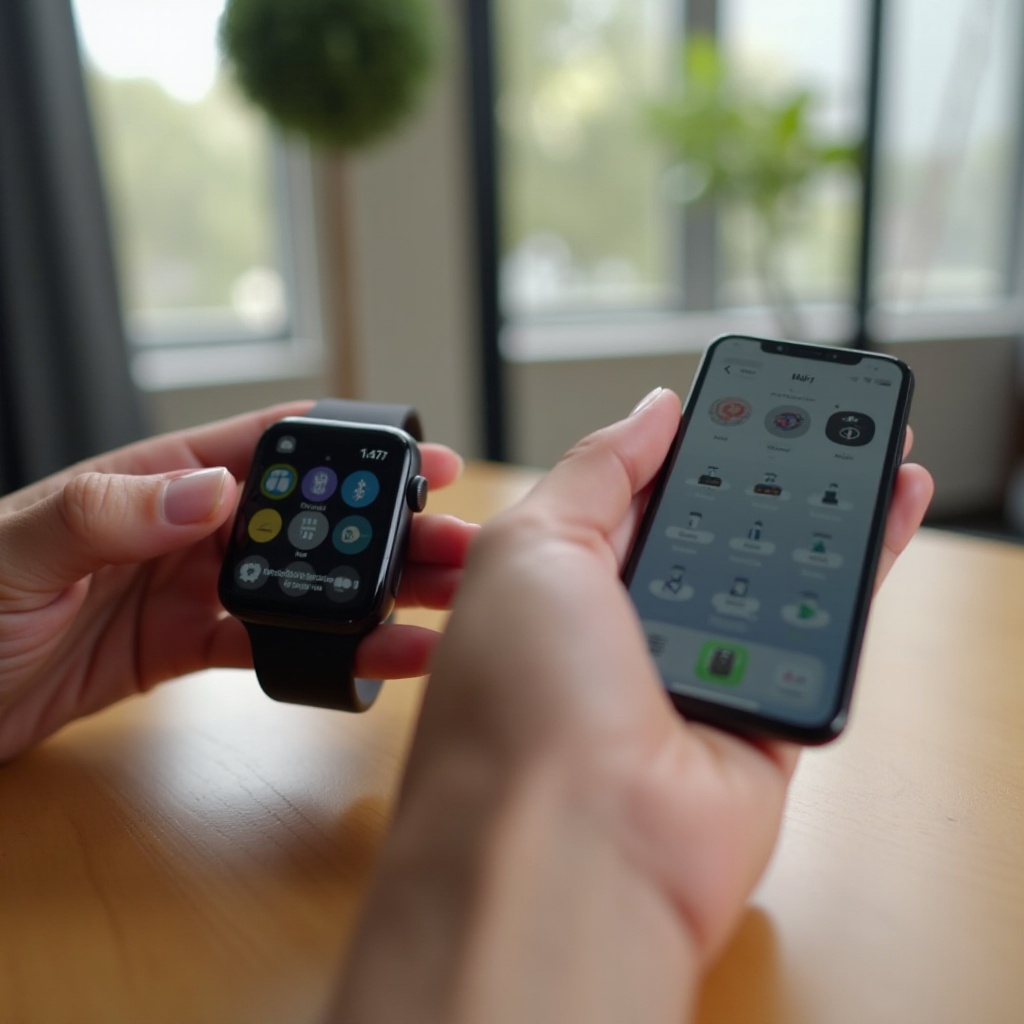
If your iWatch was paired before but suddenly shows a red iPhone icon or a red X, the connection dropped. This can happen after you walk out of range, restart one device, or hit a temporary Bluetooth glitch. The good news is that you often do not need to unpair. A few quick actions can restore the link without touching your data.
Check the Connection Status from Apple Watch Control Center
Your iWatch makes its connection status clear if you know where to look.
- On the watch face, swipe up from the bottom to open Control Center.
- Look at the icon at the top:
- A green iPhone icon means the watch is connected to your iPhone.
- A red iPhone icon or red X means it is disconnected.
- If you see red, make sure the Wi‑Fi and Bluetooth icons in Control Center are turned on.
If the icons show that the watch is searching but not connecting, you need to reset the wireless link on both devices.
Toggle Bluetooth and Airplane Mode on Both Devices
Toggling wireless settings forces the iPhone and iWatch to reset their connection, clearing many minor issues.
On your iPhone:
- Open Settings > Bluetooth, switch it Off, wait about 10 seconds, then switch it On again.
- Open Control Center and tap Airplane Mode to turn it On. Wait a few seconds, then tap it again to turn it Off.
On your iWatch:
- Swipe up on the watch face to open Control Center.
- Tap the Airplane Mode icon to turn it On.
- Wait 5–10 seconds, then tap it again to turn it Off.
Keep both devices close and wait another 30 seconds. The iWatch often reconnects automatically after these toggles. If it still will not connect, a restart may help.
Restart iPhone and iWatch to Refresh the Connection
When simple toggles do not fix the issue, restarting both devices can clear deeper connection bugs.
To restart your iPhone:
- Press and hold the Side button and Volume Up button until the power slider appears.
- Drag the slider to Power Off.
- Wait about 30 seconds, then press and hold the Side button again until the Apple logo appears.
To restart your iWatch:
- Press and hold the Side button until the power screen shows.
- Drag the Power Off slider.
- After the watch turns off, press and hold the Side button again until you see the Apple logo.
Once both devices are back on, unlock your iPhone and give them a minute to reconnect. If the watch still refuses to connect, you are likely dealing with a pairing problem rather than a simple drop, and you should move on to the next section.
Fixing ‘iPhone Cannot Connect to iWatch’ During Pairing
Sometimes your iPhone shows messages like ‘Unable to Connect to Apple Watch’, or the pairing animation never finishes. That means the issue lies in the pairing process itself, not just a momentary loss of signal. To reconnect iWatch to iPhone successfully, you need to check your Apple ID and follow the correct pairing steps.
Make Sure Both Devices Use the Same Apple ID
Your iWatch and iPhone must use the same Apple ID for smooth pairing and sync. If you signed in with a different account when you changed phones, this can block reconnection.
To check your Apple ID:
- On iPhone, open Settings and look at the name at the top. This shows the Apple ID used.
- On iWatch, open the Settings app, or use the Watch app on your iPhone and check under General and the Apple ID section if available.
If they use different Apple IDs, sign out of the incorrect one on the iPhone or iWatch and sign back in with the main Apple ID you use for iCloud and the App Store. Once both devices match, try pairing again.
Use the Watch App to Start Pairing or Re‑Pairing
The Watch app controls the connection between iWatch and iPhone. You should always start the pairing or re‑pairing process there.
Follow these steps:
- Place the iWatch and iPhone side by side on a table.
- Open the Watch app on your iPhone.
- Tap All Watches at the top if you see it.
- If your watch shows as not connected, select it and look for a reconnect option. If you do not see it at all, tap Pair New Watch.
- When the pairing animation appears on the watch, use your iPhone camera to scan the pattern.
Follow the on‑screen instructions to either Restore from Backup or Set Up as New. If the camera method does not work, switch to manual pairing.
Try Manual Pairing When the Camera Method Fails
Manual pairing bypasses camera issues and can help when the automatic scan does not pick up your iWatch.
- On the pairing screen in the Watch app, tap Pair Apple Watch Manually.
- On your iWatch, tap the small i icon to see its name and a code.
- On your iPhone, choose your watch from the list and enter the code shown on the watch.
After manual pairing completes, choose whether to restore from a backup or set up as new. If pairing still fails at this stage, the problem might involve a new iPhone or deeper software conflicts that require a more structured migration.
Reconnect iWatch to a New iPhone (Migration in 2024)
When you buy a new iPhone, you also need to move your iWatch connection to that phone. If you skip key steps, the watch can end up stuck, still linked to the old device or unable to reconnect. Handling the migration correctly preserves your data and avoids repeated pairing errors.
Back Up Your Old iPhone and iWatch Data First
Your iWatch data is stored in your iPhone backup, including health metrics and workout history. Before you switch phones, create a fresh backup so you can restore everything on the new device.
On your old iPhone:
- Connect to a stable Wi‑Fi network.
- Go to Settings > [Your Name] > iCloud > iCloud Backup and tap Back Up Now, or use a Mac/PC and create an encrypted backup in Finder or iTunes.
- Make sure the iWatch is powered on and paired while the backup runs so the latest watch data syncs.
Doing this ensures that when you reconnect iWatch to iPhone later, you can restore your most recent information.
Unpair iWatch from the Old iPhone to Create a Fresh Backup
Unpairing does more than disconnect your iWatch. It also triggers a dedicated backup of the watch that you can restore on the new iPhone.
- Open the Watch app on your old iPhone.
- Tap All Watches at the top.
- Tap the info (i) icon next to your iWatch.
- Tap Unpair Apple Watch.
- If you have a cellular model, choose whether to keep or remove the cellular plan. Keep it if you will use the same carrier on the new iPhone.
Wait for the unpairing process to finish. The iWatch will erase itself and restart. At the same time, the iPhone will create a fresh backup of the watch data.
Restore Backup on the New iPhone and Pair the iWatch Again
Now you can move your data to the new iPhone and reconnect the iWatch.
- Turn on the new iPhone and follow the setup instructions.
- When asked, choose Restore from iCloud Backup or Restore from Mac/PC Backup, then pick the backup you just created on your old device.
- After the restore completes, unlock your new iPhone and keep it next to your iWatch.
- Turn on your iWatch if it is not already on. A pairing prompt should appear on the iPhone.
- Open the Watch app, tap Pair New Watch if needed, and follow the prompts. When asked, select Restore from Backup and choose the latest watch backup.
This process reconnects iWatch to iPhone while keeping most of your previous settings, watch faces, and health data. If you skipped unpairing or do not have the old phone, a reset may be the only way forward.
When You Need to Reset and Pair iWatch as New
In some cases, the connection between your iWatch and iPhone becomes so damaged that normal pairing steps fail. Repeated errors, endless loading screens, or missing access to the old phone are signs that a full reset may be the cleanest solution.
Signs That a Full Reset Is the Best Option
Consider resetting your iWatch if:
- The watch refuses to pair with any compatible iPhone.
- Pairing gets stuck on the same screen every time, even after restarts.
- You no longer have your old iPhone to unpair the watch.
- You see activation or Apple ID errors on the watch that do not clear.
A full reset erases content from the iWatch, but if you have a recent backup, you can restore most of your data after you reconnect.
How to Erase iWatch from the Watch App on iPhone
If the iWatch still shows up in the Watch app on your iPhone, erase it from there. This method is smooth and often creates a backup during unpairing.
- Open the Watch app on your iPhone.
- Tap All Watches.
- Tap the info (i) icon next to your watch.
- Tap Unpair Apple Watch.
- Confirm and enter your Apple ID password if asked.
The iWatch will erase and return to factory settings. After that, you can pair it again and choose to set it up as new or restore from one of your backups.
How to Erase Directly on the iWatch and Reconnect
If you no longer have access to the old iPhone or it is not working, you can erase the iWatch from its own settings.
- On the iWatch, open Settings.
- Tap General > Reset > Erase All Content and Settings.
- Enter your passcode if prompted and confirm the erase.
Once the watch finishes erasing, it restarts and shows the pairing screen. Open the Watch app on your current iPhone, tap Pair New Watch, and follow the steps. You can then set up the iWatch as new or restore from any backup linked to your Apple ID.
With a clean setup in place, most ongoing connection errors disappear. If problems continue, you may need to look at more advanced troubleshooting or potential hardware issues.
Advanced Troubleshooting to Keep iWatch Connected
If you still struggle to reconnect iWatch to iPhone after resets and standard pairing steps, the issue may involve deeper network settings, device management profiles, or even hardware faults. These advanced options help you rule out those causes before you decide on repair.
Reset Network Settings on iPhone to Fix Stubborn Issues
Network settings on the iPhone control Wi‑Fi, Bluetooth, and cellular behavior. Corruption in these settings can cause persistent connection problems with your iWatch.
To reset them:
- On your iPhone, go to Settings > General > Transfer or Reset iPhone.
- Tap Reset.
- Choose Reset Network Settings.
- Enter your passcode and confirm.
The iPhone will restart. This action removes saved Wi‑Fi networks, passwords, VPN setups, and other network settings. After reboot, turn on Bluetooth and Wi‑Fi again, reconnect to your Wi‑Fi network, and then attempt to pair or reconnect your iWatch.
Remove VPN, Profiles, or MDM That Block Pairing
If your iPhone is managed by a company or school, or if you use VPN and security apps, certain profiles or restrictions may block Apple Watch pairing or cause frequent disconnects.
Check for these elements:
- Open Settings > General > VPN & Device Management.
- Look for Configuration Profiles or MDM entries.
- If you see a profile you recognize and you have permission to remove it, tap it and select Remove Profile.
- Temporarily disable active VPN connections and test the watch connection again.
After removing or disabling these, restart your iPhone and try to reconnect iWatch to iPhone. If you cannot remove a work or school MDM profile, contact your IT department, as they may have to adjust the policy.
Test with Another iPhone to Isolate Hardware Problems
To find out whether the issue lies in the iWatch or the iPhone, you can perform a simple isolation test.
- Try pairing your iWatch with another compatible iPhone, such as a family member’s device.
- Try pairing a different Apple Watch with your current iPhone.
If your iWatch cannot pair with any iPhone, the problem may be with the watch’s hardware, such as its Bluetooth antenna. If no Apple Watch can pair with your iPhone, the phone might be at fault. In these cases, contact Apple Support or visit an Apple Store or authorized service provider for a hardware check.
Once you rule out hardware issues and apply the steps in this section, you will have a much more stable and reliable connection going forward.
Preventing Future Disconnects Between iWatch and iPhone
After you reconnect iWatch to iPhone and get everything working, you want to avoid running into the same issues again. A few simple habits and settings can greatly reduce random disconnects and make your daily experience smoother.
Keep iOS and watchOS Updated for Better Stability
Apple continues to release updates in 2024 that improve performance and fix connectivity bugs. Staying current with these updates helps your devices communicate more reliably.
To keep your software updated:
- On iPhone, go to Settings > General > Software Update and turn on Automatic Updates.
- Open the Watch app, go to General > Software Update, and also enable automatic updates if available.
- When a new update appears, install it when you have enough battery and time to complete the process.
Regular updates prevent many connection issues before they start and improve battery and Bluetooth performance.
Reduce Bluetooth Interference from Other Devices
Too many active Bluetooth devices in the same area can cause interference and dropped connections.
To reduce this risk:
- Turn off Bluetooth on accessories you are not using.
- Avoid keeping multiple smartwatches paired to the same iPhone at the same time if you do not need them.
- Place wireless speakers, headphones, and other high‑traffic devices a bit farther away while you pair or troubleshoot.
A less crowded wireless environment lets your iWatch maintain a cleaner connection to your iPhone.
Best Practices for Using iWatch Away from Your iPhone
Your iWatch can work on Wi‑Fi or cellular when your iPhone is not nearby, but you still need to manage the connection. Good habits reduce confusion when you go in and out of range.
Consider these best practices:
- When you leave your iPhone at home, make sure your iWatch connects to a trusted Wi‑Fi network or uses its cellular plan if available.
- When you return to your iPhone, give both devices a short time to reconnect before assuming something is wrong.
- Avoid turning off Bluetooth on your iPhone just to save battery. Bluetooth uses very little power and turning it off frequently can cause more connection problems.
By following these tips, you lower the chance of surprise disconnects and make it easier to keep your iWatch and iPhone working together every day.
Conclusion
Learning how to reconnect iWatch to iPhone gives you control over one of the most important links in your Apple setup. By starting with basic checks and moving through restarts, pairing fixes, and proper migration steps, you can solve most connection problems without panic.
You now know how to handle sudden drops, pairing errors, and the process of moving your iWatch to a new iPhone in 2024 while protecting your data. You also understand when a full reset is the right choice and how to deal with deeper network or profile conflicts. With advanced troubleshooting and preventive habits, you can keep your watch and phone connected more reliably.
If you have tried every step in this guide and your iWatch still will not connect, it may be time to involve Apple Support or an authorized repair center. For most users, though, the methods in this article are enough to restore and maintain a stable, seamless connection between iWatch and iPhone.
Frequently Asked Questions
Can I reconnect my iWatch to my iPhone without losing data?
Yes. Start with basic steps like toggling Bluetooth, restarting both devices, and using the Watch app to reconnect. If you must unpair, the iPhone usually creates a backup of your iWatch. When you pair again, choose ‘Restore from Backup’ to recover most apps, settings, and health data.
Why does my iWatch keep disconnecting from my iPhone after reconnecting?
Frequent disconnects often come from weak Bluetooth, Wi‑Fi problems, interference, or outdated software. Keep your devices close, reduce nearby Bluetooth gadgets, and update both iOS and watchOS. If the issue continues, reset network settings on your iPhone and check for VPNs or device management profiles that might block a stable connection.
How do I reconnect my iWatch to a new iPhone if I do not have the old phone?
If you no longer have the old iPhone, erase the iWatch directly from its settings. On the watch, go to Settings > General > Reset > Erase All Content and Settings. After the reset, open the Watch app on your new iPhone and follow the pairing steps. You may not be able to restore older data, but you will get a clean, working connection with the new phone.