
Introduction
Siri reading alerts out loud can save time when you cannot look at your screen. It can also disrupt a meeting, a run, or a quiet room. You do not need to accept that tradeoff. You can stop the voice announcements everywhere, or only in specific places like your car or headphones. You can also allow only important apps to speak and silence the rest.
This guide explains how to stop Siri from announcing notifications on iPhone with Control Center and Settings. You will learn device specific controls for AirPods, CarPlay, and Apple Watch, plus per app settings and Focus automations. If the switch is missing or stuck, you will find fixes for those cases too. The goal is a setup that talks only when you want it to and stays quiet the rest of the time.
Before you change settings, it helps to know what the feature is, where it lives, and when Siri decides to speak. That context makes the next steps faster and less confusing.
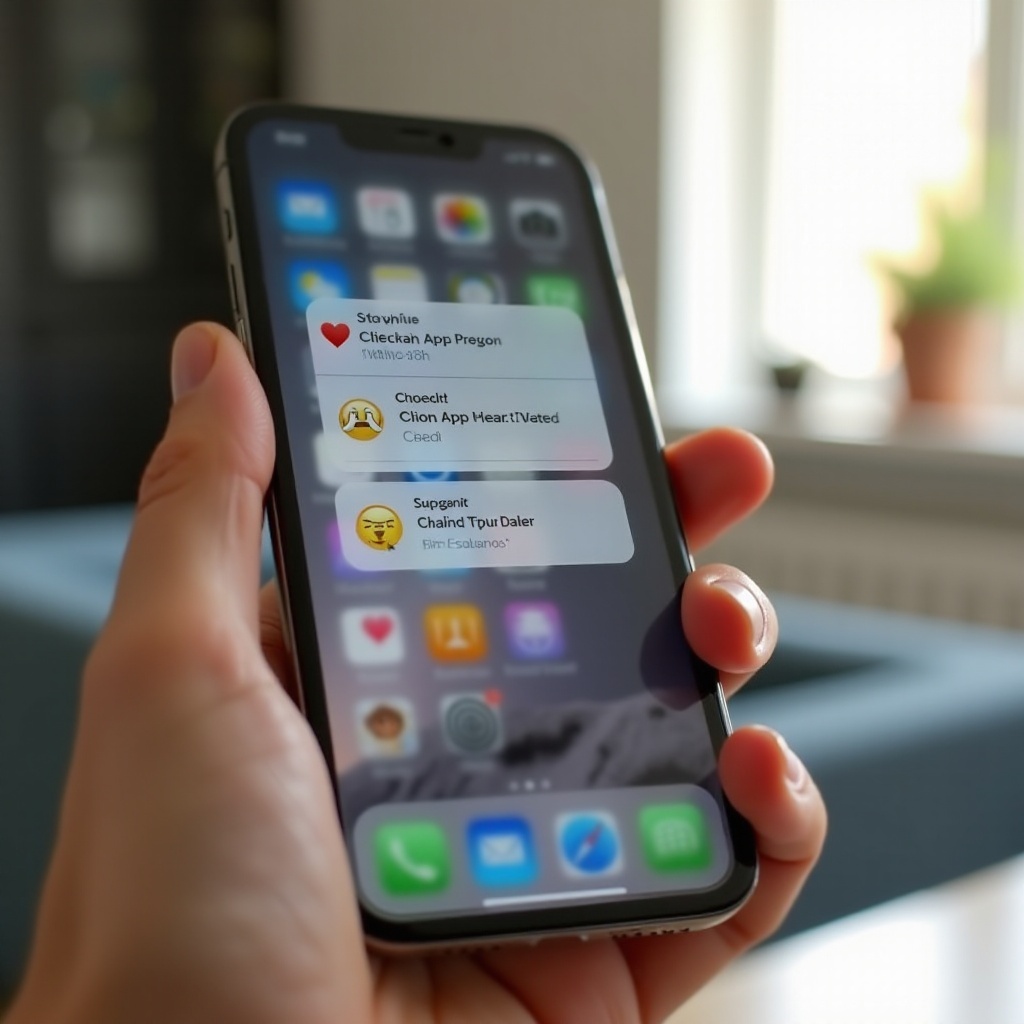
What ‘Announce Notifications’ Is and When Siri Speaks
Announce Notifications’ lets Siri read new notifications when you wear supported headphones, connect to CarPlay, or use Apple Watch. When Siri reads a message, you can often reply by voice without touching the screen. The feature is part of the notification system, not basic Siri voice feedback, and you can tune it by device and by app.
Siri usually speaks when one of these is true:
– You are wearing compatible AirPods or Beats with hands free Siri support.
– Your iPhone is connected to CarPlay in a car.
– Your Apple Watch is unlocked on your wrist and set to announce.
This is separate from ‘Announce Calls’, which speaks caller names, and separate from normal Siri responses when you ask a question. Because announcements can bypass Silent Mode, you may still hear messages even when the ringer is off. If you want an instant quiet switch, start with Control Center. If you prefer a permanent shutdown, jump to the Settings section.
Quick Fix: Toggle Announce Notifications from Control Center
The fastest way to silence announcements is a single Control Center button. Add it once and tap it whenever you need quiet.
Add the toggle:
1) Open Settings > Control Center.
2) Scroll to ‘Announce Notifications’ and tap the plus icon to add it.
Use the toggle:
1) Open Control Center. On Face ID models, swipe down from the top right. On Touch ID models, swipe up from the bottom.
2) Tap the Announce Notifications button to turn it off or on. When off, Siri will not read alerts out loud.
This quick kill works for meetings, classes, and movies. When you need a solution that stays off across restarts and accessories, use the main switch in Settings next.
Turn It Off Completely in Settings (iOS 18 and newer)
A system wide switch controls announcements everywhere. Turn it off to stop Siri from reading notifications on headphones, in the car, and on your watch if it mirrors iPhone.
Turn it off:
1) Go to Settings > Notifications > Announce Notifications.
2) Switch off Announce Notifications.
Optional refinements if you keep it on:
– Turn off ‘Reply Without Confirmation’ so Siri asks before sending dictated replies.
– Disable Time Sensitive if you do not want urgent alerts spoken.
– Review the per app list to allow only the apps you consider essential.
A full shutdown is best if you never want spoken alerts. If you prefer a mix, the next sections show how to restrict announcements by accessory and by app.
Stop Siri Announcements on AirPods and Beats
When Siri reads messages in your headphones, you can silence that behavior without losing announcements in other contexts like CarPlay.
Try these options:
– Headphones only control: Settings > Notifications > Announce Notifications. Leave the main switch on, then turn off the Headphones option. This keeps CarPlay announcements if you still want them.
– Accessory specific toggle: Settings > Bluetooth > tap the info button next to your AirPods or Beats. If the device shows an Announce Notifications toggle, turn it off just for that accessory.
– Per app control while wearing headphones: Settings > Notifications > Announce Notifications > Apps. Turn off chatty apps and keep only high value ones like navigation or reminders.
If you do not see headphone options, place your AirPods or Beats in your ears so they show as connected, then reopen Settings. If settings are still missing, forget the accessory and re pair it. Now that your headphones are quiet, you might want to adjust behavior in the car.
Stop Siri from Reading in CarPlay
CarPlay can speak messages while driving so you stay focused on the road. If you find the chatter distracting, you can turn off announcements or limit them to urgent items.
Change it on iPhone:
1) Open Settings > Notifications > Announce Notifications.
2) Leave the main switch on if you still want announcements in other places.
3) Turn off the CarPlay option to stop spoken alerts in the car.
Make it even calmer with Driving Focus:
– Settings > Focus > Driving. Set it to turn on automatically when you connect to your car or drive.
– In Allowed Notifications, remove people and apps you do not want breaking through.
– Turn off Time Sensitive in Focus options if you want no spoken interruptions at all.
If you also wear an Apple Watch, that device can still speak on your wrist. The next section explains how to quiet or customize watch announcements.
Disable or Limit Announcements on Apple Watch
Apple Watch can announce notifications when it is unlocked on your wrist, even if the iPhone in your pocket is quiet. You can turn that off entirely or allow only selected apps.
Control it from iPhone:
1) Open the Watch app > Notifications > Announce Notifications.
2) Turn off Announce Notifications to stop spoken alerts on the watch.
3) Or keep it on and manage the per app list to reduce chatter.
Control it on Apple Watch:
1) Press the Digital Crown > Settings.
2) Open Notifications or Siri, then tap Announce Notifications and set your preference.
If your watch mirrors iPhone, changes on iPhone apply to watch. If you use Custom, manage the list in the Watch app. With device behavior set, you can now curate exactly which apps are allowed to speak at all.
Silence Only Certain Apps with Per app Controls
Most users do not want every app to speak. Per app controls let you keep valuable voice alerts and silence noise like busy group chats.
Set it up:
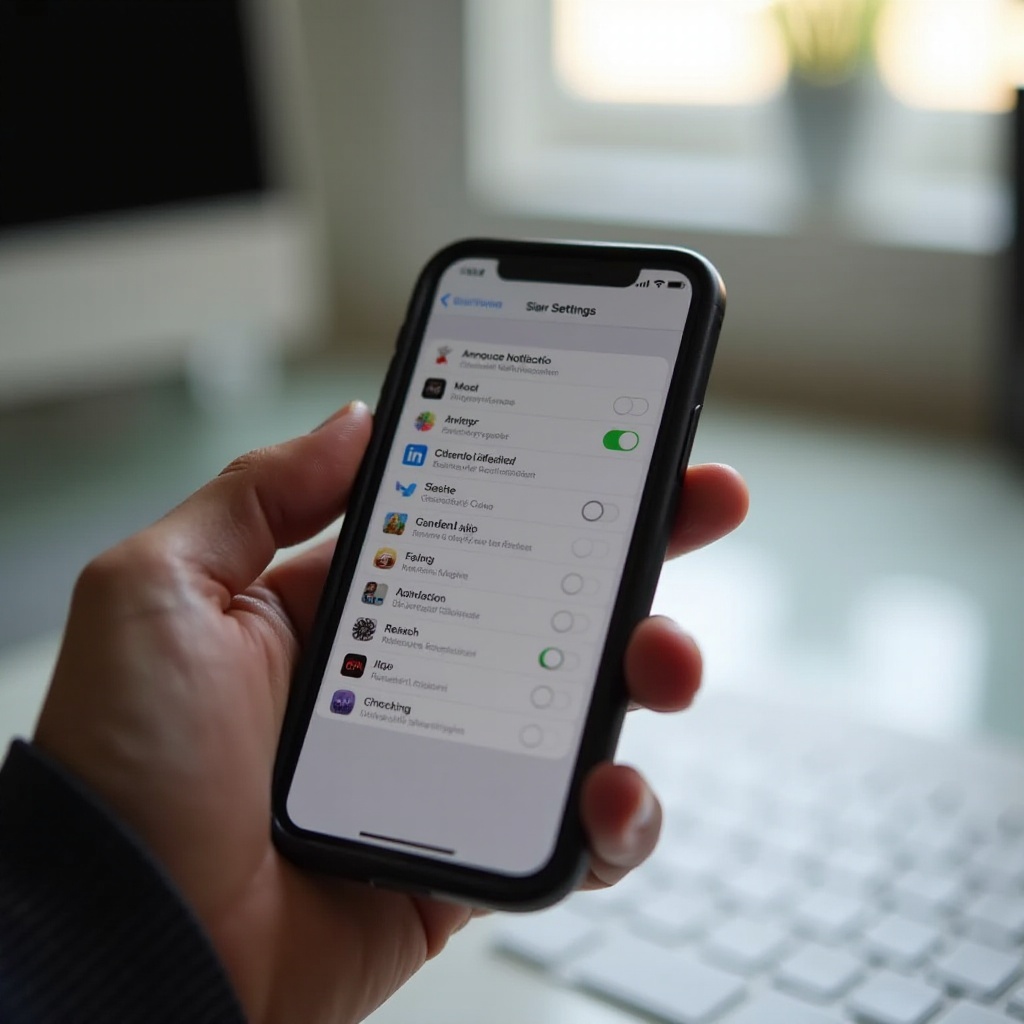
1) Go to Settings > Notifications > Announce Notifications > Apps.
2) Turn off any app you do not want Siri to announce.
3) For apps you keep on, open Settings > Notifications > [App Name] and tune Alerts, Badges, and Time Sensitive to match your needs.
This app first approach keeps the feature useful when you need it. To automate quiet periods across your day, Focus modes are the next step.
Use Focus Modes to Auto Silence Announcements
Focus modes can silence notifications, and with them, silence announcements. Schedules and triggers make your setup hands free.
Create or tune a Focus:
1) Go to Settings > Focus.
2) Pick Driving, Sleep, Work, Fitness, or create a custom Focus.
3) Under Allowed Notifications, remove people and apps that should not interrupt.
4) Under Options, disable Time Sensitive if you need zero spoken alerts.
5) Add a Schedule or Automation by time, location, or app. For example, start Work Focus at office hours and Driving Focus when connecting to your car.
Tip: Add Focus and Announce Notifications buttons to Control Center. You can quickly enable announcements for a run, then disable them as soon as you finish. If you use voice replies while moving, consider adjusting the send behavior so mistakes do not slip through.
Turn Off ‘Reply Without Confirmation
Reply Without Confirmation’ sends your dictated reply immediately after Siri reads a message. That saves time, but background noise can mangle your words.
To add a safety check:
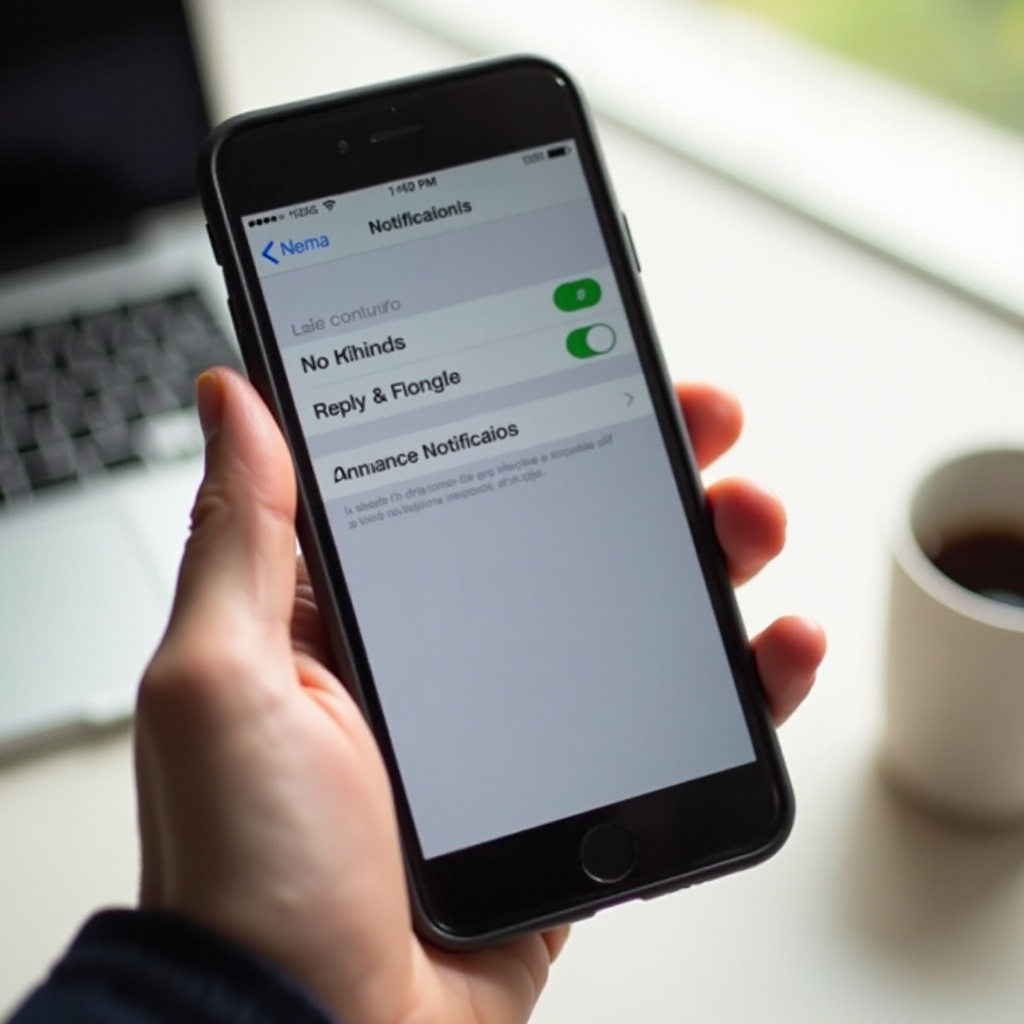
1) Open Settings > Notifications > Announce Notifications.
2) Switch off ‘Reply Without Confirmation’.
Now Siri reads back your reply and asks for approval before sending. If announcements feel loud or harsh even when useful, adjust Siri volume separately from ringer and media.
Adjust Siri vs. Media and Notification Volumes
Siri uses a voice volume that is independent from your ringer and media in many cases. Lowering that voice volume can make occasional announcements acceptable.
Try this:
– Invoke Siri, then press the volume buttons while Siri is speaking to set the voice volume.
– Open Settings > Siri & Search > Siri Responses and choose how often Siri speaks versus showing text.
– In Settings > Sound & Haptics > Headphone Safety, review loudness limits to keep long sessions comfortable.
If you cannot find the right switches or the announce toggle is dimmed, a restriction or mismatch may be in the way. The next section covers common causes and fixes.
If the Announce Toggle Is Missing or Grayed Out
When the Announce Notifications switch is missing or disabled, one of these is usually responsible:
– Unsupported setup: You need compatible AirPods or Beats, CarPlay, or an Apple Watch for related options to appear.
– Not connected: Connect your accessory. For headphones, wear them so the iPhone detects them as in ear.
– Screen Time or MDM: Restrictions can hide the feature. Check Settings > Screen Time > Content & Privacy Restrictions. Managed profiles under Settings > General > VPN & Device Management can also lock settings.
– Outdated software: Install the latest iOS and watchOS updates.
– Child accounts: Family managed devices may have limited access.
Quick recovery steps:
1) Restart iPhone and any connected accessory.
2) Reopen Settings > Notifications > Announce Notifications.
3) If managed by an organization, contact your admin to allow changes.
If Siri continues to speak even after switches look correct, troubleshoot stale connections and automations next.
Fix It When Siri Keeps Announcing Anyway
If announcements persist, a hidden app permission, Focus automation, or connection cache may be turning the feature back on.
Work through these steps in order:
1) Confirm the master switch: Settings > Notifications > Announce Notifications is off.
2) Check the per app list in the same screen and turn off any app still allowed.
3) Inspect Focus automations in Settings > Focus. Remove or adjust triggers like connecting to CarPlay, starting a Workout, or arriving at a location that may re enable announcements.
4) Forget and re pair headphones: Settings > Bluetooth > info button > Forget This Device, then pair again and test.
5) Reset CarPlay data by deleting the car from Settings > General > CarPlay, then set it up again. If needed, reset network settings in Settings > General > Transfer or Reset > Reset > Reset Network Settings.
6) On Apple Watch, turn off Announce Notifications in the Watch app, then restart both watch and iPhone.
7) Sign out of iCloud, restart, and sign back in as a last resort to clear sync issues.
After these steps, announcements should match your chosen settings. With the mechanics sorted, consider how privacy and accessibility shape your final choices.
Privacy and Accessibility Considerations
Spoken alerts can reveal private details in public spaces. If you often work in shared rooms or take rideshares, turning off announcements or limiting them to headphones protects your privacy. Another option is to allow only critical apps to speak and silence personal chats.
For accessibility, spoken announcements can help if you rely on audio cues. Balance them with haptics and visual alerts:
– Settings > Sound & Haptics: Increase haptic strength for taps you can feel without sound.
– Settings > Accessibility > Audio/Visual: Use Headphone Accommodations and Balance to make speech clearer at lower volumes.
– Keep announcements on for essential apps like Reminders and Calendar, and off for noisy chats.
With privacy and comfort covered, you are ready to lock in your preferred configuration.
Conclusion
You can stop Siri from announcing notifications in minutes and keep control over when, where, and what you hear. Use the Control Center button for quick silence. Turn the feature off in Settings if you never want spoken alerts. Keep it on only where it helps by tuning AirPods, CarPlay, and Apple Watch settings. Cut noise with per app controls and automate quiet time with Focus modes. Add protection by turning off ‘Reply Without Confirmation’ and right size the voice volume so helpful alerts do not feel intrusive.
Pick the mix that matches your day. Many people leave announcements on for navigation and reminders, then disable them for chatty apps. Others keep the feature off by default but enable it for commutes or workouts. Once you set the rules, your iPhone will speak up only when you actually want it to.
Frequently Asked Questions
Why does Siri still announce messages when my phone is on silent?
Silent Mode mutes sounds, but Announce Notifications can bypass it for headphones, CarPlay, and Apple Watch. Turn off Announce Notifications in Settings and disable the Headphones, CarPlay, and Watch options if needed.
Can I stop announcements for Messages but keep them for other apps?
Yes. Go to Settings > Notifications > Announce Notifications > Apps and turn off Messages. You can also mute specific threads in the Messages app to reduce chatter without disabling other announcements.
How do I quickly re enable announcements for workouts or runs?
Add Announce Notifications to Control Center in Settings > Control Center. Tap it on before a run and off when you finish. You can also create a Workout Focus that enables announcements only during exercise.