
Introduction
If you woke up late because your Apple alarm was not loud enough, you are not alone. Many iPhone users report alarms that sound too soft, route to the wrong device, or fade in and fail to wake them. The good news is that you can fix this quickly. You do not need extra apps or new hardware. You only need to set the right volume, pick a punchy sound, and stop your phone from lowering or redirecting the alert.
This guide starts with 60‑second fixes and then goes deeper into the system that controls alarm volume. You will learn how alarm volume differs from media volume, which toggles reduce loudness, how Focus and Sleep interact with alarms, and how to stop Bluetooth devices from hijacking sound. You will also see how placement, cleaning, and automation can keep alarms loud and reliable.
With that plan in mind, begin with quick wins to make your next alarm unmissable. Then move into the settings that keep those improvements in place.
Quick fixes to make an Apple alarm louder in under 60 seconds
When your apple alarm is not loud, fast changes often solve it immediately. Run these steps now:
1) Set Ringtone & Alerts to max:
– Go to Settings > Sounds & Haptics.
– Drag the Ringtone & Alerts slider to the far right.
2) Pick a louder tone:
– Open Clock > Alarm > Edit > Sound.
– Choose a high‑energy option such as Radar, Apex, Presto, Beacon, or Alarm in the Classic list.
– Avoid calm tones like Silk, Ripple, or Chimes.
3) Disconnect Bluetooth:
– Open Control Center and toggle Bluetooth off, or go to Settings > Bluetooth and disconnect the last accessories you used.
4) Ensure Ring is on:
– Confirm the Ring switch is not set to silent while you test. Alarms should ring on silent, but testing is clearer when Ring is on.
5) Test a short alarm now:
– Set an alarm for 2 minutes ahead and confirm it plays loudly from the phone speaker.
These steps raise output and rule out routing issues fast. Now that you have a stronger starting point, you can understand what actually controls alarm loudness.
How iPhone alarm volume really works: ringer vs media, Sleep vs regular alarms
Most built‑in alarm tones use the Ringtone & Alerts volume, not media volume. The Music or video slider does not control these tones. The Ringtone & Alerts slider in Settings > Sounds & Haptics does. If you set a song from Apple Music as your alarm, the system may apply media rules, which can change loudness and routing. For maximum reliability, prefer built‑in tones.
There are two alarm paths to know:
– Regular alarms set in the Clock app.
– Sleep Schedule alarms managed in Health > Sleep or in Clock under the Sleep tab.
Both ring even with Do Not Disturb or Focus turned on. However, Sleep Focus can alter your bedtime routine and trigger automations or states that affect audio routing. Understanding these differences helps you pick the right settings for your routine. With that foundation in place, lock your volume so it does not change by accident.
Set alarm volume correctly: Ringtone & Alerts, Change with Buttons, and Sound Check
Your goal is a loud, stable alarm level that stays put overnight.
-
Fix the core slider:
1) Go to Settings > Sounds & Haptics.
2) Set Ringtone & Alerts to maximum and note the position. -
Decide how side buttons affect it:
3) Toggle Change with Buttons. - Off: Side buttons do not change Ringtone & Alerts. Your alarm volume stays fixed.
-
On: Side buttons can lower alarm volume. Be careful with late‑night volume presses.
-
If you use a song as an alarm:
4) Open Settings > Music and turn off Sound Check for consistent loudness. Better yet, switch to a built‑in tone so your alarm uses Ringtone & Alerts and avoids media quirks.
Note on automation: Shortcuts can change media volume but cannot directly change the Ringtone & Alerts slider. That is why setting and locking this slider matters. Next, choose sounds and haptics that cut through grogginess.
Choose loud alarm tones and strong haptics that wake heavy sleepers
The right sound matters as much as the volume number. Choose tones with bright, piercing frequencies and immediate attack.
-
Loud, sharp tones to try:
1) Radar: classic and piercing.
2) Apex: clean and bright.
3) Presto: upbeat and attention‑grabbing.
4) Beacon: assertive and steady.
5) Alarm (Classic): strong and direct from the first beat. -
Tones to avoid for heavy sleepers:
-
Silk, Ripple, Chimes, and other gentle or gradual sounds.
-
Boost vibration feedback:
1) Go to Clock > Alarm > Edit > Sound > Vibration.
2) Select a strong pattern such as Alert or Heartbeat.
3) Create a custom pattern with dense, fast taps for maximum feel.
Now that you have a louder tone and haptics, prevent the system from turning volume down automatically when it thinks you are paying attention or when it tries to protect your hearing.
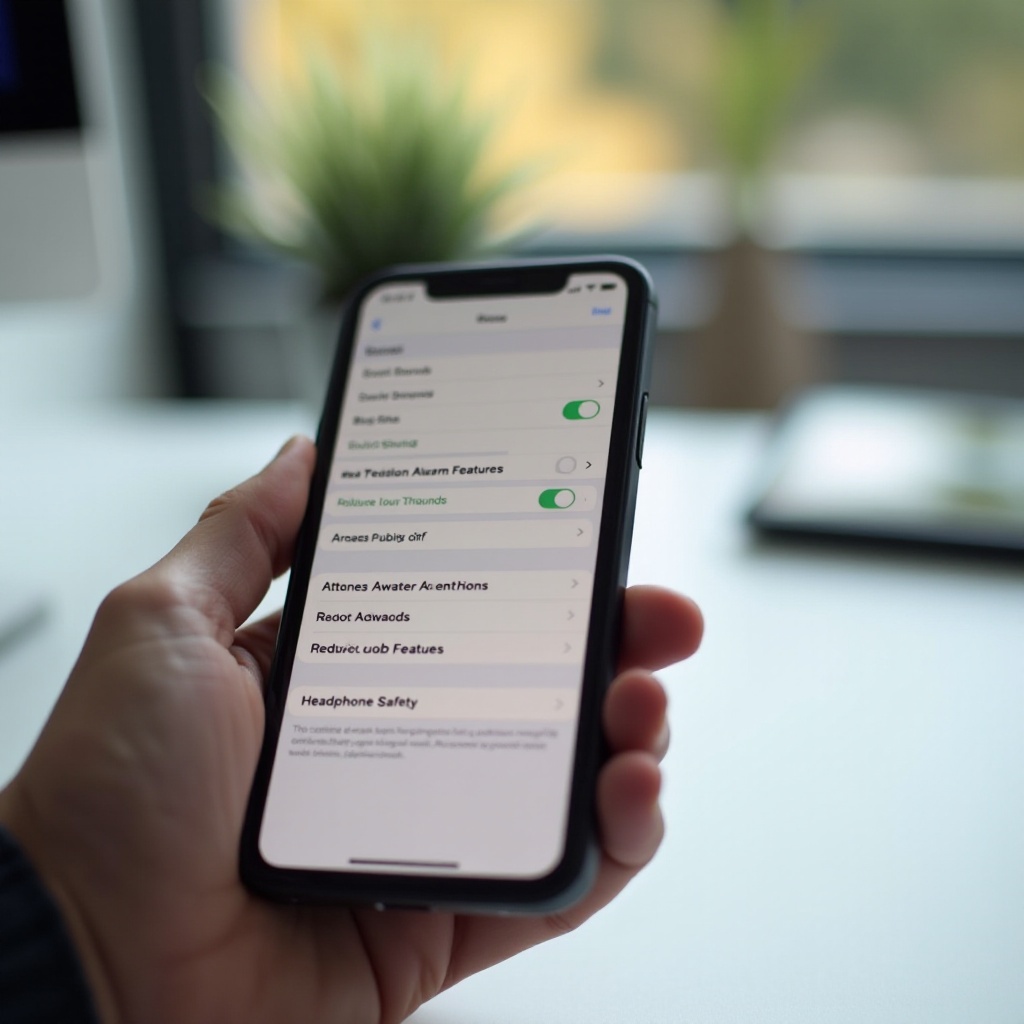
Disable features that reduce loudness: Attention Aware, Reduce Loud Sounds, Headphone Safety
Some useful features can quietly reduce alerts. For reliable wake‑ups, adjust them.
-
Attention Aware Features (Face ID models):
1) Go to Settings > Face ID & Passcode.
2) Turn off Attention Aware Features to stop the phone from lowering alerts when it detects your gaze. -
Headphone Safety and Reduce Loud Sounds:
1) Go to Settings > Sounds & Haptics > Headphone Safety.
2) If you sometimes sleep with headphones, disable Reduce Loud Sounds or raise the threshold. When alarms route to headphones, the system may cap volume. -
Sound Check for music alarms:
- In Settings > Music, turn off Sound Check if your alarm uses a song.
With volume reducers handled, confirm that Focus and Do Not Disturb are not indirectly altering your wake routine.
Stop Focus and Do Not Disturb from muting or softening alarms
Alarms should ring even with Focus or Do Not Disturb, but Focus modes change other behaviors that can affect how you wake and how audio routes at bedtime.
-
Review Focus settings:
1) Open Settings > Focus and check Sleep, Work, and any custom modes.
2) Confirm the Sleep Schedule matches your real sleep and wake times.
3) Inspect any automations linked to Focus that might lower volume or toggle Bluetooth. -
Allow normal Clock behavior:
4) In each Focus, check Apps and ensure the Clock app is not restricted. While alarm audio plays regardless, removing restrictions avoids edge cases with widgets or notifications. -
Wind Down and Wake Up:
5) In Health > Sleep, review your Wind Down actions and Wake Up alarm. Make sure the alarm sound and volume align with your earlier choices.
With Focus aligned, the next blocker is audio routing. Fix that to ensure the alarm plays from the phone speaker where it is loudest.
Fix audio routing: AirPods, Bluetooth speakers, CarPlay, and StandBy mode
When an alarm routes to the wrong device, it can seem quiet or you may not hear it at all. Clear stale connections and set up your bedside environment so the phone speaker carries the sound.
-
Break stale Bluetooth links at night:
1) Open Control Center and long‑press the Bluetooth tile to disconnect recent accessories.
2) Or go to Settings > Bluetooth and tap the i next to an accessory to disconnect. -
AirPods behavior:
-
Put AirPods back in their case overnight. A single connected earbud can hijack the alarm.
-
Car stereos and speakers:
-
If you ended the day connected to a car or speaker, manually disconnect before bed. Some systems keep a link alive longer than expected.
-
StandBy mode and charging docks:
- Alarms still ring in StandBy. Place the phone so the speaker faces open air and the surface does not muffle it.
With routing fixed, you can get a real boost by improving where and how the phone sits while you sleep.
Phone placement, speakers, and cleaning: make your alarm physically louder
Physical setup can make or break perceived loudness. A clear speaker and the right surface add volume without changing any setting.
-
Free the speaker:
1) Remove thick cases or debris that cover the speaker grille.
2) Clean speaker and microphone openings with a dry, soft brush. Avoid liquids and sharp tools. -
Use the surface for amplification:
3) Place the phone on a hard tabletop or nightstand that reflects sound.
4) Angle the speaker toward open space, not into bedding. -
Avoid mufflers:
5) Do not put the phone under blankets or face down into fabric.
With placement optimized, build simple routines that reinforce a loud, reliable wake‑up without adding new problems.
Build automations that reinforce a loud wake‑up routine
Shortcuts can automate several helpful steps before your alarm. While Shortcuts cannot directly adjust the Ringtone & Alerts slider, they can set media volume (useful if you rely on a song), control Bluetooth, and manage Focus modes so your wake‑up is clean and loud.
-
Create a personal automation:
1) Open Shortcuts > Automation > New Automation.
2) Choose Time of Day and set it to run 1 to 5 minutes before your earliest alarm, or choose a Bedtime routine. -
Add actions that help:
3) Set Volume to 100 percent if you use a song alarm or want loud media cues.
4) Set Bluetooth to Off so audio routes to the phone speaker.
5) Optionally turn Sleep Focus off a few minutes before wake time if you want full notifications after the alarm.
6) Add a Show Notification step reminding you to check Ringtone & Alerts and the alarm tone. This prompt compensates for the lack of a direct ringer‑volume action. -
Make it seamless:
7) Disable Ask Before Running so it fires automatically.
Automations handle the small steps you might forget when you are tired. Next, prevent travel and schedule changes from undermining your setup.
Travel and timing pitfalls: time zones, DST, and calendar conflicts
Alarms can miss the mark when time zones shift or Daylight Saving Time changes the clock. Keep your device time accurate and confirm your next alarm before you turn in.
-
Time zones:
1) Go to Settings > General > Date & Time and enable Set Automatically.
2) When you land in a new city, open the Clock app and confirm the alarm shows the correct local time. -
Daylight Saving changes:
-
On nights with clock changes, set a backup alarm 10 minutes later and double‑check the Next Alarm banner on the Lock Screen.
-
Sleep Schedule alignment:
- If you use Health > Sleep, adjust your Sleep and Wake times after travel so they reflect your current time zone, not your home time.
With timing handled, finish your prep with a quick nightly test that confirms everything works.
Test your alarm tonight: a 2‑minute pre‑bed checklist
A short test builds confidence and catches problems early. Make it part of your bedtime routine.
- Two‑minute test:
1) Set a test alarm for 2 minutes from now.
2) Place the phone on your nightstand with the speaker unobstructed.
3) Disconnect Bluetooth or turn it off for the night.
4) Verify Ringtone & Alerts is at max and a loud tone is selected.
5) Let the alarm ring for a few seconds and confirm volume and haptics feel strong.
6) Delete the test alarm.
If the test passes, you can trust your wake‑up. To cut risk even further, layer a couple of backup alarms across devices.
Advanced safety nets: duplicate alarms, Apple Watch, HomePod, and iPad
Redundancy protects you on groggy mornings and during rare software glitches. Spread alarms across devices and use different alert types.
-
Duplicate phone alarms:
1) In Clock, set two alarms a few minutes apart with different tones.
2) Label them clearly, for example: WAKE UP and SECOND WAKE. -
Apple Watch:
3) If you sleep with Apple Watch, enable a Watch alarm with strong haptics and sound. Taps on the wrist often cut through sleep faster than audio. -
HomePod and iPad:
4) Ask Siri on HomePod to set a wake alarm as a room‑filling backup.
5) Add an iPad alarm and keep it plugged in so it always has power and volume. -
Smart plugs and lights:
6) As a last resort, use a smart plug to turn on a bright light at your wake time.
With backups in place, keep your software tidy so alarms stay reliable over time.
Software fixes: update iOS, reinstall Clock, reset settings without losing data
If alarms remain quiet or inconsistent, refresh software in a safe order.
-
Update iOS:
1) Go to Settings > General > Software Update and install the latest release. Updates often fix audio routing and reliability issues. -
Reinstall the Clock app:
2) Press and hold the Clock icon, remove the app, then reinstall it from the App Store. Recreate your alarms after reinstalling. -
Reset settings (no data loss):
3) Go to Settings > General > Transfer or Reset iPhone > Reset > Reset All Settings. This resets system preferences such as sounds, Wi‑Fi, and privacy settings but keeps your data.
If software checks out and your alarm is still faint, the hardware may be at fault. Run a quick speaker check before booking a repair.
When it is hardware: speaker diagnostics and when to contact Apple Support
A clogged or damaged speaker limits alarm volume no matter what you set. Verify hardware health with a quick test, then seek help if needed.
-
Diagnose sound output:
1) In Settings > Sounds & Haptics > Ringtone, play several tones. Cover the speaker opening one at a time to compare loudness and clarity.
2) Play a video at full volume. Listen for distortion, crackling, or unusual faintness. -
Rule out debris and cases:
3) Use a dry, soft brush to clear the speaker grille. Remove bulky cases and retest. -
Try another surface and orientation:
4) Place the phone on a hard, reflective surface and angle the speaker toward open air. -
Seek support:
5) If sound remains weak or distorted, contact Apple Support or visit an authorized service provider for evaluation and repair options.
Conclusion
You can solve the apple alarm not loud problem with a few smart changes. Set Ringtone & Alerts to maximum. Choose a sharp, high‑energy tone and strong haptics. Turn off Attention Aware and adjust Headphone Safety if you sleep with headphones. Keep Bluetooth from redirecting audio to AirPods or speakers. Place your phone on a hard surface and keep the speaker clear.
Add a simple Shortcuts routine to turn off Bluetooth and remind you to confirm volume before bed. Run a two‑minute test at night to verify tomorrow’s alarm. Keep iOS up to date and reinstall Clock if problems persist. If the speaker still sounds faint after cleaning and setup, schedule a hardware check. With these steps in place, your iPhone will wake you on time, every time.
Frequently Asked Questions
Will my iPhone alarm ring if my phone is on Silent or Do Not Disturb?
Yes. Alarms ring even when Silent or Do Not Disturb is on. Make sure the Ringtone & Alerts slider is high, pick a loud tone, and confirm sound is not routing to Bluetooth accessories.
How do I make my Apple alarm louder without changing media volume?
Use the Ringtone & Alerts slider in Settings > Sounds & Haptics. Turn off Change with Buttons so it stays fixed. Choose a loud built‑in tone like Radar or Apex and boost vibration.
Why did my iPhone alarm play through my AirPods instead of the phone speaker?
Your phone likely stayed connected to AirPods overnight. Put them in the case, disconnect in Control Center, or turn off Bluetooth before bed. Automate Bluetooth off with Shortcuts.