
Introduction
You open Mail on your iPhone and a banner appears: ‘Network settings prevent content from loading privately.’ The email text loads, but images and other remote elements stay blank. This alert can look serious. It is actually your iPhone protecting your privacy. The device tried to load images through a private route and could not, so it stopped to avoid exposing your IP address or location.
This article explains what does network settings prevent content from loading privately mean, how Mail Privacy Protection works, and why networks or apps might block it. You will get step by step fixes, plus practical choices that balance privacy and convenience. We will also cover Wi‑Fi, cellular, VPN, and managed device scenarios so you can pinpoint the cause quickly.
We start by decoding the alert in plain language. Then we connect that explanation to Apple privacy features, outline the most common triggers, and work through quick checks. After that, you will find a clear sequence of fixes and case specific guidance. We finish with advanced steps and a short conclusion you can use as a checklist.
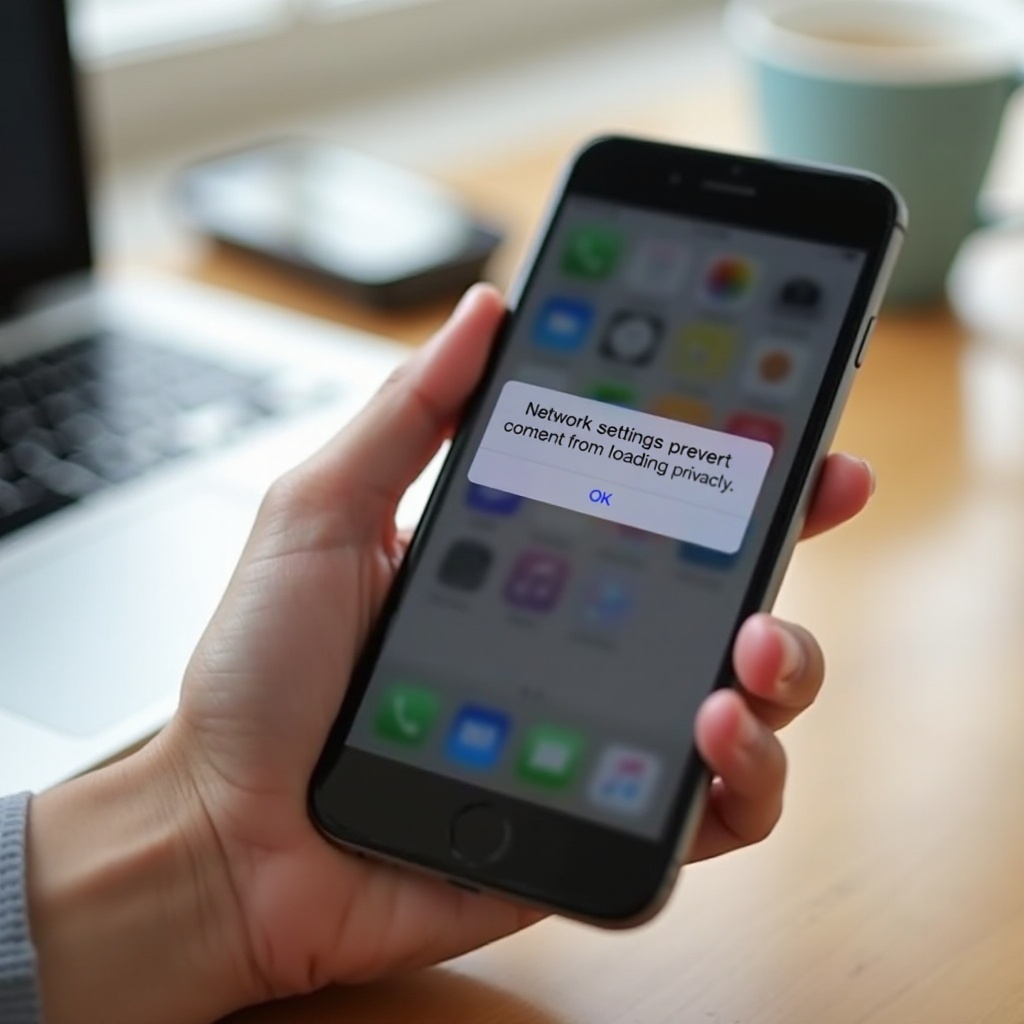
What the ‘Network Settings Prevent Content from Loading Privately’ Alert Means in Apple Mail
The alert appears when Apple Mail tries to fetch remote content such as images or tracking pixels using a privacy method that hides your IP address. If the network, carrier, or a setting blocks that private route, Mail refuses to load the content. Instead, it shows the warning so you do not unknowingly leak your IP or approximate location to the sender.
In practice, you can still read the email text. The blockage mainly affects external images and invisible trackers hosted on remote servers. The alert signals three things:
– Mail Privacy Protection (Protect Mail Activity) is enabled.
– Mail attempted to use a private proxy for remote content.
– Something on your device or network prevented that private path.
This is not a malware or hack message. It is a privacy status notice. The app is telling you that it cannot safely load remote content privately right now. You can choose to load content for a single email, switch networks, adjust privacy settings, or leave the images blocked.
To fix the problem with minimal risk, you need to understand how Apple privacy tools interact with networks and apps. That is where we go next.
How iOS Mail Privacy Protection and iCloud Private Relay Work Together
Several Apple features contribute to the alert and its resolution:
– Mail Privacy Protection (MPP): When Protect Mail Activity is on in Settings > Mail > Privacy Protection, the Mail app uses Apple controlled proxies to fetch remote images and similar content. This masks your IP and delays open signals sent to marketers.
– iCloud Private Relay: If you subscribe to iCloud and turn on Private Relay, Apple routes eligible Safari and app traffic through a dual hop system that hides your IP and DNS queries from websites and observers. It is not a full VPN, but it improves IP privacy.
– Limit IP Address Tracking: You can enable this per Wi‑Fi network and for cellular. It applies IP privacy benefits to compatible connections even if full Private Relay is not active.
Mail relies on its own private fetching mechanism, but the broader IP privacy environment matters. If a network or carrier blocks Apple relay endpoints or if you switch off per network IP privacy, Mail may be unable to load content privately. That is when the alert appears.
Understanding this relationship makes troubleshooting easier. The next section shows the most common reasons you see the warning, so you can match your situation to the right fix.
Top Reasons You See This Message on iPhone
When you see the alert, one or more of the following is usually true:
iCloud Private Relay unavailable on this Wi‑Fi or carrier
Some networks and carriers do not support Private Relay or deliberately block its endpoints. When that happens, Mail related private requests can fail.
Limit IP Address Tracking off for this network or blocked by admin
If you turned off Limit IP Address Tracking for a specific Wi‑Fi or for cellular, Mail may lose key IP privacy signals. On managed networks, administrators sometimes disable this feature.
VPN, DNS filters, or ad blockers interfering with Apple relays
Third party VPNs, DNS filters, ad blockers, and security apps may block or reroute Apple relay domains. If these tools intercept proxy traffic, Mail cannot load content privately.
Captive portals, firewalls, or restrictive Wi‑Fi policies
Hotel, airport, campus, and enterprise networks often require sign in via a captive portal. They may also filter outbound traffic tightly. If you are not signed in or if firewalls block relay connections, private fetching fails.
Low Data Mode, Low Power Mode, or unstable connectivity
Data saving and power saving modes can pause or limit background networking. Weak Wi‑Fi or cellular signal can cause private requests to time out.
MDM profiles, Screen Time, or content restrictions
Work, school, or family management profiles can restrict IP privacy features or remote content. Policy may disallow Private Relay or block certain domains outright.
Now that you know the likely causes, it is smart to try a few quick checks that solve many cases without changing core settings.
Quick Checks Before You Troubleshoot
Run these simple tests to isolate the issue. Many alerts clear after a quick refresh or sign in.
Try cellular vs Wi‑Fi, or toggle Airplane Mode
Switch from Wi‑Fi to cellular or the other way around. If Mail loads content privately on one connection but not the other, the problem is specific to that network. Turning Airplane Mode on for 10 seconds and then off can also clear stale connection states.
Confirm iOS, carrier, and Mail app updates
Go to Settings > General > Software Update and install pending updates. Carrier settings updates can also appear under Settings > General > About. Updating can fix relay compatibility and networking bugs.
Sign in to captive portals or restart router and iPhone
Open Safari and visit a plain website to trigger a captive portal if one exists. Sign in and then return to Mail. Restart your iPhone and your router to flush DNS caches and firewall sessions that might be blocking relay traffic.
If the quick checks do not restore private loading, proceed to the step by step fixes below. Apply a change, test Mail, and move to the next step only if needed.
Step by Step Fixes to Restore Private Loading in Mail
Follow these in order. They address the most common device and settings issues.
Toggle Protect Mail Activity off and on to refresh
1) Go to Settings > Mail > Privacy Protection.
2) Turn off Protect Mail Activity.
3) Force quit Mail, wait a few seconds, and turn Protect Mail Activity back on.
This refresh clears transient proxy issues and resets the app is behavior.
Enable Limit IP Address Tracking for Wi‑Fi and Cellular
1) Wi‑Fi: Settings > Wi‑Fi > tap the info button for your network > turn on Limit IP Address Tracking.
2) Cellular: Settings > Cellular > Cellular Data Options > enable Limit IP Address Tracking.
Consistent IP privacy support across your connections improves Mail is ability to fetch content privately.
Turn iCloud Private Relay on for this network, or off temporarily if blocked
1) Settings > your name > iCloud > Private Relay.
2) Turn Private Relay on. If it is already on but the network blocks it, consider turning it off briefly to load content directly. Weigh the privacy trade offs and turn it back on when possible.
Note: Some carriers or networks do not support Private Relay. If unavailable, rely on Mail specific privacy and the per network Limit IP Address Tracking setting.
Allow remote content for a single email when needed
1) Open the email in Mail.
2) Tap Load Content to fetch images only for that message.
This avoids changing global settings while letting you see important images.
Temporarily disable VPN, DNS filters, or security apps
1) Turn off VPN in Settings or the VPN app.
2) Pause DNS filters or tracker blocking in their apps.
3) Test Mail. If it works, add Apple is relay and Mail Privacy Protection endpoints to your allowlist or use split tunneling.
Re enable your privacy tools after testing.
Turn off Low Data Mode and Low Power Mode
1) Cellular: Settings > Cellular > Cellular Data Options > disable Low Data Mode.
2) Wi‑Fi: Settings > Wi‑Fi > info on your network > disable Low Data Mode.
3) Battery: Settings > Battery > turn off Low Power Mode.
These modes can delay or block proxy requests needed for private image loading.
Reset Network Settings and rejoin networks
1) Settings > General > Transfer or Reset iPhone > Reset > Reset Network Settings.
2) Rejoin your Wi‑Fi networks and test Mail again.
Resetting clears problematic DNS and network profiles that can interfere with relays.
Update iOS and carrier settings
1) Settings > General > Software Update.
2) Settings > General > About and accept a carrier update if prompted.
Fresh firmware and carrier profiles often include networking fixes that restore compatibility.
If Mail still shows the alert, the issue likely depends on your specific environment. Use the scenario based guidance next to focus your effort.
Fixes by Scenario: Wi‑Fi, Cellular, VPNs, and Managed Devices
Different environments break private loading in different ways. Pick the scenario that matches your symptoms and apply the targeted remedies.
Only on home or office Wi‑Fi: router, DNS, and firewall adjustments
When cellular works but Wi‑Fi fails, your router or DNS settings are the bottleneck.
– Restart your router and modem to clear stale states.
– Set DNS to a reliable resolver provided by your ISP or another trusted provider that does not block Apple domains.
– Review security features like DNS rebinding protection. If they block Apple relay or Mail proxy domains, add exceptions.
– If you use firewall rules, Pi hole style filtering, or parental control boxes, allow Apple relay and Mail Privacy Protection endpoints. Permit HTTPS and, if in use, QUIC or HTTP 3. After changes, flush DNS caches and test Mail.
Only on cellular: carrier support and APN resets
If Wi‑Fi works but cellular fails, your carrier or plan may limit privacy features.
– Toggle Limit IP Address Tracking for Cellular off and on.
– Turn Cellular Data off and back on, or reset network settings.
– Contact your carrier to confirm Private Relay availability and whether content filtering is applied to your line or plan. Ask if any network level blocks could affect Apple relay traffic.
Only with VPN or ad blockers active: whitelist Apple relay traffic
If the alert appears when a VPN, DNS filter, or security app is active:
– Use split tunneling to exclude Mail or Apple relay domains from the tunnel.
– Disable aggressive tracker blocking rules for Mail until you can add allowlist entries for Apple relay.
– Update the VPN or filter app and refresh its configuration. Outdated profiles often break relay connections.
– Compare privacy goals. You may prefer Mail Privacy Protection with a minimal VPN configuration that does not intercept Apple relays.
On work or school iPhones: check MDM restrictions
Managed devices follow policy. If your employer or school controls settings, they may restrict Private Relay or block remote content.
– Check Settings for management profiles. If present, contact your IT team.
– Ask whether the network allows Apple relay and Mail Privacy Protection traffic and whether Mail remote content is blocked by policy.
– If policy requires blocking, use the per email Load Content option when necessary, and avoid untrusted networks for sensitive mail.
With environment specific adjustments in place, most users can restore private image loading while keeping strong privacy defaults. If not, the next section discusses whether and when to trade a little privacy for convenience.
Privacy vs Convenience: Should You Load Mail Content Directly?
You may face a choice: keep Mail Privacy Protection enabled and tap Load Content occasionally, or disable it to load all images automatically. The right answer depends on your comfort with marketing trackers and the networks you use.
Pros and cons of turning off Protect Mail Activity
Pros:
– Images load reliably on most networks.
– Fewer prompts and less manual action.
– Simpler setup for less technical users.
Cons:
– Senders can see your IP based location.
– Marketers can track when you open messages and build profiles.
– You lose a layer of protection on restrictive or untrusted networks.
Best practice defaults for most users
For most people, keep Protect Mail Activity on and enable Limit IP Address Tracking for your main Wi‑Fi and cellular connections. Use Load Content only when you need to see images. If a network blocks private loading, prefer switching networks or briefly pausing VPN or DNS filters rather than turning off Mail privacy globally. This approach maintains strong privacy while keeping email usable.
Next, let us look at how other apps and Apple devices behave so you can set expectations and diagnose issues that are not specific to the iPhone Mail app.
Special Cases and Related Apps
Other mail apps and Apple platforms handle remote images differently. These differences affect whether you see an alert and how you troubleshoot.
Gmail and Outlook on iOS vs Apple Mail behavior
Gmail and Outlook often use their own image proxy servers. Because they do not rely on Apple is Mail Privacy Protection proxies, they may not show this exact alert. However, if a VPN, DNS filter, or firewall blocks their domains, images will still fail to load. Check each app is image and privacy settings, and apply allowlists or split tunneling if needed.
iPad and Mac differences you may notice
On iPadOS and macOS, Mail Privacy Protection works similarly, but menus and prompts look different. You might see a different message or placement for Load Content. The underlying causes and fixes remain the same: the device must reach Apple relay or Mail proxy endpoints, and third party privacy tools must not block them.
Android equivalents and what to expect
Android mail apps vary widely. Some proxy images automatically; others load remote images by default. If you want privacy on Android, look for settings like Block external images or Proxy images through a server. VPN and DNS filters can still interfere, so apply the same logic: allow necessary domains or use split tunneling when your privacy tools clash with image loading.
If you have reached this point and the alert persists, you likely face a network policy or configuration that blocks relay traffic. The next steps help you test that theory and decide when to seek help.
Advanced Troubleshooting and When to Escalate
Use these advanced measures if standard fixes fail. They require more control over your network or coordination with support teams.
Create a dedicated trusted SSID for Mail testing
Set up a second Wi‑Fi network with default firewall rules and standard DNS. Keep strong WPA2 or WPA3 security, but do not block Apple relay or Mail proxy domains. Connect your iPhone to this SSID and test Mail. If private loading works here, your original network is blocking relay or proxy traffic.
Firewall rules and relay domain allowances
If you manage a firewall, review logs for blocked Apple endpoints and HTTP 3 or QUIC traffic. Allow Apple relay and Mail Privacy Protection domains and the related CDN hosts used to serve proxied images. Permit outbound HTTPS and any required ports. After changes, clear device caches and retest.
Contact Apple Support or your carrier with diagnostics
If cellular is the only path that fails, contact your carrier to confirm Private Relay availability and plan level filtering. If all networks fail, reach out to Apple Support. Provide:
– iOS version and device model.
– Carrier and plan details.
– Networks tested and which ones worked.
– A screenshot of the alert.
With those details, support staff can pinpoint whether policy, plan, or configuration blocks private loading.
Conclusion
The alert tells you that Mail tried to protect your privacy and a setting or network got in the way. The fastest fixes start with switching networks, signing in to captive portals, and installing updates. Then refresh Mail Privacy Protection, align Limit IP Address Tracking across Wi‑Fi and cellular, and temporarily pause VPN or DNS filters that intercept relay traffic.
If you value privacy, keep Protect Mail Activity on and rely on per email loading when you must see images. When a particular network refuses to cooperate, adjust firewall and DNS rules, or switch connections rather than disabling privacy across the board. By following the steps in this guide, you can restore private image loading, reduce tracking, and keep your email experience smooth and secure.
Frequently Asked Questions
Does this message mean my iPhone is hacked or insecure?
No. The alert appears because Mail tried to load remote images through a private route and the network or a setting blocked it. Your iPhone is protecting your IP and location. You can still read email safely. Load content for a single message, switch networks, or adjust settings if you need the images.
Is it safe to turn off Mail Privacy Protection to load images?
Turning it off is safe for device security, but it reduces privacy. Senders may learn your IP based location and when you opened the email. If you cannot fix the network, prefer tapping Load Content for that message instead of disabling privacy globally. Re enable privacy once the network or apps stop blocking relays.
Why does this only happen on one Wi‑Fi network but not others?
That network likely blocks Apple relay or Mail proxy endpoints, uses strict DNS or firewall rules, or requires a captive portal sign in. When you switch to cellular or another Wi‑Fi, Mail can reach the proxy and the alert disappears. Adjust DNS and firewall rules or ask the network admin to allow Apple relay traffic.