
Introduction
Keyboard clicks on an Android phone can get annoying very quickly. Maybe you text late at night, sit in meetings every day, or share a room with someone who hates the constant tapping noise. The good news is that you can turn off keyboard sounds on almost any Android phone in just a few steps.
This guide walks you through how to turn off sound keyboard for Android on the most common setups: Google Pixel and stock Android, Samsung Galaxy phones, and other popular brands like OnePlus, Xiaomi, and Motorola. You will also see how to adjust sound inside specific keyboard apps like Gboard, Samsung Keyboard, and Microsoft SwiftKey.
You will learn how system sound modes and Do Not Disturb affect your keyboard, how to fix cases where sounds refuse to turn off, and how to type quietly using vibration and gesture typing. By the end, your phone will stay responsive while your keyboard becomes completely silent.
To start, you need to understand what keyboard sounds are and how they differ from other Android sounds. That makes the next steps much easier to follow and prevents you from turning off the wrong sound settings.
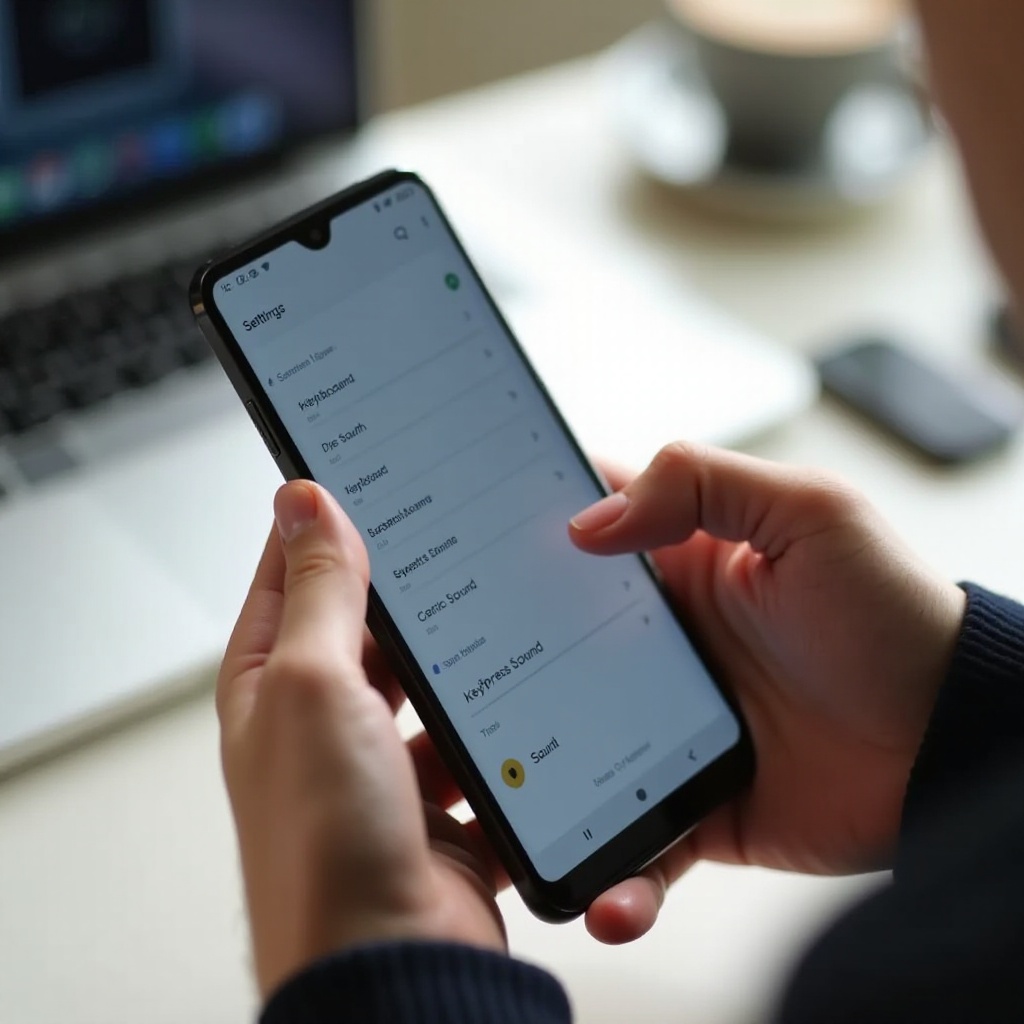
What Keyboard Sounds Are and Why They Matter on Android
Android uses several different sound types. Your keyboard sounds are only one part of the full sound system. Knowing the difference helps you silence the exact sound you dislike, without losing important alerts like calls, alarms, and messages.
Keyboard sounds usually come from your active keyboard app. When you tap a key, the app plays a short click. On many phones, you can control this inside the keyboard settings. On newer Android versions, you can also manage it in system sound settings.
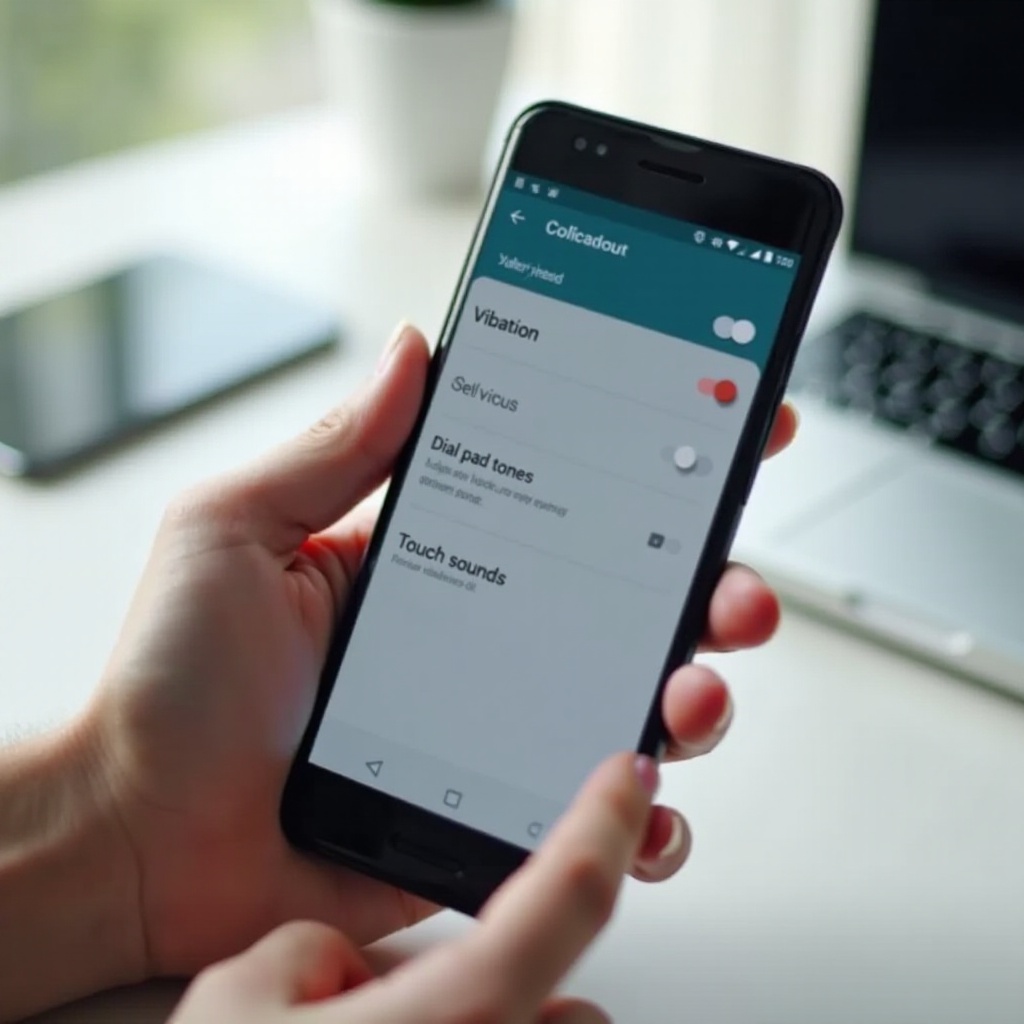
At the same time, Android includes other small feedback sounds. Touch sounds can play when you tap buttons in the interface. Dial pad tones play when you enter phone numbers. If you only turn off keyboard sound but leave the rest on, you might still hear beeps in other parts of the system.
These sounds matter for a few reasons:
- They can disturb people in quiet places.
- They can reveal that you are typing when you would rather stay discreet.
- They can distract you when you try to focus or relax.
Once you understand which sounds come from the keyboard and which come from the system, you can change the right settings. The next step is to silence keyboard sound on devices that follow stock Android, such as Google Pixel phones.

Step-by-Step: Turn Off Keyboard Sound on Stock Android and Google Pixel
Google Pixel phones and many stock Android devices, such as some Motorola and Nokia models, usually use Gboard as the default keyboard. You can disable sound either directly in Gboard or through Android’s system settings. Using both gives you full control.
Disable keyboard sound from Gboard settings
Follow these steps to turn off keyboard sounds from inside Gboard:
- Open any app where you can type, such as Messages or Chrome.
- Tap in a text field to bring up the keyboard.
- On the keyboard, tap the small gear icon (settings).
If you do not see it, long-press the comma key (,) or the emoji key until the settings icon appears.
- In Gboard settings, tap Preferences.
- Scroll to the Key press section.
- Turn off Sound on keypress.
- If you want complete quiet, also turn off Haptic feedback on keypress.
Test it right away by typing a few characters. You should no longer hear clicks from the keyboard while typing in any app that uses Gboard. If you still hear small noises, the system may add its own feedback, so you also need to adjust Android’s sound menu.
Turn off keyboard feedback via Android system settings
You can also control keyboard sound through the system sound menu on many recent Android phones:
- Open Settings on your phone.
- Tap Sound & vibration (or simply Sound on some devices).
- Look for an option such as Per-keyboard feedback, Haptic & tones, or Vibration & haptics.
- Find Keyboard feedback, Sound on keypress, or a similar option.
- Turn off the sound toggle for keyboard feedback.
On some Pixels, you may see options for both Sound on keypress and Vibration on keypress here. Switch off whichever you do not want.
With stock Android and Pixel devices covered, you can move on to Samsung Galaxy phones. Samsung uses its own keyboard and sound menus, so the steps look a little different even though the goal is the same.
Turn Off Keyboard Sound on Samsung Galaxy Phones (One UI 5 and One UI 6)
Samsung Galaxy phones run One UI, which uses Samsung Keyboard by default. Samsung offers its own sound and vibration controls that sit in slightly different menus than stock Android. You can mute keyboard sound inside Samsung Keyboard and reduce extra system clicks like touch sounds and dial pad tones.
Mute keypress sound in Samsung Keyboard
To turn off the sound of Samsung Keyboard on newer Galaxy phones:
- Open an app where you can type, like WhatsApp or your browser.
- Tap a text field to show the Samsung Keyboard.
- Tap the Settings gear icon on the keyboard toolbar.
If you do not see the toolbar, tap the three-dot menu icon, then tap Keyboard settings.
- In Samsung Keyboard settings, tap Swipe, touch, and feedback or Touch feedback (the name can vary by One UI version).
- Look for Sound or Sound on keypress.
- Toggle it off.
After this, type a few words in any app. The keyboard should stay silent. If you still hear small system taps elsewhere, the system may be providing additional sounds, which you can disable in the main sound menu.
Turn off additional touch and dial pad sounds on Galaxy devices
To ensure a quieter Galaxy phone in general:
- Open Settings on your Samsung phone.
- Tap Sounds and vibration.
- Scroll down to System sound/Vibration control or System sound.
- Turn off:
- Touch interactions (touch sounds)
- Dialing keypad (dial pad tones)
- Any extra key tones listed there
You can leave notification and ringtone sounds on if you still want to hear calls and alerts. This balance gives you silent typing and quiet navigation while keeping important sound signals active.
Now that you have seen how Samsung handles keyboard and system sounds, the next step is to look at other major Android brands, which follow similar principles but use slightly different names and layouts.
Turn Off Keyboard Sound on Other Popular Android Brands (OnePlus, Xiaomi, Motorola, etc.)
Other Android manufacturers such as OnePlus, Xiaomi, Realme, Oppo, and Motorola use their own skins on top of Android. The exact menu names may differ, but the steps to mute keyboard sound remain similar: you either change system feedback settings or adjust the keyboard app itself.
General system path to silence keyboard sounds
On many recent phones from OnePlus (OxygenOS), Xiaomi (HyperOS or MIUI), and others, try this pattern:
- Open Settings.
- Tap Sound & vibration or Sounds.
- Look for options such as:
- System sounds
- Touch sounds
- Additional settings (common on Xiaomi)
- Turn off:
- Keyboard sound
- Keypress sound, or
- Touch sounds, if that is the only similar option.
Some brands group keyboard and touch sounds together. If you turn off touch sounds, you may lose button click sounds as well, but this usually makes your phone feel calmer and less noisy.
Using Gboard or SwiftKey on non-Samsung Android phones
Many non-Samsung phones use Gboard or Microsoft SwiftKey by default. To turn off keyboard sound on these phones, you can reuse the same methods that work on Pixels and other stock Android devices.
- For Gboard:
Follow the same steps as on Pixels: open the keyboard, go to Settings > Preferences, and disable Sound on keypress. Turn off haptic feedback if you want total silence.
- For SwiftKey:
- Bring up the keyboard in any app.
- Tap the three dots (…) or Settings icon on the toolbar.
- Go to Sound & vibration or Typing.
- Turn off Keypress sound or Keypress audio.
- Optionally, turn off Vibration on keypress as well.
Once you know how to change settings by brand and by keyboard, you can fine-tune feedback directly inside the keyboard apps themselves. That gives you the most precise control over how your Android phone feels when you type.
Turn Off Keyboard Sound Inside Specific Keyboard Apps
Keyboard apps often offer more detailed settings than the system menu. If you switch keyboards or use multiple languages, you might need to adjust sound inside each keyboard app. Here is how to handle Gboard, Samsung Keyboard, and SwiftKey so your keypresses stay silent across the board.
Gboard: sound, vibration, and advanced key feedback settings
To manage sound and feedback in Gboard:
- Open any app and bring up Gboard.
- Tap the Settings icon on the keyboard, or go to Settings > System > Languages & input > On-screen keyboard > Gboard.
- Tap Preferences.
- Under Key press:
- Turn off Sound on keypress.
- If available, use the slider for Volume on keypress if you prefer quieter, not silent, clicks.
- Turn off Haptic feedback on keypress for full silence.
- Optionally, adjust Popup on keypress if you want a cleaner visual feel.
These options let you mix and match feedback styles. For example, you can keep gentle vibration but remove sound, or you can remove both for a fully silent experience.
Samsung Keyboard: fine-tuning sound and vibration options
Samsung Keyboard lets you tune the feedback level more precisely than the global system menu:
- Open Samsung Keyboard settings from the keyboard itself or from Settings > General management > Samsung Keyboard settings.
- Tap Swipe, touch, and feedback or a similarly named section.
- Here you can:
- Disable Sound for keypress completely.
- Lower or disable Vibration.
- Adjust options related to gesture typing if you use swipes instead of taps.
With these changes, you can keep a light vibration with no sound, which many users find more subtle than clicks but still reassuring while typing.
Microsoft SwiftKey and other third-party keyboards
For Microsoft SwiftKey:
- Open the SwiftKey app from your app drawer.
- Tap Typing.
- Tap Sound & vibration or Keys, depending on your version.
- Turn off Keypress sound or similar.
- Turn off Keypress vibration if you want a totally silent experience.
Other third-party keyboards usually follow similar patterns: open the keyboard app, find sections like Preferences, Sound, Feedback, or Typing, and disable sound on keypress. After you tune your keyboards, you should also confirm your system sound profile supports silent typing, which is what the next section covers.
System-Wide Sound Controls That Affect Your Keyboard
Even after you turn off sound inside your keyboard app, some system settings can still affect what you hear. Modes like Sound, Vibrate, Silent, and Do Not Disturb manage the overall behavior of your phone’s audio and can change how your keyboard behaves in different situations.
Sound, vibrate, and silent modes on modern Android
Most Android phones show three basic modes:
- Sound: You hear ringtones, notifications, media, and system sounds.
- Vibrate: Ringtones and some alerts vibrate but do not ring. Some system sounds still play, depending on your settings.
- Silent: Most or all sounds are off. You may still feel vibrations if they are enabled.
To switch modes, use the volume buttons and tap the bell icon that appears. On some phones, you can also open Quick Settings and tap Sound, Vibrate, or Silent.
If you want keyboard sound off but still want notification tones, choose Sound mode and make sure you turned off keyboard sound inside the keyboard app and system sound menus, as shown earlier. That way you keep alerts while your typing stays quiet.
Do Not Disturb and why key clicks may still be audible
Do Not Disturb (DND) controls interruptions such as calls, messages, and app alerts. It does not always control keyboard clicks. If you enable DND and still hear key sounds, that means the keyboard app is playing its own short sound effects, not notification tones.
To keep important alerts while silencing your keyboard:
- Turn on Do Not Disturb if you want fewer interruptions from calls and notifications.
- Make sure keyboard sound is turned off in:
- Your keyboard app settings.
- Your system Sound & vibration or System sounds menu.
Understanding how these system modes interact with keyboard apps helps you diagnose problems when keyboard sound refuses to stay quiet. When settings do not stick or sounds come back, a few troubleshooting steps can usually fix the issue.
Troubleshooting: Keyboard Sound Won’t Turn Off on Android
Sometimes keyboard sound stays on even after you change the obvious settings. This usually means the wrong keyboard has been adjusted, an update reset your preferences, or a system policy is involved. Working through a short checklist often solves the problem.
Confirming the active keyboard and its permissions
First, check which keyboard your phone is actually using:
- Open Settings.
- Go to System > Languages & input > On-screen keyboard (names may differ slightly).
- Check the keyboard labeled as Current keyboard or Default.
- Make sure you changed sound settings for this specific keyboard app.
If you recently installed a new keyboard, ensure it has the proper permissions and is selected as default. Then adjust its sound and feedback settings as described earlier for Gboard, Samsung Keyboard, or SwiftKey.
Fixing issues after an Android or keyboard app update
Big system or app updates can reset or change keyboard behavior:
- Check the keyboard app version in the Play Store. Updates sometimes add new sound options or move them into different submenus.
- Reopen keyboard settings and walk through the steps to turn off sound again.
- If the keyboard misbehaves, try:
- Force stop the keyboard app from Settings > Apps.
- Clear cache (not data) for the keyboard app.
If nothing helps, you can temporarily switch to another keyboard to see whether the problem is app-specific or system-wide.
When to reset keyboard preferences or switch keyboards
If settings are stuck or corrupted, a reset can help:
- Go to Settings > System > Languages & input > On-screen keyboard.
- Tap your keyboard, then look for Reset settings or Reset to default.
- Confirm the reset, then disable sound again.
If your current keyboard still misbehaves, consider switching to a widely used option like Gboard or SwiftKey, which have clear sound controls and frequent updates.
After you resolve any issues, you can move beyond simply turning sound off and focus on making your typing experience comfortable and discreet in different real-world situations.
Quiet Typing Tips for Work, School, and Night-Time Use
Once you turn off keyboard sounds, you can fine-tune your typing style so it feels natural even without audio feedback. Small tweaks to vibration, layout, and input methods can make a big difference, especially in quiet environments.
Using haptic feedback instead of sound
Haptic feedback gives a light vibration each time you tap a key. Many people prefer this over audible clicks because it feels responsive but does not disturb others nearby.
To use haptics instead of sound:
- Make sure Sound on keypress is turned off in your keyboard app.
- Turn Haptic feedback on keypress on in the same settings menu.
- Adjust intensity if your keyboard or phone allows it. Some devices offer a slider in the system Vibration & haptics menu.
This setup works well in classrooms, offices, libraries, and shared spaces where noise is a problem but subtle vibration is acceptable.
Reducing typing noise with gesture typing and layout changes
You can also reduce the number of taps you make and how loud they feel:
- Enable gesture typing or glide typing: In Gboard and many other keyboards, you can drag your finger between letters instead of tapping each one. This reduces the number of keypresses and can feel smoother and quieter.
- Adjust keyboard height: A lower or more compact keyboard can improve comfort and reduce force on each tap, so even physical tap sounds from your fingers become softer.
- Use predictive text and autocorrect: With good suggestions, you type fewer letters and correct fewer mistakes. That leads to fewer taps overall and a calmer typing experience.
After you tune these settings, your phone will stay quiet and comfortable to use in almost any situation, from late-night chats to long study sessions or meetings.
Conclusion
Learning how to turn off sound keyboard for Android gives you much more control over your phone. You can silence key clicks on Google Pixel, Samsung Galaxy, and other popular phones by combining keyboard app settings with system sound options.
You have seen how to disable sound inside Gboard, Samsung Keyboard, and SwiftKey, and how to manage system-wide Sound, Vibrate, Silent, and Do Not Disturb modes. You also learned how to solve issues when keyboard sounds refuse to turn off and how to set up quiet typing with haptics, gesture input, and layout tweaks.
With these steps, you can keep calls and notifications audible while your keyboard stays silent, whether you text at night, sit in meetings, or simply prefer a more peaceful Android experience.
Frequently Asked Questions
Why did my Android keyboard sound come back after an update in 2024?
Large Android or keyboard app updates can reset some preferences, including sound on keypress. After an update in 2024, open your keyboard settings again and confirm that ‘Sound on keypress’ is off. Also check the system ‘Sound & vibration’ menu, since updates sometimes move or rename the feedback options. If problems continue, clear the keyboard app cache and restart your phone.
Can I turn off keyboard sound on Android for some apps but not others?
Most Android keyboards do not offer per-app sound settings. When you turn off keyboard sound in Gboard, Samsung Keyboard, or SwiftKey, it usually applies to all apps. A workaround is to rely on system modes like ‘Silent’ or ‘Do Not Disturb’ at specific times and re-enable sound later if you want clicks again. For most users, one global setting per keyboard is simpler and more reliable.
Does disabling keyboard sound on Android affect notifications or call sounds?
Turning off keyboard sound in your keyboard app or in system ‘Keyboard feedback’ settings does not affect ringtones or notification alerts. Those use separate sound controls under ‘Sound & vibration’. You can safely mute keyboard clicks and keep calls, messages, and app notifications audible. Only switching the whole phone to ‘Silent’ mode or changing ringtone and notification sliders will reduce those other sounds.