
Introduction
An AirTag that refuses to connect to your phone is useless when you need it most. You expect the setup card to slide up from the bottom of your iPhone, but nothing happens. Or you see ‘Unable to Connect to AirTag’ over and over again.
This guide walks you through clear, practical fixes when your AirTag won't connect to phone. You'll check compatibility, review key settings, reset your AirTag correctly, and rule out problems with your phone itself.
You do not need to be a tech expert. Just follow each section in order. Start with quick checks that solve most issues. If those do not work, move on to deeper fixes and finally to hardware checks and Apple Support options.
How AirTag Is Supposed to Connect to Your Phone
Before you fix connection problems, it helps to know how AirTag pairing should work when everything is normal. That way, you can see exactly where your setup is failing and match your issue to the right fix.
What Happens During Normal AirTag Setup on iPhone
When you bring a new or reset AirTag close to a compatible iPhone:
- You pull the plastic tab or reset the AirTag and hear a short chime.
- You hold the AirTag near the top edge of your iPhone.
- A setup card slides up from the bottom of the screen saying ‘Connect’.
- You tap ‘Connect’, choose a name or item type, and assign the AirTag to your Apple ID.
- The AirTag appears in the Find My app under the ‘Items’ tab.
If any of these steps fail, your AirTag will not connect to your phone correctly, and Find My will not show it as an active item.
Basic Requirements for Pairing (Device, iOS, Apple ID)
To pair and use an AirTag, your phone must meet these basic requirements:
- An iPhone or iPod touch running a supported version of iOS (current as of 2024).
- Bluetooth turned on.
- You are signed in with an Apple ID on the device.
- Find My is enabled for that Apple ID.
- Two-factor authentication is active on the Apple ID.
If one of these is missing, the AirTag may never show the setup prompt or may show an error during pairing.
Signs You Are Dealing With a Connection Problem vs. a Location Issue
You should also know the difference between connection and location issues:
- Connection problem: The AirTag never shows the setup card, will not pair, or shows ‘Unable to Connect’.
- Location issue: The AirTag shows up in Find My, but the location is old, slow to update, or Precision Finding does not work.
This article focuses on connection problems. Once you get the AirTag connected, you can address any location or accuracy issues later.
Now that you know how pairing should work and what counts as a connection failure, the next step is to confirm your phone and settings actually support AirTags.
Check Compatibility and Required Settings First
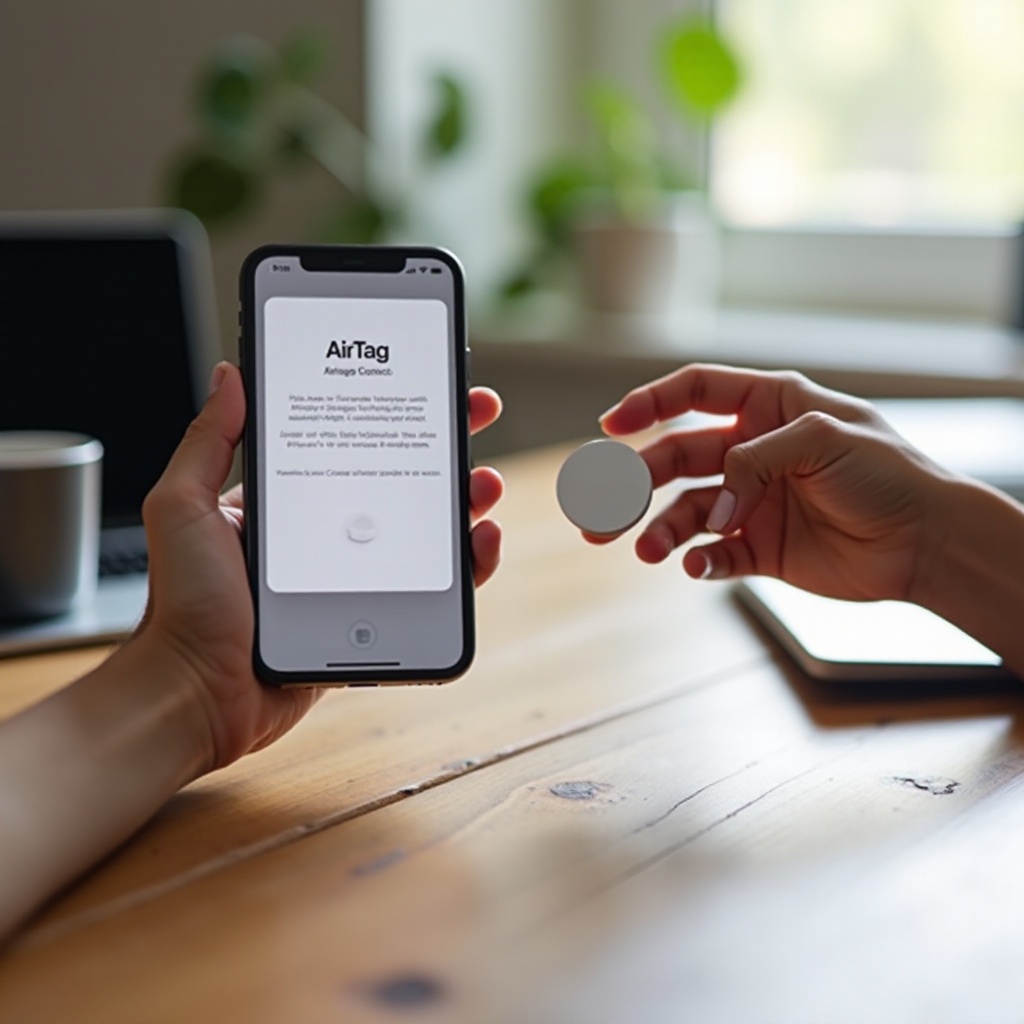
Many ‘airtag won't connect to phone’ cases come from simple compatibility or settings issues. Fixing these early saves time and avoids unnecessary resets or trips to support.
Confirm Your iPhone Model and iOS Version Support AirTag
First, confirm that your iPhone actually supports AirTag:
- Open Settings > General > About.
- Check your Model Name and Software Version.
- Make sure your iPhone model works with AirTags and that your iOS version is up to date.
If your iOS is several versions behind, update it:
- Go to Settings > General > Software Update.
- Download and install any available updates.
- Restart your iPhone after the update completes.
Make Sure You Are Signed In With a Valid Apple ID
AirTags link to your Apple ID, so the phone must be signed in:
- Open Settings.
- Look at the top. You should see your name and Apple ID.
- If not signed in, tap Sign in to your iPhone and enter your Apple ID credentials.
If you recently changed your password, make sure you re-enter it on the device so iCloud and Find My can work correctly.
Turn On iCloud, Find My, and Related Services
Next, make sure Find My is active:
- Go to Settings > [your name] > Find My.
- Tap Find My iPhone.
- Turn on Find My iPhone, Find My network, and Send Last Location.
These settings allow your iPhone to manage and track AirTags through your Apple ID and the Find My network.
Enable Location Services and Bluetooth on Your Phone
AirTags use Bluetooth and location data. If either is off, pairing can fail:
- Open Settings > Bluetooth and toggle Bluetooth on.
- Go to Settings > Privacy & Security > Location Services and turn Location Services on.
Scroll down to Find My and set it to While Using the App with Precise Location enabled.
Once your phone and services are clearly compatible, you are ready for fast, basic fixes that solve many pairing problems without deeper resets.
Quick Fixes: Simple Things to Try Before Advanced Steps
Before you reset anything, start with quick fixes. These are easy to try and often resolve ‘airtag won't connect to phone’ without advanced troubleshooting.
Toggle Bluetooth and Airplane Mode Off and On
Sometimes the Bluetooth radio just needs a refresh:
- Open Control Center (swipe down from the top-right on Face ID iPhones).
- Tap the Bluetooth icon off, wait a few seconds, then turn it on.
- Tap the Airplane Mode icon on, wait 10 seconds, then turn it off.
This resets wireless connections without affecting your data or apps.
Restart Your Phone and Retry Pairing
A simple restart clears many system glitches:
- Press and hold the side button and volume up (or down) until the power slider appears.
- Slide to power off.
- Wait 20–30 seconds.
- Press and hold the side button again to turn your iPhone back on.
After the restart, bring the AirTag close to your phone and check if the setup card appears.
Move the AirTag Close to the Top of Your Phone
The NFC and Bluetooth radios are near the top of the iPhone. To improve detection:
- Hold the AirTag right next to the top edge or back top area of your iPhone.
- Keep your other Bluetooth devices a bit farther away.
- Wait 10–15 seconds to see if the connection prompt shows.
Remove Cases, Magnets, or Accessories That May Interfere
Some accessories can block or weaken the signal:
- Remove thick metal cases or magnetic mounts from your iPhone.
- Take the AirTag out of any heavy metal key rings or cases, just for the setup process.
If these quick steps do not fix the problem, it is time to focus on specific situations: brand-new AirTags and used or gifted AirTags that have different pitfalls.
New AirTag Won't Connect to Phone
If your AirTag is brand new and still will not connect, you may be dealing with a setup issue rather than a hardware failure. A few simple checks usually reveal the cause.
Remove the Plastic Tab and Listen for the AirTag Chime
New AirTags ship with a plastic battery tab that you must remove:
- Take the AirTag out of the box.
- Firmly pull the plastic tab until it comes out completely.
- Listen for a chime from the AirTag.
No chime usually means the battery is not seated correctly or is dead. Open the AirTag by twisting the back cover, remove and reinsert the battery, then listen again.
What to Do If the Setup Pop-Up Does Not Appear
If the AirTag chimes but the setup card never appears:
- Make sure Bluetooth and Location Services are on.
- Unlock your iPhone and stay on the Home Screen.
- Hold the AirTag near the top edge and wait 15–20 seconds.
If nothing appears, you should try a manual add from within Find My.
Add AirTag Manually in the Find My App
You can still connect the AirTag through the Find My app:
- Open Find My on your iPhone.
- Tap the Items tab at the bottom.
- Tap + at the top and select Add AirTag.
- Follow the on-screen instructions to pair.
If manual pairing fails, note any error message. It may hint at a previous owner or another account-related problem.
Avoid Confusion With Nearby AirPods, AirTags, and Other Devices
Too many Apple devices nearby can confuse the pairing process:
- Move away from other AirTags, AirPods, or Apple accessories.
- Turn off nearby iPhones or iPads temporarily if possible.
Once you rule out issues with a new AirTag, the next common scenario is a used or gifted AirTag that is still tied to someone else's Apple ID and therefore will not connect to your phone.
Used or Gifted AirTag Won't Connect
If you bought the AirTag second-hand or received it from someone else, ownership can block pairing even if everything else looks fine on your phone.
Why an AirTag Locked to Another Apple ID Won't Pair
Each AirTag belongs to one Apple ID at a time. If it is still linked to another account:
- Your iPhone may show an error when you try to connect.
- The setup process may never complete.
- You cannot use the AirTag for tracking until it is removed from the original Apple ID.
This is a security feature to prevent stolen AirTags from being reused by someone else.
Ask the Previous Owner to Remove the AirTag From Their Account
The cleanest fix is for the previous owner to remove it:
- On their iPhone, they open Find My > Items.
- They tap the AirTag in the list.
- They scroll down and tap Remove Item.
- They confirm removal.
Once removed, you can set up the AirTag on your own device without conflict.
How to Reset a Used AirTag Step-By-Step
If the AirTag is already removed from the previous account but still acts stuck, perform a physical reset:
- Press down on the stainless steel back of the AirTag.
- Rotate it counter-clockwise until the cover comes off.
- Remove the battery.
- Reinsert the battery and press down until you hear a chime.
- Repeat removing and reinserting, pressing for a chime five times total.
- On the fifth chime, put the cover back on and rotate clockwise to lock.
Now the AirTag is reset and ready to pair with your Apple ID.
What to Do If You Can't Contact the Previous Owner
If you cannot reach the original owner and the AirTag still shows as linked, your options are limited:
- You cannot force-remove it from their Apple ID.
- The AirTag may never connect properly to your phone.
In that case, contact Apple Support with proof of purchase. They may help confirm whether the AirTag is still locked and suggest next steps.
Once you are sure ownership and basic setup are not the issue, you should dig into phone settings that often block pairing silently, even when other Bluetooth accessories seem fine.
Fix iPhone Settings That Commonly Block AirTag Connection
Your iPhone can have privacy, Screen Time, or security settings that silently block AirTag connections, even if everything else looks correct at a glance.
Check Find My iPhone, Find My Network, and Send Last Location
First, verify that Find My services are fully active:
- Open Settings > [your name] > Find My > Find My iPhone.
- Turn on:
- Find My iPhone
- Find My network
- Send Last Location
Without these, your iPhone may not manage and register new AirTags correctly.
Verify Location Services and Precise Location for Find My
Next, confirm the Find My app can access your location:
- Go to Settings > Privacy & Security > Location Services.
- Make sure Location Services is on.
- Scroll to Find My and tap it.
- Select While Using the App and switch on Precise Location.
This ensures the app can handle both pairing and future location tracking.
Disable Screen Time or Content & Privacy Restrictions That Affect Pairing
Screen Time and restrictions can also interfere with AirTag setup:
- Open Settings > Screen Time.
- Tap Content & Privacy Restrictions.
- Turn them off temporarily, or:
- Check that Location Services and Account Changes are allowed.
If your phone is managed by a school or employer, some restrictions may not be removable. You may need their IT department to adjust settings.
Turn Off VPNs, Security Apps, or Work Profiles Temporarily
VPNs, security apps, and management profiles can sometimes disrupt communication with Apple servers:
- Disable any VPN in Settings or in the VPN app.
- Temporarily pause security or network filter apps.
- If your device uses a mobile device management (MDM) profile, contact your admin before changing anything.
After making these changes, try pairing again. If the AirTag still will not connect to your phone, move on to a full reset and re-pair attempt.
AirTag Still Won't Connect? Reset and Re-Pair Properly
At this stage, you have ruled out simple configuration problems. A proper reset and re-pair often clears stubborn pairing glitches that quick fixes cannot reach.
Remove the AirTag From Your Find My Account
If the AirTag shows up in the Find My app but will not behave:
- Open Find My > Items.
- Tap the AirTag.
- Scroll down and tap Remove Item.
- Confirm removal and wait for it to disappear from the list.
This frees the AirTag from your Apple ID and prepares it for a clean setup.
Perform a Full AirTag Reset (Press-and-Release Sequence)
Now, do the physical reset:
- Press down on the back cover and twist it off.
- Remove the battery.
- Reinsert the battery and press until you hear a chime.
- Repeat removing and pressing for a chime a total of five times.
- On the final chime, put the cover back on and twist to lock.
This deep reset ensures the AirTag forgets any previous pairing attempts.
Try Pairing Again With Your Phone Right Next to the AirTag
Immediately after resetting:
- Hold the AirTag very close to your iPhone.
- Wait for the setup card to appear.
- If needed, use Find My > Items > + > Add AirTag again.
Watch carefully for any error messages and note them for later if you need support.
Test the AirTag With Another Compatible iPhone If Possible
If you have access to another compatible iPhone from a friend or family member:
- Make sure that iPhone is signed in with an Apple ID and has Find My enabled.
- Reset the AirTag again.
- Try pairing it with the second device.
If the AirTag pairs fine with another phone, the issue likely sits with your own iPhone or Apple ID configuration, not the AirTag itself.
When AirTag Connects but Won't Stay Connected or Update
Sometimes you manage to connect the AirTag, but then it disconnects, disappears from Find My, or stops updating. This is a different but closely related problem.
Intermittent Disconnects and Bluetooth Interference
Frequent disconnects often point to interference:
- Move away from crowded wireless environments such as busy offices or airports.
- Turn off other nearby Bluetooth gadgets temporarily.
- Avoid placing the AirTag near thick metal, large batteries, or heavy electronics.
Testing in a different room or outside can help isolate interference and confirm whether the environment is the cause.
Check AirTag Battery Level and Replace If Needed
A weak battery can cause unstable connections:
- Open Find My > Items.
- Tap your AirTag.
- If you see a Low Battery warning, replace it.
Use a standard CR2032 battery without a bitter coating if possible, as some coated batteries may not make good contact.
Power-Saving Modes and Focus Modes That Affect Updates
Your iPhone's power and focus settings can slow down updates:
- Turn off Low Power Mode under Settings > Battery.
- Check Focus (like Do Not Disturb) and allow Time-Sensitive notifications from Find My.
These changes help the phone keep an active connection and send alerts in the background.
Precision Finding Issues With Ultra Wideband-Enabled iPhones
If pairing works but Precision Finding fails:
- Confirm your iPhone model supports Ultra Wideband and Precision Finding.
- Make sure Location Services and Precise Location are on for Find My.
- Avoid thick or metal cases that might block UWB signals.
If basic connectivity is stable but precision still fails, an iOS update may eventually fix it or improve accuracy.
Advanced Fixes on Your Phone
If your AirTag still will not connect to phone after all these steps, you may need to reset some deeper phone settings that affect wireless behavior and system services.
Reset Network Settings and What It Changes
Resetting network settings can fix stubborn Bluetooth and connectivity issues:
- Go to Settings > General > Transfer or Reset iPhone > Reset.
- Tap Reset Network Settings.
- Enter your passcode and confirm.
This resets Wi-Fi networks, passwords, VPN, and cellular settings, but not your personal data. After it restarts, re-enable Wi-Fi and Bluetooth and try pairing again.
Reset All Settings Without Erasing Your Data
If a network reset does not help:
- Go back to Settings > General > Transfer or Reset iPhone > Reset.
- Tap Reset All Settings.
- Enter your passcode and confirm.
This returns system settings to default (Wi-Fi, Bluetooth, privacy, etc.) but keeps your apps and data. You will need to re-enter some preferences afterward.
Update to the Latest iOS Version for AirTag Fixes
Apple often fixes AirTag and Bluetooth bugs in new iOS versions:
- Check Settings > General > Software Update.
- Install any available update.
- Restart the phone and try the pairing process once more.
Try a Different Apple ID or Secondary Apple Device
If you suspect a problem with your Apple ID:
- Sign out of your Apple ID on the iPhone (after backing up).
- Sign in with a different Apple ID and attempt pairing.
- Or try using an iPad or another iPhone signed in to your account.
If AirTag pairing works smoothly on another device or Apple ID, contact Apple Support to check for account-related issues that might block new accessories.
When It's Probably a Hardware Problem
After all these steps, you may be dealing with faulty hardware, either on the AirTag or on your phone. It helps to check both before giving up.
Signs Your AirTag May Be Defective
You may have a bad AirTag if:
- It never chimes, even with a fresh battery and proper seating.
- It is not detected by any compatible iPhone after multiple resets.
- It behaves inconsistently in different locations and with different phones.
How to Check If Your Phone's Bluetooth Is Failing
To rule out your phone as the cause:
- Try connecting Bluetooth headphones or a speaker.
- Test AirDrop between your phone and another Apple device.
- If multiple Bluetooth devices fail or disconnect, your iPhone may have a hardware issue.
When to Contact Apple Support for Repair or Replacement
If all signs point to hardware and your AirTag still will not connect to phone:
- Contact Apple Support via the Apple Support app or website.
- Explain the troubleshooting steps you already tried.
- Bring the AirTag and iPhone to an Apple Store or authorized service provider if recommended.
They can test both devices and advise on repair or replacement options.
Tips to Prevent AirTag Connection Problems in the Future
Once you get your AirTag working, a few habits can help prevent future connection problems and keep your devices ready when you travel or misplace something.
Set Up New AirTags at Home Before Traveling
Before a trip:
- Unbox and set up AirTags at home where you have time and Wi-Fi.
- Check each AirTag appears in Find My > Items.
- Test the connection by walking around and watching the location update.
This avoids the stress of troubleshooting in airports, hotels, or on the way to work.
Replace Batteries Carefully and on a Regular Schedule
To keep AirTags stable:
- Replace batteries when you see a low battery alert, not after it dies.
- Use good-quality CR2032 batteries that fit well.
- Avoid touching the flat surfaces of the battery with your fingers to reduce residue.
Keep iOS and AirTag Firmware Up to Date
- Regularly check Settings > General > Software Update for new versions.
- Keep your iPhone on a charger and connected to Wi-Fi so AirTag firmware can update in the background.
New firmware often improves reliability and fixes bugs that affect Bluetooth and Find My.
Store and Attach AirTags in Ways That Protect Them From Damage
- Avoid crushing or bending AirTags in tight pockets or straps.
- Use protective holders when attaching them to keys, bags, or luggage.
- Keep them away from strong magnets and extreme moisture.
These habits reduce the chance of hardware damage that can break connections or cause your AirTag to stop responding.
Conclusion
When an AirTag will not connect to phone, the cause is usually a simple setting, an ownership lock, or a minor glitch. By checking compatibility, reviewing Find My and Location settings, and performing a proper reset, you can solve most pairing issues yourself.
If your AirTag still refuses to connect after all these steps, you may be facing a hardware fault in the AirTag or your phone. At that point, Apple Support can test your devices and guide you to the best fix. With a stable connection restored, your AirTag can finally do what you bought it for: help you keep track of what matters most.
Frequently Asked Questions
Why won’t my brand-new AirTag connect to my iPhone even with Bluetooth on?
A new AirTag may fail to connect if the plastic battery tab is not fully removed, the battery is loose, or your iPhone settings block pairing. Make sure you hear the AirTag chime after pulling the tab, confirm Bluetooth and Location Services are on, and check that Find My is enabled for your Apple ID. If the setup card does not appear, try adding the AirTag manually through the Find My app.
Can I connect an AirTag to an Android phone like I do with an iPhone?
No. You cannot fully connect and use an AirTag with an Android phone the way you do with an iPhone. Android devices can only scan an AirTag via NFC to see information about its owner or help identify an unknown AirTag. Pairing, tracking, and Precision Finding all require a compatible Apple device with the Find My app and an Apple ID.
Why does my AirTag connect once and then disappear from the Find My app?
If the AirTag connects but then disappears, you might have Bluetooth interference, a weak battery, or power-saving settings on your iPhone. Check the battery status in the Find My app, turn off Low Power Mode, and disable any aggressive battery or Focus modes. Also test the AirTag in a different location and away from other Bluetooth devices to see if interference is the cause.