
Introduction
You can change the name of your iPhone in a minute, and it matters more than most people expect. Your device name appears in AirDrop when someone nearby tries to send you a file. It shows up in car dashboards and Bluetooth menus when you connect to speakers and headphones. It also becomes the Wi‑Fi network name for Personal Hotspot and the label for your phone in the Find My app and on iCloud. A smart, private name makes sharing smoother and reduces how much personal information you broadcast in public.
This guide gives a clear yes to the question can you change the name of your iPhone and shows multiple ways to do it. You will learn the fastest method in Settings, how to rename from a Mac or Windows PC, and how to confirm the new name everywhere it appears. You will also find practical fixes if the name does not update in certain places. Finally, you will get privacy advice and simple naming patterns that keep your devices organized. With the basics set, let’s look at where your device name actually appears and why that matters.
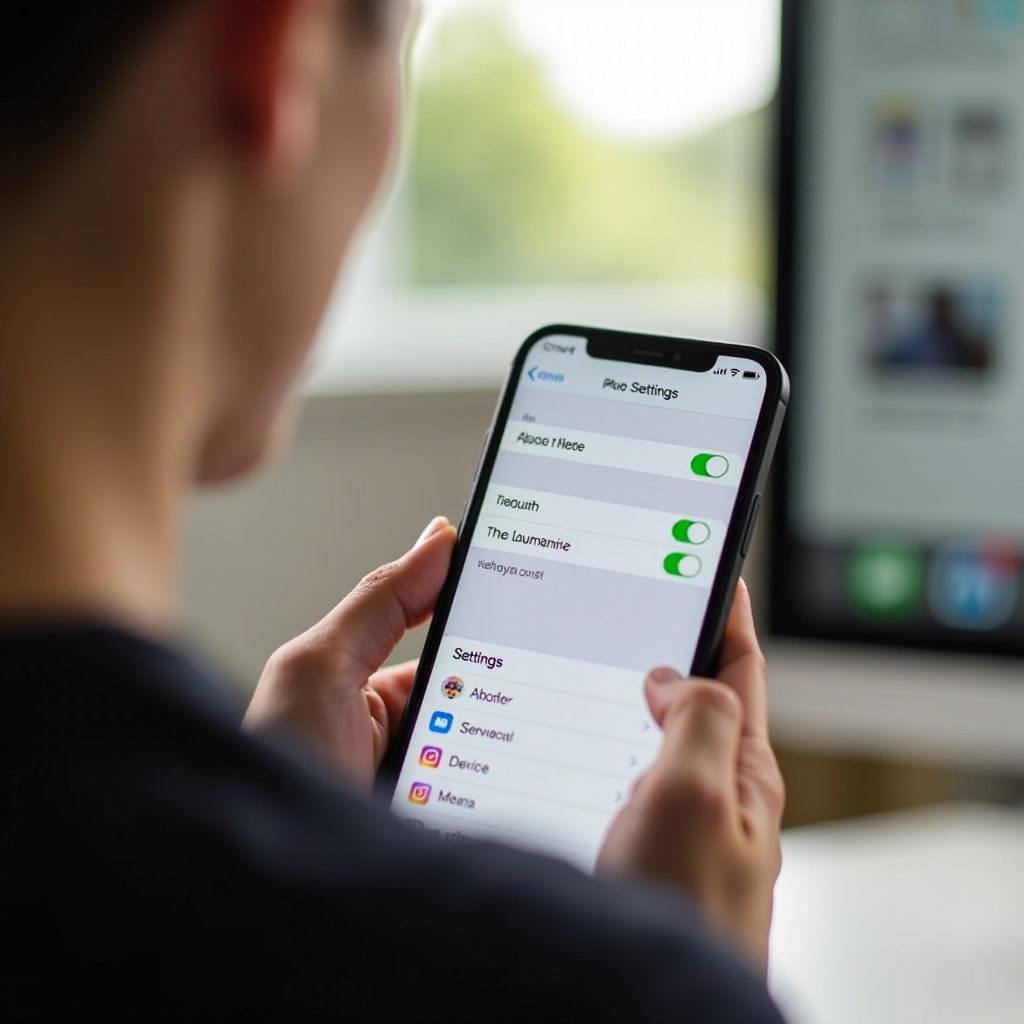
What Your iPhone’s Name Controls
Your device name travels across Apple services and common connections. Knowing these touchpoints helps you pick a better label and verify that changes stick.
AirDrop and nearby sharing
AirDrop uses your device name to introduce your phone to people around you. When a friend tries to send you photos or documents, your phone appears by that name with your contact image if you share it. A clear, non‑identifying name helps others choose the right device quickly, especially in crowded locations like conferences, classrooms, or offices. If you keep a default name like iPhone, you may blend into a long list of similar devices, which slows everyone down. If you use your full legal name, you reveal more than you need to anyone scanning nearby. Aim for a short label that is easy to recognize without exposing private details.
Bluetooth and CarPlay listings
Bluetooth accessories and most car infotainment systems display your device name when pairing and reconnecting. CarPlay also labels your phone with that name on the dashboard. If there are several iPhones in a home or workplace, duplicate names cause confusion, and some head units simply keep the first name they see. A distinctive label saves taps and prevents accidental connections. It also helps when you manage multiple devices, for example a personal phone and a work phone. The right name reduces pairing mistakes and makes voice prompts in the car clearer for everyone.
Personal Hotspot broadcast name
Your Personal Hotspot uses your iPhone’s name as its Wi‑Fi network SSID. Anyone scanning for networks sees it. This is helpful when friends need to join quickly, but it also means strangers in cafes, airports, or trains can read it too. Keep the SSID non‑identifying and short so it displays cleanly on small screens. If your current name includes your full name or phone number, change it before you enable Hotspot again. A simple, private name prevents unwanted attention and makes it easier for trusted contacts to spot your network in a list.
Find My and iCloud device lists
Find My and your Apple ID device list on iCloud use your iPhone’s name as the label for that device. When you track a device, share its location, or request support, that name is what you see and what support teams reference. Consistent names make it much easier to tell devices apart, especially if you rotate hardware or maintain older phones as backups. If you adopt a clean naming scheme now, you will never wonder which iPhone is which on iCloud, in Find My, or in your family sharing group.
Now that you know where the label appears, it is time to change it on the phone itself. This is the fastest and most reliable path.
How to Change Your iPhone Name in Settings (Step-by-Step)
Renaming directly on your iPhone is quick and requires only a few taps. After you confirm the new name, give your device a moment to broadcast the update to nearby accessories and services.
Navigate to Settings > General > About > Name
1) Open Settings.
2) Tap General.
3) Tap About.
4) Tap Name at the top.
If you do not see the Name field, you might be deep in another About subpage. Go back until you reach the main About screen where Name appears at the top.
Enter a new name (special characters and emojis)
1) Tap the current name to place the cursor.
2) Type your new name.
– You can use letters, numbers, spaces, and many symbols.
– Emojis usually work, but some cars and accessories may display them as blank squares.
– Keep it short, clear, and readable.
Good examples are Home‑iPhone, Work‑Phone, Travel‑Phone, or initials with a device type like AJ‑iPhone. Avoid your full name, phone number, or any other details you would not want to show on a public screen. If you manage multiple devices, consider a consistent pattern you can reuse.
Confirm and let the name propagate
1) Tap Done on the keyboard.
2) Keep Wi‑Fi and Bluetooth on for a minute so nearby devices can refresh your label.
3) If you use Personal Hotspot, toggle it off and back on to update the Wi‑Fi network name.
Updates often appear within seconds. Some accessories cache the old name and only refresh after a restart or re‑pair. If you still see the old label later, do not worry; the troubleshooting section below explains how to clear stubborn caches. If you prefer to rename while connected to a computer, the next section covers macOS and Windows methods.
Rename Your iPhone from a Mac or Windows PC
Renaming from a computer is handy if you are already syncing or if workplace rules limit changes in Settings. Both Macs and Windows PCs let you update the device name while the phone is connected over USB.
Finder on macOS
1) Connect your iPhone to your Mac with a reliable USB cable.
2) Open Finder and select your iPhone in the sidebar under Locations.
3) Click your iPhone’s current name at the top of the Finder window.
4) Type the new name and press Return.
5) If the change does not sync immediately, click Sync and wait.
If you cannot highlight the name, single‑click it, pause, and click again, or Control‑click and look for rename options. Make sure the iPhone is unlocked and that you tapped Trust This Computer on the device when prompted. Leaving the cable connected for a minute helps the new label propagate.
iTunes on Windows
1) Install the latest iTunes from the Microsoft Store or Apple’s website.
2) Connect your iPhone via USB and open iTunes.
3) Click the device icon near the top left.
4) Click the device name to highlight it, type your new name, and press Enter.
5) Click Apply or Sync if needed and wait for the update.
If the device does not appear, unlock your iPhone and accept any Trust prompts. Try a different USB port or cable if iTunes still does not recognize your phone. Updating Windows and iTunes can also resolve connection issues.
Common sync and cable issues to avoid
- Use a certified cable and a direct USB port on your computer instead of a hub.
- Unlock your iPhone and tap Trust This Computer when prompted.
- Update macOS, Windows, and iTunes to current versions.
- If your device still will not show up, restart both the computer and the iPhone, then reconnect.
After you rename from a Mac or Windows PC, take a moment to confirm that the new label appears everywhere you expect to see it.

Verify the New Name Across Apple Services and Devices
A quick check across AirDrop, Bluetooth, Hotspot, and iCloud ensures that the new name is live and prevents confusion later. These steps also reveal caches that might need a reset.
AirDrop preview and contact photo integration
- Open Control Center and enable AirDrop for Contacts Only or Everyone for 10 Minutes as needed.
- Ask a nearby friend to start sending you a test photo.
- Confirm that they see your new device name and, if you share it, your contact image.
If your friend still sees the old name, toggle AirDrop off and on, or briefly enable and disable Airplane Mode to refresh wireless advertising. This is a simple way to verify that nearby devices now recognize your updated label.
Bluetooth menus in cars, speakers, and headphones
- On iPhone, go to Settings > Bluetooth and confirm your new device name appears at the top.
- On your car or accessory, review the paired device list.
- If the old name still shows, choose Forget or Delete on the car or accessory, then re‑pair from the iPhone.
Some head units and accessories keep the first name they saw until you remove and re‑pair the device. A quick re‑pair usually updates the label and eliminates confusion on shared dashboards.
Personal Hotspot SSID visibility
- Go to Settings > Personal Hotspot and toggle Allow Others to Join off and back on.
- On a second device, scan for Wi‑Fi networks and confirm that your new phone name appears as the SSID.
- If the old SSID persists, restart your iPhone and scan again.
Because Hotspot broadcasts to everyone nearby, this is a critical point to confirm. Your SSID should not expose personal details. If it does, rename the device again and retest.
Find My app and iCloud.com Devices
- Open the Find My app and verify that your iPhone card shows the new name.
- Go to Settings > your name > Devices and confirm the label there.
- Sign in to iCloud.com and check the device list if you want a final confirmation.
If any of these services still show the old name, do not panic. Most discrepancies clear after a short delay or a restart. If they do not, the next section covers the best fixes.
Troubleshooting When the Name Will not Update Everywhere
If the new label appears in some places but not others, you are likely dealing with cached records or a policy restriction. Work through these fixes from simplest to most involved.
Restart the iPhone and toggle Airplane Mode, Wi‑Fi, and Bluetooth
1) Restart your iPhone.
2) Turn on Airplane Mode for 10 seconds, then turn it off.
3) Toggle Wi‑Fi and Bluetooth off and on.
These quick actions refresh the radios and discovery services that broadcast your device name. In many cases, a simple reset fixes AirDrop and Bluetooth lists immediately.
Forget and re‑pair Bluetooth accessories (especially vehicles)
1) On iPhone, go to Settings > Bluetooth.
2) Tap the i next to the accessory and choose Forget This Device.
3) Start a fresh pairing from the iPhone to the accessory or car.
Cars and some speakers store the device label locally and never pull updates until you reconnect from scratch. A clean re‑pair forces the head unit or accessory to read your new device name.
Reset Network Settings and check carrier settings
1) Go to Settings > General > Transfer or Reset > Reset > Reset Network Settings.
2) Note that this removes saved Wi‑Fi networks, VPNs, and APN settings; be ready to reenter them.
3) Check for carrier updates by visiting Settings > General > About and follow prompts if available.
Resetting network settings clears caches that can hold onto old names. It also refreshes low‑level network behavior that Hotspot and Bluetooth rely on.
Update iOS and sign out/in of iCloud (with caution)
- Update to the latest iOS release under Settings > General > Software Update.
- If Find My or iCloud still shows the old label after other fixes, sign out and back in: Settings > your name > Sign Out. Sign back in after a restart.
- Use caution: signing out temporarily disables services and requires you to reauthenticate.
Most users never need to sign out of iCloud to fix naming issues. Try other steps first. Only use this measure if iCloud‑based labels refuse to refresh after several hours.
Look for work or school MDM restrictions that lock naming
- Go to Settings > General > VPN & Device Management.
- If a management profile is installed, your organization may restrict renaming.
- Contact your IT administrator to request a policy change or a temporary exception.
Managed devices often enforce naming rules, including fixed device names. You will not be able to change your iPhone name until IT adjusts the policy.
Clear caches on cars, Macs, and Windows PCs
- Cars: remove the phone profile from the head unit and re‑pair.
- Mac: remove the iPhone from Bluetooth settings and re‑pair; if necessary, delete old entries in the Bluetooth list.
- Windows: remove the device under Settings > Bluetooth & devices and re‑pair from the iPhone.
Some systems keep the old label until you completely remove the previous pairing. A clean re‑pair typically solves the problem. With the name now consistent, make sure it also protects your privacy.
Privacy and Security Best Practices for Device Names
Treat your device name like a public username. It appears in shared spaces and on screens you do not control, so prefer clarity without revealing identity. These tips keep you safe without making daily use harder.
- Avoid personally identifying information. Do not include your full name, phone number, address, or employer in the device name.
- Keep it short and simple so it displays cleanly in cars and on small screens.
- Use neutral labels when traveling or working in public. A generic name like Phone‑A or Device‑01 keeps a low profile.
- Test emojis and special characters if you like them. Some cars and enterprise systems do not render them well; readability matters more than style.
- Pair a private device name with conservative AirDrop settings. Use Contacts Only, and only switch to Everyone for 10 Minutes when needed.
- Update the name if your device’s role changes. If your old phone becomes a dedicated hotspot, switch to a label like Hotspot‑Phone.
Adopting a few simple rules protects your privacy and makes it easier for friends and coworkers to recognize your device. Next, build on that privacy base with naming conventions that scale well across multiple devices.
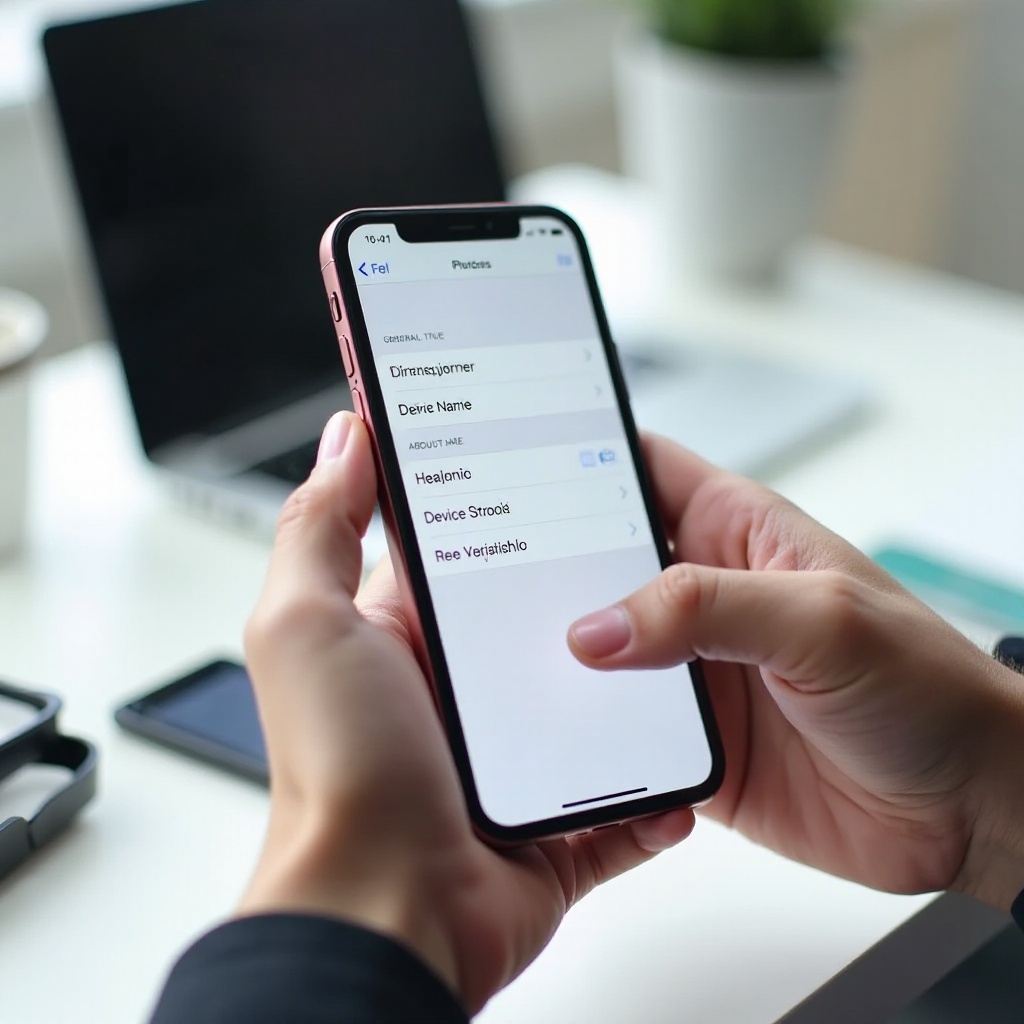
Pro Tips for Smarter Device Naming
A consistent naming scheme pays off when you juggle personal and work phones, share vehicles, or manage tech for your household. These patterns help you spot the right device fast.
- Use consistent prefixes to show context. Try Home‑, Work‑, or Travel‑ to signal where and how you use the device.
- Add a brief device type or size if you manage several models. Examples: Home‑iPhone‑Mini, Work‑iPhone‑Max.
- Include initials for families or teams. A‑iPhone and J‑iPhone are easier to tell apart than two generic iPhones.
- Consider pronunciation. Choose names that Siri and car voice systems pronounce clearly to avoid mishearing during voice commands.
- Avoid characters that break on other platforms. Some symbols display poorly on older cars or Windows PCs.
- Document your scheme. If you maintain devices for a group, write down the pattern so everyone follows it consistently.
These habits reduce friction across AirDrop, pairing, and support tasks. They also make transitions painless when you upgrade or hand down a device. Once you settle on a clear, private name, you are ready to wrap up with a quick summary.
Conclusion
Yes, you can change the name of your iPhone, and doing it now saves time and protects your privacy later. The quickest method lives in Settings under General > About > Name. You can also rename your device from a Mac via Finder or from a Windows PC using iTunes. After you update the label, verify it in AirDrop, Bluetooth devices and CarPlay, Personal Hotspot, and the Find My app. If the old name lingers, restart, re‑pair accessories, clear caches, or check for management profiles that restrict changes. Keep your device name short, readable, and non‑identifying, and adopt a simple naming scheme that scales across your household or workplace. A thoughtful label makes daily sharing smoother and your tech easier to manage.
Frequently Asked Questions
Can my hotspot name be different from my iPhone’s name?
Personal Hotspot uses your iPhone’s device name as the Wi‑Fi network. Change the device name to change the hotspot SSID. You cannot set a separate hotspot name on iPhone.
Will changing my iPhone name affect Apple ID, AppleCare, or backups?
No. Renaming does not affect your Apple ID, AppleCare coverage, serial number, or backups. It only changes the label that appears in iCloud, Find My, and on connected devices.
Can I use emojis or special characters in my iPhone name?
Yes, most emojis and symbols work. However, some cars and accessories may show blank squares or odd characters. For best readability across devices, stick to simple letters and numbers.