
Introduction
Auto blocking can be helpful until it starts blocking the wrong calls or messages. Many Android users miss important calls from clients, schools, delivery drivers, or family because their phone silently filters them. If you are wondering how to turn off auto blocker on Android without losing all protection, you are in the right place.
This guide walks you through the main blocking systems that run on Android phones. You will learn how to turn off auto blocking for calls and messages on Google Pixel, Samsung, and other popular brands. You will also see how to adjust carrier apps, third-party blockers, and hidden settings like Do Not Disturb, so you stop missing calls but still avoid obvious spam.
By the end, you will know how to switch off or tune down auto blockers, test your phone, and use safer alternatives if you do not want to disable spam protection completely.
What ‘Auto Blocker’ Means on Android
Many people search for how to turn off auto blocker on Android, but ‘auto blocker’ can mean several different features. Your phone might be blocking calls, hiding texts, filtering notifications, or sending people straight to voicemail. Understanding what is actually doing the blocking makes everything easier to fix.
Sometimes your Android system handles blocking at a basic level inside the default Phone app. In other cases, your phone brand adds extra spam protection on top. You may also have installed a carrier app or a third-party spam blocker that you forgot about. All of these can act like an ‘auto blocker’ in daily use.
Once you can tell which type of blocker is active, you can go to the correct menu and switch it off or adjust it rather than poking at random settings and hoping for the best.
Common Types of Auto Blocking Features
The main auto blocking features on Android usually fall into these groups:
- System call blocking and spam detection inside the default Phone app.
- Messaging spam filters inside SMS apps like Google Messages or Samsung Messages.
- Brand-specific spam features such as Samsung Smart Call or custom ‘harassment filters’.
- Third-party apps like Truecaller, Hiya, or antivirus suites with call blocking.
- Carrier call filter apps from AT&T, Verizon, T-Mobile, and others.
Any of them can silently stop calls or messages from reaching you, so you often need to check several places.
Why Your Android Might Be Blocking Calls or Messages
Android and phone makers turn on many of these features to protect you. They detect patterns of robocalls, scams, and phishing texts. The system then blocks or flags them without asking you each time.
Common reasons your phone blocks communication include:
- The number is on your blocked list or spam list.
- The caller is hidden, private, or ‘unknown’.
- The call or SMS is flagged as suspected spam by a database.
- A carrier or third-party app filters the number before it reaches your phone app.
These tools help, but they can block real people by mistake. That is why you may need to adjust them before you start missing more important calls and messages.
Before You Turn Off Auto Blocker: Safety and Backup Tips
Before you dive into settings and disable everything, take a moment to prepare. You want to restore important calls and messages, but you also want to avoid opening the door completely to scammers. A few simple steps will protect you while you change your configuration.
Think about who needs to reach you and how often you get spam now. If you rarely see spam, full-time blocking might be unnecessary. If you get constant spam, then instead of fully turning off auto blocker on Android, you may prefer lighter filters.
A little planning helps you pick the right balance between convenience and safety and makes the rest of the guide easier to follow.
Understand the Risks of Disabling Spam Protection
When you turn off auto blocker features, you:
- Allow spam calls and texts to ring or show like any normal contact.
- See more robocalls, telemarketing, and scam attempts every week.
- Need to decide on your own whether a call or text is safe.
If you have children, elderly family, or sensitive accounts linked to your phone, be extra careful. You may want to keep some level of detection or at least learn how to spot phishing and scams so you do not fall for social engineering.
Back Up Contacts and Important Messages
Before you change call and message apps or reset settings:
- Sync your contacts with your Google account or another cloud service.
- Back up SMS if they contain important data, codes, or work info using a backup app or Google Drive.
- Note down any critical numbers you do not want to lose, such as doctors, schools, or work lines.
This way, if you reset app settings or clear data later during troubleshooting, you will not risk losing key information while you fix auto blocking.
Identify Which Auto Blocker Is Active on Your Android Phone
With safety and backups covered, the next step is to find which tool is doing the blocking. This step will save a lot of time. You are looking for signs at three levels: the system phone app, the messaging app, and extra security or carrier apps.
Start with the simplest checks. Look at your recent calls and messages. See if there is a spam or blocked tab. Then check for other security or carrier apps that might be running in the background. When you know where the block happens, you can follow the right section in this guide and avoid changing unrelated settings.
System Call Blocking and Spam Protection
Open your default Phone app and:
- Tap the three-dot menu or settings icon.
- Look for options like ‘Blocked numbers’, ‘Spam and Call Screen’, or ‘Caller ID & spam’.
- Check if calls from unknown, hidden, or suspected spam numbers are auto blocked, sent to voicemail, or silently rejected.
If you see blocked numbers listed here or toggles for spam filtering, this is one major source of auto blocking.
Messaging App Spam Filters
Next, open your SMS app, such as Google Messages or Samsung Messages:
- Check for a ‘Spam & blocked’ or ‘Spam messages’ folder.
- See if normal senders ended up in that folder.
- Open the app settings and look for ‘Spam protection’ or ‘Block numbers’.
If real texts land in spam or some contacts are in a blocked list, your auto blocker might live in your messaging app rather than the dialer.
Third-Party and Carrier Blocking Apps
Finally, check for apps like:
- Truecaller, Hiya, or other spam caller ID apps.
- Carrier apps like AT&T ActiveArmor, Verizon Call Filter, or T-Mobile Scam Shield.
- Security, antivirus, or parental control apps with call or SMS blocking.
Go to Settings > Apps and review all installed apps. If any have ‘Call’, ‘Filter’, ‘Spam’, or ‘Security’ in their name, open them and check if they handle call or SMS blocking.
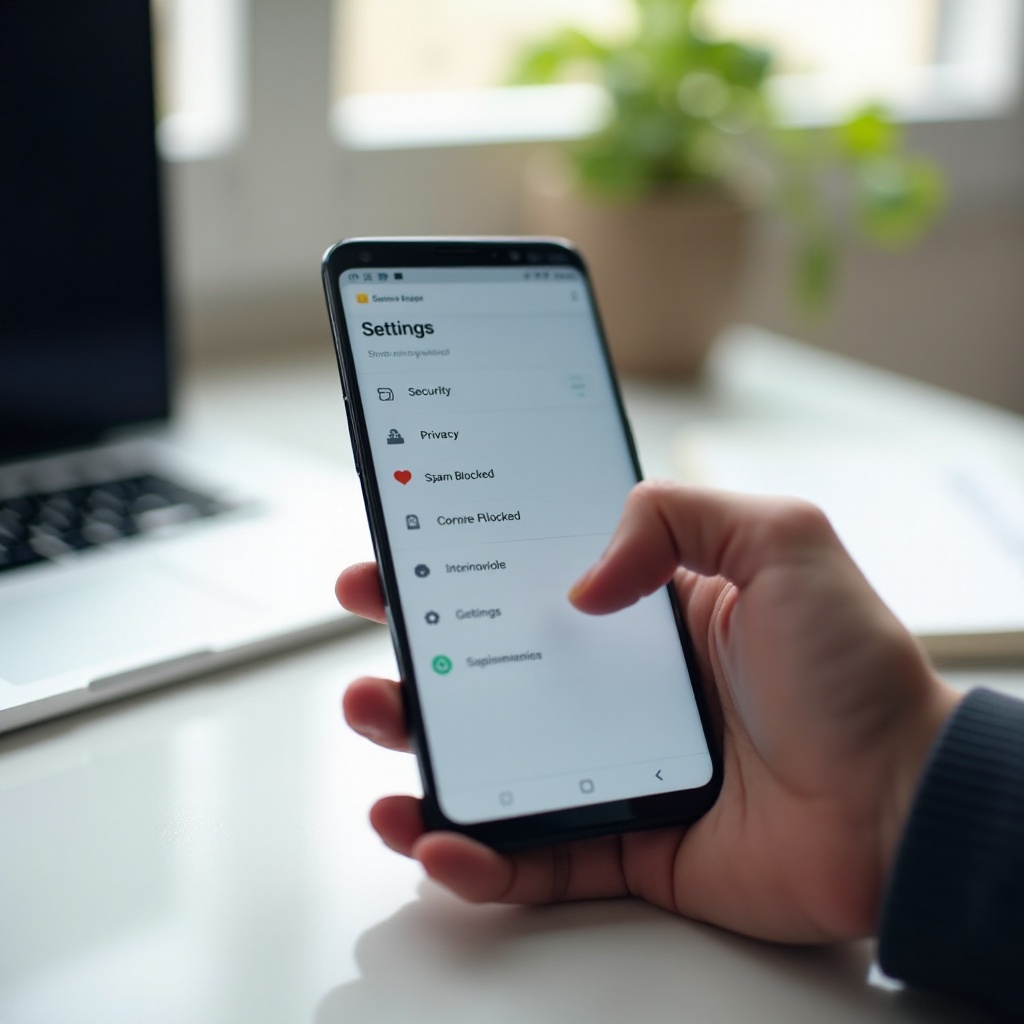
Turn Off Auto Call Blocking on Stock Android and Pixel Phones
If you use a Google Pixel or a phone with a clean version of Android, most auto blocking runs through the Google Phone app. Learning how to turn off auto blocker on Android in this case is straightforward, and you can always turn it back on later if you change your mind.
You will adjust spam protection, change how your phone treats unknown numbers, and remove numbers from the block list. Handle these steps one by one and test with a known number to confirm your changes before moving on to brand-specific tweaks.
Disable Spam Protection in the Google Phone App
Follow these steps:
- Open the Phone app.
- Tap the three-dot menu in the upper-right corner.
- Tap ‘Settings’.
- Tap ‘Caller ID & spam’ or a similar option.
- Turn off ‘Filter spam calls’ if it is enabled.
- Optionally keep ‘See caller and spam ID’ on if you still want warnings without blocking.
This change stops the app from auto blocking suspected spam calls, though it can still label them if you leave caller ID on.
Allow Calls from Unknown or Private Numbers
Some users block unknown callers without realizing it:
- Open the Phone app settings again.
- Tap ‘Blocked numbers’.
- Check if ‘Unknown’ or ‘Block calls from unidentified callers’ is turned on.
- Turn this option off to allow calls from private or hidden numbers.
This is important if you expect calls from clinics, schools, companies, or government offices that often use hidden caller IDs.
Unblock Numbers from the Blocked List
Still in ‘Blocked numbers’:
- Look through the list for numbers you recognize.
- Tap the ‘X’ or trash icon next to any number you want to unblock.
- Confirm when asked.
After unblocking, ask that person or business to call you again. The call should now ring normally, which confirms that auto blocking is no longer affecting those contacts.
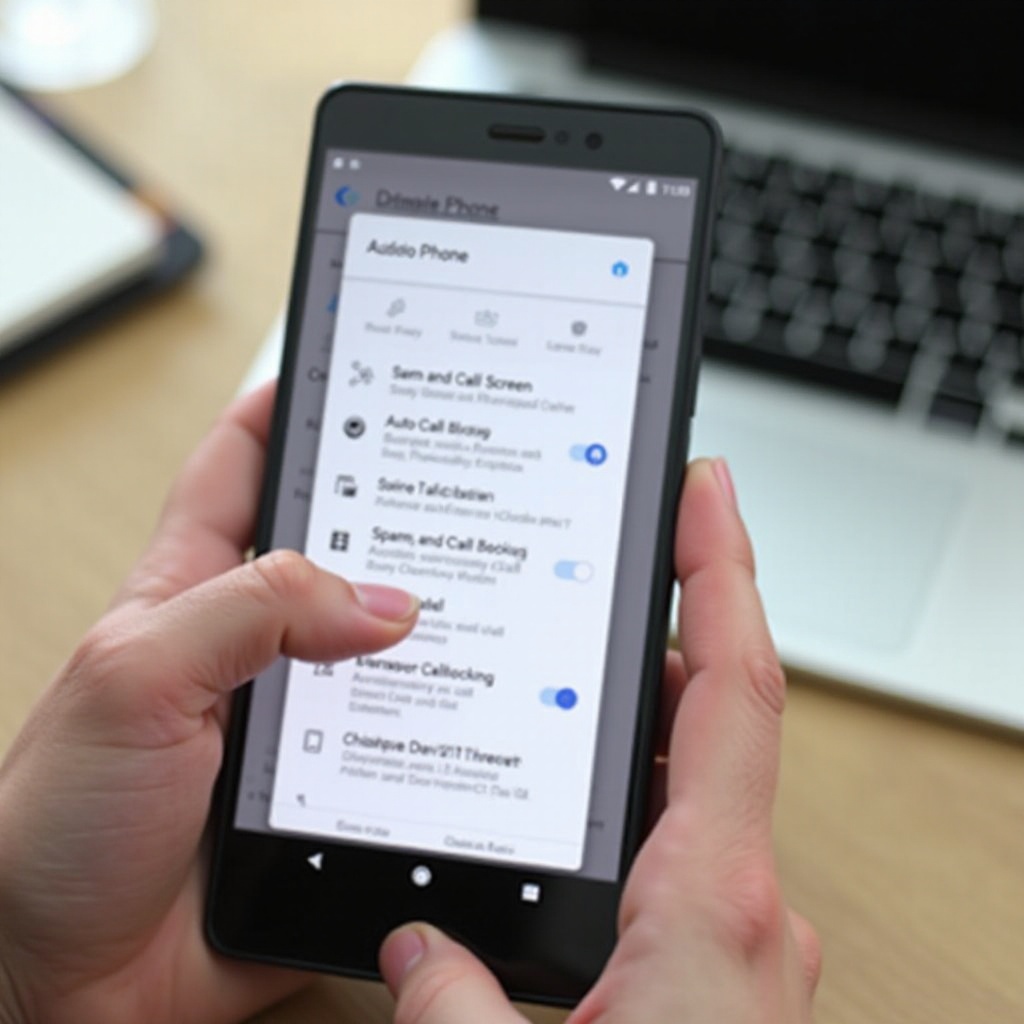
Turn Off Auto Blocker on Samsung Galaxy Phones (One UI 6 and Newer)
Samsung Galaxy phones add their own tools on top of Android. They include Samsung’s Phone app, caller ID, and Smart Call spam protection. If you use a Galaxy device, you must adjust both basic blocking and Samsung’s extra filters.
The process is similar to stock Android but the labels and menus look slightly different. Once you understand Samsung’s layout, you can change blocking behavior without losing all forms of spam awareness, and you can still keep warnings for suspicious numbers.
Access Samsung Call Blocking and Smart Call Settings
To reach Samsung’s blocking options:
- Open the Samsung Phone app.
- Tap the three-dot menu in the top-right corner.
- Tap ‘Settings’.
- Tap ‘Block numbers’.
Here you can:
- See a list of blocked numbers.
- Check if ‘Block unknown/private numbers’ is on.
- Edit which numbers Samsung blocks automatically.
This is the main control area for manual and automatic call blocking on Galaxy phones.
Turn Off Caller ID and Spam Protection
Samsung also offers Smart Call:
- From Phone app settings, look for ‘Caller ID and spam protection’.
- Tap it to open.
- Turn off the toggle for ‘Caller ID and spam protection’ if you want to disable Smart Call entirely.
- If available, choose a softer option that only warns about spam instead of blocking it.
If you turn this off, Samsung will not auto block suspected spam. You may still see spam handled by a carrier or third-party app if you use one, so review those as well.
Manage Blocked Numbers and Unknown Callers
Inside ‘Block numbers’:
- Turn off ‘Block unknown/private numbers’ if you want all callers to get through.
- Review the list of blocked callers below.
- Tap the minus icon next to any number you want to unblock.
Then, test with a known contact or a second phone. If the call rings, your Samsung auto blocking settings are no longer stopping those calls.
Adjust Auto Blocking on Other Popular Android Brands
Not everyone uses Pixel or Samsung. Brands like OnePlus, Oppo, Realme, Motorola, and others build their own phone apps, but most use very similar names and paths for blocking features. Once you know what to look for, finding how to turn off auto blocker on Android from these brands becomes much easier.
You will look for the Phone app’s settings and then find menus for blocked numbers, spam, or caller ID. Manufacturers rarely hide these features deeply, so a quick search through call settings usually reveals them.
OnePlus, Oppo, and Realme Call Blocking Settings
On these devices:
- Open the Phone app.
- Tap the three dots or menu icon.
- Choose ‘Settings’ or ‘Call settings’.
- Look for ‘Blocked numbers’, ‘Blocklist’, or ‘Harassment filter’.
- Turn off options like ‘Block unknown numbers’ or ‘Identify and block spam calls’.
- Clear any unwanted numbers from the blocklist.
Names may vary between ColorOS and OxygenOS, but the structure is similar enough that these steps will guide you.
Motorola and Other Brands’ Blocked Numbers Menus
For Motorola and many smaller brands:
- Open the Phone app.
- Go to Settings inside the app.
- Tap ‘Blocked numbers’ or ‘Call blocking’.
- Toggle off any auto blocking of unknown or private callers.
- Tap the ‘X’ next to numbers you want to remove from the blocked list.
If your device uses the Google Phone app as default, follow the Pixel steps described earlier, as they work the same way.
General Steps If Your Phone Brand Is Not Listed
If you have a less common brand:
- Open the Phone app.
- Visit its settings menu.
- Look for any section with ‘Block’, ‘Spam’, or ‘Call filter’ in its name.
- Turn off options that block or filter calls automatically.
- Remove important contacts from any blocked number lists.
If needed, check your manual or the brand’s support site for ‘blocked numbers’ instructions. Most brands explain these steps clearly on their help pages.
Turn Off Auto Blocking for Text Messages and SMS Spam
Stopping auto call blocking is only half the job. Many users also miss texts because their phone treats them as spam. Your SMS app might be quietly moving messages into a spam folder or blocking numbers entirely. You should review these settings to make sure you receive all important codes, alerts, and personal messages.
Start with Google Messages if that is your default app, then check any brand-specific SMS apps you use so you cover both system and manufacturer filters.
Disable Spam Protection in Google Messages
To adjust Google Messages:
- Open the Google Messages app.
- Tap your profile icon or the three-dot menu.
- Tap ‘Messages settings’.
- Tap ‘Spam protection’.
- Turn off ‘Enable spam protection’ if you want to stop automatic filtering.
With this off, Messages will no longer classify texts as spam on its own, though carrier-side filters may still apply in the background.
Check Spam Folders and Restore Blocked Conversations
Inside Google Messages or Samsung Messages:
- Check for a ‘Spam & blocked’ or ‘Spam messages’ tab.
- Open it and scan for messages from real people or services you trust.
- Tap each safe conversation and choose ‘Not spam’ or ‘Move to inbox’.
- Save important numbers to your contacts so they are less likely to be filtered again.
Reviewing the spam folder helps you recover any messages lost while auto blocking was active and prevents you from missing similar messages in the future.
Messaging Settings on Samsung and Other SMS Apps
On Samsung Messages and similar apps:
- Open the Messages app.
- Go to Settings.
- Look for ‘Spam and blocked’, ‘Block numbers and messages’, or ‘Harassment filter’.
- Turn off automatic spam filters if you no longer want filtering.
- Remove safe numbers from any blocklists used by the app.
After making changes, ask a friend to send a text and confirm it appears in your main inbox instead of being sent to spam.
Disable Third-Party and Carrier Call Blocking Apps
Even if you turn off blocking inside the Phone and Messages apps, calls can still be blocked higher up the chain. Many carriers and third-party apps intercept calls before they get to your phone apps. To fully understand how to turn off auto blocker on Android, you must check these tools as well.
Once you disable or relax these apps, your device stops filtering at the network or app level, and more calls will ring through instead of being filtered away.
Identify Installed Call and SMS Blocker Apps
First, find out what is installed:
- Open Settings > Apps.
- Tap ‘See all apps’ if needed.
- Scroll for names like Truecaller, Hiya, Call Filter, ActiveArmor, or ‘Security’.
- Check any app that mentions calls, spam, security, antivirus, or parental controls.
Open each suspected app and look at its settings for call or SMS blocking options and toggles.
Turn Off or Reconfigure Truecaller, Hiya, and Similar Apps
In these apps:
- Open the app.
- Go to its Settings menu.
- Look for ‘Blocking’, ‘Spam’, or ‘Call filtering’.
- Turn off options like ‘Block top spammers’, ‘Block unknown numbers’, or ‘Auto block’.
- If you do not need the app at all, uninstall it from Settings > Apps or from your home screen.
This prevents third-party apps from blocking calls without your knowledge and gives you a clean base to test from.
Manage AT&T, Verizon, T-Mobile and Other Carrier Filters
Carrier apps often come preinstalled:
- Open your carrier’s call filter app (for example, AT&T ActiveArmor, Verizon Call Filter, or T-Mobile Scam Shield).
- Check whether protection is set to ‘Automatic blocking’ or ‘Filter spam’.
- Change the mode to ‘Allow but label’, ‘Only warn’, or turn off protection entirely.
- Save changes and restart your phone if prompted.
Carrier support pages show more details if you need brand-specific steps, especially for advanced features like network-level blocking and caller ID.
Check Do Not Disturb, Focus Mode and Digital Wellbeing
Sometimes your phone is not truly blocking calls but is silencing them so it feels like blocking. Features like Do Not Disturb (DND), Focus mode, and Digital Wellbeing can mute or hide notifications. Before you assume spam filters are broken, check these tools to confirm whether they are causing the issue.
Understanding how these modes work helps you let important calls through while still enjoying quiet time when you need it, without relying only on auto blockers.
When Do Not Disturb Looks Like Auto Blocking
Do Not Disturb can:
- Silence all calls and messages completely.
- Allow only alarms or starred contacts to ring.
- Run on a schedule at night or during work hours.
If calls go straight to voicemail or never ring, DND might be active. You will usually see a small icon, like a circle with a line, in the status bar when it is turned on.
Edit or Turn Off DND Schedules and Exceptions
To adjust DND:
- Go to Settings > Sound & vibration (or a similar menu).
- Tap ‘Do Not Disturb’.
- Check if DND is on manually or via a schedule.
- Turn it off, or edit the schedule so it fits your routine.
- Under ‘Exceptions’, allow calls from contacts, favorite contacts, or anyone you choose.
This lets you stay reachable for key people even when DND is active, while the phone still silences less important alerts.
Focus Mode, Bedtime Mode and App-Based Limits
Digital Wellbeing and similar tools can also silence apps:
- Open Settings > Digital Wellbeing & parental controls.
- Check ‘Focus mode’, ‘Bedtime mode’, or similar features.
- If your Phone or Messages apps appear in a blocked list, turn off that mode or remove them from the list.
- Disable any parental control apps if you manage your own device and do not need them.
After changes, ask someone to call and text you to confirm the phone rings and shows notifications as expected.
Troubleshooting: Calls or Messages Still Not Coming Through
You have turned off most auto blockers and checked hidden features, but calls or messages still fail. At this point, you should treat the issue as a general connectivity or configuration problem rather than pure blocking. There are a few more areas to examine before you contact support.
These final tests help you spot issues with voicemail, call forwarding, app glitches, or network problems so you can rule out other causes besides auto blocking.
Test Calls, Voicemail and Call Forwarding Settings
Try these steps:
- Use another phone to call your number.
- See if the call rings, goes straight to voicemail, or fails.
- On your Android, open the Phone app > Settings > Call settings.
- Check ‘Call forwarding’ and turn it off if it sends calls to another number.
- Review voicemail settings to ensure they are correct and active.
If calls skip ringing and go straight to voicemail, forwarding or voicemail rules may be the cause rather than an auto blocker.
Reset Phone, Messaging and Network Settings
If issues continue after those checks:
- Go to Settings > Apps.
- Find the Phone app and Messages app.
- Tap ‘Storage & cache’ (or ‘Storage’).
- Clear cache, and only clear data if you have backed up or do not mind reconfiguring the apps.
- Then go to Settings > System > Reset options.
- Choose ‘Reset network settings’ to fix network-related glitches.
After a reboot, test again to see if calls and texts behave normally and reach your device as they should.
When to Contact Your Carrier or Phone Manufacturer
If nothing works after all these adjustments:
- Contact your carrier and ask if they see blocks or network issues on your line.
- Ask them to reset network features or remove any server-side filters.
- If your phone is still under warranty, contact the manufacturer’s support.
Explain that you have already turned off auto blocker settings, checked apps, and reset networks. This helps them skip basic scripts and offer deeper help more quickly.
Safer Alternatives to Completely Turning Off Auto Blocker
By now you should receive more calls and texts, but you may also notice more spam. If you do not like that, you do not have to go back to strict blocking. There are middle options that protect you without hiding important calls.
Instead of turning everything off, use softer tools: warnings, labels, silencing, and whitelists. These keep you in control while still filtering noise and reducing the risk from scams.
Use Labels and Warnings Instead of Full Blocking
Most spam tools offer a ‘warn only’ mode:
- Keep caller ID and spam detection on.
- Turn off ‘block spam calls’ and only show warnings.
- Decide yourself whether to answer or decline each call.
This way, genuine calls reach you, but you can still recognize likely spam at a glance and avoid answering it.
Silence Unknown Callers While Allowing Them Through
On some Android versions and apps, you can:
- Silence calls from numbers not in your contacts.
- Still let these calls appear in your call log and notifications.
This reduces interruptions without fully blocking anything. You can review missed calls later and call back if needed, while your phone stays quieter.
Starred Contacts, Favorites and Whitelists
To make sure you never miss critical calls:
- Open your Contacts app.
- Mark family, doctors, schools, and work numbers as favorites or starred.
- In Do Not Disturb settings, allow calls from ‘Starred contacts only’ if you use DND.
Some spam apps and filters also support whitelists. Add key numbers there so they always bypass filters and ring through.
Conclusion
Learning how to turn off auto blocker on Android requires a bit of detective work, but it is not difficult once you know where to look. You need to check your Phone app, SMS app, device-specific tools, carrier filters, and system modes like Do Not Disturb and Focus mode. Each one can silently block or hide calls and messages.
By following the steps in this guide, you can turn off or tune down auto blocking, unblock important numbers, and test that everything works. At the same time, you can keep smarter protections in place, such as spam labels, warnings, silencing options, and whitelists, to avoid being overwhelmed by scammers.
Take a few minutes to adjust your settings now. You will answer more of the calls that matter, see all essential messages, and still stay in control of your phone’s security and privacy.
Frequently Asked Questions
Why is my Android still blocking calls after I turned off all settings?
If your phone still blocks calls, a carrier or third-party app may be filtering them before they reach your device. Check for installed spam, security, or parental control apps, as well as carrier call filter apps like AT&T ActiveArmor, Verizon Call Filter, or T-Mobile Scam Shield. Also review Do Not Disturb, call forwarding, and voicemail settings. If problems continue, contact your carrier to check for network-side blocks or restrictions on your line.
Will turning off auto blocker increase spam and scam calls on my phone?
Yes, when you turn off auto blocker features, more spam and scam calls can get through to your Android phone. To reduce this, keep caller ID and spam detection on, but change settings from ‘block’ to ‘warn only’ where possible. You can also silence unknown callers instead of blocking them and avoid answering calls from suspicious or unknown numbers. These steps balance safety with convenience while still reducing risk.
Can I turn auto blocker back on if I change my mind later?
You can turn auto blocker settings back on at any time. Just return to the Phone app, Messages app, carrier filter, or third-party blocker settings and re-enable spam protection or blocking options. You can choose strict blocking again or use gentler rules like labels and warnings. Experiment until you find the level of protection that fits your needs without hiding important calls and messages.