
Introduction
Live wallpapers make your Android phone feel more personal and alive. Instead of a fixed image, you get motion, animation, and sometimes interactive effects each time you unlock your device. Many users never touch this feature because they think it is complex or bad for battery life. In reality, it is simple to set up and, if you choose the right wallpaper, it can run smoothly without draining too much power.
This guide shows you how to set live wallpaper on Android, step by step. You will learn the fastest way to apply one, how to do it on Samsung, Google Pixel, and other phones, and how to use apps to get more options. You will also see how to turn your own videos or GIFs into a live wallpaper and how to avoid common problems like lag and overheating.
By the end, you will know how to choose, apply, and manage live wallpapers with confidence, while keeping your phone fast and battery-friendly.
What Is a Live Wallpaper on Android?
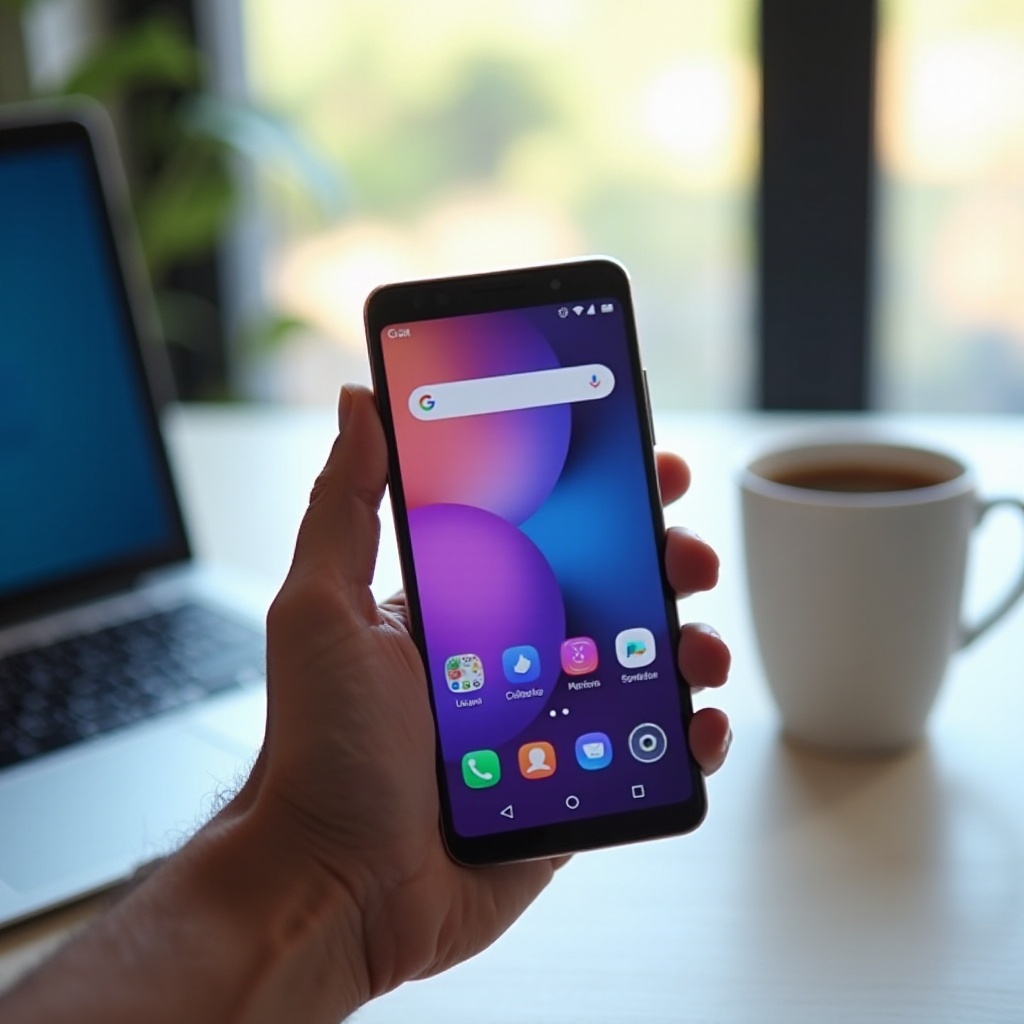
Live wallpapers are animated or interactive backgrounds that replace the static image on your Home screen or Lock screen. They can be simple loops, like waves or clouds moving slowly, or complex scenes that respond when you swipe, tap, or tilt your phone. Some live wallpapers even change based on time of day or weather.
Compared with static wallpapers, live wallpapers:
- Move or animate on the screen
- Often use more graphics and system resources
- Can respond to touch or sensors
- Sometimes offer customization options like colors or speed
However, they also come with trade-offs. Because they keep animating when the Home screen is visible, they may use more battery and CPU than a still image. On modern phones, this impact is often moderate if you choose a lightweight live wallpaper, but very complex ones can cause lag, especially on older or budget devices.
You will also see different names for similar features, such as Motion wallpaper, Animated wallpaper, or Super wallpaper on some brands. They all refer to the same idea: a background that is not completely static.
Once you understand what live wallpapers are, the next step is to check if your Android phone supports them and where to find the setting so you can start using them.
Check If Your Android Phone Supports Live Wallpapers
Most Android phones released in 2024 and recent years support live wallpapers, but the exact menu name can vary. Before you try to install apps or customize a video, verify that your phone can handle live wallpapers and see where the option is.
You can check support with these simple steps:
- Unlock your phone and go to the Home screen.
- Long-press on an empty area of the Home screen.
- Look for a menu like Wallpaper & style, Wallpapers, Home settings, or similar.
- Tap it and see if you find a section named Live wallpapers, Animated wallpapers, or an option under More wallpapers.
If you see a list with moving previews or sections labeled as Live, your phone supports live wallpapers. If you do not see anything like that:
- Open Settings > Display or Home screen and explore the wallpaper options there.
- Make sure you use the default launcher that came with your phone. Some third-party launchers hide or do not support live wallpapers well.
If your phone is new and runs Android 14 or a recent custom skin, it almost certainly supports live wallpapers, but the menu might be under a slightly different name. Once you confirm support, you can move on to the quickest way to apply a live wallpaper from your existing options.
Quick Start: Fastest Way to Apply a Live Wallpaper (Home Screen Method)
The easiest way to set live wallpaper on Android is from the Home screen. This method works on most phones with only minor visual differences:
- Go to your Home screen.
- Long-press on an empty space until a small menu appears.
- Tap Wallpaper & style or Wallpapers.
- Look for a category called Live wallpapers, Animated, or similar.
- Tap a live wallpaper to open a preview.
- Tap Set wallpaper or Apply.
- Choose where to apply it:
- Home screen
- Lock screen
- Home and Lock screens
Wait a second for the system to apply it. Go back to your Home screen to check if it animates. If the wallpaper moves when you swipe or if there is subtle motion, you have set it correctly.
If your phone's interface looks quite different from these steps, do not worry. Different brands like Samsung, Google, and Xiaomi arrange their menus differently. To make things clearer, let's look at how to set live wallpaper on some of the most popular Android phones.
How to Set Live Wallpaper on Popular Android Phones
While the basic idea stays the same, each brand adds its own design and extra features. Knowing where to tap on your specific phone saves time and avoids frustration. Once you know the brand-specific steps, you will be able to switch live wallpapers quickly any time you like.
Set Live Wallpaper on Samsung Galaxy Phones (One UI 6 and Above)
On recent Samsung Galaxy phones, you can set live wallpaper with these steps:
- Long-press the Home screen.
- Tap Wallpaper and style.
- Choose Change wallpapers.
- Scroll to find live or moving wallpaper options in the gallery, or check sections like Wallpaper services and Dynamic Lock Screen.
- Tap the live wallpaper you want, preview it, then tap Set on Lock screen, Home screen, or Home and Lock screens.
Samsung also offers Dynamic Lock Screen and animated effects inside the Lock screen customization menu, so explore those for extra motion if you want your lock screen to look different from your home screen.
Set Live Wallpaper on Google Pixel Phones (Android 14 and Above)
On a Google Pixel with Android 14, the process is simple and clean:
- Long-press on an empty area of the Home screen.
- Tap Wallpaper & style.
- Choose Change wallpaper.
- Scroll through categories and look for Living, Motion, or other animated options.
- Tap a live wallpaper, preview it, and then tap Set wallpaper.
- Select Home screen, Lock screen, or both.
Pixel phones also integrate live wallpapers with Material You color theming, so the wallpaper can influence system colors and accents across the interface.
Set Live Wallpaper on Other Android Phones (OnePlus, Motorola, Xiaomi, etc.)
On brands like OnePlus, Motorola, Xiaomi, Oppo, and Realme, the steps are similar, but the labels differ slightly:
- Long-press on the Home screen.
- Tap Wallpapers, Personalization, or Themes.
- Look for Live wallpapers, Animated, or branded effects like Super Wallpaper on Xiaomi.
- Select a live wallpaper, preview it, then tap Apply or Set.
- Choose where to apply it.
If you still cannot find live wallpapers, open Settings and search for wallpaper using the search bar. Once you know how your brand handles stock options, you might want more variety and specific styles. That is where third-party apps become very useful.
How to Use Third-Party Apps to Get More Live Wallpapers
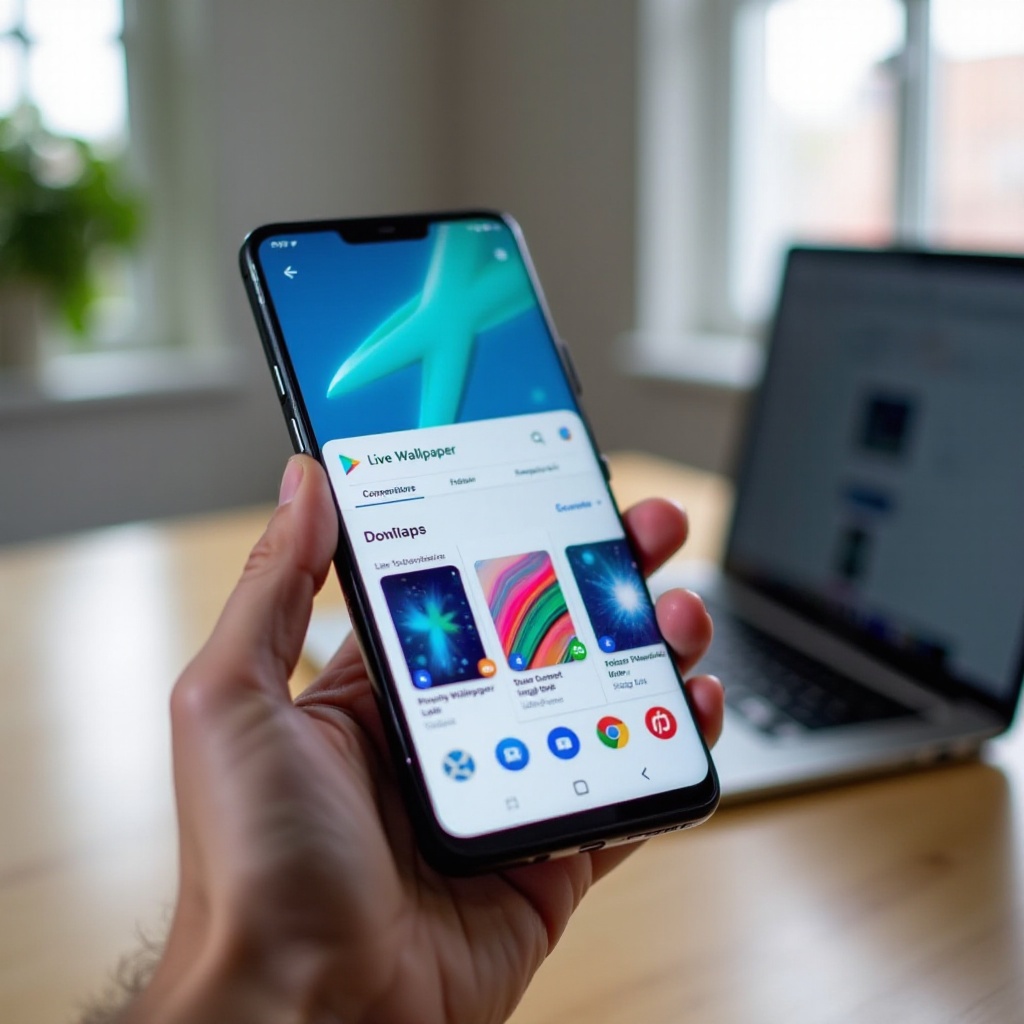
Built-in live wallpapers are often limited to a few themes. If you want specific looks like space scenes, nature loops, anime backgrounds, or minimal abstract designs, third-party apps from Google Play Store offer many choices. You just need to pick them carefully to avoid spammy or unsafe apps.
Finding Safe Live Wallpaper Apps on Google Play Store
To find reliable live wallpaper apps:
- Open the Google Play Store.
- Search for phrases like live wallpaper, 4K live wallpaper, or specific themes.
- Check the rating and aim for at least 4.0 stars.
- Read several recent reviews to see if users mention heavy ads, crashes, or battery drain.
- Look at the download count; higher numbers usually indicate a popular and tested app.
- Tap About this app to see what permissions it requests and avoid apps that want access they do not need.
Once you choose an app, install it and open it to browse its live wallpaper library.
Setting a Live Wallpaper From Within an App
Most live wallpaper apps follow a similar flow:
- Open the live wallpaper app.
- Browse categories or use the search bar.
- Tap a wallpaper you like to open its preview.
- Tap Set wallpaper, Apply, or a similar button.
- Allow any required permission, for example storage access for local wallpapers.
- Choose whether to apply it to the Home screen, Lock screen, or both.
The app then passes the wallpaper to Android's system, which activates it. Some apps also let you tweak speed, effects, or interaction before you apply the wallpaper, giving you more control over how it moves.
Removing or Changing a Live Wallpaper From an App
You can change or remove a live wallpaper in two main ways:
- Through the app:
- Open the live wallpaper app.
- Go to sections like My Wallpapers, Applied, or similar.
- Choose another wallpaper and tap Set, or select Remove if available.
- Through system settings:
- Long-press the Home screen.
- Tap Wallpaper & style or Wallpapers.
- Select a static wallpaper and apply it to replace the live one.
If you no longer plan to use an app, you can uninstall it like any other app. After exploring live wallpaper apps, many users want something even more personal. That leads to the option of turning your own videos or GIFs into live wallpapers.
Turn Your Own Video or GIF Into a Live Wallpaper
If you have a favorite clip, loop, or animation, you can turn it into a live wallpaper. Many users like to use short travel videos, pet clips, or animated GIFs. The key is keeping the file short and light so it does not slow down your phone.
Preparing Your Video or GIF for Best Results
Before you convert a video or GIF:
- Keep the length between 3–15 seconds to avoid huge file sizes.
- Use portrait orientation if possible, as phone screens are tall.
- Trim away sections that do not add much.
- Reduce resolution if the file is very large; full HD is often enough.
- Mute the audio, since live wallpapers do not play sound and keeping it can add unnecessary size.
You can use your phone's built-in gallery editor or a simple video editor app for trimming and cropping. Keeping the file lean helps your phone render it smoothly.
Using Video-to-Wallpaper Apps on Android
To turn your video into a live wallpaper, you usually need a dedicated app from the Play Store. The general process looks like this:
- Install a video-to-live-wallpaper app.
- Open the app and tap Choose video or Select GIF.
- Pick the video or GIF from your gallery.
- Adjust the start and end points, crop if needed, and choose looping options.
- Tap Set as live wallpaper or a similar button.
- Confirm in the preview screen and apply.
Different apps offer different tools, such as speed control, filters, or background blur, but the basic steps remain similar.
Applying Your Custom Live Wallpaper to Home and Lock Screen
Once the app sends your custom wallpaper to the system:
- A preview appears. Tap Set wallpaper.
- Choose Home screen, Lock screen, or both, depending on the app and device support.
- Return to the Home screen and Lock screen to confirm that it loops smoothly.
If the animation looks choppy or the phone slows down, you may need a shorter or lower-resolution version of your video. After you create your custom wallpaper, it is important to keep your device running well, which leads us to battery and performance tips.
Battery Life and Performance Tips for Live Wallpapers
Live wallpapers can look great but may also use more resources than static images. You do not have to avoid them completely; you just need to make smart choices and know when to switch them off.
How Live Wallpapers Affect Battery on Modern Android Phones
On current Android devices, live wallpapers usually consume extra power when:
- You spend a lot of time on the Home screen.
- The wallpaper uses complex 3D graphics or heavy particle effects.
- The wallpaper reacts to motion sensors all the time.
The effect is smaller when you mostly stay inside apps, because the wallpaper is not visible then. You can track its impact by opening Settings > Battery and checking which apps or processes use the most power.
Choosing Lightweight Live Wallpapers
To balance looks and performance:
- Choose wallpapers with simple animations and limited effects.
- Avoid wallpapers that constantly stream data or load content from the internet.
- Prefer darker designs if you have an OLED or AMOLED display, as dark pixels can use less power.
- Test a wallpaper for a day and check battery usage before keeping it long-term.
Many live wallpaper apps also offer settings to reduce effects, such as lower frame rates or fewer particles. Explore those options if you notice slowdowns or higher battery use.
When to Disable Live Wallpapers to Save Power
There are times when it makes sense to switch back to a static wallpaper:
- When you travel and need every bit of battery life.
- When your phone feels hot often.
- When you see heavy lag on the Home screen.
- When using Battery Saver or Power saving mode.
To disable a live wallpaper:
- Long-press the Home screen.
- Tap Wallpapers.
- Choose a standard static image and tap Set wallpaper.
If performance still feels poor, the wallpaper may not be the only cause. You might face other issues, which we will address next so you can keep your phone smooth.
Common Problems and Easy Fixes
Sometimes, live wallpapers do not behave as expected. They may freeze, disappear, or make the phone sluggish. Most of these issues are easy to fix with a few checks and some quick changes in settings.
Live Wallpaper Not Moving or Freezing
If your live wallpaper appears but does not move:
- Open Settings > Battery and make sure Battery Saver or Power saving mode is off.
- Check if you are using a third-party launcher. Some launchers do not fully support live wallpapers. Switch back to the default launcher and test again.
- Open the wallpaper app and reapply the wallpaper to refresh it.
- Restart your phone to clear temporary glitches.
If it still freezes, try another live wallpaper. The problem may be specific to that one design or app.
Live Wallpaper Option Missing in Settings
If you cannot find any live wallpaper option:
- Use the search bar in Settings and type wallpaper.
- Switch to your phone's default launcher.
- Make sure your phone's software is up to date in Settings > System > System update or your brand's equivalent.
- Install a trustworthy live wallpaper app from Google Play; many of them provide a direct Set wallpaper button that works even if the stock menu looks limited.
If the device is very old or heavily customized by the manufacturer, it might not support live wallpapers at all, but this is rare on phones released in or after 2024.
Phone Lagging or Overheating With Live Wallpapers
If your phone becomes slow or hot:
- Change to a simpler live wallpaper or use a static image for a day and compare.
- Uninstall live wallpaper apps that show heavy ads or run many background processes.
- Clear cache for problematic apps or reduce animations in Developer options if you are comfortable with those settings.
- Close unused apps and restart the device.
If the lag vanishes when you remove the live wallpaper, the issue is likely that specific wallpaper or app. Choose lighter options going forward so you can enjoy motion without sacrificing smooth performance.
Conclusion
You now know how to set live wallpaper on Android, whether you use a Samsung Galaxy, Google Pixel, or another brand. You learned the fastest way to apply built-in live wallpapers, how to extend your choices with Play Store apps, and how to turn your own videos or GIFs into a moving background. You also saw how to protect battery life and fix common issues like freezing, missing options, or lag.
Used wisely, live wallpapers can make your phone feel fresh and personal without causing problems. Start with a simple option, watch how your device behaves, and then experiment with more advanced wallpapers until you find the perfect balance between style, performance, and battery life.
Frequently Asked Questions
Does using a live wallpaper on Android drain the battery a lot?
Live wallpapers use more battery than static images, but the impact depends on the design and your usage. Simple, lightweight animations usually have a modest effect on modern phones. Heavy 3D or particle-rich wallpapers can drain more power, especially on budget devices. You can always check real usage in Settings > Battery.
Why can’t I find the live wallpaper option on my Android phone?
The live wallpaper option may be hidden under names like Wallpaper & style, Wallpapers, or Themes. Try long-pressing the Home screen or searching for wallpaper in Settings. Also switch to the default launcher, because some third-party launchers do not support live wallpapers well. Very old or heavily customized phones may not support them at all.
Can I use my own video as a live wallpaper on both Home and Lock screens?
Yes, in many cases you can. Install a video-to-live-wallpaper app from Google Play, load and trim your video, then tap Set as live wallpaper. When the system preview appears, choose Home screen, Lock screen, or both. Some phones or apps limit custom videos to one screen, so if you see restrictions, try a different app or check your wallpaper settings.