
Introduction
Developer mode on Android unlocks powerful tools meant for app developers and advanced users. It gives access to options like USB debugging, animation speed controls, and even bootloader settings. These features can be helpful, but they also carry real risk if they stay on when you do not need them.
Many people enable Developer options out of curiosity, to follow a guide, or because a technician asked them to. Then they forget it is still active. Leaving Developer mode on can expose your phone to security issues, cause strange behavior, or make your device harder to support, sell, or trade in.
This guide explains ‘android how to turn off developer mode’ clearly and safely. You will learn what Developer mode does, why you might want it off, and how to disable it on popular brands like Google Pixel, Samsung, OnePlus, Xiaomi, and more. You will also see what changes after you turn it off, how to fix common problems, and how to stay secure if you enable it again later.
By the end, you will know exactly how to switch Developer mode off and keep your Android phone stable, secure, and easy to use every day.

What Is Developer Mode on Android?
Developer mode, also called Developer options, is a hidden settings menu in Android. Google designed it for app developers, testers, and power users. It exposes tools that are not needed for normal use but are very useful when you build, test, or debug apps.
When you enable Developer options on an Android phone in 2024, you can access settings such as:
- USB debugging for connecting your phone to a computer with ADB (Android Debug Bridge)
- Advanced logging and bug reporting tools
- Animation scales to speed up or slow down on-screen transitions
- Mock location apps for testing GPS features
- Networking, Bluetooth, and wireless debugging options
- OEM unlocking toggle that can allow the bootloader to be unlocked
These settings sit behind a hidden menu on purpose. Most people never need them and could break something by changing them without understanding the impact.
So who actually needs Developer mode?
- App developers who debug apps using a PC and ADB
- Testers who use mock locations or logging tools
- Users flashing custom ROMs or rooting devices (advanced and risky)
- Technicians following specific troubleshooting procedures
If you are not in one of these groups, you almost never need Developer mode enabled. That is why learning Android how to turn off developer mode is important for everyday users who just want a secure, smooth phone.
Now that you know what Developer mode is and who it is for, the next step is to understand why leaving it on all the time can cause problems.
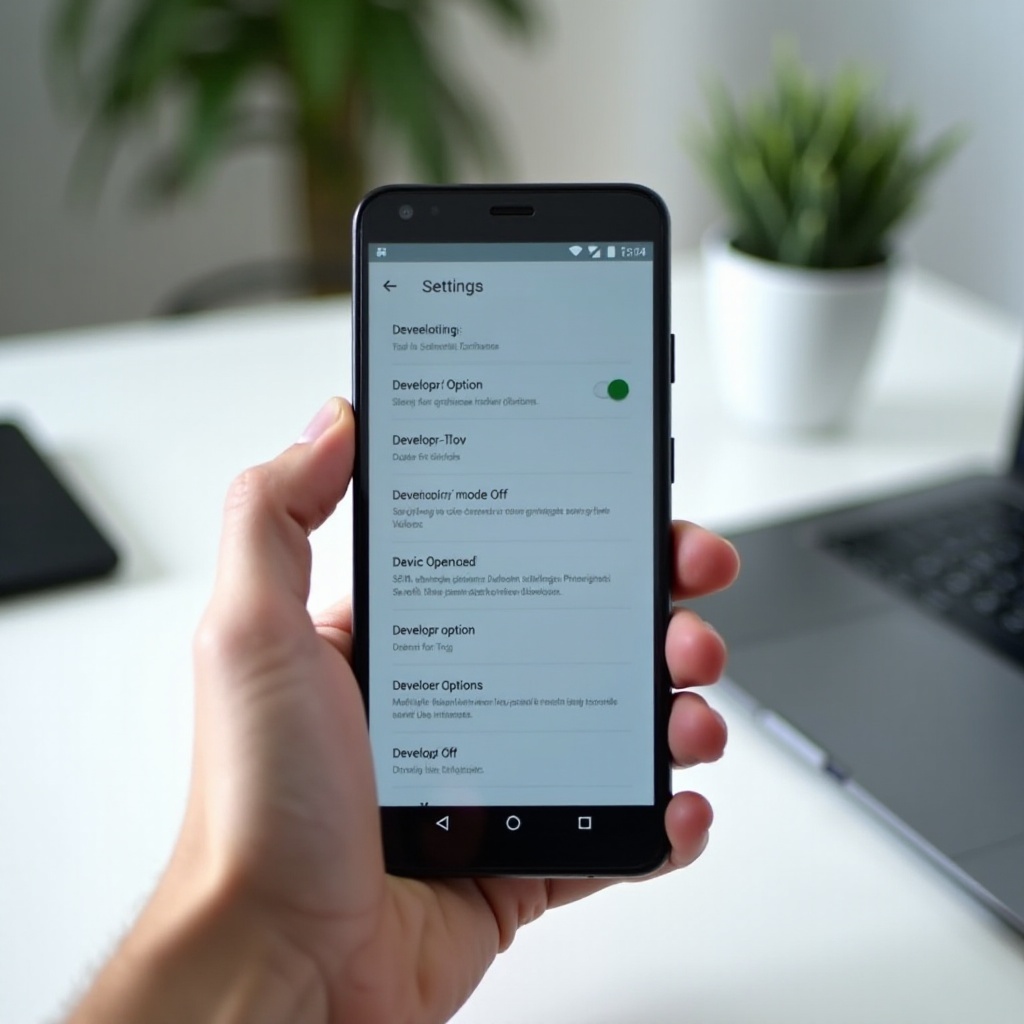
Why You Might Want to Turn Off Developer Mode
Leaving Developer mode turned on can seem harmless, but it can create several real issues. Even if you never open the menu, some toggles can make your phone act in ways you do not expect.
Here are the main reasons to turn it off.
Security and privacy risks
One of the most sensitive Developer options is USB debugging. When this is on, a connected computer can access your phone through ADB. In a trusted setup, that is fine. In a public or unsafe place, it can be risky if someone gains access to your device while it is unlocked.
Developer options also include settings like OEM unlocking, which can weaken the protection of your bootloader. While many phones still require extra steps to unlock, having more advanced options visible makes it easier for someone with physical access to attempt changes.
Preventing accidental changes and instability
Developer mode menus are packed with switches and sliders. A curious tap here or there can:
- Change animation speeds, making the phone feel too fast, too slow, or jittery
- Force GPU rendering in ways that cause visual glitches
- Enable mock locations and break GPS-based apps
- Alter background process limits and hurt performance or battery life
Turning Developer mode off prevents you or someone else from accidentally changing hidden system behavior.
Preparing your phone for support, trade-in, or sale
If you plan to:
- Get official support from your carrier or manufacturer
- Send your phone in for repair
- Trade in, sell, or give away the device
It is smart to turn off Developer options first. It shows the device is set up for normal use and reduces the chance of questions about debugging, root, or unlocked features.
You now know why Developer options should not stay on without a clear reason. Before you turn them off, you need to know where to find them on your specific phone, which depends on your Android version and brand.
Before You Start: Check Your Android Version and Phone Brand
The core idea of Android how to turn off developer mode is the same on almost all phones: go to Settings, find Developer options, and turn them off. However, the menu names and paths can change slightly depending on your Android version and phone brand.
First, check your Android version:
- Open Settings.
- Scroll down and tap About phone.
- Look for Android version.
Most current devices in 2024 run Android 12, 13, or 14. The Developer options menu exists in all these versions, but the section it lives under can vary.
Next, understand that manufacturers customize Android:
- Google Pixel phones use a near-stock version of Android.
- Samsung Galaxy phones use One UI, which changes menu names and layout.
- OnePlus, Xiaomi, Motorola, and others add their own skins and features.
Because of this, the Developer options menu might appear under System, Additional settings, or directly near the bottom of the main Settings list.
If you cannot spot it at a glance, use the Settings search bar:
- Open Settings.
- Tap the search icon at the top.
- Type Developer options or Developer.
This search helps you jump straight to the right menu, no matter what your phone calls it. With your Android version checked and your path to Settings ready, you are set to follow the general steps to turn Developer mode off.
How to Turn Off Developer Mode on Most Android Phones (Core Steps)
The steps below work on most modern Android phones, including Google Pixel and other devices that use a layout close to stock Android. Even if your menus differ a little, the process is similar.
Step 1: Open the Settings app
- Unlock your phone.
- Tap the Settings app (gear icon).
Step 2: Locate System or About phone
- Scroll down until you see System or System & updates.
- On some phones, Developer options appear under About phone or near the bottom of the main Settings list.
- If you do not see any obvious section, use the Settings search bar and type Developer options.
Step 3: Open Developer options
- Once you are in System (or the section where it appears), look for Developer options.
- Tap Developer options to open the menu.
- You will see a long list of advanced settings like USB debugging, animation scales, and more.
Step 4: Toggle off ‘Use developer options’
- At the top of the screen, there is usually a main switch labeled Use developer options or an On/Off toggle.
- Turn this switch Off.
- The menu items below will grey out or become inactive.
Step 5: Confirm key features are disabled
After you turn off the main toggle, scroll down and check that:
- USB debugging is off.
- Any unusual options you enabled (like a mock location app) are no longer active.
In most cases, you do not need to restart your phone, but a quick reboot can help apply everything and clear any lingering effects.
Now that you know the generic process, it is useful to see how some popular brands arrange these menus so you can match the steps more precisely on your own device.
Brand-Specific Instructions for Turning Off Developer Mode
Phone makers organize Settings differently, but the goal remains the same: reach Developer options and turn them off. Here is how it usually works on major brands in 2024.
Google Pixel phones running Android 14 and newer
On Pixel, you get a clean, stock-like Android:
- Open Settings.
- Scroll down and tap System.
- Tap Developer options.
- Toggle Use developer options to Off.
Once off, the menu stays visible under System, but the settings remain disabled as long as the main switch is off.
Samsung Galaxy phones with One UI
Samsung uses One UI, which arranges things slightly differently:
- Open Settings.
- Scroll down and look for Developer options near the bottom.
- If you do not see it, tap About phone → Software information and confirm that it was enabled earlier. Then go back to Settings and search for Developer options.
- Tap Developer options.
- Turn the main toggle at the top to Off.
If you still cannot find Developer options, use the search bar in Settings and type ‘Developer options’.
OnePlus phones with OxygenOS/ColorOS
OnePlus devices now share some structure with ColorOS, but the steps remain straightforward:
- Open Settings.
- Tap Additional settings or System (the name can vary by model and version).
- Tap Developer options.
- Turn off Use developer options at the top.
Xiaomi, Redmi, and POCO phones with MIUI/HyperOS
On Xiaomi and related brands:
- Open Settings.
- Tap Additional settings.
- Tap Developer options.
- Toggle the switch at the top to Off.
Other Android brands: Motorola, Nokia, ASUS, and more
For most other brands, the pattern is similar:
- Open Settings.
- Look for System, System & updates, or Additional settings.
- Tap Developer options when you see it.
- Turn off Use developer options.
If in doubt, always rely on the Settings search tool. Once Developer mode is off, you might wonder what actually changes on your phone and whether you should expect any side effects.
What Happens After You Turn Off Developer Mode?
As soon as you switch Developer mode off, Android disables the advanced tools inside that menu. This affects several parts of your phone's behavior.
Effects on USB debugging, ADB, and PC connections
- USB debugging turns off when you disable Developer options.
- Your computer can no longer use ADB to access your phone.
- If you reconnect your phone to a PC, it behaves like a normal Android device, offering file transfer, charging, and other standard modes only.
Impact on performance tweaks and animation settings
Any tweaks you made to animation scales or background process limits stop applying. This can make your phone:
- Feel more ‘normal’ in terms of speed and transitions.
- Behave more consistently when you open apps or switch between them.
Changes that may remain even after Developer mode is disabled
Some changes might stick even after you turn off Developer mode. This depends on the phone and the specific setting. For example:
- If you enabled OEM unlocking and actually unlocked the bootloader, simply turning off Developer options will not re-lock it.
- If you changed certain system-wide flags, you may need to manually reset them or perform a factory reset to revert fully.
Overall, disabling Developer mode returns your phone to a safer, more stable state for daily use. If you run into any odd behavior while turning it off, the next section helps you troubleshoot those issues.
Troubleshooting: When Developer Options Will Not Turn Off or Disappear
Sometimes, Android how to turn off developer mode is not as simple as flipping a single switch. You may find that Developer options stay visible or that certain toggles act strangely.
Here are common issues and fixes.
Developer options menu still visible after disabling
This is often normal. On many phones:
- Turning off Use developer options disables the features but does not remove the menu from Settings.
- If you leave the menu alone and do not re-enable the toggle, Developer mode stays off.
Some devices hide the menu again after a restart, but not all do. The key point is that the main toggle remains off.
USB debugging or other toggles keep turning back on
If USB debugging appears to re-enable itself:
- Make sure you actually turned off Use developer options, not just USB debugging alone.
- Restart your phone after disabling Developer options.
- Check whether any device management or enterprise app is forcing certain settings for work use.
Using Safe mode, resetting settings, or factory reset as last resort
If Developer options act stuck or your phone behaves oddly, try the following:
- Use Safe mode
- Press and hold the power button.
- Touch and hold Power off until you see Safe mode.
- Boot into Safe mode and then try disabling Developer options again.
- Reset all settings (names vary by device)
- Open Settings → System or General management → Reset.
- Choose Reset all settings. This does not erase personal data but resets system settings to default.
- Factory reset (last resort)
- Back up your data first.
- Go to Settings → System or General management → Reset → Factory data reset.
A factory reset will definitely turn off Developer mode and erase its changes, but you should use it only if nothing else works and you have a backup of important data.
Once Developer mode is under control, it is worth taking a few extra steps to tighten security and privacy on your Android phone.
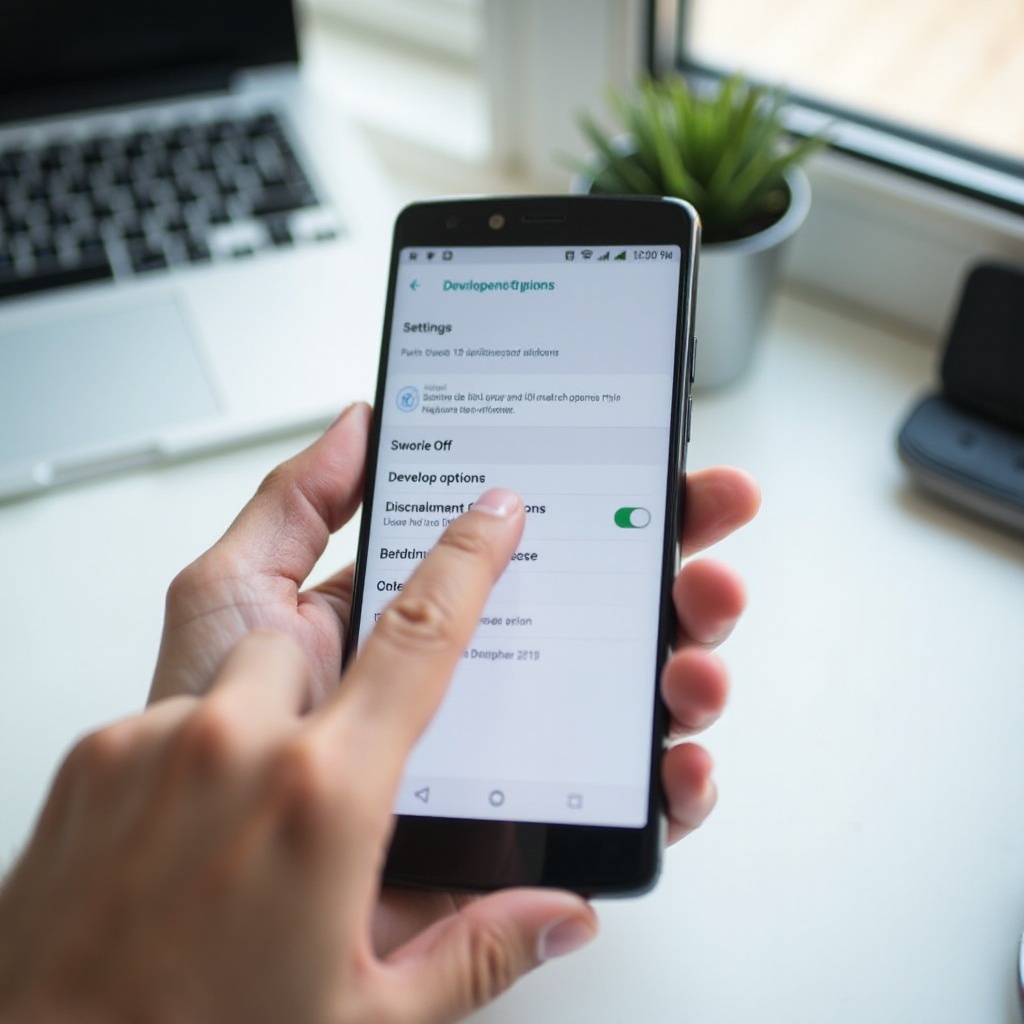
Extra Security and Privacy Steps After Disabling Developer Mode
Turning off Developer options is a strong move, but you can strengthen your phone's protection even more with a few quick checks.
Review lock screen, biometrics, and screen lock settings
- Open Settings → Security or Lock screen.
- Make sure you use a strong PIN, password, or pattern.
- Confirm fingerprints or face unlock are set up correctly, if you use them.
A solid screen lock is your first defense against anyone trying to access hidden settings or data.
Revoke USB debugging authorizations and unknown devices
If you used USB debugging before, your phone may remember trusted computers. After turning Developer mode off, it is smart to clear this history when possible:
- Re-enable Developer options briefly if needed.
- Open Developer options.
- Look for Revoke USB debugging authorizations and tap it.
- Disable Developer options again.
This step wipes the list of computers that had ADB access to your phone.
Update Android security patches and Google Play system updates
- Go to Settings → System → System update (or your brand's update menu).
- Install any available Android security updates.
- Check Google Play system update if your phone offers it.
Keeping updates current closes known security holes and works hand in hand with leaving Developer mode off on a non-developer phone.
At this point, your device is secure and stable with Developer options disabled. Still, you might wonder whether it is safe to turn Developer mode back on if you ever need it in the future.
Is It Safe to Turn Developer Mode On Again Later?
Disabling Developer options now does not lock you out from ever using them again. You can re-enable Developer mode on Android whenever you have a clear reason to use it.
When might you need Developer mode again?
- You want to test apps you are developing.
- A support guide from a trusted source asks you to enable USB debugging for a short time.
- You are performing advanced tasks on a secondary device you do not use for sensitive data.
If you decide to turn it back on, follow best practices:
- Enable only the options you truly need.
- Turn off USB debugging as soon as you finish using it.
- Avoid risky options like OEM unlocking unless you fully understand the consequences.
- Keep your phone physically secure if Developer mode is on.
For most everyday users, the safest approach is simple: keep Developer mode off, turn it on only when a clear, trusted task requires it, then turn it off again right away.
Conclusion
Developer mode is a powerful tool built into Android, but it is not meant to stay on for most users. You have now seen Android how to turn off developer mode across Pixel, Samsung, OnePlus, Xiaomi, and many other phones.
The process revolves around a few simple steps: open Settings, find Developer options, switch off Use developer options, and confirm debugging features are disabled. If you hit snags, you can search in Settings, use Safe mode, reset settings, or as a last resort, perform a factory reset after backing up your data.
Once Developer mode is off, your phone becomes easier to secure and less likely to behave in strange ways due to hidden tweaks. Combine this with a strong screen lock, updated software, and careful use of advanced options, and your Android device will stay safe, stable, and ready for everyday use.
Frequently Asked Questions
Does turning off Developer mode on Android delete any of my data?
No. Turning off Developer mode does not delete your photos, apps, messages, or other personal files. It only disables the advanced options inside the Developer menu. Your data stays on the device. Data loss only happens if you choose actions like resetting all settings or performing a factory reset, so always back up important files before doing those.
Why do Developer options not completely disappear after I turn them off?
On many phones, disabling the ‘Use developer options’ toggle only turns off the features; it does not always hide the menu itself. This behavior is normal. As long as the main switch at the top of Developer options is off, those advanced tools remain inactive. Some devices hide the menu again after a restart or after a settings reset, but others keep it visible for convenience.
Is it safe to keep Developer mode enabled all the time on my Android phone?
It is possible, but not recommended for most users. Keeping Developer mode on can increase security risk, especially if USB debugging stays enabled, and it makes it easier to change advanced settings by accident. That can lead to performance issues, battery drain, or odd behavior. The safest approach is to enable Developer options only when needed for a specific, trusted task and turn them off again as soon as you finish.