
Introduction
A Samsung Galaxy that keeps restarting can go from a minor annoyance to a serious problem very quickly. Calls drop, apps crash, and you worry about losing photos, chats, and work files every time the screen goes black. When you search ‘my phone keeps restarting Samsung’, you see many possible causes and fixes, but it is hard to know which steps actually work.
This guide walks you through clear, practical actions to stabilize your Samsung phone. You will learn how to protect your data, test for bad apps, clean system files safely, and decide when you need professional repair. The steps apply to recent Galaxy models such as the Galaxy S24, S23, S22, A series, Fold and Flip series.
We will start by understanding what kind of restarting issue you have, then move from simple fixes to more advanced ones. By the end, you will know how to stop random reboots and keep your Samsung running smoothly and safely.

What Does It Mean When Your Samsung Phone Keeps Restarting?
Before you try fixes, you need to understand the type of restarting problem you are facing. Different symptoms point to different causes, and matching the symptom to the right fix saves time and reduces risk.
Some phones restart randomly while you are using them. Others restart only when you open a specific app, connect to Wi‑Fi, or plug in a charger. In more serious cases, the phone never fully boots and keeps looping on the Samsung logo. Knowing which category your problem fits into makes troubleshooting more direct.
If your Samsung keeps restarting, think about what changed recently:
- Did you install or update an app?
- Did you just update Android or One UI?
- Did the phone fall, get wet, or overheat?
These clues help you decide whether you are dealing with software glitches, bad apps, or hardware damage. Once you know the type of problem, you can move on to the most likely causes.
Random restarts vs. boot loops
Random restarts usually happen when the phone reaches the home screen but suddenly reboots while you use it. You may notice it when opening the camera, gaming, or scrolling social media. A boot loop is more serious. The phone shows the Samsung or carrier logo, maybe the lock screen for a moment, then restarts again and again. Boot loops often point to deeper software or hardware issues.
Common Samsung models affected in 2024
Users report restarting issues across many 2024‑relevant models, including Galaxy S24, S23, S22, S21, A54, A34, A14, Note 20, and Galaxy Z Flip and Fold devices. The steps in this guide work for most recent Galaxy phones that run One UI on Android.
Warning signs you should not ignore
Take restarting seriously if you notice:
- The phone feels very hot before each restart
- The battery drains unusually fast
- The screen lifts or the back cover bulges
- Restarts become more frequent over time
These can signal battery swelling or hardware failure. In that case, follow the software steps, but be ready to contact Samsung support or a repair shop. To do that safely, you should first understand what typically causes these issues.
Main Causes of a Samsung Phone That Keeps Restarting
When you say ‘my phone keeps restarting Samsung’, the cause usually falls into one of three groups: software bugs, bad apps, or hardware problems. Understanding these helps you choose the right fix instead of trying random tricks and hoping for the best.
Software glitches and buggy updates
Samsung releases regular security patches and One UI updates. Most work fine, but sometimes a new update conflicts with existing settings or apps. The result can be random reboots, freezing, or boot loops. Power losses or interruptions during an update can also corrupt system files and cause repeated restarts.
Problematic apps and malware
Third‑party apps are a very common cause of restarts. Some are poorly coded. Others are not updated to support the latest Android version. In the worst cases, malware, adware, or ‘phone booster’ apps overload the system and cause crashes. If your problems started after installing or updating an app, that is a strong clue.
Battery, overheating, and hardware issues
Old or damaged batteries may not deliver stable power, especially under heavy load. The phone then shuts down or restarts to protect itself. Overheating from gaming, direct sunlight, or a thick case can trigger the same behavior. Physical damage from drops or water can also lead to constant restarts.
Because hardware failures often cause data loss, your first priority should be to protect your files before you attempt advanced fixes. That is the focus of the next section.
Backup First: Protect Your Data Before Troubleshooting
Before you dive into deeper fixes, make sure your data is safe. Many solutions are safe, but some, such as factory reset or firmware repair, can erase everything on your phone. A quick backup now can save you from losing photos, chats, and important documents later.
Creating a backup also gives you peace of mind. You can move through the rest of this guide without worrying that one wrong tap will erase your work or memories.
Using Samsung Cloud and Google backup
To back up to cloud services:
- Go to Settings > Accounts and backup.
- Turn on backup with Google and, if available, Samsung Cloud.
- Sync critical items like contacts, calendar, photos, and app data.
Also open Google Photos and ensure backup is on for your pictures and videos. This way, even if you have to reset the phone, your images stay safe.
Backing up with Samsung Smart Switch on PC or Mac
If your phone stays on long enough, use a computer backup too:
- Install Samsung Smart Switch on your Windows or macOS computer.
- Connect your phone via USB cable.
- Tap Allow on your phone if asked.
- In Smart Switch, choose Backup to save your data to your computer.
This method is helpful if your phone restarts often but can stay on for a few minutes at a time.
What not to forget when backing up in 2024
Do not forget to:
- Check WhatsApp and other chat backups (often stored in Google Drive or the app’s cloud)
- Save two‑factor authentication codes and authenticator app backups
- Sync your password manager or export an encrypted backup
Once your data is safe, you can start applying fixes from the easiest to the most advanced, starting with a simple forced restart.
Fix #1: Force Restart Your Samsung Phone
The first fix is simple but effective. A force restart clears temporary glitches without deleting your data. It is not the same as a factory reset and takes only a few seconds to try.
If you are lucky, this step alone will stop your Samsung phone from restarting. If not, it still prepares the system for further troubleshooting.
How to force restart newer Galaxy models
On most recent Galaxy phones:
- Press and hold the Volume Down button and the Side (Power) button at the same time.
- Keep holding both buttons for about 10–15 seconds.
- Release them when you see the Samsung logo.
If the phone boots and then runs normally for a while, you may just have had a temporary glitch or minor crash.
What a soft reset can and cannot fix
A soft reset can fix:
- Minor app crashes
- Temporary freezes
- Small memory issues
It cannot repair:
- Damaged system files
- Deep app conflicts or malware
- Hardware faults such as a failing battery
If your Samsung keeps restarting after a force restart, the next step is to see whether third‑party apps are the problem.
Fix #2: Boot Into Safe Mode to Check for Bad Apps
If your phone runs fine without third‑party apps, then one of those apps is likely causing the restarts. Safe Mode helps you test that by loading only the core system software and Samsung’s own apps.
Safe Mode does not fix the issue by itself, but it gives you a clear signal whether software you installed is responsible. Once you know that, you can remove the offending apps.
How to enter Safe Mode on Samsung phones
Method for most recent Galaxy devices:
- Press and hold the Side (Power) button and Volume Down until the power menu appears.
- Tap and hold Power off until Safe mode appears.
- Tap Safe mode to restart your phone in Safe Mode.
You will see ‘Safe mode’ at the bottom of the screen when it boots.
Test if random restarts stop in Safe Mode
Use the phone as you normally would for 10–30 minutes:
- Open a few built‑in apps (Messages, Phone, Settings).
- Make a short call.
- Browse the web or check email.
If the restarting stops in Safe Mode, a third‑party app is almost certainly the cause. If the phone still restarts in Safe Mode, the issue is more likely with the system or hardware.
How to exit Safe Mode safely
To leave Safe Mode:
- Press and hold the Side (Power) button.
- Tap Restart.
The phone will reboot normally, with your apps restored. If Safe Mode suggests that an app is the problem, the next step is to remove suspicious apps.
Fix #3: Remove Suspicious or Recently Installed Apps
Once Safe Mode points to an app problem, your goal is to find and remove the troublemakers. Start with apps installed or updated around the time the restarts began.
Be systematic. Remove a few high‑risk apps, then test the phone. This approach helps you identify which app caused the issue and prevents removing useful apps for no reason.
Types of apps that often cause restarting issues
Be extra careful with:
- ‘Cleaner’, ‘booster’, or ‘RAM optimizer’ apps
- Third‑party launchers or themes from unknown developers
- Apps downloaded from websites instead of the Play Store or Galaxy Store
- Free VPNs, cheating tools for games, and unverified system tools
These apps often request deep permissions and can interfere with system stability.
Uninstalling apps via Settings and Play Store
To uninstall from Settings:
- Go to Settings > Apps.
- Sort by Installed or Last used.
- Tap a suspicious app and choose Uninstall.
From Google Play:
- Open Google Play Store.
- Tap your profile icon > Manage apps & device.
- Choose Manage, select apps, and tap the trash icon.
After removing a batch of suspicious apps, restart your phone and test it for a while.
Avoiding risky APKs and cleaners in 2024
To prevent future problems:
- Install apps only from the Google Play Store or Samsung Galaxy Store.
- Avoid APKs from random sites, especially ‘modded’ or cracked apps.
- Skip cleaner, booster, and fake antivirus apps; the system handles optimization on its own.
If app cleanup does not solve the issue, the next step is to make sure your system software and apps are fully updated and compatible.
Fix #4: Update System Software and All Apps
Outdated software can cause conflicts, especially after other apps or services update. Keeping your phone current often fixes reboot issues and improves security at the same time.
Think of this step as aligning your system and apps. When everything runs on recent versions, they are more likely to work together without crashing your device.
Checking for the latest Android and One UI updates
To check for updates:
- Go to Settings > Software update.
- Tap Download and install.
- If an update is available, install it while the phone has enough battery and a stable Wi‑Fi connection.
Sometimes Samsung pushes a quick follow‑up patch when many users report restarting issues. Installing these small patches can fix random reboots.
Updating apps from Google Play and Galaxy Store
From Google Play:
- Open Play Store.
- Tap your profile icon > Manage apps & device.
- Tap Update all.
From Galaxy Store:
- Open Galaxy Store.
- Tap the Menu icon and go to Updates.
- Update Samsung apps such as Phone, Messages, and Device Care.
When to wait before installing a new update
If your phone is working fine and a major Android or One UI version just released, you may wait a few days. This gives Samsung time to fix any new, widespread bugs. But if you are already facing restarts, installing available patches is usually worth it.
If updating still does not stop the restarts, your next move is to clean up the system cache, which can become corrupted over time.
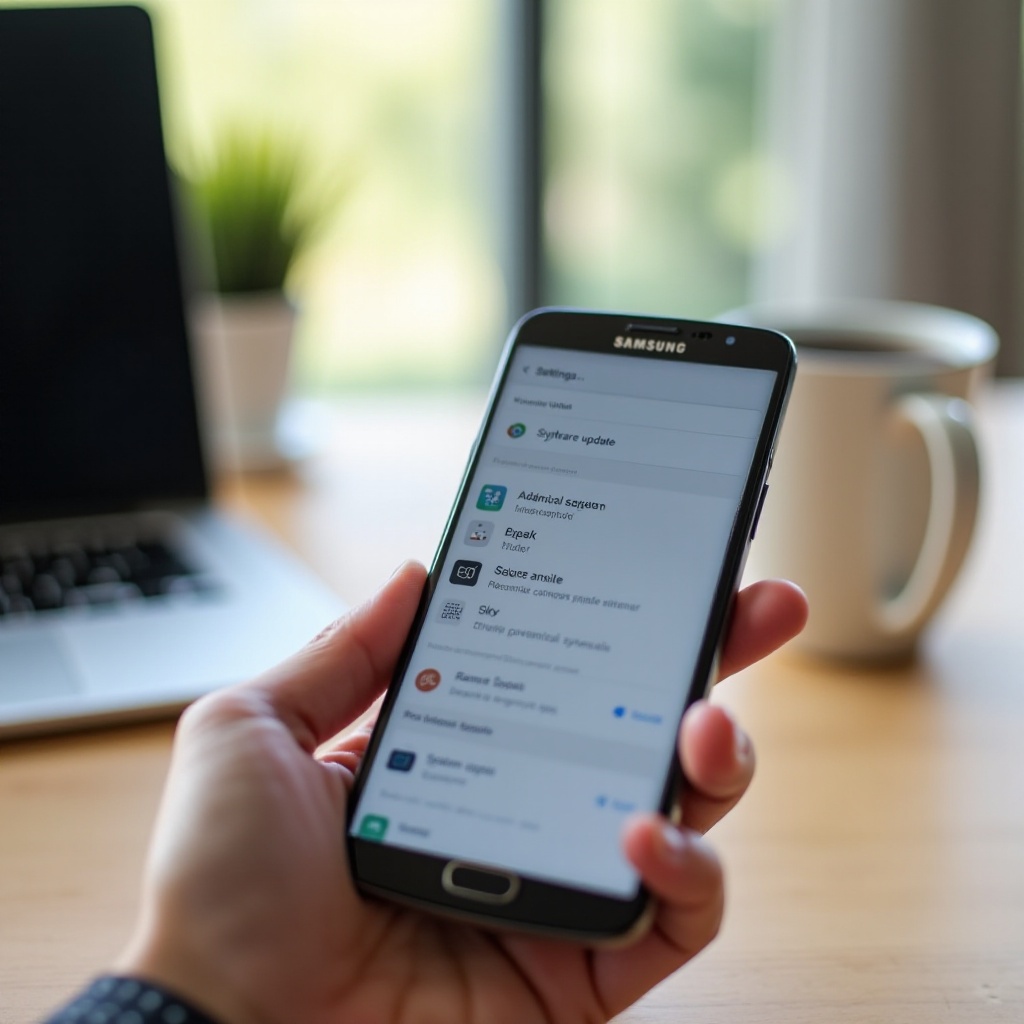
Fix #5: Clear the Cache Partition in Recovery Mode
System cache can become corrupted over time, especially after large updates. Wiping the cache partition removes temporary system files without erasing your personal data.
This step often helps if your Samsung started restarting right after an update or if performance feels sluggish and unstable.
Why cache corruption can trigger restarts
The cache partition stores system data that helps Android and One UI load faster. When that data is damaged or outdated, the phone can hang or reboot while trying to read it. Clearing it forces the system to rebuild fresh, clean cache files.
Step‑by‑step: wipe cache partition on Samsung Galaxy
Follow these steps carefully:
- Turn off your phone completely.
- Press and hold Volume Up and the Side (Power) button together.
- Release the buttons when the Samsung logo appears and you enter Recovery mode.
- Use the Volume buttons to move to Wipe cache partition.
- Press the Power button to select it.
- Choose Yes and confirm.
- After it finishes, select Reboot system now.
Your phone will restart; the first boot may take slightly longer than usual as new cache files are created.
What happens to your data after clearing cache
Wiping the cache partition does not delete:
- Photos, videos, and files
- Apps and accounts
- Messages and call logs
It only removes temporary system files. If reboots continue after this step, you need to look closely at power, charging, and hardware factors.
Fix #6: Check Battery, Charging Accessories, and Overheating
Even a perfect software setup cannot save a phone from a failing battery or overheating hardware. Power issues are a very common reason your Samsung keeps restarting, especially on older devices.
This step helps you decide whether the issue is still software‑related or if you are starting to cross into hardware territory that may later need professional repair.
Spotting battery problems on Galaxy phones
Look for these signs:
- Sudden drops from, for example, 40% to 10% battery
- The phone shutting off when you open a heavy app or camera
- A swollen back cover or screen lifting off the frame
If you see swelling or physical distortion, stop using the phone and contact a repair center immediately. Swollen batteries are dangerous and can be a fire risk.
Testing with different chargers and cables
To rule out accessories:
- Use a different original or high‑quality USB‑C cable.
- Try a known good Samsung or certified charger.
- Charge from a wall socket instead of a laptop or car.
Bad cables or cheap chargers can cause unstable power, leading to reboots when the phone draws more current, such as during charging or heavy use.
Reducing heat and heavy usage that triggers reboots
To lower heat and reduce stress on components:
- Remove thick or metal cases during gaming or fast charging.
- Avoid using the phone in direct sunlight or hot cars.
- Close heavy apps when the phone feels hot.
If the phone restarts mainly when it gets warm, overheating protection may be kicking in. In that case, adjusting usage and checking for hardware damage is key. If accessories and heat seem fine, it is time to test external storage and cards.
Fix #7: Remove SD Card, SIM, and Other Accessories
External components can also trigger reboots, especially if they are damaged or not seated correctly. A failing microSD card is a frequent cause that many users overlook.
This step is quick, low‑risk, and can instantly reveal whether the problem lies outside the phone’s core hardware.
How a corrupted SD card can cause boot loops
When Android tries to read a corrupted SD card during startup, it can freeze or restart. This is common if the card has been used for years, moved between many devices, or removed without ejecting it properly.
Testing your Samsung without SD card and SIM
Try running the phone bare:
- Power off your phone.
- Remove the SIM/SD card tray.
- Take out the microSD card and SIM card.
- Reinsert the empty tray and power the phone on.
Use the phone for a while. If it stops restarting, the SD card or SIM may be faulty. Try a different card or contact your carrier for a replacement SIM.
When to replace your memory card in 2024
Replace your SD card if:
- Files keep disappearing or corrupting
- The card does not work in other devices
- The phone only restarts when the card is inserted
Even good cards wear out after many write cycles. A new, branded microSD card often solves strange reboot or storage issues. If the problem persists with no SD or SIM, the remaining likely causes are deep software conflicts or malware, which you can tackle by resetting settings and scanning for threats.
Fix #8: Reset App Preferences and System Settings
Sometimes restarts come from conflicting settings, disabled system apps, or misconfigured permissions. Resetting preferences and settings gives Android a clean baseline without deleting your personal data.
This step is less extreme than a factory reset but often removes hidden clashes created over months or years of use.
What ‘reset app preferences’ actually resets
Go to Settings > Apps > More (three dots) > Reset app preferences. This will:
- Re‑enable disabled apps
- Reset app notifications
- Reset default apps (like your default browser)
- Reset background data restrictions
It does not delete app data or files, but it removes odd restrictions or disabled components that might cause crashes.
Resetting all settings without deleting personal data
To reset system settings:
- Go to Settings > General management > Reset.
- Tap Reset all settings.
- Confirm your choice.
This resets Wi‑Fi, Bluetooth, permissions, and system settings to default, but keeps photos, apps, and accounts.
Re‑checking permissions after the reset
After the reset:
- Reconnect to your Wi‑Fi networks.
- Re‑pair Bluetooth headphones or watches.
- Check app permissions (camera, mic, location) for important apps.
If restarts still happen after a settings reset, it is time to look for malware and security threats that may be causing the instability.
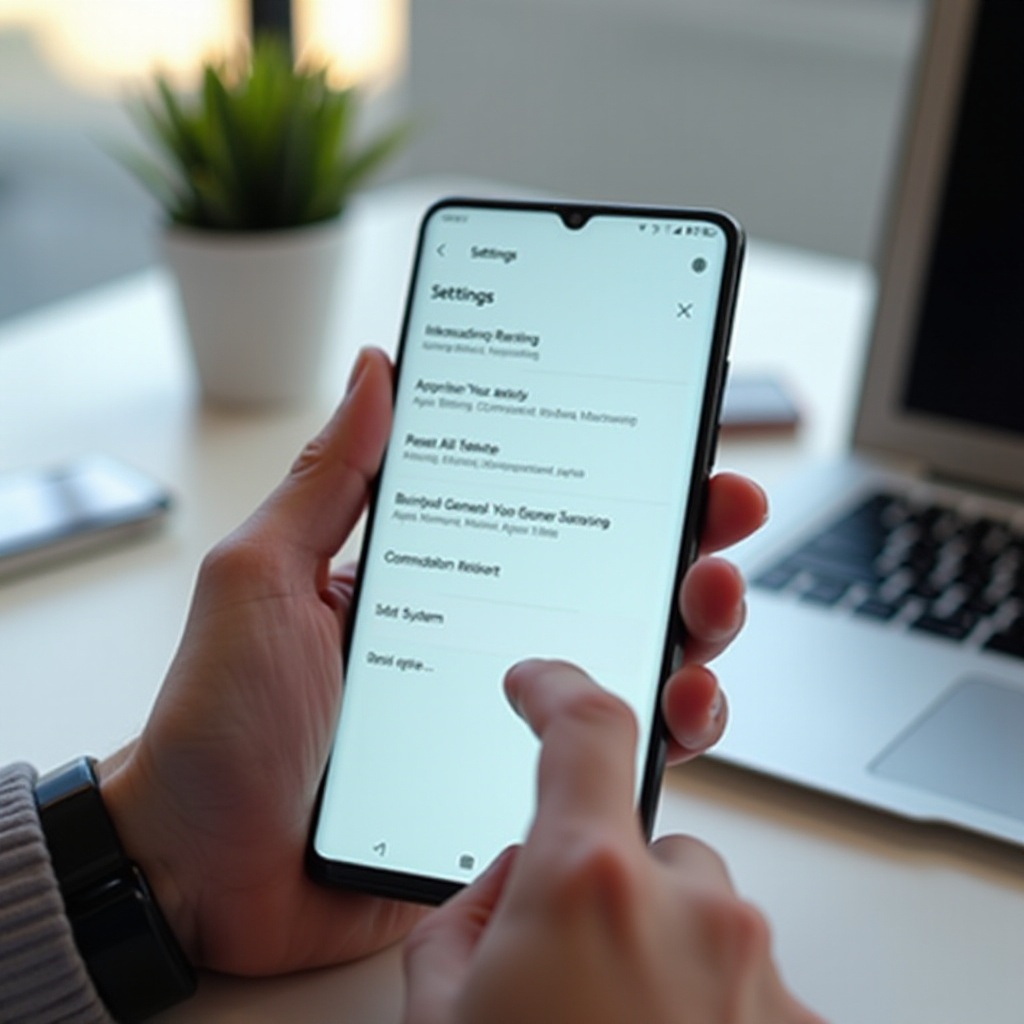
Fix #9: Scan for Malware and Security Threats
Malicious or spammy apps can cause nonstop restarts, pop‑ups, and overheating. A quick security scan is worth doing even if you are not sure you have malware.
This step can catch hidden apps that Safe Mode and manual checks might miss, especially if they installed silently with other software.
Using Samsung’s built‑in Device protection
To run a scan:
- Go to Settings > Device care or Battery and device care.
- Tap Device protection or Security.
- Run a Full scan.
Remove any threats or suspicious apps the scan finds.
Recommended Android security practices in 2024
To lower your risk of future infections:
- Keep Play Protect on in Google Play.
- Avoid apps that demand full access for simple tasks.
- Do not grant administrator or accessibility rights to unknown apps.
- Regularly review which apps can install other apps or draw over other apps.
Signs your phone might be infected
Watch for these warning signs:
- Constant pop‑up ads even on the home screen
- Unknown apps you never installed
- High data usage without explanation
- Restarts tied to ad displays or specific apps
If cleaning malware does not help and you have tried all earlier fixes, the remaining strong option is a factory reset to give your Samsung a completely fresh start.
Fix #10: Factory Reset as a Last Resort
A factory reset erases everything and restores your Samsung to its original software state. It is the most powerful software fix but should be your last step before hardware repair.
This step can clear deep system corruption and stubborn conflicts. However, you must back up carefully and understand that all local data on the phone will be deleted.
When a factory reset becomes necessary
Consider a reset if:
- You have tried all earlier fixes with no success.
- The phone still restarts even in Safe Mode.
- You suspect deep system corruption after a failed update or malware.
Full backup steps before wiping your Samsung
Before you reset:
- Use Google and Samsung Cloud backup for contacts, photos, and settings.
- Use Smart Switch on a PC or Mac for a full backup.
- Confirm your important apps (banking, 2FA, chats) have cloud backups or export codes.
Also check that you remember your Google account and Samsung account passwords. You will need them to sign back in after the reset.
How to factory reset from Settings and Recovery Mode
From Settings (if phone is usable):
- Go to Settings > General management > Reset.
- Tap Factory data reset.
- Read what will be erased and confirm.
From Recovery Mode (if stuck or boot looping):
- Power off the phone.
- Press and hold Volume Up and Side (Power) until Recovery appears.
- Use the volume keys to select Wipe data/factory reset.
- Press Power to confirm and choose Yes.
- After it finishes, select Reboot system now.
If the phone still restarts constantly after a clean reset, you are likely dealing with hardware damage. At that point, the best move is to involve Samsung support or a trusted repair center.
Fix #11: When to Contact Samsung Support or a Repair Shop
Software fixes can only do so much. At some point, you have to consider that the problem may be physical. Knowing when to stop DIY attempts saves time and can protect your data and safety.
Professional diagnosis can confirm whether the battery, motherboard, or other components are failing, and can often recover a phone you thought was lost.
Hardware red flags: swelling, severe heat, constant boot loops
Seek professional help quickly if you notice:
- A swollen or bulging battery or back cover
- The phone getting extremely hot, even when idle
- Constant boot loops that ignore all software fixes
These signs point to battery failure, mainboard issues, or storage chip damage. Continuing to use the device in this state can be risky.
Warranty, Samsung Care+, and carrier store options
Check your protection options:
- Samsung warranty status on Samsung’s official website.
- Any Samsung Care+ or device protection plans you bought.
- Carrier warranty or insurance if you got the phone through a network provider.
Authorized service centers can diagnose hardware issues and offer official repairs or replacements that keep your warranty intact.
What information to prepare before visiting support
Before visiting a store or booking a repair:
- Note your phone model and storage size.
- Write down when the problem started and what you already tried.
- Mention if the phone was dropped, got wet, or had an unofficial repair.
Clear, detailed information helps technicians find the cause faster and may reduce costs. Once your phone is repaired or replaced, you can apply preventive habits to avoid repeat issues.
Preventive Tips to Avoid Future Restart Problems
After you fix the ‘my phone keeps restarting Samsung’ issue, you will want to keep your phone stable. A few simple habits can greatly reduce the chance of random reboots returning.
These habits also improve performance and security, so they are worth following even if your phone is not currently having problems.
Smart update habits for Galaxy phones in 2024
Adopt these update practices:
- Keep security updates turned on and install them regularly.
- Read update notes and user feedback before major Android or One UI upgrades.
- Avoid interrupting updates; keep the phone charged and on Wi‑Fi.
Storage, charging, and app hygiene best practices
For day‑to‑day stability:
- Keep at least 10–15% of internal storage free.
- Use quality chargers and avoid very cheap, unbranded accessories.
- Uninstall apps you do not use every month or two.
- Do not grant unnecessary permissions or admin rights.
When to consider upgrading your Samsung device
If your phone is several years old, restarts may indicate aging hardware. Consider upgrading when:
- Repairs cost close to the price of a newer mid‑range device.
- The phone no longer receives security updates.
- Performance and battery life no longer meet your needs.
A recent Galaxy model will usually deliver better performance, stability, camera quality, and longer software support.
Conclusion
A Samsung phone that keeps restarting does not always mean it is beyond saving. Most issues come from software glitches, bad apps, or minor power problems, and you can fix many of them at home. By backing up your data, checking apps in Safe Mode, updating software, clearing the cache partition, and reviewing hardware and accessories, you give your Galaxy the best chance to recover.
If all else fails, a factory reset and, when needed, professional repair can still rescue many devices. Follow the steps in this guide in order, and you will move from quick, low‑risk fixes to more advanced options with confidence. With a bit of patience and careful testing, your Samsung can return to stable, reliable use and you can stop worrying about constant random restarts.
Frequently Asked Questions
Why does my Samsung phone keep restarting after an update in 2024?
Updates can conflict with old cache files, outdated apps, or custom settings. If restarts started right after an update, first clear the cache partition, update all apps, and reset app preferences. If that still fails, back up your data and consider a factory reset so the new firmware runs on a clean system.
Can I fix a Samsung phone that keeps restarting without losing my data?
Yes, many fixes do not erase data. You can force restart, boot into Safe Mode, uninstall bad apps, update software, clear the cache partition, and reset settings without wiping your files. Always back up first just in case, and leave a factory reset as your final step only if nothing else works.
How do I know if my Samsung’s battery is causing random restarts?
Battery‑related restarts often come with fast battery drain, shutdowns under heavy load, or visible swelling of the back cover. The phone may reboot more often when gaming, using the camera, or charging. If you see these signs, test with a different charger and cable, and have the battery checked or replaced by a professional.