
Introduction
Dropping a pin on your iPhone is one of the fastest ways to share a precise location, especially when an address is unclear or does not exist. Whether you are trying to meet friends in a crowded area, guide a delivery driver to the right door, or remember where you parked your car, pin drops make it simple.
Many people use Apple Maps or Google Maps for basic directions but overlook how powerful pin drops can be. When you master pin drops, you can mark exact spots, save them for later, and share them with anyone in seconds. This guide explains how to do a pin drop on iPhone in both Apple Maps and Google Maps, how to organize those locations, and how to share them safely. You will also see real-life examples, privacy tips, and fixes for common issues so your pin drops stay accurate and useful.

What Does ‘Dropping a Pin’ on iPhone Mean?
Before you learn how to do a pin drop on iPhone, you need to understand what a pin actually is and why it matters. A pin is a marker you place on a digital map at a specific point. It is not limited to a street address. A pin can represent any exact spot you tap or press on the map.
When you drop a pin, your maps app stores the coordinates of that location. You can then:
- Get directions to that pin from your current position.
- Save the pin so you can return to it later.
- Share it with someone else through messages, email, or other apps.
Many locations do not have a simple or accurate street address. Large parks, beaches, outdoor events, and areas inside big complexes are good examples. In those situations, typing an address is slow and often wrong. A pin drop solves this problem by letting you mark:
- A specific entrance to a building or venue.
- A corner of a large parking lot.
- A trailhead in the middle of a forest.
- A temporary spot such as a food truck or market stall.
Both Apple Maps and Google Maps on iPhone support pin drops, but they behave slightly differently. Apple Maps integrates deeply with iOS, Siri, Contacts, and Favorites. Google Maps is strong for detailed business information, reviews, and sharing across platforms. In the rest of this article, you will learn how to use both options so you can choose the best tool for your needs.
To make pin drops work well, you first need to ensure your iPhone is set up correctly for accurate location tracking.
Prepare Your iPhone for Accurate Pin Drops
If your location settings are off, pin drops may appear in the wrong place or the app may not let you drop a pin at all. Before you start dropping pins, check and adjust a few key settings on your iPhone.
1. Turn On Location Services in iOS Settings
Location Services must be active for maps apps to access your position:
- Open the Settings app on your iPhone.
- Tap Privacy & Security.
- Tap Location Services.
- Make sure the toggle for Location Services is turned On.
Without this, Apple Maps and Google Maps cannot use GPS, Wi-Fi, or cellular networks to locate you accurately.
2. Enable Precise Location for Maps Apps
For accurate pin drops, each maps app needs access to your precise location, not just an approximate area.
- In Settings, scroll down and tap Maps.
- Tap Location.
- Select While Using the App.
- Turn Precise Location on.
- Go back, scroll down to Google Maps (if installed), and repeat the same steps.
Precise Location lets the app use GPS and nearby networks to place your blue dot and pins much more accurately.
3. Check Your Internet and GPS Signal
Accurate maps also depend on a stable connection and a clear signal:
- Ensure you have a reliable mobile data or Wi-Fi connection.
- Move outdoors or near a window if GPS seems weak.
- Wait a few seconds for the blue location dot to settle before dropping a pin.
A strong connection and signal help ensure that when you tap the map to drop a pin, it lands exactly where you intend. Once your iPhone is set up for accurate location services, you are ready to drop pins reliably in Apple Maps.
How to Do a Pin Drop in Apple Maps on iPhone
Apple Maps is the default mapping app on iPhone, and it makes dropping pins quick and intuitive. Here is how to do a pin drop on iPhone using Apple Maps in different situations.
1. Open Apple Maps and Find Your Current Location
- Open the Maps app.
- Tap the arrow/target icon in the bottom area to center the map on your current location.
- Wait until the blue dot appears and stabilizes.
Once the blue dot is accurate, you are ready to mark where you are.
2. Drop a Pin at Your Current Location
If you want to mark the spot where you are standing:
- Tap your blue location dot.
- A menu or information card appears with options such as Mark My Location.
- Tap Mark My Location to drop a pin exactly at your current position.
This is ideal for marking a parking spot, a meeting point, or any location you want to find again.
3. Drop a Pin Anywhere by Tapping and Holding the Map
Sometimes you want to mark a place where you are not currently standing:
- Pan and zoom the map to the area you need.
- Press and hold on the exact spot you want to mark.
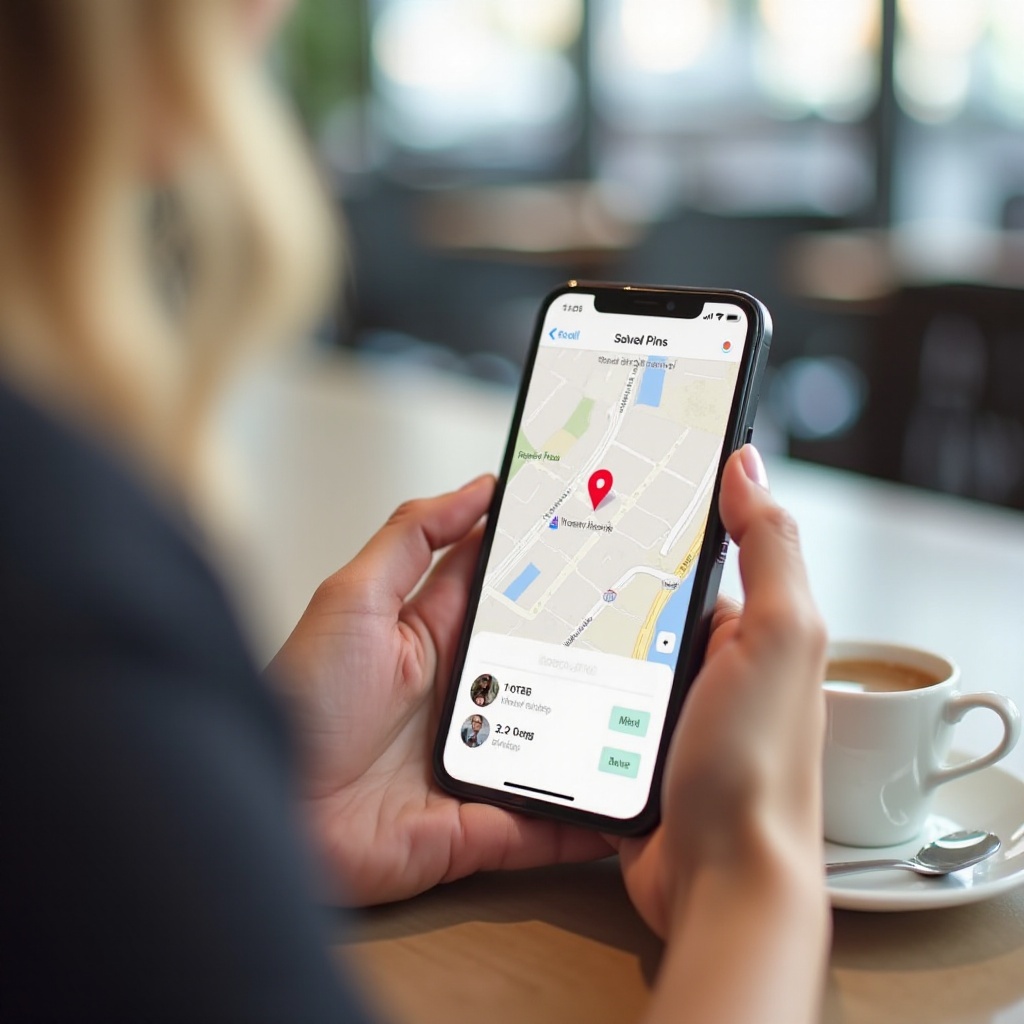
- A pin appears at that point, and an information card shows at the bottom of the screen.
This works well for places without a specific address, such as a point in a park, a section of a beach, or a side entrance.
4. Move or Adjust a Dropped Pin for Better Accuracy
If the pin is close but not perfect, you can adjust it:
- Tap the pin to open its information card.
- Look for an option like Edit Location if it appears.
- Drag the pin to the exact point you need.
- Confirm the new position.
This is useful when you need to mark a specific doorway, an exact meeting corner, or a precise point on a property.
5. View Address, Coordinates, and Place Details for a Pin
After dropping a pin:
- Tap the pin to open the information card.
- View the address, nearby businesses, and sometimes photos.
- Scroll down to see latitude and longitude coordinates if they are available.
These details help you confirm that the pin is in the correct place before you save or share it. Once you can drop and adjust pins in Apple Maps, it is time to learn how to save and organize them so they are always easy to find.
How to Save and Organize Dropped Pins in Apple Maps
Dropping a pin is useful in the moment, but if you do not save it, you may lose track of it when you move the map or close the app. Apple Maps offers several tools to help you organize important locations for future use.
1. Save Pins as Favorites for Quick Access
Favorites are best for locations you visit often:
- Tap the pin you dropped.
- On the information card, tap Add to Favorites.
- The pin now appears under Favorites in the Maps search panel.
Favorites work well for places like a partner’s home, a gym, a regular cafe, or a work site.
2. Add Pins to Guides for Trips and Projects
Guides let you group related locations together:
- Tap the pin to open its details.
- Tap Add to Guide.
- Create a new Guide (for example, ‘Weekend Trip’ or ‘New City Restaurants’) or add the pin to an existing one.
- Access your Guides from the main Maps screen by swiping up on the panel and selecting the Guide you want.
Guides are ideal for travel planning, organizing stops for errands, or grouping client locations for work.
3. Add Pinned Locations to Contacts on Your iPhone
You can attach a pinned address directly to a contact:
- Open the pin and scroll down.
- Tap Add to Existing Contact or Create New Contact.
- Select or create the contact you want to update.
- Save the changes.
Later, you can ask Siri for directions using that contact’s name, and Apple Maps will route you to the stored pinned address.
Once you understand how to manage pins in Apple Maps, you might want to use Google Maps as well for its rich data and cross-platform support. Next, you will learn how to drop pins using Google Maps on your iPhone.
How to Do a Pin Drop in Google Maps on iPhone
Google Maps is a popular alternative to Apple Maps on iPhone. It offers detailed business information, reviews, photos, and strong sharing features. Knowing how to do a pin drop on iPhone in Google Maps gives you more flexibility, especially when you share locations with people on different devices.
1. Install or Update Google Maps from the App Store
Before you start, make sure you have the latest version:
- Open the App Store.
- Search for Google Maps.
- Tap Get or Update if needed.
- Open Google Maps and sign in with your Google account so saved places sync across devices.
2. Drop a Pin at Your Current Location in Google Maps
To mark where you are right now:
- Open Google Maps.
- Tap the target icon to center the map on your current location.
- Tap the blue dot that marks your position.
- Tap the option to Drop a pin or use the information card that appears as your pin.
This is handy when you want to remember or share exactly where you are standing.
3. Drop a Pin by Long-Pressing Any Spot on the Map
To mark a location where you are not currently located:
- Drag the map to the area you want to mark.
- Press and hold on the exact spot.
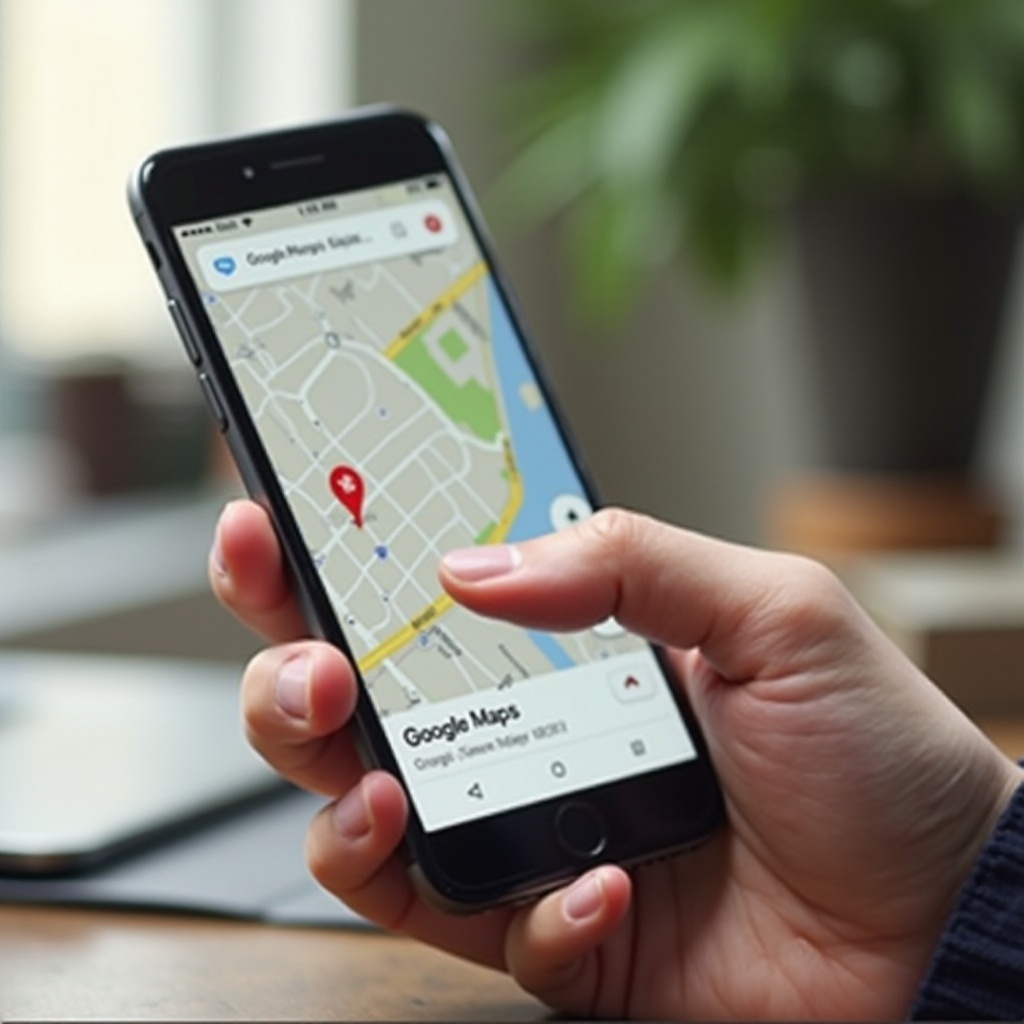
- A red pin appears and an information card shows at the bottom with address details or coordinates.
This method is perfect for planning future visits, marking trailheads, or locating meeting points in unfamiliar areas.
4. View and Copy Coordinates from a Dropped Pin
Sometimes you need very precise coordinates:
- Tap the dropped pin to open its information card.
- Scroll down to find the latitude and longitude values.
- Press and hold the coordinates to copy them.
- Paste them into notes, messages, or other apps as needed.
Coordinates are useful when you communicate with people using different systems or when you work with detailed location data.
5. Save and Label Pins Using Starred Places and Lists
Google Maps allows you to save and organize pins with lists and labels:
- Tap the pin’s information card.
- Tap Save.
- Choose a list such as Favorites, Want to go, or Starred places, or create a new custom list.
- Optionally, tap Label to give the pin a custom name, such as ‘New Office Entrance’ or ‘Best Sunset Spot’.
Because these saved pins sync to your Google account, you can access them from your iPhone, iPad, or any computer with Google Maps.
Now that you can drop and save pins in both Apple Maps and Google Maps, you are ready to share these locations with others in a clear and efficient way.
How to Share a Dropped Pin from Your iPhone
Sharing a pin is often the main reason people learn how to do a pin drop on iPhone. You can send pins from both Apple Maps and Google Maps to friends, family, or colleagues, even if they use different devices.
1. Share an Apple Maps Pin via Messages and Mail
To share a pin directly from Apple Maps:
- Drop and select a pin in Apple Maps.
- On the information card, tap the Share icon.
- Choose Messages, Mail, or another app from the share sheet.
- Select the contact and send the message.
The recipient can tap the link to open the location in their default maps app. If they use an iPhone, it will usually open in Apple Maps.
2. Share a Google Maps Pin Link with Any Contact
Google Maps sharing works well across platforms:
- Drop and select a pin in Google Maps.
- Tap the Share button on the information card.
- Choose an app such as Messages, WhatsApp, Mail, or copy the link.
- Send or paste the link wherever you need.
Google Maps links work on most smartphones and web browsers, which makes them ideal when you do not know what device the other person uses.
3. Send a Pin Drop to Android and Non-iPhone Users
When you share locations with Android or mixed-device groups:
- Prefer Google Maps links for the highest compatibility.
- Share via text message, chat apps, or email so everyone can open the link.
- Recipients on Android can open the link in Google Maps; desktop users can open it in a browser.
This approach ensures everyone sees the same pinned location, no matter which device they use.
4. Open and Use a Pin Someone Shared with You
When you receive a pin link:
- Tap the link in your message or email.
- Choose to open it in Apple Maps or Google Maps if your iPhone asks.
- Once it opens, you can:
- Get directions to the pinned spot.
- Save the location as a favorite or to a list.
- Drop your own pin at that location for future reference.
After you understand how to share pins, it helps to see how they fit into everyday situations and why they can make many tasks easier.
Practical Ways to Use Pin Drops in Everyday Life
Pin drops are not just a technical feature. They solve simple daily problems and save time when people need to find the same place.
1. Meeting Friends in Busy Places
Instead of sending long explanations, you can:
- Drop a pin at the exact entrance or spot inside a large venue, mall, stadium, or festival.
- Share the pin in your group chat.
- Ask everyone to navigate to that pin instead of guessing where to meet.
This reduces confusion and makes it much easier for people to find each other.
2. Sharing a Location with Delivery Drivers or Services
Delivery drivers and ride-share drivers sometimes have trouble finding the right door or entrance:
- Drop a pin at the point where you want the driver to stop, such as a side street or back entrance.
- Send the pin link through the app’s chat or via text if possible.
- Tell the driver to follow that map instead of relying on the generic address.
This simple step reduces missed deliveries and wasted time.
3. Marking Parking Spots, Trailheads, and Event Locations
You can also use pin drops to remember locations for yourself:
- Drop a pin when you park your car in a large or unfamiliar area and save it.
- Mark the starting point of a hiking trail or the location of a campsite.
- Save pins for event entrances, temporary markets, or pop-up shops.
These small habits make it much easier to return to places later without stress.
As you use pin drops more often, you will naturally think about who can see these locations and what information you share. That is where privacy and safety practices become important.
Privacy and Safety Tips for Sharing Pin Drops
Location sharing is powerful, but it also carries privacy risks if you are not careful. By following a few simple rules, you can use pin drops without exposing more information than you intend.
1. Only Share Pins with People You Trust
Treat a pin like a detailed address:
- Only send it to people you know or trust.
- Avoid sharing sensitive locations in large or unknown group chats.
This is especially important when the pin shows where you live or where you spend a lot of time.
2. Avoid Publicly Sharing Your Home or Work Pin
Some locations should stay private:
- Do not post pins of your home, office, or school on public social media.
- If you need to share a general area, mark a nearby public place instead of your exact address.
This approach protects you from people using your location data in ways you do not expect.
3. Remove Saved Pins and Location History You Do Not Need
Over time, you may save many pins you no longer need:
- Review your Favorites, Guides, and saved places regularly.
- Delete pins that no longer serve a purpose or that feel too sensitive to keep.
- Check both Apple Maps and Google Maps for old lists and remove them if they are not useful.
Regular cleanup keeps your maps organized and reduces the amount of personal location data stored in your accounts.
Even with careful setup and habits, you may still run into technical issues when dropping or using pins. Knowing how to handle them helps you fix problems quickly.
Troubleshooting Common Pin Drop Problems on iPhone
Sometimes pin drops do not behave as expected. Here are some common problems and practical steps to solve them.
1. You Cannot Drop a Pin or the Option Does Not Appear
If the app refuses to drop a pin:
- Check that Location Services are on in Settings > Privacy & Security > Location Services.
- Confirm that Maps or Google Maps has While Using the App access.
- Force-quit the maps app and reopen it.
- If that does not work, restart your iPhone and try again.
These simple steps often clear temporary glitches that prevent pin drops.
2. The Pin Location Is Inaccurate or Jumps Around
If the pin does not match the real-world spot:
- Move closer to a window or go outdoors to improve GPS accuracy.
- Turn on Precise Location for the app in Settings.
- Wait a few seconds for the blue dot to stabilize before you drop a pin.
- Zoom in closer on the map and long-press again to place the pin more precisely.
A stable signal and a zoomed-in view give you the best chance at an accurate pin.
3. Pins Are Not Syncing Across Your Apple Devices
If saved pins do not appear on your other devices:
- Make sure you are signed in to the same Apple ID on all devices.
- In Settings > [Your Name] > iCloud, confirm that Maps is turned on.
- Give it a few minutes for iCloud to sync your data.
- For Google Maps, confirm that you are signed in to the same Google account and that sync is enabled in the app’s settings.
Proper account setup and sync options ensure that your favorite pins and lists follow you from one device to another.
Conclusion
Dropping a pin on your iPhone turns Apple Maps and Google Maps into powerful tools for sharing and remembering precise locations. You have seen how to do a pin drop on iPhone at your current spot, at any point on the map, and how to adjust, save, and organize those locations. You have also learned how to share pins with others, use them in everyday situations, protect your privacy, and fix common issues.
Use these steps the next time you meet friends, plan a trip, or guide someone to a hard-to-find place. With just a few taps, pin drops help everyone end up exactly where they need to be, without confusion or wasted time.
Frequently Asked Questions
Can I drop a pin on iPhone without an internet connection?
You can drop a pin using GPS even with no data, but the map tiles may not load fully. The pin will still mark a spot on any part of the map that is already cached on your device. However, searching for addresses, loading new map areas, and sharing the pin usually require an internet connection. For better offline use, download offline maps in Google Maps before you lose service.
Is dropping a pin on iPhone the same as sharing my live location?
No. Dropping a pin shares a single static point on the map. It does not move when you move. Live location sharing, such as through some messaging apps, updates in real time as you travel and shows your movement over a period of time. If you only want someone to find one specific place, a pin drop is usually better and more private than live tracking.
How do I delete or clear dropped pins on my iPhone?
In Apple Maps, tap the pin and choose the option to remove or stop marking that location. To remove saved locations, open Maps, swipe up on the panel, go to Favorites or Guides, and delete items you no longer need. In Google Maps, open the Saved tab, find the list containing your saved pin, and tap the Saved icon again to remove it from that list. Regularly cleaning up old pins keeps your maps organized and your location history more private.