
Introduction
If you share your iPhone’s internet connection often, you have probably asked: how do I change my hotspot name on iPhone? By default, your hotspot name usually matches your iPhone’s name, such as ‘John’s iPhone.’ That can be confusing in crowded places and can feel like a privacy risk when strangers see your real name.
Renaming your hotspot makes it easier to spot in a long list of networks and helps protect your personal information. The trick is that you do not change the hotspot name directly. Instead, you change the device name, and iOS automatically updates the hotspot name to match.
This guide walks through each step on modern iPhones running iOS 17 or iOS 18 in 2024. You will learn how to change the hotspot name, update the password, fix common issues, and keep everything secure across your Apple devices so your connection stays both easy to recognize and safe to use.
What Is an iPhone Personal Hotspot and Why the Name Matters
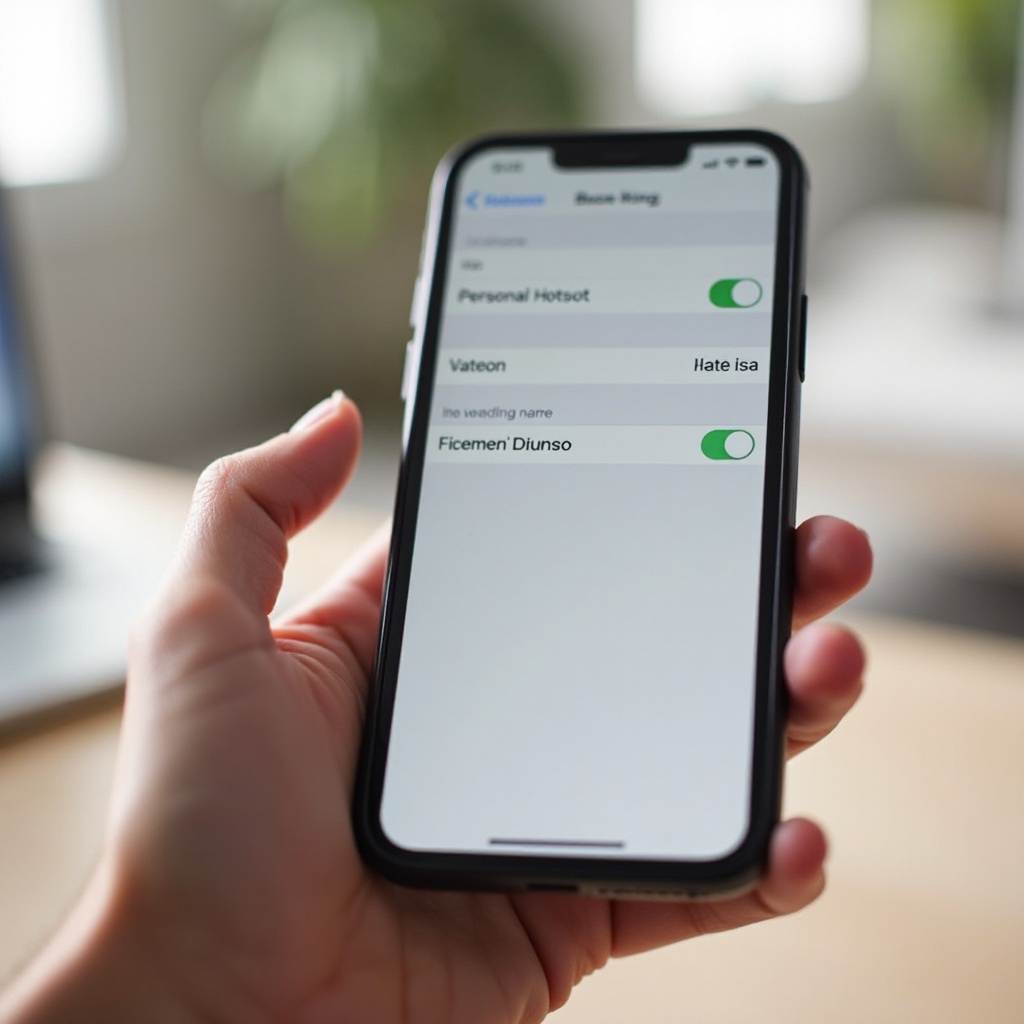
Your iPhone’s Personal Hotspot turns your phone into a small Wi‑Fi router. It shares your mobile data connection with other devices such as laptops, tablets, or another phone. Those devices connect to your iPhone’s hotspot just like they connect to any Wi‑Fi network: they see a network name and enter a password.
The network name is what other people and devices see when they scan for available Wi‑Fi networks nearby. Apple sets this name to match your iPhone’s device name. So if your iPhone is called ‘Emma’s iPhone,’ your hotspot will broadcast as ‘Emma’s iPhone’ as well.
That name matters for three key reasons:
-
Privacy
A hotspot name that shows your full name or other personal details gives strangers information about you. In a public place, anyone scanning for Wi‑Fi can see that name. Changing it helps protect your identity. -
Convenience
If you use your hotspot often, especially around other networks, a clear and unique name makes it easy to find your connection quickly. This is helpful in offices, airports, or co‑working spaces where many iPhones appear in the list. -
Organization
Families and teams may have several iPhones with hotspots. Custom names help you identify whose hotspot is whose, which phone is for work, and which is for personal use.
Once you understand why the name matters, the next step is to see how iOS 17 and iOS 18 control that name and where you need to go to change it.
How Your iPhone Hotspot Name Is Set in iOS 17 and iOS 18 (2024)
On iPhones running iOS 17 and iOS 18 in 2024, the hotspot name is not a separate setting. Apple links the hotspot name directly to your iPhone’s device name. That means:
- If you change your iPhone’s name, you also change the hotspot name.
- You cannot set a different name for the hotspot only.
- Any feature that shows your device name, such as AirDrop, uses the same name.
You see this link when you first set up your iPhone. During setup, Apple asks you to sign in with your Apple ID and may suggest a default name such as ‘Alex’s iPhone.’ That name appears:
- In Settings under General → About → Name
- When you connect your iPhone to a Mac or PC
- In AirDrop device lists
- As the Personal Hotspot network name
This simple design keeps things consistent, but it also means changing your hotspot name requires you to rename the entire device. The good news is that it only takes a few taps and does not affect how your phone works.
Now that you know iOS ties the hotspot name to the device name, you can follow a clear step‑by‑step process to change it the right way.
Step-by-Step: How to Change Your Hotspot Name on iPhone
To answer ‘how do I change my hotspot name on iPhone,’ follow these steps. They work on modern iPhones with iOS 17 or iOS 18.
Step 1: Unlock Your iPhone and Open the Settings App
- Unlock your iPhone using Face ID, Touch ID, or your passcode.
- Find the Settings app on your Home Screen. The icon looks like a gray gear.
- Tap Settings to open it.
Settings is where Apple stores all system options, including your device name and Personal Hotspot controls.
Step 2: Go to General → About on Your iPhone
Inside Settings:
- Scroll down and tap General.
- At the top of the General screen, tap About.
The About screen shows basic information about your device, including the name that controls your hotspot name.
Step 3: Tap ‘Name’ and Enter a New iPhone Name
On the About screen:
- Tap the first row labeled Name.
- Your current iPhone name appears in an editable text field.
- Tap the text field to place the cursor.
- Delete the old name and type your new name.
Choose a name that is:
- Easy to recognize,
- Short and clear, and
- Free of sensitive personal information.
Good examples include:
- ‘Alex Hotspot 5G
- ‘Work iPhone Hotspot
- ‘Travel Wi‑Fi by Sam
Step 4: Save the New Name and Close Settings
When you finish typing the new name:
- Tap Done on the keyboard.
- The About screen now shows your new iPhone name.
- Swipe from the bottom or tap General to go back, then exit Settings.
Your device now uses this new name system‑wide, including for your hotspot, AirDrop, and Bluetooth.
Step 5: Turn Personal Hotspot Off and Back On to Refresh the Name
Sometimes other devices store the old hotspot name or connection details. To refresh the broadcast:
- Open Settings again.
- Tap Personal Hotspot (or Cellular → Personal Hotspot, depending on your carrier menu).
- Turn Allow Others to Join off.
- Wait a few seconds.
- Turn Allow Others to Join back on.
This forces your iPhone to rebroadcast the network with the updated name.
Step 6: Confirm the New Hotspot Name from Another Device
To make sure the change worked:
- On another device such as a laptop, tablet, or another phone, open the Wi‑Fi settings.
- Scan for available networks.
- Look for your new hotspot name in the list.
- If you still see the old name, tap Forget this Network on that device, then scan again.
Once the new name appears, your hotspot name change is complete. With the name updated, you can now focus on turning the hotspot on and off quickly when you need it.
How to Turn Your iPhone Hotspot On and Off After Renaming
After renaming your iPhone, you will use your hotspot the same way as before, but now you will see the new name on every device that connects. Knowing both the Settings path and the quick toggle method gives you full control.
Enable Personal Hotspot from Settings
To turn on your hotspot using Settings:
- Open Settings on your iPhone.
- Tap Personal Hotspot.
- Turn on Allow Others to Join.
Below that switch, you see the current Wi‑Fi password and, in the description, your updated hotspot name.
Use Control Center to Quickly Toggle Hotspot
For a faster way to toggle the hotspot:
- Swipe down from the top‑right corner of the screen to open Control Center.
- Press and hold the group with Wi‑Fi, Bluetooth, and Airplane Mode icons.
- Tap the Personal Hotspot icon to turn it on or off.
This method is helpful when you need to share your connection for a short time or want to disable it quickly to save battery and data.
Check the Updated Name on Connected Devices
On the device you want to connect:
- Open the Wi‑Fi settings.
- Look for your new hotspot name.
- Tap it, then enter the hotspot password.
- Confirm that the device connects and uses your mobile data.
Once you are comfortable turning the hotspot on and off with the new name, the next important step is securing the connection with a strong password.
How to Change Your iPhone Hotspot Password for Better Security
Changing the hotspot name improves privacy, but the password protects your data and your plan. A strong password stops strangers from connecting, using your data, or trying to intercept your traffic.
Open Settings → Personal Hotspot on iOS 17 and iOS 18
To change the hotspot password:
- Open Settings.
- Tap Personal Hotspot.
- Look for the Wi‑Fi Password field.
This password controls who can join your hotspot when they see your network name.
Edit the Wi‑Fi Password Field
- Tap Wi‑Fi Password.
- Delete the current password.
- Enter a new password with at least 8 characters.
- Tap Done to save it.
Your iPhone now uses this new password for all new connections. Any device that was already connected may need to enter the new password the next time it connects.
Best Practices for Creating a Strong but Shareable Password
Use a password that is:
- Long enough, ideally 10–16 characters.
- A mix of letters, numbers, and symbols.
- Not used for any other Wi‑Fi network or online account.
Strong examples include:
- ‘Sunset!Bridge92
- ‘WorkTripNet#45
Avoid simple passwords like ‘12345678’ or ‘password’ because they are easy to guess. When you change the password, tell trusted users in person or over a secure channel rather than sending it in public chats.
Now that your hotspot name and password are set, you can think about what type of name works best for your daily use and privacy needs.
Tips for Choosing a Safe and Easy-to-Recognize Hotspot Name
A good hotspot name balances clarity and privacy. Because the hotspot name matches your iPhone’s name, your choice affects not only tethering but also how your phone appears in AirDrop and Bluetooth lists.
Avoid Using Real Names, Addresses, or Phone Numbers
To protect your privacy in 2024, avoid naming your iPhone with:
- Full names like ‘Emily Johnson’s iPhone.
- Home or work addresses such as ’22B Baker Street Wi‑Fi.
- Phone numbers, email addresses, or other direct contact details.
Anyone nearby can see this information when they scan for Wi‑Fi. A neutral name gives less away while still being simple to recognize.
Use Clear Names for Work, Family, and Travel
If you use your hotspot in different contexts, name your iPhone in a way that reflects its main role:
- For work: ‘Office iPhone Hotspot,’ ‘ProjectNet‑Alex.
- For family: ‘Family Hotspot iPhone,’ ‘Kids Streaming Phone.
- For travel: ‘Travel Wi‑Fi Sam,’ ‘RoadTrip Hotspot.
Clear names make it easier to manage multiple devices and know which phone to use for which purpose, especially when you look at device lists in iCloud or Find My.
Fun vs. Professional Names: What to Consider in 2024
You can choose a fun or serious name, depending on where you use your phone most:
- For casual use, playful names like ‘Pocket Router Max’ or ‘Speedy Hotspot’ are fine.
- For business, use something neutral and professional, like ‘Work iPhone 1’ or ‘Business Hotspot.
Remember that this name also appears in AirDrop and on connected computers, so pick something you are comfortable showing in meetings, at events, and in public places.
Even with a strong name and password, you might still see issues when you change them. The next section walks through common problems and how to fix them without stress.
Common Problems When Changing Your Hotspot Name (and How to Fix Them)
Changing the hotspot name usually works right away, but sometimes other devices hang on to old data or your carrier settings cause trouble. Before you assume something is broken, try these simple fixes.
The Hotspot Name Did Not Change on Your Laptop or Tablet
If your laptop or tablet still shows the old hotspot name:
- On that device, open Wi‑Fi settings.
- Find your old hotspot network in the list of known networks.
- Select Forget this Network or Remove.
- Scan for networks again.
The device should now display the new name broadcast from your iPhone. Then you can join using the updated password.
Your Device Still Shows the Old Network Name on iPhone
If the iPhone seems to still use the old name:
- Go back to Settings → General → About → Name and confirm the new name is saved.
- Turn Personal Hotspot off and on again.
- Restart your iPhone by powering it off and turning it back on.
A quick restart often forces all services to refresh and use the new name.
iPhone Hotspot Not Appearing at All After Renaming
If your hotspot does not show up in the list of Wi‑Fi networks:
- Confirm Allow Others to Join is turned on.
- Make sure Cellular Data is enabled and that you have signal.
- Move to an area with stronger cellular coverage.
- On the other device, toggle Wi‑Fi off and back on to force a new scan.
If it still does not appear, your carrier may restrict tethering or there may be a temporary network issue. Check with your carrier to confirm that your mobile plan includes Personal Hotspot and that there are no blocks on your account.
When to Reset Network Settings on Your iPhone
If none of the above steps work and you still have hotspot problems:
- Go to Settings → General → Transfer or Reset iPhone → Reset.
- Tap Reset Network Settings.
- Enter your passcode and confirm.
This clears Wi‑Fi networks, VPN settings, and some cellular settings, but it can fix stubborn hotspot issues. You will need to reconnect to Wi‑Fi networks afterward, so make sure you know your Wi‑Fi passwords before you reset.
Once your hotspot name and connection behave correctly, you can make sure everything also works smoothly with your other Apple devices like Mac and iPad.
Using Your Renamed iPhone Hotspot with Other Apple Devices (Mac, iPad)
Apple’s ecosystem makes it easy to use your iPhone hotspot with devices like a MacBook or iPad. When you change your iPhone’s name, those devices reflect the new name as well, especially when they share the same Apple ID.
Instant Hotspot with macOS and iPadOS in 2024
If your Mac or iPad uses the same Apple ID as your iPhone, you can use Instant Hotspot:
- Turn on Bluetooth and Wi‑Fi on all devices.
- Make sure you are signed into the same Apple ID on each device.
- On your Mac or iPad, open the Wi‑Fi menu.
- You will see your iPhone listed with the new name under Personal Hotspots.
- Click or tap it to connect without typing the password.
Instant Hotspot automatically updates when you rename your iPhone, so you will always see the latest name across your Apple devices.
How iCloud and Apple ID Affect What Name You See
Because all devices use your Apple ID:
- Your renamed iPhone appears with the new name in Finder on Mac.
- AirDrop shows the new name when sharing files.
- iCloud device lists update to show the changed name.
If you do not see the updated name right away, sign out and back into iCloud on the affected device or restart it. This often forces an update.
Managing Multiple iPhones and Hotspot Names in a Family
In a family setting, you might have:
- Several iPhones used as hotspots.
- Kids’ phones and parents’ phones.
- Work and personal phones for the same person.
Give each iPhone a clear and unique name, such as:
- ‘Dad iPhone Hotspot
- ‘Mom iPhone Hotspot
- ‘Kids iPhone Data
This avoids confusion when family members try to connect and helps when you manage devices in Find My or iCloud, especially if more than one iPhone is nearby.
As you connect more devices, security and privacy remain important. The next section focuses on advanced tips to keep your hotspot safe in 2024.
Advanced Privacy and Security Tips for Your iPhone Hotspot in 2024
Beyond changing your hotspot name and password, a few extra steps help keep your data safe and your identity private when you share your connection.
Hide Sensitive Information in Your Device and Hotspot Name
To reduce the information you reveal:
- Avoid using your last name in the iPhone name.
- Do not reference your exact employer if you work in a sensitive field.
- Skip location hints like your precise neighborhood or building.
A neutral, generic device name still works fine but gives attackers and strangers less data about you.
Monitor Who Is Connected to Your Hotspot
When Personal Hotspot is active:
- Look for the colored status bar or indicator that shows tethering is enabled.
- Open Settings → Personal Hotspot to see if devices are connected.
- Turn Allow Others to Join off when you are not using the hotspot.
Limiting usage to people you trust prevents surprise data charges and reduces security risks.
When to Change Your Hotspot Name and Password Again
Consider changing your hotspot name and password again if:
- You shared the password with people you no longer trust.
- You used your phone in a public place and suspect someone connected without permission.
- Your device name still contains personal details and you want a fresh start.
Regular updates every few months, or after trips where many people could see your network, help keep your hotspot clean, secure, and easy to manage.
With all these steps, you now have full control over your iPhone hotspot name, password, and behavior across devices.
Conclusion
Changing your iPhone hotspot name is simple once you know that iOS links it to your device name. By renaming your iPhone through Settings → General → About → Name and then toggling Personal Hotspot off and back on, you give your hotspot a new, more private, and more recognizable identity.
From there, updating the Wi‑Fi password, choosing a smart and neutral name, and fixing common connection issues completes the setup. When you bring in other Apple devices, features like Instant Hotspot and iCloud make your new name visible everywhere you sign in with your Apple ID.
If you ever ask again ‘how do I change my hotspot name on iPhone,’ remember the core rule: rename the device, refresh the hotspot, and keep your name and password secure. Follow these steps and your iPhone will serve as a safe, clear, and reliable hotspot wherever you go in 2024 and beyond.
Frequently Asked Questions
Does changing my hotspot name on iPhone affect AirDrop or Bluetooth names?
Yes. When you change the iPhone’s name in Settings → General → About → Name, that new name appears in AirDrop lists, Bluetooth menus, Finder on a Mac, and your hotspot network name. All of these features use the same device name, so you will see your new hotspot name whenever another device detects your iPhone.
Can I set a different name for my iPhone and my hotspot in 2024?
No. On iOS 17 and iOS 18 in 2024, Apple does not let you assign a unique hotspot name that is different from your iPhone’s device name. The Personal Hotspot always uses the current device name. If you want a different hotspot name, you must rename the iPhone itself, and that change will also affect AirDrop, Bluetooth, and iCloud device lists.
How often can I change my iPhone hotspot name without causing issues?
You can change your hotspot name as often as you like. There is no built‑in limit in iOS. The only effect is that other devices will need to reconnect each time with the new name, and you may need to forget the old network on laptops or tablets. As long as you are comfortable updating your other devices, you can change the name whenever your needs or privacy concerns change.