
Introduction
People search ‘how do I turn off RCS messaging on iPhone’ because texting between iPhone and Android often feels broken. Messages fail, group chats split into separate threads, or photos send in a blurry mess. It is easy to assume there must be an RCS switch on iPhone that you can turn off and fix everything.
Here is the catch: iPhones do not support RCS yet. There is no RCS setting anywhere in iOS. Apple uses its own system called iMessage between Apple devices, and falls back to older SMS and MMS when you text Android users.
RCS still matters to iPhone owners for one big reason: if you used an Android phone with RCS before, or your friends use RCS on their Android phones, those chat features can interfere with how messages reach your iPhone. So the real solution is not about turning off RCS on the iPhone itself, but about tuning both iPhone and Android settings so they work together.
This guide explains what RCS is, why you cannot literally disable it on iPhone, and which settings you can change to stop RCS-related problems and make iPhone–Android texting more reliable.
What Is RCS Messaging and How Is It Different From iMessage?
Before you try to turn off anything, you need to know what RCS actually does and how it compares to iMessage, SMS, and MMS. Once you see the difference, the rest of the steps will make a lot more sense.
What RCS (Rich Communication Services) Does on Modern Phones
RCS stands for Rich Communication Services. It is the modern replacement for basic SMS and MMS on many Android phones. RCS adds features that feel more like chat apps than old-school texting:
- Typing indicators so you see when someone is replying
- Read receipts showing when the other side opened your message
- High-quality photos and videos instead of tiny, compressed files
- Larger message size limits for long texts
- Better group chats with clearer member handling
RCS usually runs inside apps like Google Messages or some carrier-branded messaging apps. When both sides use RCS and their carriers support it, chats go over mobile data or Wi‑Fi instead of the old SMS network.
How iMessage Works on iPhone Instead of RCS
Apple chose a different route and built its own system, iMessage. iMessage is integrated into the Messages app on iPhone, iPad, and Mac. It offers many of the same rich features as RCS, such as:
- End-to-end encryption between Apple devices
- Read receipts and typing indicators
- High-quality media and long messages
- Stickers, reactions, and screen effects
When you send a message from iPhone to another Apple device, you see blue bubbles. That is iMessage. When you text someone who is not on iMessage, like an Android user, your iPhone falls back to SMS or MMS, which show as green bubbles.
This is the key point: right now, iPhone does not speak RCS. It uses iMessage for Apple chats and SMS/MMS for everyone else.
Where SMS and MMS Still Fit Into Messaging in 2024
Even in 2024, SMS and MMS still play a big role:
- SMS handles plain text messages.
- MMS handles photos, videos, and group messages.
When RCS fails on an Android phone, or when that phone tries to use RCS with an iPhone that does not support it, messages should fall back to SMS or MMS. If that fallback does not work, you see the classic issues: missing messages, broken group chats, or delivery errors.
Now that you understand RCS, iMessage, SMS, and MMS, it becomes clearer what you can adjust on your iPhone and what has to be changed on the Android or Google side.
Can You Really Turn Off RCS Messaging on an iPhone?
Knowing how RCS and iMessage work raises the main question: is there any way to turn off RCS on an iPhone? This is where many people get misled by vague tips or old forum posts.
Why iOS Still Does Not Offer an RCS Toggle
There is no RCS toggle on iPhone for a simple reason: iOS does not use RCS at all. Inside the Messages app, your iPhone only uses:
- iMessage for Apple-to-Apple chats
- SMS and MMS for everyone else
If you open Settings → Messages on your iPhone, you see switches for iMessage, SMS, and MMS. You will not find anything labeled RCS, chat features, or advanced messaging, because Apple has not shipped RCS support yet.
When people say they want to ‘turn off RCS on iPhone’, they usually want to stop RCS on Android from blocking or breaking messages that should reach their iPhone as SMS or MMS.
Apple’s Current Position on RCS Support in 2024
In 2024, Apple confirmed plans to support RCS in the future so that messaging with Android devices can improve. However, as of now, most iPhone users do not have full RCS support in the Messages app. That means you cannot control RCS directly on your iPhone.
As a result, all real fixes for ‘RCS problems’ involve one or more of these:
- Your iPhone’s iMessage, SMS, and MMS settings
- RCS or chat features on any Android phones tied to your number
- Google’s online RCS deregistration tools
What ‘Turning Off RCS on iPhone’ Actually Means in Practice
In practice, when you say you want to turn off RCS on iPhone, you are usually trying to:
- Make sure your iPhone uses simple SMS/MMS when it needs to.
- Stop an old Android phone from hijacking your number via RCS.
- Ask Android contacts to use SMS instead of RCS when messages fail.
To do that, you start by adjusting iMessage and SMS behavior on the iPhone itself. Then you clean up any RCS registrations on Android. The next section covers the iPhone side, which is the closest thing you have to an ‘RCS off’ switch.
How to Turn Off iMessage on iPhone (The Closest Equivalent to Disabling RCS)
Even though iPhone does not support RCS, you can still change how it sends and receives messages. Turning off iMessage forces your iPhone to use SMS and MMS only, which can simplify things when you move between phones or carriers.
Step-by-Step: Disabling iMessage in Settings
If you want your iPhone to stop using iMessage completely and rely only on SMS/MMS:
- Open the Settings app on your iPhone.
- Scroll down and tap Messages.
- Toggle iMessage to Off.
From that moment, your Messages app will no longer send blue bubbles. Every message, even to other Apple users, will go out as SMS or MMS. This can help if you move between iPhone and Android often and want consistent behavior.
How to Force Messages to Send as SMS on iPhone
If you like iMessage but want a reliable backup, you can keep iMessage on and still let your iPhone fall back to SMS when needed:
- Go to Settings → Messages.
- Make sure iMessage is turned On.
- Turn on Send as SMS.
When this is enabled, your iPhone will try iMessage first for Apple contacts. If iMessage fails, it can automatically send the same message as SMS. This helps when your data connection is weak or unstable.
Pros and Cons of Turning Off iMessage Completely
Turning off iMessage can help some users, but it is not right for everyone.
Pros:
- All messages behave like standard SMS/MMS.
- Less confusion when switching between iPhone and Android.
- Fewer issues when your data connection is poor.
Cons:
- You lose end-to-end encryption between Apple devices.
- You lose iMessage features like reactions, effects, and high-quality media.
- Messages may be less reliable over weak networks compared with iMessage over Wi‑Fi.
If you just switched from Android to iPhone and you are missing messages, turning off iMessage is not always the best first step. Often the real problem sits on the Android or RCS side, which is what you will address next.
How to Turn Off RCS Chat Features on an Old Android Phone Before Moving to iPhone
If you used an Android phone with RCS and then moved your number to an iPhone, leftover RCS registrations can confuse the system. Android phones may still see your number as an RCS contact and try to send RCS messages that never reach your iPhone.
Why Leaving RCS Enabled Can Break Texts After You Switch
When RCS stays enabled on an old Android device tied to your number:
- RCS servers and carriers may still expect to deliver rich messages to that old device.
- Other Android users may try to start or continue RCS chats with your number.
- Your iPhone, which only understands SMS/MMS, never receives those RCS messages.
The result can be:
- Android contacts say you never reply even though you never see their messages.
- Group chats that used to work fine suddenly break when you switch to iPhone.
- You get some messages, but not all, especially from specific Android users.
Turning Off ‘Chat Features’ in Google Messages
If you still have your old Android phone, do this first:
- Insert your SIM card if it is not already in the phone.
- Open the Google Messages app.
- Tap your profile icon or the three dots in the top right corner.
- Tap Messages settings or Settings.
- Tap Chat features.
- Toggle Enable chat features to Off.
Wait a couple of minutes after turning this off, then restart the Android phone. This helps RCS servers realize that your number should no longer use chat features on that device.
Disabling Carrier or Samsung Advanced Messaging Options
Some Android phones and carriers use their own version of RCS. If you have a Samsung phone or a carrier messaging app, check those too.
On many Samsung phones:
- Open the Samsung Messages app.
- Tap the three dots in the top right.
- Select Settings.
- Look for Chat settings or Advanced messaging.
- Turn off any toggles related to chat or advanced messaging.
On carrier-branded apps (for example, some Verizon, AT&T, or T‑Mobile apps):
- Open the carrier messaging app.
- Go into Settings or Advanced.
- Look for options called Chat, Advanced messaging, or RCS.
- Turn those off.
After you have disabled these features, new messages to your number should default to SMS or MMS, which your iPhone can receive without any RCS involvement.
How to Deregister RCS Remotely If You No Longer Have the Android Device
Sometimes you cannot reach the old Android phone. Maybe you sold it, lost it, or already wiped it. In that case, you can still clean up your RCS registration using a tool from Google.
Using Google’s Online RCS Deregistration Tool
To deregister your number from RCS without the device:
- On your iPhone or a computer, open your web browser.
- Search for ‘Google RCS deregistration’.
- Open Google’s official page for turning off RCS or chat features.
- Scroll to the section for people who do not have their phones.
This page lets you tell Google to stop treating your number as an RCS device.
Verifying Your Phone Number With a Code
Once you are on the deregistration page:
- Select your country if needed.
- Enter the phone number you are using on your iPhone now.
- Tap or click Send code.
- Wait for a verification code via SMS on your iPhone.
- Enter that code on the website.
- Submit the form to finish deregistration.
If the code does not arrive, make sure your iPhone can receive SMS, that you have signal, and then try again after a short delay.
How Long It Takes for RCS to Be Fully Disabled
Deregistering RCS remotely is not always instant, but it is usually quick. Expect:
- A few minutes for many users.
- Up to a couple of hours in some cases, depending on your carrier and region.
Later, ask an Android contact to send you a simple text. If everything is working, their phone should show the conversation with you as a basic SMS thread, not an RCS chat.
Now that your number is no longer tied to RCS, the main issues come down to how your iPhone talks to Android phones through SMS and MMS. The next step is to troubleshoot those common problems.
Fixing Common iPhone–Android Texting Problems Related to RCS
Even after turning off RCS on old devices and deregistering your number, you may still see issues. Most of these glitches happen where iMessage, SMS/MMS, and Android settings meet.
When Android Contacts Can’t Text Your iPhone Successfully
If certain Android contacts:
- Get ‘Chat message not sent’ or similar errors when texting you, or
- Say some of their messages never reach you
ask them to test SMS-only messaging.
Here is what they should do in Google Messages:
- Open Google Messages.
- Tap their profile icon or the three dots.
- Tap Messages settings → Chat features.
- Turn Chat features off.
Then they should try sending you a new message. If it arrives quickly and reliably, the problem was RCS trying to reach your number instead of falling back to SMS.
Group Chats Failing or Splitting Between iPhone and Android
Mixed group chats with iPhone and Android users are a common pain point. You may see:
- Messages that only some people in the group receive
- A single group splitting into several separate threads
- People getting removed or added in confusing ways
To stabilize these groups:
- Ask the Android members to disable Chat features/RCS for their messaging app.
- On your iPhone, go to Settings → Messages and ensure MMS Messaging is on.
- Once everyone has updated settings, create a new group thread.
With RCS disabled on the Android side, the group should run over MMS. It will not be as fancy as RCS or iMessage, but it is more likely to work for everyone consistently.
Photos, Videos, and Reactions Not Sending Correctly
When media looks bad or fails between iPhone and Android, it is often because MMS has strict size limits. RCS can send bigger, better files, but your iPhone does not support it.
To work around this:
- Make sure MMS Messaging is on in Settings → Messages on your iPhone.
- Ensure both sides have a stable data or cellular connection.
- If media still downgrades badly, suggest using a third-party app like WhatsApp, Signal, or Telegram for photos and videos.
After you fix immediate issues, it is smart to tune your iPhone’s message settings so that future iPhone–Android conversations start from a solid foundation.
Recommended iPhone Messaging Settings for Fewer Cross-Platform Issues
Your iPhone has several switches that directly affect how it behaves with Android phones. Checking them takes only a minute and often removes the last remaining problems.
Double-Checking iMessage, SMS, and MMS Toggles
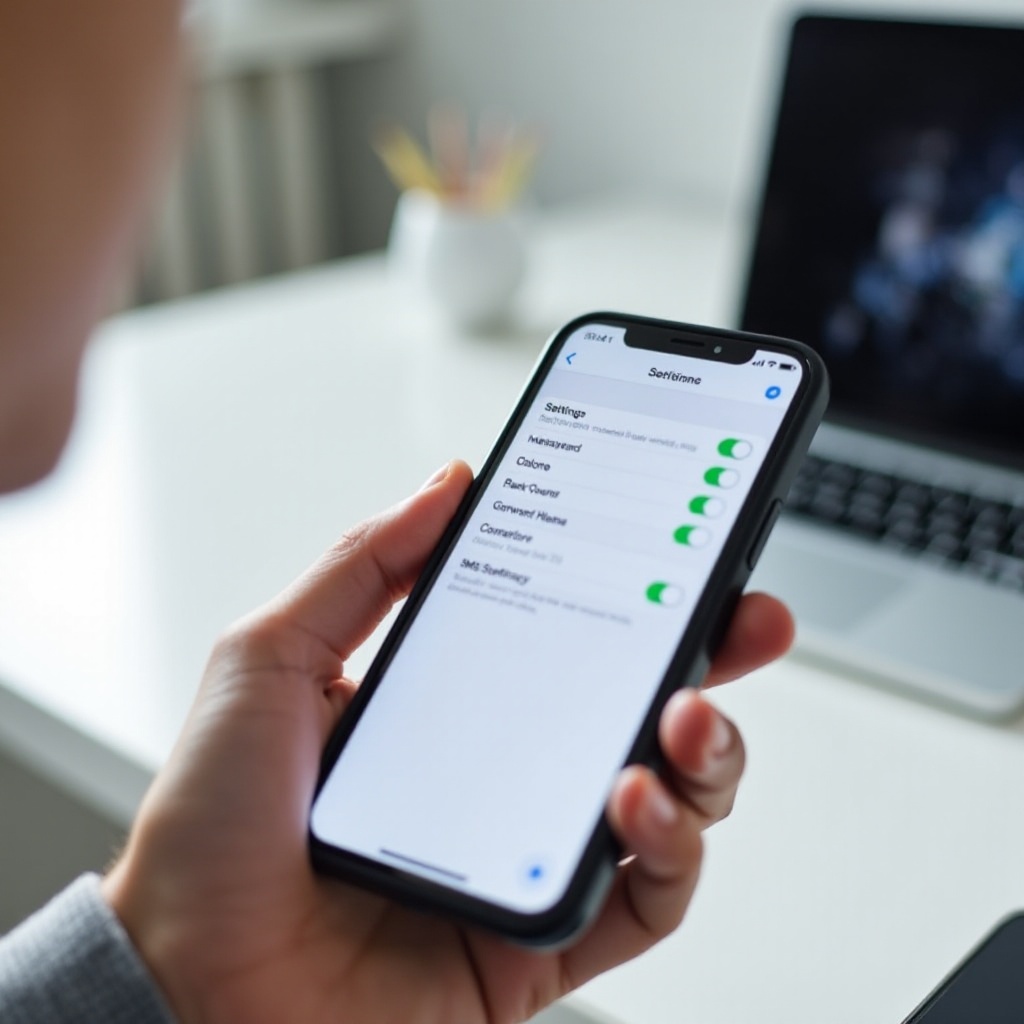
Open Settings → Messages and look at these options:
- iMessage: Turn this on if you want full features with other Apple users.
- Send as SMS: Turn this on so messages fall back to SMS if iMessage fails.
- MMS Messaging: Turn this on to send and receive pictures, videos, and group messages.
With all three enabled, your iPhone can switch between iMessage and SMS/MMS as needed, which is the best setup if you text both iPhone and Android users.
Confirming Your Phone Number Is Activated in iMessage
If iMessage behaves strangely after you change phones or carriers, check that your phone number is active in iMessage:
- Go to Settings → Messages → Send & Receive.
- Make sure your phone number appears and is checked under ‘You can receive iMessages to and reply from’.
- If it is missing or inactive, toggle iMessage off, wait a moment, and then turn it back on.
You may see an activation message. Once activation finishes, your number should be ready for iMessage again.
Resetting Network Settings and Testing With Android Contacts
If you still have odd behavior after all these checks, your network settings may be the culprit. You can reset them without touching your apps or photos.
To reset network settings:
- Open Settings.
- Tap General.
- Tap Transfer or Reset iPhone.
- Tap Reset.
- Choose Reset Network Settings.
- Enter your passcode and confirm.
Your iPhone will restart. After it boots up, reconnect to Wi‑Fi if needed. Then ask an Android contact to send you a regular text and a photo.
If those messages come through normally, the last of your issues likely came from old network settings rather than RCS itself.
At this point, your setup should be stable. The final consideration is privacy and security, and how RCS, iMessage, and SMS compare in 2024.
Privacy and Security: iMessage vs RCS vs SMS in 2024
Fixing reliability is important, but so is understanding how secure each messaging option is. Your choices between iMessage, RCS, and SMS affect who can access your data and how your messages travel across networks.
End-to-End Encryption on iMessage Compared to RCS
iMessage offers end-to-end encryption between Apple devices. That means:
- Only you and the person you are chatting with can read the message content.
- Apple and your carrier cannot see the text of your iMessages.
RCS can also support encryption in some apps, such as Google Messages, when both sides have it enabled. However, your iPhone cannot join those encrypted RCS chats yet, because it does not support RCS.
So, for secure conversations between iPhone users, iMessage is the strongest option built into your phone today.
What Your Carrier Can See With Standard SMS/MMS
SMS and MMS are older technologies and are not end-to-end encrypted. In general:
- Carriers can access message content in some situations.
- Metadata like who you text, when, and for how long is exposed to the network.
When you turn off iMessage and RCS and rely only on SMS/MMS, you gain compatibility but lose encryption and some privacy. That is not always a problem for basic, everyday texting, but it is good to keep in mind.
When to Consider Third-Party Apps Like WhatsApp or Signal
For secure and feature-rich chats between iPhone and Android, many people choose third-party apps. Popular options include:
- WhatsApp (end-to-end encryption by default)
- Signal (strong privacy focus and open source)
- Telegram (with optional encrypted chats)
These apps give you:
- Cross-platform end-to-end encryption
- Better media quality than MMS
- Reliable group chats that do not depend on RCS or iMessage
You can use these apps for sensitive or media-heavy conversations and leave SMS/MMS for basic communications and verification codes.
Conclusion
When you ask ‘how do I turn off RCS messaging on iPhone’, you are really trying to solve a set of problems that appear when iPhones and Android phones try to talk to each other. The simple truth is that your iPhone does not run RCS yet, so there is no RCS button to switch off in iOS.
Instead, the solution is to control what you can:
- Use the right combination of iMessage, SMS, and MMS settings on your iPhone.
- Turn off RCS chat features on any old Android phone that still has your number.
- Deregister your phone number from RCS using Google’s online tool if you cannot access that device anymore.
- Ask Android contacts to disable RCS temporarily or use SMS if their messages do not reach you.
By following these steps in order, you can remove RCS from the equation and make your iPhone–Android conversations far more reliable. You keep iMessage where it works best, you let SMS/MMS handle cross-platform basics, and you can use secure third-party apps when you want rich features and privacy on both sides.
You may not be able to literally turn off RCS on your iPhone, but you can take control of how your messages move, who they reach, and how well your chats with Android users work day to day.
Frequently Asked Questions
Can I directly turn off RCS messaging on my iPhone in 2024?
No, you cannot turn off RCS directly on an iPhone, because iOS does not support RCS yet. Your iPhone only uses iMessage and SMS/MMS. To avoid RCS-related issues, you need to disable RCS chat features on any Android devices tied to your number and make sure your iPhone’s SMS and MMS settings are configured correctly.
Do I need to disable RCS if I am switching from Android to iPhone?
Yes. If you used RCS chat features on your Android phone, you should turn them off before switching or use Google’s online RCS deregistration tool. If you skip this step, some Android contacts may keep sending RCS messages that never reach your iPhone, leading to missing texts, broken group chats, or delivery errors.
Will future iOS updates add full RCS support so I do not need these workarounds?
Apple has announced plans to support RCS in the future, but full RCS integration in the Messages app is not yet available to all users. Until RCS support is fully live on iOS, you still need these workarounds: manage your iMessage, SMS, and MMS settings, disable RCS on old Android devices linked to your number, and use third-party apps for rich, secure cross-platform chats.