
Introduction
Voicemail is still one of the most reliable ways to catch important calls you miss. If you have ever typed ‘how do I set voicemail on my iPhone’ into a search bar, you are definitely not alone. Many people skip voicemail setup during activation or switch carriers and later find that voicemail does not work as expected.
This guide walks you through the full process of setting up voicemail on your iPhone. You will learn how to create a voicemail password, record a custom greeting, check and manage messages, and use Visual Voicemail. You will also see what to do if voicemail does not work or if the Voicemail tab looks different from what you expect.
By the end, you will know exactly how to set voicemail on your iPhone and keep it working smoothly so you never miss a key message from work, family, or friends.

What You Need Before Setting Up Voicemail on Your iPhone
Before you open the Phone app and tap the Voicemail tab, you should make sure a few basics are in place. A quick check now can prevent common errors and save you time later.
Check Your iPhone Model and iOS Version
Most recent iPhones support Visual Voicemail, but your experience can differ slightly depending on the model and software version. To check your device and update it if needed:
- Open Settings.
- Tap General.
- Tap About to see your iPhone model.
- Go back, tap Software Update, and install any available update.
Using the latest iOS version helps your iPhone work better with your carrier and reduces voicemail glitches.
Confirm Your Carrier Plan Supports Voicemail and Visual Voicemail
Voicemail lives on your carrier’s network, not inside the iPhone itself. Some plans include only basic voicemail, while others add Visual Voicemail and transcription. To confirm what you have:
- Log in to your carrier account and review your plan features.
- Search their support site for ‘voicemail’ or ‘Visual Voicemail’.
- Contact customer support if you are not sure whether voicemail is active on your line.
If voicemail is not provisioned for your line, you may see ‘Voicemail Unavailable’ or you may not see a proper setup screen.
Make Sure You Have Cellular Signal and Data Enabled
Voicemail needs a cellular connection, and Visual Voicemail usually needs data. Before you try to set voicemail up:
- Check that you have signal bars (or dots) at the top of the screen.
- Go to Settings → Cellular and make sure Cellular Data is turned on.
- Turn off Airplane Mode if it is enabled.
Once your device, carrier, and connection are ready, the next step is to understand what kind of voicemail your iPhone uses and what you should expect to see in the Voicemail tab.
Understanding Voicemail vs. Visual Voicemail on iPhone
Before you start tapping buttons, it helps to know the difference between standard voicemail and Visual Voicemail on iPhone. This will explain why some people see a list of messages, while others only see a call button.
What Is Standard Carrier Voicemail?
Standard carrier voicemail is the traditional system many people used on older phones. Callers leave a voice message on your carrier’s servers. To listen to these messages, you usually:
- Dial a dedicated voicemail number.
- Enter your voicemail PIN when prompted.
- Press keypad numbers to play, save, or delete messages.
On iPhone, you might access this by tapping a Call Voicemail button inside the Voicemail tab.
What Is Visual Voicemail on iPhone?
Visual Voicemail makes voicemail feel more like email. Instead of dialing in, you see a list of messages on your screen inside the Phone → Voicemail tab. With Visual Voicemail, you can:
- Tap any voicemail to play it instantly.
- See the caller name or number and the date and time.
- Scrub through the message using a slider.
- Read a text transcription when your carrier supports it.
- Share or save messages as audio files.
This is the experience most iPhone users expect, but it depends on your carrier and plan.
How to Know Which Voicemail Type You Have
To identify the type of voicemail on your iPhone:
- Open the Phone app.
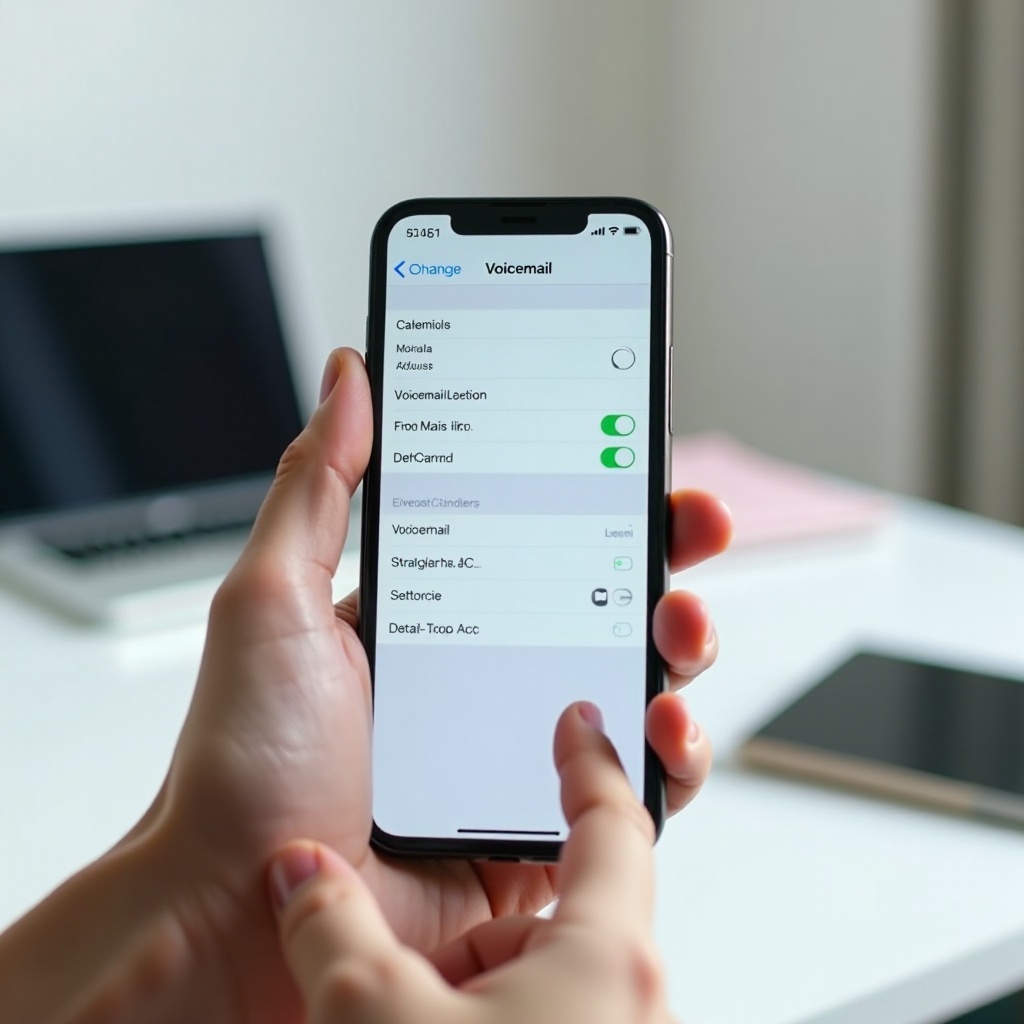
- Tap the Voicemail tab.
You will see one of two main views:
- A list of messages and a Greeting button (Visual Voicemail).
- Only a Call Voicemail button (standard voicemail).
Knowing this helps you follow the right instructions. Now you are ready to walk through the actual setup process on your iPhone.
How to Set Up Voicemail on Your iPhone for the First Time
If voicemail has never been set up on your iPhone, you can configure everything from the Voicemail tab. This usually takes only a few minutes and requires just a few simple steps.
Open the Phone App and Go to the Voicemail Tab
Start on your Home Screen:
- Tap the Phone app.
- At the bottom right, tap the Voicemail tab.
If voicemail is not set up, you will see a Set Up Now button. If you instead see Call Voicemail, your carrier may have already created a mailbox, or voicemail might still be using only standard dial‑in access. In that case, follow your carrier’s audio prompts once, then come back to the Voicemail tab and check again.
Tap ‘Set Up Now’ and Create a Voicemail Password
When you tap Set Up Now, your iPhone walks you through choosing a voicemail password:
- Enter a voicemail password that you can remember but others cannot guess easily.
- Tap Done.
- Re‑enter the same password to confirm.
- Tap Done again.
This password protects your mailbox when you dial in from another phone or when your carrier asks you to verify access. If your carrier assigned a default password, you might have to enter that once before setting a new code.
Choose a Default or Custom Voicemail Greeting
After you set the password, you will see greeting options:
- Default: A generic greeting, sometimes including your phone number.
- Custom: A greeting you record in your own voice.
To record a custom greeting:
- Select Custom.
- Tap Record and speak clearly into the microphone.
- Tap Stop when you finish.
- Tap Play to listen.
- Tap Record again if you want to change it.
- Tap Save when you are happy with your greeting.
Your voicemail is now active. Callers who reach your voicemail will hear this greeting and can leave a message. Next, you can refine your greeting style for professional or personal use and make sure it sounds polished.
How to Record and Customize a Voicemail Greeting on iPhone
Your voicemail greeting is the first thing callers hear when you cannot answer. A clear and appropriate greeting helps you sound professional, reliable, and easy to reach.
Recording a Professional Voicemail Greeting
If you use your iPhone for work, aim for a clean and direct professional greeting. Keep these points in mind:
- State your full name and, if relevant, your company or role.
- Mention that you cannot answer right now.
- Ask the caller to leave their name, number, and a brief message.
- Set an expectation about when you will call back.
Example script:
Hi, you have reached Emma Clark with Summit Financial. I cannot take your call right now. Please leave your name, number, and a brief message, and I will return your call as soon as possible.
Record this in a quiet room, hold the phone near your mouth, and speak at a normal speed.
Recording a Friendly or Personal Voicemail Greeting
For personal use, you can sound more relaxed but still be clear. For example:
Hey, this is Liam. I missed your call, but I would love to hear from you. Leave a message and I will get back to you soon.
Avoid background music, loud noise, or jokes that might confuse someone calling for the first time. Friends and unknown callers should both understand your greeting easily.
Reviewing, Re‑Recording, and Saving Your Greeting
You can change your greeting at any time:
- Open Phone → Voicemail.
- Tap Greeting in the top left.
- Choose Custom.
- Tap Record, speak your new greeting, then tap Stop.
- Tap Play to review.
- Tap Save to apply it.
This makes it easy to adjust your greeting when you change jobs, want a more formal tone, or are away and need a temporary message. Once your greeting sounds right, it is time to learn how to check, manage, and protect the messages people leave for you.
How to Check, Listen To, and Manage Voicemail Messages
After you set up voicemail, your iPhone becomes the main place where you see and control your messages. Understanding how to access and manage these messages helps you keep your inbox organized and useful.
How to See New and Saved Voicemails in the Voicemail Tab
When someone leaves a voicemail, your iPhone usually alerts you with:
- A red badge on the Phone app icon.
- A notification banner or lock screen alert.
To view your messages:
- Open the Phone app.
- Tap the Voicemail tab.
You will see a list of voicemail messages showing the caller name or number, the time, and the length. New messages generally appear at the top. If your carrier supports transcription, you may see text under each entry that attempts to capture what the caller said.
Playing, Deleting, and Undeleting Voicemail Messages
Managing voicemail messages is simple once you know the controls:
- Play a voicemail: Tap the message, then tap the Play button.
- Use speaker: Tap the speaker icon to listen hands‑free.
- Delete a voicemail: Tap Delete or swipe left and tap the delete option.
- Undelete: Tap Deleted Messages at the bottom, select the message, and choose Undelete if your carrier supports this feature.
Regularly deleting messages you do not need helps prevent your mailbox from filling up and blocking new voicemails.
Saving and Sharing Important Voicemails from Your iPhone
Some voicemails contain important information that you may want to keep long term. To save or share a voicemail:
- Open the voicemail you want to keep.
- Tap the share icon (square with an arrow pointing up).
- Choose Messages, Mail, Notes, or a cloud storage app.
This creates a copy of the audio file outside the Phone app. You can save meaningful messages, instructions, or business details even if you later clear your voicemail inbox. As you use voicemail more, you may also want to update your password and greeting from time to time.
How to Change Your Voicemail Password and Greeting Later
You are not locked into your first voicemail settings. You can change both your password and greeting directly from your iPhone whenever your needs or security concerns change.
Changing Your Voicemail Password in Settings
To change your voicemail password:
- Open Settings.
- Tap Phone.
- Tap Change Voicemail Password.
- Enter a new password and tap Done.
- Re‑enter the password to confirm.
Choose a code that is easy for you to remember, but do not use simple patterns like 1111 or 1234. A stronger password makes it harder for someone else to access your voicemail.
What to Do If You Forgot Your Voicemail Password
If you cannot remember your voicemail password and your iPhone will not let you change it:
- Check your carrier’s app or website for a voicemail password reset option.
- Search online for ‘[your carrier] reset voicemail password’.
- Contact your carrier’s customer support if you do not see a self‑service option.
Once they reset the password on their side, you can set a new one from your iPhone.
Updating Your Voicemail Greeting for Vacations or Work
Your schedule changes, and your greeting can change with it. For example:
- Before a vacation, record a greeting that mentions you are away and when you will return.
- During busy seasons, explain that responses may take longer and offer alternate contact options if needed.
To update your greeting, go to Phone → Voicemail → Greeting, record the new message, and save it. When things return to normal, record a standard greeting again. Your carrier also shapes how voicemail behaves, so it helps to know a few provider‑specific notes.
Carrier‑Specific Tips for iPhone Voicemail in the US
The core setup steps are similar on all carriers, but small differences can affect how voicemail and Visual Voicemail appear on your iPhone. Knowing a few carrier details can make troubleshooting easier.
AT&T iPhone Voicemail Setup and Shortcuts
On AT&T:
- Visual Voicemail usually works inside the built‑in Phone → Voicemail tab.
- If setup fails or the Voicemail tab looks wrong, contact AT&T and ask them to reset your voicemail feature.
- You can often press and hold 1 in the Phone app to dial into voicemail using standard audio prompts.
If you recently moved your number from another phone type, AT&T may need to refresh your voicemail profile to work correctly with iPhone.
Verizon iPhone Voicemail and Visual Voicemail Notes
On Verizon:
- Most lines include voicemail, but Visual Voicemail may require certain plans.
- If you do not see Visual Voicemail messages, make sure mobile data is turned on and you have coverage.
- You can dial *86 from your iPhone keypad to access voicemail directly.
After you activate a new line, Verizon may send setup notifications. Follow those prompts and then check the Voicemail tab again.
T‑Mobile and Other Popular Carriers and MVNOs
With T‑Mobile and smaller carriers or MVNOs (such as Mint, Metro, or Visible):
- Support for Visual Voicemail depends on the plan and network.
- Some carriers offer separate voicemail apps, but iPhone Visual Voicemail usually works in the Phone app when supported.
- If you only see Call Voicemail, confirm with your provider whether Visual Voicemail is enabled for your line.
If voicemail acts strangely after a carrier change, ask support to reset your mailbox from their side. If problems continue, you may need to troubleshoot on the device itself.

Troubleshooting Common iPhone Voicemail Problems
Even when you follow every step, voicemail does not always behave. Common issues include missing voicemail tabs, messages not arriving, or Visual Voicemail not loading. The good news is that most of these problems have clear fixes.
‘Voicemail Unavailable’ or Missing Voicemail Tab
If you see ‘Voicemail Unavailable’ or the Voicemail tab shows only a call button without a message list:
- Confirm that you have strong cellular signal and no Airplane Mode.
- Restart your iPhone.
- Go to Settings → General → About. If you see a prompt for a Carrier Settings Update, accept it.
- Wait a minute and check the Voicemail tab again.
If the message list still does not appear, contact your carrier and ask them to check your voicemail feature or reset your mailbox. The iPhone relies on the carrier for this connection.
Not Receiving Voicemails or Callers Cannot Leave Messages
If people say they cannot leave voicemails or you never see new messages:
- Check that Do Not Disturb or any Focus mode is not blocking calls.
- Open Settings → Phone → Call Forwarding and confirm calls are not forwarded away by mistake.
- Open your Voicemail tab, delete old messages you do not need, and clear Deleted Messages to free space.
- Call your own number from another phone, let it ring, and see what happens when it goes to voicemail.
If callers hear ‘mailbox full’ or ‘service not available’ even after you clear space, your carrier might need to reset capacity or recreate your voicemail box.
Visual Voicemail Not Working or Not Showing Messages
When Visual Voicemail does not load or does not show new messages:
- Make sure Cellular Data is on in Settings → Cellular.
- Restart your iPhone and open the Voicemail tab again.
- If you recently changed your SIM or eSIM, remove and reinsert the SIM or re‑activate the eSIM.
- If issues persist, back up your iPhone and then go to Settings → General → Transfer or Reset iPhone → Reset → Reset Network Settings.
After a network reset, you will need to re‑enter Wi‑Fi passwords. If Visual Voicemail still fails, contact your carrier to confirm that Visual Voicemail is enabled on your exact plan and line.
Advanced iPhone Voicemail Tips and Best Practices
Once voicemail works reliably, you can focus on keeping your inbox organized, easy to use, and secure. A few simple habits make a big difference over time.
Managing a Full Voicemail Inbox Without Losing Messages
A full voicemail inbox stops new messages from coming in. To avoid this:
- Delete messages you no longer need on a regular schedule.
- Open Deleted Messages and clear them so they no longer count toward your limit.
- Use the share option to save important voicemails as audio files in email or cloud storage before deleting them from the inbox.
This gives you room for new calls while preserving any messages you want to keep permanently.
Using Voicemail Transcription and Accessibility Features
If your carrier supports transcription, you will see a text version of the voicemail below each message. This is useful when you:
- Are in a meeting or quiet place and cannot play audio.
- Have trouble hearing the caller clearly.
- Want to scan the content quickly before listening.
You can also combine voicemail with accessibility tools in Settings → Accessibility, such as hearing aid support, audio routing, or Live Captions, to make listening and responding easier.
Security and Privacy Tips for Your Voicemail Inbox
Your voicemail can contain sensitive information, so it deserves the same care as your email and messages. To keep it secure:
- Use a strong, unique voicemail password and change it periodically.
- Do not share your voicemail PIN or password with anyone.
- Update your password and greeting if your phone is lost or if your number becomes widely known to unknown callers.
- Avoid leaving sensitive details such as full account numbers in voicemails you send to others.
With these habits in place, your voicemail will stay both useful and safe.
Conclusion
Setting up voicemail on your iPhone is straightforward once you know where to look and how it connects to your carrier. You start by confirming your device, plan, and signal, then you use the Phone → Voicemail tab to create a password and record a greeting. From there, you can check messages, manage your inbox, save important voicemails, and update your greeting whenever your needs change.
If problems appear, they usually come down to carrier provisioning, network issues, or a mailbox that needs a reset. By following the steps in this guide, you can confidently answer ‘how do I set voicemail on my iPhone’ for your own device and keep your voicemail running smoothly so you never miss an important message again.
Frequently Asked Questions
Why doesn’t my iPhone show the “Set Up Now” button in the Voicemail tab?
This usually means voicemail is not fully activated on your line. Restart your iPhone, check for a carrier settings update in Settings → General → About, and make sure you have a good cellular signal. If you still only see ‘Call Voicemail’ or an error, contact your carrier and ask them to enable or reset voicemail for your number.
Can I turn voicemail off on my iPhone and just use missed calls or texts?
You normally cannot disable voicemail from the iPhone alone because voicemail is controlled by your carrier. You can turn off call forwarding and ask your carrier to disable voicemail on your line if they support that option. When voicemail is off, callers may hear continuous ringing or a generic message instead of reaching a mailbox.
Will my voicemail stay if I switch to a new iPhone or change carriers in 2024?
If you move to a new iPhone but keep the same number and carrier, your voicemail inbox usually stays, though you may need to set Visual Voicemail up again. If you change carriers, your old mailbox and saved messages almost always disappear because the new provider creates a fresh mailbox. Always save or export important voicemails before you switch.