
Introduction
Changing your phone hotspot name takes only a minute and improves privacy, security, and daily convenience. The hotspot name, also called the SSID, appears to everyone scanning for Wi‑Fi nearby. If it includes your real name or device model, you reveal personal details to strangers and make it easier for others to identify your phone. A unique, neutral name also makes it simple for your laptop and tablet to pick the right network in crowded places like offices, airports, and hotels.
This guide explains how to rename your hotspot on iPhone and on Android phones from Samsung, Google Pixel, OnePlus, Motorola, and more. You will learn quick steps, brand‑specific paths, security tips, and fixes when the new name does not appear. Start with the quick answer to get it done fast, then move into deeper steps and best practices to keep your connection safe and easy to use.
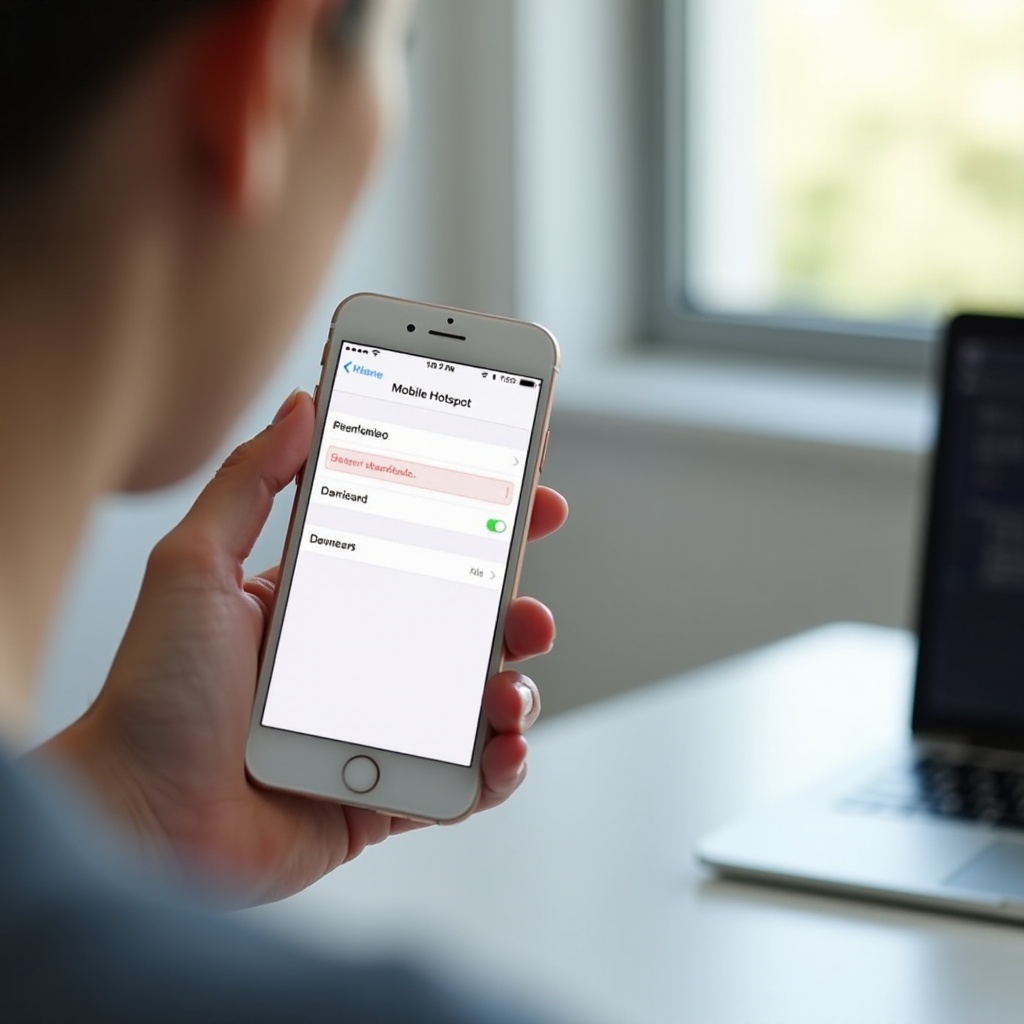
Quick Answer: Change Your Hotspot Name on iPhone and Android
If you only need the steps, use these instructions. They work in most cases and take less than a minute.
-
iPhone
1) Go to Settings > General > About > Name.
2) Enter a new device name. Your Personal Hotspot uses this as its SSID.
3) Go to Settings > Personal Hotspot and toggle Allow Others to Join off and on.
4) Share or update the password if needed. -
Android (most phones)
1) Go to Settings > Network & Internet (or Connections) > Hotspot & tethering.
2) Tap Wi‑Fi hotspot or Mobile Hotspot > Hotspot name (SSID).
3) Enter the new name, then Save or Apply.
4) Turn the hotspot off and on to refresh the broadcast.
Those steps handle the basics. Before you move on, it helps to understand why a smart hotspot name and secure settings matter for privacy, security, and smooth sharing.
Why Changing Your Hotspot Name Matters (Privacy, Security, and Convenience)
Privacy: avoid broadcasting personal information
When your SSID contains personal info, such as your full name, company, school, or phone model, anyone nearby can see it. Renaming the hotspot reduces your digital footprint. A neutral SSID limits what strangers can infer about you, lowers the risk of targeted phishing in public spaces, and helps you stay discreet when you tether on the go.
Security: deter casual attempts and confusion
Your password is the main lock, but a clean, unique name helps too. A neutral SSID reduces confusion in crowded areas where many networks look similar. It makes it less likely that someone clicks your network by mistake or tries to connect to a hotspot that looks valuable. Combined with strong encryption and a long password, a fresh name helps keep freeloaders out.
Convenience: easy recognition in crowded places
In busy cafes or shared offices, you may scroll past dozens of networks. A short, memorable name helps your devices find and rejoin the correct network fast. When you share access with coworkers or family, a clear name means fewer questions and fewer failed attempts. You will spend less time troubleshooting and more time getting online.
You now know why a new name helps. Next, follow the exact iPhone steps to change the hotspot SSID safely.
iPhone: Rename Your Personal Hotspot (iOS 17/18)
Steps: Settings > General > About > Name
On iPhone, the Personal Hotspot name matches the device name. To change it safely and quickly:
1) Open Settings > General > About > Name.
2) Enter a new device name. Keep it neutral and short for easy sharing.
3) Tap Done. This updates your device name across the system, including your hotspot.
Verify under Settings > Personal Hotspot
Open Settings > Personal Hotspot. Toggle Allow Others to Join off and on. On a second device, refresh the Wi‑Fi list and confirm the new name appears. If the old name still shows, toggle Wi‑Fi off and on on the connecting device or ask it to rescan.
Optional: Update hotspot password and security
While you are in Personal Hotspot, create a stronger password. Aim for at least 12 characters with a mix of letters, numbers, and symbols. iPhone uses strong encryption by default, so a robust password is the most important step. A new SSID plus a new password is a great security reset if you have shared your hotspot widely in the past.
When to use Reset Network Settings
If the hotspot name does not update or clients fail to connect, consider Reset Network Settings. Go to Settings > General > Transfer or Reset > Reset > Reset Network Settings. This clears Wi‑Fi networks, Bluetooth pairings, and APN settings. Use it only after you have tried simpler fixes like toggling the hotspot, forgetting the network on the client device, and restarting both devices.
With iPhone covered, let us walk through the core Android steps that work on most phones before we move into brand‑specific menus.
Android: Rename Your Mobile Hotspot (Core Steps for Most Phones)
Settings > Network & Internet > Hotspot & tethering
Open Settings and tap Network & Internet. On some phones, the menu is labeled Connections. Choose Hotspot & tethering and then Wi‑Fi hotspot or Mobile Hotspot. Here you can edit the name, password, and security mode.
Wi‑Fi hotspot > Hotspot name (SSID) > Save
Tap Hotspot name or Configure. Enter your new SSID. Use simple characters and keep the name unique, especially if you live in an apartment building or work in a large office. Tap Save or Apply. Then toggle the hotspot off and on so the new name broadcasts cleanly. Ask client devices to rescan if the old name lingers in their lists.
Choose WPA3/WPA2 and update password
Use WPA3 when all your devices support it. If older laptops or accessories cannot connect, switch to WPA2 or mixed mode if available. Update your password to at least 12 characters. Avoid real words, names, and birthdays. A fresh SSID and password combo is your best defense when sharing mobile data in public.
Toggle hotspot off/on to refresh
After you save changes, turn the hotspot off and back on. If the SSID still does not appear, reboot your phone. Also ask client devices to toggle Wi‑Fi or forget and rejoin the network. This quick refresh solves most caching and display issues.
Now that you know the general path, the next sections show exact menus for popular Android brands starting with Samsung.
Samsung (One UI 6/7): Change Mobile Hotspot Name and Settings
Connections > Mobile Hotspot and Tethering > Mobile Hotspot > Configure
Go to Settings > Connections > Mobile Hotspot and Tethering > Mobile Hotspot. Tap Configure or Configure Mobile Hotspot. Change the Network name (SSID), set a strong password, review the security type, and tap Save. Turn the hotspot off and on to push the update to nearby devices.
Band selection (2.4 GHz vs 5 GHz)
Samsung offers band control on many models. Use 2.4 GHz for compatibility and wider range or 5 GHz for faster speeds and less congestion. If a device cannot find your hotspot, switch to 2.4 GHz. If speeds suffer in a busy space, try 5 GHz. If your phone supports dual‑band broadcasting, you may assign separate names to each band for easy targeting.
WPA3/WPA2 and auto-disconnect options
Choose WPA3 for newer devices and WPA2 if you run into compatibility problems. Review auto‑disconnect or power‑saving options that stop the hotspot when idle. These prevent unwanted background connections and help conserve battery life. With Samsung covered, let us look at the Google Pixel menus, which are simple and consistent.
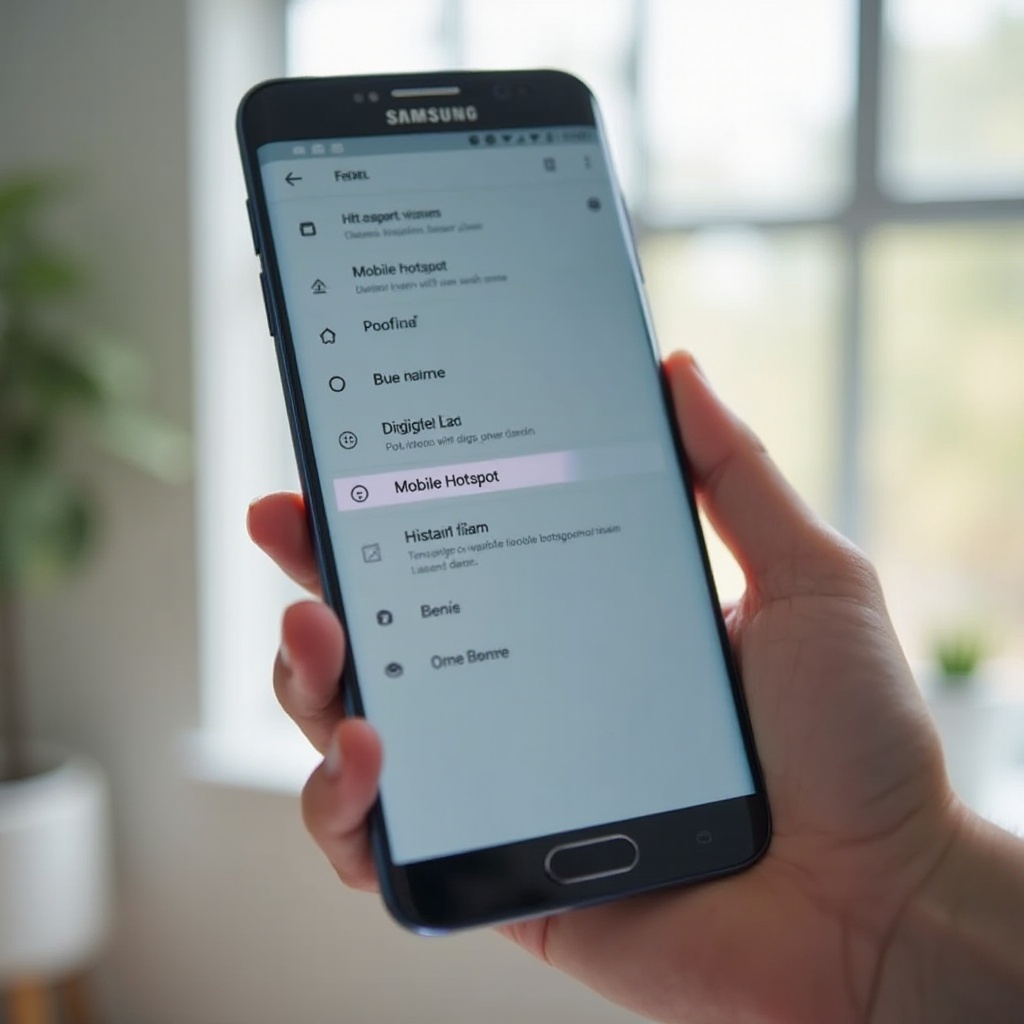
Google Pixel (Android 14/15): Change Hotspot Name and Security
Network & Internet > Hotspot & tethering > Wi‑Fi hotspot
On Pixel, open Settings > Network & Internet > Hotspot & tethering > Wi‑Fi hotspot. Tap Hotspot name and enter your new SSID. Save, then toggle the hotspot to refresh. On your laptop or tablet, rescan and join the new name.
Edit SSID, password, and AP band
While editing, update the password and pick an access point band. Start with 2.4 GHz if you connect older devices or need better range. Choose 5 GHz when you want higher throughput and share with modern devices.
Family hotspot and instant tethering notes
Features like Family hotspot and instant tethering can streamline connections for trusted devices. They do not change how you rename the SSID, but they may allow quick joins. After renaming, verify that trusted devices still connect. If a device fails, forget the network and join again with the updated name and password.
Next, see how other Android brands label the same controls so you can find the SSID box quickly.
OnePlus, Motorola, and Other Android Brands: Where to Find the SSID Setting
OnePlus/Oppo (OxygenOS/ColorOS): Wi‑Fi & Network > Hotspot & Tethering
On OnePlus and Oppo phones, go to Settings > Wi‑Fi & Network > Hotspot & Tethering > Wi‑Fi Hotspot. Tap Hotspot name, enter the new SSID, and Save. Update the password and confirm the security type. If you cannot locate the menu, use the Settings search bar and type hotspot or tethering.
Motorola: Network & Internet > Tethering & Mobile Hotspot
On Motorola, open Settings > Network & Internet > Tethering & Mobile Hotspot > Wi‑Fi hotspot. Tap Hotspot name or Configure, enter the new SSID, Save, and toggle the hotspot. If clients cannot see the new name, switch the band or reboot the phone.
Other UI variations and search tips
Android skins change menu names, but the structure stays similar. Look for Network, Connections, Hotspot & tethering, or Wi‑Fi hotspot. When in doubt, search for SSID or hotspot in Settings. After saving changes, always toggle the hotspot and have client devices forget and rejoin to avoid cached entries.
If you still have issues after these steps, the next section gives a clear troubleshooting path to refresh names and fix stubborn connection problems.
Troubleshooting: Hotspot Name Will Not Change or Devices Still See the Old Name
Turn hotspot off/on, toggle Airplane Mode, reboot both devices
Start with easy resets. Turn the hotspot off and on. Toggle Airplane Mode for about 10 seconds, then disable it. Restart your phone and the device trying to connect. These steps clear temporary network caches and force a fresh Wi‑Fi scan.
Forget the network on client devices and reconnect
On laptops, tablets, and other phones, open Wi‑Fi settings and forget the old network. Rescan for available networks and select the new SSID. Enter the updated password. If your phone broadcasts only on 5 GHz and the client supports only 2.4 GHz, change the band to 2.4 GHz, then try again.
Clear Settings or Wi‑Fi services cache on Android
If Android refuses to save the SSID or the change does not stick, clear cache and storage for Settings and Wi‑Fi or network services. The exact names vary by brand. After clearing, reboot the phone, rename the hotspot again, save, and toggle the hotspot. Check for pending system updates as they sometimes fix Wi‑Fi service glitches.
Check MDM or carrier restrictions, then reset network settings
Work profiles, device management policies, or carrier limits can block hotspot edits or use. If your phone belongs to an employer or school, ask the admin to confirm what is allowed. As a last step, reset network settings. On Android, go to Settings > System > Reset options > Reset Wi‑Fi, mobile & Bluetooth. On iPhone, use Reset Network Settings as noted earlier. If problems persist, contact your carrier or device maker for support.
With common problems out of the way, take a moment to choose a strong, practical name and password that balance privacy and convenience.

Best Practices for Naming and Securing Your Hotspot
Use a unique, non-identifying SSID
Pick a neutral name that does not reveal who you are or what device you carry. Short and distinct names stand out in crowded lists and reduce confusion. Avoid words that could draw unwanted attention or imitate nearby business networks.
Strong password hygiene and rotation
Use at least 12 characters. Combine upper and lower case letters, numbers, and symbols. Do not reuse passwords from other services. If you shared your hotspot widely at an event, rotate the password afterward. Consider a passphrase that is easy to recall and hard to guess.
Avoid special characters that cause compatibility issues
Some older devices struggle with certain symbols or spaces in SSIDs and passwords. If a device fails to connect after the rename, simplify the SSID to letters, numbers, underscores, or hyphens. Try again with a clear name and confirm the correct band and security type.
With your naming and security dialed in, the next tips help you tune performance for speed, range, and device compatibility.
Advanced Tips: Dual-Band Hotspots, WPA3, and Shared Connections
Separate names for 2.4 GHz and 5 GHz when available
If your phone supports both bands, assign different names such as MyHotspot‑24 and MyHotspot‑5G. Connect older or distant devices to 2.4 GHz for range and newer devices to 5 GHz for speed. This split makes troubleshooting simpler and improves overall performance.
WPA3 vs WPA2 compatibility trade-offs
WPA3 improves security but may block older devices. If a client cannot join, switch to WPA2 or enable mixed mode when available. Prefer WPA3 when all your devices support it. Review the connected devices list in your hotspot panel to ensure each device uses the intended band and security.
Managing concurrent connections and performance
Limit the number of allowed connections in hotspot settings to prevent overload. Place your phone on a desk or shelf for better signal. Close heavy background apps and pause large downloads on the host phone to keep bandwidth available for tethered devices. If throughput drops, change the band, try a different channel if your device allows it, or move to an area with less wireless interference.
Now that you have tuned security and performance, avoid common pitfalls that often cause confusion after a rename.
Common Mistakes to Avoid When Renaming Your Hotspot
Using personal names or phone models in SSID
Names like John‑iPhone or ACME‑Corp‑IT reveal identity and value. They can draw attention to your device. Stick to a neutral label that does not advertise personal or corporate details.
Forgetting to save or not restarting the hotspot
After editing the SSID, always tap Save or Apply. Then toggle the hotspot to refresh the broadcast. Many issues happen because the host phone or the client device still caches the old name. A quick off and on cycle fixes that.
Leaving the network open or using weak passwords
An open hotspot invites abuse and risks your data. Short or common passwords are easy to guess. Use a long passphrase with mixed characters. When you share widely, rotate the password later to keep control of access.
Conclusion
Renaming your hotspot is a fast upgrade with real benefits. On iPhone, change the device name to update the Personal Hotspot SSID. On Android, edit the Hotspot name in Wi‑Fi hotspot settings, save, and toggle the hotspot to refresh. Keep the name neutral, update the password, and prefer WPA3 when it works for your devices. If the new name does not appear, forget the old network on client devices, toggle Airplane Mode, or reset network settings as a last resort. With a few deliberate steps, you protect your privacy, reduce confusion in busy places, and keep tethering smooth for work, travel, and daily use.
Frequently Asked Questions
Can I set a different Personal Hotspot name on iPhone than my device name?
Not directly. iPhone uses the device name as the hotspot SSID. To change the hotspot name, rename the device in Settings > General > About > Name, then toggle Personal Hotspot.
Will changing my hotspot name affect connected devices or data usage?
Renaming the SSID makes devices treat it as a new network, so they will not auto reconnect until you select the new name and enter the password. The rename does not change data usage.
Why does my new hotspot name not appear on other devices immediately?
Devices cache Wi‑Fi networks. After renaming, toggle the hotspot off and on. On the client, toggle Wi‑Fi or Airplane Mode, forget the old network, or reboot. Switch bands if needed.