
Introduction
You bought an Apple Watch or reset your existing one, and now you are asking a simple but important question: how can I connect my Apple Watch to my iPhone the right way? The pairing process looks straightforward, but small mistakes can cause pairing failures, missing data, or a watch that does not sync properly.
This guide walks you through every step of connecting your Apple Watch to your iPhone. You will learn how to pair a brand-new watch, move a watch to a new iPhone, reconnect after a reset or repair, and fix common connection problems. You will also see how to keep both devices in sync so notifications, health data, and apps work exactly as they should.
Each section builds on the last. Start with the basics, follow the steps for your specific situation, and by the end you will have a stable connection and a watch that feels fully integrated with your iPhone.
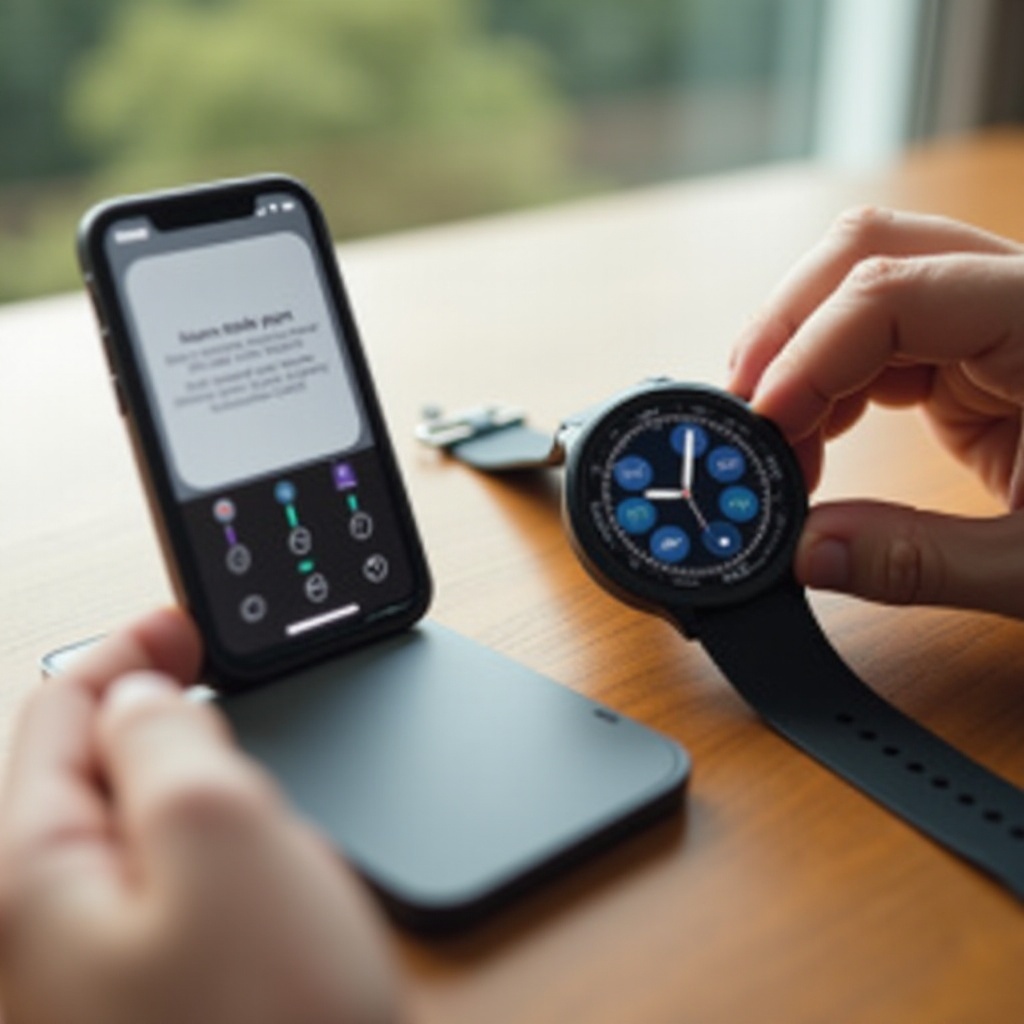
What You Need Before Connecting Your Apple Watch to Your iPhone
Before you tap any buttons, you need to make sure your Apple Watch and iPhone can work together. Many pairing issues come from outdated software, low battery, or disabled wireless settings. A few quick checks at the start save time and prevent frustrating errors later.
Apple Watch and iPhone compatibility depends mainly on the software versions they run. Your iPhone must support the watchOS version your Apple Watch needs. You also want enough battery and stable Bluetooth and Wi-Fi so the pairing and update steps finish without interruption.
Once you confirm compatibility, you can move into the actual pairing steps with much more confidence.
Check iPhone Compatibility and iOS Version
First, confirm that your iPhone model and iOS version support your Apple Watch. Recent Apple Watch models generally require an iPhone model capable of running current iOS versions.
To check your iOS version:
- Open Settings on your iPhone.
- Tap General.
- Tap Software Update.
If an update is available, install it before you pair your watch. Running the latest iOS improves compatibility, fixes bugs, and reduces the risk of connection problems.
Check Apple Watch Model and watchOS Version
Next, confirm your Apple Watch model and, if it is already set up, its watchOS version. This step matters most if you are reconnecting a used or previously paired watch.
- Turn on the Apple Watch.
- If it is already set up, open Settings on the watch.
- Tap General > About to view the model.
- Tap Software Update to see if an update is available.
If you are setting up a brand-new Apple Watch, the watch will guide you through any needed updates after pairing. Either way, making sure both devices are reasonably up to date helps the connection stay stable.
Charge Both Devices and Enable Bluetooth & Wi-Fi
Pairing and updating can take a while, especially if the watch needs a software update or you are installing many apps. You do not want your devices to shut down mid-process.
Make sure that:
- Your iPhone battery is at least around 50%.
- Your Apple Watch is on its charger and has at least around 50% battery.
Then, on your iPhone:
- Open Settings.
- Tap Bluetooth and turn it On.
- Go back and tap Wi-Fi, then connect to a reliable network.
Bluetooth handles the initial pairing; Wi-Fi and internet support backups, updates, and app installs. With these basics ready, you can move on to pairing your Apple Watch for the first time.
How to Pair a New Apple Watch With Your iPhone
Once your iPhone and Apple Watch are prepared, you can start the actual pairing. This is where you create the secure link that allows calls, messages, notifications, and health data to pass between your wrist and your phone.
Apple designed the pairing steps to be simple, but following them closely prevents stalled connections or a half-finished setup. After pairing, you will choose whether to set the watch up as new or restore from a backup if you have used an Apple Watch before.
Let's go through the first pairing of a new or reset Apple Watch.
Turn On Your Apple Watch for the First Time
Start with your Apple Watch on its charger.
- Press and hold the Side button (below the Digital Crown) until you see the Apple logo.
- Wait for the watch to boot and show the welcome screen.
You should see a screen that invites you to bring your iPhone near to set up the watch. This means the watch is ready to pair and is not linked to another device.
Use the iPhone Camera to Start the Pairing Process
On your iPhone:
- Make sure Bluetooth and Wi-Fi are turned on.
- Hold the iPhone close to the Apple Watch.
A message should appear on your iPhone that says something like:
Use your iPhone to set up this Apple Watch.
Tap Continue.
If you do not see the prompt, open the Watch app on your iPhone and tap Pair New Watch.
Next, you will see a camera viewfinder on the iPhone:
- Align the animation on your Apple Watch inside the iPhone's camera frame.
- When the pattern is recognized, the iPhone and watch begin pairing.
If the camera method fails, tap Pair Apple Watch Manually in the Watch app and follow the instructions on both screens.
Set Up as New or Restore From an Apple Watch Backup
Once the iPhone and Apple Watch connect, the Watch app asks how you want to set up the watch:
- Set Up as New Apple Watch: Choose this if this is your first Apple Watch or you want a clean start.
- Restore from Backup: Choose this if you used an Apple Watch before and want your old settings, app layout, and some data back.
If you restore from a backup:
- Select the most recent backup from the list.
- Wait while your iPhone restores settings to the watch.
This step can take several minutes depending on your data and apps. Keep your iPhone and Apple Watch close together until the process completes.
With the core pairing done, the next step is to tailor the watch experience with settings and personalization options.
Customizing Settings During the Initial Setup
After pairing, your iPhone will guide you through several setup screens that define how your Apple Watch behaves every day. This is where you decide how you unlock the watch, how notifications work, and which apps and watch faces appear.
These choices affect comfort, security, and how useful your watch feels on your wrist. You can always change them later in the Watch app, but doing a thoughtful setup now gives you a better experience from the start.
Let's look at the most important settings you will see right after pairing.
Choose Wrist Preference, Passcode, and Unlock Settings
First, you will choose which wrist you wear your watch on and which side the Digital Crown should be on. This helps with comfort and accurate motion detection.
Next, you will set up a passcode on your Apple Watch:
- Choose Create a Passcode when prompted.
- Enter a 4-digit or 6-digit code on the watch.
You can also enable Unlock with iPhone, which lets your iPhone unlock the watch when both devices are close and on your wrist. This keeps your data secure while making unlocking quick and almost invisible in daily use.
Configure Notifications, Privacy, and Location Services
Your Apple Watch can mirror iPhone notifications or use custom notification settings.
During setup you can:
- Choose whether to mirror notifications from your iPhone.
- Decide which apps can send alerts to your watch.
- Allow or deny location access for services like maps, weather, and workout tracking.
For a simple setup, mirror iPhone notifications now and fine-tune later in the Watch app. If you care strongly about privacy, take a moment to review which apps can use your location and health data.
Install Apps, Watch Faces, and Complications
Your iPhone may ask if you want to install apps that already have Apple Watch versions.
You can:
- Install all compatible apps in one go, or
- Skip for now and install apps manually later from the App Store tab in the Watch app.
Next, personalize your watch faces:
- Open the Watch app on your iPhone.
- Tap Face Gallery.
- Browse and add faces that match your style and needs.
Complications are the small widgets on your watch face that show quick data, such as weather, activity rings, or calendar events. Choose complications you use often so your watch face becomes a helpful dashboard for your day.
Once your settings and faces are ready, your watch is personalized and ready for daily use. If you are upgrading to a new iPhone, the next section explains how to move your Apple Watch without losing data.
How to Connect Your Apple Watch to a New iPhone
If you have just upgraded your iPhone, you might wonder how you can connect your Apple Watch to your new iPhone without losing your health history and settings. This process is slightly different from setting up a brand-new watch because you want to protect existing data and avoid confusion between devices.
The safest method is to back up your old iPhone, unpair the Apple Watch to create a dedicated watch backup, restore the new iPhone, and then pair the watch again. When you follow this order, your Apple Watch data travels with you to the new phone.
Here is how to handle the switch smoothly.
Back Up Your Old iPhone and Apple Watch First
Start by backing up your current iPhone. When you back up the iPhone, it also includes your Apple Watch data.
If you use iCloud Backup:
- Open Settings on your iPhone.
- Tap your name at the top, then tap iCloud.
- Tap iCloud Backup.
- Make sure it is turned on, then tap Back Up Now.
If you use a computer, connect your iPhone to a Mac or PC, open Finder or iTunes, and create an encrypted backup. Encrypted backups keep health and activity data safe.
Do not erase your iPhone or your Apple Watch until you know the backup has completed. Your backup is the safety net for your watch data when you move to the new phone.
Unpair Your Apple Watch to Create a Fresh Backup
When you unpair your Apple Watch from your old iPhone, iOS automatically creates a new backup of the watch on the iPhone.
To unpair the watch:
- Open the Watch app on your iPhone.
- Go to the My Watch tab.
- Tap All Watches at the top.
- Tap the i icon next to your watch.
- Tap Unpair Apple Watch and confirm.
If your Apple Watch has a cellular plan, you will be asked whether to keep or remove the plan. Choose to keep it if you plan to use the same watch with your new iPhone.
Wait for the unpairing process to complete. Your Apple Watch will reset to factory settings, and the backup will be stored with your iPhone backup.
Restore the New iPhone and Reconnect the Apple Watch
Now set up your new iPhone:
- Turn on the new iPhone and follow the on-screen setup steps.
- When asked how to set it up, select Restore from iCloud Backup or Restore from Mac/PC Backup.
- Choose the backup you just created from your old iPhone.
After the restore finishes and you sign in with your Apple ID, you are ready to reconnect the Apple Watch.
- Turn on your Apple Watch.
- Hold it close to the new iPhone.
- When the setup prompt appears, tap Continue, or open the Watch app and choose Pair New Watch.
Follow the pairing steps and, when prompted, select Restore from Backup. Choose the most recent Apple Watch backup. When the restore finishes, your watch should look and behave almost exactly as it did with your old iPhone.
Sometimes you need to reconnect a watch after a reset or repair, not just an iPhone upgrade. The next section covers that scenario.
How to Reconnect an Existing Apple Watch After Reset or Repair
If your Apple Watch was erased, repaired, or reset, you can reconnect it to your iPhone and restore much of your previous data. The steps look almost the same as setting up a new watch, but you rely on backups to bring back your settings and activity.
The key idea is simple: treat the watch as new during pairing, then choose the option to restore from backup at the right moment. This ensures that saved watch faces, app layout, and health data return wherever possible.
Here is how to reconnect an existing Apple Watch after a reset or service.
Erase and Prepare the Apple Watch for Pairing
If the watch is already erased, you will see the pairing animation and can move on. If not, erase it manually:
- On the Apple Watch, open Settings.
- Tap General > Reset.
- Tap Erase All Content and Settings and confirm.
Make sure your iPhone is nearby, unlocked, and connected to Wi-Fi. When the watch shows the pairing screen, you are ready to reconnect it.
Pair Again and Restore From the Latest Backup
On your iPhone:
- Hold the iPhone close to the Apple Watch.
- Tap Continue when you see the setup prompt, or open the Watch app and tap Pair New Watch.
- Use the camera to scan the pairing animation, or pair manually.
When the Watch app asks how you want to set up the watch, choose Restore from Backup instead of setting it up as new. Select the latest backup from the list.
Wait while your iPhone restores settings to the watch. Keep the watch on its charger and near the iPhone until the restore finishes.
Re-enable Apple Pay, Cellular, and Key Settings
Some sensitive items do not transfer through backups for security reasons, especially payment data. After the watch finishes restoring:
- Open the Watch app on your iPhone and re-add cards to Apple Pay.
- If you have a cellular Apple Watch, go to Cellular in the Watch app and follow your carrier's steps to re-activate the plan if needed.
- Review notification, privacy, and health settings to confirm they match your preferences.
Once these are back in place, your Apple Watch should feel familiar again. But even with careful setup, connection issues can still appear. The next section shows how to handle the most common problems.
Fixing Common Apple Watch and iPhone Connection Problems
Even if you follow every step correctly, you may still see errors such as 'Unable to Pair', a watch that does not show up in the Watch app, or a connection that drops after setup. Most issues come from software glitches, network settings, or incomplete resets.
The good news is that you can fix many of these problems at home. Start with simple checks and move toward more advanced resets only if the basic steps do not work. Treat this section as a troubleshooting checklist.
Apple Watch Won't Start the Pairing Animation
If your Apple Watch does not show the pairing animation or the setup screen:
- Place the watch on its charger and let it charge for at least 15 minutes.
- Press and hold the Side button until you see the Apple logo.
- If the watch was paired with another iPhone, go to Settings > General > Reset > Erase All Content and Settings on the watch.
After the reset, the watch should show the welcome screen. If it still does not, restart both the iPhone and the Apple Watch and try again using the manual pairing option in the Watch app.
iPhone Can't Find or Connect to the Apple Watch
If your iPhone does not detect the watch or the connection stalls:
- On the iPhone, open Settings and make sure Bluetooth and Wi-Fi are turned on.
- Check that Airplane Mode is off on both the iPhone and Apple Watch.
- Restart both devices.
- Move away from sources of wireless interference, such as crowded Wi-Fi networks or other Bluetooth devices.
If the watch appears but pairing will not finish, try updating iOS on your iPhone and, if possible, updating watchOS. You can also erase the Apple Watch and attempt the pairing steps from the beginning.
When to Reset Network Settings or Erase the Watch
If you still cannot connect your Apple Watch to your iPhone after trying the earlier steps, you may need to reset some settings.
On your iPhone, you can reset network settings:
- Go to Settings > General > Transfer or Reset iPhone.
- Tap Reset.
- Tap Reset Network Settings and confirm.
This removes saved Wi-Fi networks and Bluetooth connections, so you will need to rejoin Wi-Fi networks afterward.
If that does not help, erase the Apple Watch completely:
- On the watch, open Settings.
- Tap General > Reset.
- Tap Erase All Content and Settings.
Then try pairing again. If pairing still fails after these deeper steps, contact Apple Support or visit an Apple Store to check for hardware issues.
Once your devices are connected and stable, a few simple habits will help keep them in sync going forward.
Tips to Keep Your Apple Watch and iPhone in Sync
Pairing is only the beginning. To keep your Apple Watch and iPhone working well every day, you need up-to-date software, dependable wireless connections, and regular backups. These habits prevent many issues and make it easier to switch devices in the future.
Think of this section as long-term care for your Apple ecosystem. You do not have to follow every step daily, but checking these items from time to time will keep your connection strong.
Keep iOS and watchOS Updated
Apple often fixes pairing bugs and connection issues in iOS and watchOS updates. Running current software also gives you new features and security fixes.
To update your iPhone:
- Open Settings.
- Tap General > Software Update.
- Download and install available updates.
To update your Apple Watch:
- Open the Watch app on your iPhone.
- Tap General > Software Update.
- Install available updates while the watch is on its charger.
Updating both devices regularly reduces strange connection problems and keeps the watch and phone aligned.
Maintain Stable Bluetooth and Wi-Fi Connections
Your Apple Watch connects to your iPhone mostly over Bluetooth. It can also use known Wi-Fi networks when the phone is not nearby.
To keep connections stable:
- Do not turn off Bluetooth on your iPhone unless you have a specific reason.
- Keep your iPhone and Apple Watch within a practical range, especially indoors.
- Reconnect to trusted Wi-Fi networks on your iPhone so the watch can use them too.
If you notice frequent disconnections, check for obstacles like thick walls or heavy interference from other devices and move away when possible.
Use Regular Backups to Protect Health and Activity Data
If you care about your health and fitness history, regular backups are essential. Your Apple Watch backs up to your iPhone, and your iPhone backup then protects that data over time.
To protect health data, you can:
- Use iCloud Health syncing so health data stays in your iCloud account.
- Use encrypted backups when backing up to a computer.
These steps make it much easier to move to a new iPhone or recover from a reset without losing your activity rings, workouts, and other important data.
With these habits in place, your Apple Watch and iPhone should stay in sync and dependable. All that remains is to recap the main ideas and highlight how this process answers the question of how you can connect your Apple Watch to your iPhone.
Conclusion
You now know how to connect your Apple Watch to your iPhone step by step, from the very first pairing through more advanced situations like moving to a new iPhone or reconnecting after a reset. You have seen how to prepare both devices, customize settings, restore from backups, and troubleshoot the most common problems.
The core ideas are clear: keep your devices updated, make proper backups, and follow the recommended order when pairing or switching phones. When you do that, your Apple Watch and iPhone work together as a smooth, unified system that tracks your health, delivers notifications, and keeps you connected throughout the day.
Whenever you need to revisit the question 'how can I connect my Apple Watch to my iPhone', you can return to this guide, pick the section that matches your situation, and follow the steps with confidence.
Frequently Asked Questions
Can I connect more than one Apple Watch to the same iPhone?
Yes. You can pair multiple Apple Watches with a single iPhone. Open the Watch app, go to All Watches, and tap Add Watch to connect another one. You can switch between them from the All Watches screen, but only one watch can be active on your wrist at a time.
Can I connect my Apple Watch to a different iPhone without losing data?
You can move your Apple Watch to another iPhone without losing data if you follow the backup steps. First, back up your current iPhone. Then unpair the Apple Watch to create a fresh watch backup. Restore the new iPhone from that backup and pair the watch, choosing Restore from Backup when prompted.
Can I use an Apple Watch without having my iPhone with me all the time?
Yes, but with some limits. A cellular Apple Watch can make calls, send messages, stream music, and use some apps on its own when you have an active cellular plan. A GPS-only watch can still track workouts, play downloaded music, and show some stored data when away from the iPhone. You still need an iPhone for initial setup, updates, and full app management.