
Introduction
Stickers make chats fun, but they can also clutter your Messages app and other chat apps on your iPhone. Old sticker packs, unused Live Stickers, and random third-party sticker apps may crowd the interface and even use unnecessary space. If you feel overwhelmed by too many stickers or want a cleaner, faster messaging experience, deleting stickers on iPhone is the right move.
This guide walks you through every major way to delete stickers on iPhone in 2024, including iMessage, Live Stickers, and popular messaging apps like WhatsApp and Telegram. You will learn how to remove stickers from individual messages, delete entire sticker packs, uninstall sticker apps, and manage recent and favorite stickers. You will also see when deleting stickers helps storage and how to fix common problems when stickers will not go away.
By the end, you will have a clear, simple routine to keep stickers under control without losing the ones you love.
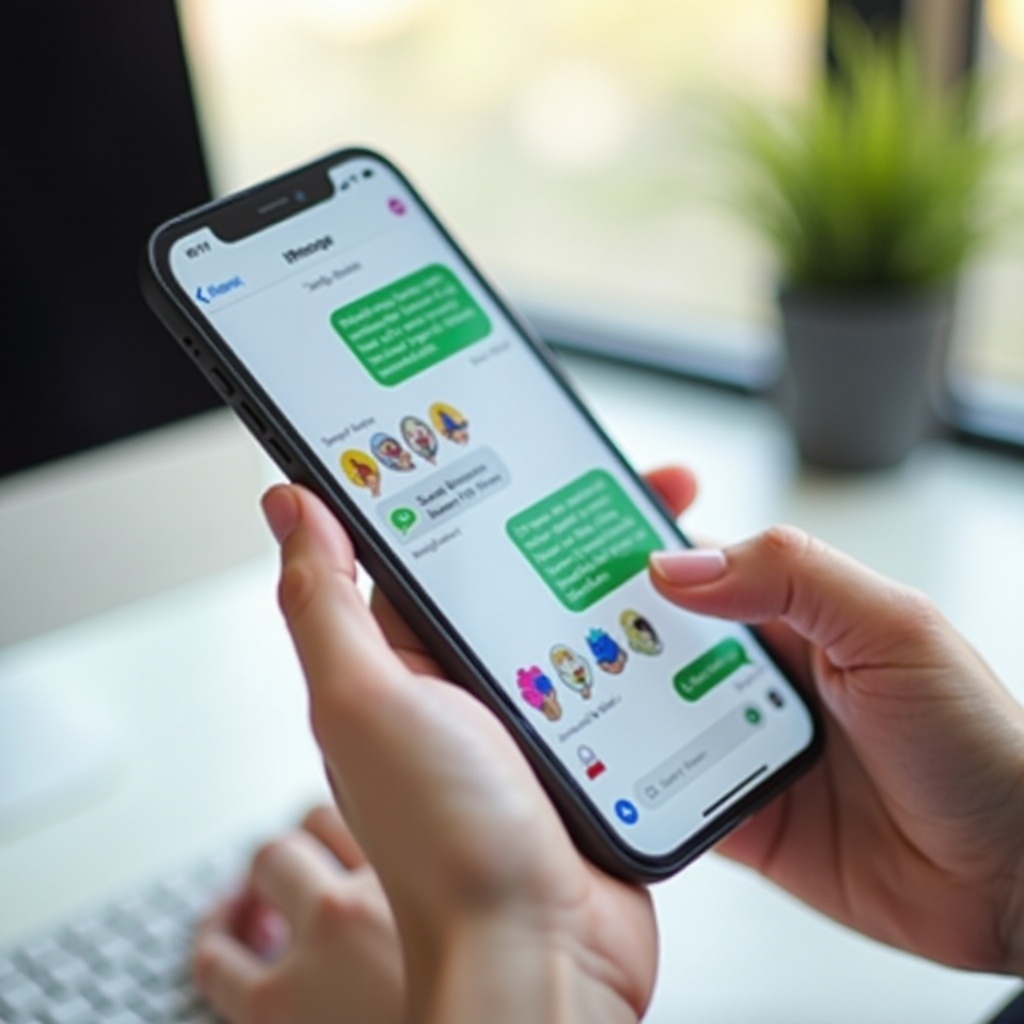
Understanding Stickers on iPhone in iOS 17 and Later
Before you start deleting anything, it helps to know what kind of stickers you have and how they work on iOS 17 and later. Different sticker types live in different places and do not all delete the same way, so understanding them will save time and avoid mistakes.
Types of stickers on iPhone: iMessage, Live Stickers, emoji stickers, and third-party packs
On an iPhone running iOS 17 or later, you will usually see these sticker types:
-
iMessage sticker packs
These are packs you install from the App Store that show up in the Messages app drawer. Some are free, others are paid, and many come from third-party developers.
-
Live Stickers
iOS 17 introduced Live Stickers, which you create from your own photos. You can lift a subject from a photo and save it as a sticker, sometimes with effects or animation.
-
Emoji stickers
Apple turns your regular emoji into sticker-like items you can drag onto messages. While they look like stickers, they behave more like emoji overlays and cannot be uninstalled like an app.
-
Third-party stickers in other apps
WhatsApp, Telegram, LINE, and other chat apps provide their own sticker packs. These live inside each app, not inside iMessage.
How stickers are stored and displayed in Messages
In the Messages app, stickers appear mainly in two places:
- The sticker panel in the app drawer, where you see packs, Live Stickers, and emoji stickers.
- Conversations, where stickers sit on bubbles, photos, or as separate messages.
Sticker packs from the App Store are installed like apps. They use storage space and show up in your iPhone Storage list. Live Stickers are tied to your Apple ID and can sync across devices with iCloud. Emoji stickers use built-in emoji data and do not add much extra storage.
What deleting stickers actually means in different contexts
When you talk about deleting stickers on iPhone, you may mean any of these actions:
- Removing a sticker from a single message or photo
- Deleting custom Live Stickers you created
- Hiding or uninstalling sticker packs from the Messages app drawer
- Removing sticker apps from the Home Screen
- Deleting sticker packs inside apps like WhatsApp or Telegram
Each action has a different impact. Some only clean up the look of your chats, while others free storage. The next sections go step by step so you can choose what you really need to delete.
Now that you know what you are dealing with, it makes sense to start with the most visible stickers: the ones already sitting on your messages.
How to Delete Stickers from Individual Messages
Sometimes you place a sticker on the wrong bubble or photo, or you change your mind right after sending it. In many cases, you can remove that sticker from the conversation and reduce visual clutter.
Removing a sticker from a text bubble in Messages
To remove a sticker from a specific bubble in iMessage:
- Open the Messages app.
- Go to the conversation where the sticker appears.
- Find the bubble with the sticker attached.
- Press and hold on the sticker itself, not just the bubble.
- Look for an option like ‘Sticker Details’ or a contextual menu.
- Tap ‘Remove’ or use ‘Undo Send’ if the sticker was sent recently and that option appears.
The exact wording may vary slightly by iOS minor version, but the basic idea stays the same: long-press the sticker, then choose the option to remove it.
Deleting a sticker from a photo or video in a conversation
Stickers also attach to photos or videos you send in Messages. To remove one:
- Open the conversation that contains the photo or video.
- Locate the image or video with the sticker.
- Press and hold on the sticker itself.
- Choose ‘Remove’ or a similar option when the menu appears.
You may not always be able to edit very old or already delivered media, especially if the other person has had time to see it. In those cases, you can delete the entire message on your end, but that will not remove it from the other person's device.
What happens in the chat when you remove a sticker
Removing a sticker usually affects:
- Your view of the conversation: the sticker disappears from the bubble or image.
- The other person's view: depending on timing and iOS version, they may still see the sticker if it has already synced.
If you use Undo Send within the allowed time window, the sticker may disappear on both ends. If you only remove it locally, the other person's chat may not change. Always assume the other person could have seen it already.
Cleaning up individual messages helps your chats look better, but many users also create custom Live Stickers from photos. These can pile up quickly, so the next step is to manage your Live Sticker collection.
Deleting Custom Live Stickers You Created
Live Stickers are fun and personal, but if you create many from your photos, the sticker panel can become crowded and harder to navigate. You can delete Live Stickers you no longer use and keep only your best ones.
Opening and viewing your Live Sticker collection
To see your Live Stickers in iOS 17 and later:
- Open the Messages app.
- Start a new message or open an existing conversation.
- Tap the ‘+’ button (or the apps icon) and choose Stickers.
- Look for the Live Stickers section. You will see the custom stickers you created from your photos.
This area shows all Live Stickers tied to your Apple ID on that device.
Deleting a single Live Sticker on iPhone
To delete one Live Sticker:
- Open the Stickers panel in Messages.
- In the Live Stickers section, press and hold the sticker you want to remove.
- From the menu that appears, tap Delete or Remove.
That sticker should disappear from your Live Sticker collection on that device.
Deleting multiple Live Stickers and how changes sync via iCloud
If you have many Live Stickers to remove:
- Open the Stickers panel.
- Tap any Live Sticker and look for an Edit or Manage option (this can vary slightly by minor updates).
- Select multiple stickers and choose Delete.
When iCloud sync is turned on for Messages and stickers, deletions may sync across your Apple devices. That means Live Stickers removed on your iPhone can also disappear from your iPad or other iPhones signed in with the same Apple ID.
Once your custom stickers look tidy, you may still have old sticker packs in the Messages app drawer. Those packs are often the main source of clutter, so the next step is to clean up the app drawer itself.
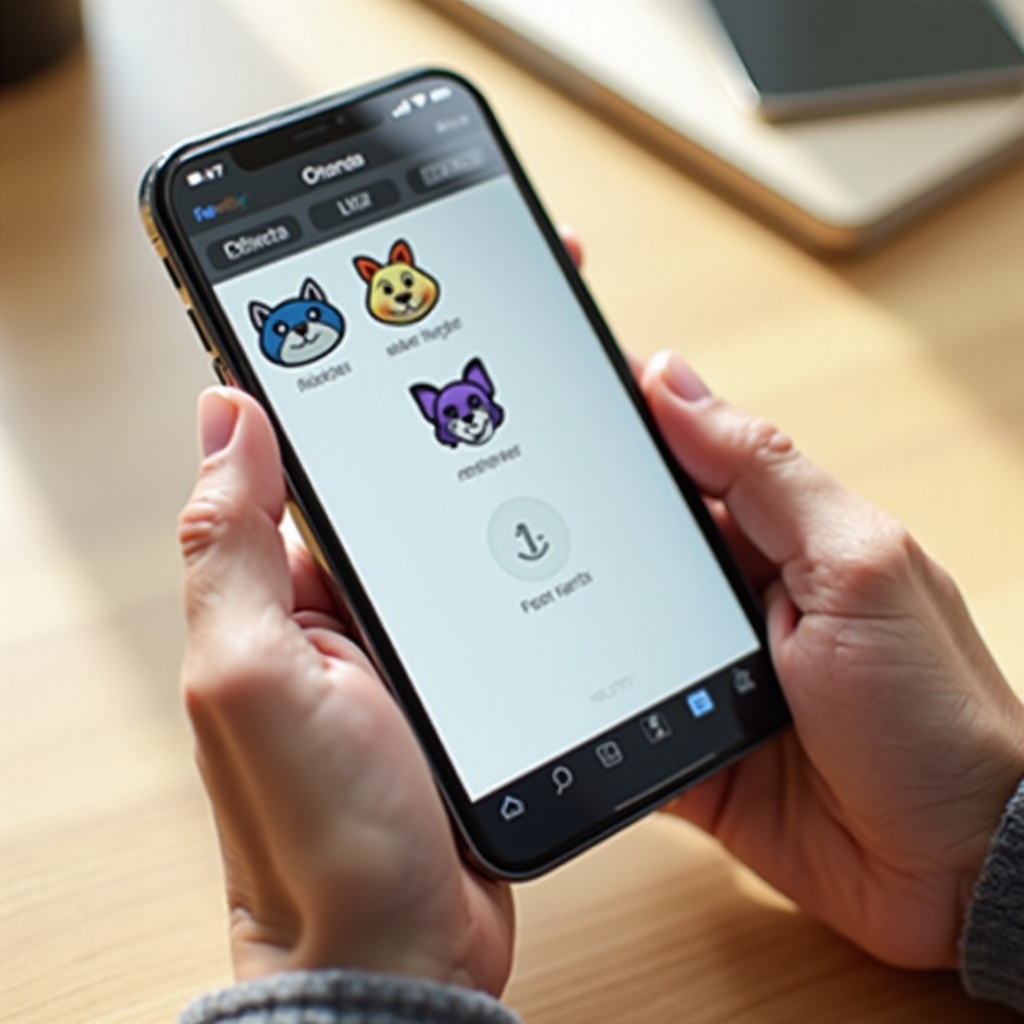
Removing Sticker Packs from the Messages App Drawer
Sticker packs in the Messages app drawer come from built-in packs or from apps you installed through the App Store. You can hide packs you rarely use or delete them fully, depending on how aggressively you want to clean.
Finding installed sticker packs in the Messages app drawer
To locate your sticker packs:
- Open Messages.
- Open any conversation.
- Tap the ‘+’ button or the apps icon near the text field.
- Swipe through the app drawer at the bottom to see different sticker packs and iMessage apps.
The icons you see here represent sticker packs or iMessage apps that can send stickers.
Hiding sticker packs you rarely use
If you only want a cleaner drawer without uninstalling anything:
- In the app drawer, scroll to the end and tap More (three dots) or Edit.
- You should see a list of apps and packs.
- Turn off the toggle next to packs you do not want to appear.
- Tap Done.
These sticker packs remain installed but no longer clutter your drawer. You can turn them back on at any time.
Deleting sticker packs completely so they no longer appear
To delete a sticker pack that behaves like an iMessage app:
- Open the App Store on your iPhone.
- Tap your profile picture at the top right.
- Go to Purchased and find the sticker app or pack.
- If it is installed, tap Open or manage it from your Home Screen.
- On the Home Screen, press and hold the app icon, then tap Remove App → Delete App.
Once you delete the app, the sticker pack it provided disappears from the Messages app drawer. You can download it again later from your purchase history if needed.
After cleaning the drawer, you may still have separate sticker-only apps on your iPhone. Those apps also take space and add icons you may not want, so the next step is to uninstall the ones you no longer need.
Uninstalling Third-Party Sticker Apps from iPhone
Many sticker packs come as full apps that sit on your Home Screen or in the App Library. Removing them helps clean Messages and can free some storage at the same time.
Deleting sticker apps from the Home Screen and App Library
To uninstall a sticker app from the Home Screen:
- Find the sticker app icon on your Home Screen.
- Press and hold the icon until a menu appears.
- Tap Remove App.
- Choose Delete App to uninstall it from your iPhone.
If the app only shows in the App Library:
- Swipe to the App Library page.
- Use the search bar at the top to type the app name.
- Press and hold the app, then tap Delete App.
Once deleted, stickers from that app will no longer appear in Messages.
Removing sticker apps through iPhone Storage settings
If you want to see how much space a sticker app uses:
- Open Settings.
- Tap General → iPhone Storage.
- Wait for the list to load.
- Scroll until you find the sticker app.
- Tap it, then choose Delete App.
This method is helpful when you want to remove the largest sticker apps first.
Confirming that the sticker app is gone from Messages
After deleting a sticker app:
- Open Messages.
- Go to any conversation.
- Open the app drawer.
The sticker pack associated with that app should be gone. If it still appears, close Messages, reopen it, and check again. If needed, restart your iPhone to refresh the list.
Once you take care of Messages and sticker apps, you may still see many stickers inside other messaging platforms. Those apps manage stickers separately, so the next section walks through deleting stickers in WhatsApp, Telegram, and similar apps.
Deleting Stickers in Popular Messaging Apps
Apps like WhatsApp, Telegram, and LINE use their own sticker systems. Deleting stickers inside Messages does not affect these apps. You must manage them inside each app to keep everything consistent.
How to delete sticker packs in WhatsApp on iPhone
To remove sticker packs in WhatsApp:
- Open WhatsApp on your iPhone.
- Open any chat.
- Tap the emoji icon next to the text field.
- Go to the stickers tab.
- Tap the ‘+’ icon or stickers icon to open the sticker store or manager.
- Go to My Stickers or a similar tab.
- Tap the trash icon or Edit, then delete packs you no longer use.
Deleted packs disappear from your sticker list in WhatsApp and may free a small amount of storage.
Managing and deleting sticker packs in Telegram and LINE
In Telegram:
- Open Telegram.
- Tap Settings → Stickers and Emoji.
- View your installed sticker packs.
- Tap Edit or the three dots next to a pack and choose Remove.
In LINE:
- Open LINE.
- Tap Home → Settings.
- Look for Stickers.
- Open My Stickers or Manage Stickers.
- Delete or hide packs you no longer want.
Each app has its own layout, but the idea is the same: go to sticker settings, then remove or hide packs you do not use.
Limits of deleting stickers in social apps like Instagram and Snapchat
Social apps such as Instagram and Snapchat offer sticker-like elements, but many of these are not traditional sticker packs:
- Instagram's GIFs and stickers are often pulled from online libraries.
- Snapchat includes Bitmoji and other overlays linked to your account.
You cannot usually uninstall these in the same way as iMessage sticker packs. You can only stop using them or adjust account settings related to features like Bitmoji or linked services.
After cleaning stickers inside messaging apps, you may still see old items in your recent list. The next step is to bring order to recents and favorites so the sticker panel stays easy to use.
Managing Sticker Recents and Favorites Without Clutter
Even after deleting packs, your recent stickers may still show older items. While iOS does not offer a one-tap clear recents option for stickers, you can reduce clutter and guide the system toward the stickers you actually use.
How recent stickers are generated in Messages
Recent stickers in Messages are:
- Created automatically when you send a sticker.
- Shown in a Recents section in your sticker panel.
- Updated over time as you use new stickers.
This list adapts to your habits but can feel noisy if you tested many packs before deleting them.
Practical workarounds to clear or reset recent stickers
You cannot always hard-reset this list, but you can push old stickers out:
- Use the stickers you actually like more often. New stickers move to the front.
- Open your remaining packs and send a few of your favorite stickers.
- Over time, older items fall off the recents list as new ones replace them.
If you want a very clean panel, focus on using just a few packs so recents become more predictable and helpful instead of distracting.
Using favorites and a small core set of packs
To keep things tidy:
- Keep only 2–4 core sticker packs that you really use.
- Favor Live Stickers created from your own photos instead of dozens of external packs.
- Avoid installing packs just to try them; if you do test a pack, delete it right away if you are not going to use it.
With recents and favorites under control, the sticker panel becomes faster to browse. Now it is worth looking at storage and performance so you understand when deleting stickers actually helps your iPhone run better.
Freeing Up Storage by Deleting Stickers and Sticker Data
Deleting stickers on iPhone can clean the interface, but does it really free space? The answer depends on which stickers you remove and how big the related apps are.
How much space sticker apps and packs usually use
Sticker packs and apps usually use less space than photos and videos, but some can still be large, especially animated packs:
- Small packs: a few megabytes
- Big animated or themed apps: tens or even hundreds of megabytes
You can check usage in Settings → General → iPhone Storage, then scroll through the list to find sticker-related apps.
Deleting conversations and media heavy with stickers
Stickers in conversations can add up with other media:
- In Settings → General → iPhone Storage → Messages, you can manage large attachments.
- Delete conversations with many stickers, GIFs, or images, especially large group chats.
- Set Messages → Keep Messages to 30 days or 1 year, so older content deletes over time.
Most storage gains come from removing photos, videos, and big attachments, but stickers included in those threads vanish as well.
When removing stickers actually improves performance
You may notice a smoother experience if you:
- Delete very heavy sticker apps that load large assets.
- Remove large third-party sticker packs in apps like WhatsApp.
- Keep your Messages app from loading dozens of packs every time you open the sticker panel.
The performance boost may be modest, but the interface will feel cleaner and easier to use, which often matters more than raw storage numbers.
If stickers still refuse to disappear or behave strangely, you might need some basic troubleshooting. The next section shows several quick fixes you can try.
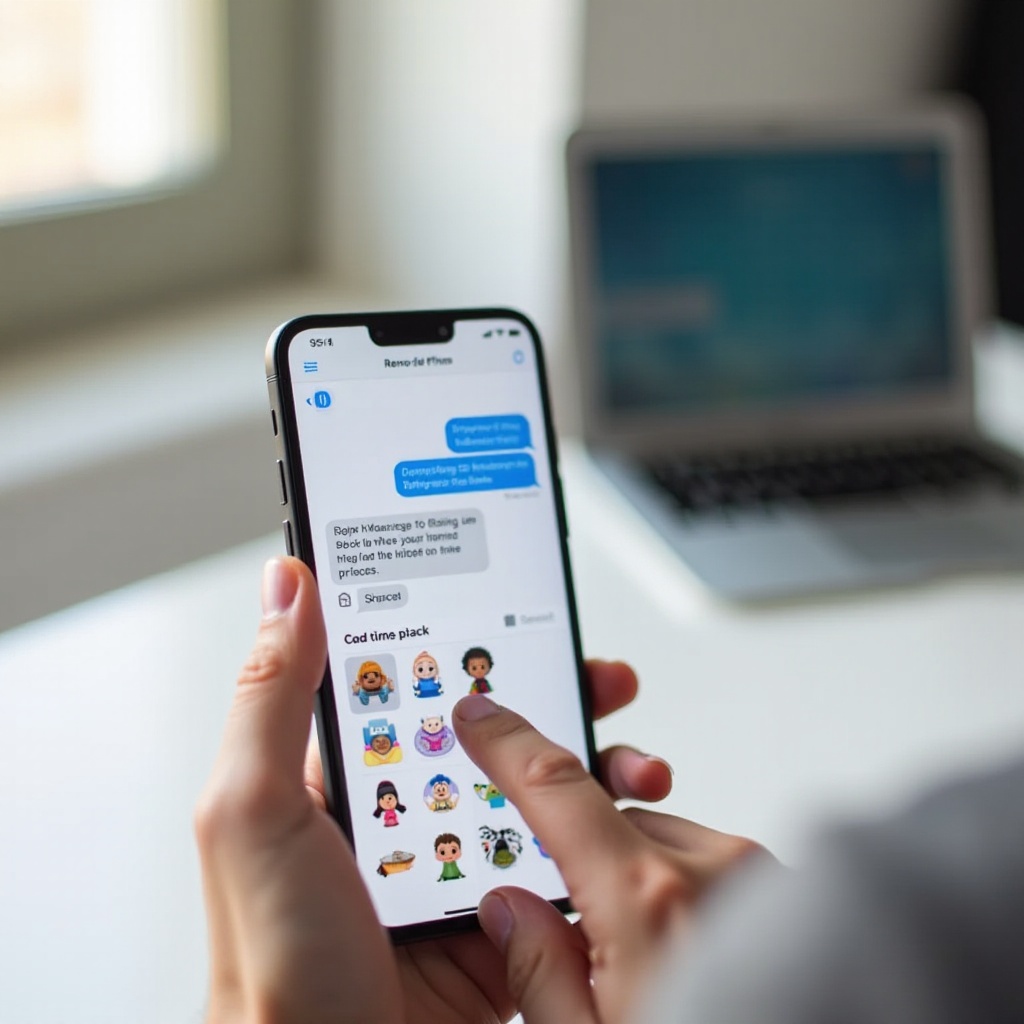
Troubleshooting When Stickers Won't Delete
Sometimes sticker packs remain in the drawer, or an app keeps its sticker entry even after removal. You can usually fix this with a few simple actions before you consider bigger resets.
Force-closing Messages or the affected app
If a sticker stays visible after deletion:
- Swipe up from the bottom of the screen and hold to open the app switcher.
- Swipe up on Messages (or the problem app) to close it.
- Reopen the app and check if the sticker is gone.
This refresh often updates the sticker list.
Restarting iPhone and checking for iOS updates
A quick restart can fix many small glitches:
- Hold the Side button and either Volume button.
- Slide to power off.
- Wait a few seconds, then power the iPhone back on.
Also, go to Settings → General → Software Update and install any new iOS version. Updates sometimes fix issues with Messages and stickers in iOS 17 and later.
Reinstalling apps and resetting settings as a last resort
If a sticker pack still appears after all other steps:
- Delete the related app completely from your iPhone.
- Restart your iPhone.
- If needed, reinstall the app and set it up from scratch, then manage its sticker options again.
As an extreme step, you can reset settings:
- Go to Settings → General → Transfer or Reset iPhone → Reset.
- Choose Reset All Settings.
This does not delete your personal data, but it resets system settings like Wi-Fi, privacy, and notifications, so use it only when other fixes fail.
Once your stickers behave and delete correctly, you can switch from cleanup to prevention. A few simple habits will keep your sticker library organized so you do not have to repeat a big cleanup often.
Best Practices to Keep Stickers Organized on iPhone
Keeping stickers organized is much easier than doing a full cleanup every few months. With a small routine and a few limits on new packs, you can keep Messages and other apps tidy long term.
Reviewing sticker packs and apps regularly
Once a month, quickly:
- Open Messages and scroll through the app drawer.
- Turn off or delete packs you did not use recently.
- Check iPhone Storage for large sticker apps and remove those you do not need.
Regular review prevents build-up and makes sure new stickers do not overwhelm your favorites.
Downloading only the sticker sets you truly use
Before downloading a new sticker pack:
- Ask yourself if you really need it and will use it often.
- Favor packs that match your usual style or topics instead of random themes.
- Avoid installing packs just for a one-time joke; send a meme, photo, or quick drawing instead.
This keeps your sticker library lean and full of items you actually enjoy.
Setting a simple monthly sticker cleanup routine
You do not need a complex system. Try this simple routine:
- Once a month, spend 5 minutes deleting or hiding unused packs.
- Remove any sticker-only apps that you have not opened in weeks.
- Refresh your Live Stickers so only your best and most-used ones remain.
With this routine, your sticker panel stays manageable, and you spend more time chatting and less time scrolling through clutter.
Conclusion
Deleting stickers on iPhone does not have to be confusing or time-consuming. By understanding the different sticker types iMessage packs, Live Stickers, emoji stickers, and third-party packs you can target exactly what you want to remove. You learned how to delete stickers from individual messages, clean up custom Live Stickers, hide and uninstall sticker packs, manage stickers inside apps like WhatsApp and Telegram, and handle recents, storage, and common issues.
Use the troubleshooting tips if a pack will not disappear, and follow the simple best practices to keep your sticker setup clean. With a few quick habits, your Messages app and other chats will stay organized, fast, and enjoyable to use, without losing the stickers that matter most to you.
Frequently Asked Questions
Can other people still see stickers I delete from our iMessage conversation?
If you remove a sticker by pressing and holding it and choosing remove, it usually affects your view of the chat. The other person may still see the sticker, especially if some time has passed or their device has already synced the message. If you use Undo Send within the allowed time window in Messages, the sticker may disappear on both devices. Always assume the other person could have seen the sticker already before you delete it.
Does deleting stickers on iPhone really free up storage space?
Deleting stickers on iPhone can free some space, but the amount varies. Removing small sticker packs will not save much storage, while deleting large animated packs or sticker-only apps can free more. You gain the most storage by deleting conversations that contain many stickers, photos, videos, and other heavy media. Cleaning up stickers is mainly about reducing clutter and making the interface easier to use, with storage savings as a bonus.
Can I recover a deleted sticker pack or Live Sticker on my iPhone?
You can usually recover deleted sticker packs by going to the App Store, opening your Purchased list, and downloading the pack again. If it was a paid pack, you do not need to pay a second time with the same Apple ID. Recovering Live Stickers is harder. Once you delete them, you cannot restore them as stickers unless you still have the original photos. If you do, you can recreate the Live Stickers by lifting subjects from those photos again in iOS 17 and later.