
Introduction
The right card reader can turn your iPhone into a powerful photo and video hub. Instead of waiting on slow wireless transfers, you move huge files from your camera’s SD or microSD card straight to your phone in minutes. That means faster edits, quicker backups, and less time stuck at your desk.
Choosing the best card reader for iPhone is not as simple as picking the cheapest accessory on a marketplace. You need to match the connector (USB‑C or Lightning), check card support, consider transfer speed, and avoid unreliable no‑name brands that can corrupt your files.
This guide walks you through everything you need to know. You will see the main types of readers for iPhone, how to match them to your device and workflow, and how to use them without headaches. By the end, you will know exactly which card reader to buy and how to get the most out of it.
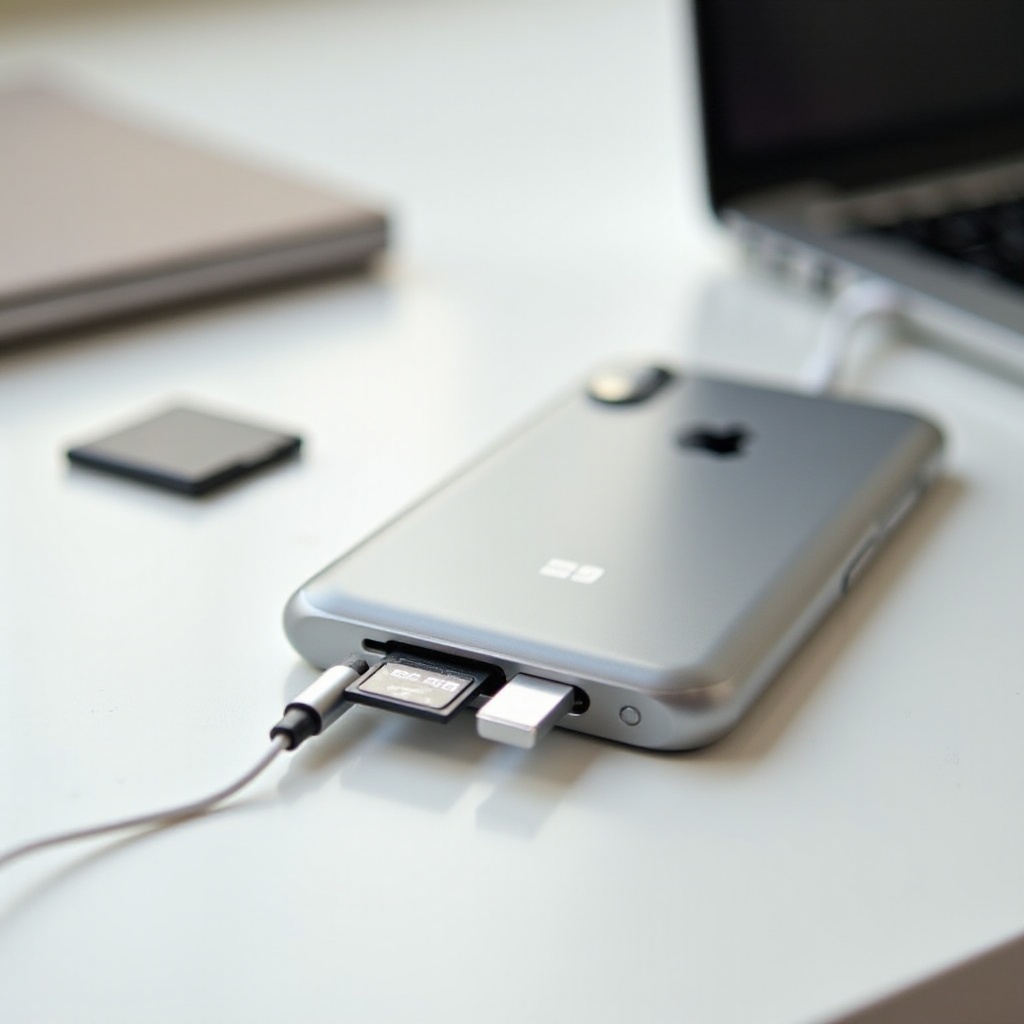
Why You Need a Card Reader for Your iPhone in 2024
As iPhones gain better cameras and more storage, more people use them as their main editing and sharing tool. A good card reader bridges the gap between your dedicated camera and your iPhone so you can keep that compact, mobile workflow and move files reliably whenever you need.
The iPhone as a primary camera and video rig
Many people now shoot entire projects with an iPhone. Others still prefer a mirrorless or DSLR camera for the main footage, but they edit and publish from the phone. A card reader lets you:
- Import RAW photos from your camera to your iPhone.
- Move 4K and even 8K video clips for fast mobile editing.
- Review and deliver content on the go without a laptop.
If you shoot with drones, action cameras, or dedicated video cameras, your media sits on an SD or microSD card. Without a card reader, that footage stays locked away until you reach a computer, and you lose the advantage of your iPhone’s portability.
Limitations of wireless transfers and direct camera cables
Wireless transfers sound convenient, but they bring problems:
- Wi‑Fi or Bluetooth transfers are slow for large 4K files.
- Camera apps can be buggy and disconnect mid‑transfer.
- Many cameras drain battery quickly when used as a wireless source.
Direct camera‑to‑iPhone cables can work, but they often:
- Require special cables or adapters.
- Limit what files you can see or import.
- Lock you into one camera brand’s app or workflow.
A card reader avoids all this. You pull the card from your camera, plug it into a small accessory, and work with the files directly in the Photos or Files app. This direct, offline connection gives you more control and usually saves time.
Who benefits most from using a card reader
A card reader is a must‑have if you:
- Shoot weddings, events, or client work and need to deliver fast.
- Create travel content and want to post while still on the road.
- Fly drones and need to review footage on a big, bright iPhone screen.
- Capture action sports on GoPros or similar cameras.
Even casual users benefit. If you only shoot on holidays, a card reader makes it easy to back up all your vacation photos to your iPhone and then to iCloud or another cloud service. The right reader becomes a simple safety net for your memories.
Now that you know why a card reader matters, the next step is understanding what separates a great reader from a frustrating one. That starts with the key features and specs you should check before you buy.
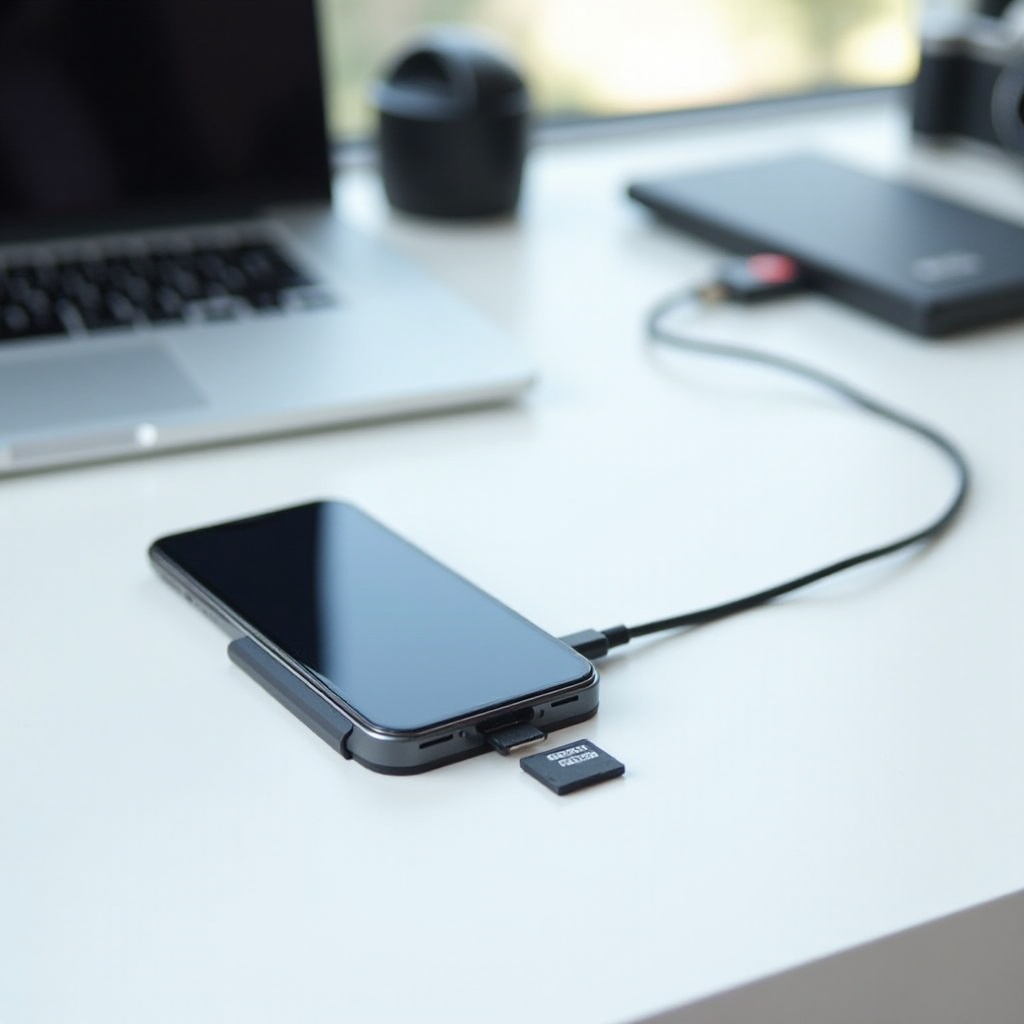
Key Factors to Consider When Choosing the Best Card Reader for iPhone
There are many card readers on the market, but not all work well with iPhones. Before you buy, focus on a few core factors so you do not waste money or risk your files.
Connector type: Lightning vs USB‑C iPhones
Current iPhones fall into two connector groups:
- USB‑C: iPhone 15 series and newer.
- Lightning: iPhone models before the iPhone 15.
You must match the card reader connector to your phone or use a reliable adapter.
- If you have a USB‑C iPhone, choose a USB‑C card reader.
- If you have a Lightning iPhone, pick a reader with a Lightning plug or use Apple’s official adapter if needed.
Using cheap adapters often leads to ‘Accessory Not Supported’ errors or unstable connections. A reader with a native connector is safer and cleaner, and it reduces the number of parts that can fail.
Supported card formats: SD, microSD, CFexpress, and more
Most iPhone users need support for:
- SD cards: common in mirrorless and DSLR cameras.
- microSD cards: used in drones and action cameras.
Some pro users may also need:
- CFexpress or CFast readers: for high‑end cinema or stills cameras.
If you use only SD cards, a simple single‑slot SD reader works well. If you juggle multiple devices, consider a reader that includes:
- SD and microSD slots in one body.
- Possibly USB‑A or USB‑C ports for external drives.
The more formats it supports, the more flexible your workflow becomes, especially if you switch between cameras or share gear with others.
Transfer speeds, UHS ratings, and real‑world performance
Card readers list speed ratings, but real‑world performance matters more. Look for support for:
- UHS‑I: fine for casual users and smaller files.
- UHS‑II: better for high‑resolution, high‑bitrate work.
- CFexpress: for very fast, pro workflows.
A faster reader and card mean:
- Quicker imports of large photo sets.
- Smoother transfers of long 4K or 8K video clips.
- Less time waiting and more time editing.
However, your iPhone and card must also support these higher speeds. There is no point buying a UHS‑II reader if you only own slow UHS‑I cards. Always balance card speed, reader capability, and your iPhone’s port to avoid bottlenecks.
Build quality, portability, and cable durability
You will toss your card reader into bags and pockets, so build quality matters:
- A solid housing protects your cards.
- A short, flexible cable avoids strain on your iPhone port.
- A compact design makes it easy to carry every day.
Some readers have fixed cables, which can wear out. Others have detachable cables, which are easier to replace. Rugged designs make sense if you shoot outdoors a lot or work in rough conditions.
Once you understand the key specs, you can look at specific categories of card readers for different iPhone types. The most obvious split is between USB‑C iPhones and older Lightning models, starting with USB‑C.
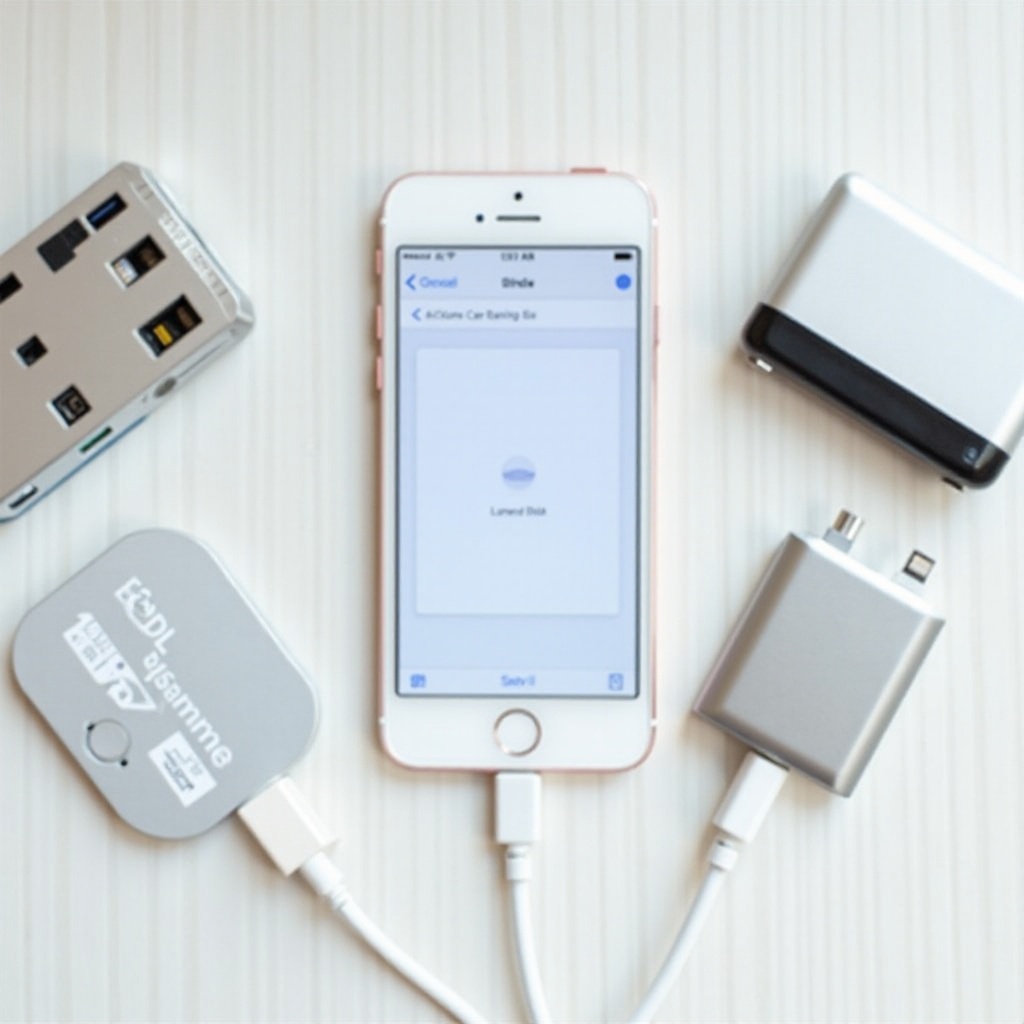
Best Card Readers for USB‑C iPhones (iPhone 15 Series and Newer)
If you use a USB‑C iPhone, you get more flexibility. Many high‑quality USB‑C card readers now work across phones, tablets, laptops, and even cameras. This gives you better value for money and a simpler, more unified gear kit.
Best overall USB‑C SD card reader for iPhone
For most people, the best card reader for iPhone with USB‑C is a compact USB‑C to SD reader that supports:
- SD and microSD cards.
- UHS‑I and often UHS‑II speeds.
- Plug‑and‑play use with iOS and iPadOS.
An ideal option has:
- A short USB‑C plug or cable that connects without blocking your hand grip.
- LED indicators that show card activity.
- A slim body that fits in any pocket or small pouch.
This type of reader suits photographers, travelers, students, and casual creators who want fast, reliable imports without a bulky hub or extra cables.
Best high‑speed USB‑C reader for 4K/8K video
If you shoot high‑bitrate 4K or 8K video, you need a reader that keeps up. Look for:
- UHS‑II SD card support or CFexpress support.
- Strong heat management so it does not throttle during long transfers.
- Tested speeds that match or approach your card’s rating.
These high‑speed readers cost more, but they pay off. Long event shoots, wedding films, and drone flights produce huge files. A premium reader can cut import time in half or more. That makes a big difference if you edit on tight deadlines and want to keep your iPhone responsive.
Best USB‑C hub with built‑in card reader
Some users want more than a simple reader. A USB‑C hub with SD and microSD slots can add:
- Extra USB‑A or USB‑C ports for drives or microphones.
- HDMI output for connecting to monitors or TVs.
- Pass‑through charging so you can power the iPhone while using the hub.
These hubs work well if you:
- Use your iPhone with a keyboard and mouse.
- Move files between iPhone, external SSDs, and other devices.
- Want a mini ‘desktop’ setup around your phone.
If you prefer a simpler setup and mostly import from SD cards, a dedicated reader is still easier and more portable. But for power users who treat the iPhone like a small computer, a hub delivers a lot of flexibility.
While USB‑C users have many options, owners of older models still need strong, reliable accessories. Next, let’s look at the best choices for Lightning iPhones.
Best Card Readers for Lightning iPhones (iPhone 14 and Earlier)
Lightning iPhones still handle card readers well, but you must pay more attention to compatibility and power needs. Using a reader designed and certified for iOS avoids many common issues.
Best overall Lightning SD card reader for iPhone
The best card reader for iPhone with a Lightning port is often a small, Apple‑certified Lightning to SD card reader. Key benefits include:
- Direct Lightning plug with no extra adapters.
- Official support in iOS for fast, stable imports.
- Simple use with the Photos and Files apps.
This type of reader is ideal for:
- Everyday photographers.
- Parents backing up family photos.
- Travelers who want a compact, trusted setup.
Buying a certified product costs more, but it reduces the risk of connection errors and corrupt transfers. If your work or memories matter, that extra reliability is worth the price.
Best budget Lightning card reader for casual users
If you only import photos and short clips a few times a year, a budget Lightning reader can be enough. Look for:
- At least SD and microSD support.
- Positive reviews from other iPhone users.
- A short cable that reduces port strain.
You trade some speed and build quality for a lower price. Use this type of reader gently, avoid tugging on the cable, and always eject the card safely to minimise issues. For occasional holiday use, this is often all you need.
Best Lightning reader for creators on the go
Mobile creators who shoot and edit daily should spend more on a robust Lightning reader that offers:
- A strong casing and reinforced cable.
- Support for high‑speed SD cards.
- Reliable performance even after frequent use.
These readers suit vloggers, journalists, and social media creators who often plug and unplug their gear. The extra durability and speed give you peace of mind when you work away from a computer and must deliver content fast.
Some users want a single reader they can share across iPhone, iPad, and Mac. For them, multi‑device card readers can simplify everything.
Multi‑Device Card Readers for iPhone, iPad, and Mac
Owning one card reader per device can get messy. Multi‑device readers simplify your setup by working across your entire Apple ecosystem, which helps you carry less gear and keep a cleaner workspace.
Dual‑connector and triple‑connector card readers
These versatile readers might include:
- USB‑C and USB‑A.
- USB‑C and Lightning.
- Sometimes all three: USB‑C, USB‑A, and Lightning.
You can:
- Plug the reader into your iPhone in the field.
- Use the same reader on your Mac at home.
- Share it with different devices without extra adapters.
This reduces clutter and helps you standardise your workflow across all your screens.
Pros and cons of ‘one reader for all devices’
Benefits:
- Fewer accessories to buy and carry.
- Easier cable management.
- Consistent transfer speeds and behaviour across devices.
Downsides:
- Often larger and heavier than single‑purpose readers.
- Extra connectors can break if handled roughly.
- Higher price than simple USB‑C or Lightning readers.
If you mostly work from an iPhone and only sometimes use a Mac, a compact iPhone‑focused reader may still be better. If you constantly switch between phone, tablet, and laptop, the flexibility of a multi‑device reader is hard to beat.
When to choose a dedicated iPhone card reader instead
Choose a dedicated iPhone reader if you:
- Want the smallest, lightest option possible.
- Rarely transfer files to a computer.
- Prefer a very simple, plug‑and‑go accessory.
If you split your time between phone and laptop editing, or you work with clients on different machines, a multi‑device reader is worth the extra cost. Once you decide which style suits you, the next step is learning how to use your card reader properly with your iPhone.
How to Use a Card Reader with Your iPhone
Setup is simple, but a clear workflow saves time and avoids problems. Follow these steps to connect, import, and manage your files without losing data or getting stuck.
Connecting a card reader to USB‑C and Lightning ports
To connect:
- Insert your SD or microSD card into the reader.
- Plug the reader into your iPhone’s port (USB‑C or Lightning).
- Wait a moment for iOS to recognise the accessory.
If nothing happens:
- Make sure the card is fully inserted.
- Try another card to rule out card damage.
- Disconnect and reconnect the reader.
Avoid using long, cheap extension cables. They often cause connection drops and slow transfers. A direct, short connection is usually best for stability.
Importing photos and videos via the Photos app
For simple photo and video imports:
- Open the Photos app after you connect the reader.
- Tap the Import tab when it appears.
- Select the items you want or choose ‘Import All’.
- Choose whether to keep or delete the media on the card.
Photos sorts imported items by date and metadata, making them easy to find. This workflow suits most casual users and many photographers who prefer a straightforward approach.
Managing files with the Files app for advanced workflows
For more control over your files:
- Open the Files app.
- Look for your card under ‘Locations’ (it may show as ‘No Name’ or the card brand).
- Browse folders on the card and long‑press to copy, move, or share files.
- Move files to iCloud Drive, On My iPhone, or external drives connected through a hub.
This method works well if you:
- Organise projects in folders.
- Use third‑party editing apps.
- Need to move files between multiple storage devices.
If something goes wrong during this process, a few simple checks often solve the issue. That is where basic troubleshooting comes in.
Troubleshooting Common iPhone Card Reader Problems
Even with a good reader, problems can appear. Knowing how to fix them quickly keeps your workflow moving and protects your media.
Fixing ‘Accessory Not Supported’ errors
If you see this message:
- Unplug the reader and plug it back in.
- Restart your iPhone.
- Check for an iOS update in Settings > General > Software Update.
- Test with another card or device.
If the error persists, the reader may not be certified for iOS or may be faulty. In that case, contact the seller or consider replacing it with a known, iPhone‑friendly model that lists explicit iPhone support.
Dealing with slow transfers or incomplete imports
Slow transfers often come from:
- Slow cards (older or cheap SD and microSD cards).
- A nearly full iPhone storage.
- A reader overheating during long transfers.
To improve speed:
- Use UHS‑I or UHS‑II cards from trusted brands.
- Free up space on your iPhone before big imports.
- Give the reader and phone a short break during huge transfers.
For incomplete imports, check that:
- You do not disconnect the reader before the process ends.
- You keep the iPhone screen awake during long imports.
- You copy files in smaller batches if problems persist.
Preventing data corruption and card damage
Protect your footage and photos by:
- Always stopping use before removing the card.
- Avoiding card removal while files are copying.
- Keeping cards in protective cases when not in use.
- Reformatting cards in your camera, not on the iPhone, once files are safely backed up.
A few simple habits can save you from losing irreplaceable shots. With the technical issues under control, the final step is picking the type of card reader that fits how you actually shoot and edit.
Which Card Reader Is Best for Your iPhone Use Case?
Not everyone needs the same card reader. Your perfect choice depends on how and where you shoot, how fast you need to work, and how much gear you want to carry.
Best choice for photographers
Most photographers should pick:
- A compact USB‑C or Lightning SD/microSD reader.
- Support for UHS‑I or UHS‑II cards.
- Solid build and a short, flexible cable.
This setup keeps your kit light while still handling big RAW photo sets. If you shoot professionally or expect to upgrade your camera soon, leaning toward UHS‑II support gives you more speed and future‑proofing.
Best choice for videographers and content creators
Video creators should aim for:
- High‑speed SD or CFexpress readers.
- USB‑C connectivity on newer iPhones.
- Possibly a hub with extra ports for SSDs and monitors.
You move large 4K or 8K files and often work on tight deadlines. Faster readers with better heat management make your life easier and your workflow more reliable. If you edit in advanced apps and send files to clients from your phone, that speed upgrade is worth it.
Best choice for students, travelers, and casual users
If you shoot less often, focus on:
- A small, affordable reader that supports SD and microSD.
- Good user reviews from iPhone owners.
- Easy plug‑and‑play use with the Photos app.
You do not need the fastest hardware. You need something you can trust when you want to back up your camera or action‑cam footage to your iPhone on the go. A simple, well‑reviewed reader is enough for most casual use cases.
Conclusion
Choosing the best card reader for iPhone comes down to knowing your device, your cards, and your workflow. USB‑C iPhones pair well with modern, fast readers and hubs, while Lightning iPhones benefit from certified, iOS‑friendly models. In both cases, focus on connector type, card support, speed, and build quality.
A good card reader unlocks the full potential of your iPhone as a photo and video tool. You move files faster, edit anywhere, and depend less on your computer. Whether you are a professional photographer, a YouTube creator, a drone pilot, or a casual traveler, the right reader becomes a small but vital part of your kit.
Invest in a reliable accessory, follow safe transfer habits, and use the Photos and Files apps wisely. Your iPhone can handle serious media work once you give it a fast, stable bridge to your camera cards.
Frequently Asked Questions
Do all card readers work with every iPhone model?
No. Card readers must match your iPhone’s port and iOS compatibility. USB‑C readers work best with USB‑C iPhones, while Lightning readers suit older models. Some multi‑device readers offer both USB‑C and Lightning connectors, but you should always check the product description for iOS support. Avoid very cheap, unbranded readers that do not mention iPhone compatibility, as they often cause connection errors.
Is a USB‑C card reader better than a Lightning card reader for iPhone?
For newer iPhones, USB‑C card readers are usually better. USB‑C offers higher potential speeds, better power handling, and wider support across devices like iPads and Macs. This means a single USB‑C reader can serve your whole workflow. Lightning readers still work well on older iPhones but have lower performance ceilings and fewer multi‑device options, so they are less flexible long term.
Can I edit photos and videos directly from the card on my iPhone?
You can sometimes preview and lightly edit files directly from the card, but it is safer and faster to copy them to your iPhone or an attached external drive first. Editing from the card can be slow, and if the reader disconnects, you risk losing changes or corrupting files. For serious work, import the media into the Files or Photos app, then edit from local or external storage that stays connected.