
Introduction
Mobile games feel much better when you play them with a real controller instead of tapping tiny on-screen buttons. If you already own a PlayStation 5, you might be asking a simple question: can you connect a PS5 controller to iPhone and use it for games, remote play, or cloud streaming?
The short answer is yes, you can pair a PS5 DualSense or DualSense Edge with most modern iPhones over Bluetooth. Once connected, the controller can work in many games from the App Store, Apple Arcade, and popular cloud gaming apps. You can even stream games from your PS5 to your iPhone and control everything with the same pad you use in your living room.
This guide walks you through everything you need: requirements, step-by-step pairing, settings, common problems, and smart tips to make your iPhone gaming setup feel as close as possible to a handheld console.
Can You Connect a PS5 Controller to iPhone? (Core Answer)
You can connect a PS5 controller to an iPhone using Bluetooth, as long as your iPhone runs a recent version of iOS and you use a compatible DualSense model. The connection works like any other wireless game controller. Your iPhone sees the PS5 pad as a standard supported game controller and passes its inputs to compatible apps and games.
Once paired, you can:
- Navigate menus in supported games
- Play Apple Arcade titles with full controller layouts
- Use the controller in PS Remote Play to stream games from your PS5 to your iPhone
- Control many cloud gaming services that support external controllers
There are some limits. Features like advanced adaptive triggers and full haptic feedback may not work exactly as they do on the console. Some games also do not support controllers at all, so you may still use touch controls in those cases.
Still, for supported titles, the DualSense offers a big upgrade over touch. Response feels faster, aiming is easier, and long sessions become more comfortable. Before you pair the devices, you should check that your iPhone and controller meet the basic requirements.
Requirements: What You Need Before Connecting
Before you try to connect a PS5 controller to your iPhone, make sure both your phone and controller meet the compatibility requirements. This avoids many pairing problems later and ensures you get the full benefit of controller support.
Compatible iPhone Models and iOS Versions
Most recent iPhones support PS5 controllers, as long as the software is up to date. To prepare your device:
- Open Settings > General > Software Update.
- Install any available updates.
- After updating, restart your iPhone.
As a rule, modern iPhone models that receive current iOS updates can work with a PS5 controller. If your phone still gets new iOS versions and supports Bluetooth accessories without issues, you are likely good to go. Keeping iOS updated also helps with controller stability and fixes bugs that might affect Bluetooth.
Supported PS5 Controllers (DualSense and DualSense Edge)
The following controllers pair well with iPhone:
- Standard PS5 DualSense wireless controller (all color variants)
- PS5 DualSense special editions with the same hardware
- DualSense Edge pro controller, treated as a standard DualSense by iOS
Third-party PS5-style controllers may or may not work, depending on how they identify over Bluetooth. For the smoothest and most reliable experience, use an official Sony DualSense or DualSense Edge. These models get the best support in iOS and in most games.
Games and Apps That Work Best With a PS5 Controller on iPhone
Not every game supports controllers, but many popular ones do. You will get the best results in:
- Apple Arcade games: most offer native controller support and clear button layouts.
- Big-name mobile titles: many shooters, racers, and action games list ‘controller support’ in the App Store description.
- PS Remote Play app: allows full control of your PS5 over Wi-Fi or mobile data.
- Cloud gaming apps that support external controllers.
If you see controller icons, or the App Store mentions game controller support, your DualSense will likely work. With these basics covered, you are ready to place the controller into pairing mode so your iPhone can discover it.
How to Put Your PS5 Controller Into Pairing Mode
To connect a PS5 controller to iPhone, you must first place the controller into Bluetooth pairing mode. This makes it discoverable so your iPhone can see it and start the connection process.
Powering On and Entering Bluetooth Pairing Mode
Follow these steps to enter pairing mode:
- Make sure the controller has enough battery. Plug it into a charger for a few minutes if needed.
- Unplug the controller from any cables.
- Press and hold the PS button and the Create (Share) button at the same time.
- Keep holding both buttons until the light bar around the touchpad starts blinking rapidly.
Blinking lights mean the controller is in pairing mode and ready to connect to a new device. If you let go too early, the controller might just turn on without entering pairing mode, so hold the buttons until you see the fast blink.
Understanding the PS5 Controller LED Indicators
The light bar tells you what the controller is doing:
- Fast blinking white or blue: pairing mode, waiting for a device.
- Solid light: connected to a device and active.
- Slow pulsing: controller is on but idle or charging.
Knowing these patterns helps you confirm if the pad is ready to pair or already connected to something else. If it shows a solid light but your iPhone cannot see it, the controller may still be linked to another device nearby.
What to Do if Pairing Mode Does not Activate
If the light bar does not start blinking:
- Release the buttons and wait a moment.
- Press and hold the PS and Create buttons again for a bit longer.
- If nothing happens, reset the controller by pressing the small reset button on the back with a pin, then try again.
Once the controller blinks rapidly, leave it in that state and move to your iPhone to complete the connection. The actual pairing in iOS only takes a few taps.
Step-by-Step: How to Connect a PS5 Controller to iPhone via Bluetooth
With the controller in pairing mode, you can now connect it to your iPhone through the Bluetooth settings. This only takes a minute and works the same way as pairing headphones or other accessories.
Turning on Bluetooth and Finding the Controller on iPhone
On your iPhone:
- Open Settings.
- Tap Bluetooth.
- Make sure the toggle is On.
- Stay on this screen and look under Other Devices.
- Wait a few seconds for the PS5 controller to appear. It usually shows up as DualSense Wireless Controller or a similar name.
If you do not see it, confirm the controller is still blinking. If not, put it back in pairing mode and refresh the Bluetooth screen. You can also toggle Bluetooth off and on again to force a new scan.
Completing the Pairing Process in Settings
When the DualSense appears:
- Tap DualSense Wireless Controller in the list.
- Wait for the status to change from ‘Connecting…’ to ‘Connected’.
- Check the controller light bar. It should switch to a steady light, showing that it is successfully paired.
From this point on, your iPhone will remember the controller. You will not need to repeat the full pairing process every time. A simple press of the PS button will usually reconnect it.
Confirming the Connection in Game Controller Settings and a Test Game
To double-check the connection:
- On your iPhone, go to Settings > General > Game Controller (if available on your iOS version).
- Look for the DualSense in the list of connected controllers.
- Open a known controller-friendly game, such as an Apple Arcade title, and move the sticks or press buttons to test input.
If everything responds as expected, you are ready to start using your PS5 controller in real games and apps. The next step is to explore how the controller works across different types of iPhone games.
How to Use a PS5 Controller With iPhone Games and Apps
After pairing, the next goal is to make the most of your new setup. Many iPhone games and apps work very well with a PS5 controller and feel closer to console gaming than touch controls ever could.
Apple Arcade Titles With Full Controller Support
Apple Arcade is one of the best places to start because:
- Most Arcade games are designed with controller support in mind.
- Interface prompts often show controller buttons.
- The experience feels polished and consistent across titles.
Open the Arcade tab in the App Store, pick a game, and look in the description for ‘Game Controllers’ support. Launch the game, and the PS5 controller should work right away if it is connected.
Popular App Store Games That Support PS5 Controllers
Many free-to-play and premium games outside Apple Arcade also support controllers. When browsing:
- Scroll to the Supports section on the App Store page.
- Look for notes like ‘Controller Support’ or ‘Game Controller’.
Genres that often support controllers include:
- Racing games with analog steering
- Shooters that benefit from precise aiming
- Platformers with tight jump timing
- Action RPGs and adventure games
Each game may use a different button layout, but most follow familiar console patterns. If a layout feels odd, check the in-game settings for button maps.
Using PS Remote Play and Cloud Gaming Services on iPhone
You can go further and use your PS5 controller for streaming from a console or the cloud.
- PS Remote Play:
- Install the PS Remote Play app.
- Sign in with your PlayStation account.
- Connect to your PS5 over Wi-Fi or mobile data.
- Use the DualSense to control the PS5 interface and games from your iPhone.
- Cloud gaming apps:
- Install your chosen cloud service app.
- Sign in and start a session.
- Most services detect the controller automatically and show on-screen prompts.
If your connection feels solid, the experience can feel very close to direct console play, especially on a fast network. Once you are comfortable using the controller in games, you can fine-tune how it behaves with iOS settings and in-game options.
Customizing PS5 Controller Settings on iPhone
Fine-tuning your PS5 controller settings on iPhone can make your gaming more comfortable and precise. iOS and individual games often let you adjust how the controller behaves so it matches your habits.
Button Remapping and Controller Profiles in iOS
Depending on your iOS version, you may see options under Settings > General > Game Controller that let you:
- Remap buttons to different actions
- Create and save controller profiles
- Adjust how certain buttons behave or respond
Use these options if a game does not offer its own remapping menu or if you want a consistent layout across multiple games. A single profile can give you the same feel in many different titles.
Tweaking Sensitivity, Vibration, and In-Game Options
Many games have their own controller menus. Look for sections like ‘Controls’ or ‘Controller’ in settings. There you can often:
- Adjust look and aim sensitivity
- Invert camera axes if you prefer
- Enable or disable vibration
- Change button layouts or presets
Tuning these options helps you move and aim more naturally, especially in shooters and racing games. Take a few minutes to tweak settings when you start a new game, and you will play better and feel more in control.
Using Accessibility Features With a PS5 Controller
iOS also offers accessibility tools that work with controllers. Under Settings > Accessibility, you may find options that:
- Remap buttons to assist with limited mobility
- Add shortcuts and custom actions
- Reduce motion or adjust feedback for comfort
These tools help you tailor the controller experience to your personal needs. With your layout and options dialed in, you are ready to handle any connection issues that may appear over time.
Troubleshooting PS5 Controller and iPhone Connection Issues
Sometimes, even when everything seems correct, you can run into problems. Maybe your iPhone does not see the controller, or the connection drops in the middle of a match. Most issues have simple fixes that you can try in a few minutes.
PS5 Controller Not Showing Up in Bluetooth
If your iPhone cannot find the controller:
- Make sure the controller is in pairing mode (fast blinking light).
- Turn Bluetooth off and back on in Settings > Bluetooth.
- Restart your iPhone and try again.
- Move away from other active Bluetooth devices that might cause interference.
- Place the controller into pairing mode once more and watch the Bluetooth list.
If the controller is already paired with a PS5 or another device nearby, turn that device off or disconnect the controller from it first. A controller that auto-connects to your console will not appear as available on your iPhone.
Frequent Disconnections, Lag, or Input Delay
If the controller disconnects often or feels laggy:
- Keep the controller and iPhone close together, with no large obstacles between them.
- Avoid placing them near other wireless devices, routers, or microwaves.
- Close unused apps running in the background that may stress the system.
- For cloud and remote play, use a strong Wi-Fi network or better mobile signal.
If the issue appears only in one game or app, check that app’s update status. A fresh patch can fix controller support problems, especially when new iOS versions roll out.
Resetting the PS5 Controller and Re-Pairing With iPhone
If nothing helps:
- Turn off Bluetooth on your iPhone.
- On the controller, press the small reset button on the back using a pin or paperclip.
- Hold it for a few seconds, then release.
- Turn Bluetooth back on and put the controller into pairing mode again.
- Repeat the pairing steps in the Bluetooth menu.
This reset clears old connections and often resolves stubborn pairing or input issues. Once your connection is stable, it becomes easy to switch between your iPhone and PS5.
How to Disconnect, Forget, or Switch the PS5 Controller Between Devices
Once you start using your PS5 controller with your iPhone, you will sometimes want to disconnect it or switch it back to your console. Managing these connections correctly makes swapping devices quick and painless.
Temporarily Disconnecting vs. Forgetting the Controller
To temporarily disconnect:
- Turn off Bluetooth on your iPhone, or
- Hold the PS button on the controller until it powers down.
The next time you turn on Bluetooth and the controller, they should reconnect automatically if the pairing stays saved.
To forget the device:
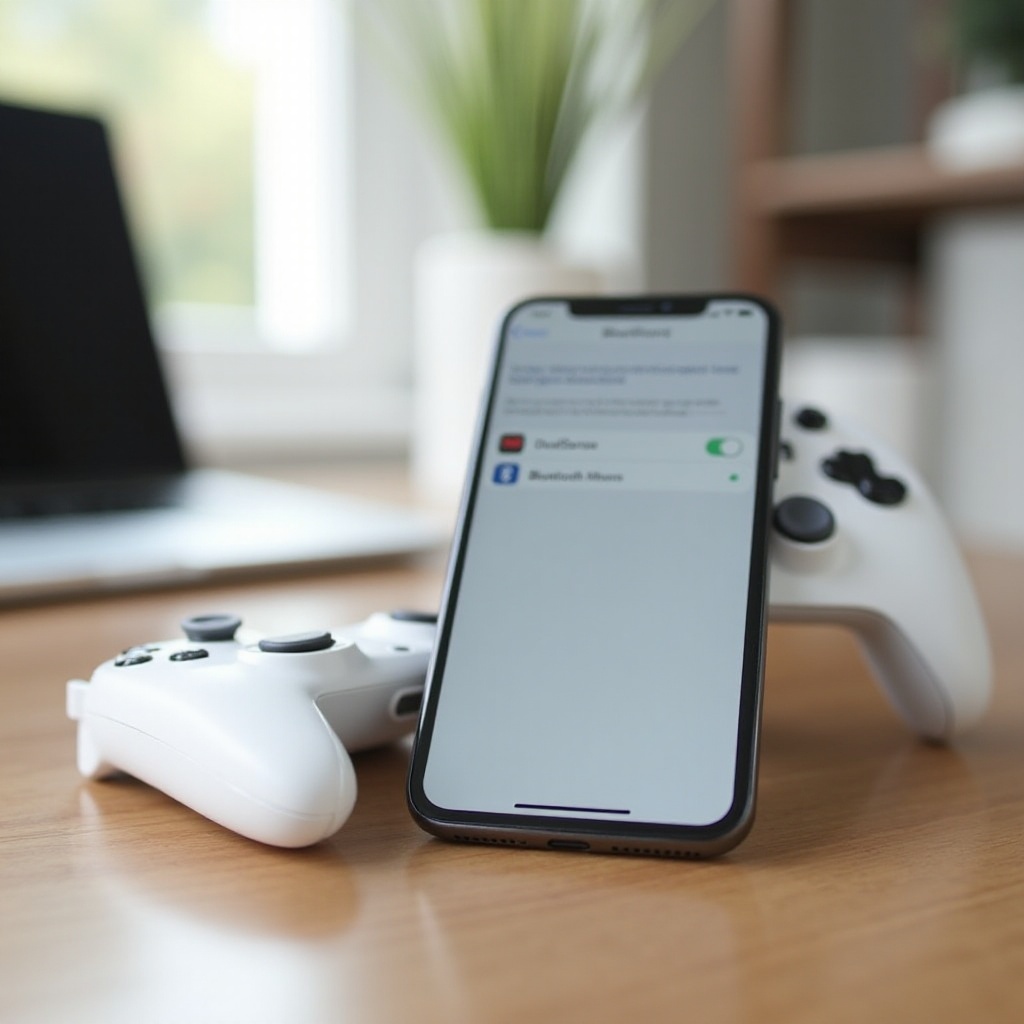
- Go to Settings > Bluetooth.
- Tap the ‘i’ icon next to DualSense Wireless Controller.
- Select Forget This Device.
Use this option only if you want to remove the pairing completely and set it up again from scratch, for example when you troubleshoot recurring problems.
Quickly Reconnecting the Controller to Your iPhone
If you have already paired the controller with your iPhone before, reconnecting is simple:
- Make sure Bluetooth is on.
- Press the PS button on the controller.
- Wait a few seconds for the light to turn solid, indicating a successful connection.
Your iPhone should remember the controller and connect without going through full pairing again. This makes it easy to pick up and play whenever you have a spare moment.
Switching the PS5 Controller Back to Your PS5 Console
To use the controller with your PS5 again:
- Turn on your PS5 console.
- Plug the controller into the PS5 with a USB-C cable.
- Press the PS button.
The console will assign the controller to itself. After that, it will usually reconnect to the PS5 automatically when you press the PS button, unless the controller connects to your iPhone first. If you want the PS5 to take priority, turn off Bluetooth on your iPhone while you power up the console.
Tips to Improve Your Mobile Gaming Experience With a PS5 Controller
You can play with the controller and iPhone alone, but a few extra tweaks and accessories can make gaming much more comfortable and stable. These tips help you turn a basic setup into a portable gaming rig.
Recommended Phone Clips, Mounts, and Stands
Holding your iPhone and controller at the same time gets awkward fast. To fix this, consider:
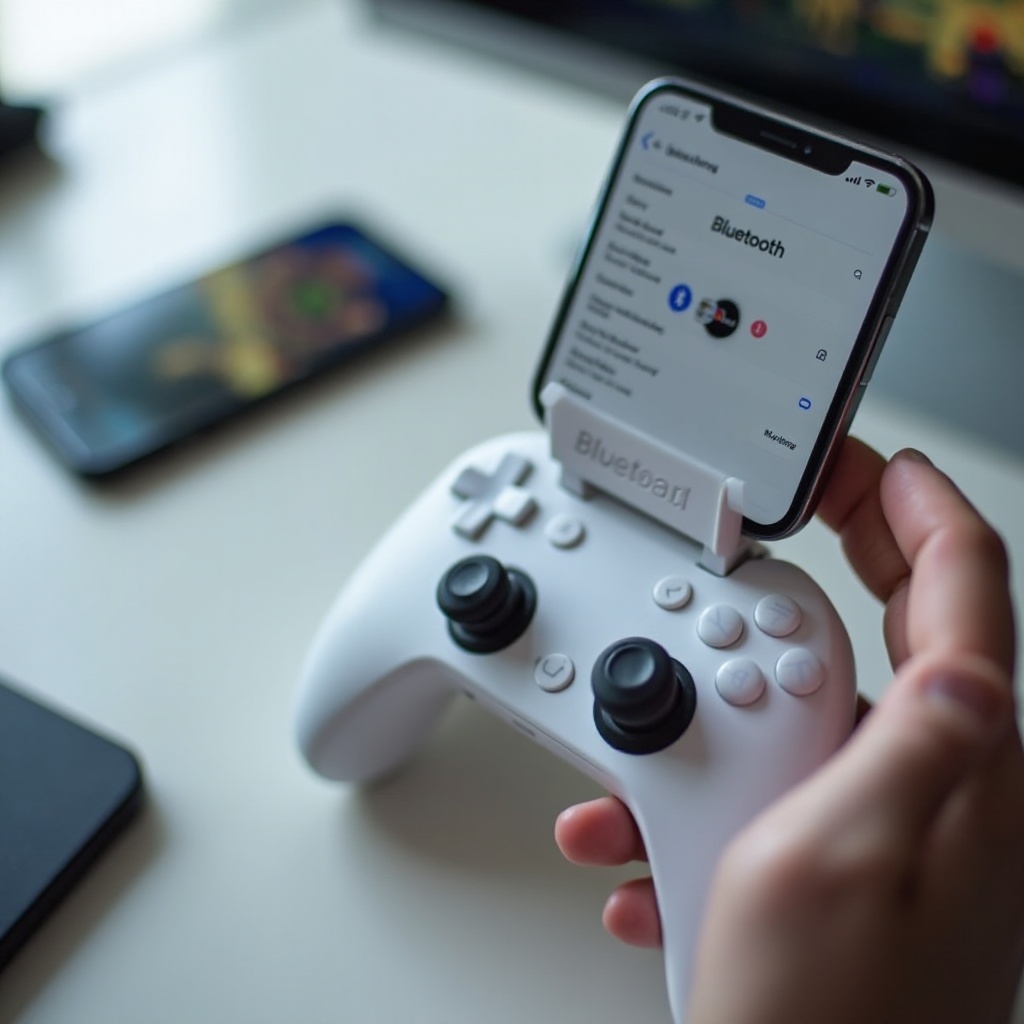
- Controller phone clips: snap onto the DualSense and hold your iPhone above it.
- Adjustable stands: place your iPhone on a table and hold the controller separately.
- Desk or bed mounts: clamp to furniture and hold your phone at eye level.
These options reduce hand strain and make long gaming sessions more enjoyable. A good clip or stand also keeps the screen steady, which helps with aiming and quick reactions.
Reducing Lag and Optimizing Network Settings for Remote Play
For cloud gaming or PS Remote Play, network quality matters as much as the controller. To reduce lag:
- Use a fast Wi-Fi connection where possible.
- Stay close to your router to get a strong signal.
- Avoid streaming video or large downloads on the same network while gaming.
- In Remote Play settings, lower resolution or frame rate if your connection is unstable.
A stable network means your controller inputs feel almost instant, which is critical for action games. Even small tweaks, like moving closer to the router or switching to a less congested Wi-Fi band, can improve your experience.
Managing Battery Life for Both iPhone and PS5 Controller
Gaming drains both your phone and controller battery. To keep them going:
- Lower screen brightness slightly to reduce power use.
- Close unused apps that run in the background.
- Use a power bank or plug your iPhone into a charger for long sessions.
- Charge the DualSense between sessions so it is ready when you need it.
These steps help you enjoy more time gaming and less time staring at a low-battery warning. With your setup optimized for comfort, performance, and endurance, you can focus on what matters most: playing.
Conclusion
You now know the full answer to ‘can you connect a PS5 controller to iPhone?’ and how to get the best experience out of it. With a compatible iPhone, a DualSense controller, and a few minutes in the Bluetooth settings, you can turn your phone into a capable handheld gaming device.
The process is simple: check your requirements, put the controller into pairing mode, connect through Bluetooth, then test and customize your settings. If problems appear, quick fixes like toggling Bluetooth, resetting the controller, or updating apps usually solve them without much effort.
Paired with Apple Arcade, controller-friendly games, PS Remote Play, and cloud services, your PS5 controller gives you console-style control wherever you carry your iPhone. Add a mount, fine-tune your network, and manage battery life, and you have a portable setup that makes mobile gaming far more fun and comfortable.
Frequently Asked Questions
Can you connect more than one PS5 controller to an iPhone at the same time?
Some games and apps support multiple controllers for local multiplayer, but not all do. You can pair more than one PS5 controller with your iPhone through Bluetooth, then open a game that supports multi-controller play. If a second controller does not work, the game likely supports only a single controller or single-player on one device.
Do adaptive triggers and advanced haptics work fully on iPhone with a PS5 controller?
The basic functions of the triggers and vibrations usually work, but advanced features like fine adaptive trigger resistance and full PS5-style haptic feedback may not be fully supported in all iPhone games or apps. Support depends on how each app integrates the controller. You should expect standard trigger input and vibration, but not always the same advanced effects you see on a PS5 console.
Can you use a cable instead of Bluetooth to connect a PS5 controller to iPhone?
The most common and reliable way to connect a PS5 controller to iPhone is over Bluetooth. Some adapters and workarounds may allow wired connections, but they are not as straightforward and may require extra hardware or apps. For most users, wireless pairing through Bluetooth is the simplest, most stable, and best-supported option for using a PS5 controller with an iPhone.